

To share your screen on Teams, join the meeting, select Share in the meeting controls, then choose Screen to show everything on your display or Window to show one app. When you are done, select Stop sharing and the meeting carries on. In Teams for the web the first choice is Screen, window, or tab, and the browser then asks exactly what to share.
Which one you pick decides what other people see. On our PC we shared a Word window, brought Excel to the front, and the other person in the meeting still saw only Word. Share a single window when private apps are open, and share the whole screen only when you need to move between apps.
The short version
- The whole display: select Share, then Screen.
- One app: select Share, then Window, and pick the window by its title.
- Teams for the web: select Screen, window, or tab, then choose in the browser's picker.
- The full toolbar while sharing: press Ctrl + Shift + Spacebar.
- Share is greyed out: ask the organizer to make you a presenter.
Teams sharing choices at a glance
Desktop Teams and Teams for the web open different first screens, but they lead to the same kinds of share. Pick the row that matches what you want people to see.
| What you want to show | Where to choose it | What other people see |
|---|---|---|
| Everything on one display | Desktop: Share > Screen. Web: Screen, window, or tab > Entire Screen | The whole display, including any app you switch to |
| One document or app | Desktop: Share > Window. Web: Screen, window, or tab > Window | Only that window, even with another app in front on your PC |
| One browser tab | Web: Screen, window, or tab > the tab view (Microsoft Edge Tab in Edge) | Only that tab |
| Slides with private notes | Share > PowerPoint Live | The slides, while your notes stay on your screen |
| A board or workbook to work on together | Share > Microsoft Whiteboard or Excel Live | The board or workbook inside the meeting, for people with access |
The first three rows are the everyday choices. The last two hand the content to Teams itself, which works differently and is covered further down.
Share your whole screen in a Teams meeting
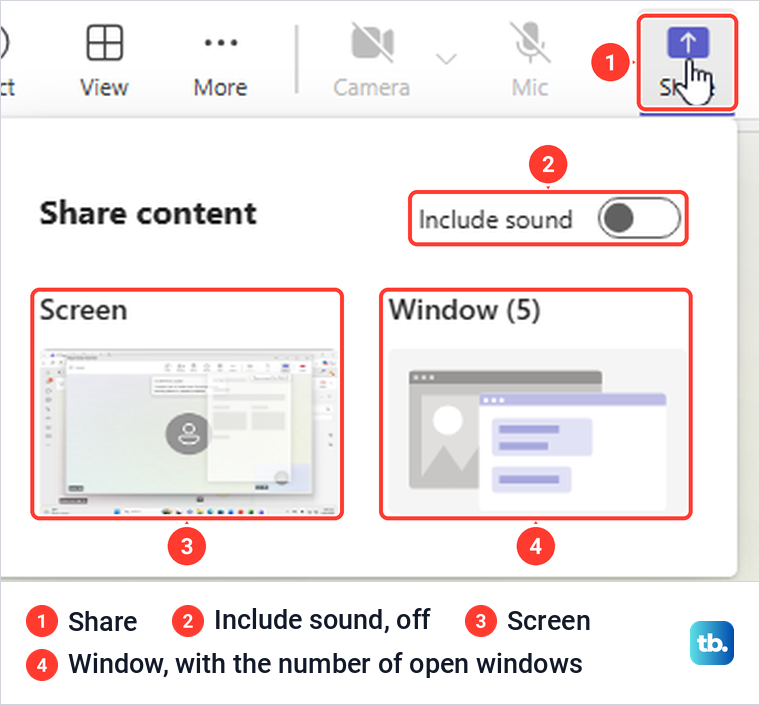
If you do not have a meeting yet, set up a Teams meeting and join it first, because the Share button only appears once you are in. In the meeting window, look along the top bar for Share, between Mic and Leave.
Select Share and a panel named Share content opens. In our desktop meeting it held an Include sound switch, which was off, and two choices: Screen and Window, with the number of open windows in brackets. Microsoft's steps for PowerPoint Live, Microsoft Whiteboard and Excel Live also start from Share, and for Excel Live it names desktop and web Teams, so your panel may list those below Screen and Window.
Before you choose Screen, close anything private and turn off notifications on your device so nothing private pops up during the share. A whole-screen share shows whatever reaches the display, and Microsoft's own description of a phone screen share warns that it includes notifications and other activity.
Select Screen. On our PC, Teams drew a red border round the display, put a small bar at the top reading You're sharing your screen with a Stop sharing button, and shrank the meeting to a small window in the bottom right corner. The other person saw our whole display, with the Word document we had open.
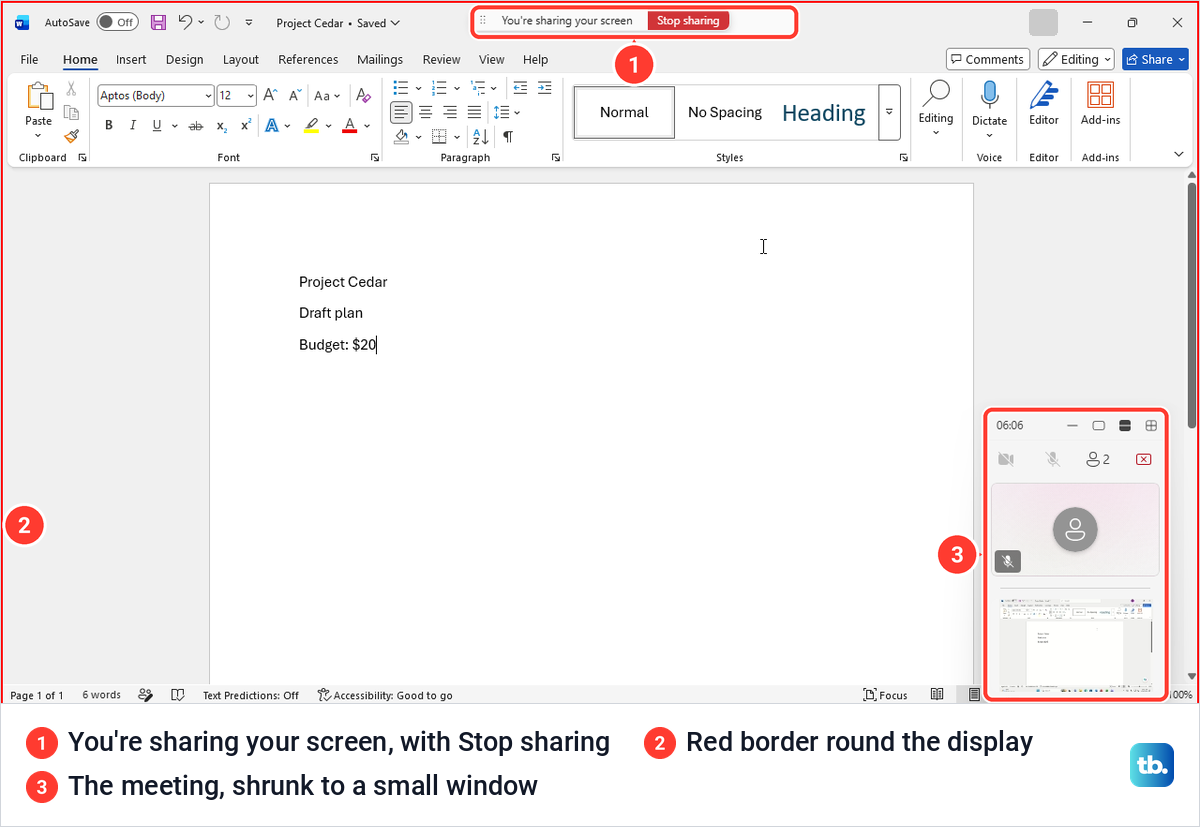
Everything you do now is visible, so switching apps switches what people see. To finish, select Stop sharing on that bar or on the presenter toolbar. When we did, Teams went back to the full meeting window and the meeting carried on.
Share one window and keep other apps private
Window is the safer choice for a document, a spreadsheet or a slide deck. Select Share, then Window, and Teams lists your open windows with a small preview and each window's title, such as Project Cedar - Word.
Pick the window by its title, not by where it sits in the list. We opened the list twice and the order changed in between: Word was third the first time and second the next, because the list follows the windows you used most recently.
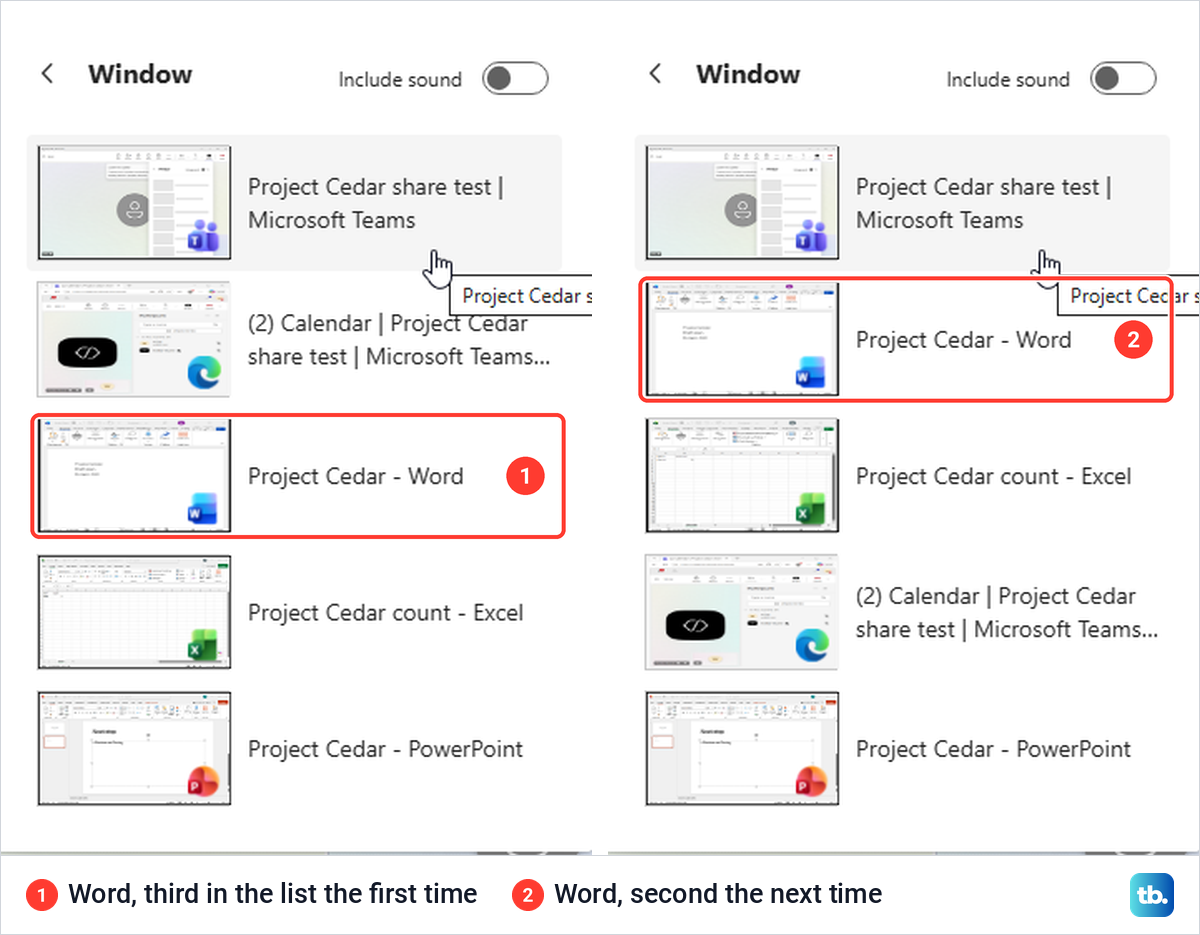
Once you pick a window, Teams shows You're sharing a window and draws the red border round that window only. Then we checked the part that matters. We brought Excel to the front on our PC while sharing Word, and the other person in the meeting still saw only the Word window.
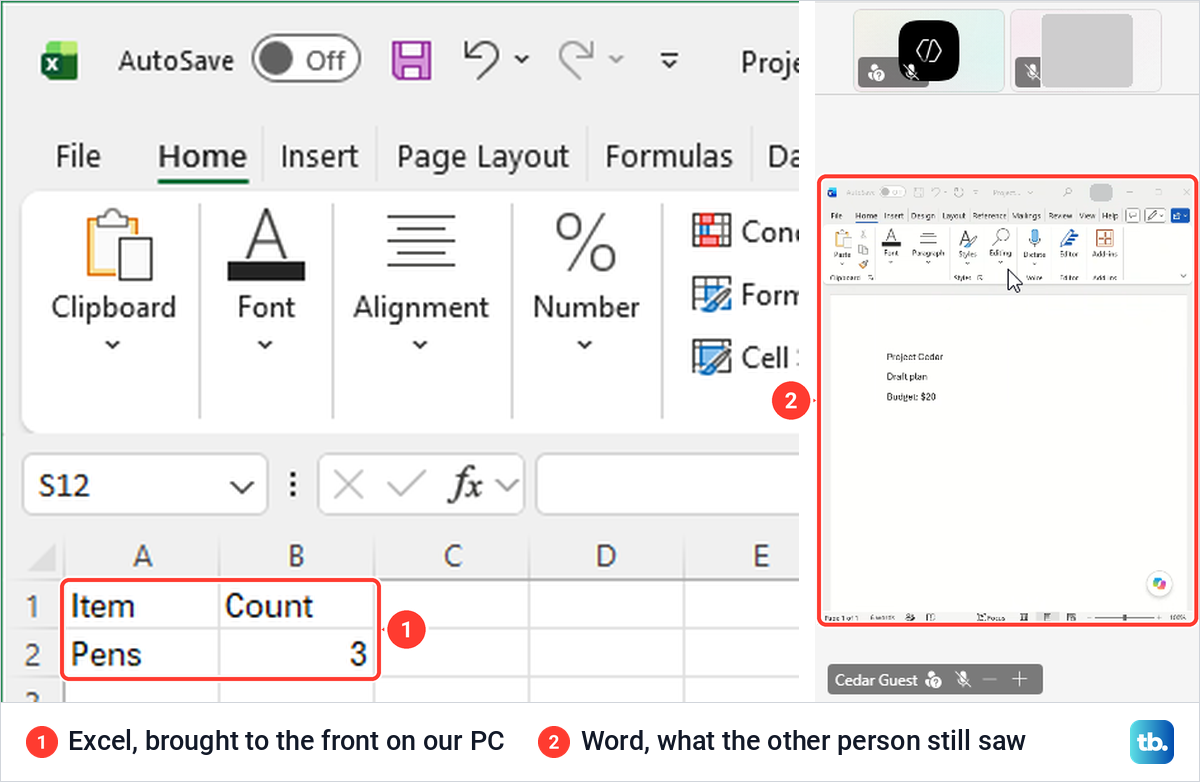
That makes Window the right choice when a chat, an email or a private file might appear while you present. To show two apps, share them one at a time or switch to Screen.
Use the presenter toolbar and stop sharing
While you share, Teams keeps its controls in a toolbar that only you can see. Microsoft says moving the pointer to the top of the shared screen drops it down. On our PC, pointing at the top did not bring the full toolbar down.
The reliable way in is the keyboard. Press Ctrl + Shift + Spacebar while you share, and the full toolbar opens with the keyboard focus on it.
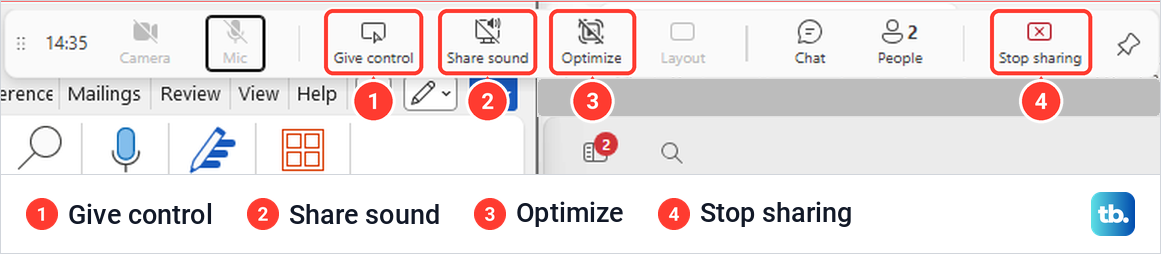
The toolbar held Camera, Mic, Give control, Share sound, Optimize, Layout, Chat, People and Stop sharing, plus a pin to keep it in place. Microsoft says Optimize prevents choppy video, and Chat opens a compact meeting chat that your audience does not see in the share.
Microsoft says Layout works while your camera is on and you are sharing, and places your video with the content in one of several arrangements. If you plan to use it, change your Teams camera settings before the meeting, and change the background in Teams if the room behind you should stay private.
Give control lets another person in the meeting click and type on what you share. Ours opened a list titled Give control of your screen to, with a search box and the people in the meeting. Microsoft's warning is to give control only to people you trust, because they can send commands that affect your system, and to select Take back when you want it back.
A second shortcut, Ctrl + Shift + E, opens the Share content panel during a meeting. It does not start a share by itself, and Microsoft lists it only as the shortcut that toggles the Share content panel. On our PC it opened the panel with the focus on Include sound, and we still had to choose Screen or Window.
Sharing shows your screen live. If you also want a video of the demonstration saved on your PC, record your screen in Windows 11 while you present.
Share a screen, window or tab in Teams for the web
Teams for the web can share too, as long as the browser allows it. Microsoft names Google Chrome and the latest version of Microsoft Edge, and our steps use Edge. Select Share, or press Ctrl + Shift + E, and the panel offers Screen, window, or tab above Microsoft Whiteboard, PowerPoint Live and Excel Live.
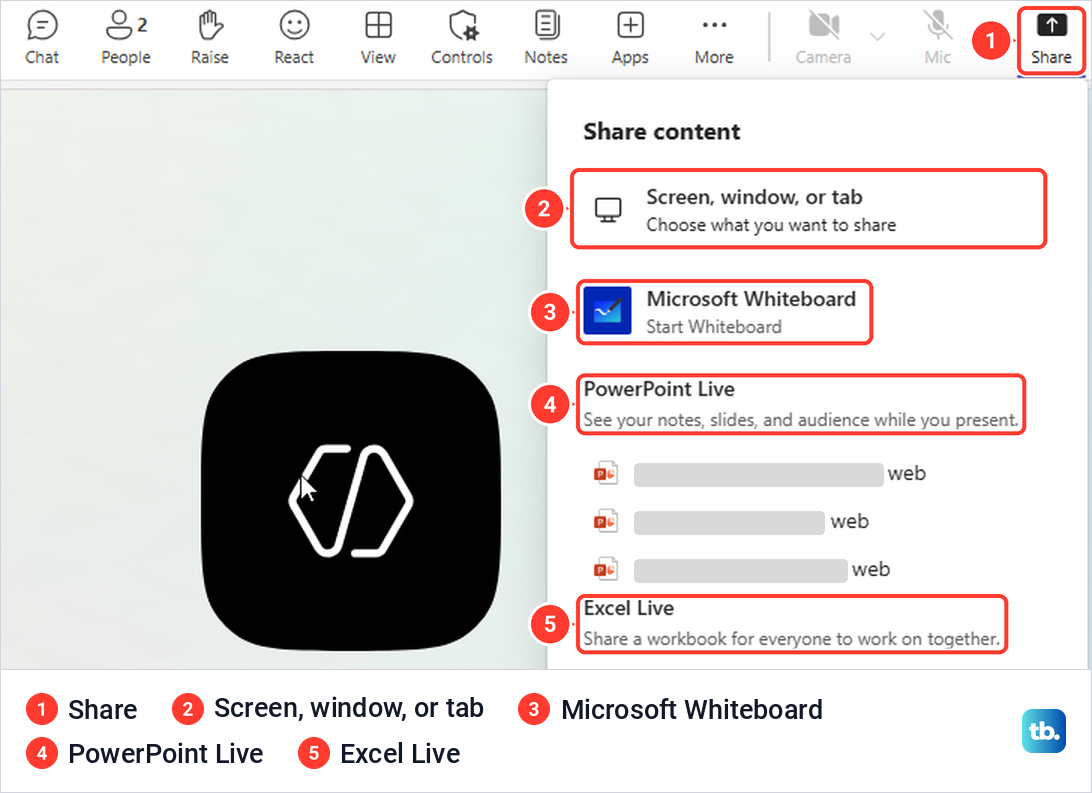
Select Screen, window, or tab. Edge then opens its own picker with three tabs: Microsoft Edge Tab, Window and Entire Screen. Click what you want under the right tab, then select Share, which stays grey until something is picked.
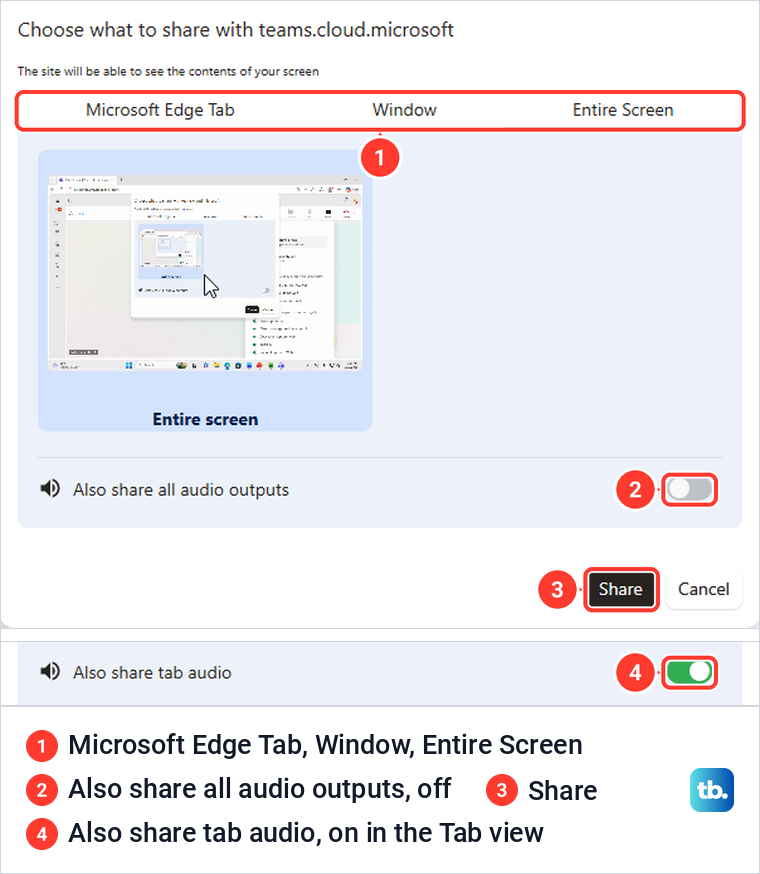
Each tab behaved a little differently on our PC. Entire Screen shared the whole display. Window brought the chosen window to the front by itself, and when we then put Word in front of our shared Excel window, the other person still saw only Excel. Microsoft Edge Tab switched Edge to that tab with a Stop sharing button above the page, and the viewer saw only that page.
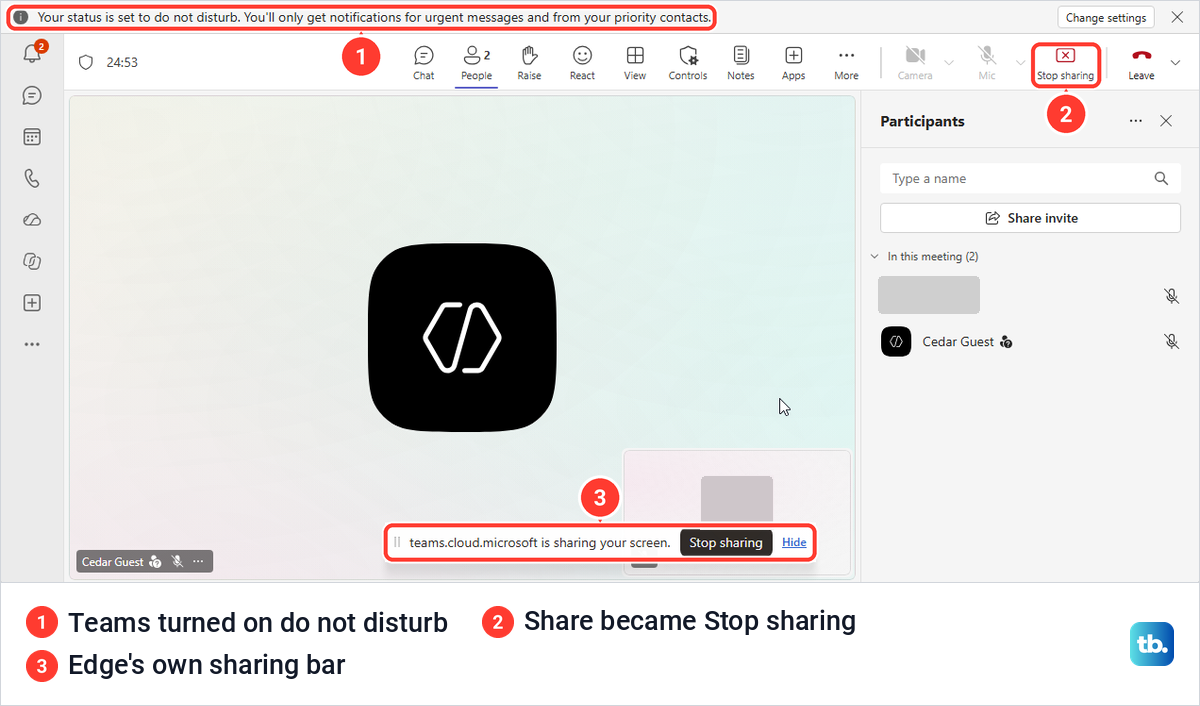
While a share runs, Teams for the web turns Share into Stop sharing, and Edge adds a bar of its own with Stop sharing and Hide. Teams also set our status to do not disturb and said so in a notice at the top. Our guide on how to keep your Teams status green explains how meetings and presenting change what colleagues see.
Share computer sound with your screen
The Include sound switch was off when we opened the desktop Share panel, so turn it on before you pick Screen or Window if you will play a video. If you are already sharing, Microsoft says to use the sound button on the presenter toolbar, which our toolbar labelled Share sound.
Microsoft says that with sound on, everything your PC plays is heard in the meeting, notifications included. On Windows, Teams and the computer must use the same speaker, so change the default audio output in Windows 11 if they differ, then pick the same device in Teams.
In Teams for the web, the switch sits in Edge's picker. On the Microsoft Edge Tab view it is Also share tab audio, which was on when we opened it, and Microsoft says only that tab's sound is shared. On the Window and Entire Screen views our Edge called it Also share all audio outputs, and it was off. Microsoft's help names this switch Also share system audio.
Sharing sound does not change your microphone. If people can see your screen but cannot hear you talk, fix a Teams microphone that is not working rather than changing the share.
Present slides with PowerPoint Live
For a slide deck, PowerPoint Live is a better fit than sharing a window. The meeting gets the slides inside Teams, while the notes, the slide list and the controls stay on your side.
In Teams for the web, the PowerPoint Live section of the Share panel listed decks already in our OneDrive. A deck stored only on the PC is one step further: scroll to the end of the panel, below Excel Live, where one Browse OneDrive and Browse my computer pair serves both sections.
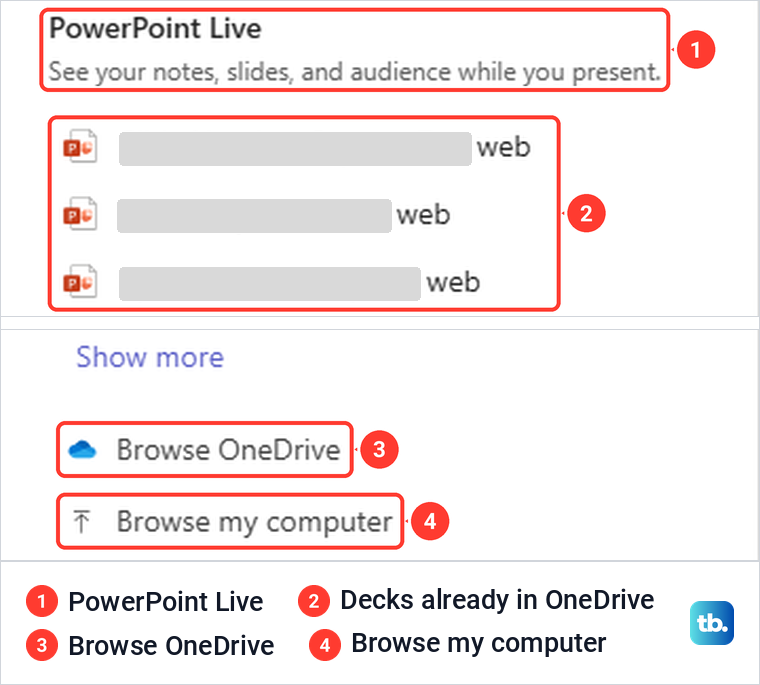
We chose a deck with Browse my computer, and it opened straight in the presenter view, with no upload step on screen. Microsoft says a deck chosen this way is uploaded as part of the meeting. In a private meeting it goes to your OneDrive, where only the meeting participants can open it, and in a channel meeting it goes to the channel's Files tab, where every team member can.
The presenter view showed the slide, a Notes pane marked Visible only to you, the slide counter with its arrows, and pointer and drawing tools. The next arrow moved us to slide 2 of 2. Our sample deck had no notes, so the pane only said that notes would appear there.
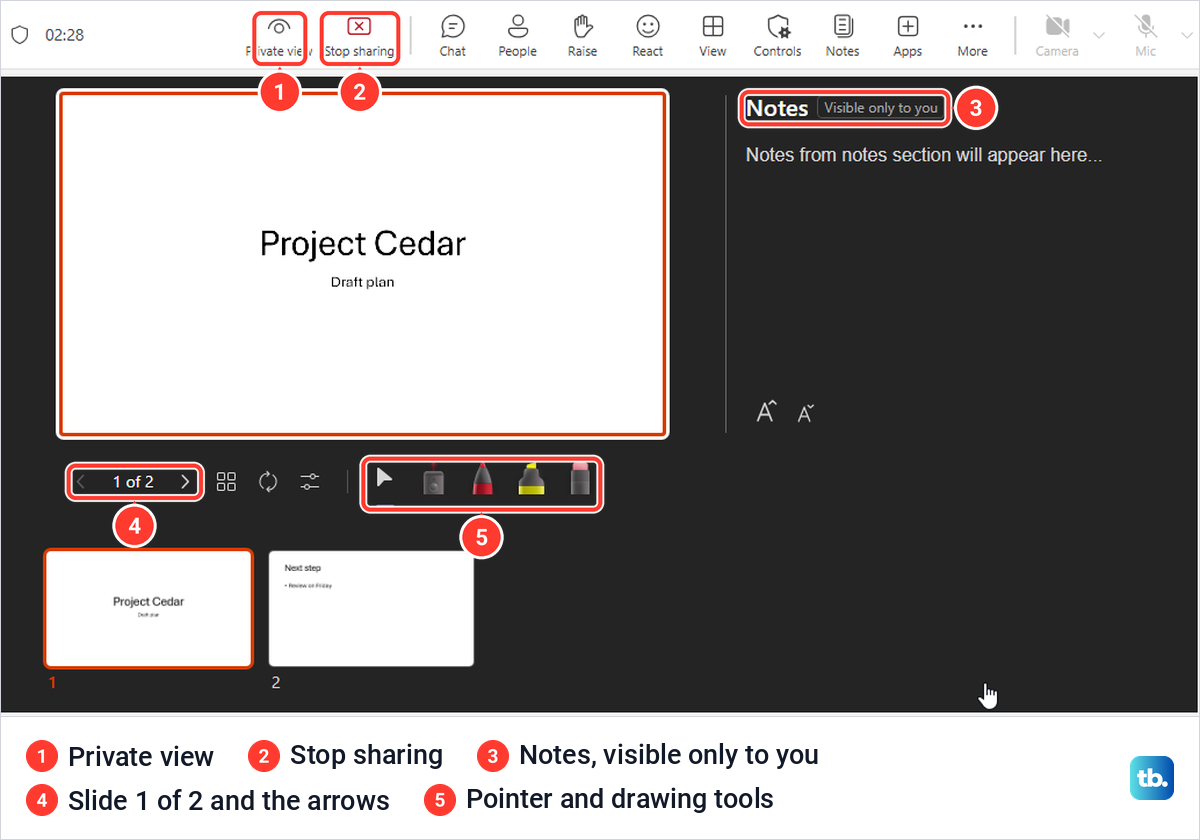
If you want your notes in front of you, add speaker notes in PowerPoint before the meeting. If the deck needs a clip, embed a YouTube video in PowerPoint while you build the slides.
The desktop PowerPoint app has a shortcut as well. With a deck open, ours showed a Present in Teams button at the top right, beside Share, which Microsoft says starts presenting the open file in Teams.
Stopping works differently too. Selecting Stop sharing during PowerPoint Live brought up Stop presenting with a warning that it ends the presentation for everyone. To hand over to the next presenter instead, the dialog itself says to select Cancel.
Use Whiteboard or Excel Live instead of a screen
Microsoft Whiteboard and Excel Live do not show your screen at all. They open a board or workbook inside the meeting that other people can work on. In Teams for the web, selecting Microsoft Whiteboard started a board named after our meeting straight away and offered templates, with Start with blank canvas at the top.
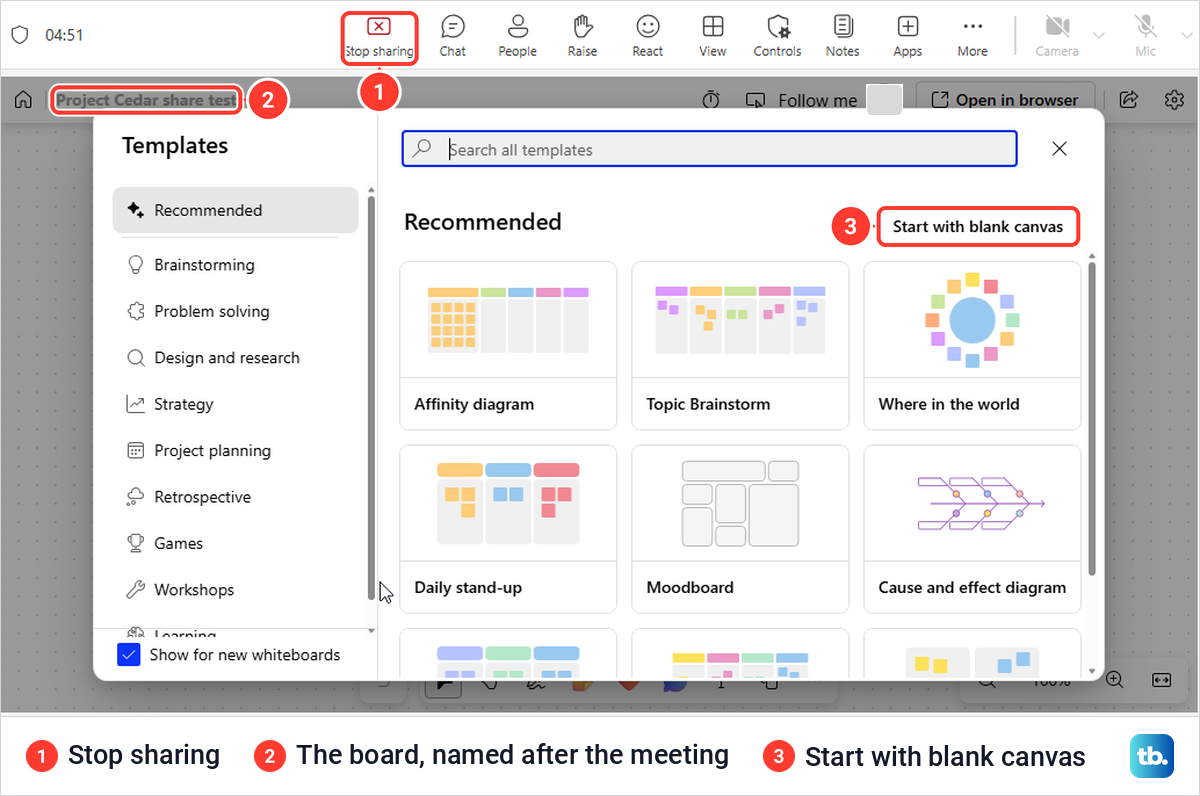
From the blank canvas, the text tool added our typed words to the board. Microsoft's own steps describe a board picker where you choose an existing board or start a new one, and say Teams shares a board already tied to the meeting by default, so your first screen may differ from ours.
Excel Live needs more care, because sharing a workbook grants access to it. When we picked a workbook from the PC, Teams warned that some people could not access the file, explained that external or anonymous participants cannot view or edit it, and labelled the file People invited to this meeting can edit.
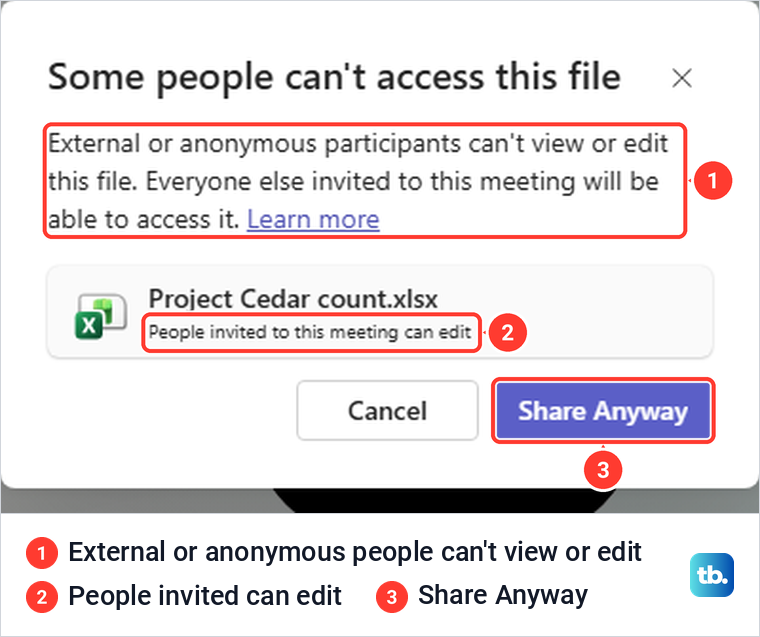
Selecting Share Anyway opened the workbook in the meeting, and a guest who had joined without signing in saw Can't show this content instead. Microsoft says Excel Live works in meetings with 25 or fewer invitees, and that participants keep permission to edit the workbook after the meeting ends. Share a copy if the original should stay private.
Share your screen from a Teams chat
You do not always need a meeting. Microsoft's steps for desktop Teams are to open the chat, select More chat options at the top right, then Screen sharing, and choose a screen or a window. The other people in the chat get a notification and must accept before they see anything.
Microsoft notes that sharing from a chat opens a muted call, and unmuting or turning on your camera turns it into an instant meeting. To end it, select Stop sharing in the controls, then Leave in the call window.
When the Share button is greyed out
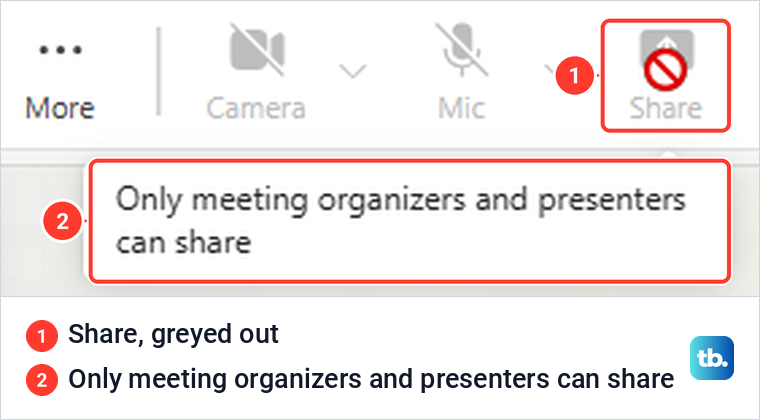
A greyed-out Share button usually comes down to your meeting role. When the organizer made our participant an attendee, Share stayed on the bar but turned grey, and pointing at it showed Only meeting organizers and presenters can share. Microsoft's role table matches: organizers, co-organizers and presenters can share content, and attendees cannot.
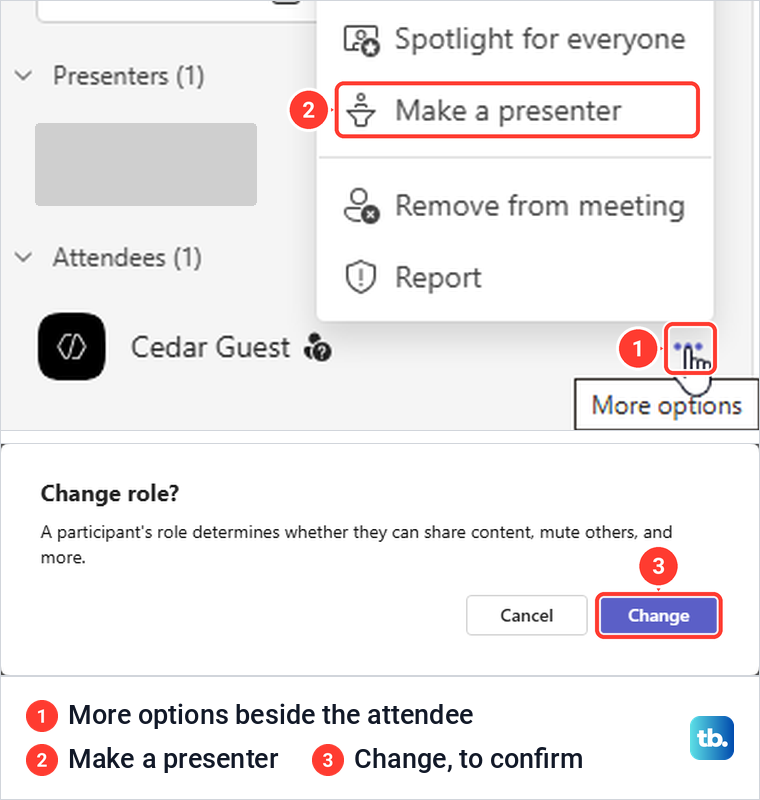
The fix is on the organizer's side. In the meeting, the organizer selects People, points at your name, selects More options, then Make a presenter. Teams asked Change role, with a note that a role decides who can share, and after Change our participant's Share panel came back.
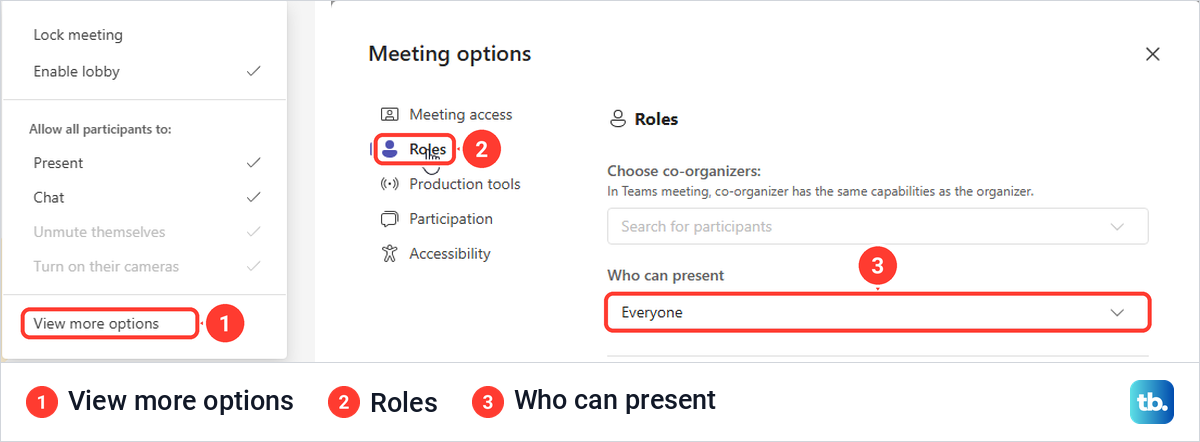
Who joins as a presenter in the first place is set in the meeting options. The organizer opens Controls in the meeting bar, then View more options, and under Roles finds the Who can present list. Microsoft says that with Everyone, anyone who has the meeting link joins as a presenter, and it was set to Everyone in our meeting. Our participant was an attendee only because the organizer had made them one, and Make a presenter fixed that straight away.
If your role is right and Share still does nothing, the cause is elsewhere. Microsoft says an administrator can turn screen sharing off with a meeting policy, and only the administrator can change that. For app, browser and update problems, work through our fixes for Teams screen sharing not working.
Share your screen from a Mac or phone
On a Mac, Microsoft says Teams asks for permission to record the screen the first time you share. Select Allow, or open System Settings and turn on Microsoft Teams under Screen & System Audio Recording, then return to the meeting and select Share again. In Teams for the web on a Mac, the browser needs the same permission.
On a phone or tablet, Microsoft's steps are to tap Share in the meeting controls, choose Share screen, then tap Start presenting or Start Broadcast. Tap Stop presenting or Stop Broadcast when you are done. Microsoft warns that this shows your entire screen, notifications included, and suggests turning on Do not Disturb first.
How we tested this guide
We tested this in Microsoft Teams on Windows 11, version 25H2, and in Teams for the web in Edge, sharing a window with another person in the meeting.
Frequently Asked Questions
How do I share only one window in Teams?
Select Share, then Window, and pick the window by its title. In Teams for the web, choose Screen, window, or tab, then the Window tab in the browser's picker. In our tests the other person saw only the chosen window, even with another app in front.
Why is the Share button greyed out in Teams?
Your meeting role is the usual reason, because attendees cannot share and the button's tooltip says so. Ask the organizer to make you a presenter from People and More options. If that does not help, an administrator policy may have turned sharing off.
How do I share my screen with sound in Teams?
In desktop Teams, turn on Include sound in the Share panel before you choose Screen or Window. In Teams for the web, turn on the audio switch in the browser's picker. For a single tab, only that tab's sound is shared.
Can I share my screen in Teams without a meeting?
Yes, from a chat in desktop Teams. Select More chat options, then Screen sharing, and the other people accept the share before they see it. Teams opens a muted call for it.
Can people see my notifications when I share my screen?
With the whole screen shared, anything that appears on the display can be seen, so close private apps and turn notifications off first, or share one window instead. When we shared from Teams for the web, Teams set our status to do not disturb, and its notice said Teams would only notify us about urgent messages and priority contacts. That notice covers Teams only, not other apps.
Can I see my notes while presenting PowerPoint in Teams?
Yes, with PowerPoint Live. Its presenter view has a Notes pane marked Visible only to you beside the slide, while the meeting sees the slides.
How do I stop sharing without leaving the Teams meeting?
Select Stop sharing on the sharing bar, the presenter toolbar or the meeting controls. The share ends and the meeting stays open, and only Leave takes you out of it.