
To add speaker notes in PowerPoint, select the slide in Normal view, click Click to add notes in the Notes pane under it, and type. If that pane is missing, select Notes on the status bar at the bottom of the window or go to View > Notes. Each slide keeps its own note, and Presenter View shows it to you while you present.
Speaker notes are the talking points PowerPoint keeps under each slide. Microsoft says they are visible on your monitor during a presentation but not to the audience, which holds when Presenter View is on your screen and the slides go to a second display. You can also add notes to PowerPoint slides in the browser and rehearse with them on a single screen.
The short version
- Select a slide in Normal view and type in Click to add notes below it.
- No Notes pane? Select Notes on the status bar or View > Notes, or press Alt, W, P, N.
- Every slide has its own note, so check which thumbnail is selected.
- Press Alt + F5 to rehearse in Presenter View on one screen.
- In PowerPoint for the web, use View > Notes to write, and Slide Show > Presenter View to read if your Slide Show tab has it.
Ways to add and see speaker notes
Most of the time you only need the first row. The rest are for a hidden pane, the keyboard, longer notes and presenting.
| Shortcut or command | What it does | Where it works |
|---|---|---|
| Click to add notes under the slide | Adds a note to the selected slide | Desktop, web and Mac |
| Notes on the status bar or View > Notes | Hides or shows the Notes pane | Desktop and web |
| Alt, W, P, N | Shows or hides the Notes pane from the keyboard | Desktop, or Alt + Windows logo key, W, P, N on the web |
| F6 until the notes have focus | Puts the cursor in the notes so you can type | Desktop, or Ctrl + F6 on the web |
| View > Notes Page | Shows the slide above its note as a full page | Desktop |
| Alt + F5 | Opens Presenter View, even on one screen | Desktop |
| Slide Show > Presenter View | Opens the notes in a separate presenter window | PowerPoint for the web, where the button appears |
| File > Print > Notes Pages | Prints one slide with its note per page | Desktop |
Where speaker notes go in PowerPoint
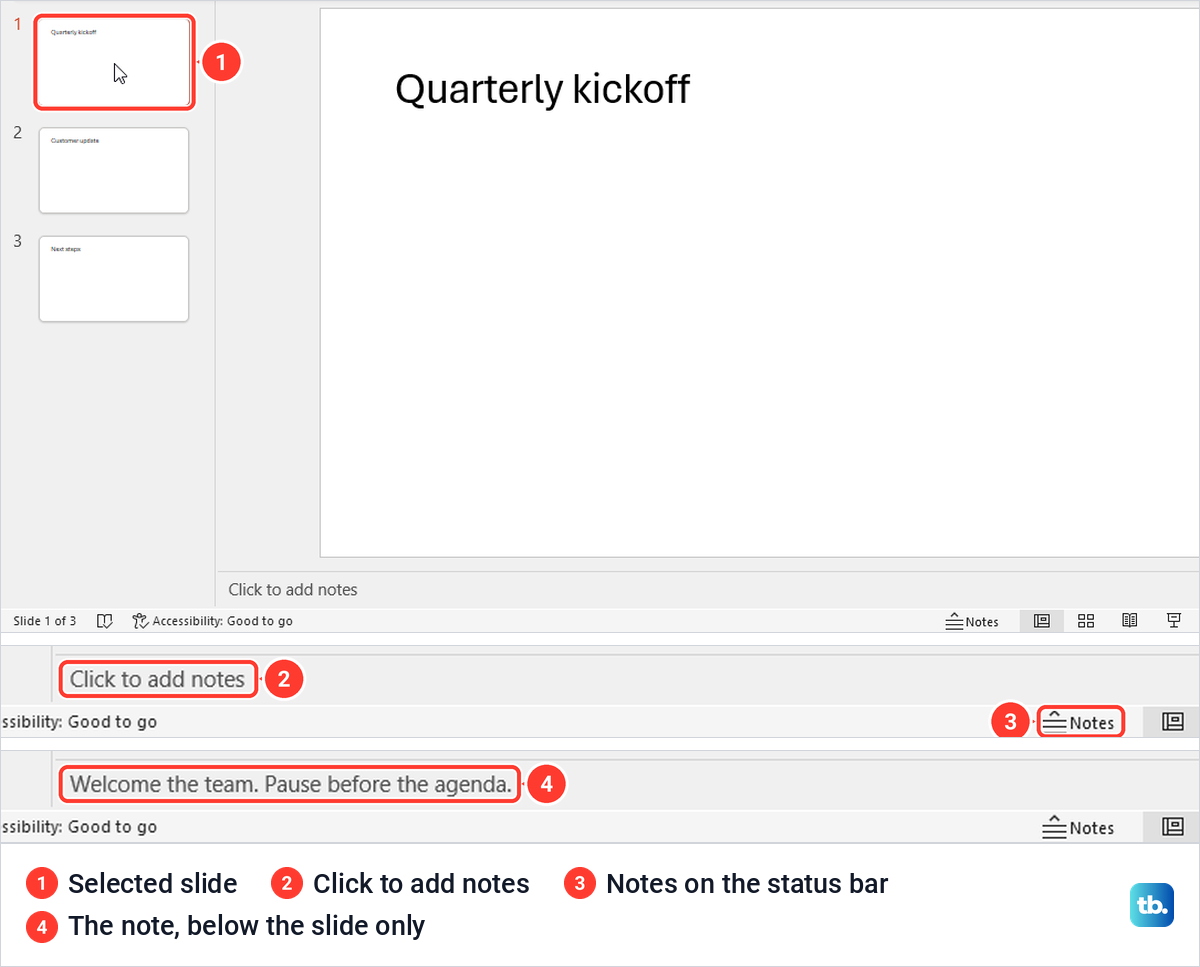
In Normal view, the Notes pane is the strip under the slide. On our PC a new blank presentation opened with the pane already showing, one line high, with the grey words Click to add notes. A Notes button sat on the status bar next to the view buttons.
What you type there stays off the slide. Our note sat under slide 1 and did not appear on the slide or on its thumbnail, so the pane is the place for reminders, timings and the words you plan to say. If talking points were typed onto the slide by mistake, cut the words, paste them into the Notes pane, then remove a text box from a slide if it is left empty.
Add speaker notes to a slide
Open the presentation and make sure you are in Normal view, the first button under View > Presentation Views. Select the slide's thumbnail on the left, click Click to add notes under the slide and type. The placeholder disappeared as soon as we clicked, ready for typing.
Each slide has its own note. After we typed on slide 1 and selected slide 2, slide 2's pane still read Click to add notes, and slide 1's note came back the moment we selected slide 1 again. If a note seems to have vanished, check which thumbnail is selected before anything else.
In PowerPoint for Mac, Microsoft says to choose View > Normal, select the thumbnail of the slide, click where it says Click to add notes and type. The Notes button on the task bar at the bottom of the window hides the pane, and a second click shows it again.
Show the Notes pane when it is missing
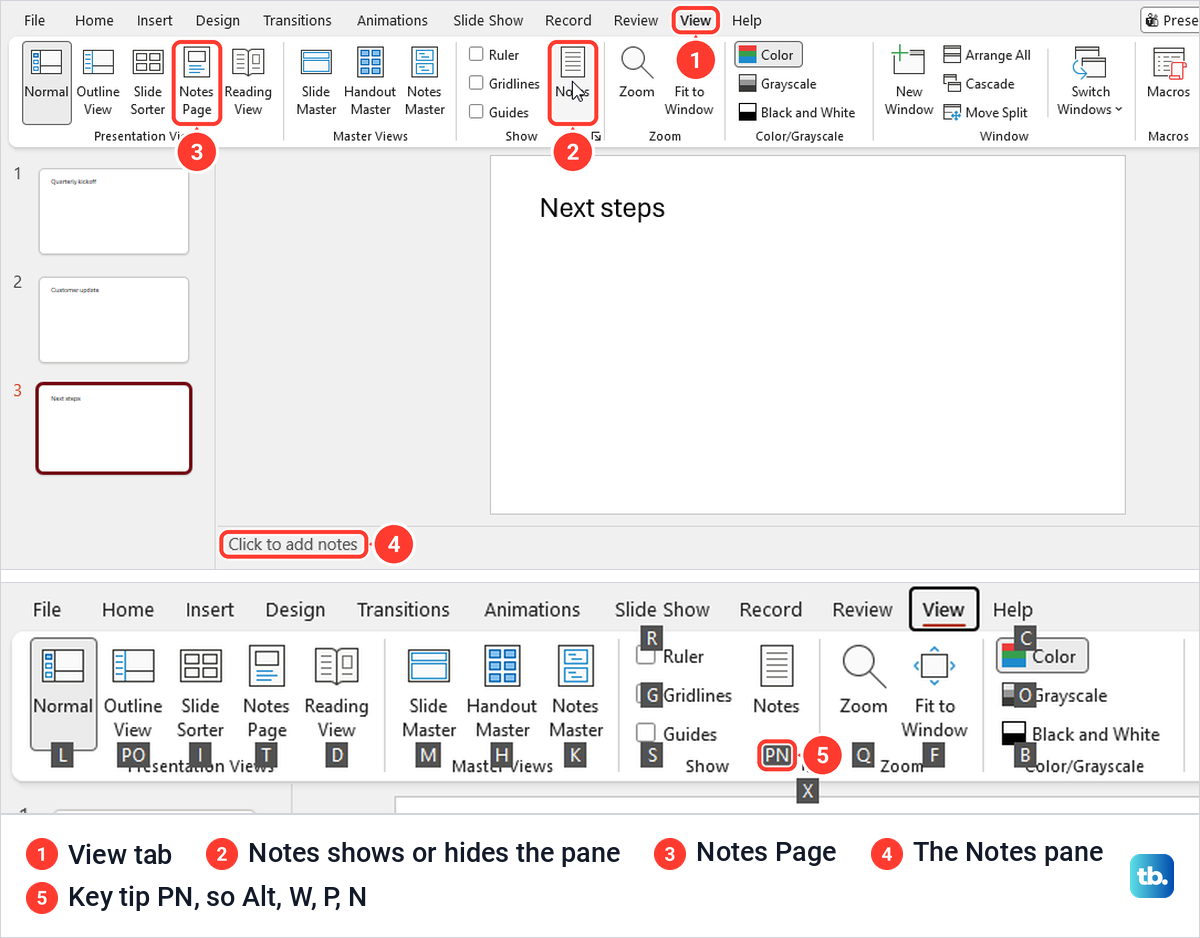
A missing pane is usually hidden, not gone. Select Notes on the status bar at the bottom of the window, which on our PC hid the pane on the first click and let the slide grow, then brought back the empty Click to add notes field on the second. View > Notes in the Show group does the same, and its button stays highlighted while the pane is on.
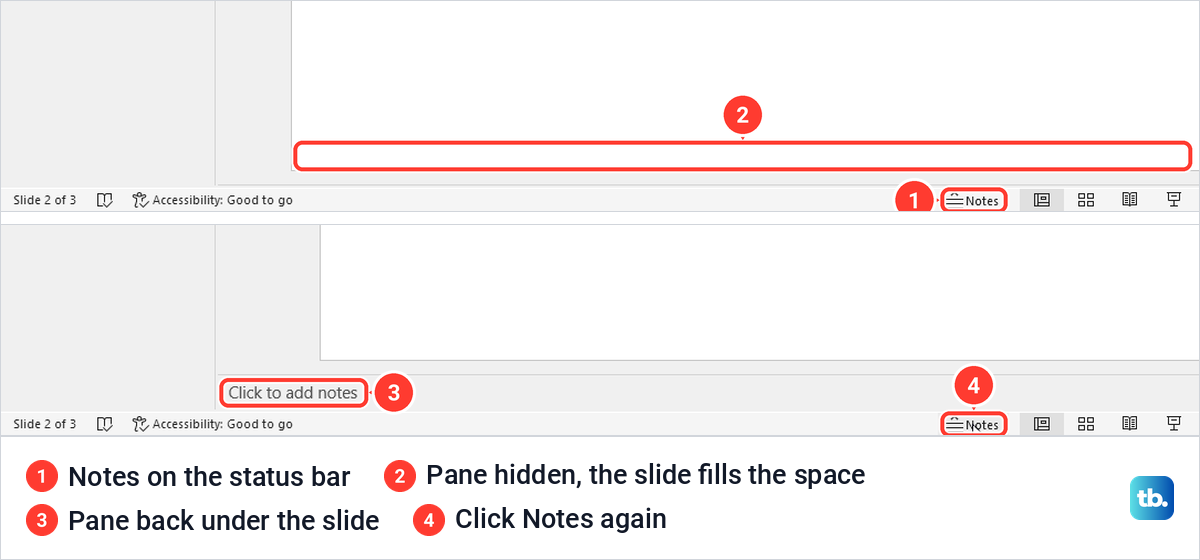
If the pane is only a thin line, point at its top border until the pointer turns into a two-headed arrow and drag it upward. We dragged ours up, and the taller pane kept its height when we moved to another slide. Microsoft adds that a vertical scroll bar appears when a note is longer than the pane.
Two views leave the pane out on purpose. Slide Sorter showed only numbered thumbnails on our PC, with the Notes buttons greyed out and gone from the status bar, and Notes Page swaps the pane for a full page. Select View > Normal and the pane comes back with the note in it.
Add speaker notes with the keyboard
Microsoft's keyboard route for the desktop app is Alt, W, P, N, pressed one after another. On our PC, Alt put a W key tip on the View tab, W showed PN on the Notes button, and P then N brought the hidden pane back at the height it had before.
To start typing, press F6 until the notes have focus. From the slide it took us three presses, past the status bar and the ribbon, and the only sign was the grey placeholder vanishing, since no cursor showed. We then typed a note for slide 3 without touching the mouse, and Microsoft says a screen reader announces Slide notes at that point.
Use Notes Page view for longer notes
View > Notes Page shows the slide as a portrait page, with the slide image on top, the note below and a page number in the corner. On our PC the status bar changed to Notes 2 of 3, and the Notes button in the Show group was greyed out.
Click the note to select its box, and a Shape Format tab appears on the ribbon. We added a second sentence there, went back with View > Normal, and found both sentences in the ordinary Notes pane, with the slide title unchanged.
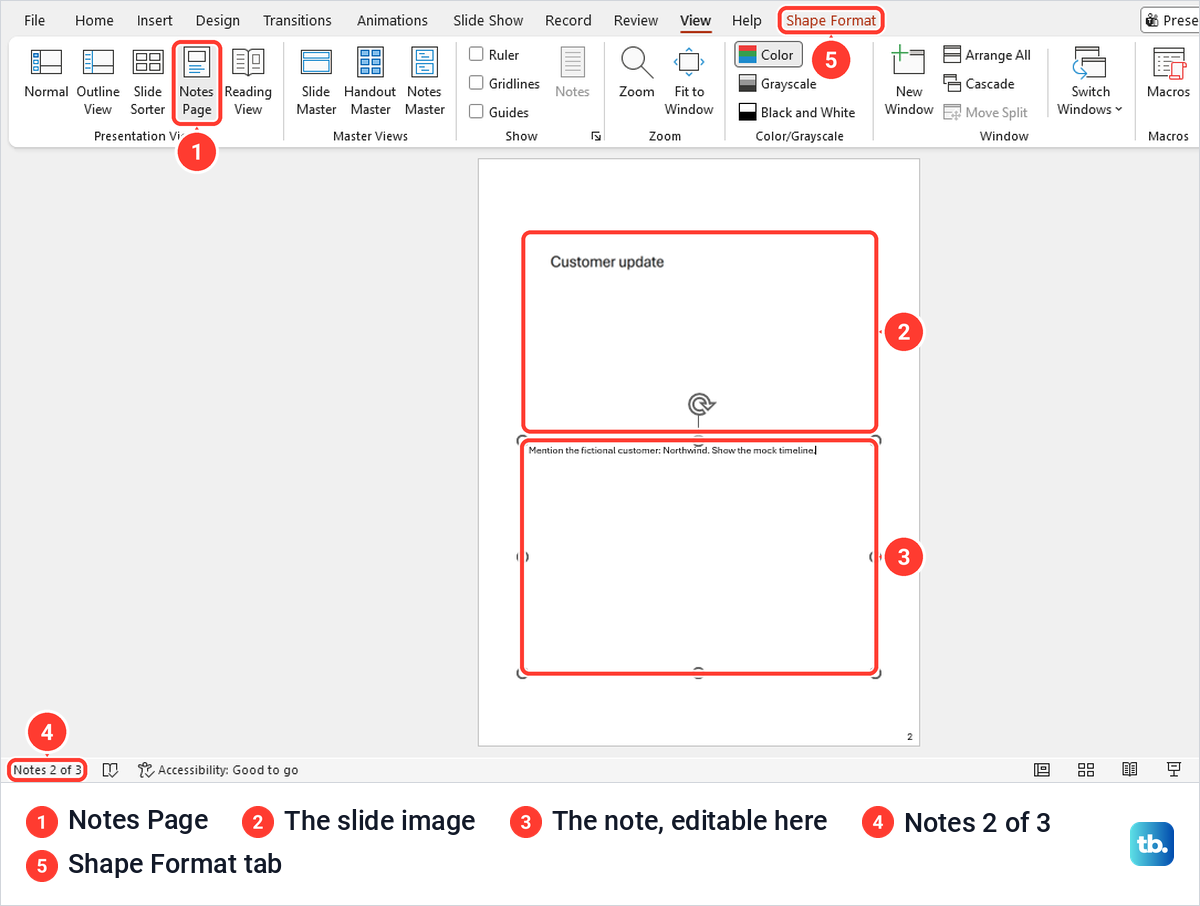
Notes Page is also where pictures go. Microsoft says you cannot put pictures in the Notes pane in Normal view, and that pictures and objects you add in Notes Page view appear on the printed notes page but not on your screen in Normal view. So if you take a screenshot on Windows that belongs in your printed notes, paste it onto the notes page in this view.
Notes are not part of every print layout. In File > Print our layout box started on Full Page Slides and the preview showed the slide alone, while choosing Notes Pages from that box previewed one slide per page with its note below. Check that preview before you hand pages out, because the notes of every slide you print appear below it.
Read your notes in Presenter View
Presenter View is the screen that shows your notes while you present. Press Alt + F5 to open it even on a single screen, which is the easiest way to rehearse. On our PC it showed the current slide on the left, the next slide at the top right, the note under it, a timer and Slide 1 of 3.
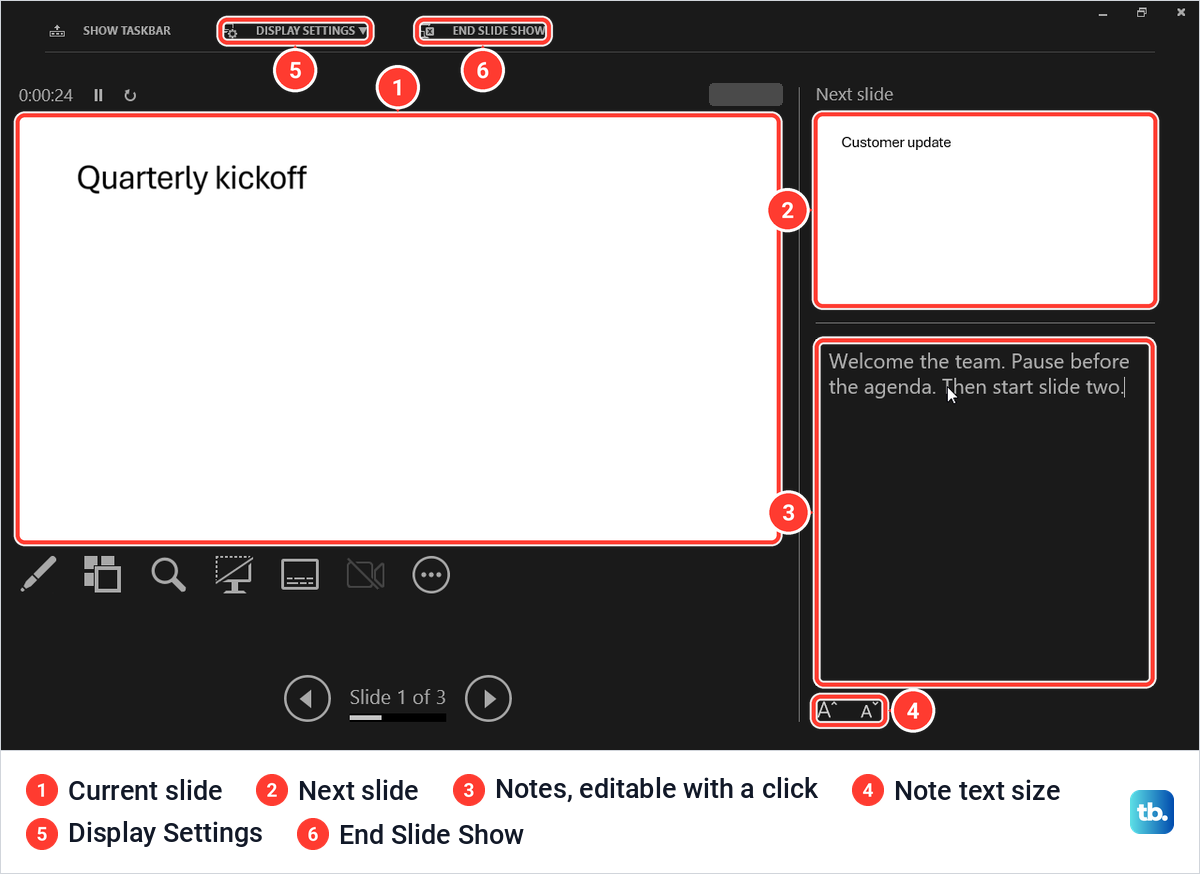
You can fix a note mid-show. We clicked in the notes, which turned them into an editable box, added a sentence, and found it in the Notes pane in Normal view after the show. After editing, press Esc twice to finish, because the first Esc only left the notes box on our PC and the second ended the show. The two buttons under the notes make the note text bigger or smaller.
Present with notes on two screens
With a projector or a second monitor, Microsoft says Presenter View appears on your computer's screen while only the slides appear on the projector screen. It is on by default, and on a new presentation our Slide Show tab had Use Presenter View ticked in the Monitors group, with the monitor box set to Automatic.
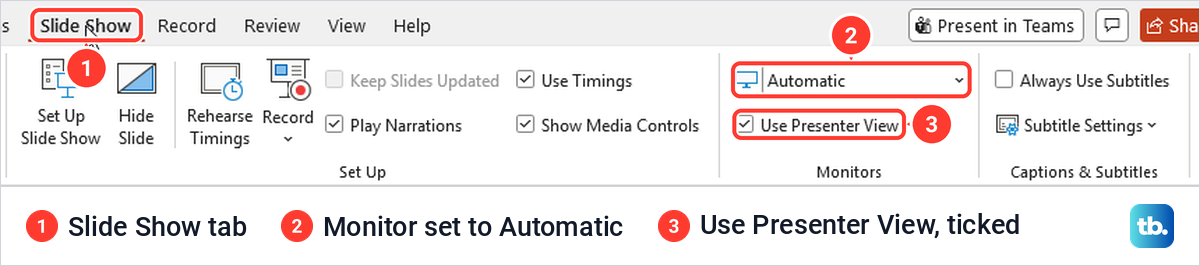
Microsoft's setup is to tick Use Presenter View, set Windows to Extend these displays, and start with From Beginning. Our guide to set up dual monitors on Windows walks through that Extend setting. With Automatic chosen, Microsoft says PowerPoint shows the notes on the laptop screen if there is one, and otherwise on the display set as your main display.
Microsoft also notes that you must be connected to the second screen for this split to work. If Windows does not see the projector or monitor at all, fix a second monitor that is not detected before you open the presentation.
Calls work differently, because people on a call see whatever you share. If you set up a Microsoft Teams meeting for the talk, check what the others see with a colleague before the day. If your slides do not appear for them, fix Teams screen sharing that is not working before you blame PowerPoint.
Add speaker notes in PowerPoint for the web
PowerPoint for the web opens presentations stored in OneDrive. If the file is only on your PC, upload it from the browser: in OneDrive on the web we selected Create or upload > Files upload, picked the presentation, and opened it from My files. The notes typed in the desktop app were all there, so the notes travel with the file.
The pane was hidden when the file opened, and it closed again after each slide show in the browser. Select View > Notes or Notes on the status bar to bring it back, then click the pane and type. An empty pane shows the same Click to add notes prompt as the desktop app.
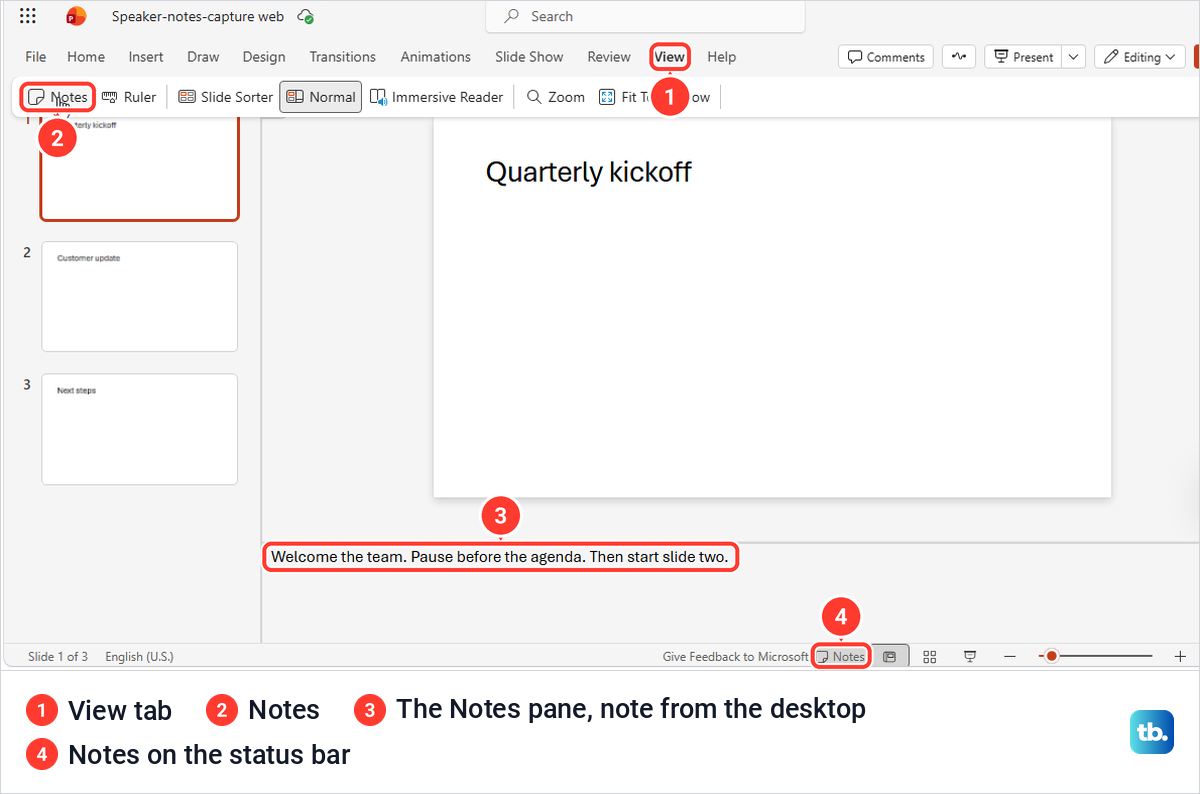
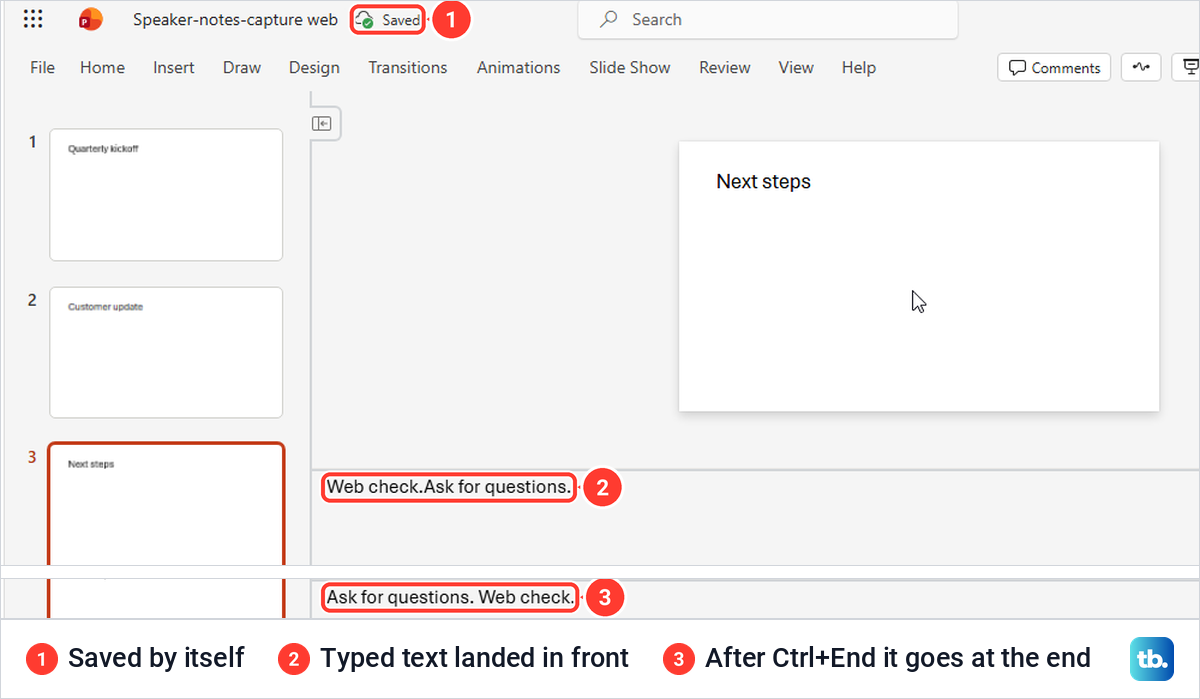
There is no save step. Saved appeared beside the file name shortly after we typed, the note stayed with its slide when we switched slides, and dragging the pane's top border up made it taller, a height it kept on other slides.
The browser's keyboard route adds the Windows logo key. Press Alt + Windows logo key, then W, P, N to bring back a hidden pane, and Ctrl + F6 until the slide notes have focus. On our PC the cursor then sat at the start of the existing note, so the words we typed went in front of it, and pressing Ctrl + End first put new text at the end.
See your notes in a PowerPoint for the web slide show
Our web app had two ways to present, and only one of them showed notes. Slide Show > From Beginning, Ctrl + F5 by its tooltip, filled the screen with the slide alone. Slide Show > Presenter View opened a separate Edge window with the slide, a Notes panel holding that slide's note, text size buttons, a timer, a 1 of 3 counter and the slide thumbnails.
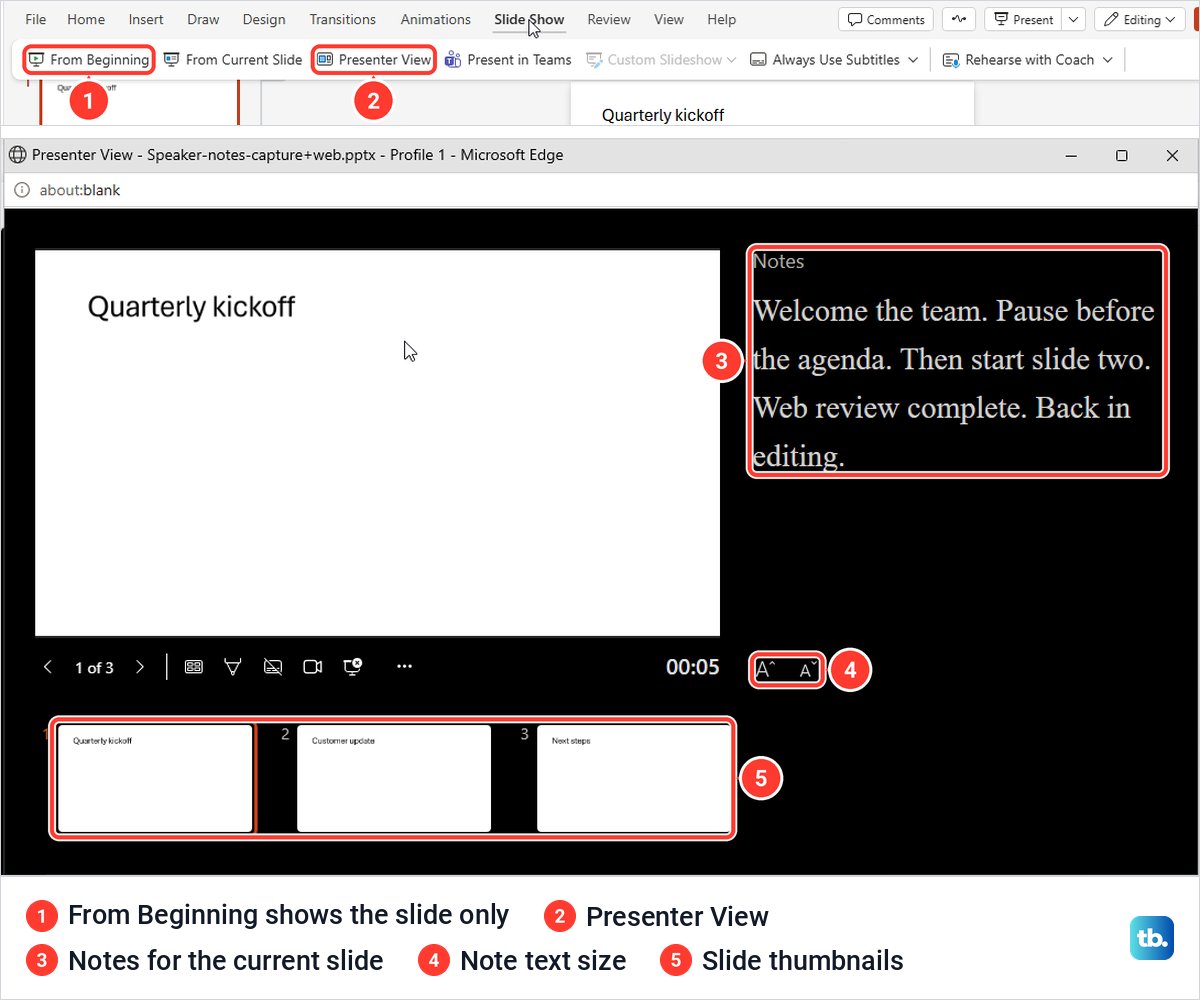
Press Esc to close the presenter window. The Notes pane was closed again afterwards, so reopen it with View > Notes before you carry on writing. Microsoft's help page still says you need a desktop version of PowerPoint to see speaker notes while presenting, so if your Slide Show tab has no Presenter View button, open the file in the desktop app with Editing > Open in Desktop.
Fix notes you can see but cannot edit
Start with the simple causes. Make sure you are in Normal view rather than Slide Sorter, and that the thumbnail of the right slide is selected. If the note still will not take typing, look at the bar under the ribbon.
Protected View
Microsoft says files from the internet and other risky places can open in Protected View, a read-only mode where most editing functions are disabled. We opened our deck that way, and a yellow PROTECTED VIEW bar appeared, most of the ribbon was gone, and clicking and typing in the note changed nothing.
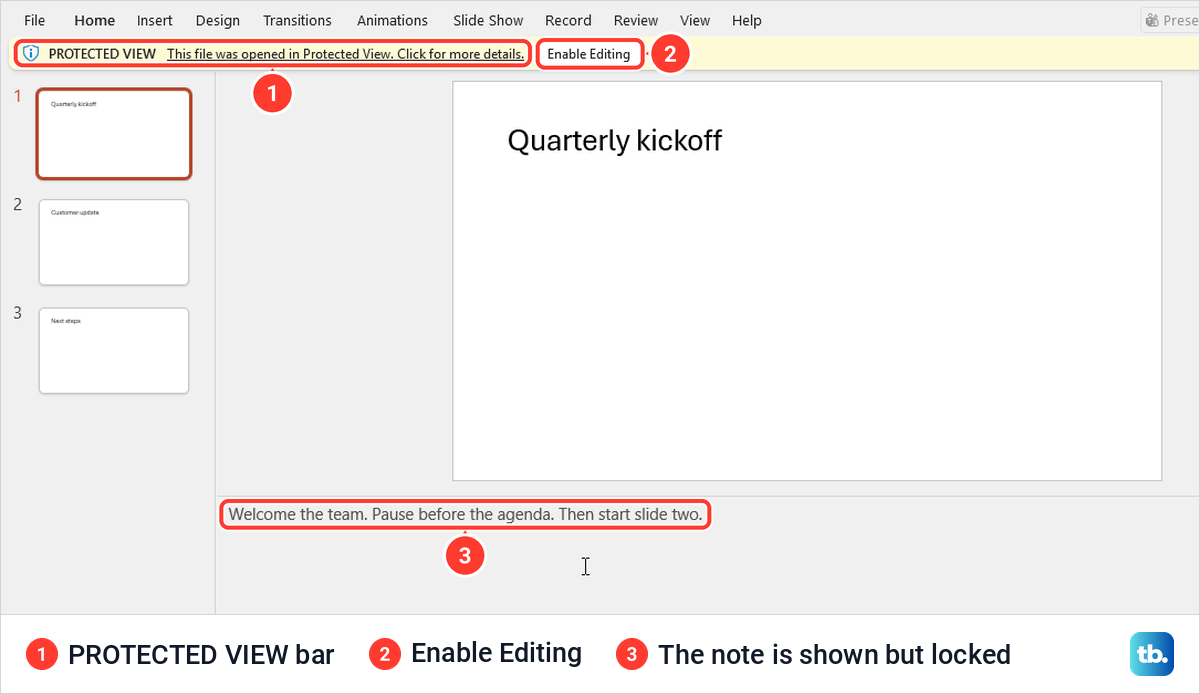
Select Enable Editing only if you trust what is in the file, which is Microsoft's own advice. After we selected it, the ribbon came back and the note could be edited normally.
Marked as Final
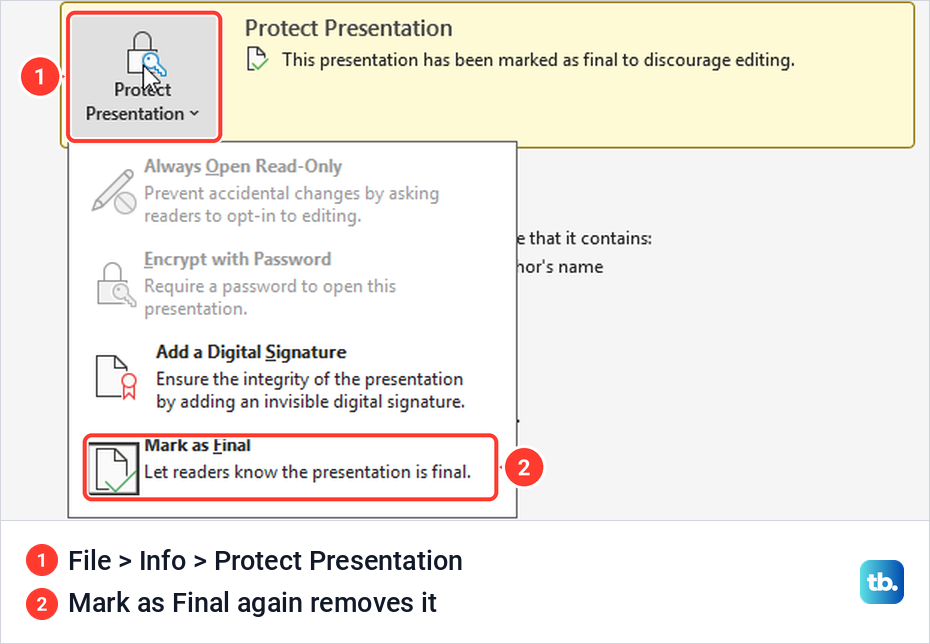
A MARKED AS FINAL bar means an author has marked the presentation as final to discourage editing, and the title bar adds Read-Only. Typing in our note did nothing.
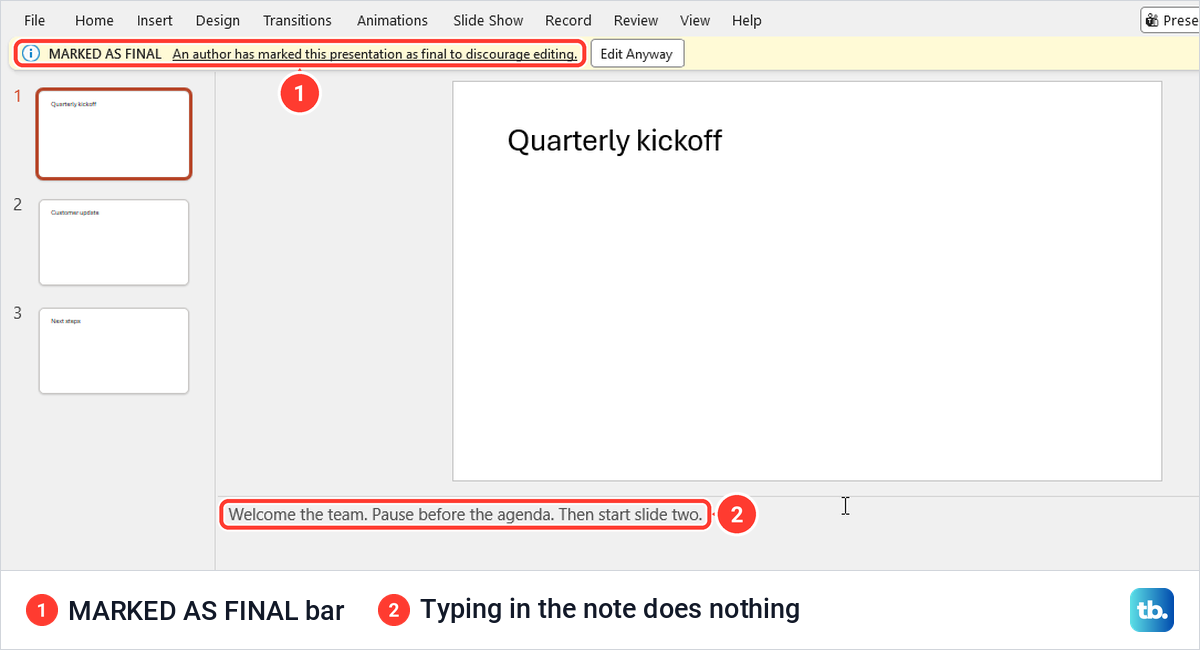
Choosing File > Info > Protect Presentation > Mark as Final again removed the status without a prompt, and the note took typing again. Microsoft says Mark as Final is not a security feature, so it only tells you the author wanted the file left alone. If the deck is someone else's, ask before you change it.
Viewing mode in the browser
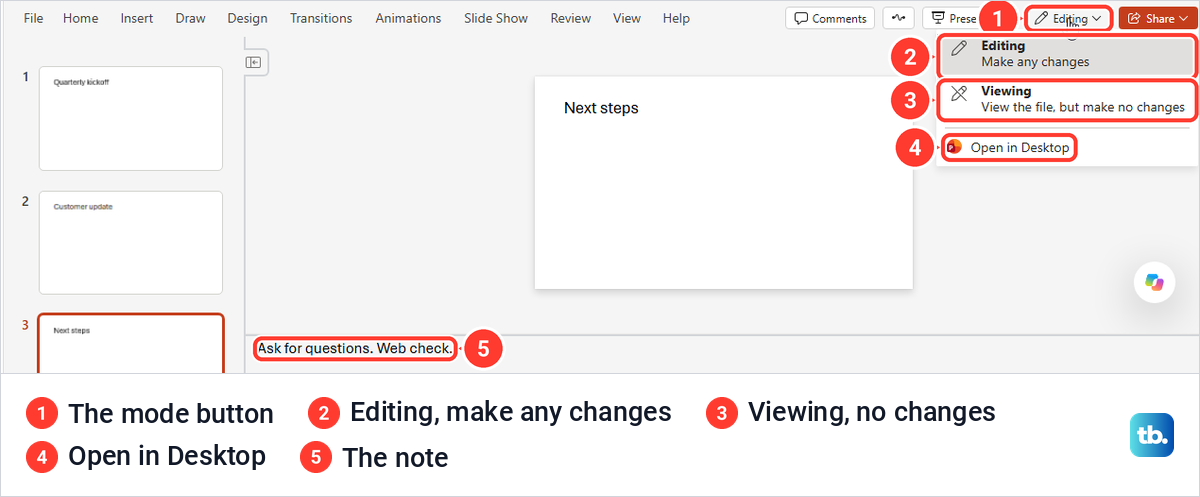
PowerPoint for the web has a mode button beside Share. Ours listed Editing (Make any changes), Viewing (View the file, but make no changes) and Open in Desktop. In Viewing the note stayed visible but could not be changed, and choosing Editing made it editable again.
How we tested this guide
We tested this in PowerPoint for Microsoft 365 on Windows 11, version 25H2, and in PowerPoint for the web in Microsoft Edge, adding notes to a three-slide practice deck.
Frequently Asked Questions
Where is the speaker notes box in PowerPoint?
It is under the slide in Normal view, showing Click to add notes when it is empty. If you cannot see it, select Notes on the status bar or View > Notes, and drag its top border up if it is only a thin line.
Do speaker notes show on the slide?
No. Our note sat in the Notes pane and did not appear on the slide or its thumbnail. Presenter View, Notes Page view and printed Notes Pages are where notes show up.
Can the audience see my speaker notes?
Microsoft says notes are visible on your monitor but not to the audience when Presenter View runs on your screen and the slides go to a second display. On a call, people see whatever you share, so before you share your screen on a computer for the talk, check what they see with a colleague.
Can I see my notes with only one monitor?
Yes. Press Alt + F5 in desktop PowerPoint to open Presenter View on a single screen, which is how we rehearsed with ours.
Can I add different notes to every slide?
Yes. Each slide has its own note, so select a thumbnail, type its note, then select the next slide and do the same.
Can I add speaker notes in PowerPoint for the web?
Yes. Open the presentation from OneDrive, choose View > Notes and type in the pane, which saves by itself. Our web app also had Slide Show > Presenter View, which showed the notes in a separate window, and if yours has no such button, present from the desktop app.
Why can I see my notes but not type in them?
Check that you are in Normal view with the right slide selected, then look for a Protected View or Marked as Final bar, or Viewing mode in the browser. Each one blocked typing in our notes until we enabled editing, removed the final status or switched to Editing.