
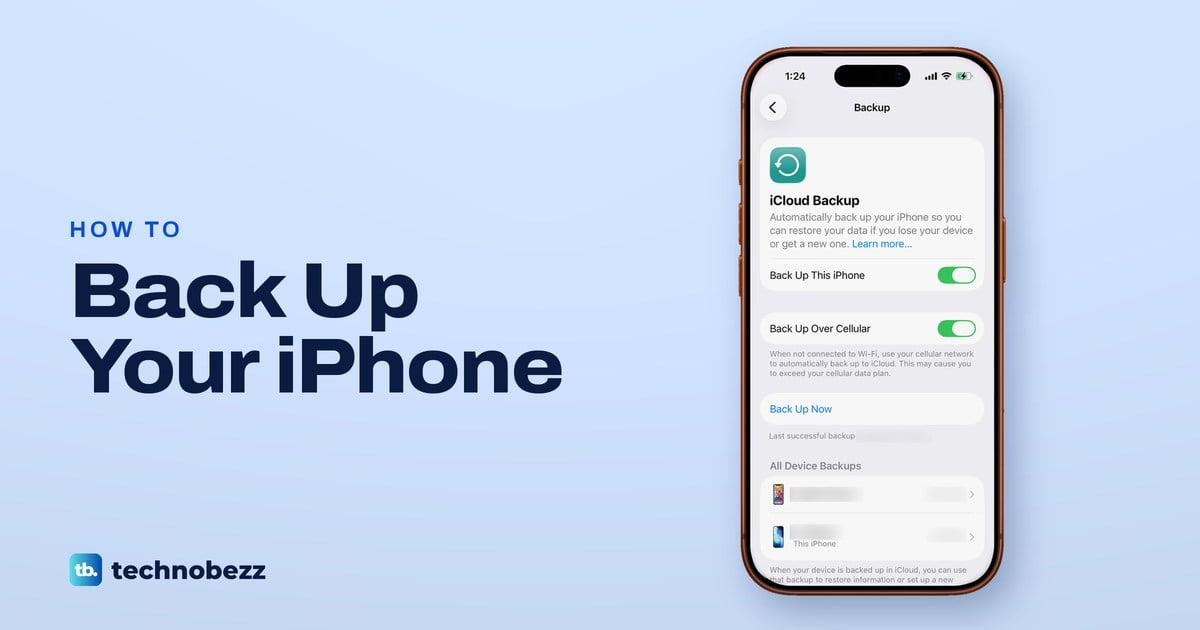
To back up an iPhone, open Settings, tap your name, tap iCloud, then tap iCloud Backup. Turn on Back Up This iPhone and tap Back Up Now while the iPhone is on Wi-Fi. For a copy on a computer, connect the iPhone by cable and start the backup from the Finder on a Mac or the Apple Devices app on a Windows PC.
Whichever you choose, check the date of the last backup before you rely on it. On our iPhone 17 Pro with iOS 26.6, the Backup page shows a Last successful backup line right under Back Up Now, and that line is your proof, not the button.
The short version
- iCloud: Settings > your name > iCloud > iCloud Backup, turn on Back Up This iPhone, then tap Back Up Now on Wi-Fi.
- Automatic: iCloud backs up once a day when the iPhone is locked, charging and on Wi-Fi.
- Mac or PC: connect by cable, then use the Finder on a Mac or the Apple Devices app on Windows.
- Encrypt: turn on Encrypt local backup to keep saved passwords and Health data, and keep that password safe.
- Out of space: compare Next Backup Size with your free iCloud space, or back up to a computer instead.
Choose where to back up your iPhone
There are two kinds of iPhone backup. An iCloud backup goes to your Apple Account over Wi-Fi and can run by itself every day, while a computer backup is stored on a Mac or Windows PC that you plug the iPhone into. Apple says you can use both, which gives you a second copy if one of them is old or out of reach.
An iCloud backup needs enough iCloud storage, and every Apple Account starts with 5 GB free that is shared with photos, files and mail. A computer backup uses free space on the Mac or PC instead of iCloud storage, and you can protect it with a password so that it also holds saved passwords and Health data.
The table sums up where each backup starts and how to tell that it finished. The last row is Apple's older route for PCs without the Apple Devices app and Macs on macOS Mojave or earlier.
| Where the backup goes | How to start it | How to check it finished | Watch for |
|---|---|---|---|
| iCloud | Settings > your name > iCloud > iCloud Backup > Back Up Now | The Last successful backup line under Back Up Now | Needs enough iCloud storage, and photos or texts that sync to iCloud are not in it |
| Mac with macOS Catalina or later | Finder > your iPhone > General > Back Up Now | The date and time of the last backup in the Finder window | Encryption is off by default |
| Windows PC with Apple Devices | Apple Devices > your iPhone > General > Backup Now | Manage Backups lists the backup file | Keep the encryption password if you set one |
| iTunes on Windows or an older Mac | iTunes > your iPhone > Back Up Now, under Summary on Windows | The date and time of the last backup in iTunes | Only for systems without the Finder or Apple Devices route |
Back up your iPhone to iCloud
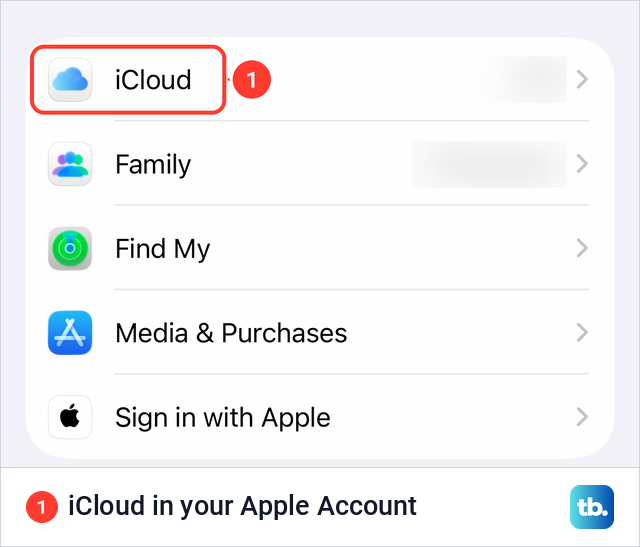
Connect to Wi-Fi first, since Apple's manual backup steps start there. Then open Settings, tap your name at the top and tap iCloud. On our iPhone with iOS 26.6 the iCloud row sat in the second group of the Apple Account page, and Settings also had its own iCloud row in the main list that opens the same page.
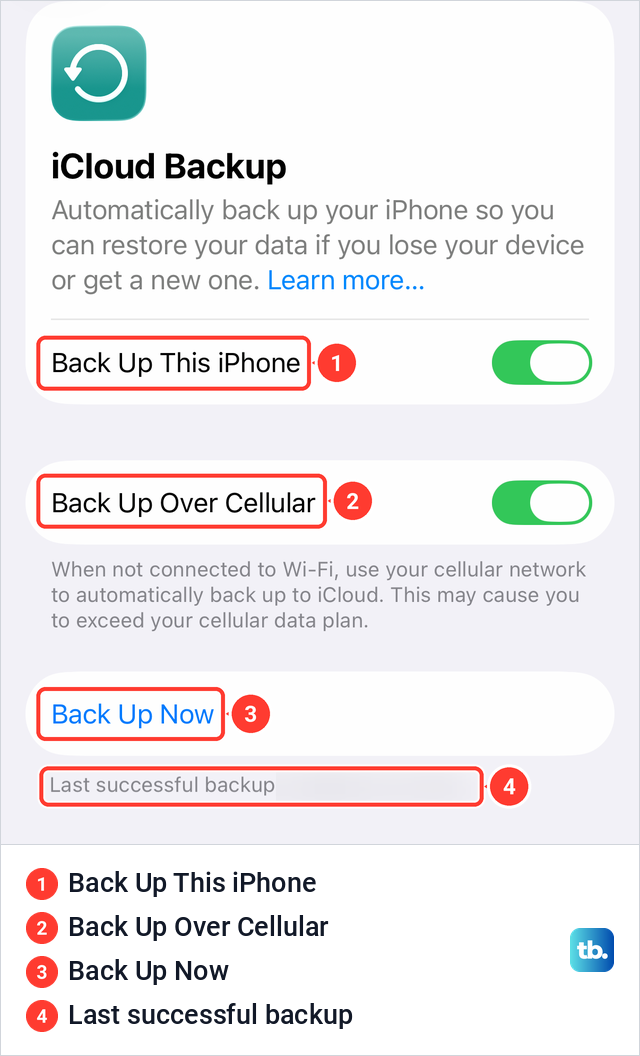
On the iCloud page, tap iCloud Backup. On our iPhone that row showed how long ago the last backup ran, with the words This iPhone under it. The Backup page that opens holds everything for this job: the Back Up This iPhone switch, the Back Up Over Cellular switch, the Back Up Now button and the Last successful backup line.
Turn on Back Up This iPhone if it is off, then tap Back Up Now. Apple says to stay connected to Wi-Fi until the process ends. Under Back Up Now, the date and time of your last backup is shown, so the backup is done when that line moves to the current time. Apple's guide for iOS 27 gives the same path, Settings > your name > iCloud > iCloud Backup.
If an alert says there is not enough iCloud storage, Apple says to follow the onscreen steps to buy more. That is one way out, not the only one. The storage section below shows how to see what the backup needs before you pay for anything.
Let iCloud back up your iPhone automatically
With Back Up This iPhone on, Apple says iCloud backs up the iPhone daily when it is connected to power, locked and connected to Wi-Fi. For most people that means overnight on the charger. If the Last successful backup date is several days old, check those three conditions and your iCloud storage first.
Back Up Over Cellular is the exception to the Wi-Fi rule. Apple says that on models that support 5G, your carrier may give you the option to back up over the cellular network, so the switch is not on every iPhone. Ours showed it with a warning that backing up this way may cause you to exceed your cellular data plan.
What iCloud Backup saves and what it leaves out
An iCloud backup is not a copy of everything on the phone. Apple describes it as a copy of the information that isn't already synced to iCloud: device settings, the Home Screen layout and app organization, app data for the apps you downloaded, your Apple Watch backup, purchased ringtones and your Visual Voicemail password.
Photos and messages depend on two switches. If iCloud Photos is on, Apple says your photos and videos sync to iCloud and are not included in your daily backup, and the same goes for your texts when Messages in iCloud is on. On our iPhone those switches were labeled Sync this iPhone on the iCloud Photos page and Use on this iPhone on the Messages in iCloud page.
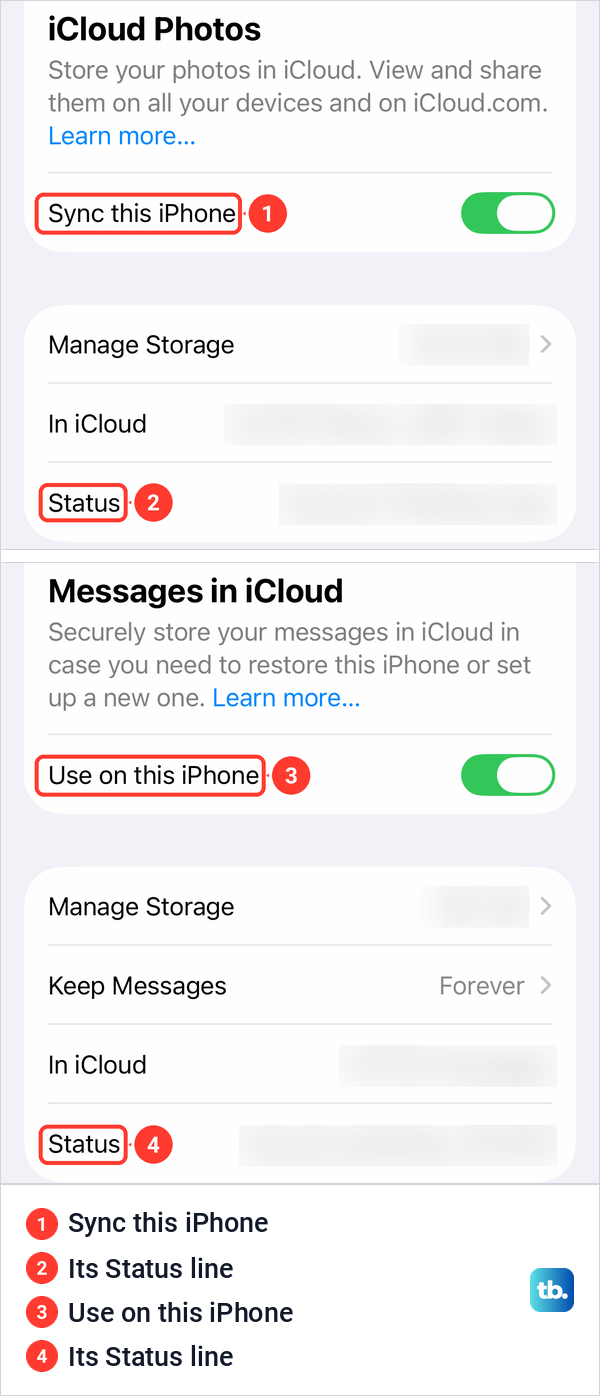
Check both pages before you count on iCloud for your pictures and texts. A switch that is on only sets that content to sync on its own, so read the Status line below it, which on our iPhone showed when each one last synced, and make sure it has caught up before you erase or replace the phone.
You can also access your iCloud Photos from another device or the web to see what arrived. When a switch is off, Apple says that content goes into the iCloud backup instead.
Apple also lists what an iCloud backup never holds: data kept in other cloud services such as Gmail, Apple Mail data, Apple Pay information, Face ID or Touch ID settings, iCloud Music Library and App Store content, and offline maps. Notes that you already sync with iCloud are left out for the same reason as photos.
A new backup cannot bring back something that is already gone. If a picture disappeared, start with how to recover deleted photos from iPhone, and for texts, the steps to see and recover deleted messages.
Check your last backup and the next backup size
The iCloud page also shows how big the backup is and how much room you have. Tap Storage at the top of the iCloud page. On our iPhone with iOS 26.6 this opened a page titled Manage Storage, with a bar split into Family, iCloud Photos, Messages, Backups and Others, then rows for Change Storage Plan and Backups.
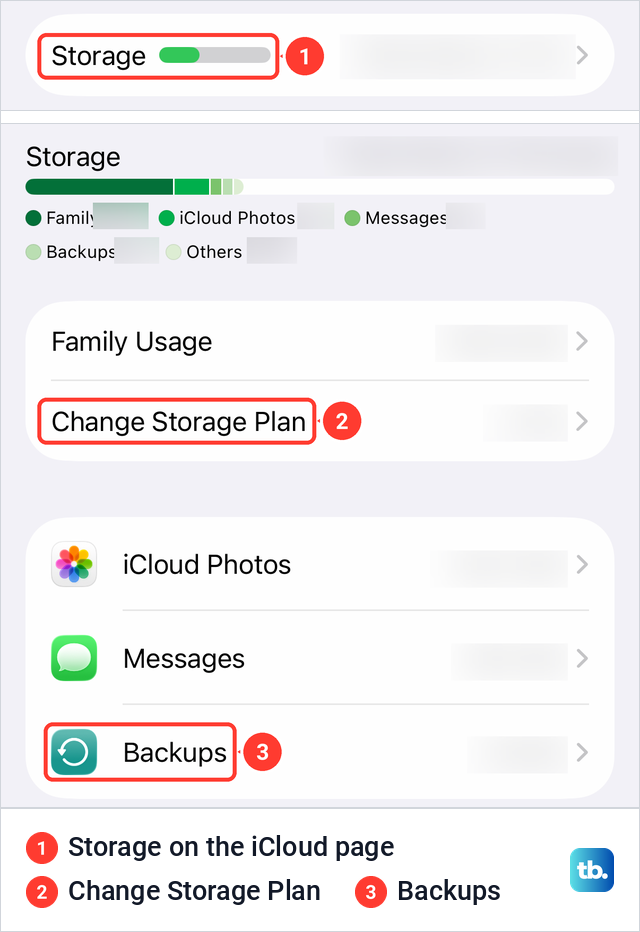
Tap Backups to see every device backed up to your Apple Account, with the phone in your hand marked This iPhone. Tap This iPhone to open Backup Details, which lists Last Backup, Backup Size and Next Backup Size.
Next Backup Size is the number to compare with your free iCloud space. On our iPhone it read Loading for about 30 seconds before the figure appeared, and Apple says the calculation might take a few minutes. If the next backup needs more space than you have left, it will not finish until you make room.
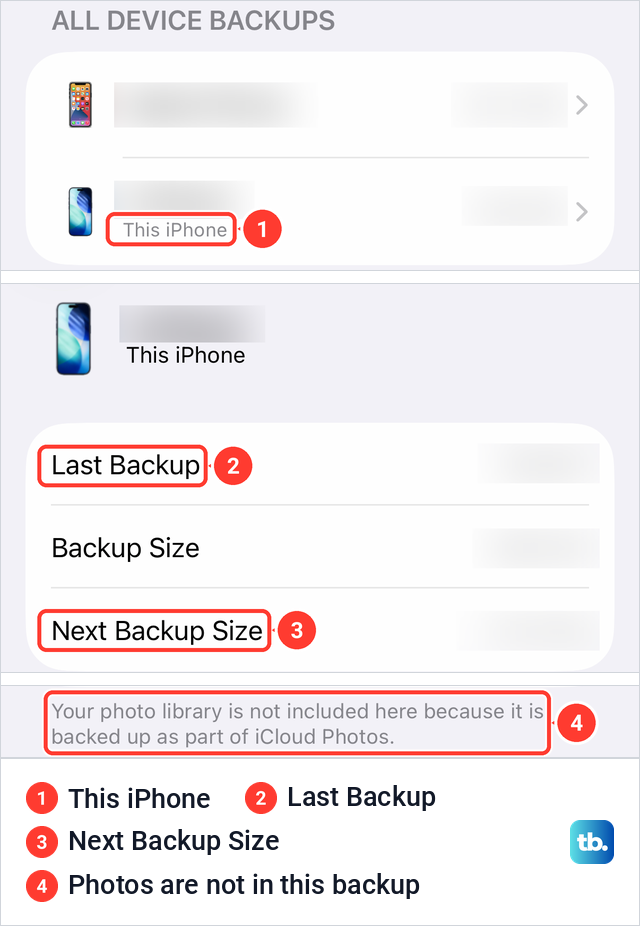
Below the sizes, Backup Details lists your apps with a switch for each. Apple says that turning an app off there also deletes that app's existing backup data from iCloud, so switch off only apps you no longer need backed up. Apple's iPhone guide reaches the same page from iCloud Backup by tapping This iPhone in the device list.
At the bottom of Backup Details our iPhone showed a red Turn Off and Delete from iCloud button. Its note says it turns off iCloud Backup and deletes all of the device's backups stored in iCloud. Leave it alone unless that is exactly what you want.
Back up your iPhone to a Mac
On a Mac with macOS Catalina 10.15 or later, the backup is made in the Finder rather than iTunes. Connect the iPhone with a cable, click Allow on the Mac if asked, open a Finder window and select your iPhone in the sidebar. If asked, click Trust on the Mac and on the iPhone, and enter the iPhone passcode. If you no longer remember it, read what to do when you forgot the iPhone passcode.
Click General at the top of the Finder window and select Back up all of the data on your iPhone to this Mac. To keep Health and Activity data, select Encrypt local backup, create a password, enter it again and click Set Password. Apple says you can't recover the backup without that password. If a backup has not already started, click Back Up Now and wait for it to finish.
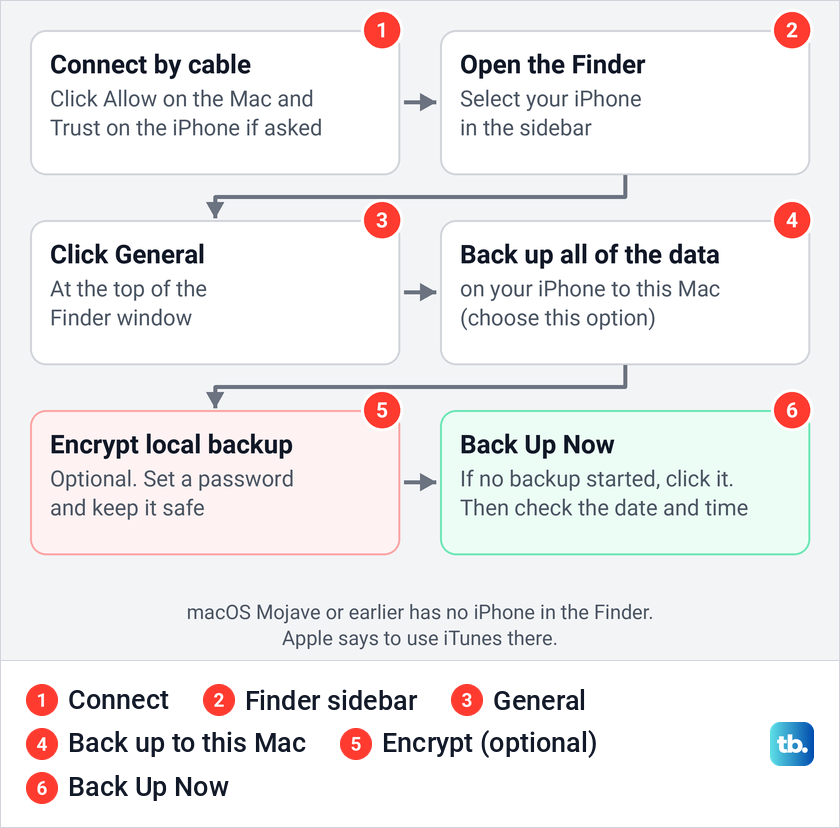
Check before you click, because Apple's encryption page says the first time you confirm a password, a backup starts right away. If one is already running, let it finish instead of starting another. Apple says that after a successful backup, the date and time of your last backup appear in the same window, so check that line before you unplug the iPhone.
Macs on macOS Mojave or earlier have no iPhone in the Finder and use iTunes instead. Apple's steps there are to connect the iPhone, open iTunes, select the iPhone in the iTunes window, trust the computer if asked, choose Encrypt local backup if you want it, then click Back Up Now. Apple says iTunes also backs up the iPhone automatically when you connect it.
The backup is stored on the Mac. Apple says turning on encryption overwrites and encrypts your previous backups. To open the folder and see which backups you have, see how to find iPhone backups on a Mac.
Back up your iPhone to a Windows PC
Many older instructions still start with iTunes, but Apple's current Windows steps start with the Apple Devices app. Connect the iPhone with its cable, follow the onscreen steps if it asks for the passcode or to Trust This Computer, open Apple Devices and select the iPhone in the sidebar. Then select General.
Choose Back up all of the data on your iPhone to this computer. Select Encrypt local backup if you want the protected data described below, then select Backup Now unless a backup already started when you confirmed the encryption password. Apple says that once the backup is complete, Manage Backups shows the backup file.
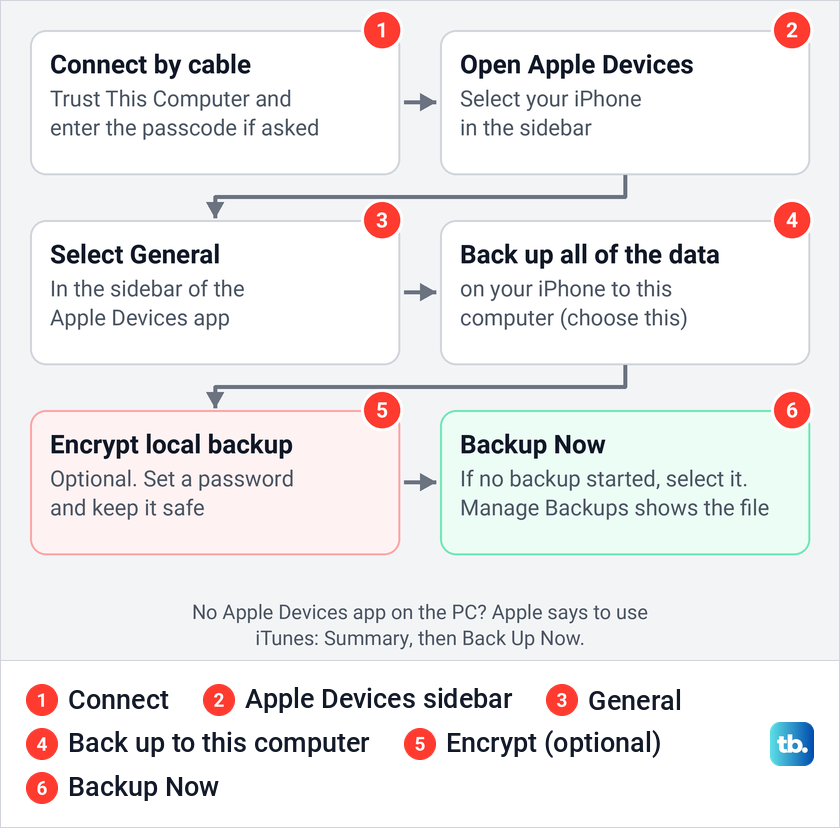
The two choices on that General page decide where backups are stored. Apple says the other option, Back up your most important data on your iPhone to iCloud, stores backup data in iCloud instead of on your PC. If your PC has no Apple Devices app, open iTunes, click the iPhone button near the top left, click Summary and click Back Up Now.
Should you encrypt a computer backup
Apple says a computer backup isn't encrypted by default. Without encryption it holds almost all of the iPhone's data and settings but leaves out Activity, Health and Keychain data. An encrypted backup can also include your saved passwords, Wi-Fi settings, website history, Health data and call history.
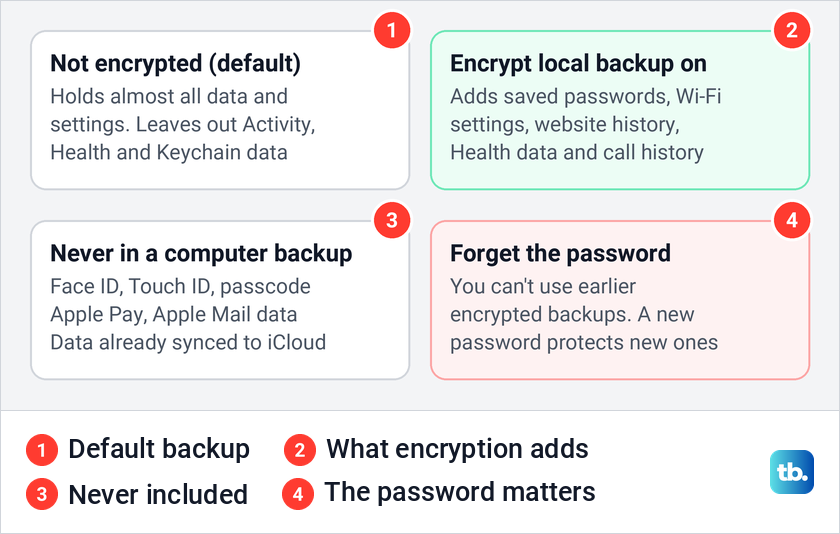
The catch is the password. Apple says you need it to use the backup, and if you forget it you can't use your earlier encrypted backups, only reset it and start new ones. Write it down or store it in a password manager before you click Back Up Now.
Turning encryption on starts a backup right away, and Apple says it overwrites and encrypts your previous backups. Even an encrypted backup leaves out Face ID, Touch ID and passcode data. iCloud backups are always encrypted, Apple says, so this choice only matters on a computer.
Fix an iPhone backup that will not finish
Apple's first checks depend on the message you see. For not enough iCloud storage, compare Next Backup Size with your free space as shown above, then remove what you don't need from the backup, choose a larger iCloud+ plan or back up to a computer. For a message that the last backup couldn't be completed, Apple says to check Wi-Fi, install any software update, try another Wi-Fi network and check your iCloud storage.
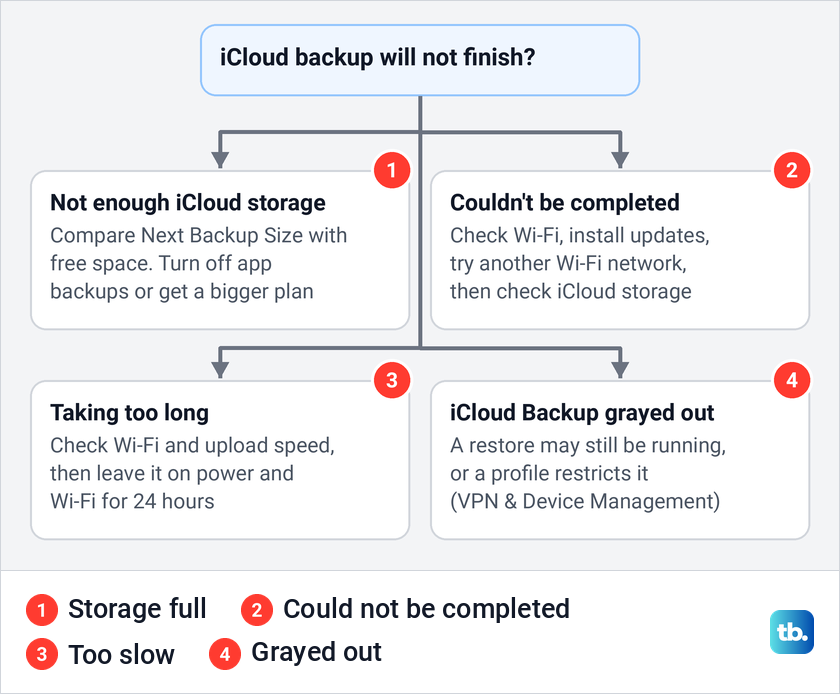
When a backup runs but never seems to end, Apple says to check Wi-Fi and your upload speed, then leave the iPhone connected to power and Wi-Fi for 24 hours. That is Apple's troubleshooting window for a slow backup, not a normal duration, and Apple gives no fixed time. The size of the next backup and your upload speed decide how long it takes.
If iCloud Backup is grayed out, Apple says a restore may still be in progress, in which case the Backup page says the iPhone will back up automatically when it is done. A profile from a school or employer can also restrict it, and installed profiles are listed in Settings > General > VPN & Device Management. For the full set of fixes, use our guide to fix an iPhone that will not back up to iCloud.
Back up before a new iPhone or an update
Make a fresh backup right before any big change and check its date, rather than trusting an old automatic one. Before you update the software on your iPhone, a current backup is your way back if something goes wrong. If you plan to erase an iPhone before selling it, make sure the backup date is from that day.
Moving to a new iPhone without enough iCloud space has its own route. Apple offers temporary iCloud storage when you buy a new iPhone or iPad and don't have enough iCloud storage to back up your current one. Open Settings > General > Transfer or Reset iPhone and tap Get Started under Prepare for New iPhone.
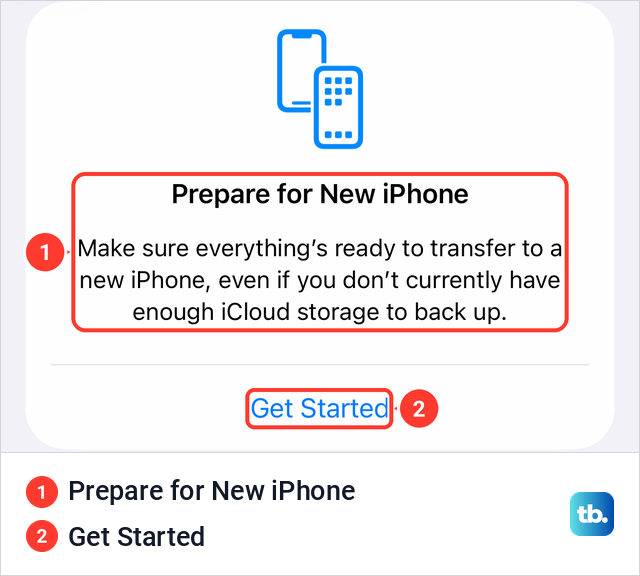
On our iPhone that card read: Make sure everything's ready to transfer to a new iPhone, even if you don't currently have enough iCloud storage to back up. Apple's next steps are to tap Turn On Backup to Transfer if iCloud Backup is off, tap Continue on the message about free extra storage, and wait for the backup to complete.
Apple gives you 21 days to restore that temporary backup to the new iPhone and says not to erase the old one until you have. If the new phone is late, Keep My Backup Longer in Settings adds another 21 days. When the new iPhone is ready, follow the steps to restore your iPhone from a backup.
Installing a beta version of iOS comes with its own backup steps. If that is your plan, follow the separate guide to back up an iPhone before installing a beta.
How we tested this guide
We tested this on an iPhone 17 Pro with iOS 26.6, going through the iCloud Backup page and the Backup Details screen.
Frequently Asked Questions
How do I know my iPhone backup finished?
On the iPhone, open Settings > your name > iCloud > iCloud Backup and read the Last successful backup line under Back Up Now. On a Mac the date and time of the last backup appear in the Finder, and on Windows, Manage Backups in Apple Devices lists the backup file.
Does iCloud Backup include my photos and messages?
Only when they don't already sync. With iCloud Photos or Messages in iCloud turned on, Apple says those sync to iCloud and are not in your daily backup, so check the Status line on each page to confirm they have synced.
Can I back up my iPhone without Wi-Fi?
Yes, to a computer with a cable. For iCloud, some 5G iPhones offer Back Up Over Cellular if your carrier supports it, and the switch sits on the Backup page.
How long does an iPhone backup take?
Apple gives no fixed time, because it depends on how much data needs to upload and on your connection. For a backup that seems stuck, Apple says to leave the iPhone on power and Wi-Fi for 24 hours.
How much iCloud storage do I need to back up my iPhone?
Enough free iCloud space to hold the Next Backup Size shown under Settings > your name > iCloud > Storage > Backups > This iPhone. Every Apple Account gets 5 GB free, shared with photos, files and mail.
What happens if I forget my encrypted backup password?
Apple says you can't use your earlier encrypted backups without it. You can reset the password and make a new encrypted backup, or back up to iCloud instead.
Is an iCloud backup encrypted?
Yes. Apple says iCloud always encrypts your backups, while a computer backup is encrypted only after you turn on Encrypt local backup.