

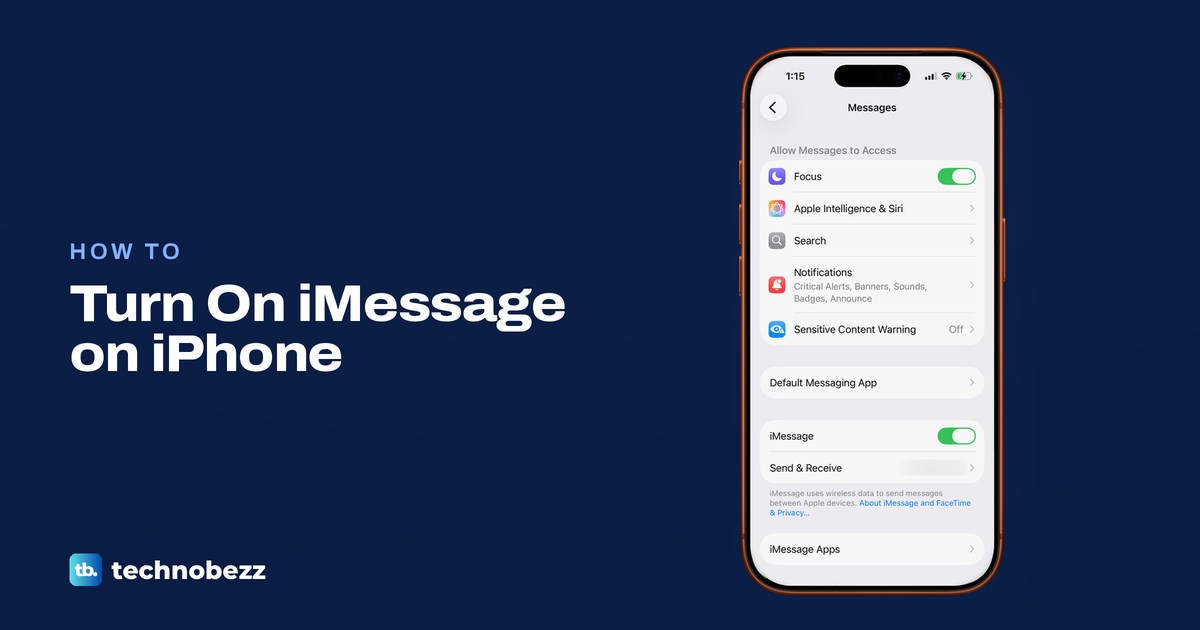
To enable iMessage on iPhone, open Settings, tap Apps, tap Messages and turn on iMessage. Then tap Send & Receive and choose the phone number and email addresses people can reach you at. Apple says iMessage may take a moment to activate.
If your number shows a spinning gear or Waiting for Activation, Apple says the carrier can take up to 24 hours to verify it, and activating a number needs an SMS your carrier may charge for. On our iPhone 17 Pro with iOS 26.6, the iMessage switch sat directly above Send & Receive, and the automatic SMS fallback switch further down was labelled Retry as Text Message, not the Send as Text Message that Apple's help page still names.
The short version
- Turn it on: Settings > Apps > Messages, then switch on iMessage.
- Pick your number: tap Send & Receive and check your phone number, your email, or both.
- Read the colours: blue bubbles are iMessage, green bubbles are RCS or SMS/MMS.
- Spinning gear: the number is being verified. Apple says allow up to 24 hours and stop switching iMessage off and on.
- Leaving iPhone: turn off iMessage and FaceTime before you move your number to a non-Apple phone.
What each iMessage sign means
Most iMessage questions come down to one thing on the screen: a switch, a mark next to your number, or the colour of a bubble. The table pairs each one with what it means and what to do, following Apple's instructions.
| What you see | What it means | What to do |
|---|---|---|
| iMessage switch is off | iMessage is off, so texts go as RCS or SMS/MMS | Settings > Apps > Messages, turn on iMessage |
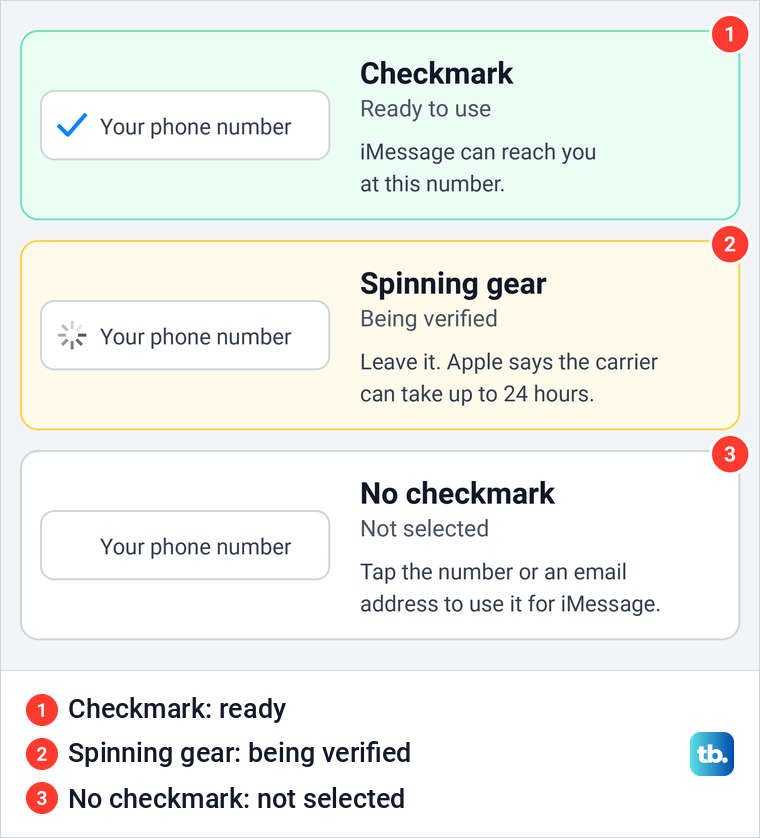
| Checkmark next to your number in Send & Receive | People can reach you on iMessage at that number | Nothing, or pick it under Start new conversations from |
| Spinning gear next to your number | Your iPhone is trying to verify the number | Follow the checks below, then allow up to 24 hours without repeatedly switching iMessage off and on |
| Waiting for Activation or Activation Unsuccessful | Activation has not finished | Work through Apple's checks in the order below |
| Number missing from Send & Receive | That number is not available for iMessage on this iPhone | Check that the line is on in Settings > Cellular, then turn iMessage off and on |
| Green bubble | The message went as RCS or SMS/MMS | Check that iMessage is on and the other person uses iMessage |
| Red exclamation point and Not Delivered | The message did not send | Tap it, tap Try Again, then Send as Text Message if it still fails |
Turn on iMessage in Settings
Open the Settings app, scroll down and tap Apps. The list is in alphabetical order, so Messages sits in the M section. On our iPhone it came after Measure and before Music, and the Search Apps field at the bottom finds it faster on a phone with a long list.
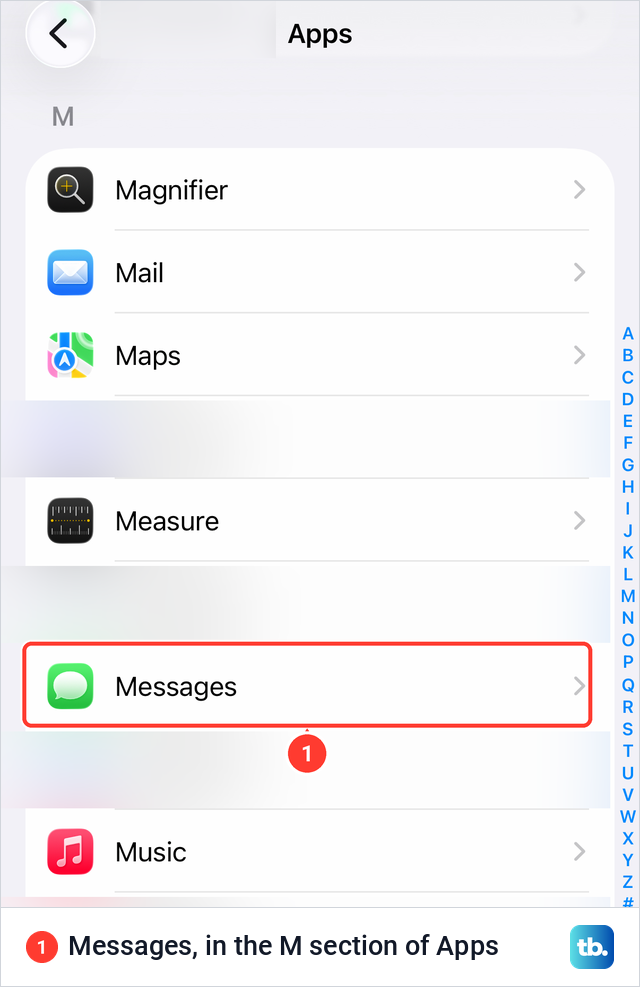
Tap Messages. The page opens with switches for what Messages may access, such as Focus and Notifications, then a Default Messaging App row. The switch you want is the iMessage row below that, with Send & Receive directly under it. Apple's guide for iOS 27 gives the same steps.
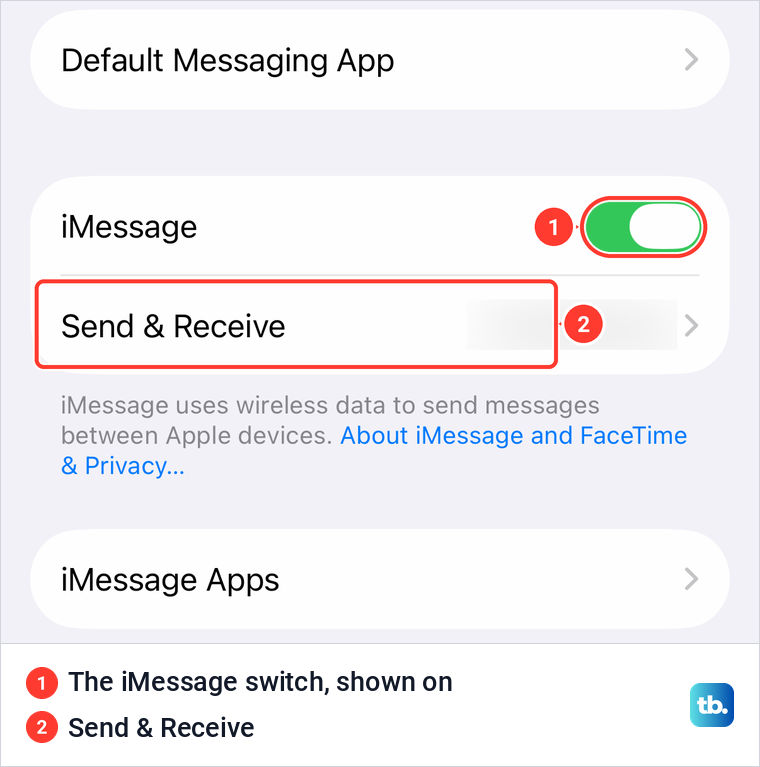
Turn on iMessage. Our iPhone showed the line "iMessage uses wireless data to send messages between Apple devices" under the switch, and Apple notes that iMessage uses cellular data when Wi-Fi is not available, so cellular data rates might apply. Apple says you might need to wait a moment for it to activate, so give it a few seconds before you open Send & Receive.
Choose your phone number or email
Tap Send & Receive. Apple's steps are to choose from the options below "You can receive iMessages to and reply from." A checkmark next to a phone number or email address means people can reach you on iMessage there, so check the number and any addresses you want to use.
If the page shows "Use your Apple Account for iMessage" instead, tap it and sign in. Apple says to use the same Apple Account that you use on your Mac or iPad, because the number only follows you to those devices through one shared account.
Further down the same page, the section Apple calls "Start new conversations from" sets which number or address new messages come from. Apple warns that when you use both your phone number and your email, you might start or receive separate threads with the same person. Its advice is to set your phone number or your email as the primary way to start and receive messages.
To set up a phone number at all, Apple says you need an active SIM or eSIM for that number. Apple also says you can use your email address with iMessage instead of a phone number, which helps while your number is still being verified. Once your number or email has its checkmark, you can also schedule a text message to go out later.
Blue and green bubbles explained
A blue bubble is iMessage. Apple says iMessage works over Wi-Fi or cellular data with other people who also use iMessage, and those conversations are encrypted end-to-end. A green bubble means the message went another way, either as RCS or as SMS/MMS, and both of those use your carrier.
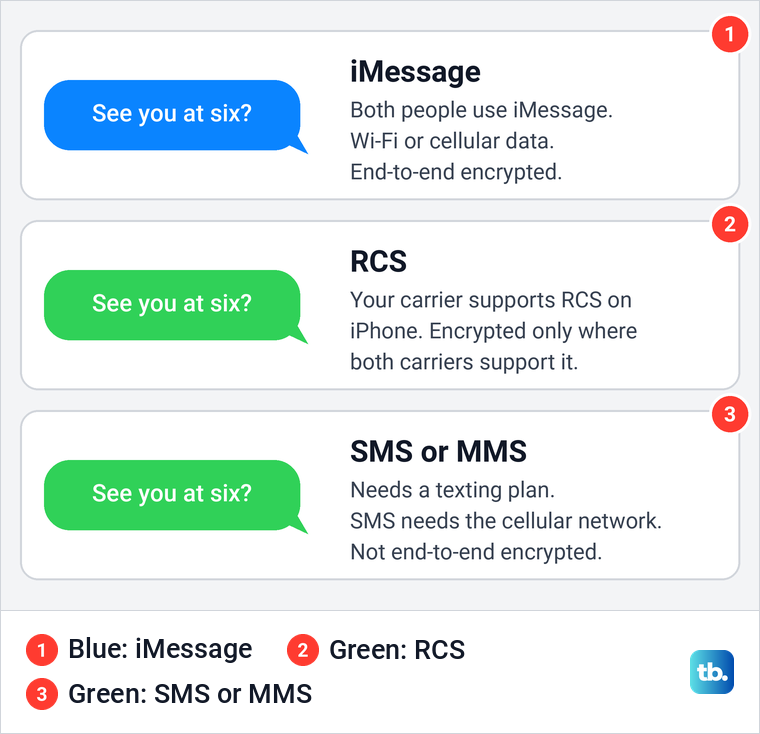
Green is not proof that someone blocked you or that iMessage is broken. It also appears when the other person uses an Android phone, has turned iMessage off, or when iMessage was unavailable and the message went as RCS or SMS/MMS instead. RCS supports read receipts and typing indicators, and Apple says supported carriers are rolling out end-to-end encrypted RCS (Beta) from iOS 26.5, but only when every carrier in the chat supports it.
Blue-bubble chats also show when you have read a message if Send Read Receipts is on, and that switch was off on our iPhone. You can turn off read receipts on iPhone if you would rather people not see that.
Retry as Text Message and RCS
Scroll down the Messages page to find the switch that sends a text as SMS when iMessage can't get through. On our iPhone with iOS 26.6 it is called Retry as Text Message, and its note reads "If iMessage is unavailable, iPhone can automatically send text messages using SMS. Text messages sent using SMS are not encrypted. Carrier messaging rates may apply."
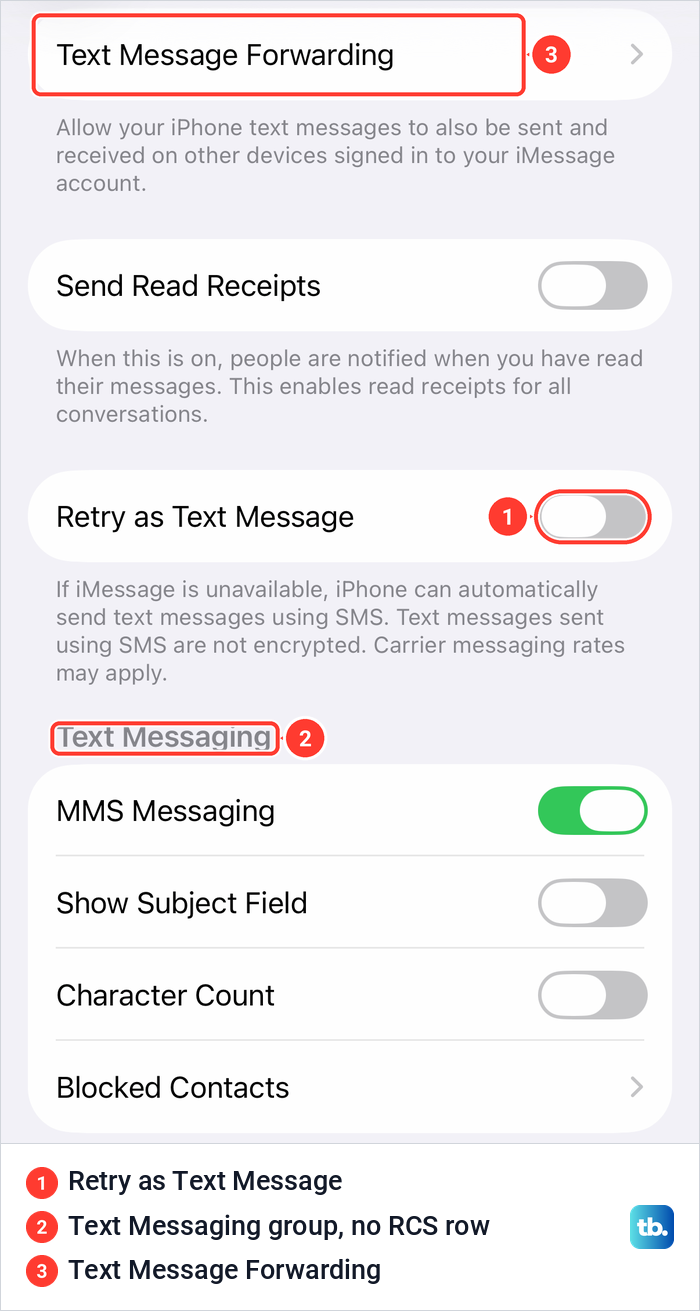
Apple's support page still calls this switch Send as Text Message, so look for either name on your iPhone. It was off on ours. Turn it on if you would rather a message arrive as a plain text than wait, and leave it off if you do not want failed iMessages retried as SMS automatically. The switch covers only that retry, so RCS and other SMS/MMS texts still go out as green bubbles either way.
We scrolled the whole Messages page on our iPhone and found no RCS Messaging switch. The Text Messaging group held only MMS Messaging, Show Subject Field, Character Count and Blocked Contacts, where you can also block a number on iPhone. Apple says RCS needs iOS 18 or later and a carrier that supports RCS on iPhone, so whether you see an RCS switch at all depends on your carrier.
When a single message fails, a red exclamation point appears next to it with Not Delivered. Apple's steps are to check your connection, tap the exclamation point, then tap Try Again. If it still won't send, tap the exclamation point again and choose Send as Text Message, and messaging rates may apply.
Fix iMessage waiting for activation
When activation stalls, Apple says you might see Waiting for Activation, Activation Unsuccessful, An Error Occurred During Activation, Could Not Sign In, or Unable to Contact the iMessage Server. Apple gives one set of checks for all of them, in this order. Work down the checks below and stop as soon as your number gets its checkmark.
Check your connection, iOS and time zone
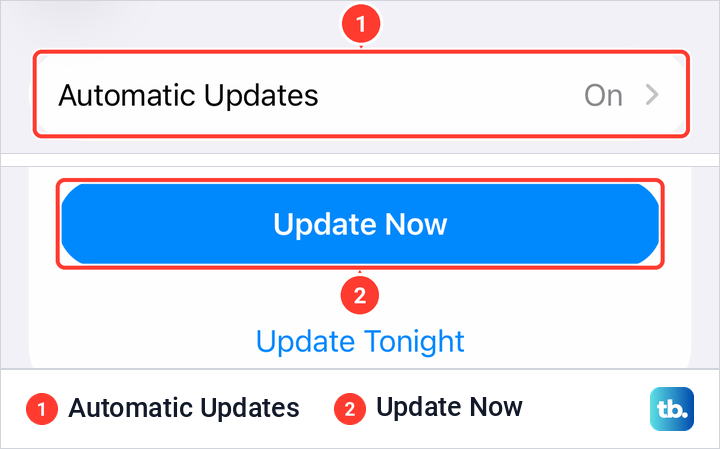
First, make sure the iPhone is on Wi-Fi or cellular data. Then open Settings > General > Software Update and install any update waiting there. On our iPhone that page showed an iOS update ready with Update Now and Update Tonight, Automatic Updates set to On, and an upgrade to iOS 27 offered separately.
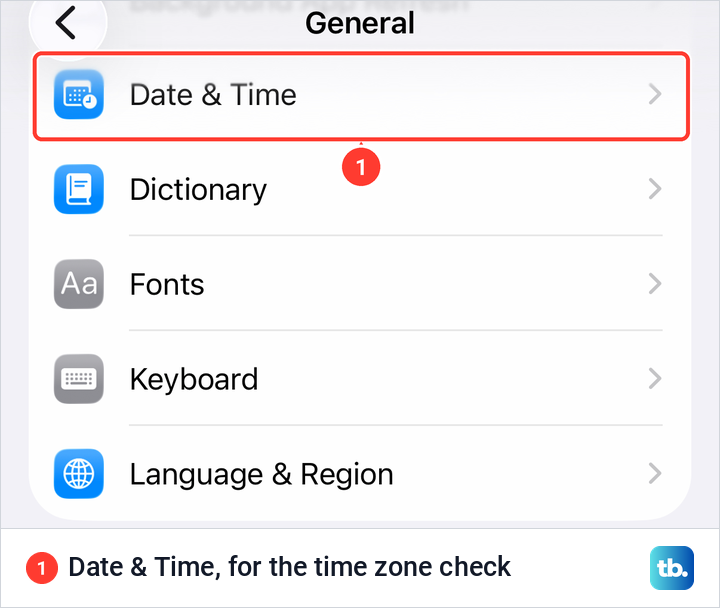
Next, Apple asks you to make sure your time zone is set correctly, under Settings > General > Date & Time. On our iPhone the Date & Time row sat in the lower half of General, above Dictionary, Fonts and Keyboard. A wrong time zone is easy to miss after travel, and it is one of the first things Apple asks you to rule out.
Allow the activation text
Apple says an iPhone needs SMS messaging to activate your phone number with iMessage and FaceTime, and depending on your carrier you might be charged for that text. If a prompt says "Your network provider may charge for SMS messages used to activate iMessage and FaceTime", tap Turn On. If ordinary texts and verification codes are not arriving either, fix a missing verification code first, because activation relies on the same SMS service.
Turn iMessage and FaceTime off, restart, then on
Apple's reset sequence uses both services. In Settings > Apps > Messages, turn off iMessage. Go back to Apps, tap FaceTime and turn off FaceTime, then restart your iPhone and turn both back on.
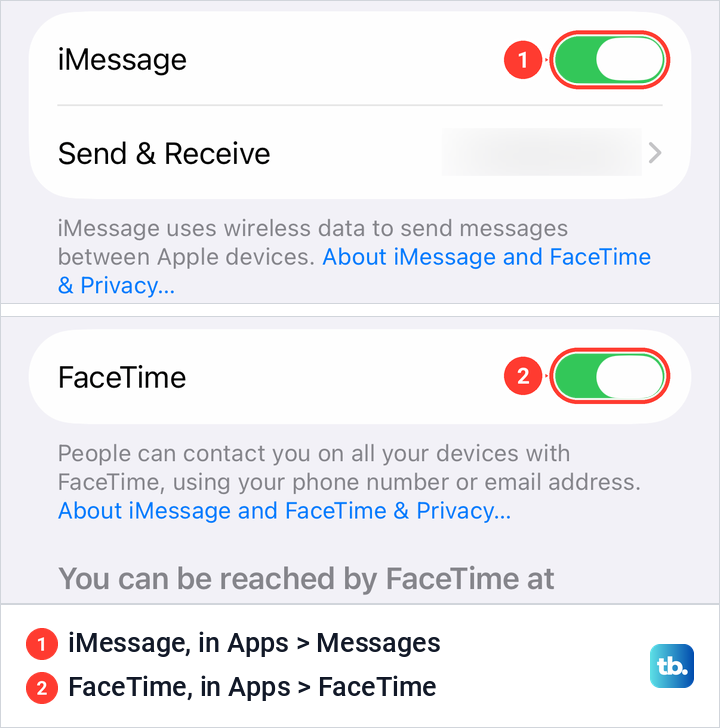
Apple's step is an ordinary restart, turning the iPhone off and on again. Only force restart a frozen iPhone if the screen will not respond, which is a separate problem.
Request activation online
Apple also offers an online request. Go to apple.co/IMFT-mac, tap Get Started under Enable Apple Account, sign in and follow the steps, entering your phone number if you use one with iMessage. Apple says you will get an email if your account is ready for iMessage and FaceTime.
If you see the error "This account is blocked due to reported spam" and no email arrives after you send that request, Apple says the account is likely blocked from iMessage and FaceTime. In that case you can still send RCS or SMS/MMS texts with iMessage off, and you may still be able to use iMessage with your email address.
Use your email while you wait
Apple suggests your email address as a stopgap. In Settings > Apps > Messages > Send & Receive, choose your email address. If that address is not verified, Apple's steps are to sign in to your Apple Account, review the email addresses on file and tap Resend next to the one you want to verify.
Give the carrier 24 hours
If your number still has no checkmark after all of that, Apple says it might take up to 24 hours for your carrier to verify it. Apple's advice is to ask your carrier to confirm that your line can send and receive international SMS messages. While a spinning gear shows next to your number, the iPhone keeps trying on its own, and Apple says there is no need to switch iMessage off and on again.
Check your phone line and eSIM
If your number is missing from Send & Receive, check the line first, since Apple says a number needs an active SIM or eSIM. After setting up a new iPhone, if messages go green or split into separate threads, Apple says to update iOS, then make sure your phone line is on in Settings > Cellular. With multiple SIMs, select and turn on the number you want, then turn iMessage off and on and tap your number in Send & Receive.
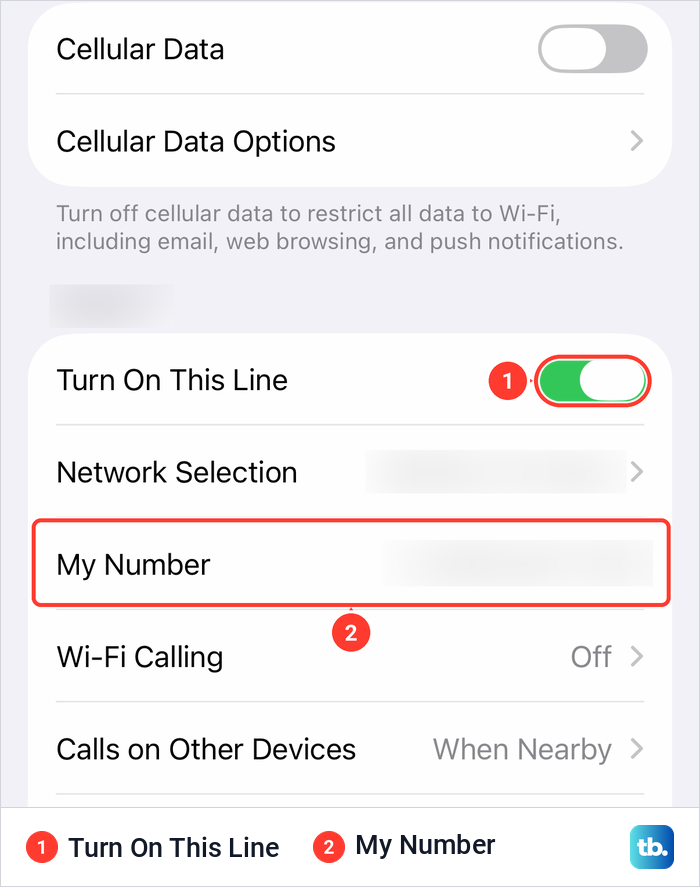
On our iPhone the Cellular page showed the line with Turn On This Line switched on and a My Number row underneath. There is no need to edit My Number for iMessage, because Apple's activation steps never send you there.
Apple separates two eSIM problems, and they have different fixes. If you set up an eSIM in Settings after setting up the iPhone, Apple says iMessage does not activate automatically for that number, so your messages may go green or come from your email address. Apple's fix is to turn iMessage off and back on in Settings > Apps > Messages.
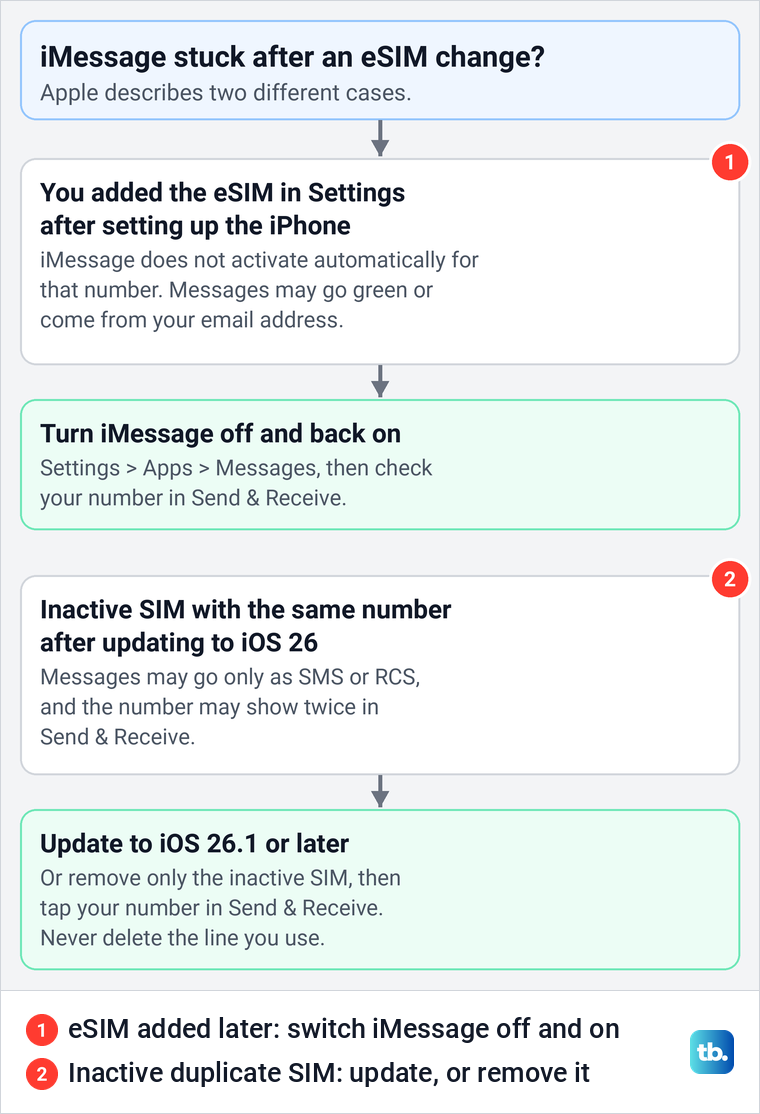
The second case follows an update to iOS 26, when an old, inactive SIM carries the same number as your active one. Apple says messages may then go only as SMS or RCS, and the number may appear twice in Send & Receive. Apple's fix is to update to iOS 26.1 or later, or to remove only the inactive SIM, then tap your number in Send & Receive. Never delete the eSIM for the line you use, because that takes your number off the iPhone.
Use iMessage on iPad and Mac
Your iPad and Mac can send and receive iMessages from your iPhone number once the number is set up on the iPhone. On iPad, Apple's steps are Settings > Apps > Messages, make sure iMessage is on, sign in with the same Apple Account as your iPhone if asked, then tap Send & Receive and check your number and Apple Account.
On a Mac, open Messages, sign in with the same Apple Account if asked, then choose Messages > Settings and click iMessage. Select your phone number and Apple Account in the list, and pick your number under Start new conversations from if you want people to see it rather than your email.
Green-bubble texts reach your iPad and Mac through Messages in iCloud or through Text Message Forwarding, a row on the iPhone's Messages settings page. Apple says to tap it and turn on the devices you want, and our iPhone described it as letting your iPhone text messages also be sent and received on other devices signed in to your iMessage account. For the full computer setup, see how to send and read texts on a computer.
Keep your conversations in sync
Turning on iMessage does not copy your old chats to other devices, and that is a separate switch called Messages in iCloud. Apple's path is Settings, your name, iCloud, then Messages. Our Settings also had its own iCloud row, and on the iCloud page a Messages tile sat in the Saved to iCloud section. If Messages doesn't appear there, Apple says to tap See All in that section.
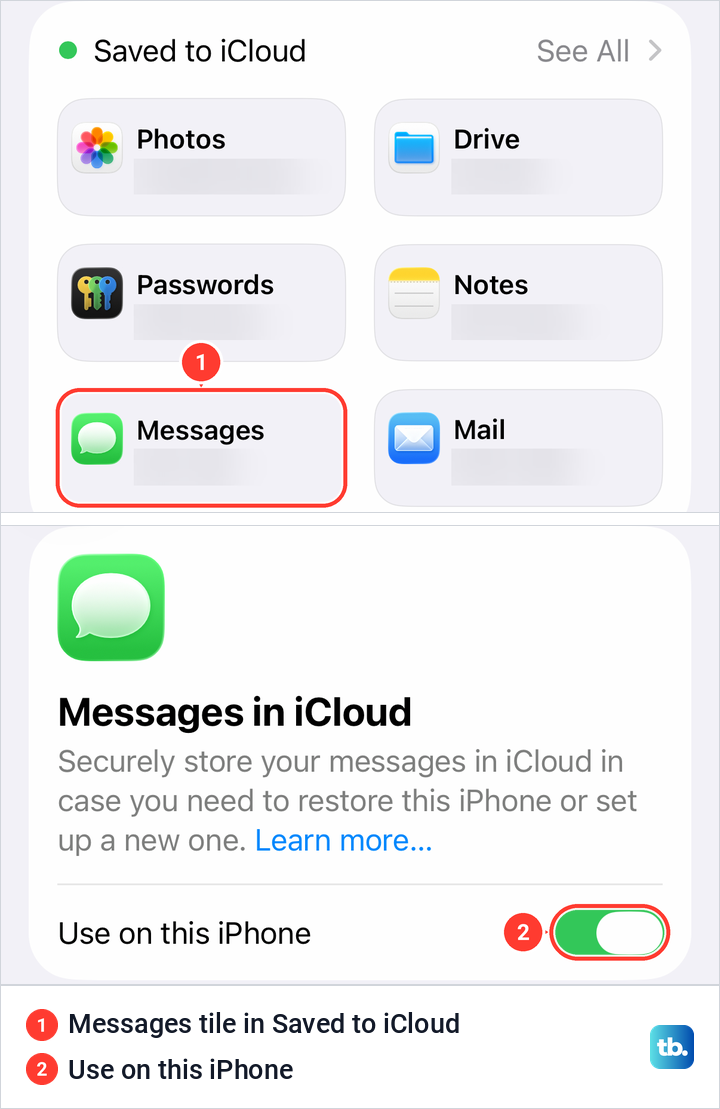
The tile opened Messages in iCloud, where Use on this iPhone was on, with Keep Messages and a Sync Now button below it. Apple notes that with Messages in iCloud on, anything you delete on the iPhone is also deleted from your other devices that use it.
If iMessage works but older conversations were deleted, the next job is to recover deleted iPhone messages. If messages arrive but no sound or banner comes with them, fix missing text message alerts instead, and if a Focus is silencing them, turn off Do Not Disturb on iPhone first.
Turn off iMessage before you switch phones
If you are moving your number to an Android phone, turn iMessage off first. Apple says that if you skip this, you might not get RCS or SMS/MMS messages on the new phone. Apple's steps are to put the SIM back in the iPhone if you moved it, connect to cellular data, then turn off iMessage and FaceTime, each in its page under Settings > Apps. Do it before you erase and reset the iPhone for sale, while you can still reach its settings.
If you no longer have the iPhone, Apple's online iMessage deregistration page removes your number from iMessage. Apple says you should get texts right away, but some Apple devices can take a few hours to notice you are no longer on iMessage.
How we tested this guide
We tested this on an iPhone 17 Pro with iOS 26.6, going through the Messages and FaceTime settings.
Frequently Asked Questions
How long does iMessage take to activate?
Apple says activation may take a moment, but carrier verification of a phone number can take up to 24 hours. While a spinning gear shows next to your number the iPhone keeps trying, so there is no need to switch iMessage off and on again.
Can I use iMessage with only an email address?
Yes. In Settings > Apps > Messages > Send & Receive, choose your email address. Apple offers your email address as an alternative to a phone number, which needs an active SIM or eSIM and an activation SMS.
Why are my messages green instead of blue?
Green means the message went as RCS or SMS/MMS instead of iMessage. Check that iMessage is on, that you have Wi-Fi or cellular data, and that the other person uses iMessage on an Apple device.
Why is my phone number missing from Send & Receive?
Apple says a phone number needs an active SIM or eSIM. Check that the line is on in Settings > Cellular, then turn iMessage off and back on and tap your number in Send & Receive.
Does iMessage cost money?
Apple's cost notes are that iMessage uses cellular data when Wi-Fi is not available, so data rates might apply. Activating a phone number also sends an SMS that your carrier may charge for.
Can my iPad and Mac use my iPhone number for iMessage?
Yes, once the number is set up on your iPhone. Sign in to the same Apple Account on each device and select your number in its Messages settings.
Should I turn off iMessage before switching to Android?
Yes. Turn off iMessage and FaceTime on the iPhone before you move your number, or use Apple's online deregistration page if you no longer have the iPhone.