

Typing long texts on a phone gets tedious when your computer is already in front of you. The right setup comes down to the phone and number you use: Android users start with Google Messages or Phone Link, iPhone users get the full Apple setup on a Mac, and web-number users go through Google Voice or T-Mobile DIGITS. Follow the route that matches your device, then use the disconnect steps before leaving text access on a shared computer.
1. Start with Google Messages for web on Android
For Android users who use Google Messages, this is the clean browser route for SMS, MMS, and RCS.
On your Android phone, open Google Messages.
Next, tap the account menu, then tap Device Pairing.
Choose or sign in to the Google Account you will use on the computer.
On the computer, open messages.google.com/web in Chrome, Firefox, Safari, or Microsoft Edge.
Sign in with the same Google Account.
Then, on the phone, tap the emoji that matches the one shown on the computer screen.
From the computer, select an unread conversation from the conversation list, or start a new one and send from the web composer.
The computer mirrors Google Messages from the phone, so the phone stays on and connected while you text. If Google Messages is missing or outdated, open Google Play, install or update Google Messages, and set it as the default SMS app when prompted. Carrier fees still apply.
2. Use Phone Link for Android on Windows
Phone Link requires a Windows 10 PC with the October 2022 update or later, or Windows 11, an Android phone running Android 10 or later, and both devices on the same Wi-Fi network.
On the Windows PC, open Phone Link.
On the Android phone, open Link to Windows. If it is not installed, install Link to Windows from Google Play.
Follow the setup prompts. When the PC shows a QR setup flow, open www.aka.ms/yourphoneqrc and scan the QR code with Link to Windows.
After setup, on the PC, open Phone Link, then select Messages.
To read a text, select a conversation.
To send a text, select New message, enter a contact name or phone number, select the contact, type the message, and send it.
Use this route when you want Android texts inside Windows instead of a browser tab. It also keeps message controls in one Windows app.
For message permissions, open Phone Link on the PC, go to Settings then Features then Messages, and turn on Allow this app to show text messages from my phone.
Turn on the MMS toggles you want, including Allow this app to send MMS attachments from my phone, Allow this app to receive MMS attachments from my phone, and Automatically download MMS attachments from my phone.
The PC does not manage or delete phone messages. Sensitive SMS, including two-factor codes, syncs when you grant message permission, so link only computers you control.
3. Pair an iPhone with Phone Link on Windows
Phone Link supports iPhone texting on Windows 10 with the May 2019 Update or later, or Windows 11, on a PC with Bluetooth Low Energy, with an iPhone running iOS 16 or later, and with a narrower feature set than Android.
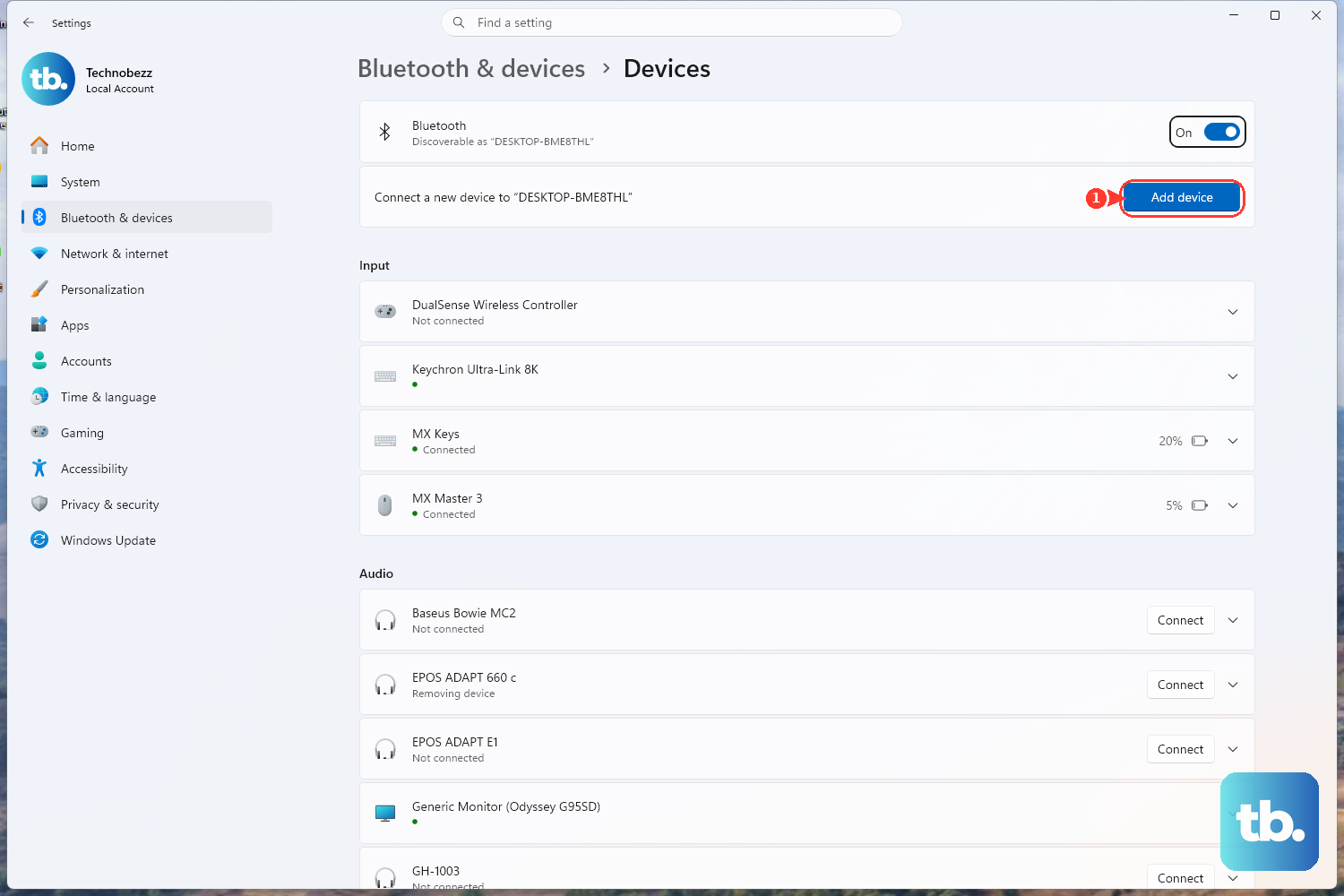
On the Windows PC, open Phone Link, select iPhone, pair the iPhone over Bluetooth, grant the requested iPhone permissions, and use Phone Link to view and reply to texts from the PC.
Microsoft says Phone Link shows only the messages you sent or received through Phone Link while the iPhone is connected via Bluetooth; ending the Bluetooth connection removes that Phone Link message history. For iPhone owners who also have a Mac, the Mac Messages setup below is the fuller Apple route.
4. Set up Messages on a Mac
A Mac is the full computer texting setup for iPhone owners.
On the Mac, open Messages.
Then go to Messages then Settings then iMessage, and sign in.
On the iPhone, open Settings then Apps then Messages.
Turn on iMessage.
Tap Send & Receive and verify the same Apple Account.
Next, on the iPhone, go to Settings then Apps then Messages then Text Message Forwarding.
Turn on the Mac.
On the Mac, open Messages, choose or start a conversation, type the message, and press Return.
Apple Messages handles iMessage on the Mac, while SMS, MMS, and RCS reach the Mac through either Messages in iCloud or Text Message Forwarding. Apple says Text Message Forwarding is built into Messages in iCloud, so devices using Messages in iCloud do not need separate Text Message Forwarding setup. Apple says SMS, MMS, and RCS on Mac require iPhone relay, with carrier, country, and region availability.
With Messages in iCloud turned on for the iPhone as well, open Messages on the Mac, go to Messages then Settings then iMessage, and select Enable Messages in iCloud.
5. Open texting on a Chromebook
Connect the Android phone to the Chromebook when ChromeOS prompts you to do so.
On the Chromebook, open Launcher.
Select the Up arrow.
Open Messages, then follow the setup flow shown by ChromeOS.
When Google Messages opens the current pairing flow, use the Google Account pairing shown in Device Pairing.
On a Chromebook with an Android phone, use Google Messages for web for the full SMS and RCS conversation view. Phone Hub is useful for phone notifications and supported app streaming, but it is not the full texting client by itself.
Phone Hub requires a Chromebook on M89 or later and an Android phone on Android 5.1 or later. Current Google Messages pairing uses the Google Account route; older ChromeOS labels still refer to Messages for web.
6. Send through Google Voice or T-Mobile DIGITS
Use these options when the texting number belongs to Google Voice, Google Fi Wireless, or T-Mobile DIGITS instead of only the phone's default SMS app.
For Google Voice, go to voice.google.com, open Messages, select Send a message, enter a contact name or phone number, type the message, and select Send.
Unread messages are bold in the Messages tab, replies happen inside the selected conversation, and spam is under Menu then Spam. Google says some services, including some banks and subscriptions, do not send texts to Google Voice numbers, and group texts support up to eight participants including the sender.
For Google Fi Wireless on Android, use Google Messages for web with the Google Fi account. Turn on the phone, pair it to the Google Account, and use Google Account pairing rather than QR pairing for the full Fi experience. Google says this feature is not available for iPhone.
For T-Mobile DIGITS, in Chrome or Edge, open digits.t-mobile.com, select Log In, sign in with the T-Mobile ID, choose the DIGITS line or number, and use the web client to send and receive texts.
T-Mobile says texts and picture messages you send from the phone's native messaging app, along with iMessages, may not sync into the DIGITS app or web threads, so send outgoing messages from the DIGITS app if you want the full DIGITS conversation history.
7. Remove computer text access
Google Messages: on the phone, open Google Messages, tap the account menu, open Device Pairing, and remove the computer you no longer use.
Phone Link: on the PC, open Phone Link, go to Settings then Devices, open the device menu, select Remove, and confirm Remove.
Apple Messages: on iPhone, open Settings then Apps then Messages then Text Message Forwarding, and turn off the Mac.
On the Mac, open Messages, go to Settings then iMessage, and select Sign Out.
Messages in iCloud: on the Mac, open Messages, go to Settings then iMessage, and deselect Enable Messages in iCloud.
Disconnect text access when a computer is shared, sold, repaired, or no longer yours. Each platform keeps its own removal controls.
Microsoft notes that a removed phone remains visible in some places until it is also managed under Link to Windows on the phone or under Windows Settings then Bluetooth & devices then Mobile devices then Manage devices.
8. Skip retired texting methods
Old tutorials that teach Verizon Message+, Verizon website texting, AT&T Messages web, AT&T Messages for Tablet, AT&T Messages Backup & Sync, AT&T email-to-text, Samsung Messages as the US Galaxy default route, or Google Messages QR-only pairing are no longer the current setup.
Verizon Message+ was discontinued in December 2024. Verizon website text messaging ended on December 11, 2023. AT&T Messages web was discontinued on October 31, 2019, and AT&T Messages for Tablet plus AT&T Messages Backup & Sync were sunset by the end of 2024. AT&T email-to-text ended on June 17, 2025. Samsung says Samsung Messages reaches End of Service in the US starting July 6, 2026 for current US Galaxy devices running Android 12 or newer; switch those phones to Google Messages and use Google Messages for web.
Work and school devices add another hard stop. A Windows PC can block Phone Link by administrator policy, supervised Apple devices can restrict iMessage, and managed Chromebooks can show connected-device settings as managed or unavailable. Consumer setup steps do not override those controls.
Frequently Asked Questions
Can I read Android text messages on a computer without a desktop app?
Yes. Use Google Messages for web in a browser with Google Messages on the Android phone. The phone must stay on and connected because the web app mirrors the phone.
Can I send iPhone text messages from a Windows PC?
Yes. Use Phone Link on Windows 11, pair the iPhone over Bluetooth, and grant the requested iPhone permissions. Microsoft says iPhone support is more limited than Android.
Does iCloud.com let me read Messages in a web browser?
No. Apple offers Messages on Mac and Messages in iCloud syncing across Apple devices, not an iCloud.com Messages web app.
Why do verification texts fail with Google Voice?
Google says some services, including some banks and subscriptions, do not send texts to Google Voice numbers.
Can Phone Link delete texts from my phone?
No. Microsoft says Phone Link on the PC does not manage or delete phone messages.