
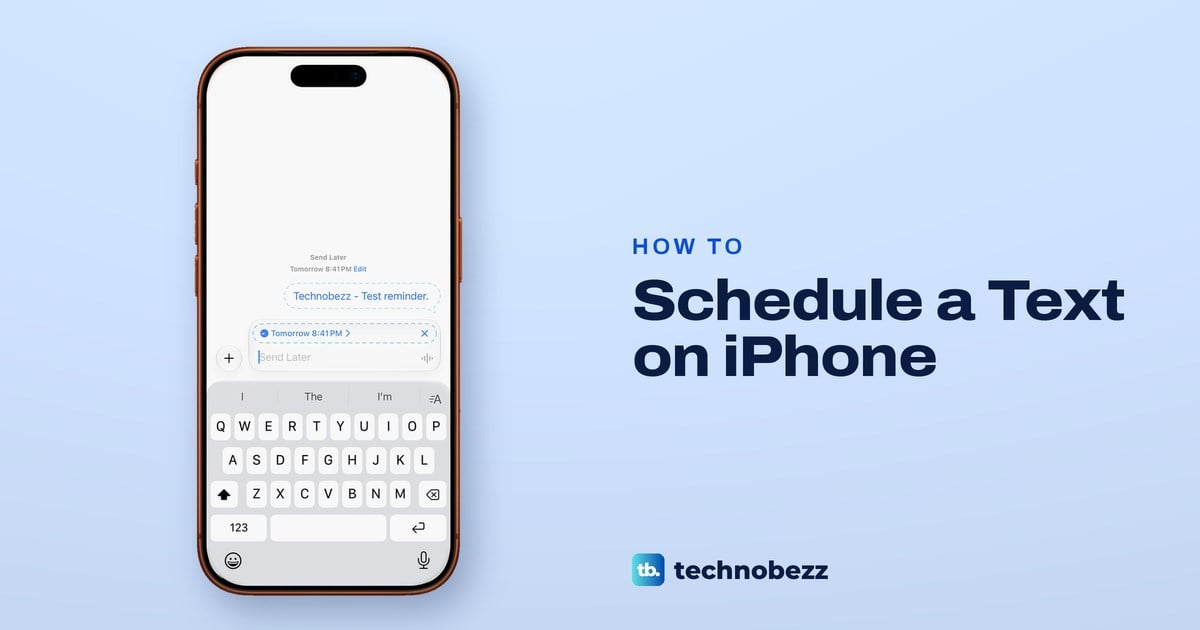
To schedule a text on iPhone, open the conversation in Messages, tap the + button and choose Send Later. Tap the time that appears to pick a day and time up to 14 days ahead, type your message and tap the send arrow. The message waits in the chat with a dashed outline and goes out at the time you chose.
Two things decide everything else. Send Later only works in iMessage chats, the ones with blue bubbles, so a text to an Android phone or any green chat needs a Shortcuts automation instead. And because Apple holds a scheduled iMessage on its own servers until it goes, Apple says it is delivered even if all your devices are offline.
One detail on the Send Later screens is easy to miss. After we scheduled our test message, the Send Later card stayed in the text box, so tap its x before you type a message you want to go at once.
The short version
- Blue chat: tap +, then Send Later, pick a time up to 14 days ahead, type and send.
- Phone off? Apple keeps the message on its servers and still delivers it on time.
- Change your mind: tap Edit above the dashed message for Send Message, Edit Time or Delete Message.
- Green chat or Android: Send Later needs iMessage, so use a Shortcuts automation or a reminder.
- Shortcuts texts leave from your iPhone, so it has to be on and able to send at that moment.
Which way to schedule a text
| Method | Works for | How far ahead | If your iPhone is off | Change it before it sends |
|---|---|---|---|---|
| Send Later in Messages | iMessage chats (blue bubbles) with any Apple device | Up to 14 days, once | Apple still delivers it | Edit, then Edit Time, Send Message or Delete Message |
| Send Later on iPad or Mac | iMessage chats (blue bubbles) | Up to 14 days, once | Held on Apple's servers until it sends | Edit above the scheduled message |
| Shortcuts automation | Any number, including Android phones (green bubbles) | The next matching day, then every day, week or month | It runs on your iPhone, so the phone has to be on | Open the automation in Shortcuts and edit it or turn it off |
| Reminder | Anyone, because you press send yourself | Any date and time, or the next time you open that chat | Nothing is sent, the reminder only prompts you | Edit the reminder |
Send Later is the one to use whenever the chat is blue, and it is the only method that sends while your phone is off. Shortcuts is the only built-in way to time a green text or one that repeats. A reminder suits anyone who would rather press send themselves.
Schedule a text on iPhone with Send Later
Open Messages and go to the conversation, or start a new one. Tap the + button to the left of the text box to open the menu of iMessage apps. In our chat, Send Later was the seventh item, after Camera, Photos, Stickers, Apple Cash, Polls and Audio, and only its top edge showed until we scrolled the list.
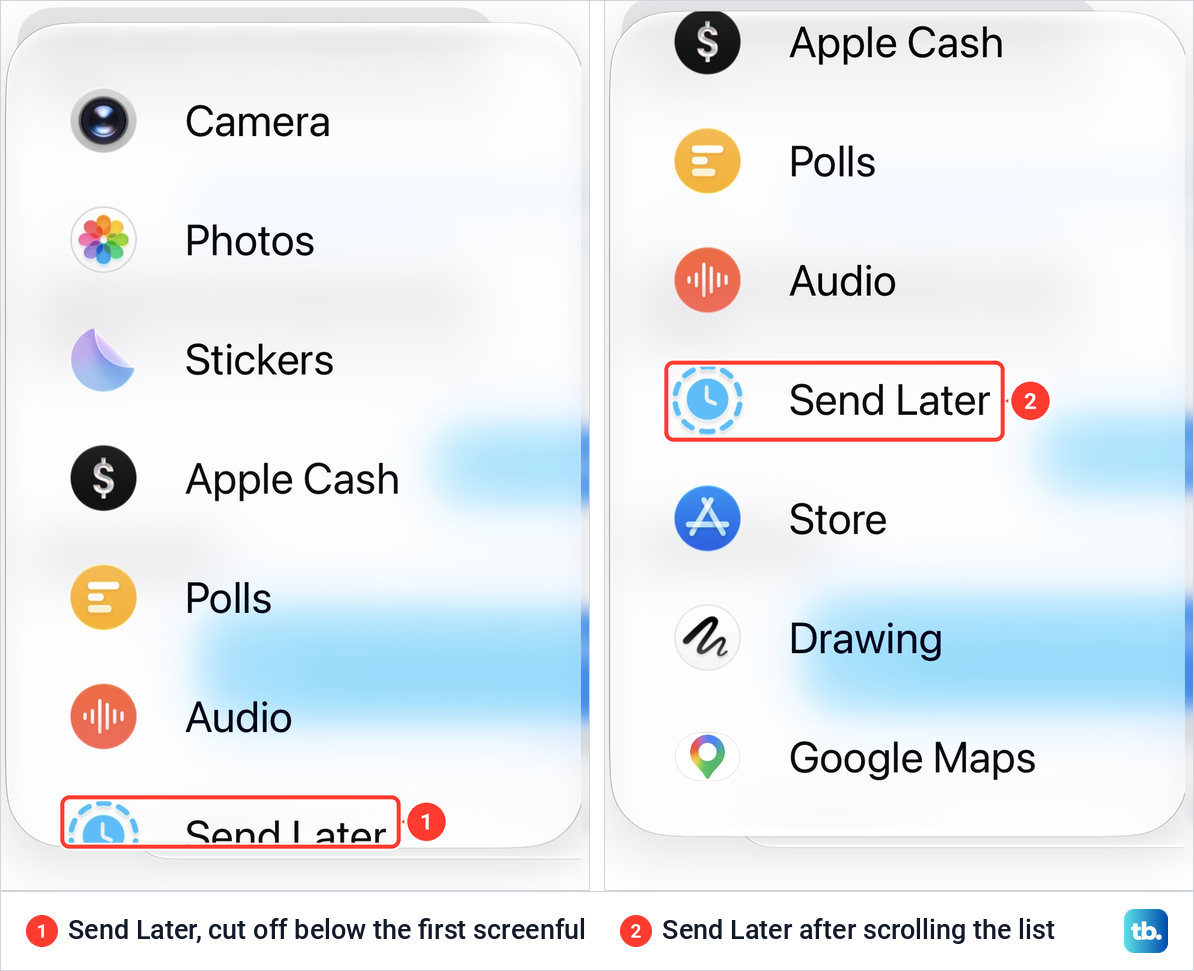
If you use Send Later often, move it up. Apple says you can touch and hold any icon in that list until it shrinks a little, then drag it to where you want it. Tap Send Later to carry on.
A dashed card appears above the text box with a send time, and the box itself now reads Send Later instead of iMessage. When we tapped Send Later in the morning, the card offered 5:00 PM the same day. The x at the right end of the card cancels it and gives you a normal message box again.
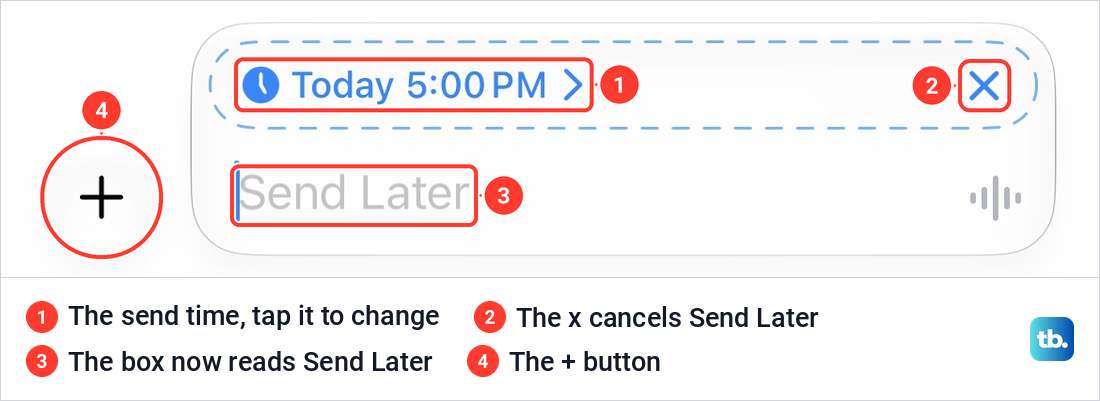
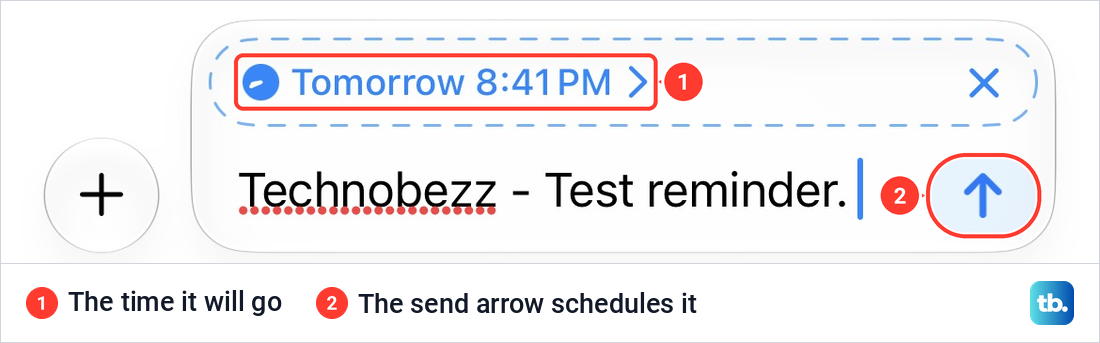
Tap the time on the card to open the scheduler. Ours was a set of wheels for the day, the hour, the minute and AM or PM, with past days greyed out above Today. We turned it to the next evening and the card changed to Tomorrow 8:41 PM before we had typed a word. Apple's limit is 14 days into the future.
Type your message in the box and tap the blue send arrow. That arrow schedules the message rather than sending it, and the time on the card is when it will go.
What a scheduled message looks like
After we tapped the arrow, our message sat in the chat inside a dashed outline. Above it, a grey line read Send Later, with the time and a blue Edit link beneath. Apple says the outline stays until it is time to send, and then the bubble turns a solid colour and the dashed line disappears.
One detail is easy to miss. The Send Later card was still in the text box after our message was scheduled, and the box still read Send Later. Tap the card's x before you type a message you want to go right away.
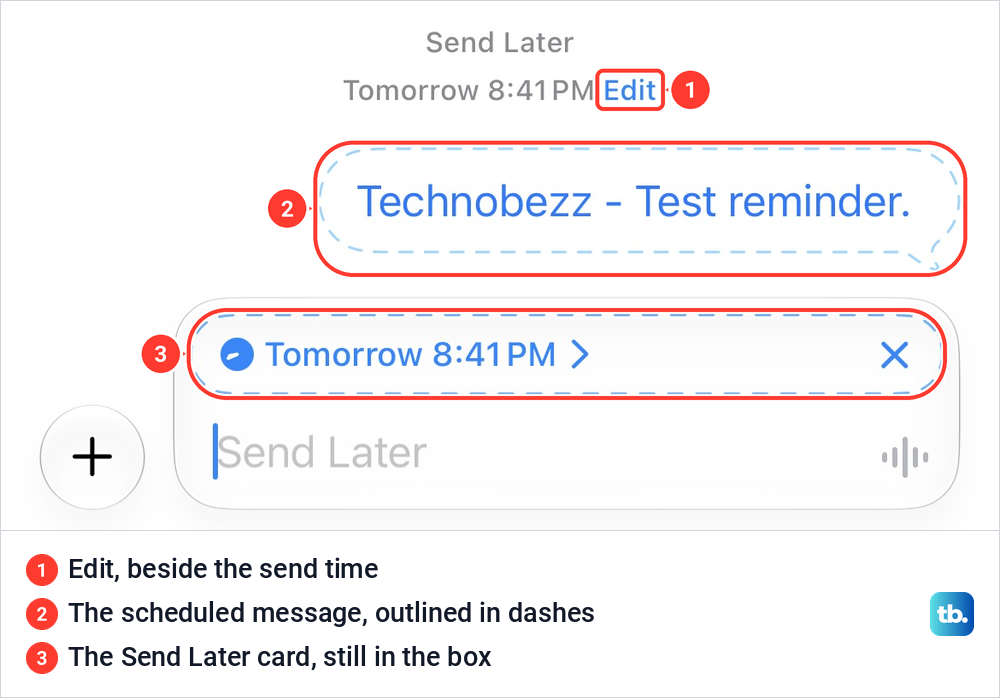
If you cannot find a scheduled message later, scroll to the very bottom of the conversation. Apple says scheduled messages may appear below messages you have already sent.
Change the time, send it now or delete it
Tap Edit above the scheduled message. Our menu had three choices: Send Message, Edit Time and, in red, Delete Message.
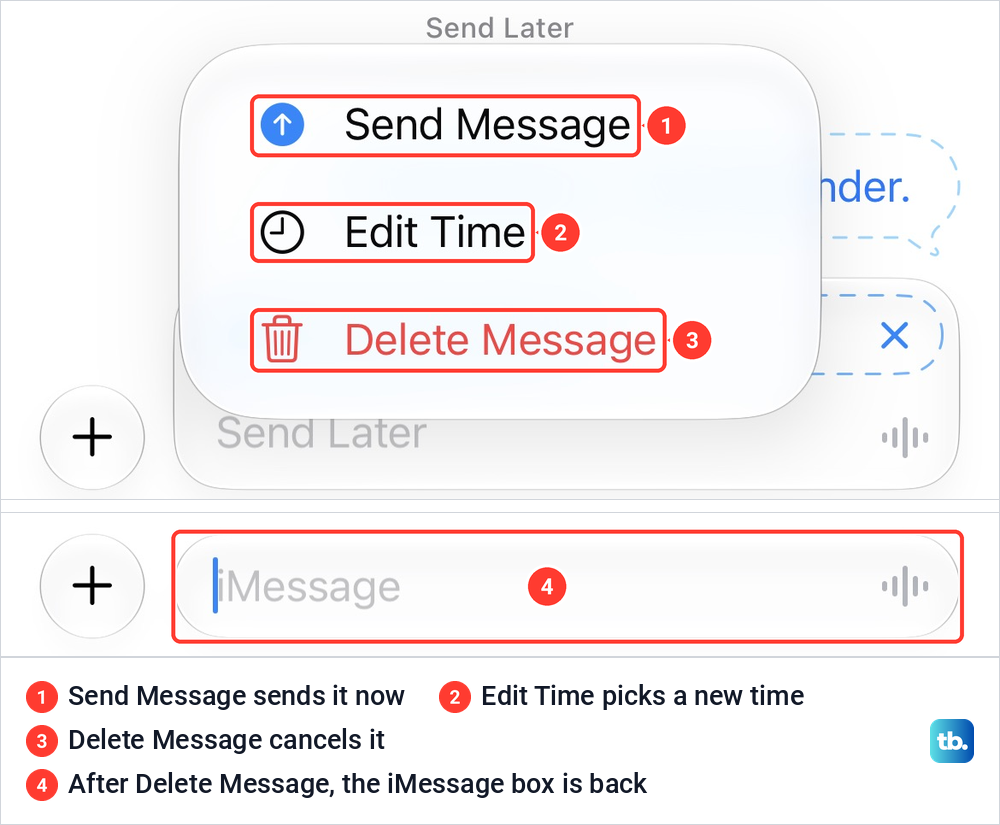
Send Message sends it straight away. Edit Time opens the scheduler again, and Apple says to choose a new time and then tap away from the schedule to commit it. You can reschedule a message right up to its delivery time.
Delete Message cancels it. When we chose it, the message left the chat and the box went back to an ordinary iMessage box. Apple says a message you delete before its scheduled time is canceled and not delivered to the recipient.
To change the words rather than the time, Apple's steps are to touch and hold the bubble, tap Edit, make your changes and tap the Send Edit button. Touch and hold also offers Delete, a second way to cancel it. You need to be online to reschedule, edit or delete a scheduled message.
What happens if your iPhone is off at send time
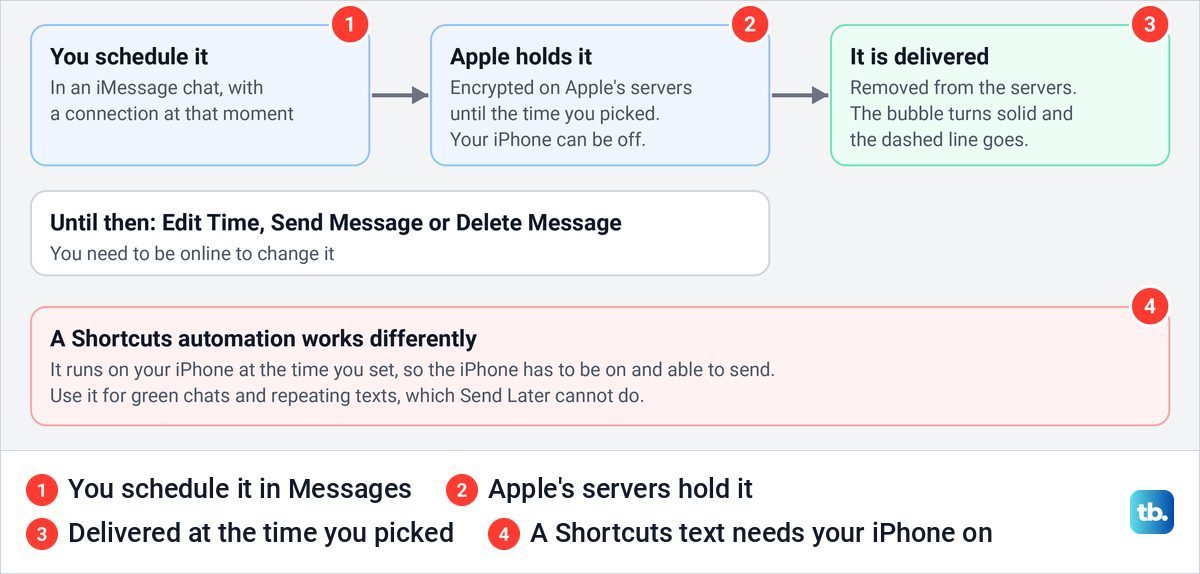
Apple's answer is that it still goes. Its guide says a scheduled message is delivered even if all your devices are offline, because scheduled messages are encrypted and stored on Apple servers until they are sent. Once it has gone, Apple removes it from those servers.
Some guides say the opposite, that your iPhone must be on and connected at the scheduled time. That is true of a Shortcuts automation, which runs on the iPhone itself, but not of Send Later. Your phone only needs a connection when you schedule the message and when you change it.
What you need before Send Later appears
Send Later arrived with iOS 18 in September 2024, so your iPhone needs iOS 18 or later. Apple lists iPhone XS, iPhone XR and later, plus iPhone SE (2nd generation) and later, as able to run iOS 18. If you are not sure, check which version of iOS your iPhone runs under Settings > General > About.
Anything older than iOS 18 has no Send Later, so update your iPhone's software first under Settings > General > Software Update. Apple's iOS 27 guide keeps Send Later with the same steps. If your iPhone cannot run iOS 18, Send Later is not available on it, so use one of the other methods in the table above.
You also need iMessage turned on. Apple's steps are Settings > Apps > Messages, then turn on iMessage, and tap Send & Receive to choose which phone numbers and email addresses it uses. Apple adds that some iMessage features need an Apple Account.
Why Send Later does not work in some chats
Start with two simple causes. Send Later may sit below the first screenful of the + menu, as it did in ours, and an iPhone on software older than iOS 18 does not have it at all.
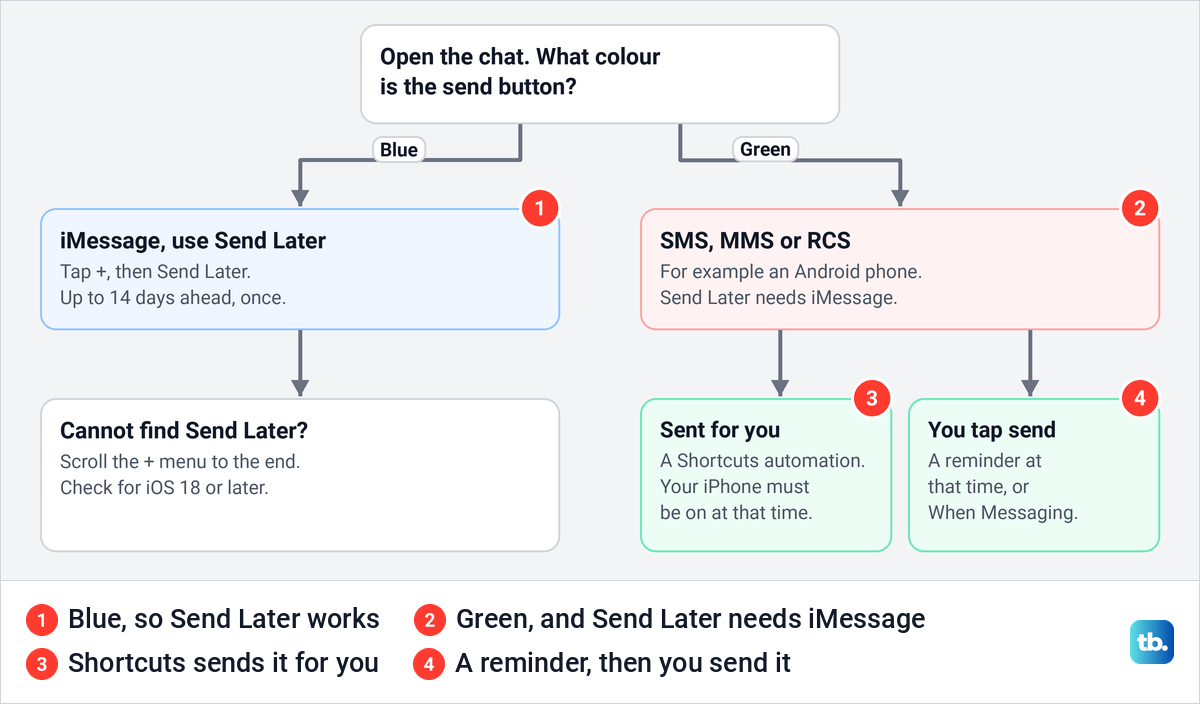
Then look at the send button. Apple says a blue send button means the message goes by iMessage and a green one means SMS, MMS or RCS. Apple's guide also says you must be using iMessage to schedule a message, so a green chat cannot use Send Later. In our chat, the empty box read iMessage and the send arrow was blue.
Apple lists the reasons a chat turns green. The person you are texting has no Apple device, iMessage is turned off on your iPhone or theirs, or iMessage is temporarily unavailable on either side. For the second one, check the iMessage switch described above.
Scheduling a text to an Android phone
Anything you send to an Android phone goes as RCS or as SMS and MMS, which Apple shows in green bubbles. Send Later needs iMessage, so a Shortcuts automation is the built-in way to time it. That changes two things for you.
First, Apple says a personal automation is specific to the device it was made on, so the text leaves from your iPhone at the set time and your phone must be on and able to send. Second, Apple says SMS, MMS and RCS messages cannot be edited or unsent once they go.
RCS needs iOS 18 and a carrier plan that supports it, and you switch it on under Settings > Apps > Messages > RCS Messaging. If RCS works on mobile data but fails on Wi-Fi, our guide to RCS not working on Wi-Fi covers the usual causes.
Schedule a text with a Shortcuts automation
These steps follow Apple's Shortcuts guide for iOS 26. Open Shortcuts, tap Automation and start a new automation, using + in the upper-right corner if you already have one. Choose Time of Day from the list of triggers.
Set the time and pick how it repeats, Daily, Weekly or Monthly, then tap Next. Apple then offers a blank automation, a suggested one or an existing shortcut, so choose the blank one. Tap Add Action, search for Send Message and add it.
Fill in the message and the person it goes to, then save the automation with Done. Apple's iOS 26 guide shows a Next button and a summary screen before Done. Apple describes the Send Message action as sending the message automatically when the shortcut runs.
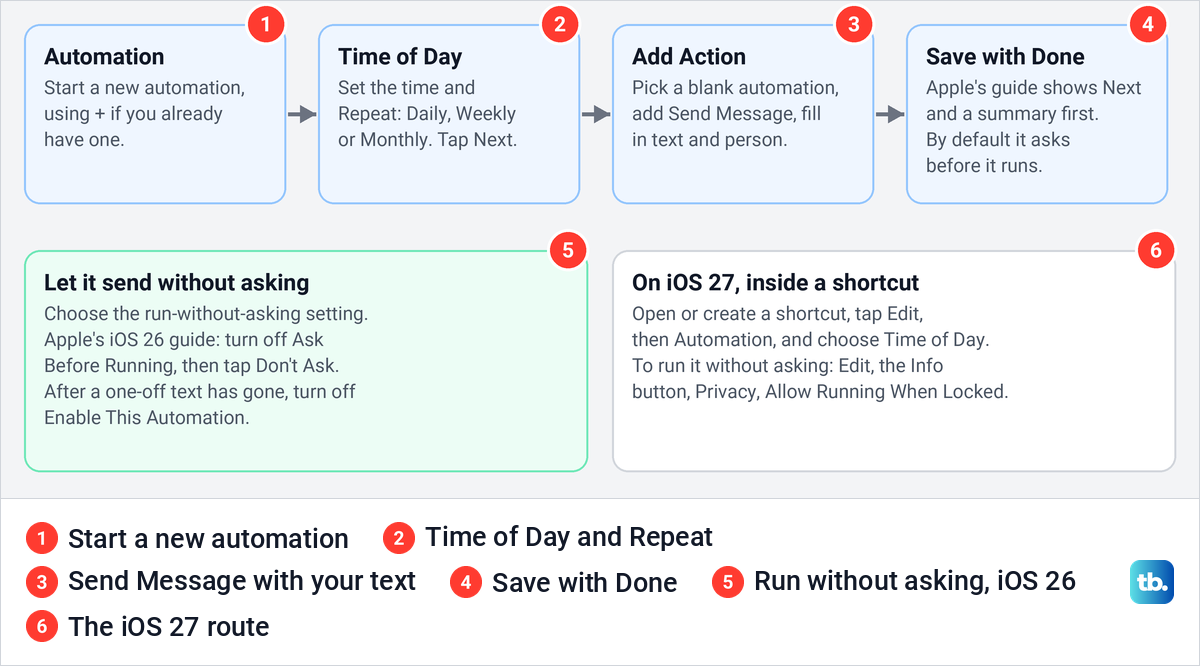
iOS 27 changes the route. Apple's iOS 27 guide adds the trigger inside a shortcut instead: open or create a shortcut, tap Edit, then Automation, and choose Time of Day. Apple also says these automations now sync to your other devices with the automation turned off, where on iOS 26 they did not sync at all.
Stop a Shortcuts text from asking or repeating
By default an automation does not send on its own. Apple says that when the time comes you get a notification asking you to run it, so the text only goes if you respond. To let it send by itself, open the automation and choose the setting that runs it without asking for confirmation. Apple's iOS 26 guide names it Ask Before Running, which you turn off before tapping Don't Ask.
Apple has renamed this setting between versions, so go by what it does rather than its label. On iOS 27, Apple's route is Edit, the Info button, Privacy, then Allow Running When Locked. Time of Day is on Apple's list of automations that can run without asking, but Apple notes that you also may need to set individual actions to run automatically.
Apple's Repeat choices are Daily, Weekly and Monthly, with no option to run once, and Apple says Weekly runs on the selected days and Monthly on the selected day of the month. So the automation fires on the next matching day. A single text works with Weekly only if the day is less than a week away, and with Monthly only if the date is less than a month away.
After the text has gone, open the automation and turn off Enable This Automation or delete it, or the same text goes out again next week or next month. For a date further away than a month, set a reminder to create the automation nearer the time.
Schedule from an iPad or Mac
On an iPad, Apple's steps are the same as on an iPhone: tap +, then Send Later, and the message is delivered even if all your devices are offline. On a Mac, click the Apps button to the left of the message field, click Send Later, choose the date and time, type the message and press Return.
Apple says the Mac must be online to schedule or change a message and needs macOS 15 or later. To cancel one there, click Edit above the scheduled message and choose Delete Message. If your iPhone conversations do not show up on the Mac, start with our fix for Messages not syncing on your Mac.
When a scheduled text did not go out
Open the chat and look at the message. If it still has a dashed outline, it has not been sent yet, so tap Edit and check the time. If you cannot find it at all, scroll to the bottom of the conversation, where Apple says scheduled messages can sit below sent ones.
If the chat is green now, Send Later will not work there because it needs iMessage, so use a Shortcuts automation or a reminder for the next one. For a Shortcuts text, check three things: whether the iPhone was on at that moment, whether the automation was still set to ask first, and whether Enable This Automation had been turned off.
If iMessage itself will not switch on, Apple's checklist asks you to set the time zone on your iPhone correctly under Settings > General > Date & Time. Apple also says an iPhone needs SMS messaging to activate its phone number with iMessage. If the switch shows Waiting for activation, one of the messages Apple lists, work through our fixes for iMessage waiting for activation.
Use a reminder when nothing can send for you
A reminder works for any chat, blue or green, and you still press send yourself. In Reminders, create a reminder, tap the Date and Time button and choose Date & Time to set your own day and time. Write the whole text in the reminder so you only need to copy and paste on iPhone when the alert arrives.
Apple's other option suits a text that only matters inside one conversation. Tap the Edit Details button, turn on When Messaging and choose the person, and the reminder appears the next time you chat with them in Messages. Either way, nothing is sent until you open the chat and send it.
How we tested this guide
We tested this with Send Later in an iMessage chat, scheduling a message for the next evening and deleting it before it could send.
Frequently Asked Questions
Can you schedule a text on iPhone to an Android phone?
Not with Send Later, which needs iMessage. Use a Shortcuts automation with a Time of Day trigger and the Send Message action, and keep your iPhone on, because the text leaves from your phone at that time.
Does a scheduled text send if my iPhone is off?
Yes, if you used Send Later. Apple stores the message encrypted on its servers until the time you picked and says it is delivered even if all your devices are offline. A Shortcuts automation runs on the iPhone itself, so it needs the phone on.
How far ahead can I schedule a text on iPhone?
Up to 14 days with Send Later. A Shortcuts automation set to Monthly can time a single text up to a month ahead, or repeat one every day, week or month. For a date further away, set a reminder.
Why is Send Later not showing on my iPhone?
Send Later needs iMessage, so it will not work in a green chat or with iMessage turned off under Settings > Apps > Messages. It also needs iOS 18 or later, and it can sit below the first items of the + menu, so scroll the list.
Will the other person know the text was scheduled?
No. Apple says the recipient will not know that the message was scheduled.
How do I cancel a scheduled text on iPhone?
Tap Edit above the dashed message and choose Delete Message, or touch and hold the message and tap Delete. Apple says a message deleted before its scheduled time is not delivered.
Can I schedule a recurring text on iPhone?
Not with Send Later, which sends each message once. A Shortcuts automation with a Time of Day trigger can repeat Daily, Weekly or Monthly.