

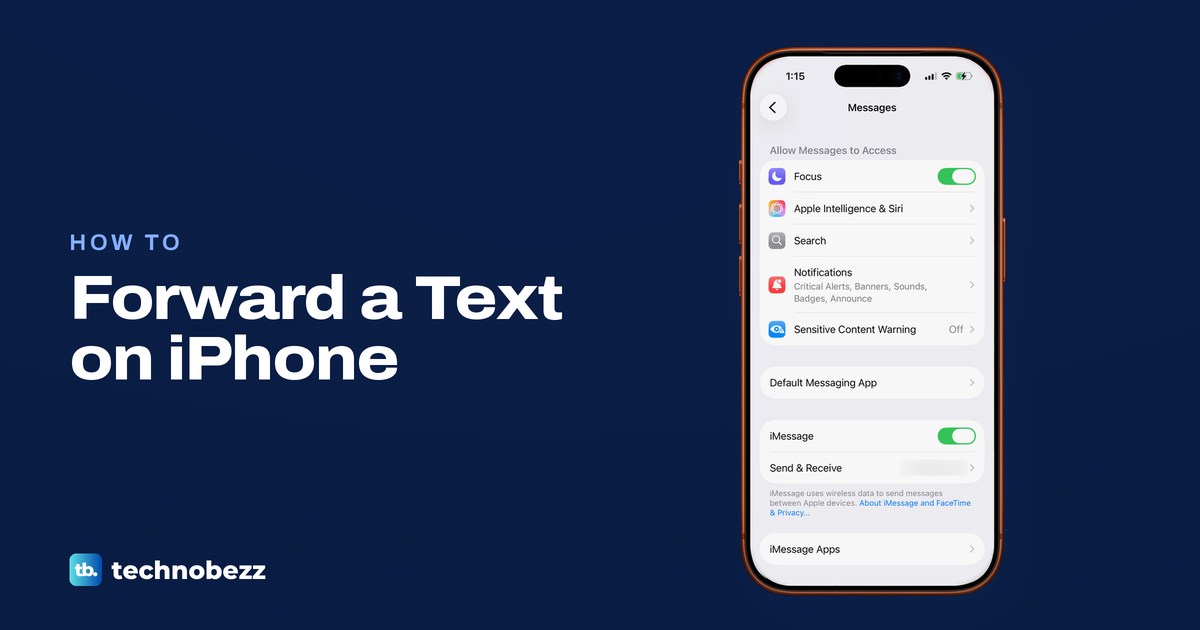
To forward a text on iPhone, open the conversation in Messages, touch and hold the message bubble and tap More. Tap each message you want to include, tap the Forward button, enter a recipient and tap Send. The person gets the selected messages in a new message you send.
Text Message Forwarding in Settings is a different feature with a similar name. It makes the texts your iPhone sends and receives also appear on your own Mac or iPad signed in to the same Apple Account, and it is not a way to send every text to another phone number. We opened the Messages settings on our iPhone 17 Pro with iOS 26.6 to show where it sits and what it says.
The short version
- One or more texts: touch and hold a bubble, tap More, select the messages, tap Forward, add a recipient and tap Send.
- To an email address: touch and hold the bubble, tap Select, copy the words and paste them into a new email in Mail.
- Keep the look and the times: take a screenshot of the conversation and share that instead.
- Your own Mac or iPad: open Settings > Apps > Messages > Text Message Forwarding and turn the device on.
- Every text to another number: Text Message Forwarding does not do that, so ask your carrier what it offers.
Ways to forward a text on iPhone at a glance
| What you want | Use | What arrives |
|---|---|---|
| One or a few texts to another person | Touch and hold the bubble, More, select, Forward | A new message you send, with the selected messages |
| The conversation as it looked, with times | A screenshot, then Share | A picture of the bubbles and timestamps |
| A text in someone's email inbox | Select and Copy in Messages, then paste into Mail | An email with the words you pasted |
| A photo, video or document from a chat | Touch and hold the attachment, then Share | The file itself, sent the way you choose |
| Every text, also on your own Mac or iPad | Text Message Forwarding or Messages in iCloud | Your texts on that device too |
| Every new text on a different phone number | Your carrier or a messaging service | Whatever that service offers |
| A voicemail | Phone app, the voicemail, then Share | The recording, sent the way you choose |
Forward a text message to another person
Open the Messages app and go to the conversation that holds the text. Touch and hold the message bubble you want to forward, then tap More in the menu that appears. If the text is gone from the conversation, see how to recover deleted messages on iPhone first.
Tap to select that message and any others you want to send along, then tap the Forward button. That is the name in Apple's guide for iOS 26. Apple's guide for iOS 27 calls the button at the same step Share, so look for either name.
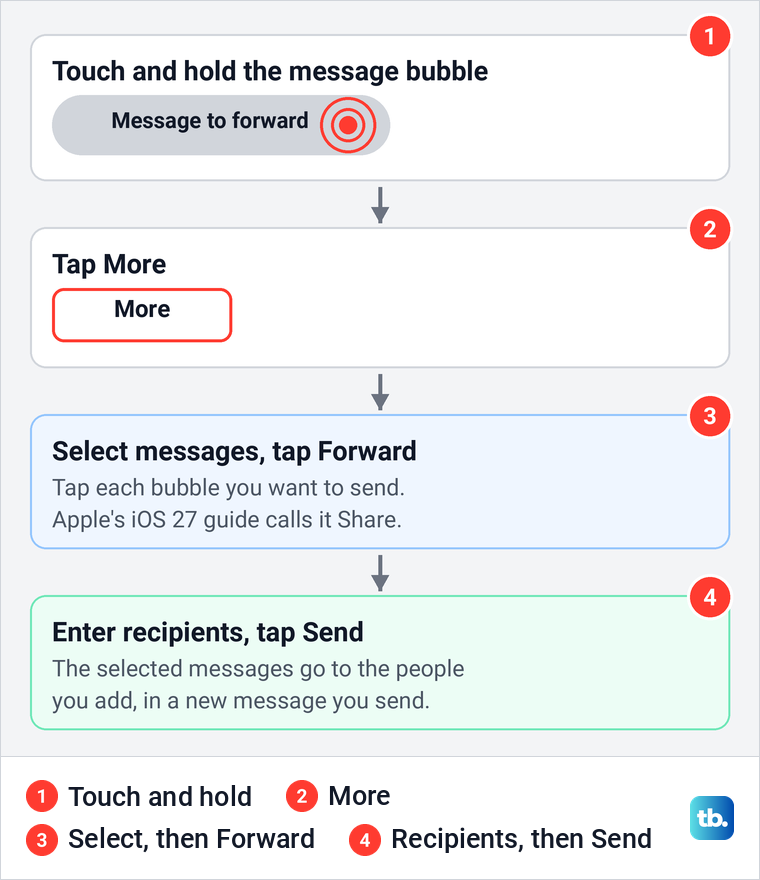
Enter the recipients and tap Send, as Apple describes. Messages takes a phone number, a contact name or an Apple Account as a recipient, the same as when you start any new conversation.
The forwarded text goes out like any other message. To someone who isn't using iMessage, Apple says messages go as SMS, MMS or RCS in green bubbles, and it notes that content may not appear as expected on non-Apple devices.
If you forward an iMessage to the wrong person, Apple lets you unsend it for up to two minutes after sending, but SMS, MMS and RCS messages can't be unsent. Our guide on how to unsend a message on iPhone walks through Undo Send. A text with a link deserves a second look before you pass it on, so check how to spot a scam text message first.
Forward several messages at once
You can send several messages from one conversation in a single forward. After you tap More, tap every bubble you want to include before you tap the Forward button. Apple's guide describes this as selecting one or more messages, so a short exchange can travel together.
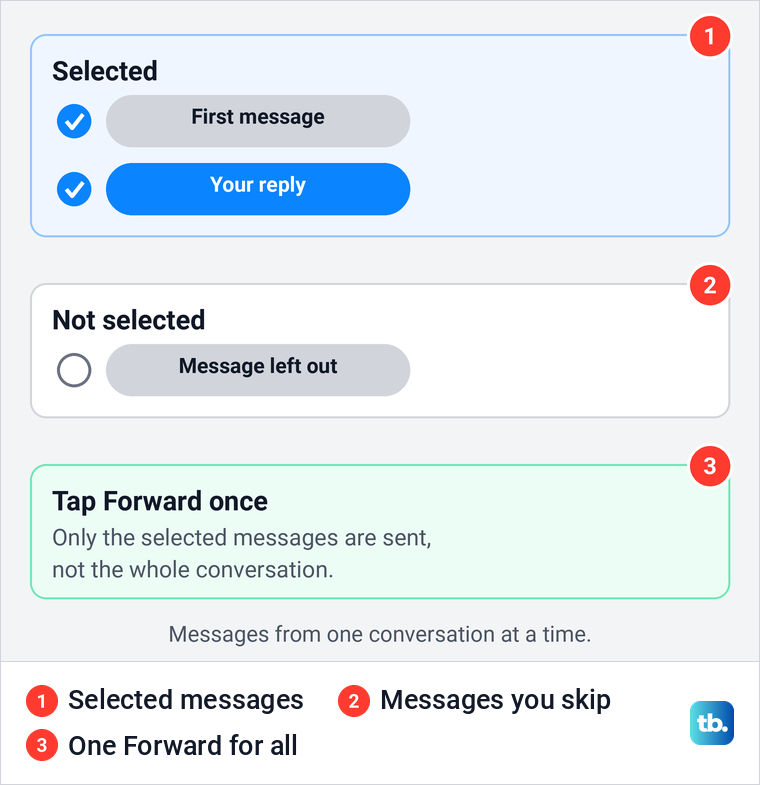
Only the bubbles you select are sent. Forwarding does not export the whole conversation, and Apple's steps work inside one conversation at a time, so forward each conversation's messages separately.
For a long thread, a screenshot or two is often easier for the other person to follow. It keeps the order, the bubbles and the times in view, which a forwarded copy does not promise.
Forward a photo, video or attachment
Apple's forwarding steps are written for text messages. For a photo, video or document someone sent you, Apple's route goes through the conversation details: tap the person's name at the top of the conversation to see Photos, Links, Documents and more.
Touch and hold an image or attachment there, and Apple lists Save, Copy, Share and Delete. Tap Share, then choose how to send it and who gets it.
A photo you already saved can go straight from the Photos app. Open it, tap the Share button and choose Mail, Messages or AirDrop. For someone in the same room, you can AirDrop photos and files without sending a message at all.
Apple notes that the size limit for attachments is set by your service provider, and that a Live Photo arrives as a still photo on devices or services that don't support Live Photos. Sharing a photo also shares its metadata, such as date, time and location. To leave the location out, tap Options before you send and turn off Location.
Forward a text to an email address
Messages sends to phone numbers, contacts and Apple Accounts, so the dependable way to get a text into someone's email is Mail. Apple's way to copy part of a message is to touch and hold it, tap Select, select the text you want, then tap Copy.
Open Mail, tap the Compose button and paste into the body of the email. Add the address in the To field, a subject that says where the text came from, and tap Send. If copying and pasting is new to you, our guide on how to use the clipboard on iPhone walks through it.
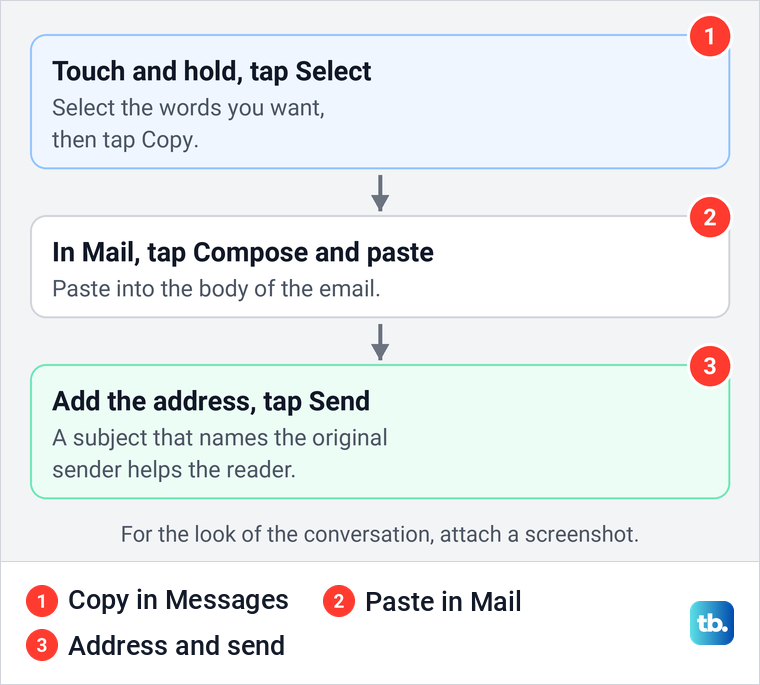
Typing an email address into the To field of a forwarded message is a different thing. Apple's guide lists an Apple Account among the recipients Messages accepts, but it does not describe delivery to an ordinary email inbox. When the person needs it as an email, use Mail.
To send the conversation as it looked, attach a screenshot instead of pasted words. You can share a screenshot to Mail straight from the screenshot editor, as the next section shows.
Show who sent the original message
A forwarded text arrives in a new message you send, so do not rely on it to show who wrote the original or when. Apple's own tip is to send a screenshot as an attached image when you want the bubbles and timestamps to appear just as they do in the conversation.
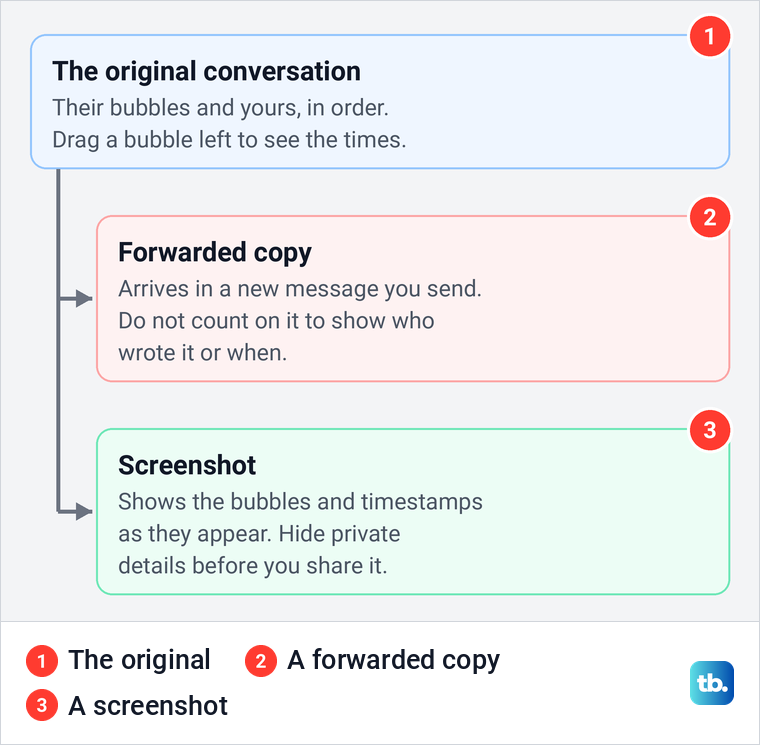
If plain text is enough, send a short note of your own with it saying who wrote the original and when. To check the time first, Apple's tip is to drag a message bubble to the left, which shows the timestamps for every message in the conversation.
To capture the conversation, open it and quickly press the side button and the volume up button together on an iPhone with Face ID. On an iPhone with a Home button, Apple's combination is the side button and the Home button. Our guide on how to take a screenshot on iPhone covers every other way.
On iOS 26.5, our screenshot opened in an editor with Markup, Share and a checkmark along the top, and handles around the capture for cropping. The screen in the picture below is a Settings page, but the controls are the same for a conversation.
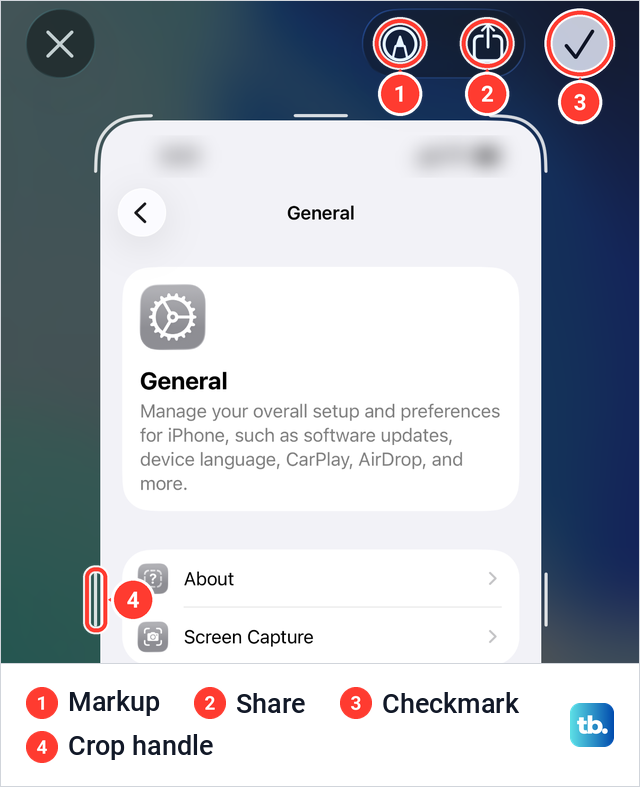
Drag the handles to keep only the bubbles that matter, and crop out private details wherever you can. For anything that has to stay, tap Markup and cover it completely with a solid pen stroke, then zoom in on the picture to check that nothing can still be read before you share it. When we tapped Markup, a tray with pens, a highlighter and an eraser opened at the bottom.
Then tap Share and pick Messages, Mail or another app. On iOS 26.5 the checkmark offered Save to Photos, Save to Files, Copy and Delete, and Delete Screenshot. Copy and Delete suits a one-off share: as its name says, it copies the picture for you to paste, and when we used it nothing new was added to Photos.
Set up Text Message Forwarding to your Mac or iPad
Text Message Forwarding is for a different job, reading and answering your iPhone's texts on your own Mac or iPad. Apple says the SMS, MMS and RCS messages you send and receive on your iPhone can also appear on your Mac, iPad and Apple Vision Pro, so you can carry on a conversation from whichever device you are using.
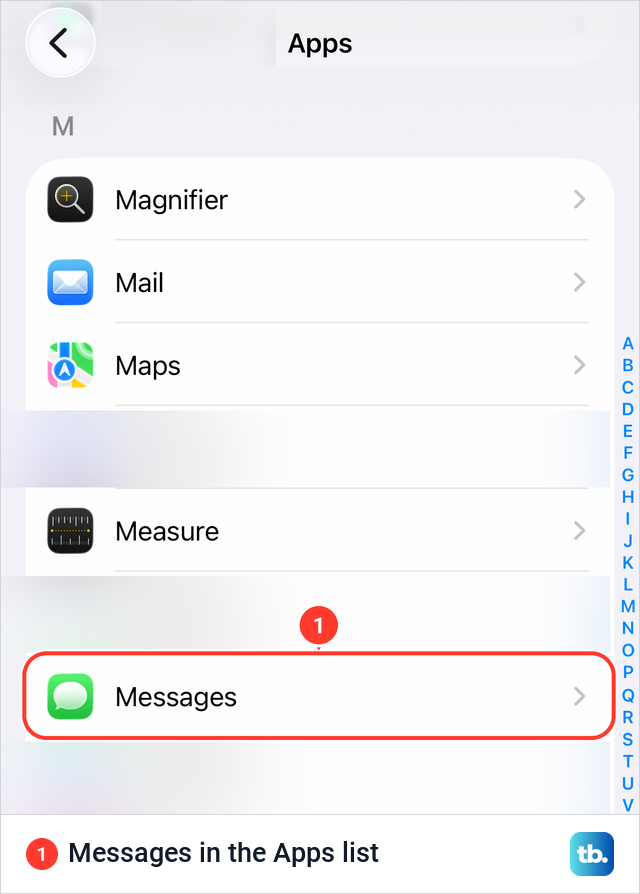
Before you start, Apple says each device must be signed in to iCloud with the same Apple Account. The iPhone must be turned on, connected to Wi-Fi or a cellular network, and able to send and receive messages. Then open Settings, tap Apps and tap Messages.
On our iPhone 17 Pro with iOS 26.6, Messages sat in the M section of the Apps list. Older instructions that go straight from Settings to Messages leave out the Apps step that Apple's current steps include.
Scroll down the Messages page to Text Message Forwarding. On our iPhone it was a row that opens its own page, not a switch, and the line under it read: "Allow your iPhone text messages to also be sent and received on other devices signed in to your iMessage account." Apple's support page puts the same rule as devices signed in with the same Apple Account.
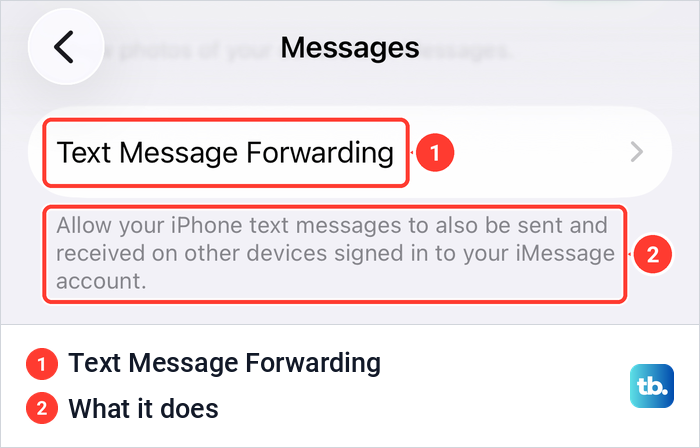
Tap it and turn on each Mac or iPad you want to use, as Apple describes. Apple notes that Text Message Forwarding is always on for any of your devices that uses Messages in iCloud. With Dual SIM, Apple says to turn on each line, and it adds that availability varies by region and carrier.
If you choose a device that isn't using two-factor authentication for your Apple Account, Apple says a verification code appears on your other devices, and you enter that code on your iPhone. Apple describes the code only for a device that isn't using two-factor authentication, so with it on you may see no code at all.
Text Message Forwarding or Messages in iCloud
Messages in iCloud is the other way to get your texts on a Mac or iPad, and Apple says Text Message Forwarding is built into it. With it on, your entire message history is kept up to date across your devices, including SMS, MMS, RCS and iMessage, so there is nothing separate to set up.
Apple's route is Settings, your name, iCloud, then Messages, where you turn on Use on this iPhone. On our iPhone 17 Pro with iOS 26.6 the page showed Messages in iCloud at the top, with the Use on this iPhone switch on and a Sync Now button further down.
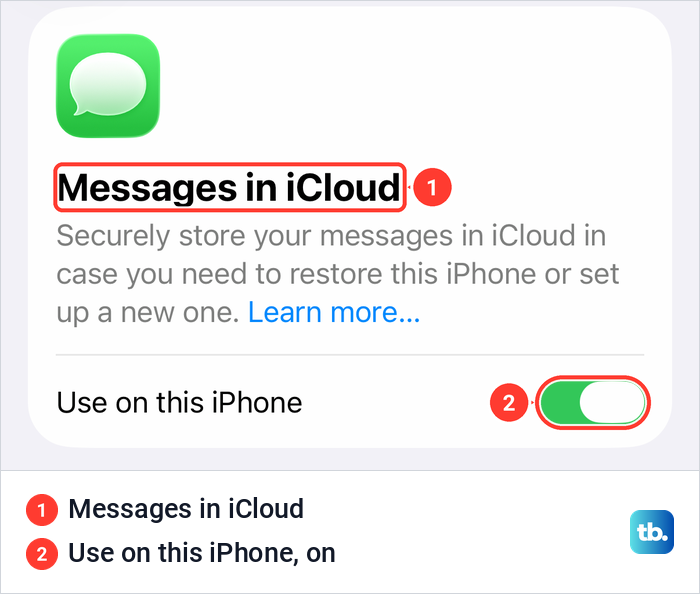
The difference is storage and choice. Messages in iCloud uses your iCloud storage and keeps the whole history on every device, while Apple describes Text Message Forwarding as the way to share texts if you want to save that storage or keep messages on only some devices. Apple also warns that with Messages in iCloud on, anything you delete from your iPhone is deleted from your other devices that use it.
Text Message Forwarding missing or a device not listed
If the Text Message Forwarding row is not on the Messages page, Apple's fix is to turn iMessage off and back on, then tap Send & Receive and sign in again. On our iPhone 17 Pro, the iMessage switch and the Send & Receive row sat together near the top of the same page.
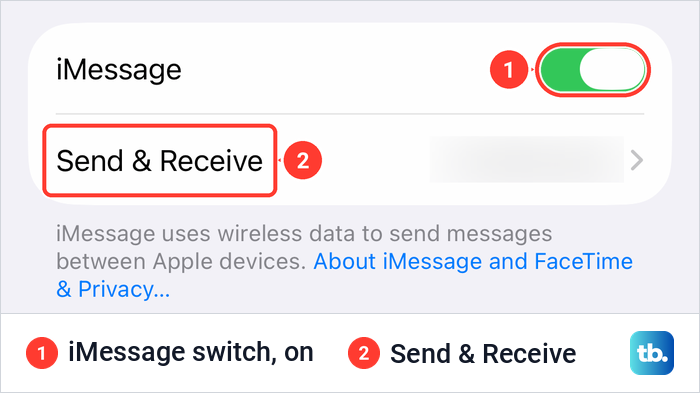
If iMessage will not switch on at all, deal with that first. Our guide shows how to turn on iMessage on your iPhone and fix activation problems.
When the row is there but your iPad is missing from the list, check the account on the iPad. Apple's steps are Settings, Apps, Messages, make sure iMessage is on, then Send & Receive, where the Apple Account at the bottom must be the same as on your iPhone. If it isn't, tap it to sign out, then sign in with the right one.
For a missing Mac, open Messages and choose Settings (or Preferences) from the Messages menu in the menu bar, then click iMessage. If the Apple Account shown is not the one on your iPhone, Apple says to click Sign Out and sign in with the correct account. Once the Mac is on the list, our guide to send and read texts on a computer picks up from there.
Stop forwarding texts to a device
The same list works in reverse. Apple's personal safety guide says to open Settings > Apps > Messages > Text Message Forwarding to see which devices can send and receive texts from your iPhone, and to turn off any you don't want. Check that list after you sell or give away a Mac or iPad, or if you are worried that someone else can read your texts.
Can an iPhone forward every text to another phone number
Not with Text Message Forwarding. Apple lists its destinations as your Mac, iPad and Apple Vision Pro on the same Apple Account, and its steps only have you turn devices on, with nowhere to type a number. The description on our iPhone also spoke only of other devices signed in to your iMessage account.
Call Forwarding is no workaround either. Apple describes it, under Settings > Apps > Phone, as sending the calls you receive to another phone number, depending on your carrier. If calls are what you need to move, here is how to set up call forwarding on iPhone.
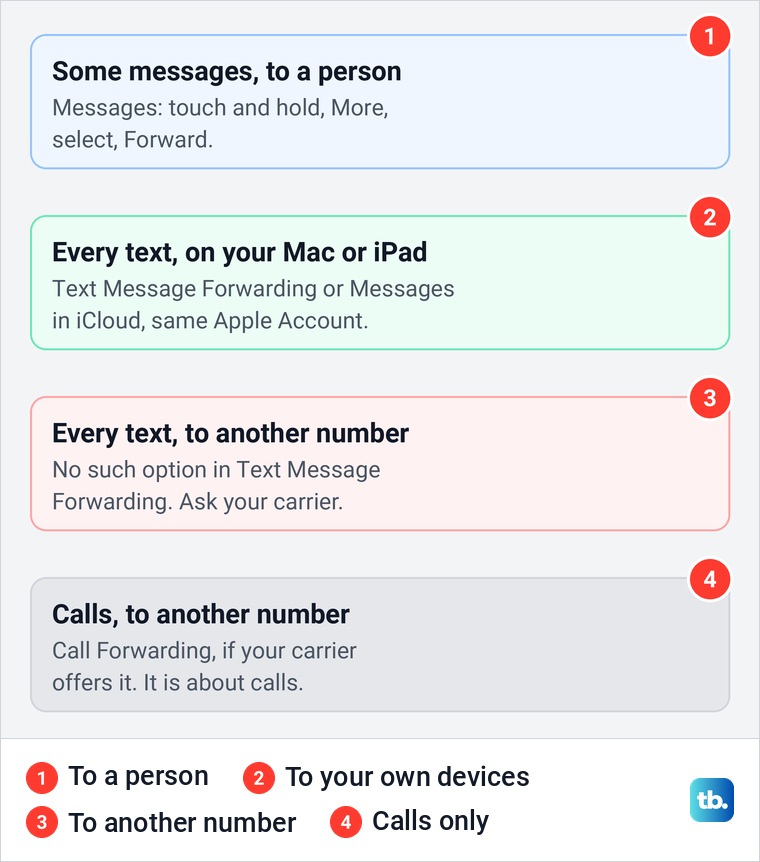
If you really need every text on a second phone, the options sit outside Apple's settings. Ask your carrier first whether it offers a service for this. If you look at a third-party messaging service, read its privacy terms before you give it your messages, and ask whether it handles iMessage as well as ordinary texts.
The Shortcuts app has a Message automation, which Apple says can trigger when a message arrives from senders you choose or contains a phrase you set. It reacts only to those conditions, so it is not a copy of every text, and Apple notes that individual actions may also need to be set to run automatically.
Forward a voicemail instead of a text
A voicemail is shared from the Phone app, not from Messages. Open Phone and, in the Unified layout, tap Calls and then a message in Recents, or tap the Filter button and choose Voicemails to see only those. In the Classic layout, tap Voicemail, then tap a message.
Tap the Share button and choose how to send it. If there is nothing to share because voicemail was never set up, first set up voicemail on iPhone with your carrier.
How we tested this guide
We tested this on an iPhone 17 Pro with iOS 26.6, going through the Send & Receive and Text Message Forwarding settings for Messages.
Frequently Asked Questions
How do I forward a text message on iPhone?
Open the conversation in Messages, touch and hold the message bubble and tap More. Select the message and any others, tap the Forward button, enter a recipient and tap Send.
Can I forward more than one text at a time?
Yes. After you tap More, tap every bubble you want before you tap Forward, and they go together in one forward. Messages from different conversations need separate forwards.
Can I forward a text to an email address?
Use Mail for that. Touch and hold the bubble, tap Select, copy the words and paste them into a new email, or share a screenshot of the conversation to Mail.
Does the person see who sent the original message?
Do not count on it, because the forwarded text arrives in a new message you send. Add a note saying who wrote it, or send a screenshot, which Apple suggests when you want the bubbles and timestamps to show.
Why is Text Message Forwarding missing on my iPhone?
Look under Settings > Apps > Messages. If the row is not there, Apple says to turn iMessage off and back on, then tap Send & Receive and sign in again.
Can my iPhone automatically forward texts to another phone?
Not with Text Message Forwarding, which works with your own Mac, iPad and Apple Vision Pro on the same Apple Account. Ask your carrier whether it offers a service that sends texts to another number.
Do I need a code to forward texts to my Mac?
Not always. Apple describes a verification code only when the device you choose isn't using two-factor authentication for your Apple Account.