

To unsend a message on iPhone, open the conversation in Messages, touch and hold the blue iMessage bubble within two minutes of sending it, and tap Undo Send. Green SMS, MMS and RCS messages cannot be unsent. If the recipient uses iOS 16, iPadOS 16.1, macOS 13 or later, the message disappears from their device, and both of you see a note that a message was unsent.
Missed the two minutes? Edit still works on a blue iMessage for 15 minutes, up to five times, but the other person can open the earlier versions. Delete only removes the message from your own devices. The one exception is a message you set to Send Later: delete it before its time and it is never delivered.
The short version
- Unsend: touch and hold a blue iMessage within two minutes, then tap Undo Send.
- They will know: both conversations show a note, and older Apple software can keep the original.
- Fix a typo: tap Edit within 15 minutes, up to five times. Earlier versions stay visible.
- Green bubbles: SMS, MMS and RCS messages cannot be unsent.
- Delete is not unsend: it clears your copy only, unless the message is still scheduled.
Undo Send, Edit and Delete at a glance
Each tool in Messages does a different job. Undo Send removes an eligible message from the recipient's device, Edit changes its wording, and ordinary Delete affects only your copy. The table follows Apple's iPhone User Guide for iOS 26, and Apple's iOS 27 guide gives the same Undo Send and Edit limits.
| What you want | What to do | Time limit | What the other person sees |
|---|---|---|---|
| Take back a blue iMessage | Touch and hold the bubble, tap Undo Send | Two minutes after you tap Send | The message is removed on current Apple software, and a note says it was unsent |
| Fix a mistake in a blue iMessage | Touch and hold the bubble, tap Edit, change it and send the edit | 15 minutes, up to five edits | The new wording marked Edited, with earlier versions a tap away |
| Stop a scheduled message | Touch and hold the scheduled bubble, tap Delete | Before its send time, while you are online | Nothing, because it is never delivered |
| Clear a message from your iPhone | Touch and hold the bubble, tap More, select it, tap the trash button | Any time | Their copy stays exactly as it was |
| Get back a message you deleted | Filters button, then Recently Deleted, then Recover | Up to 30 days | Nothing changes on their side |
How to unsend an iMessage
Open Messages and tap the conversation with the message you just sent. Touch and hold the blue bubble until the menu appears, then tap Undo Send. Apple says the message disappears and a note reading "You unsent a message" appears in its place.
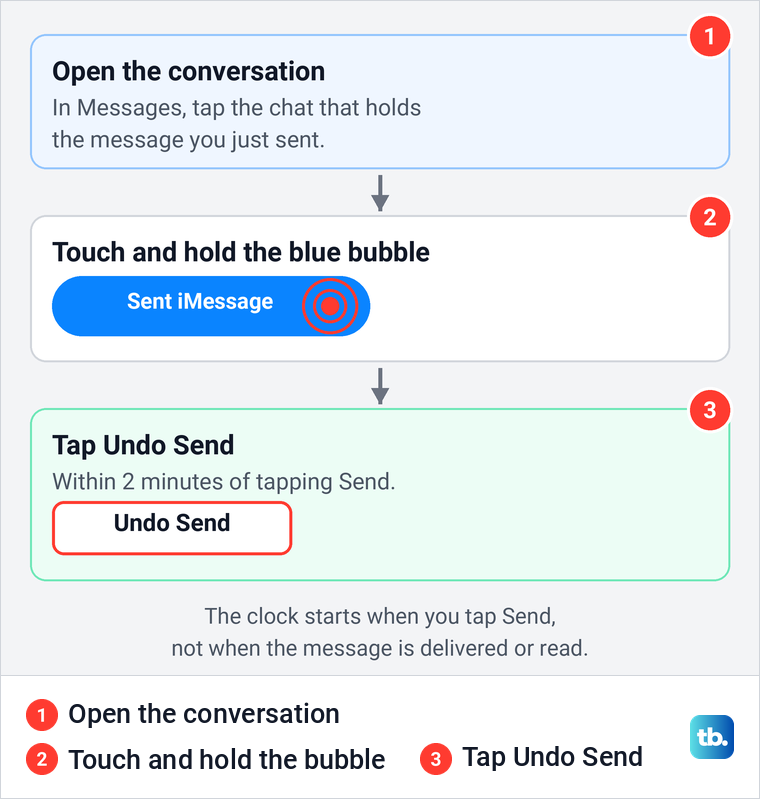
The two minutes start when you tap Send, not when the message shows Delivered or Read, so a message the other person has not opened yet does not give you extra time. If the menu shows Edit but no Undo Send, the two minutes have most likely run out.
Undo Send works on one bubble at a time. To take back several messages you sent in a row, touch and hold each one in turn while it is still inside its own two-minute window.
What the other person sees after you unsend
Undo Send is not silent. Apple says a note confirming that you unsent the message appears in both conversation transcripts, yours and your recipient's. On supported software the original disappears from their conversation, but they will see that you pulled a message back, and they may already have read it.
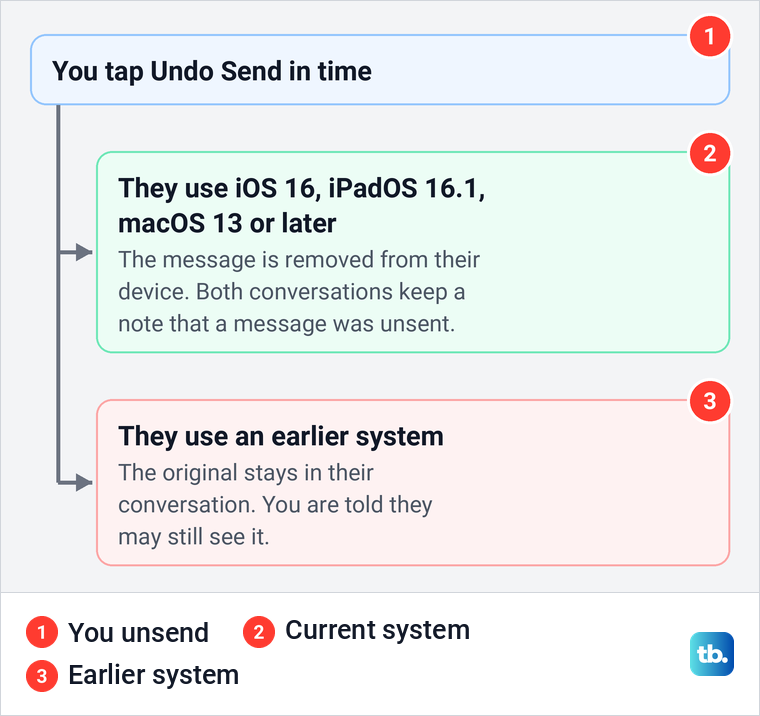
How cleanly it works depends on their software. Apple's requirement is iMessage with iOS 16, iPadOS 16.1, macOS 13, visionOS 1 or later on every device in the conversation. If you unsend a message to someone on an earlier system, the original stays in their conversation, and Messages tells you the recipient may still see it.
Undo Send also cannot reach anything outside Messages. If the other person read the message in the seconds before you pulled it, or copied what it said, removing the bubble does not change that. Treat it as a quick fix for the wrong chat or a typo, not as a guarantee that nobody saw the message.
Why Undo Send is missing
Three things hide the button: the clock, the kind of message, and the software on your iPhone. The clock is the most common. After two minutes Undo Send is gone for good, and after 15 minutes Edit is gone too.
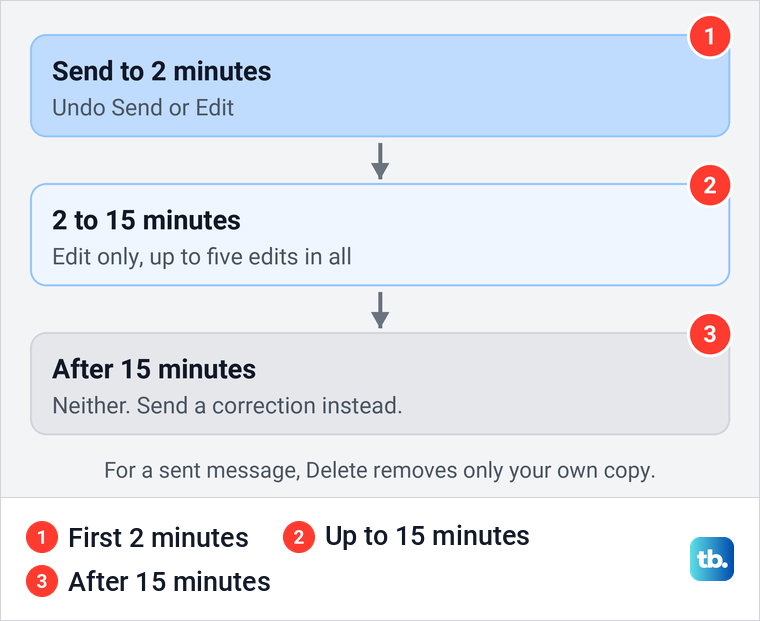
Next, look at the color of that one bubble, not the rest of the chat. Undo Send only appears on a blue iMessage, and one conversation can hold bubbles of both colors. If the bubble you want back is green, it went as SMS, MMS or RCS and cannot be unsent.
If future messages to an Apple user keep going green, check that iMessage is on. Apple's path is Settings > Apps > Messages, and on our iPhone 17 Pro with iOS 26.6 the iMessage switch sat in its own group with Send & Receive right below it. Turning it on only changes how future messages are sent, and our guide on how to enable iMessage on iPhone covers activation problems.
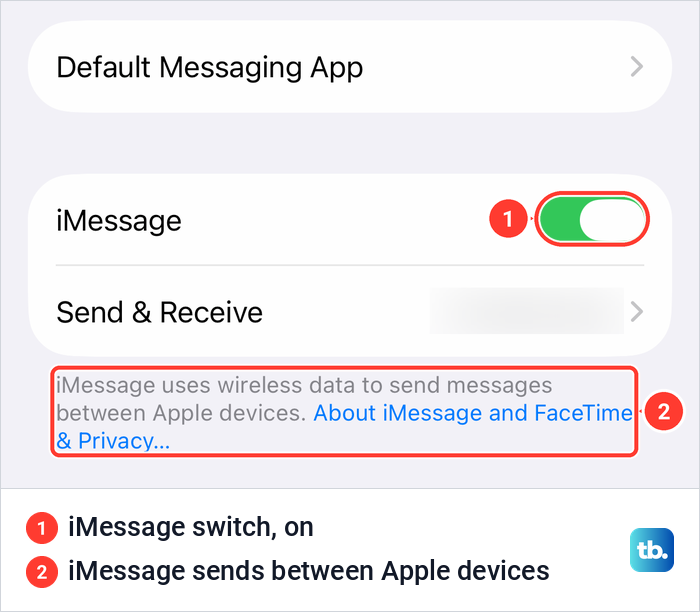
Undo Send also needs iOS 16 or later on your iPhone. If yours is older and your iPhone can run iOS 16, see how to update Apple software on your iPhone before you need the feature, because updating will not bring back a message that has already gone. If Messages closes before you can reach the bubble, use our steps to fix an iPhone Messages app that keeps crashing, keeping in mind that the two minutes keep running.
How to edit a sent message on iPhone
Edit is the better choice for a typo you want to fix rather than hide. Open the conversation, touch and hold the blue bubble, tap Edit, make your changes and tap the blue checkmark to send the edit, or the X to cancel it. Apple allows up to five edits within 15 minutes of sending the message.
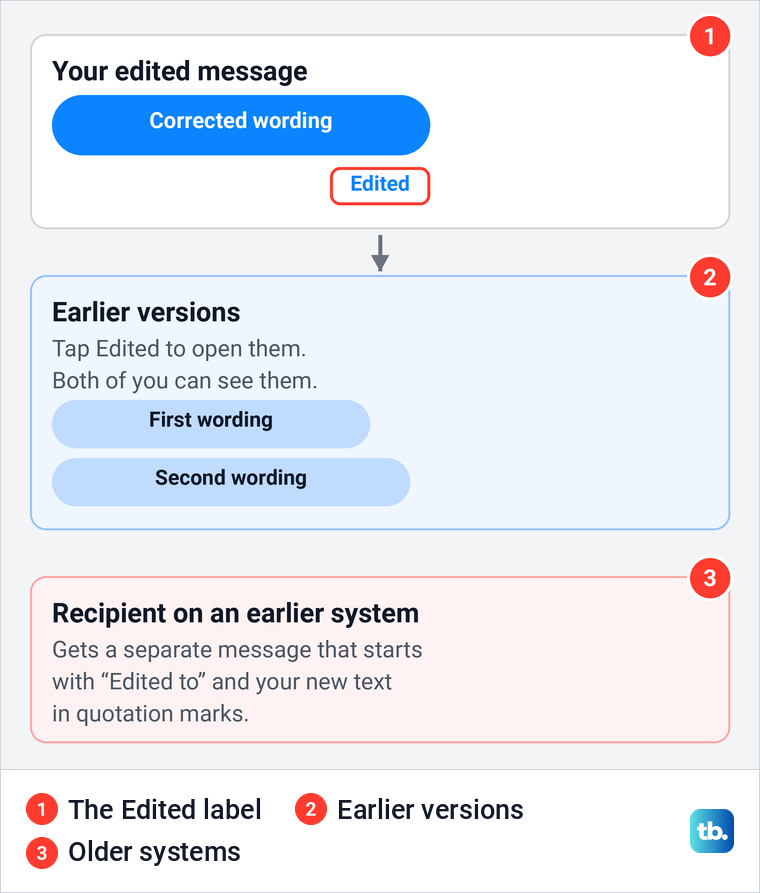
Edits are visible. Apple says the message is marked Edited in the conversation, and both of you can tap Edited to see the previous versions. So do not use Edit to remove a name, an address or anything private: the old wording stays one tap away for the other person.
Software matters here as well. If the other person uses a system earlier than iOS 16, iPadOS 16.1 or macOS 13, Apple says they receive a follow-up message that starts with "Edited to" and your new text in quotation marks. Check your fix reads well before you send it, because each edit counts toward the five.
Why a green message cannot be unsent
The bubble color tells you how a message was sent. Apple's guide says iMessage texts appear in blue bubbles, while SMS, MMS and RCS messages appear in green bubbles. It also says plainly that SMS, MMS or RCS text messages can't be edited or unsent.
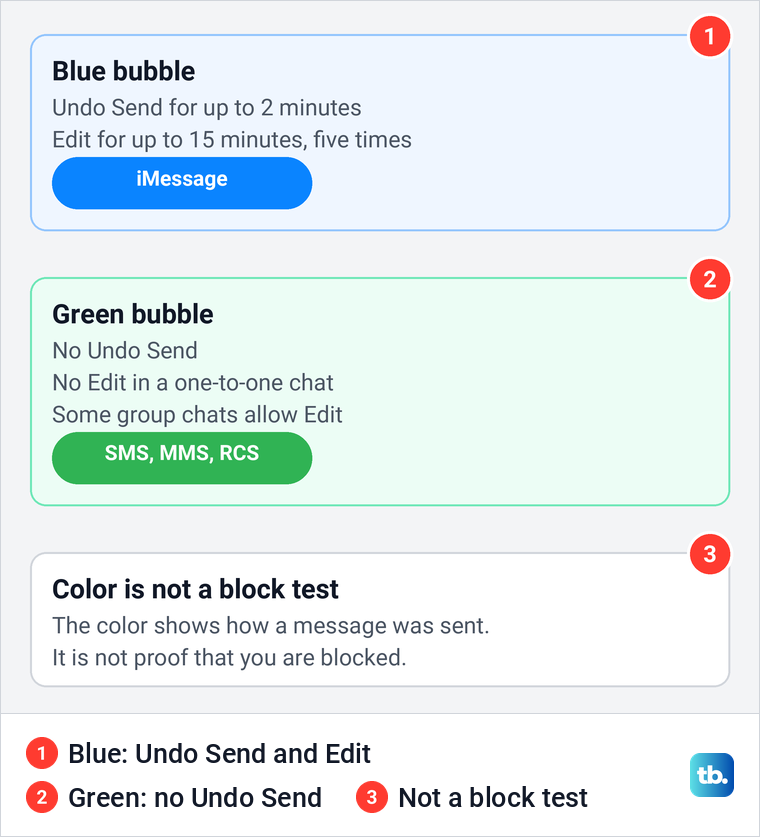
Apple's iOS 26 guide makes one exception for editing: in a group conversation with at least one other iMessage user, a green message can still be edited. Its iOS 27 guide words this differently and says only iMessage users in the group see your edits. Neither guide offers Undo Send for a green message.
A green bubble to someone who uses an iPhone is not proof that they blocked you. Messages can go green when iMessage is off or unavailable on either side, and our guide on how to tell if someone blocked you on iMessage explains why color alone is never a verdict.
One setting decides whether your iPhone falls back to SMS on its own. On our iPhone 17 Pro with iOS 26.6 it was labelled Retry as Text Message, lower down the same Messages settings page, and it was off. Its own description reads: "If iMessage is unavailable, iPhone can automatically send text messages using SMS."
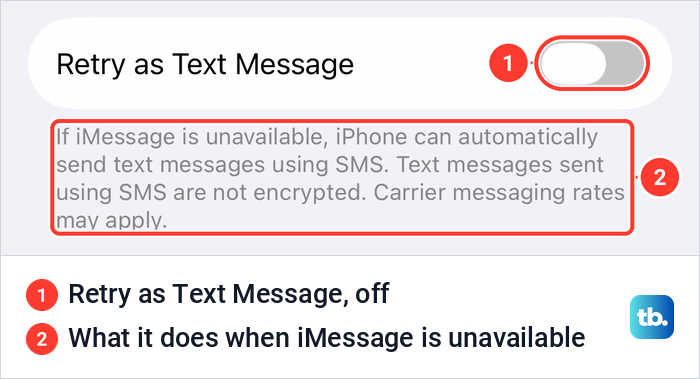
With that switch on, a message that could not go as iMessage can be sent again as SMS, and that copy is green and cannot be unsent. Apple's own note on the switch adds that SMS messages are not encrypted. Changing the switch affects future messages only.
Cancel a scheduled message before it sends
A message you set to Send Later is the one case where Delete really stops the other person from getting it. Apple says that when you delete a message before its scheduled time, it is canceled and not delivered. Send Later needs iMessage and arrived with iOS 18.
Go to the conversation and scroll to the bottom, because Apple notes that scheduled messages may appear below sent messages. A scheduled message has a dashed outline until it is sent. Touch and hold it, then tap Delete.
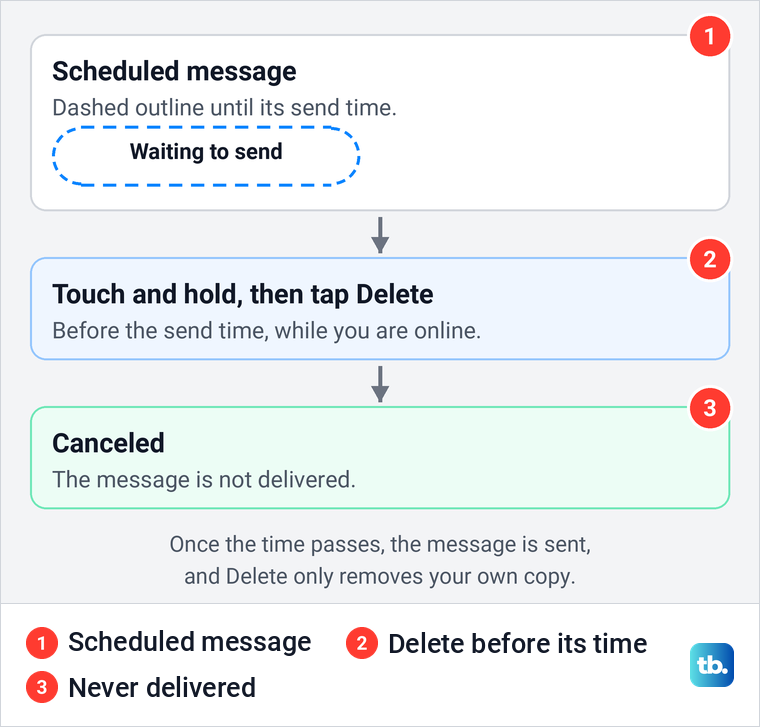
You need to be online to delete, edit or reschedule a scheduled message. Turning on Airplane Mode will not hold it back either, since Apple says scheduled messages are delivered even if all your devices are offline. For the full setup and timing choices, see how to schedule a text message on iPhone.
Delete a message from your iPhone only
Deleting is for tidying your own conversation. Apple's steps are to open the conversation, touch and hold the message bubble or attachment, tap More, select the messages you want gone and tap the trash button. Apple is clear that this works without affecting what your recipients see.
With Messages in iCloud turned on, a deletion on your iPhone also removes the message from your other Apple devices that use it. It still never reaches the other person's phone, because Apple says you can't delete messages, attachments or conversations for anyone else. Once a message has gone, deleting your copy does not recall it, even if it does not show Delivered yet. On a blue iMessage, only Undo Send does that.
Messages can also delete old conversations on a schedule. Apple's path is Settings > Apps > Messages > Keep Messages, below Message History, and like Delete it only affects your own devices, never the other person's. On our iPhone 17 Pro it was set to Forever, and the page warned that keeping messages for 30 days or 1 year will permanently delete older messages.
Find a message you deleted
Deleted messages and attachments stay in Recently Deleted for up to 30 days. On our iPhone 17 Pro with iOS 26.6, Recently Deleted was in the filters menu at the top right of the conversation list, below Messages and Spam. It is not in the Edit menu at the top left, which held only Select Messages, Edit Pins and Set Up Name & Photo.
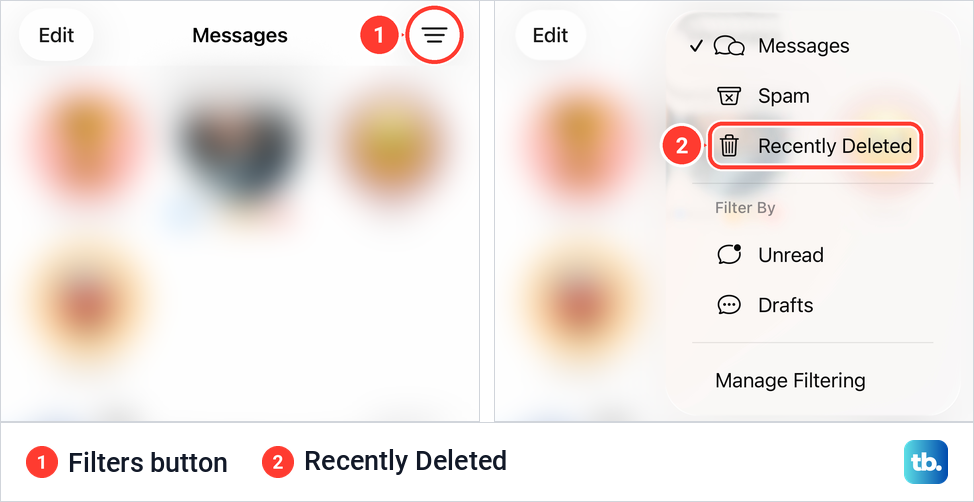
Apple's steps from there are to select the conversations whose messages you want back, tap Recover, then tap Recover Messages. If you deleted your own copy by mistake, follow our guide on how to restore messages on iPhone for the other routes.
A message you took back with Undo Send is not in that folder. Apple says any message you remove from a conversation using Undo Send is permanently deleted.
What to do when it is too late to unsend
Between two and 15 minutes, Edit is still there for a blue iMessage, as long as you are happy for the earlier wording to stay visible. After 15 minutes, or with a green message in a one-to-one conversation, nothing in Messages can change what the other person has. Deleting your copy only hides it from you.
The honest fix is usually the fastest one. Send a short follow-up that corrects the mistake or asks the person to ignore the last message. If you sent a password to the wrong person, change it right away. For a sign-in code, secure the account it belongs to, and for a card number, contact your card issuer, because the message itself cannot be recalled.
If the mistake brings replies you would rather not get, you can block a number on iPhone. Blocking deals with what comes next, but it does not pull back anything you already sent.
Unsend a message on iPad or Mac
The same two-minute rule applies when you send from an iPad or a Mac. On an iPad with iPadOS 16.1 or later, Apple's steps match the iPhone: open the conversation, touch and hold the message and tap Undo Send.
On a Mac with macOS 13 or later, open Messages, select the conversation, Control-click the message or attachment and choose Undo Send. To edit instead, Control-click the message and choose Edit, or press Command + E, make your changes and press Return.
Unsend an email in the Mail app
Mail has its own Undo Send, with a much shorter window. Apple says you have 10 seconds after you send an email to tap Undo Send in the inbox and pull the message back.
You can give yourself longer. Go to Settings > Apps > Mail, tap Undo Send Delay and choose a longer delay, up to 30 seconds. This setting only affects email and has no effect on texts in Messages.
How we tested this guide
We tested this on an iPhone 17 Pro with iOS 26.6, opening the filters menu with Recently Deleted and the Edit menu in Messages.
Frequently Asked Questions
Can you unsend a text message on iPhone after it is delivered?
Yes, if it is a blue iMessage and less than two minutes have passed since you tapped Send. Delivery does not matter. A green SMS, MMS or RCS message cannot be unsent at all.
Does the other person know when I unsend an iMessage?
Yes. Apple says a note that you unsent a message appears in both conversations. On a system earlier than iOS 16, iPadOS 16.1 or macOS 13, they may still see the original message.
Can I delete a message on iPhone for everyone?
Only through Undo Send, within two minutes, on a blue iMessage. Ordinary Delete removes the message from your own Apple devices and leaves the other person's copy alone.
Can someone see what I changed in an edited iMessage?
Yes. Both of you can tap Edited under the message to see the earlier versions. If less than two minutes have passed since you sent it, Undo Send is the better choice, though the recipient may already have seen the wording and older software may keep it.
Can I get back a message I unsent?
No. Apple says a message removed with Undo Send is permanently deleted, so it is not in Recently Deleted. That folder only holds messages you deleted from your own conversation.
How do I unsend a scheduled message on iPhone?
Before its send time, touch and hold the scheduled message with the dashed outline and tap Delete while you are online. Apple says it is then canceled and never delivered.
Can I unsend an email on iPhone?
Yes. Tap Undo Send in Mail within 10 seconds of sending. To get up to 30 seconds, go to Settings, Apps, Mail, Undo Send Delay.