Ready to print from your iPhone, but the printer isn't showing up? Start with AirPrint, which lets you select a compatible printer right from the app you're using. If your printer needs network setup or a different printing method, use the manufacturer app or direct Wi-Fi options below.
Print from your iPhone with AirPrint
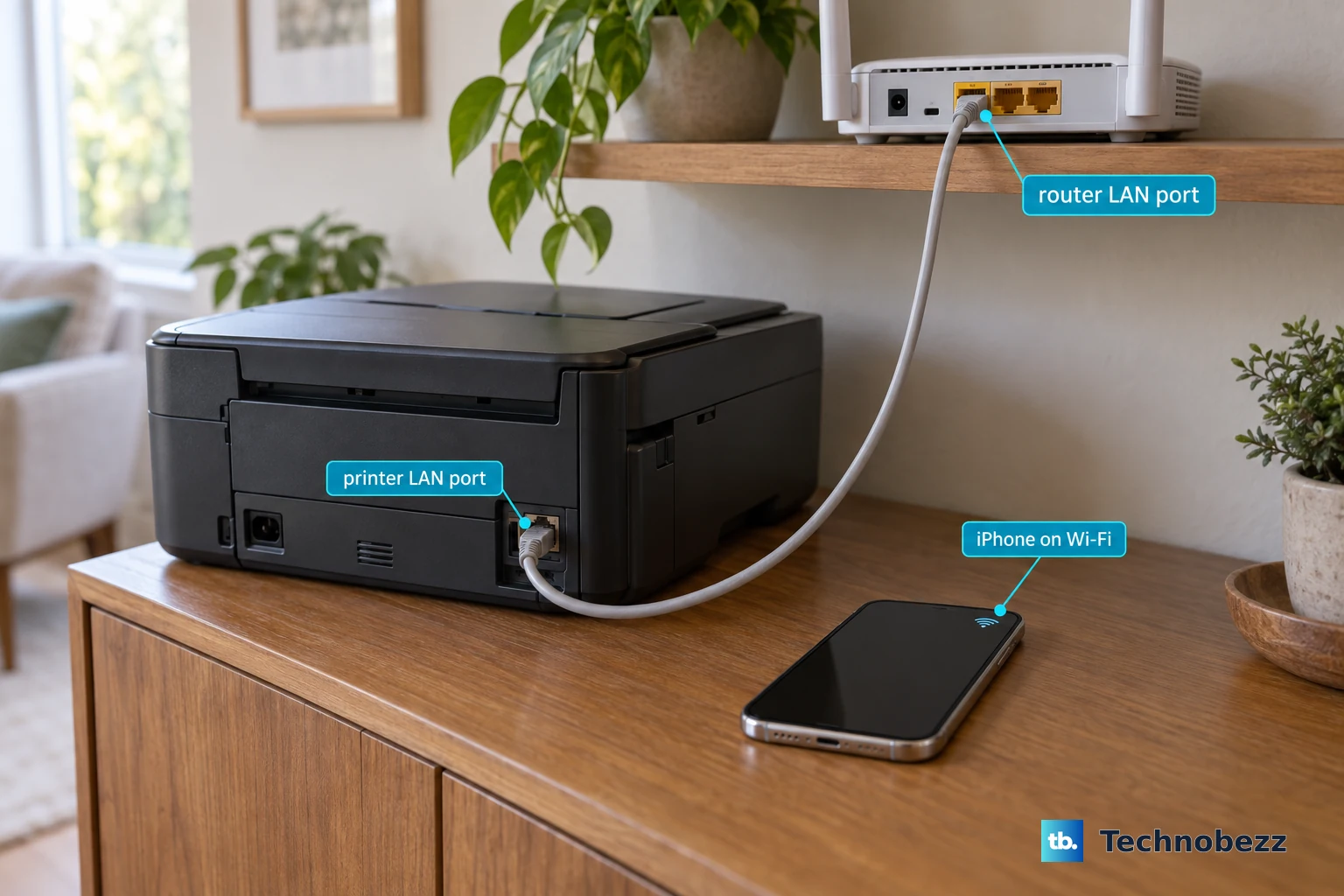
Connect your AirPrint printer to your home network using its network setup instructions. An Ethernet connection to that same network also works.
On your iPhone, open Settings > Wi-Fi.
Turn on Wi-Fi.
Select the network containing your printer.
Enter the network password when prompted. A checkmark beside the network confirms the connection.
Open the photo, document, or other content you want to print.
Tap the Share, More, Reply, or Actions Menu button, depending on the app.
Choose Print.
Tap No Printer Selected.
Select your printer.
Set the number of copies.
Adjust the other available print options.
Tap Print.
Tip: Not every app supports printing, so check the app's printing options before troubleshooting the connection.
Join your home network from the printer
Your iPhone is on Wi-Fi, but the printer needs its own network connection too. Ordinary AirPrint requires both devices to share a local network.
On supported HP touchscreen printers, open Setup, Network, or Wireless Settings. These are alternative menu names on different models, not a single menu path.
Select Wireless Setup Wizard.
Choose your router's network when prompted.
Enter its password to finish the connection.
Once the printer is connected, try the AirPrint steps above.
For an AirPrint printer with Ethernet networking, connect it to your router or local network with an Ethernet cable instead. Your iPhone still uses Wi-Fi; the printer doesn't need a wireless connection.
If control-panel setup fails, try the printer's compatible manufacturer app using the setup options below.
Find a printer that isn't appearing
A network mismatch prevents ordinary AirPrint from finding your printer.
Check your iPhone's selected network under Settings > Wi-Fi.
Select the local network containing the printer.
Check the printer's connection through its network setup controls.
After a router change, repeat the printer's network setup for the new network.
If a companion app cannot discover the printer, tap Allow when the app requests local-network access.
To change an earlier permission decision, open Settings > Privacy & Security > Local Network.
Turn on access for the printer app.
That permission controls the app's own discovery. Apple says AirPrint can still work when an app's local-network access is denied, so treat app discovery and AirPrint discovery separately.
Set up a printer with its manufacturer's app
Choose your model's supported app from the manufacturer's official product or download page. Compatibility varies by printer.
Connect your iPhone to the Wi-Fi network you want the printer to use.
For an HP app-compatible printer, turn on Bluetooth under Settings > Bluetooth for setup discovery.
Open the HP app.
Tap +.
Choose Set Up a New Printer or Choose an available printer for the task you're performing.
Select your printer.
Complete the connection prompts for that device.
For a compatible Brother printer, open Brother Mobile Connect.
Tap Add Machine.
Choose Connect your machine to Wi-Fi for initial setup, or Add your machine to the app for a printer already on the network.
For an Epson Smart Panel-compatible printer, complete the printer's initial hardware setup.
Turn on Bluetooth under Settings > Bluetooth for nearby setup discovery.
Open Epson Smart Panel.
Accept the detected printer if it appears.
If no printer appears, tap +.
Tap Start setting up.
Complete the connection prompts.
For a supported Canon printer, open Canon PRINT.
Accept its printer-registration prompt. On the registration screen offering Yes, tap that button.
Complete the printer's discovery and connection prompts.
Tip: Bluetooth helps HP and Epson discover printers during these setup workflows; AirPrint itself doesn't print over Bluetooth.
Connect directly when you don't have a router
Without a router, use the printer's own Wi-Fi network if it supports direct printing from an iPhone. The controls depend on your printer model.
For a supported HP Wi-Fi Direct printer, open any internet-dependent content before switching networks.
Retrieve the printer's direct-network name and password. On a supported touchscreen model, tap the Wi-Fi Direct icon; on a button-only model, use its model-specific instructions to display or print the credentials.
Open Settings > Wi-Fi on your iPhone.
Select the printer network beginning with DIRECT.
Enter its password.
Tap Join.
Open the content you want to print.
Tap its Share, More, Reply, or Actions Menu button, depending on the app.
Choose Print.
Select AirPrint if prompted.
Choose the printer.
Tap Print.
Rejoin your normal network under Settings > Wi-Fi afterward.
For an Epson iPrint-compatible printer supporting Wi-Fi Direct, open iPrint's printer selector.
Choose Wi-Fi Direct Setup.
Select Printer with LCD Screen or Printer without LCD Screen, matching your printer.
Complete the model-specific connection instructions.
Locate printing controls inside the app
Can't see Print? The route depends on the app. In Apple's Mail app, an email's printing controls sit under Reply.
Open the message in Mail.
Tap Reply.
Choose Print.
Select your AirPrint printer.
Tap Print.
For an attachment, open the attachment itself.
Tap its Share button.
Choose Print.
Select your AirPrint printer.
Tap Print.
For a supported Epson printer, another route starts in Epson iPrint's printer selector.
Select your printer.
Choose Print Documents or Print Photos.
Select the content.
Adjust the print options using the settings icon.
Tap Print.
If the app you started in has no printing option, try opening the content in your printer's compatible app.
Check or cancel a queued print job
Open the App Switcher while a print job exists.
Open Print Center to inspect queued printing.
Select the job you want to stop.
Tap Cancel Printing.
Tip: Print Center manages jobs already sent to a printer; it doesn't connect or install a printer.
Frequently Asked Questions
Do I need to install an iPhone printer driver?
No. AirPrint works with an AirPrint-enabled printer without a printer driver or companion app.
Can I add a printer by its IP address?
Supported manufacturer apps offer manual entry. In Brother Mobile Connect, choose Enter IP Address Manually when discovery fails, then enter the printer's address. In Epson iPrint's printer selector, choose Manual IP > Add, enter the address, then tap Done.
Which printers can print from an iPhone over Bluetooth?
Some portable photo printers use Bluetooth through their own apps. The Fujifilm instax mini Link 3 connects through the instax mini Link app and prints photos through that app. It supports one connected phone at a time.
Can I print when I'm away from home?
Yes, through a supported remote-printing service configured in advance. Eligible HP printers offer Print Anywhere with an HP account. Compatible Epson printers offer Epson Connect Email Print, which receives documents and photos at the printer's assigned email address. The printer needs an internet connection.
How do I stop my iPhone from reconnecting to the printer's direct network?
Open Settings > Wi-Fi > Edit. Tap the More Info button beside the printer network. Turn off Auto-Join, or choose Forget This Network > Forget. Reconnect manually with the current network password when needed. Managed networks can restrict these controls.