


You enter 192.168.1.1 expecting router settings, but the page does not open or the password fails. The fix is to confirm the device is on the router network, use the correct local address, then follow the login path for your router brand. Start with the fastest browser check, then move to the brand-specific and reset steps below.
On a phone or computer connected to your router by Wi-Fi or cable, type http://192.168.1.1 into the browser's address bar and press Enter. The sign-in page that opens wants the router's admin password, which is not the same thing as your Wi-Fi password. If nothing opens, your router most likely uses a different address, and your device's network settings show the right one.
NETGEAR and Linksys document 192.168.1.1, as do some TP-Link and ASUS models, but many routers use 192.168.0.1 or another address. On Windows 11 we found the real address in two places, a row in Settings and a line printed by one command, and both are shown below.
The short version
- Open it: join the router's Wi-Fi or plug in a cable, type http://192.168.1.1 in the address bar and press Enter.
- Find the real address: press Windows + I, open Network & internet, then Ethernet, or Wi-Fi and your network's properties, and read IPv4 default gateway, or run ipconfig and read Default Gateway.
- Sign in: use the router's admin password, not the Wi-Fi password. Many newer routers have you create it during setup.
- No web page at all: eero is managed only in its mobile app, and Google Wifi and Nest Wifi in the Google Home app.
- Forgot the password: try the maker's recovery first, because a factory reset can erase your Wi-Fi name, passwords and settings.
Open the 192.168.1.1 admin page
The admin page is served by the router itself, so the device you use has to be on the router's own network. Join its Wi-Fi, or plug a computer into one of its LAN ports with an Ethernet cable. The page does not need a working internet connection, only that link to the router.
Open Chrome, Edge, Safari or Firefox and click the address bar at the very top of the window. Type http://192.168.1.1 and press Enter. Use the address bar and not a search box on a web page or a new tab, because a search box only returns search results about the numbers.
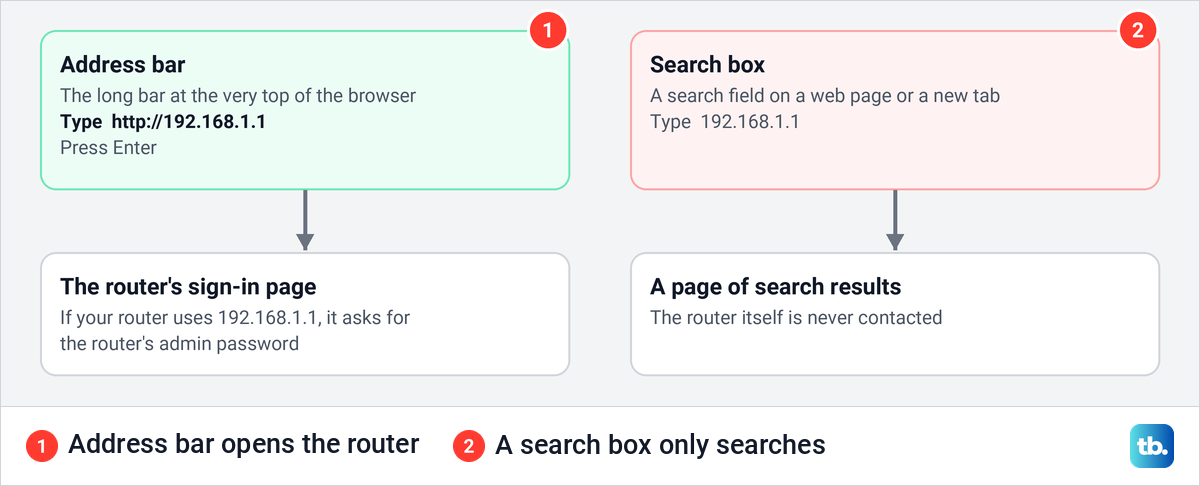
Type the four numbers with their dots and nothing joined to them. A slip such as 198.162.1.1 points somewhere else entirely, and 192.168.1.1admin is not an address at all. Some routers answer at https://192.168.1.1 instead, as on several Linksys mesh systems.
Find the router address your device really uses
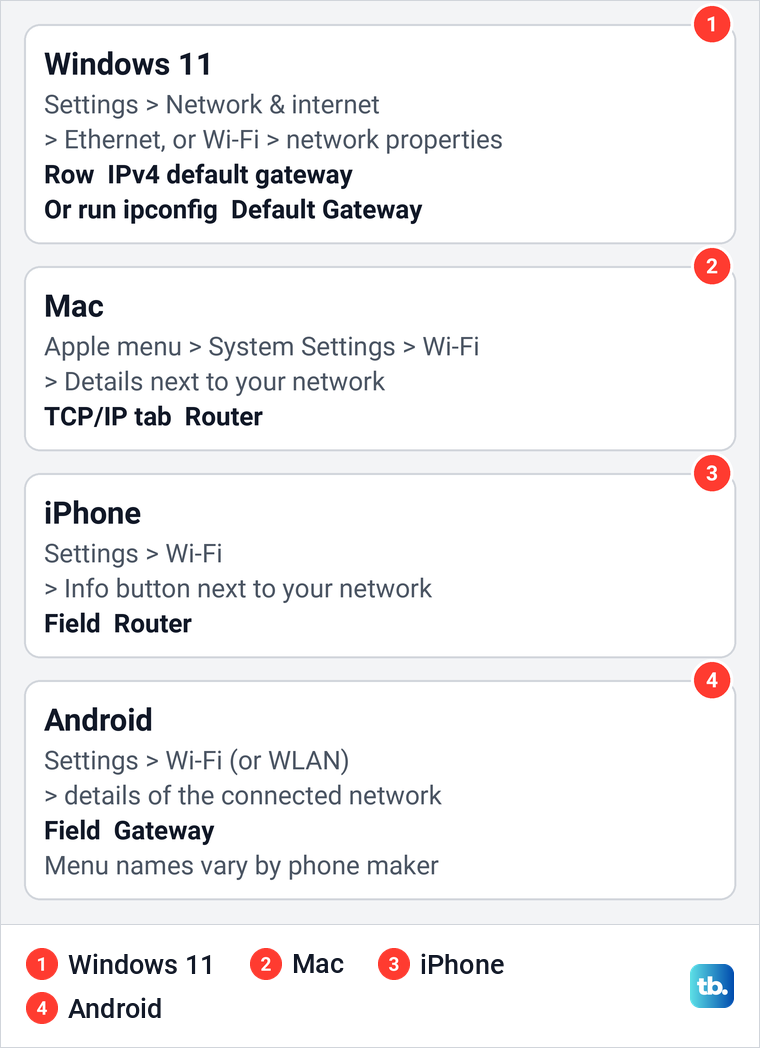
In most home networks, the address your router answers at is the gateway your device is using right now. Windows calls it the default gateway, a Mac and an iPhone call it Router, and Android calls it Gateway. Read it on the device you are using, then type exactly that address into the address bar.
The gateway is not always the box you want. An app-only system such as eero is managed in its own app, and a router set up as an access point is covered under provider gateways below.
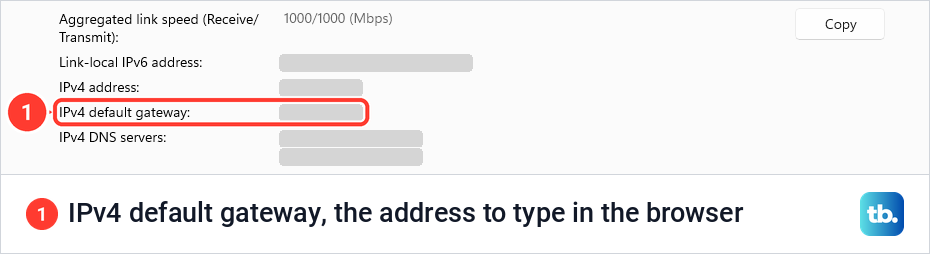
On Windows 11, press Windows + I to open Settings and select Network & internet. For a cable connection, select Ethernet. On our PC, which was connected by cable, that opened the connection's page, and near its foot sat a list of properties with a Copy button at the top right.
The row to read is labelled IPv4 default gateway, word for word. It sits under IPv4 address and above IPv4 DNS servers, and its value is the router address to type in the browser. For Wi-Fi, select Wi-Fi, then the properties of the network you are connected to, and look for the same row. If you do not see it, the ipconfig command below shows the gateway for Wi-Fi too.
The same address comes from a command, with no administrator rights needed. We pressed Windows + X, chose Terminal, typed ipconfig on the Windows PowerShell tab and pressed Enter. Under the heading for the connection, Ethernet adapter Ethernet on our PC, the line to read is Default Gateway, and it showed the same address as the Settings row.
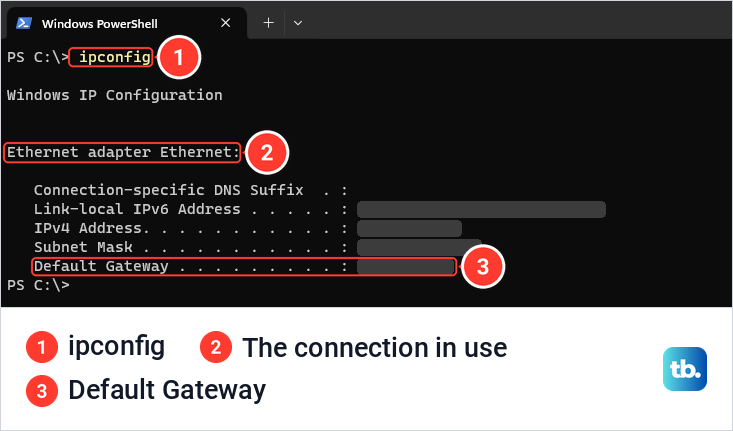
ipconfig works the same way in Command Prompt. It lists the default gateway for every adapter, so on a laptop with both Wi-Fi and a cable, read the line in the block for the connection you are actually using.
On a Mac, open the Apple menu, choose System Settings, click Wi-Fi, then Details next to the network you are on. The address is listed as Router on the TCP/IP tab. On macOS Monterey and earlier, the same tab is under System Preferences > Network > Advanced.
On an iPhone, open Settings > Wi-Fi and tap the Info button next to the connected network, where the address appears as Router. On Android, open Settings > Wi-Fi, tap the details icon beside the connected network and look for Gateway. Android menus vary by phone maker, so look for the field name.
If your iPhone is not on the router's Wi-Fi yet but your Mac is, you can share the Wi-Fi password from a Mac to an iPhone instead of typing it. A device that keeps dropping off the network will make the admin page time out too, so fix a weak Wi-Fi signal or use a cable before you go further.
A device that was given a fixed address of its own may not be on the router's network at all, so set it back to get its address from the router. On Windows, select Edit next to IP assignment on the connection's page and choose Automatic (DHCP), the recommended setting. On a Mac the choice is on the same TCP/IP tab, which is also where you change the local IP address on a Mac.
Match the login page to your router maker
Many routers carry a label with their default network name, password and other details, so check it before anything else. The table gives what each maker's own support pages document. Where the label or the table disagrees with the gateway you just read, trust the gateway.
| Router or gateway | Address to type | What the sign-in asks for |
|---|---|---|
| NETGEAR | routerlogin.net or http://192.168.1.1, though some models default to 192.168.0.1 | User name admin and the password chosen during setup |
| Linksys | myrouter.local or 192.168.1.1, or https://192.168.1.1 on supported mesh systems | The Router Password, which the recovery key on the label can reset where Reset password is offered |
| TP-Link | tplinkwifi.net or 192.168.0.1, with 192.168.1.1 on some models | On newer models, an admin password you create at first login, or your TP-Link ID if the router is linked to one |
| ASUS | http://www.asusrouter.com, 192.168.1.1 or 192.168.50.1 | The login name and password set at first login or after a reset |
| D-Link DIR series | 192.168.0.1 | At default, user name admin with a blank password |
| Xfinity gateway | http://10.0.0.1, after turning on Admin Tool access in the app on newer gateways | User name admin and the password created when access was turned on |
| AT&T gateway | http://192.168.1.254 | AT&T's instructions name no sign-in step, so follow the gateway's own prompts |
| eero | No browser page | The eero mobile app |
| Google Wifi and Nest Wifi | No browser page | The Google Home app |
On NETGEAR routers the user name is admin and the password is the one chosen during setup. TP-Link's newer models make you create an admin password the first time, and older ones show admin in both fields, so the label and the model's manual decide which applies to yours. D-Link's DIR routers default to 192.168.0.1 and TP-Link's Deco mesh systems use 192.168.68.1, so neither answers at 192.168.1.1 unless someone changed it.
If the router belongs to a workplace, a school or a landlord, the sign-in details are theirs to give. Ask the person who runs the network before you try passwords or press anything on the box.
Know which password the sign-in page wants
Three different sign-ins get mixed up here. The Wi-Fi password joins a phone or laptop to the network, and the admin password opens the router's settings at 192.168.1.1. Some makers also have an account of their own for the app or for cloud features, such as a NETGEAR account or a TP-Link ID.
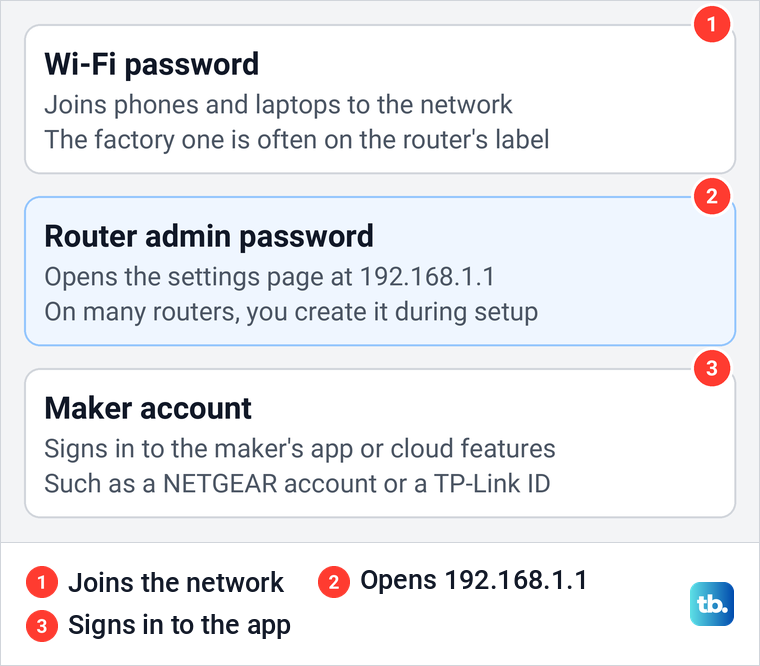
The sign-in page wants the admin password, and the Wi-Fi password only works there if someone set both to the same thing. Many current routers have no factory admin password to look up at all. ASUS and newer TP-Link models have you create one at the first sign-in, NETGEAR routers use the one set during setup, and a newer Xfinity gateway asks for a new one when you first turn on browser access.
The ASUS sign-in, for example, is neither the Wi-Fi name and password nor the account your internet provider gave you. Lists of admin and password pairs found online often fail for the same reason. They mix old defaults from different models, and a router where someone set a password will refuse them.
If you saved the router's sign-in in a browser or password manager, look there before anything drastic, and on a phone you can find saved passwords on an iPhone. Once you are in, the wireless settings hold the network name and password, which is where you change your Wi-Fi router password. The admin password is a separate setting, which D-Link's DIR models keep under Tools > Admin.
Use the router app when the model needs it
Some systems have no web page to sign in to. eero networks can only be managed in the eero mobile app, not from a browser on Windows, Linux or an Intel-based Mac, although Macs with Apple silicon can run the iPad version of the app. Google Wifi and Nest Wifi routers are looked after in the Google Home app, where you tap Home and then Wifi.
Other makers offer an app alongside the browser. For a supported NETGEAR router, connect the phone to the router's Wi-Fi, open the Nighthawk app and sign in with your NETGEAR account. TP-Link's Tether app is an alternative to the browser login, and the Linksys app asks for the Router Password after you tap Manage Your Wi-Fi on an iPhone or Log in on Android.
If a router app on an iPhone cannot find the router, check that the app may see your local network. Open Settings > Privacy & Security > Local Network and turn access on for that app. The switch covers apps that ask to reach devices on your network, so it is no fix for a browser page that will not open.
Check the address your internet provider uses
A combined modem and router from your internet provider often has its own address and its own sign-in. Xfinity's Admin Tool is at http://10.0.0.1, and on newer gateways such as the XB6, XB7, XB8 and XB10 access is turned on in the Xfinity app first. Open the WiFi tab, select View WiFi equipment, open Advanced settings, select Admin Tool online access, slide the toggle to allow access and select Save.
The first time you allow it, the app asks you to create a new password. Sign in at 10.0.0.1 as admin with that password while you are on your home network, and turn access off again when you are done. Older gateways such as the XB3 do not have this toggle, so contact Xfinity about those. AT&T gateways use http://192.168.1.254 instead, and that page is where you change the gateway's Device or System Access Code and its Wi-Fi security.
If your own router sits behind one of these gateways, each box has its own page. Join the Wi-Fi of the router you want to change before you read the address, and for a router set up as an access point, use its maker's instructions for that mode to find its settings page.
What the browser is telling you when the page fails
The browser's response tells you which step to go back to. Search results mean the address went into a search box. A page that keeps loading, or a message such as "This site can't be reached", means the browser got no usable answer from the admin page, and a rejected password means you reached it but used the wrong details.
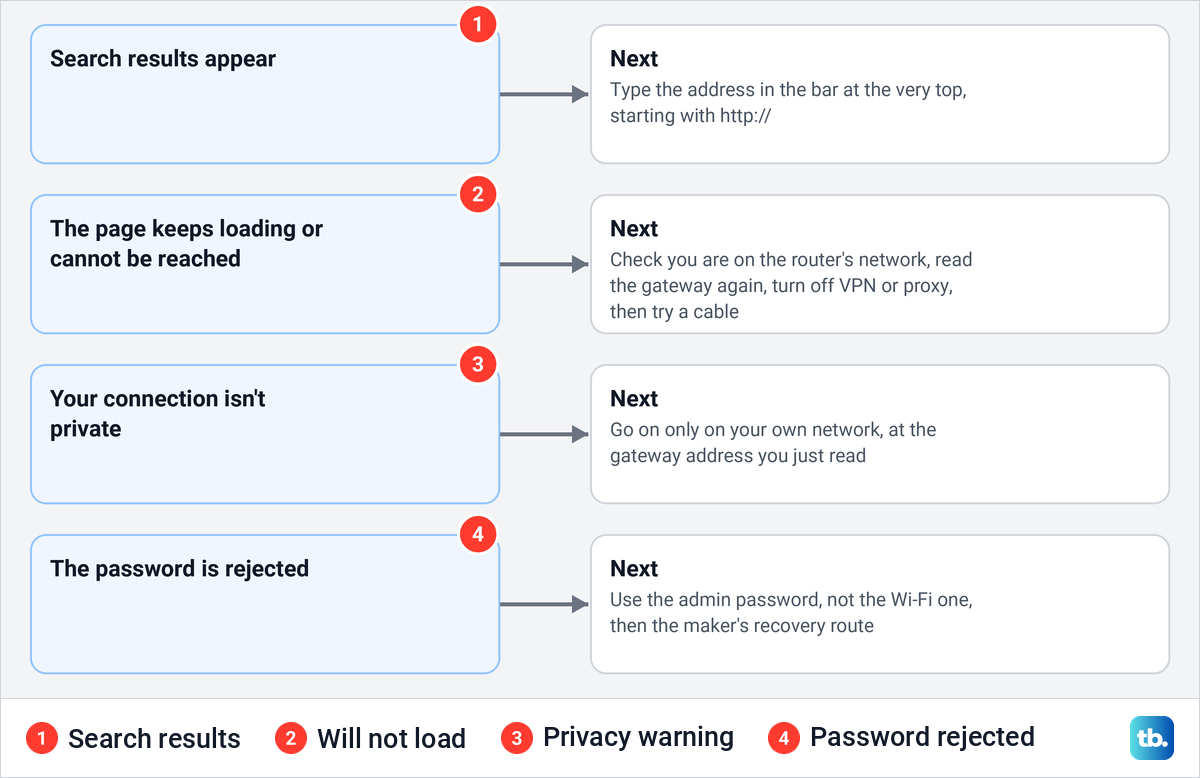
When the page will not load, check that the device is on the router's Wi-Fi and not on mobile data, then read the gateway again. Turn off any VPN or proxy, because either can stop the browser from reaching a local address. Then try a cable, another browser and another device, which tells you whether the problem is the computer or the router's own page. Older browsers can fail at the router's sign-in or hide parts of its pages, so keep yours up to date.
If Safari will not load ordinary websites either, the fault is the browser or the connection rather than the router, so start with fixing Safari when pages will not load. Cached data can also stop the router page loading, so clear the browser's cache and try again, and on a phone you can clear the cache on Android for Chrome. Security software on a computer can block the page too, which is one more reason to try a second device.
A warning such as "Your connection isn't private" can appear because a router's page often uses a certificate the router made itself. On TP-Link routers this warning is expected, and Linksys mesh systems can show a browser security message at the same point. The way past it is Advanced, then the link to proceed to the address. Do that only on your own network, at the gateway address you just read, and never for a router page you reached from a link.
Recover a forgotten admin password first
A forgotten admin password does not always mean a reset. Several makers have a recovery route that keeps every setting, as long as the router supports it or it was set up in advance.
On a NETGEAR Nighthawk router, open routerlogin.net from a device on its Wi-Fi, or orbilogin.local on an Orbi system, and enter wrong sign-in details three times. The Router Password Reset screen asks for the router's serial number and the answers to the two security questions chosen at setup, then lets you pick a new admin password and new questions. Other NETGEAR models have their own recovery steps in their manuals.
On a Linksys router whose local sign-in page or app offers Reset password, select it there, or Router Password > Reset password in the app. Enter the recovery key printed on the router's product label and select Submit, then set a new router password, with an optional hint. If your model shows no such option, check its own instructions.
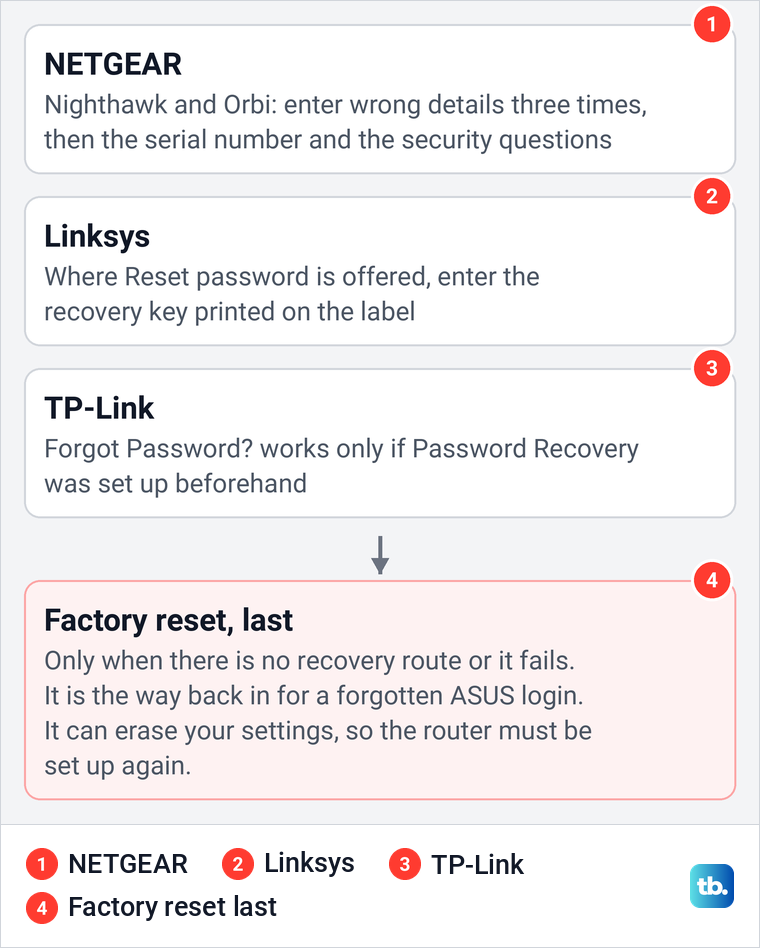
TP-Link routers recover a password only if Password Recovery was turned on before you were locked out, under Advanced > System Tools > Administration, or Advanced > System > Administration on some models. If it was, select Forgot Password? on the tplinkwifi.net sign-in page and verify by email or security questions. A forgotten ASUS login name or password means restoring the router to factory defaults.
Use a factory reset only after recovery fails
A factory reset is the last step because it wipes far more than the password. On NETGEAR routers it clears your user name and password, the Wi-Fi network name and the security settings, and on ASUS routers the internet settings too. Afterwards the router behaves like a new one and has to be set up again.
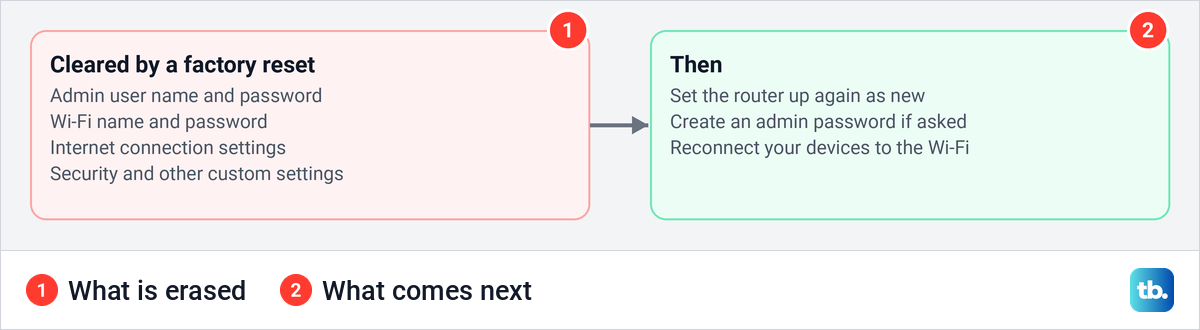
Before you press anything, find any internet sign-in details your provider gave you, and decide on the Wi-Fi name and password you will set. On NETGEAR Nighthawk and Orbi routers the Reset button sits on the back or side, and you press it with a straightened paper clip or something similar. How long to hold it depends on the model, about 15 seconds for NETGEAR Nighthawk and Orbi routers and 5 to 10 seconds for ASUS, though models differ, so check your model's manual.
After the reset, sign in at the address on the label and follow the setup, writing the new admin password somewhere safe. ASUS and newer TP-Link models ask you to create one at this point. If the router came from your internet provider, follow the provider's own reset instructions instead, because the connection may need its details again.
How we tested this guide
We tested this on a PC running Windows 11, version 25H2, where we found the router's address in the connection's properties in Settings and again with ipconfig in Terminal.
Frequently Asked Questions
Why does 192.168.1.1 not open on my phone or computer?
Either the device is not on the router's network, or the router uses another address. Read the gateway in the device's network details and type that into the address bar instead. eero, Google Wifi and Nest Wifi have no browser page at all, so use their apps.
What is the username and password for 192.168.1.1?
It depends on the maker and the model. NETGEAR uses admin and the password set during setup, Linksys asks for the Router Password, and ASUS and newer TP-Link routers have you create the login the first time. Check the router's label, and do not expect your Wi-Fi password to work unless both were set the same.
Is 192.168.1.1 the same as my Wi-Fi password?
No. 192.168.1.1 is the address of the router's settings page. The Wi-Fi password connects devices to the network, while the admin password opens the settings.
Why does 192.168.1.1 open a search page?
The address went into a search box instead of the address bar. Click the bar at the very top of the browser, type http://192.168.1.1 with no spaces or extra words and press Enter.
Can I open 192.168.1.1 without internet?
Yes, as long as the device is connected to the router by Wi-Fi or cable, because the router serves the page itself. App-only systems such as eero are different, since the app needs an internet connection for setup.
Which router brands use 192.168.1.1?
NETGEAR and Linksys document it, and so do some TP-Link and ASUS models. D-Link DIR routers use 192.168.0.1, TP-Link Deco 192.168.68.1, Xfinity gateways 10.0.0.1 and AT&T gateways 192.168.1.254, so with a single router, the gateway shown on your device is the reliable answer.
What happens if I factory reset my router?
It can erase your admin login, the Wi-Fi name and password, the internet settings and your other custom settings, and the exact list depends on the model. The router then has to be set up again, so use the maker's password recovery first if it has one.











