You might want to change your Wi-Fi password because you shared it too widely, you think a neighbor is using your connection, or you just want to rotate it. Every modern router lets you do this in a few minutes once you know where to look.
To create the new password, a browser-based strong password generator builds a long random password in one click. It runs entirely on your device, so the new password is never sent anywhere.
The thing that trips most people up is that your Wi-Fi password (the network key devices use to join) is NOT the same as your router's admin password (the one that unlocks the settings page). Changing the Wi-Fi key forces every device to reconnect with the new password. Changing the admin login does not affect how devices connect at all. Both are covered below, along with the exact menu paths for the most common routers and ISP gateways.
Expect this up front: the moment you save a new Wi-Fi password, every connected device drops off until you enter the new key on it. If you make the change from a phone or laptop over Wi-Fi, that device disconnects too, and you reconnect it with the new password. Pick the section that matches your router and follow it.
Confirm What You Need Before You Start
Two requirements apply to almost every method. First, you must be connected to the router's own network (by Wi-Fi or Ethernet), or signed in to the ISP or vendor app that manages it. Second, for web-interface methods you need the router's admin login.
Defaults are usually printed on a label on the router. NETGEAR and Verizon use the default username admin.
Check whether your network uses one shared password across all bands or separate names for 2.4 GHz, 5 GHz and 6 GHz. Some routers let each band carry its own name and password, while on Verizon Fios the 2.4 GHz and 5 GHz networks share one password even when they have separate names.
App-based methods also need the matching account: an eero account, a Google account, a My Verizon login, and so on.
Find Your Router IP and Open the Login Page
If you plan to use the web interface, you first need the router's IP address (the default gateway). The two most common are 192.168.1.1 and 192.168.0.1.
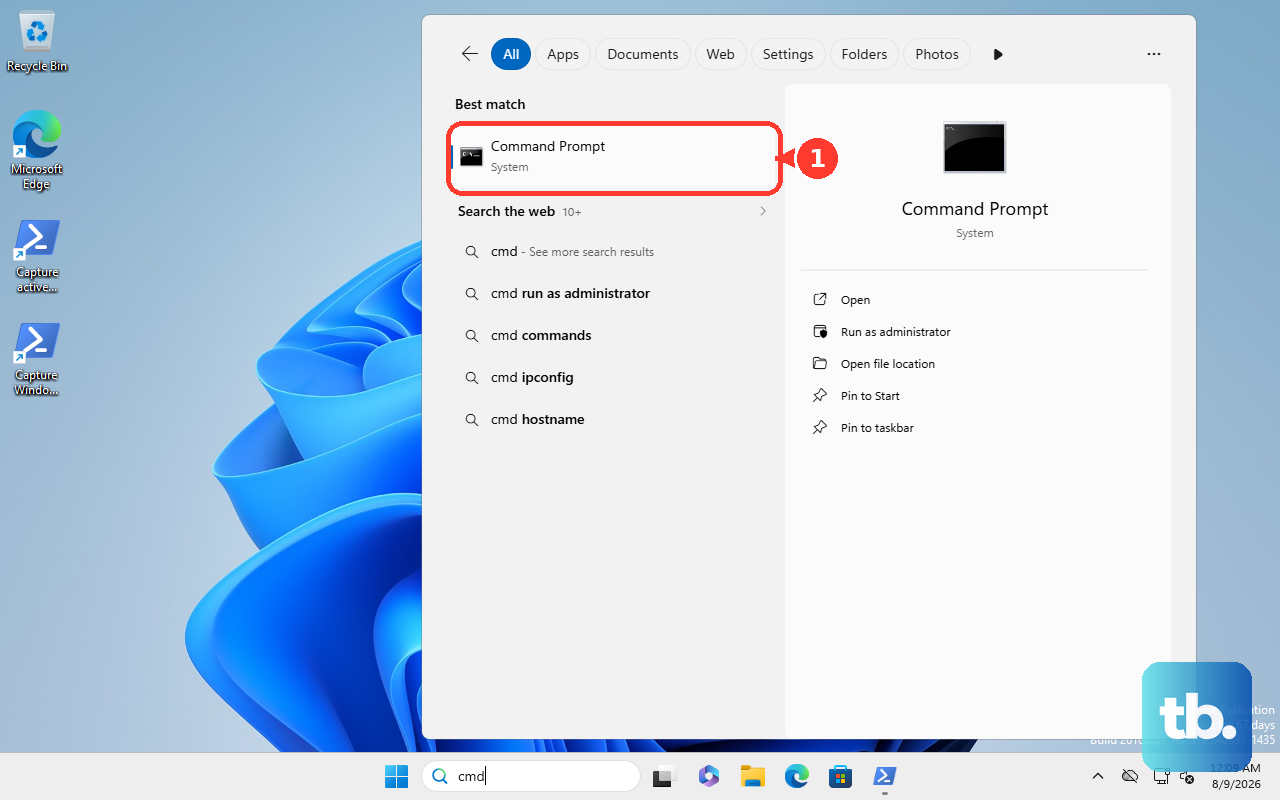
- 1.On Windows, click Start and search "CMD" (or press Windows Key + R, type "CMD", and click OK) to open Command Prompt.
- 2.Type
ipconfigand press Enter. Find the address next to "Default Gateway". - 3.On Mac, click the Apple icon > System Settings > Wi-Fi (or Network), select your connection, then click Details.... The address appears next to "Router".
- 4.On Mac, you can also open Terminal (Spotlight > "Terminal") and run
netstat -nr | grep default. The gateway is listed next to "default". - 5.Open any browser, type the gateway IP into the browser's address bar (not a search box) and press Enter. A username and password prompt appears.
If you type the IP into a search box instead of the address bar, the login page will not open. Many vendors also offer a friendly hostname so you can skip the IP entirely, covered below.
Change the Wi-Fi Password on a NETGEAR Router
You can use the web interface from any device connected to the router's network.
Open a browser and go to www.routerlogin.net.
Log in with username admin and the admin password you set the first time you logged in (both are case-sensitive).
Select Wireless on the BASIC Home page or Dashboard. On Nighthawk Pro Gaming routers, select Settings > Wireless Setup instead.
To rename the network, edit the Name (SSID) field.
Enter the new password in the Password (Network Key) fields.
Click or tap Apply to save, then reconnect your devices with the new key. Using a computer plugged in by cable avoids getting knocked offline while you save.
Prefer your phone? Open the NETGEAR Nighthawk app while connected to the router's Wi-Fi and sign in.
Tap WiFi Settings, enter the new name in the WiFi Network Name (SSID) field and the new password in the Network Key (Password) field, then tap SAVE.
Change the Wi-Fi Password on a TP-Link Router
TP-Link's exact menu path varies by model, so this covers the common variants.
Connect by Wi-Fi or Ethernet, open a browser, and go to tplinkwifi.net or 192.168.0.1, then log in with the admin password.
Open the wireless settings. On most models this is Advanced > Wireless > Wireless Settings. Some models use Wireless > Wireless Settings or Basic > Wireless, and Wi-Fi 8 routers use Wi-Fi > Main Network.
Edit the Network Name (SSID) and the Password (case-sensitive).
For Security, TP-Link recommends WPA2-PSK [AES] or WPA2-PSK [AES] / WPA3-Personal.
If needed, you can also adjust individual 2.4 GHz, 5 GHz or 6 GHz bands, or turn on Hide SSID. Otherwise, leave the other settings alone.
Click Save. If you are on Wi-Fi, you will be disconnected and must reconnect.
With the TP-Link Tether app, connect your phone to the router's Wi-Fi, open Tether, tap your router under Devices, and log in with the admin password.
Tap More > Wi-Fi Settings, select the network (2.4 GHz, 5 GHz, 6 GHz or MLO), change the name and password, then tap Save.
The default SSID and Wi-Fi password are printed on the label on the bottom of the router. TP-Link Deco mesh systems are managed in the Deco app instead.
Change the Wi-Fi Password on an ASUS Router
ASUS menus changed with newer firmware, so check which version your router runs.
Connect to the router and go to http://www.asusrouter.com, then log in with the router username and password.
On firmware 3.0.0.6.102_35404 or later, go to [Network] > [Main network profile] and edit the Network Name (SSID) and Wireless Security (your Wi-Fi password).
On earlier firmware, go to [Wireless] > [General], select the band (2.4 GHz, 5 GHz, 5 GHz-2 or 6 GHz), and edit the Network Name (SSID) and WPA-PSK Key.
Click [Apply] to save.
The password must be 8 to 63 characters or 64 hexadecimal characters. If you leave it blank, ASUS assigns "00000000", so always enter one.
Using the ASUS Router app, log in and tap [Settings] > [Network] > [Main network profile] (newer firmware) or [Settings] > [WiFi] > [Wireless Settings] > [Network Settings] (earlier firmware), edit the name and password, then tap [Apply].
Change the Wi-Fi Password on Google Nest Wifi or Google Wifi
Google's mesh systems are managed from the Google Home app.
Open the Google Home app.
Tap Home > Wifi > Network settings, then tap your existing password.
Enter a new password.
Tap Save.
Google passwords must be 8 to 63 characters, a combination of letters and numbers, with no spaces, including no accidental space at the beginning or end.
All devices stay disconnected until you update each one. After 7 days, the app shows a network insight for any device that still cannot connect.
Change the Wi-Fi Password on Verizon Fios
For a Fios Quantum Gateway or Verizon Fios Advanced router, use the My Verizon website.
Go to My Verizon, sign in, and select Home.
Hover over Services, then select Internet.
Under My Network, select a network to Manage.
Enter your new name and/or password and click Save Changes. If Wi-Fi is off, first choose Enable Wi-Fi Access in the popup.
Verizon says that if your 2.4 GHz and 5 GHz networks have separate names, the password is always the same for both, so reconnect every device afterward.
For other routers, browse to 192.168.1.1, sign in (username admin, default password on the router label), and change the Wi-Fi settings there.
Change the Wi-Fi Password on an eero Network
Open the eero app.
Tap Settings in the bottom-right corner.
Tap Wifi name & password.
Edit the password (and/or name) and save the change.
Changing the password requires you to manually reconnect each wireless device with the new key.
The eero network is managed only from the mobile app, which is available on the Apple App Store, Google Play and the Amazon Appstore.
Change the Router Admin (Login) Password
This is the password that unlocks the settings page, not the one your devices use to connect.
On NETGEAR, log in at www.routerlogin.net, then go to ADVANCED > Administration > Set Password (Nighthawk Pro Gaming: Settings > Administration > Set Password).
Enter the old password and the new password twice, check Enable Password Recovery, and click Apply.
If you skip password recovery and later forget the password, only a factory reset and fresh setup will get you back in.
On TP-Link, log in at tplinkwifi.net or 192.168.0.1 and go to Advanced > System > Administration. Enter the current password, set the new one, and click Save.
TP-Link DSL modem routers use Advanced > System Tools > Administration at tplinkmodem.net or 192.168.1.1.
In the Tether app, tap More > System > Manage Password (or Tools > System > Login Account), enter the current and new password, and tap Save or Done.
Watch Out for These Common Gotchas
Choosing WPA3 or a WPA2/WPA3 mixed mode for stronger security can lock out older devices that only support WPA2, so switch back if a device cannot connect.
If an old router keeps broadcasting the same name and password, devices split between the two networks and behave oddly. Turn the old router off or put it in bridge mode.
Forgetting the admin password generally forces a factory reset, which wipes all custom settings and reverts the Wi-Fi name and password to the label defaults.
ISP-managed gateways (Xfinity, Verizon) are often managed through the ISP's app or website rather than a local router page, and the ISP account login is yet another separate credential.
Frequently Asked Questions
What is the difference between the Wi-Fi password and the admin password?
The Wi-Fi password (network key or passphrase) is what devices use to join the network. The admin password unlocks the router's settings page. They are separate, and changing one does not change the other.
Why did all my devices disconnect after I changed the password?
That is expected. Changing the Wi-Fi password forces every device to reconnect with the new key, so each one drops off until you enter the new password. If you made the change from a phone or laptop over Wi-Fi, that device disconnects too.
What IP address do I type to reach my router?
Type your default gateway into the browser's address bar. The two most common are 192.168.1.1 and 192.168.0.1. Find yours with ipconfig on Windows or the network Details screen on Mac. Many vendors also offer a hostname, such as routerlogin.net for NETGEAR, tplinkwifi.net for TP-Link, or asusrouter.com for ASUS.
I forgot my router's admin password. What now?
A forgotten admin password generally requires a factory reset, which wipes all custom settings and reverts the Wi-Fi name and password to the defaults on the router's label. On NETGEAR, if you did not enable Password Recovery, a factory reset is the only way back in. TP-Link also offers password recovery through a TP-Link ID if you set it up.
Are there rules for what my new password can contain?
It depends on the router. Google Nest Wifi and Google Wifi require 8 to 63 characters, a combination of letters and numbers, with no spaces (including no accidental space at the beginning or end). ASUS requires 8 to 63 characters or 64 hexadecimal characters, and assigns "00000000" if you leave it blank.
Does each band need its own password?
It varies by model. Some routers, such as ASUS on older firmware, let each band (2.4 GHz, 5 GHz, 6 GHz) carry its own name and password, while Verizon Fios always uses one shared password across bands. Check which type you have before assuming.