

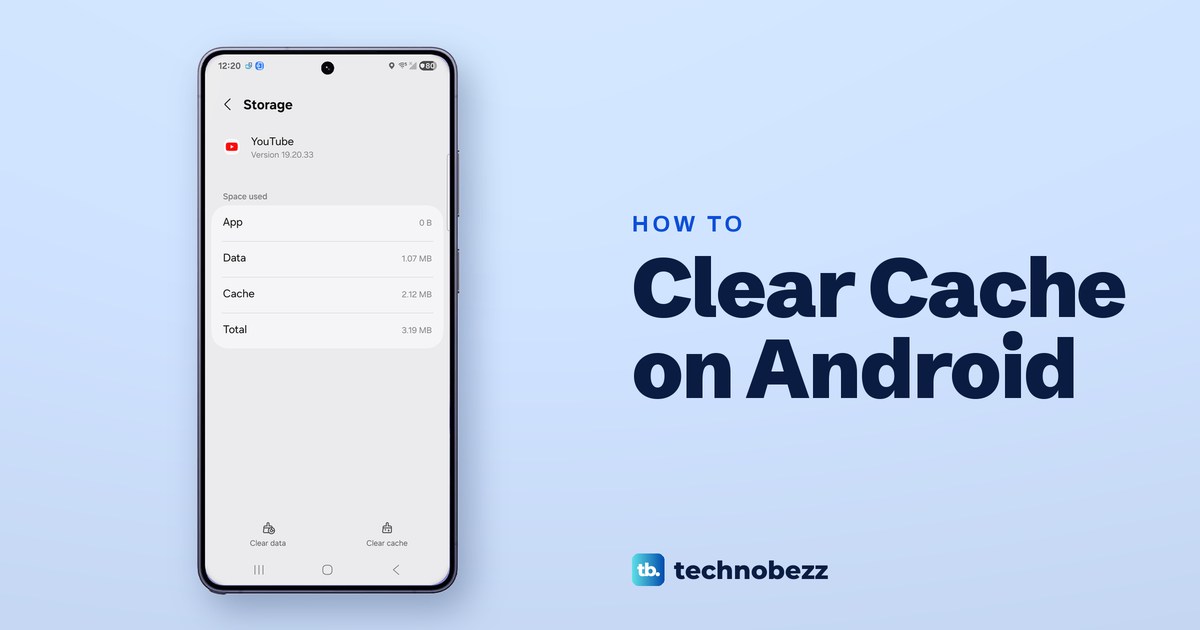
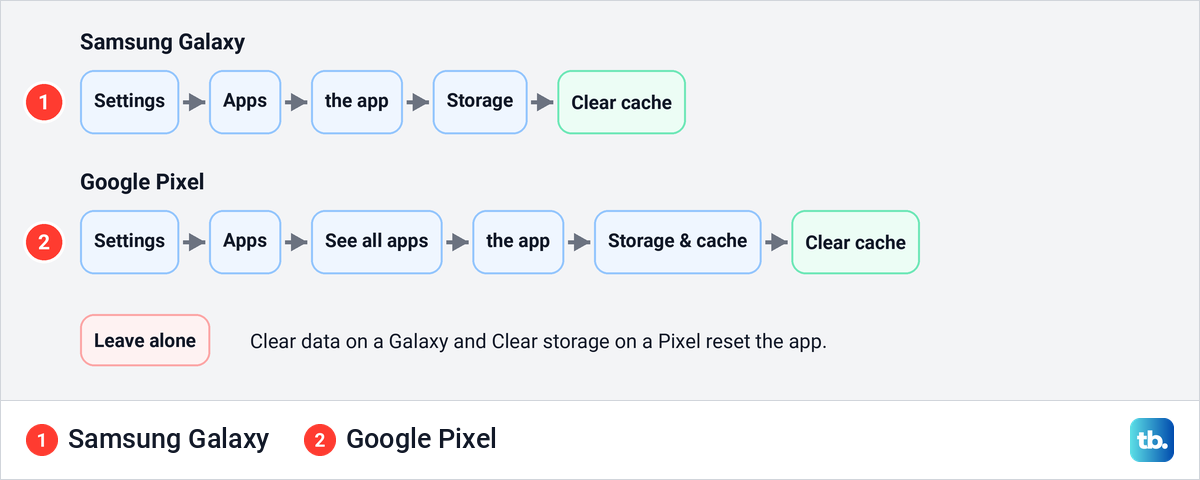
To clear the cache on Android, open Settings, tap Apps, choose the app, tap Storage (Storage & cache on a Google Pixel), then tap Clear cache. That deletes the app's temporary files and the app keeps its data. Clear data, called Clear storage on a Pixel, is the other button, and it resets the app as if you had just installed it.
We tried it on our Galaxy S25 Ultra with One UI 7. YouTube's Storage screen showed 2.12 MB of cache, and one tap on Clear cache took it to 0 B with no confirmation step, while the app's data stayed at about 1 MB. Since Android 8, Android's own Settings app has had no button for every app's cache at once, and Chrome's own menu is where you pick exactly what Chrome clears.
The short version
- One app: Settings > Apps > the app > Storage > Clear cache. On a Pixel the screen is called Storage & cache.
- The safe button: Clear cache keeps the app's data. Clear data, or Clear storage on a Pixel, resets the app.
- Chrome: More > Delete browsing data > More options, then select only Cached images and files.
- All apps at once: Android's own Settings has had no such button since Android 8, and the phone can clear cache by itself when storage runs low.
- Still broken: restart, update the app, then force stop it before you clear its data.
Where to find Clear cache on Android
The button has a slightly different name and place depending on who made your phone and which app holds the cache. This table puts the common cases side by side. The last column is the button to avoid unless you mean to reset something.
| What you are clearing | Where to go | Tap this | Leave this alone |
|---|---|---|---|
| One app on a Samsung Galaxy | Settings > Apps > the app > Storage | Clear cache, bottom right | Clear data, bottom left |
| One app on a Google Pixel | Settings > Apps > See all apps > the app > Storage & cache | Clear cache | Clear storage |
| One app on another Android phone | Settings > Apps or Applications > the app > Storage | Clear cache | Clear data or Clear storage |
| Chrome's cache | Chrome > More > Delete browsing data > More options | Cached images and files, then Delete data | Browsing history, Cookies and site data, Saved passwords |
| Samsung Internet's cache | More options > Settings > Personal browsing data > Delete browsing data | Cached images and files, then Delete data | Browsing history, Cookies and site data, Passwords |
| Every app at once | No button in Android's own Settings since Android 8 | Nothing, the phone can clear cache itself when space runs low | Factory reset, which erases the phone |
Google itself says settings vary by phone and points you to the phone's maker for the exact menu, so treat the third row as a pattern rather than a promise. The steps are different on iPhones, Macs and Windows PCs.
Clear an app's cache on a Samsung Galaxy
Open Settings and tap Apps. On our Galaxy S26 Ultra with One UI 8.5, the screen opened with Choose default apps and Samsung app settings at the top, then Your apps with each app's size under its name. The search button at the top right is the quickest way to an app in a long list, or you can scroll to it and tap it.
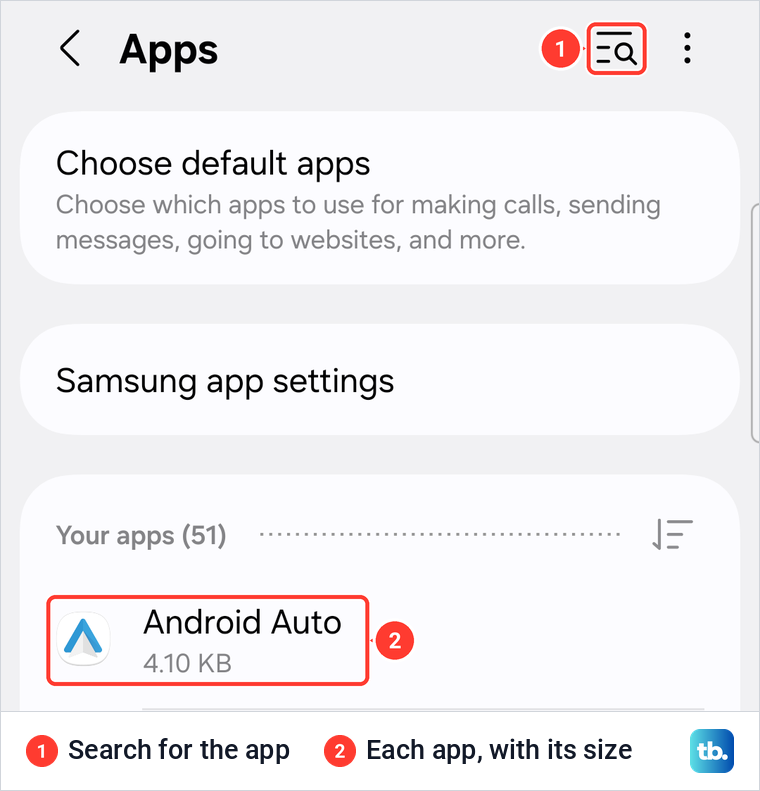
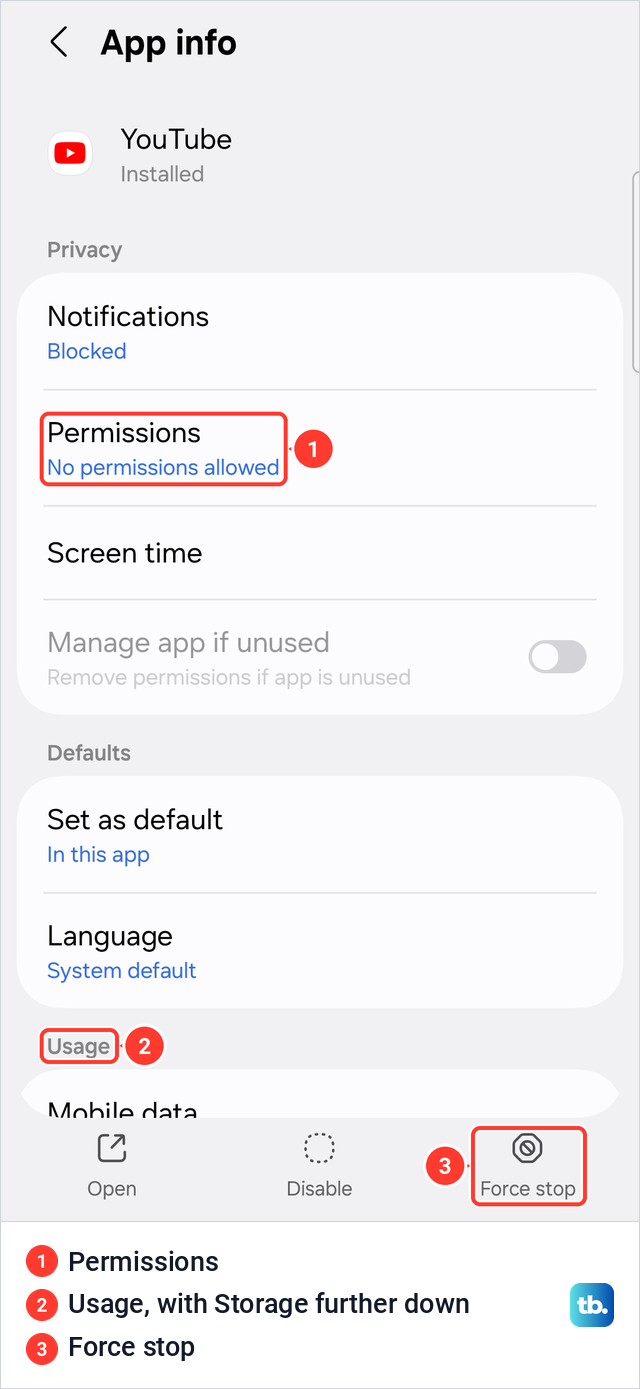
Our Galaxy S25 Ultra with One UI 7 showed the same Apps layout. Tapping YouTube opened App info, which starts with Notifications, Permissions and Screen time, then Set as default and Language. The same App info page is where you change app permissions on Android, so you may come back to it for other fixes.
Storage is not on the first screen. On our One UI 7 phone it sat in the Usage group, below Mobile data and Battery, so swipe up until you reach it. Open, Disable and Force stop sit in a bar along the bottom of the screen.
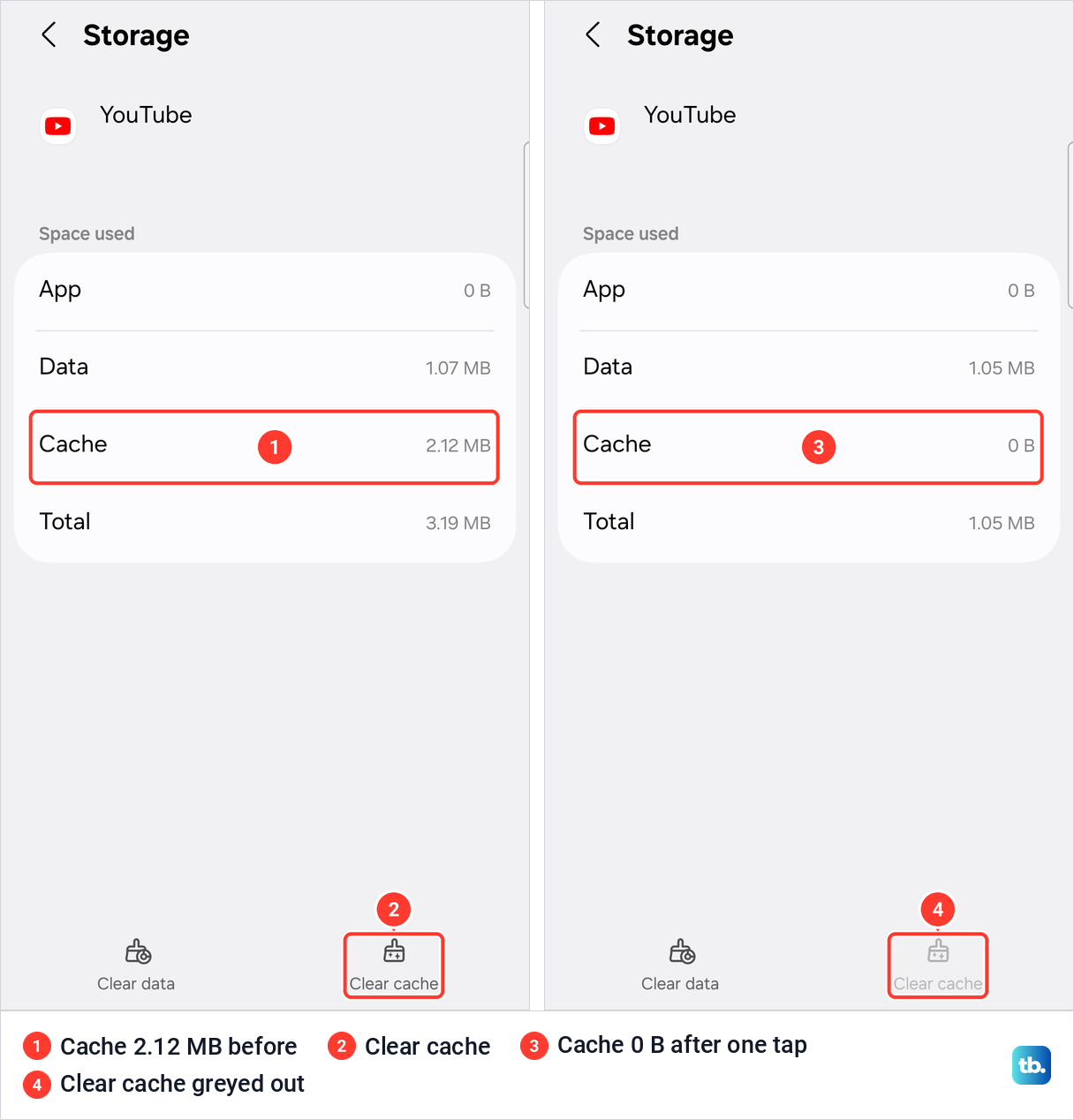
Tap Storage. YouTube's Storage screen listed App 0 B, Data 1.07 MB, Cache 2.12 MB and Total 3.19 MB, with Clear data at the bottom left and Clear cache at the bottom right. Tap Clear cache once. On our phone no confirmation appeared, and a few seconds later the Cache line read 0 B, Total had dropped to 1.05 MB and Data still showed about 1 MB.
The Clear cache button then turned grey, because there was nothing left to clear. That grey button is a quick check in itself, and it matches Samsung's own advice to confirm the result by looking for 0 B on the Cache line.
Samsung's support page gives the same steps for Galaxy phones and tablets: Settings, Apps, select or search for the app, Storage, then Clear cache, with a note that steps may vary by software version and app. We used YouTube, and if YouTube keeps crashing after a cleared cache, the cache was not the cause and that guide goes further.
Clear an app's cache on a Google Pixel or another phone
Pixel phones use different labels for the same two buttons. The Pixel steps here follow Google's Pixel help: open Settings, tap Apps, then See all apps, tap the app, tap Storage & cache and then Clear cache. Google also lets you touch and hold an app's icon and tap App info, which skips the list.
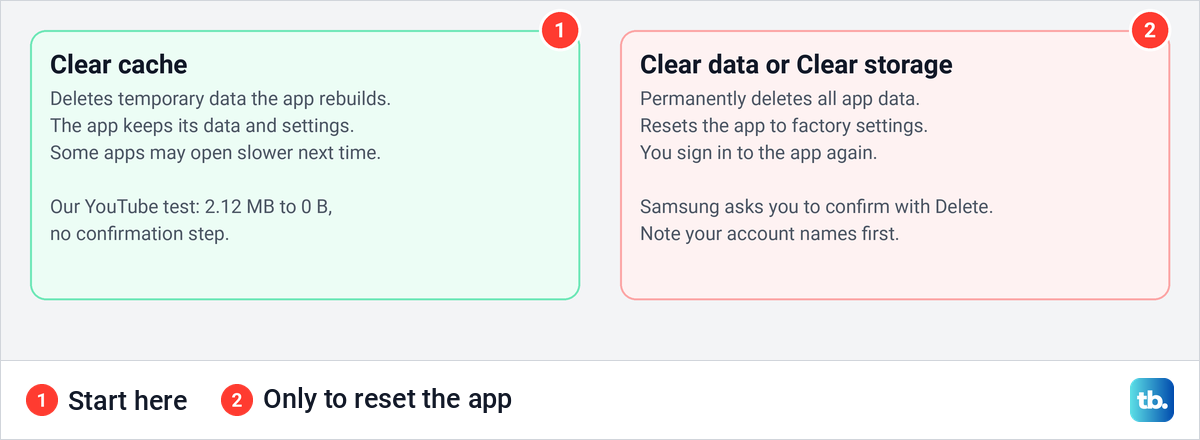
Google describes Clear cache as deleting temporary data and warns that some apps may be slow the next time you open them. Clear storage, the Pixel's reset button, permanently deletes all app data.
Phones from other makers mostly follow one of these two patterns. Google's own Android steps name the menu Apps or Applications, depending on the Android version, and Google notes that settings vary by phone. Whatever the names on your screen, look for the button with cache in its label and leave the one that says data or storage alone.
Clear cache or clear data, which one to tap
Cache is temporary data an app keeps so things open faster the next time, and apps rebuild it as you use them. Data, or storage on a Pixel, is what the app has saved for you, including your settings and the sign-in that keeps you logged in. Clearing the first is a tidy-up, and clearing the second is a reset.
Samsung says clearing an app's data resets it to factory default settings and removes any personal settings or data saved on it, so write down your account names first to log back in. Samsung asks you to confirm with Delete, and adds that some system apps cannot have their data cleared. Google's advice is to try deleting the data within the app first.
One app deserves extra caution. Google advises against clearing Google Play services unless you have tried every other fix, because clearing its data or storage may delete passwords, transit cards and virtual payment cards saved to Google Pay. Google adds that you may need to reauthenticate your payment methods and sign back into your Google Account on all devices.
Clear Chrome's cached images and files on Android
Chrome keeps its own cache of the pages you visit, and the usual way to clear it is inside Chrome, where you can pick exactly what goes. The steps here follow Google's Chrome Help. Many older instructions start from Chrome's Settings and Privacy and security, but Google's help now starts from the More menu, and the first sheet it opens is the one to read carefully.
Open Chrome, tap More (the three dots to the right of the address bar) and tap Delete browsing data. Read the first sheet before you tap anything.
Google says it is for deleting browsing history, including open tabs, with a default duration of 15 minutes, so tapping Delete data straight away deletes recent history, can close open tabs, and only reaches back a quarter of an hour. If wiping recent history is what you wanted, our guide shows how to clear your browser history in Chrome and other browsers.
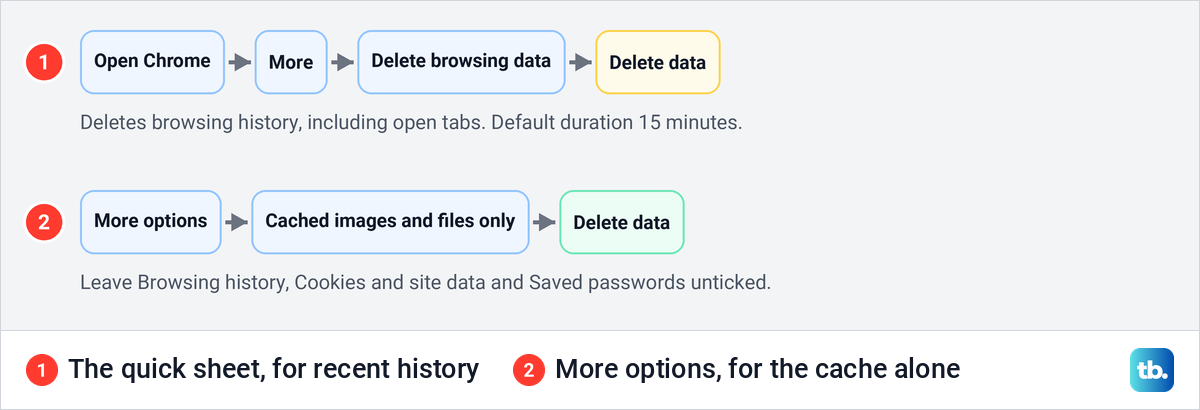
To clear the cache on its own, tap More options, select Cached images and files and clear the other boxes, then tap Delete data. If a time range is shown, choose All time to clear everything Chrome has cached. Google says this removes text and images from pages you have visited, the parts Chrome remembers so pages open faster on your next visit.
Leave Cookies and site data unticked unless you mean to sign out of websites. Google says you will need to sign in to sites again afterwards, although deleting cookies while signed in to Chrome does not sign you out of your Google Account. When you do want them gone, see how to delete cookies on any browser you use.
Saved passwords sit in the same list, so keep that box empty as well, or follow our steps to delete saved passwords in Chrome one at a time. If you are signed in to Chrome, Google warns that data deleted from your Google Account on the phone is removed from every device where you are signed in.
Clearing Chrome's cache does not touch the searches saved in your Google Account, which Google lists as data that is not deleted here. To remove those, delete your Google search history separately. If only one site misbehaves, you can clear the cache for one website and leave the rest alone.
For a faster way in, Google says you can type Delete browsing data in the address bar and tap the Action chip. Google also says clearing the cache can resolve website loading or formatting issues, and if pictures still fail to appear afterwards, here is how to fix Chrome not loading images.
Clear the cache in Samsung Internet
Samsung's browser keeps its own cache too. Samsung's steps are to open the app, tap More options, then Settings, Personal browsing data and Delete browsing data. Select Cached images and files, tap Delete data and confirm with Delete.
Samsung's US support page now calls the app Samsung Browser, so look for either name on your phone. Samsung notes that you may need to log into certain websites again afterwards, so leave Cookies and site data unticked if the cache is all you want to clear.
Why Android dropped its clear all cache button
Older Android phones had one. Android's own source code for Android 7 shows a Cached data row on the Storage screen, and tapping it opened a confirmation that read "This will clear cached data for all apps." Confirming it emptied the cache of every app in one go.
From Android 8, the internal storage screen in Google's own Settings app no longer has that row. The same release gave each app a disk space quota for cached data. Google's developer notes say that when the system needs space it starts by deleting cached files from the apps most over their quota, oldest files first.
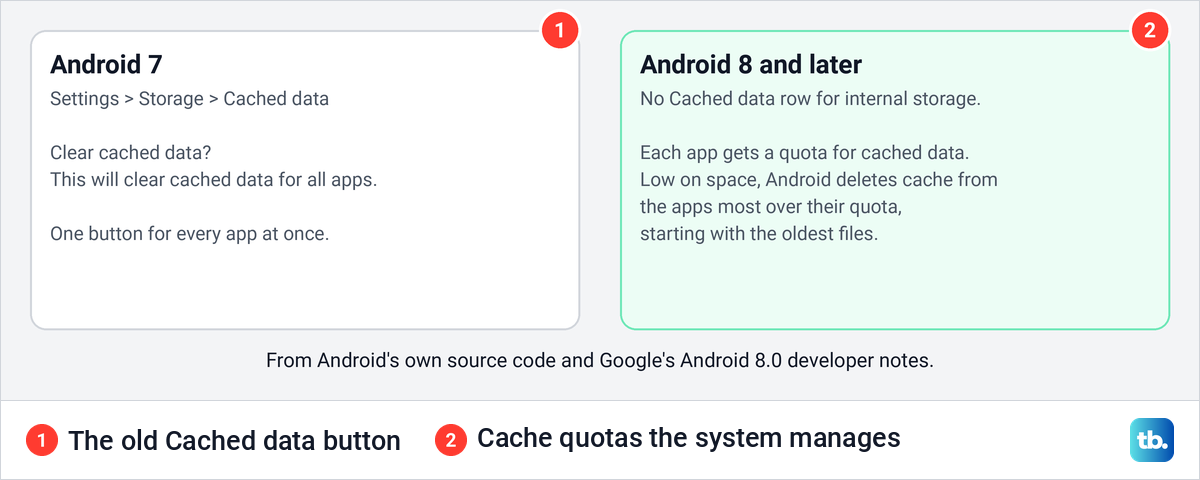
So a phone running low on storage can clear cache on its own. Google's developer documentation says Android may delete apps' cache files when the device is low on internal storage. Google has not published a reason for removing the button, but the quota system is what replaced it in Android's own Settings, and phone makers can add tools of their own.
What Samsung's storage tools clear
Samsung's answers differ by country. Its US support page says the only way to clear the cache on every app at the same time would be a factory reset, and its Canadian page calls that a drastic step for extreme cases. Samsung's UK page lists Device care's Optimise now under its heading on clearing cache, and its Singapore page says Optimize now clears the app's cache.
Samsung's Canadian page describes the same Optimize now button as a scan for crashes that closes background apps and checks for malware, with no word about cache. Do not factory reset a phone just to clear its cache. A reset erases the phone, and the per-app button already does the job.
Samsung's steps reach the storage tools through Settings > Device care > Storage. On our Galaxy S26 Ultra with One UI 8.5 the internal storage page is titled Manage storage, with Audio files, Images, Videos and Documents, a Show more button, Duplicate files, Large files, Trash and Unused apps, the apps you have not used in the past 30 days. There was no cache line on that first screen.
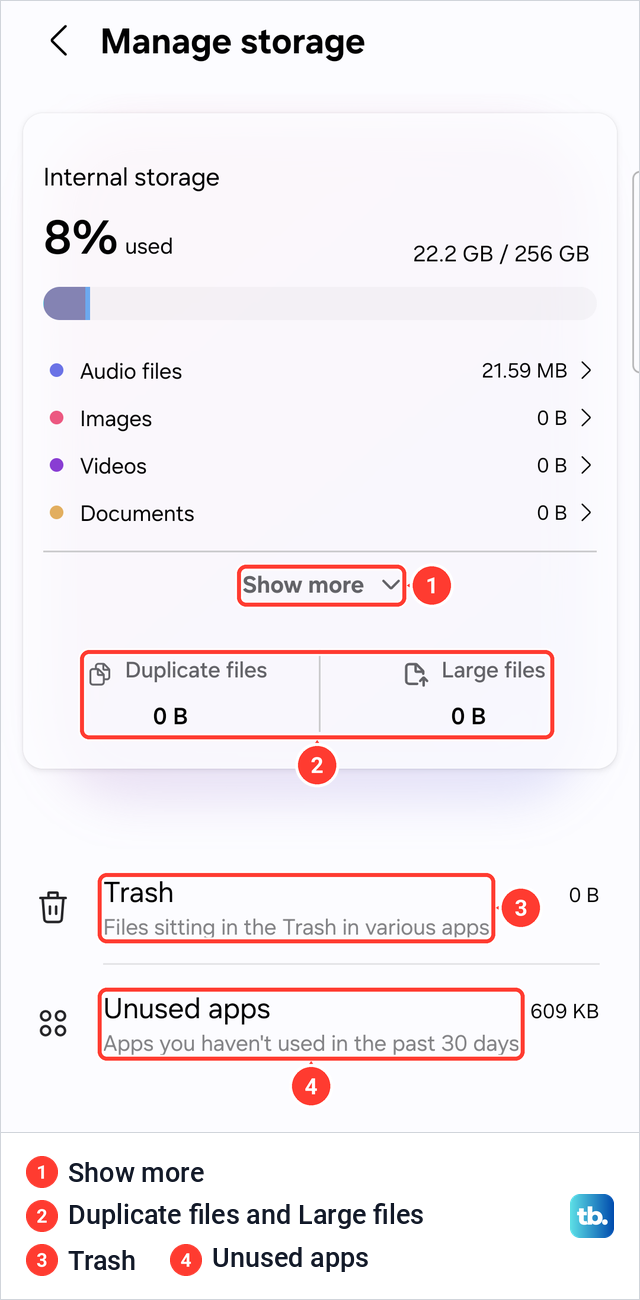
Those tools free space by deleting files and apps you no longer need, not cache. Memory is a different thing again: Samsung says Memory > Clean now frees up memory and stops background apps, which can help a sluggish phone but frees no storage.
Skip the wipe cache partition step
Older guides, and Samsung's own UK page, still send you to recovery mode to choose Wipe cache partition. A Samsung Community moderator has reported that the option was removed from recovery mode on recent Galaxy phones, and that the removal was planned rather than a fault.
For an app that misbehaves, the Clear cache button in Settings is the step to use. It needs no button combination and no restart into recovery mode.
When clearing the cache does not fix the app
Clearing the cache is one step in a longer list. Google's main steps for an app that crashes, will not open or will not respond are to restart and update first, then force stop the app, clear its cache, clear its data, uninstall it, and contact the developer. Google suggests restarting the phone after each step to see whether it helped.
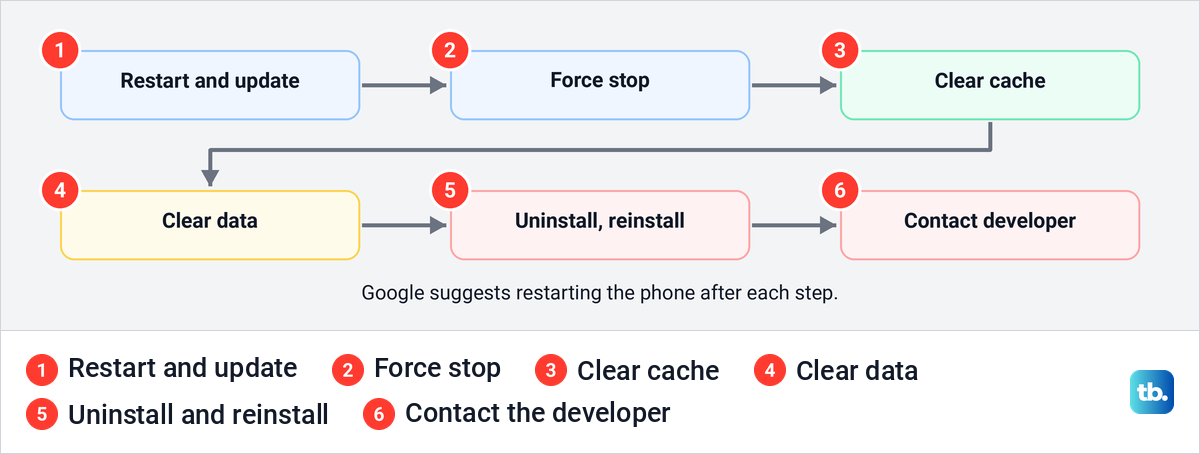
Start with a restart, and if the screen is frozen, here is how to restart or force restart an Android phone. Then update Android and the app itself.
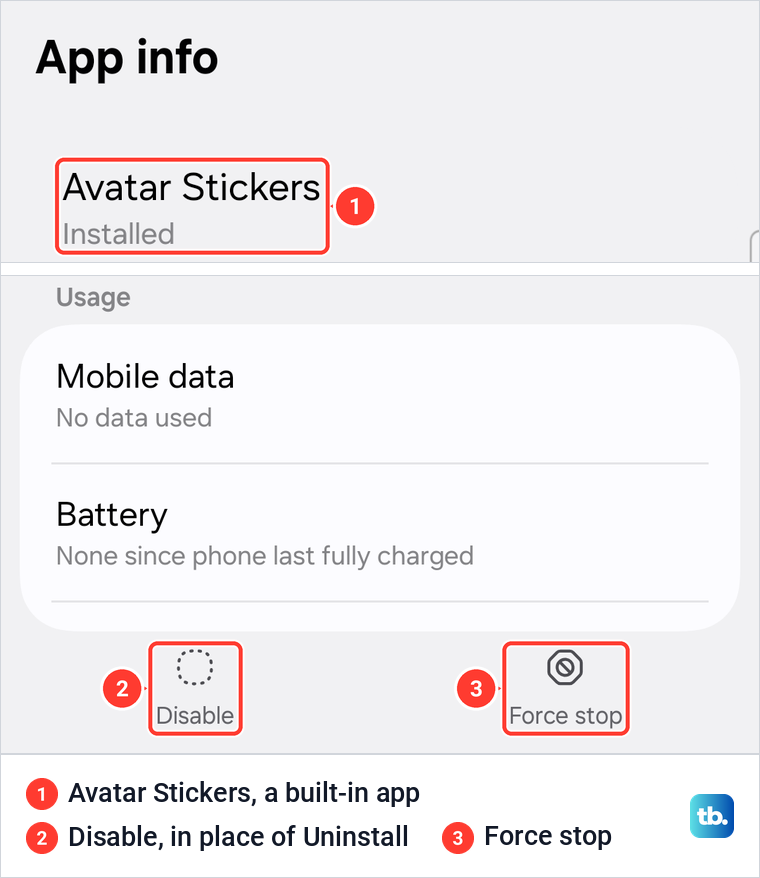
On a Galaxy, Force stop sits at the bottom of App info, next to Disable. Force stop comes before clearing data, and our guide to Android apps that stop responding covers the rest of that order.
If clearing data does not help either, uninstall the app and install a fresh copy. Google says you do not have to buy an app again if you paid for it, so you can install apps from the Play Store on the same account without paying twice. On our Galaxy, the built-in Avatar Stickers app offered Disable and Force stop but no Uninstall button, so a preinstalled app may only be disabled.
Clear the Play Store cache when downloads stall
The Play Store is an app like any other, and Google Play's help suggests clearing its cache when it misbehaves. Open Settings, tap Apps, find Google Play Store, tap Storage and then Clear cache, and if that does not work, tap Clear data. Then reopen the Play Store and try the download again.
Space matters too. Google Play says a device may be too low on storage to download and install apps when less than 1 GB is available. If downloads keep failing on Android after the Play Store cache is cleared, check the free space next.
How often to clear the cache
Clear it when an app misbehaves or the phone is short of space, not on a schedule. Google calls clearing cache a short-term solution, because cached data builds up again over time, and warns that some apps may be slow the next time you open them. Claims that regular clearing speeds up the whole phone go further than Google's Pixel help does.
Free space is the better signal. Google says a phone can have issues when less than 10% of its storage is available, and Android may delete cache on its own when space runs low. If the phone stays slow with room to spare, our guide to common Android phone problems covers other causes.
How we tested this guide
We tested this on a Galaxy S25 Ultra with One UI 7, clearing YouTube's cache and reading its Storage screen before and after.
Frequently Asked Questions
Will clearing the cache delete my photos, messages or logins?
No. Clear cache removes the app's temporary files, and on our Galaxy the app's data stayed after the cache went to 0 B. Clear data, called Clear storage on a Pixel, is the button that erases what the app saved and can sign you out of it.
Can I clear the cache for all apps at once on Android?
Not in Android's own Settings since Android 8. Android 7 had a Cached data button, but now each app has a cache quota and the phone can delete cache by itself when it needs space. Samsung's US page says a factory reset is the only way to clear every app's cache at once, while its UK and Singapore pages point to Device care's Optimize now.
What is the difference between Clear cache and Clear storage?
Clear cache deletes temporary data that the app rebuilds. Clear storage, or Clear data on a Samsung, permanently deletes everything the app saved and resets it.
Does clearing the cache make my phone faster?
It can fix one slow or broken app and free some space. Google says apps may open more slowly the next time and calls it a short-term fix, because the cache builds up again.
How do I clear Chrome's cache without deleting my history?
In Chrome, tap More, then Delete browsing data, then More options. Select only Cached images and files and tap Delete data.
How do I wipe the cache partition on a Samsung phone?
A Samsung Community moderator reports that recent Galaxy phones no longer offer Wipe cache partition in recovery mode. Clear the cache of the app that misbehaves in Settings instead.
Why is the Clear cache button greyed out?
There is no cache left to clear. On our Galaxy it turned grey right after we cleared YouTube's cache and the Cache line read 0 B.