
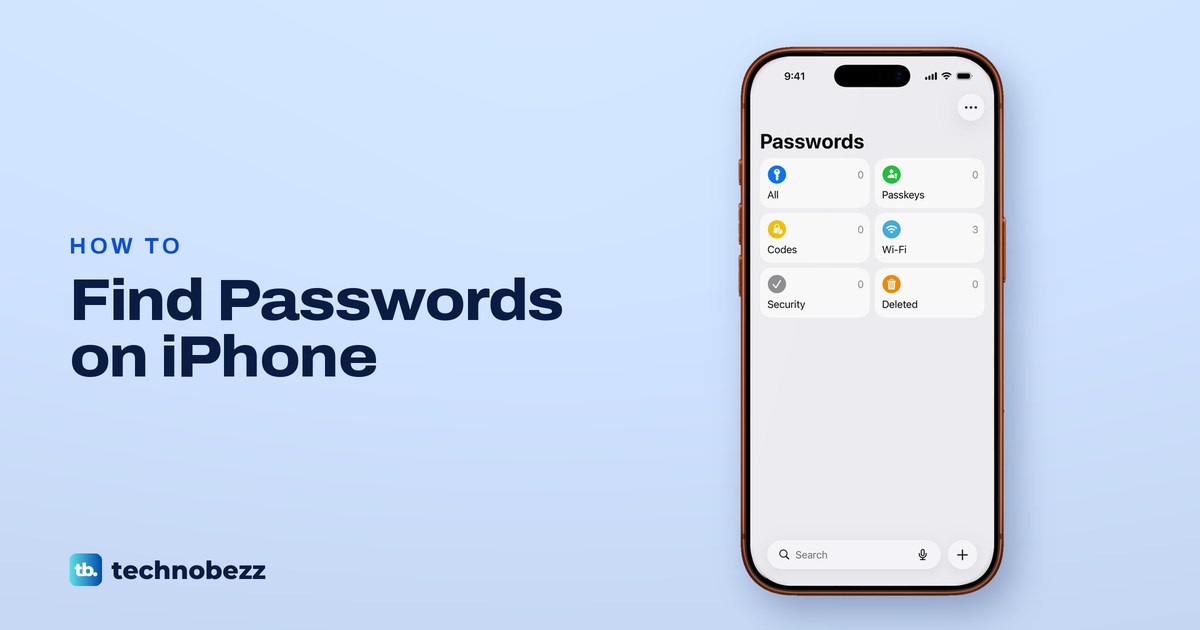
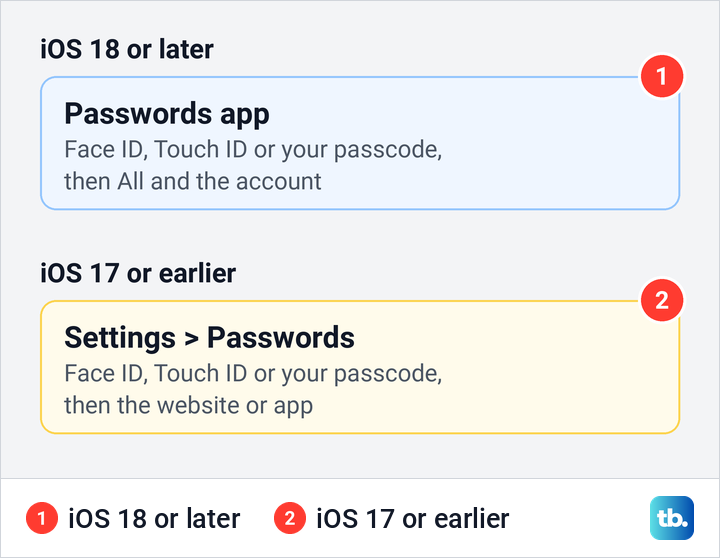
To find passwords on iPhone, open the Passwords app, use Face ID, Touch ID or your passcode, tap All, then tap the website or app and tap its Password field to see the password. That is the route on iOS 18 and later. On iOS 17 or earlier, saved passwords are in Settings > Passwords instead.
Either way, the list holds the logins saved in Apple's own password manager, and iCloud Keychain syncs them across your devices when it is turned on. A login kept only in another password app or in a browser's own manager will not be there, which is a common reason a password seems to be missing.
We opened the Passwords app on iOS 26.5 and went through the AutoFill and iCloud settings on our iPhone 17 Pro with iOS 26.6. AutoFill can draw on other password apps as well, so a login may live outside Passwords.
The short version
- iOS 18 or later: open Passwords, use Face ID, Touch ID or your passcode, tap All, then tap the account.
- See or copy it: tap the Password field, then Copy Password to paste it somewhere else.
- Wi-Fi: tap Wi-Fi, pick the network and tap the Password field, or use Show Network QR Code.
- iOS 17 or earlier: open Settings, scroll down and tap Passwords.
- Missing login: check Deleted (kept for 30 days), your shared groups and Sync this iPhone in iCloud.
Where each kind of saved password lives
| What you need | Where to go | What you can do there |
|---|---|---|
| A website or app login | Passwords > All > the account | See the password in its Password field, or copy it |
| A passkey | Passwords > Passkeys | Find the site or app the passkey is saved for |
| A verification code | Passwords > Codes, or the account itself | Copy the current code with Copy Verification Code |
| A Wi-Fi password | Passwords > Wi-Fi > the network | See or copy the password, or show a QR code to join |
| A weak or leaked password | Passwords > Security | Open the account and change the password at the site or app |
| A login you deleted | Passwords > Deleted | Recover it within 30 days |
| Any login on iOS 17 or earlier | Settings > Passwords | Select a website or app to see its password |
The table follows Apple's instructions for iOS 18 and later, plus Apple's older Settings route. Each route asks for Face ID, Touch ID or your passcode before it shows a password.
Open the Passwords app
The Passwords app comes with iOS 18 and later, so there is nothing to download. Look for Passwords on your Home Screen, or swipe down on the Home Screen and type Passwords into Search. If it is not on your Home Screen, swipe left past your last Home Screen page to reach the App Library and use its search field.
Apple's steps are to open the app, then use Face ID or Touch ID, or enter your passcode. Stolen Device Protection changes that. With it on, Apple says stored passwords need Face ID or Touch ID with no passcode fallback when your iPhone is away from familiar places such as home or work, or always if you chose that option.
If you cannot get past the Lock Screen because you forgot the passcode itself, the Passwords app cannot help yet. Follow the separate steps to unlock an iPhone with a forgotten passcode first.
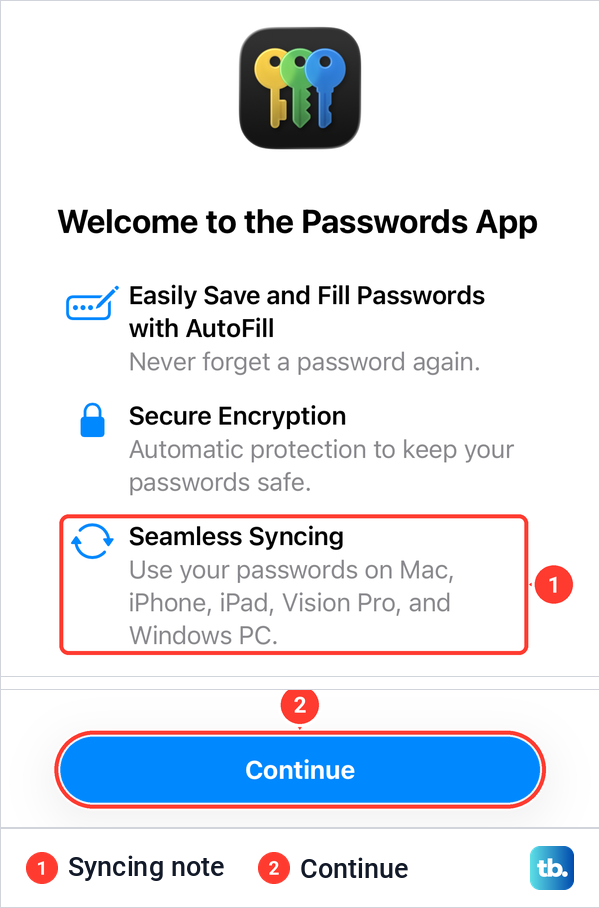
The first time we opened Passwords on iOS 26.5, a Welcome to the Passwords App screen came up before anything else. Its syncing line says you can use your passwords on your other devices too. Tap Continue to reach the main screen.
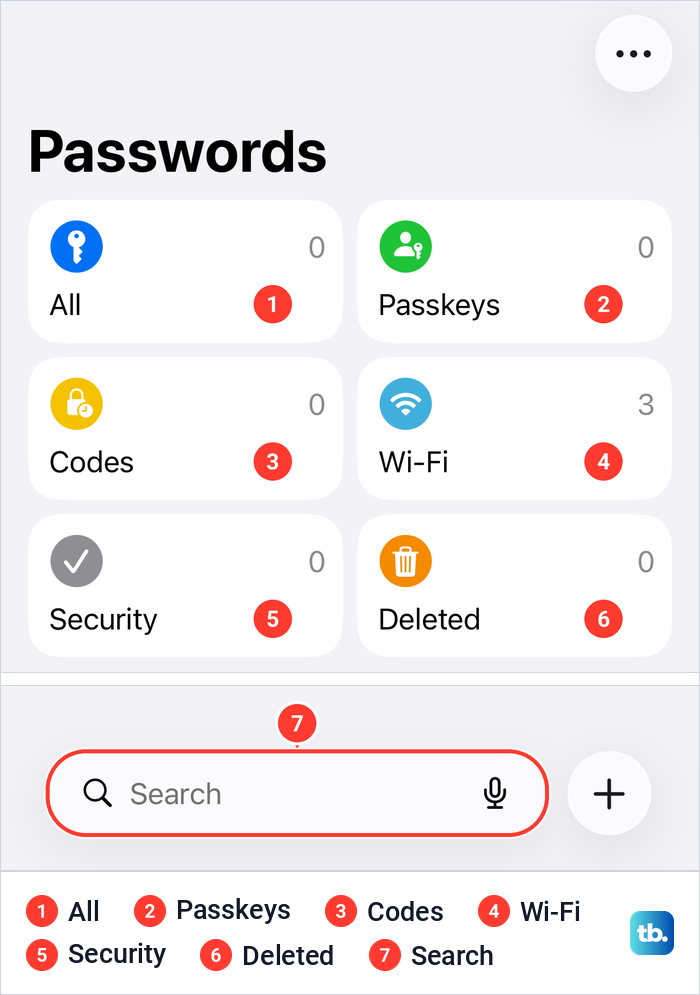
The main screen is a grid of six tiles: All, Passkeys, Codes, Wi-Fi, Security and Deleted. Each tile showed a count in its corner on iOS 26.5, and a Search field with a microphone ran along the bottom of the screen. Apple adds that your shared groups are listed on the same main screen once you belong to one.
Search for a website or app
Tap All to see every saved login in one list, or start typing in the Search field at the bottom. All is the tile to start with. Apple's first tip for a login you cannot see is to make sure you have chosen All, because the other tiles hold only part of the list.
Search for the service by every name it goes by, including the name of its app. When the list shows the site you want, tap it to open the saved entry. Apple's steps for a shared login are the same, except that you start from the group's name instead of All.
See and copy a saved password
Opening an entry does not show the password straight away. Apple's iPhone guide says to tap the account, then tap the Password field to see it. To use it somewhere else, tap Copy Password and paste it into the other app or sign-in box.
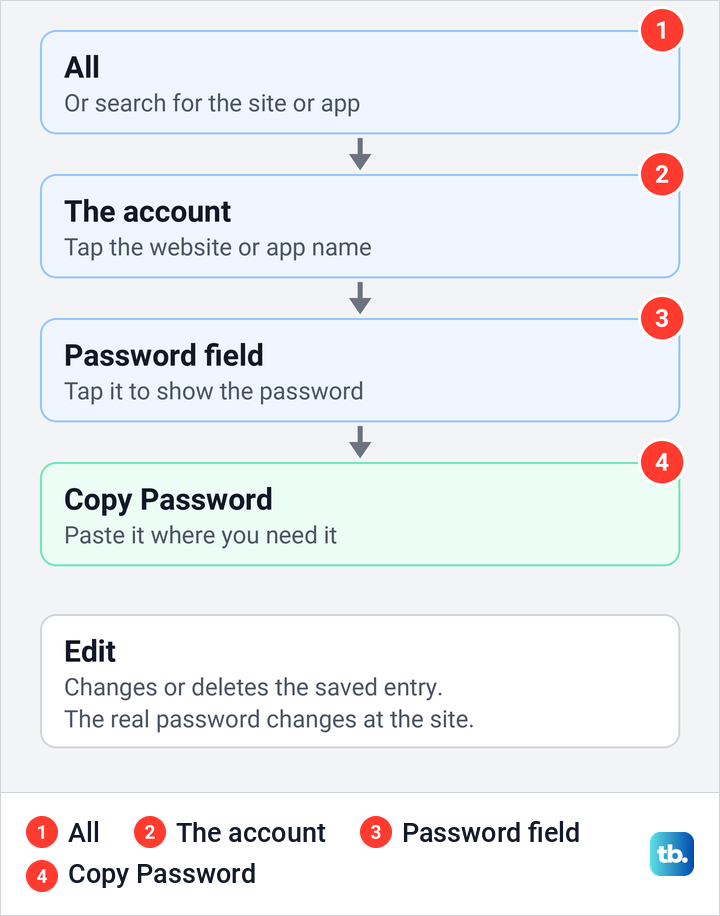
One of Apple's overview pages says to tap Edit to reveal the password instead. Edit is the button Apple uses for changing or deleting the saved entry, so try the Password field first and use Edit only if your screen offers nothing else.
The same entry can hold notes, such as recovery keys or security questions, which Apple says you add with Edit and then Notes. If a verification code is set up for that account, it is shown in the entry too.
Editing the saved entry does not change the password at the service. When a mail account rejects the saved password, check the account's current password with the provider and update the entry with Edit so AutoFill offers it. If you need a new password for that account, here is how to change an email password on iPhone.
What Passkeys, Codes and Security hold
Passkeys lists the sign-ins you saved as passkeys instead of passwords. Apple's steps treat them the same way: choose the category, then select the website or app.
Codes holds verification codes you set up in Passwords for two-step sign-ins. When a site asks for one, Apple says a suggestion appears above the keyboard. If it does not, open the account in Passwords, tap the verification code and choose Copy Verification Code.
If a service sends its codes to a separate authenticator app, that code was never saved in Passwords. In that case, open the authenticator app the account already uses.
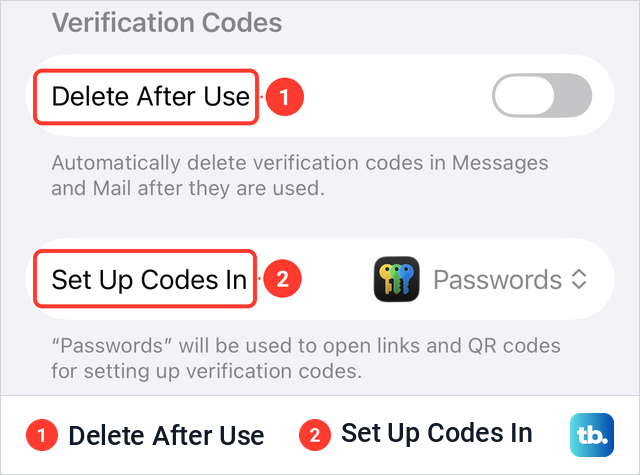
Two settings at the bottom of Settings > General > AutoFill & Passwords decide how codes behave. On iOS 26.5, Delete After Use was off, and its note says it removes verification codes in Messages and Mail after they are used. Set Up Codes In read Passwords, the app that opens links and QR codes for setting up codes.
Security gathers Apple's warnings about your saved passwords. Apple says iPhone flags passwords that are easily guessed or used more than once, and can alert you when one appears in known data leaks. Tap the account, then change the password at the website or in the app.
The leak check has its own switch. Apple names it Detect Compromised Passwords, under Settings > Apps > Passwords.
Find a saved Wi-Fi password or show its QR code
Tap Wi-Fi on the Passwords main screen. Apple says the network you are connected to appears at the top, followed by the networks you have saved before. Tap a network, then tap the Password field to see it, or Copy Password to paste it.
A lot of advice says your iPhone keeps the password of every network it has ever joined. Apple's wording is narrower: the network you are on now and the networks you have saved before.
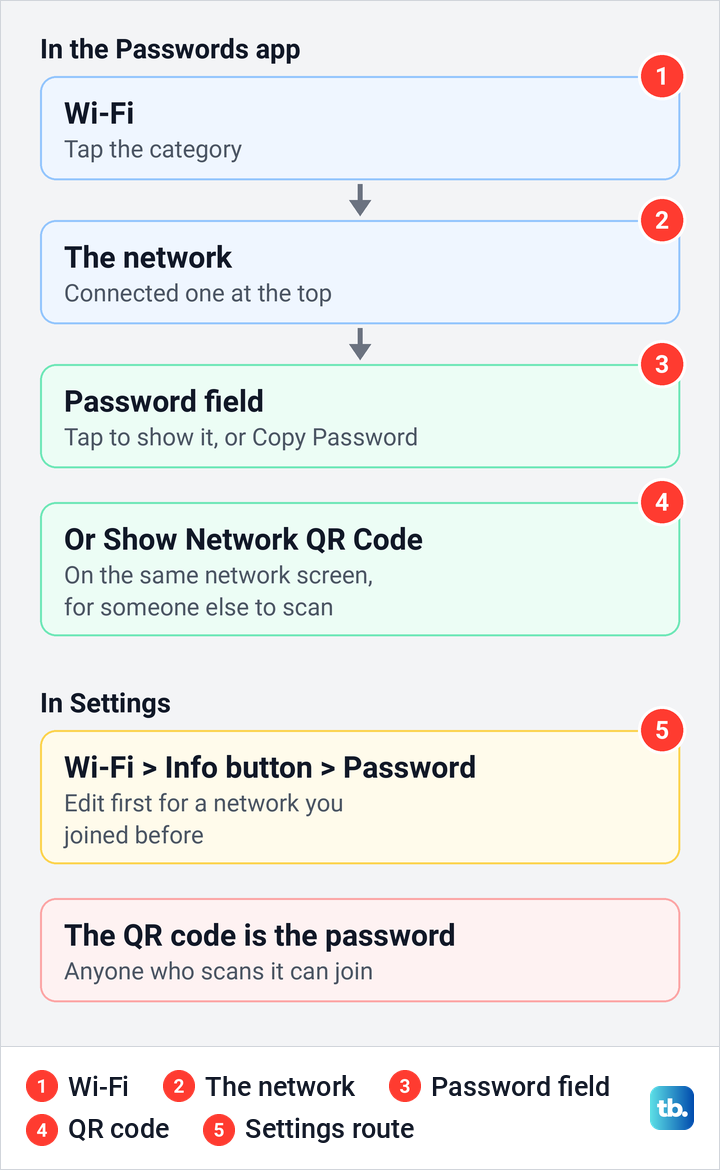
Each network also offers Show Network QR Code, which Apple says friends and family can scan to join the network. The other person can scan a QR code on another device with the camera and join without typing anything. That code works like the password itself, so show it only to people you would give the password to.
Settings still has its own route. Apple's steps are to open Settings, tap Wi-Fi, tap the Info button next to the current network and tap Password. For a network you joined before, tap Edit first, then the Info button next to it.
For someone standing next to you, Apple describes a quicker way. With your iPhone unlocked and on the network, the other person picks the network on their device, and your iPhone asks whether to share the password. Apple says both devices must be within Bluetooth and Wi-Fi range, not using Personal Hotspot, and in each other's contacts.
If the saved password no longer gets anyone onto the network, the router's Wi-Fi password may have changed. Check the current password with the network owner or in the router settings, and only if nobody knows it, follow the steps to reset your router Wi-Fi password.
Ask Siri to show your passwords
Siri can take you to the list. Apple suggests saying "Show my passwords", or naming the service, as in "What is my Hulu password?" Apple describes Siri finding the password for you, not reading it out loud.
Find saved passwords on iOS 17 or earlier
Before iOS 18 there was no Passwords app. Apple's steps for iOS 17 or earlier are to open Settings, scroll down and tap Passwords, use Face ID or Touch ID when prompted or enter your passcode, then select a website or app.
Apple says deleted logins on those versions are in Settings > Passwords > Recently Deleted. Apple also says passwords in a shared group need iOS 17 or later, so a login shared with you will not appear on an iPhone running anything older.
Turn on AutoFill and choose which app fills passwords
AutoFill is what offers a saved login on a sign-in screen. Its settings live in the Settings app. On iOS 18 or later, open Settings > General > AutoFill & Passwords, where the main switch is named AutoFill Passwords and Passkeys, and it was on both on iOS 26.5 and on our iPhone 17 Pro with iOS 26.6. On iOS 17 or earlier, Apple's path is Settings > Passwords > Password Options.
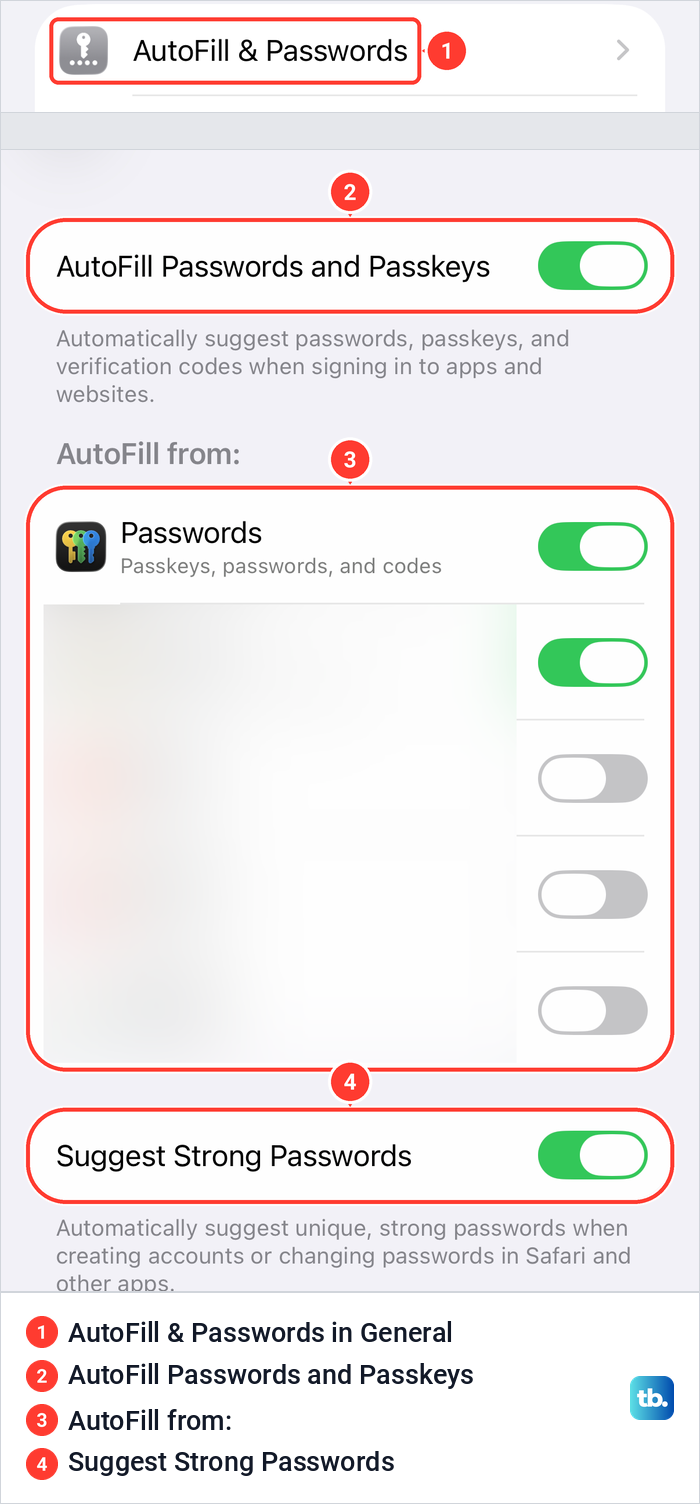
Under AutoFill from:, our iPhone 17 Pro listed Passwords, described as passkeys, passwords and codes, plus four other password apps with their own switches. Two of the five were on. Apple says you can fill passwords from up to three password apps, and that another password app may save its own suggested password, so a login created that way lives in that app.
On a sign-in screen, Apple's steps are to tap the account name field, then the suggested account at the bottom of the screen or above the keyboard. To use a different login, open the password list from the keyboard, tap Other Passwords and choose an account.
Suggest Strong Passwords sits below the list and was on in both places we looked. It proposes a unique, strong password when you create an account or change a password in Safari and other apps.
Browsers can keep their own password lists too. If another browser saved the login, manage passwords saved in your browser from that browser's settings. If Chrome should have saved a login but did not, use the separate steps to fix Chrome not saving passwords.
Share passwords with family or a trusted group
Shared password groups let a few people use the same logins. Apple says you must be signed in to your Apple Account to create one. Each person you add must be in your contacts and have an iPhone, iPad or Mac with iOS 17, iPadOS 17, macOS 14 or later. Apple says a contact shown in grey may be on a device that does not support shared groups.
In Passwords, tap the button for a new shared group, enter a name and tap Add People. Type each person's name, email address or phone number, tap Add, then confirm the group. Apple's last steps are to select the passwords you want to share and tap Move, or Not Now to share them later.
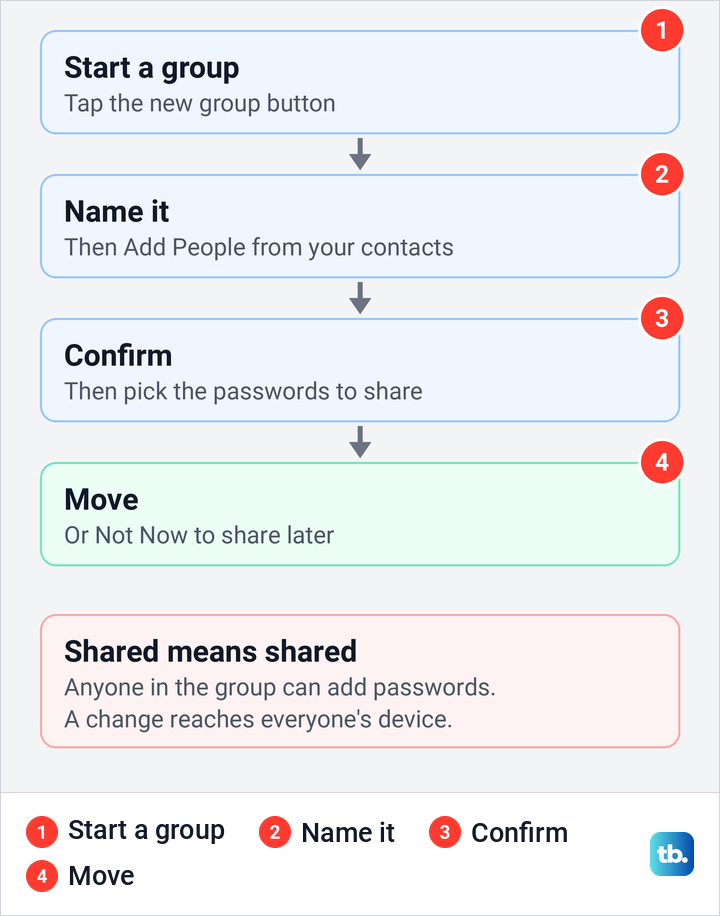
Think of a group as a shared drawer, not a one-time message. Anyone in the group can add passwords, passkeys and Sign in with Apple credentials, and when a shared credential changes, it changes on everyone's device. Apple says the people you invite also find the invitation in Passwords under Group Invitations.
Recover a password you deleted
Deleting a login is not final straight away. Apple says you have 30 days to recover a deleted password before it is permanently deleted. Open Passwords, tap Deleted, tap the account and tap Recover.
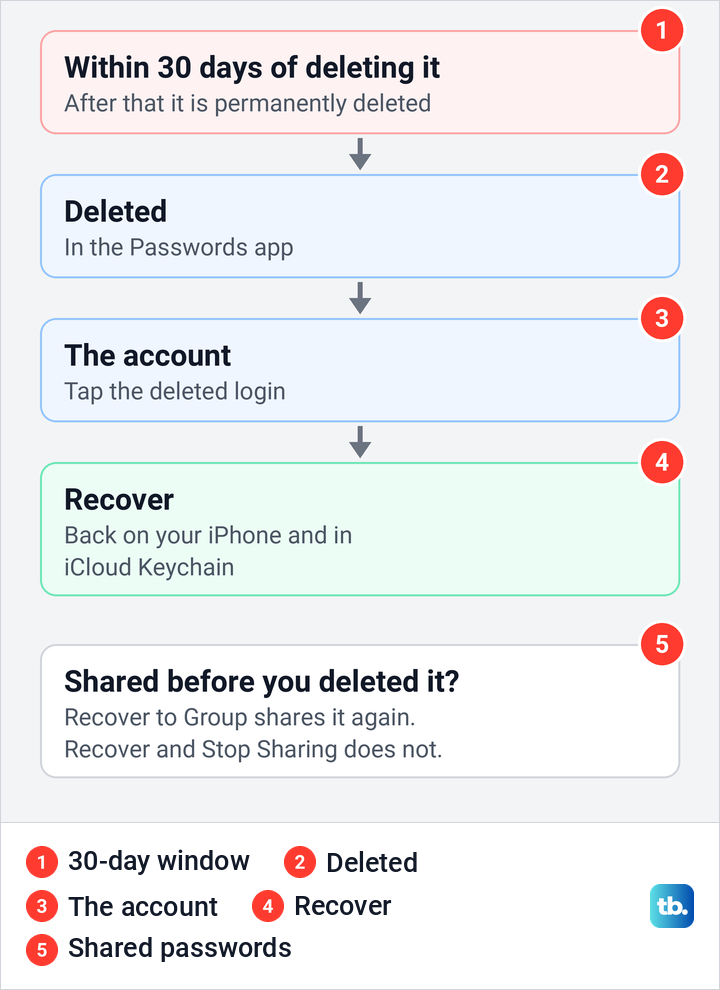
If you had shared that password with a group, Apple offers two choices. Recover to Group starts sharing it with the group again, and Recover and Stop Sharing keeps it to yourself. Either way, Apple says the password goes back to your iPhone and iCloud Keychain.
The Deleted tile shows its own count on the main screen, so a glance tells you whether anything is waiting there. A count of zero means there is nothing on this iPhone to recover.
Export passwords to another password manager
Apple says you can export passwords on iOS 18.2 or later, so on earlier versions this route is not there. Apple's route starts in Safari's settings: Settings > Apps > Safari, then Export below History and Website Data. Apple then says to select Passwords, deselect the other choices and tap Save to Downloads.
On iOS 26.5, Export first opened a screen titled No Compatible Web Browsers, which says no compatible browser can receive the data but you can export to a file instead. Its Export to Files button led to Browsing Data, the list of things to export, where Bookmarks and History were already ticked. Passwords sat at the bottom, dimmed and reading 0 passwords on that iPhone, which had none saved.
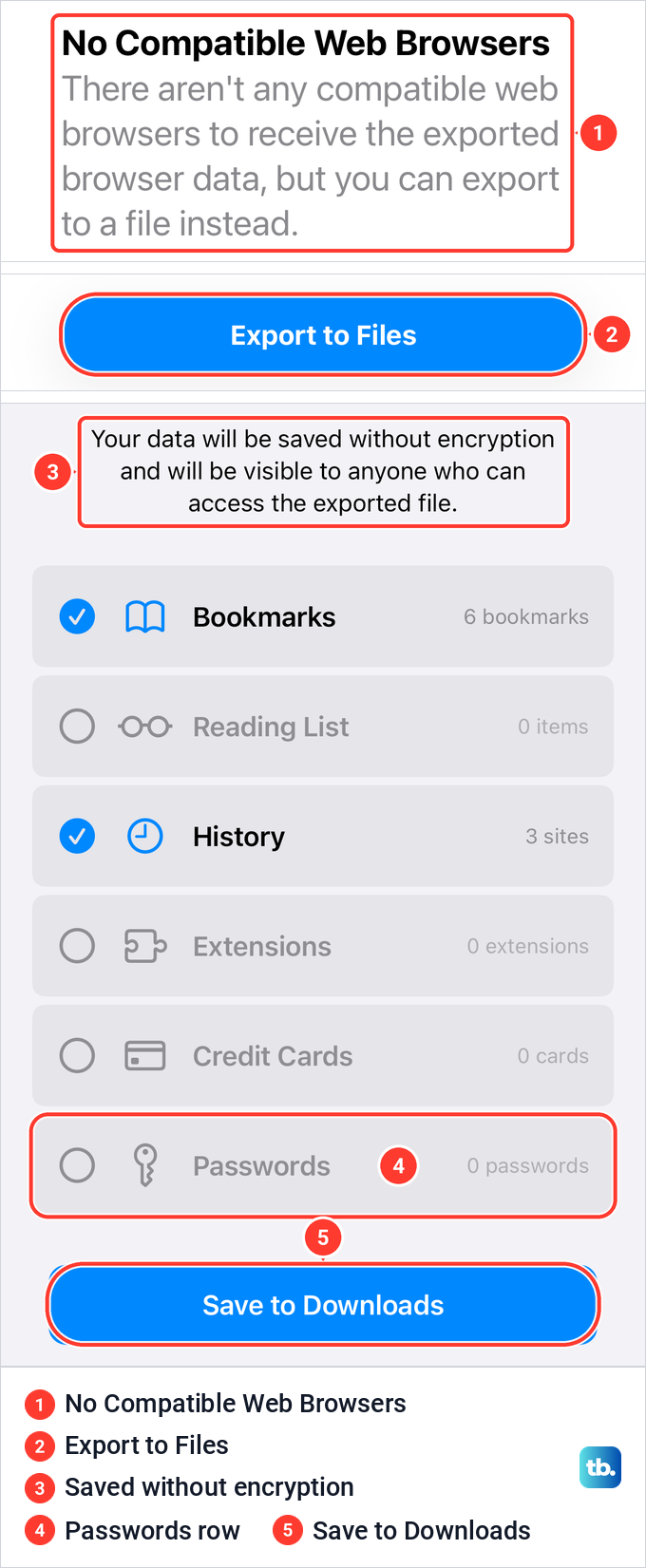
The same screen warns that your data will be saved without encryption and will be visible to anyone who can access the exported file. Apple's advice is to delete the exported file once the other password manager has imported it. Until then, keep it out of shared folders and email.
Some logins never leave in an export. Apple says Wi-Fi passwords, passwords shared with a group you did not create, and Sign in with Apple account passwords cannot be exported.
Keep passwords in sync across your devices
iCloud Keychain is what puts the same passwords on your iPhone, iPad and Mac. Apple says it keeps website and app passwords, passkeys, credit card and Wi-Fi information up to date across your approved devices. With iCloud Keychain off, Apple says that information is stored locally on your device.
On our iPhone 17 Pro with iOS 26.6, Settings has an iCloud row of its own. The page it opens has a Saved to iCloud section, and Passwords is one of its tiles, next to Photos, Drive, Notes, Messages and Mail. The same page also opens from your name at the top of Settings, then iCloud.
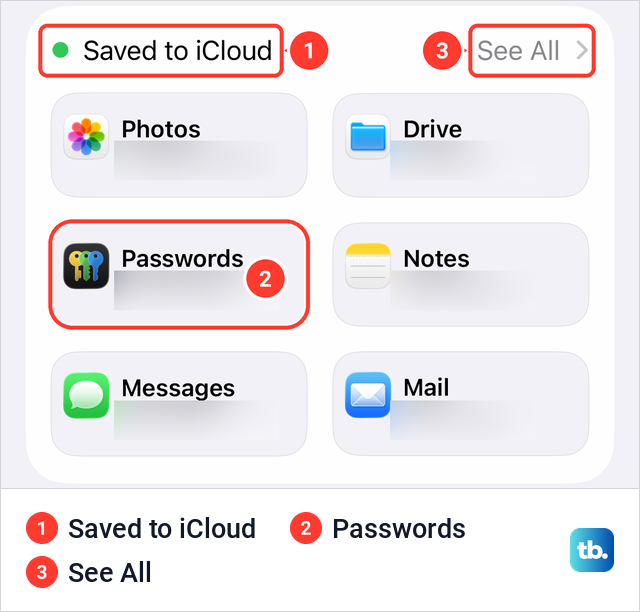
Apple's next step is to tap Passwords and make sure Sync this iPhone is on. Apple's iPhone user guide words it differently, with See All and then Passwords & Keychain, while Apple's support article and our screen both lead straight to the Passwords tile. On iOS 17 or earlier, Apple says the item is called Passwords and Keychain.
If iCloud Keychain items are missing, do not restore an iCloud backup to get them back. Apple says iCloud Keychain items are not part of iCloud Backup because they regularly sync to iCloud, so check Sync this iPhone instead.
Before the phone leaves your hands for good, a switch that is on is not proof that every login has synced. Before you erase an iPhone before selling it, check that the logins you need appear on another device signed in to the same Apple Account. If you cannot confirm that, export them first on iOS 18.2 or later, and delete the file once they are imported.
Why a saved password is missing
A missing login may be in one of these six places. Work through them in this order, from the quickest check to the slowest.
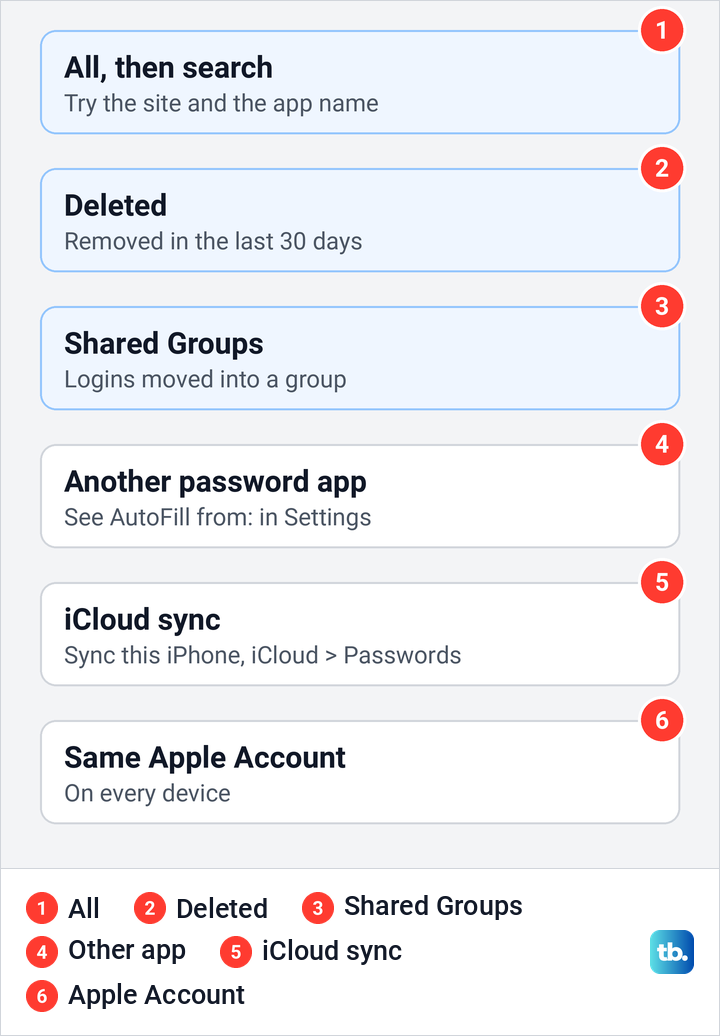
Start with All and search for every name the service goes by, including its app name. Then check Deleted, which keeps a deleted login for 30 days, and any shared group you belong to.
Next, open Settings > General > AutoFill & Passwords and look under AutoFill from:, or on iOS 17 or earlier, Settings > Passwords > Password Options. If another password app is switched on there, a login saved while you used it may be in that app instead of Passwords.
If the login is on your Mac or iPad but not on the iPhone, check Sync this iPhone under iCloud > Passwords, and make sure every device is signed in to the same Apple Account. Apple also says passwords moved into a shared group appear only on devices with compatible software, which on iPhone means iOS 17 or later.
Do not confuse your Apple Account password with the website logins in this list. If that is the one you forgot, Apple's route is a reset from a trusted device or other recovery options, and our guide shows how to recover your Apple Account password step by step.
How we tested this guide
We tested this on iOS 26.5, opening the Passwords app and following Safari's Export route as far as the Browsing Data list.
Frequently Asked Questions
Where are passwords stored on iPhone?
On iOS 18 and later they are in the Passwords app, which comes with the iPhone. On iOS 17 or earlier, open Settings, scroll down and tap Passwords.
Can I see my saved passwords without Face ID?
Usually yes, with Touch ID or your passcode. With Stolen Device Protection on, Apple says stored passwords can need Face ID or Touch ID with no passcode fallback away from familiar places, or always if you chose that option.
Why can't I find a saved password on my iPhone?
Tap All and search for both the site name and the app name, then check Deleted and your shared groups. If it is still missing, check Sync this iPhone under iCloud > Passwords and the apps listed under AutoFill from: in Settings > General > AutoFill & Passwords, which on iOS 17 or earlier is Settings > Passwords > Password Options.
How do I see a Wi-Fi password on iPhone?
Open Passwords, tap Wi-Fi, choose the network and tap the Password field. The same screen offers Show Network QR Code for someone who wants to join without typing.
How long do deleted passwords stay on iPhone?
Apple says 30 days. Recover one from Passwords > Deleted before then.
Can I export passwords from my iPhone?
Yes, on iOS 18.2 or later, from Settings > Apps > Safari > Export, then Passwords and Save to Downloads. The file is not encrypted, so delete it once your new password manager has imported it.
Are passwords included in an iCloud backup?
Not the synced ones. Apple says iCloud Keychain items are not part of iCloud Backup because they regularly sync to iCloud, so keep Sync this iPhone turned on. Apple's security documentation adds that iCloud Backup holds a copy of the iPhone's local keychain, which can be restored only to the same device it came from.