A keyboard driver problem can make keys stop responding, break shortcuts, or leave a wireless keyboard acting unreliable. Start with Windows Update, then move into Device Manager, manufacturer tools, or a clean reinstall when the basic update path does not solve it.
Use the steps below in order on a Windows 11 PC. Mac, iPad, and Boot Camp steps are included near the end because Apple handles keyboard support differently.
1. Run Windows Update First
Start here because Windows Update is the fastest and safest path for Microsoft, OEM, keyboard, HID, and related device drivers published through Windows Update.
- 1.Open Start > Settings > Windows Update.
- 2.Select Check for updates.
- 3.Install the available updates.
- 4.Restart the PC if Windows prompts you.
Use this first for built-in laptop keyboards, USB keyboards, and standard devices listed as HID Keyboard Device.
2. Check Optional Driver Updates
Open Start > Settings > Windows Update. Next, go to Advanced options > Optional updates, then open Driver updates.
Select the keyboard-related driver or related device driver listed for your PC. Choose Download and install, then restart after the installation finishes.
Regular Windows Update may say everything is current while a driver is sitting in the optional updates area. Microsoft says optional drivers are not installed automatically, which makes this menu the next place to check.
3. Update the Keyboard in Device Manager
Device Manager targets the keyboard device itself, and many normal keyboards appear under the simple name HID Keyboard Device.
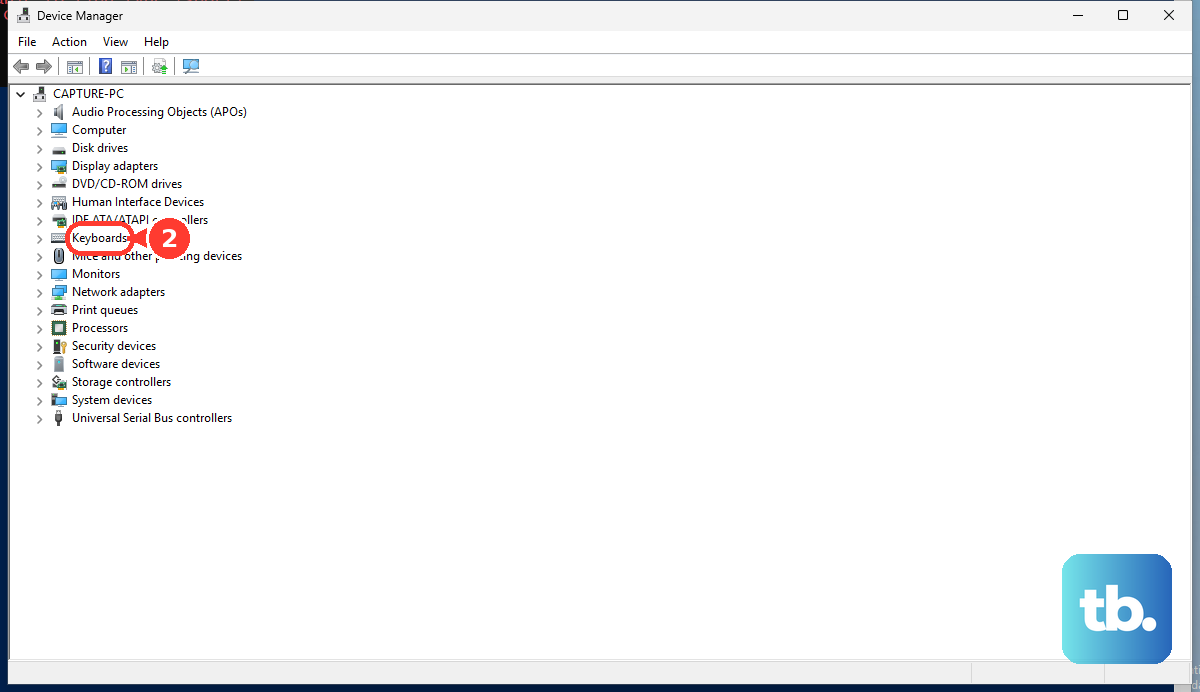
Right-click Start and select Device Manager. Then expand Keyboards, right-click the keyboard device, and choose Update driver.
Select Search automatically for updated driver software. Select Close when Windows finishes, and use Search for updated drivers on Windows Update if that option appears.
If your keyboard is missing from Keyboards, finish the Windows Update steps first, then reconnect the keyboard or restart the PC.
4. Install the Manufacturer Driver
Go to the manufacturer when the keyboard depends on model-specific software, firmware, laptop hotkeys, or a PC maker's driver package.
Dell Open Dell Drivers & Downloads, choose Detect This PC or enter the Service Tag, download the matching package, run it, and follow the prompts. Dell SupportAssist can also scan for updates.
HP Open HP Support Assistant, select your device, open Updates, review driver, firmware, and software updates, install the selected updates, then restart if prompted. You can also use HP Software and Driver Downloads.
Lenovo Open Lenovo Vantage > System Update > Check for Updates. You can also use Lenovo System Update or the Lenovo support driver page for your model.
Surface Connect Surface keyboard accessories first. Open the Surface app to check driver and firmware health, then run Windows Update and Optional updates.
For a manual Windows install, download the exact driver package first. Then open Device Manager, expand Keyboards, right-click the device, choose Update driver, select Browse my computer for drivers, choose the downloaded driver folder with Browse, select OK, then select Next.
5. Rebuild the Keyboard Driver
Search for device manager from Start, then open Device Manager. After that, expand Keyboards, right-click the keyboard device, and select Uninstall device or Uninstall.
Restart the PC. Use this clean reinstall when the keyboard device entry is corrupted or updating the driver did not fix the problem, because Windows rebuilds the device after restart.
You can also open Device Manager, select Action, and choose Scan for hardware changes. If Windows asks for a driver path, point it to the vendor driver package for your exact model.
6. Reconnect a Bluetooth Keyboard
A Bluetooth keyboard problem is not always a keyboard driver problem. Re-pairing rebuilds the paired device instance, while updating the Bluetooth adapter driver fixes adapter-side driver trouble.
Open Start > Settings > Bluetooth & devices > Devices. Now select More options for the keyboard, choose Remove device, and select Yes.
Choose Add device. Select the keyboard from the list.
To update the Bluetooth adapter, open Device Manager > Bluetooth, right-click the Bluetooth adapter, choose Update driver, then select Search automatically for drivers. To reinstall the adapter, right-click it, choose Uninstall device, and restart.
7. Use Brand Software for Firmware
Logitech Use Logitech's software page. Choose Logi Options+ for supported productivity keyboards or Logitech G HUB for supported Logitech G keyboards.
Razer Open Razer Synapse and use the app's update check surface when needed. For firmware, use Razer's firmware update page, find the exact keyboard model, download the listed updater, run it, and follow the prompts.
CORSAIR Open iCUE and plug the keyboard directly into the PC. In iCUE 5.14 or newer, select the settings wheel on the device tile and choose Check for Updates. In iCUE 4, select the device, open Device Settings, and choose Check for Updates.
Gaming and productivity keyboards often need the brand app for firmware, features, profiles, or device-specific updates, so use the current vendor software for your exact keyboard family. Do not use old Logitech utilities as a general fix. Logitech lists older tools such as Firmware Update Tool, SetPoint, Unifying Software, Logitech Control Center, Connection Utility, and Preference Manager as no longer supported or maintained.
8. Roll Back a Bad Update
If the keyboard started misbehaving right after a driver update, roll back the driver instead of reinstalling the same version.
Right-click Start and open Device Manager. Continue by expanding Keyboards, right-click the keyboard device, and choose Properties.
Open the Driver tab and select Roll Back Driver. Choose a reason, select Yes, and restart if prompted.
Roll Back Driver appears only when Windows has a previous driver version and the account has administrator permissions. On a work or school PC, driver updates may be controlled through Intune, Windows Update policy, or Group Policy, so contact IT before forcing a manual driver install.
9. Follow the Mac or Boot Camp Path
macOS and iPadOS do not provide a consumer Device Manager-style keyboard driver reinstall path because Apple delivers keyboard support through system and firmware updates.
On a Mac, open Apple menu > System Settings > General > Software Update. On an iPad, open Settings > General > Software Update.
For Windows 10 on an Intel Mac with Boot Camp, open Start > Settings > Update & Security > Check for updates. Apple's Boot Camp Assistant officially installs Windows 10 on Intel-based Macs, so this uses the Windows 10 Settings path. Then open Apple Software Update, select available updates, choose Install, and follow the onscreen instructions. If Apple keyboard, mouse, or trackpad support software did not install correctly in Windows, use Boot Camp Assistant to download Windows support software, then run the Boot Camp installer in Windows.
Frequently Asked Questions
Why does my keyboard show as HID Keyboard Device?
That is normal for many standard USB, laptop, and wireless keyboards in Windows. The generic HID entry means Windows is using the standard keyboard device class driver.
Should I use Device Manager or Windows Update first?
Use Windows Update first, then Optional updates, then Device Manager. That order keeps the update path aligned with Microsoft and OEM driver delivery.
What if the keyboard driver is not listed in Optional updates?
Run Device Manager's automatic driver search next. If nothing appears there, check the PC or keyboard manufacturer's official support tool or driver page for your exact model.
Can Bluetooth pairing fix a keyboard driver issue?
Re-pairing fixes the Bluetooth device instance, not the keyboard driver version. If the adapter driver is the problem, update or reinstall the Bluetooth adapter in Device Manager.
Do I need Microsoft Mouse and Keyboard Center?
Use it only for supported Microsoft PC keyboards and mice when you need customization features. It is not a general replacement for Windows keyboard drivers.