A Logitech wireless keyboard not responding turns a simple input problem into a guessing game: the keyboard has power but will not type, or it will not wake up at all. Start with power, the selected Easy-Switch channel, receiver placement, and Bluetooth pairing before changing deeper computer settings. The fixes below move from the fastest checks to Logi Options+, Windows 11, Apple devices, Android, ChromeOS, Flow, and managed laptop blocks.
Check power before changing settings
Use this when the keyboard is completely dead, wakes only sometimes, or stops after sitting unused. A dead battery or the wrong switch position stops the keyboard before Bluetooth or a receiver gets involved.
Turn the keyboard off with its On/Off switch.
Turn it back on and type in a text field.
If your model uses replaceable batteries, open the battery compartment and remove the old batteries.
Insert fresh batteries in the correct direction, then close the compartment.
If your keyboard is rechargeable, connect the USB-C charging cable.
On MX Mechanical, keep typing while the USB-C cable charges the keyboard.
Choose the right Easy-Switch device
This fixes a powered-on keyboard that is sending input to another computer, tablet, or phone.
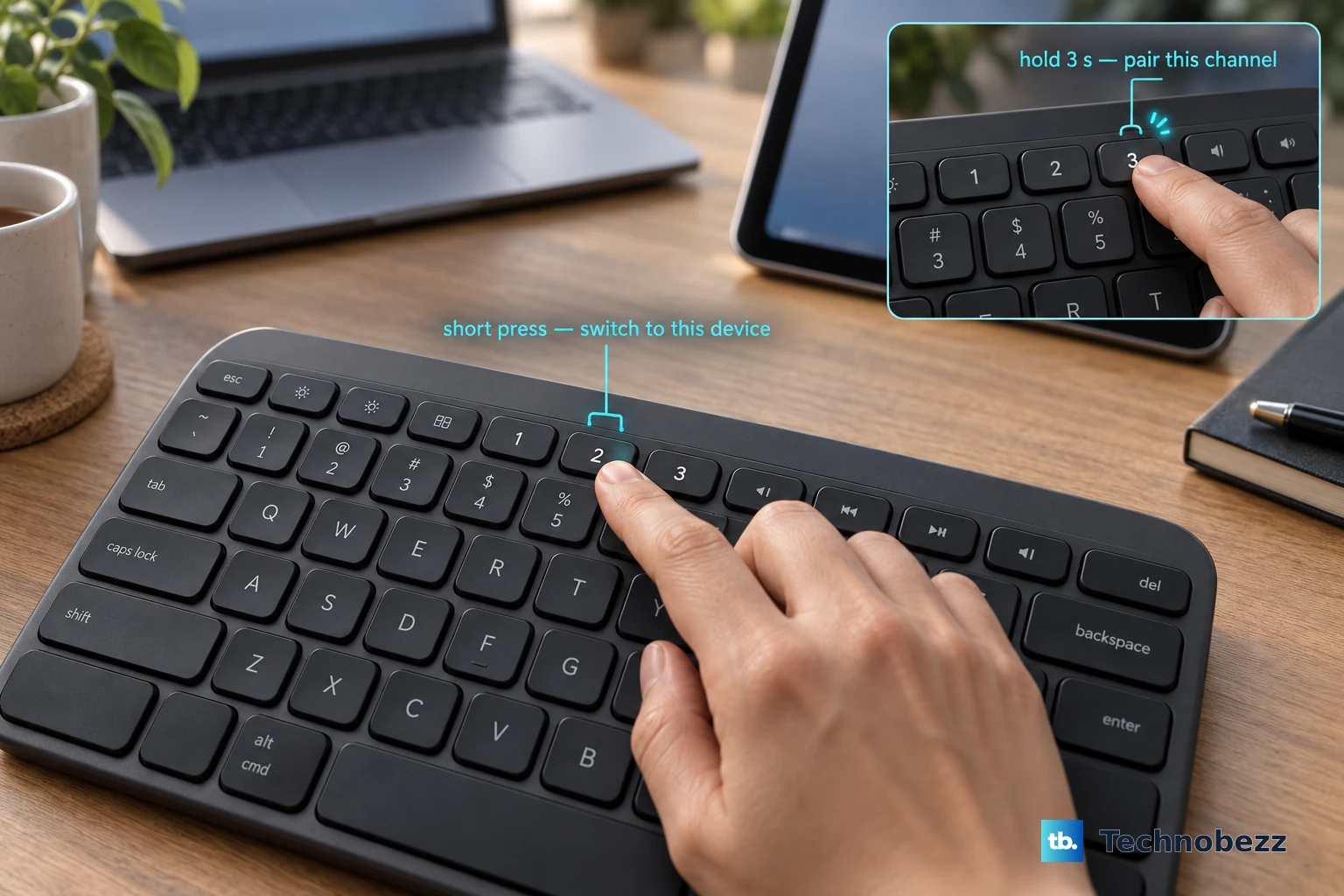
Find the Easy-Switch button for the device you want to use.
Short-press that Easy-Switch button once.
Open a text field on that device and type a few characters.
If that channel is not paired, press and hold the same Easy-Switch button for three seconds.
Release the button when the LED blinks rapidly.
Pair the keyboard again from the device's Bluetooth settings or from the receiver setup screen.
Move the receiver and clear interference
The most common receiver cause to rule out is a weak 2.4 GHz connection between the keyboard and the USB receiver.
Plug the Logi Bolt, Unifying, or model-specific USB receiver directly into the computer.
Remove the receiver from any dock, hub, extender, KVM switch, or similar device while troubleshooting.
Move the keyboard closer to the receiver.
If the receiver is on the back of a desktop, move it to a front USB port.
Keep phones and wireless access points away from the receiver.
Move the keyboard and receiver off metal surfaces.
Try the same keyboard and receiver in another room when dropouts continue.
Pair again in Logi Options+
Use Logi Options+ for current supported keyboards; do not use Logitech Unifying Software, SetPoint, Logitech Control Center, Logitech Connection Utility, Logitech Preference Manager, or the standalone Firmware Update Tool unless Logitech's page for that exact legacy device requires it.
- 1.Install Logi Options+ from Logitech's Logi Options+ page with DOWNLOAD FOR WINDOWS 10 OR LATER or DOWNLOAD FOR macOS 12 OR LATER.
- 2.Open Logi Options+, choose Add Device, then choose Logi Bolt receiver; for a supported Unifying keyboard, choose Add Device, then choose Logi Unifying Receiver and follow the on-screen pairing steps.
- 3.Press and hold the keyboard's connect or Easy-Switch button for three seconds until the light blinks rapidly.
- 4.In Logi Options+, select CONNECT next to the keyboard name.
- 5.Type the verification numbers shown in the app on the keyboard, press Enter, then click Continue.
Repair Windows 11 Bluetooth and USB sleep issues
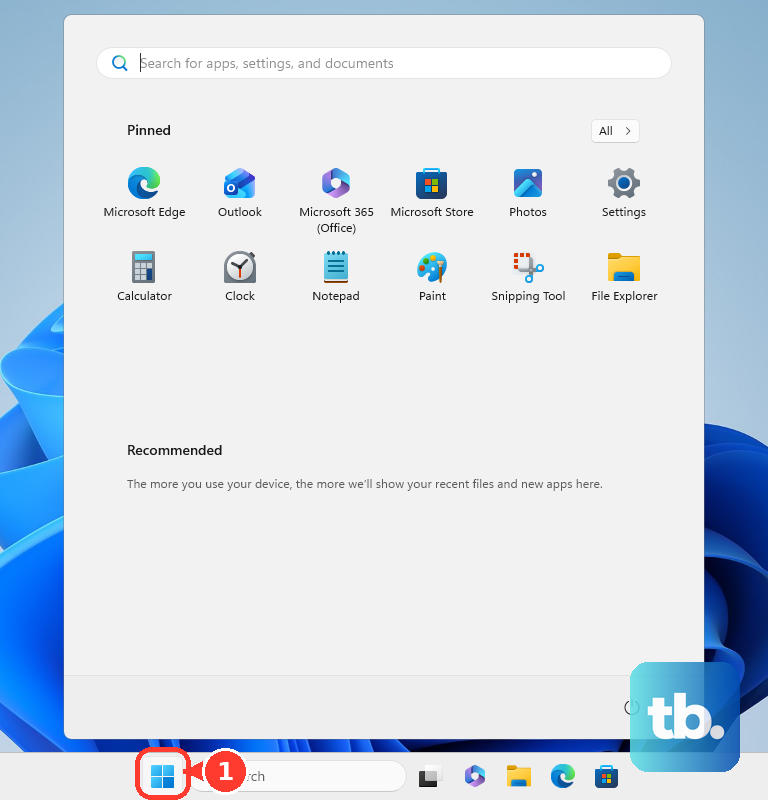
Open Start > Settings > Bluetooth & devices.
Turn Bluetooth off, wait a few seconds, then turn Bluetooth on.
Open Start > Settings > Bluetooth & devices > Devices.
Select More options for the Logitech keyboard.
Choose Remove device, then choose Yes.
Open Start > Settings > Bluetooth & devices, then choose Add device.
Put the keyboard in pairing mode.
Select the keyboard when it appears, follow the prompts, and choose Done.
If the keyboard is in pairing mode but does not appear, open Start > Settings > Bluetooth & devices > Devices.
Under Device settings, set Bluetooth devices discovery to Advanced.
Try Add device again.
Run the troubleshooter from Start > Settings > System > Troubleshoot > Other troubleshooters > Bluetooth > Run.
Press Windows + A and turn Airplane mode off.
Open Start > Settings > Windows Update, then select Check for updates.
Install offered Windows updates, including optional Bluetooth, Wi-Fi, or radio updates.
For receiver keyboards, open Start, type Device Manager, then open Device Manager.
Expand Universal Serial Bus controllers and open USB Root Hub.
Open Properties > Power Management.
Clear Allow the computer to turn off this device to save power, then reconnect the receiver.
Repeat the USB power-saving check on each relevant USB Root Hub entry when the keyboard stops after sleep.
Update drivers and keyboard firmware
This fixes keyboards that disconnect, restart, or fail after a Logitech firmware issue or a Windows Bluetooth driver problem.
Open Logi Options+ and select the connected keyboard.
Open the keyboard's device page.
Run the firmware or update prompt shown for the keyboard.
Keep the keyboard charged, or install fresh batteries, while the update runs.
On Windows, open Start, type Device Manager, then open Device Manager.
Expand Bluetooth.
Right-click the Bluetooth adapter.
Choose Update driver, then choose Search automatically for drivers.
If Bluetooth still fails, right-click the Bluetooth adapter in Device Manager and choose Uninstall device.
Restart the PC.
After a bad driver update, open the adapter's Properties > Driver tab.
Use Roll Back Driver when the button is available.
Reconnect on Mac, iPad, Android, or Chromebook
On a Mac, open the Apple menu > System Settings > Bluetooth, turn Bluetooth off, wait a few seconds, then turn Bluetooth on. To start over, hover over the Logitech keyboard and click Disconnect, or Control-click its name and click Forget; put the keyboard in discovery mode, then click Connect.
On iPhone or iPad, put the keyboard in discovery mode, open Settings > Bluetooth, and turn Bluetooth on. Tap the keyboard name under My Devices, enter the PIN or passcode when prompted, and use More Info > Forget this Device before pairing again when an old entry is stuck.
On Android, swipe down from the top of the screen, touch and hold Bluetooth, tap Pair new device, put the keyboard in pairing mode, then tap its name. If Pair new device is missing, check Available devices or tap More > Refresh.
On Chromebook, open Settings > Bluetooth, turn Bluetooth on, put the keyboard in pairing mode, and select it when it appears. To remove an old pairing, select the keyboard under Currently connected or Previously connected, then choose Forget.
Move Logitech Flow back to the right computer
The most common Flow cause is that the keyboard follows a compatible Logitech mouse to another computer.
Short-press the keyboard's Easy-Switch key for the computer you want to control.
Open Logi Options+, select the mouse, then open the Flow menu.
Check that Flow is moving control to the computer you want.
Click into a text field on that computer and type a few characters.
Escalate work and school laptop blocks
Use this when the Logitech keyboard works on a personal computer but not on a work or school laptop. On managed Windows devices, Bluetooth and software installation are controlled by administrator policy.
If Bluetooth is disabled or Logi Options+ will not install, contact your IT administrator.
Ask IT to allow Bluetooth keyboard use or deploy the official Logi Options+ installer.
For Windows business deployment, Logitech provides offline and silent installer options, and those require administrator access.
Do not keep removing and re-adding the keyboard when the setting is locked. The fix has to happen through the organization's device management policy or software deployment process.
Frequently Asked Questions
Does MX Mechanical work while charging?
Yes. On MX Mechanical, Logitech says the USB-C cable is for charging, and typing remains available while the keyboard charges.
Should I use Logitech Unifying Software instead of Logi Options+?
Use Logi Options+ for current supported devices. Use Logitech Unifying Software only when the exact older Unifying keyboard is not supported by Options+ and Logitech's product page requires that older workflow.
How do I tell whether the keyboard, receiver, or computer is at fault?
Move the receiver to another USB port directly on the computer, then test the keyboard and receiver on another computer. If it works elsewhere, fix the original computer's USB, Bluetooth driver, updates, or policy settings; if it fails everywhere with fresh power, treat the keyboard or receiver as the hardware problem.
Does forgetting a Logitech keyboard on iPhone or iPad affect other Apple devices?
Apple notes that unpairing a Bluetooth accessory can unpair it on other devices signed in to the same Apple Account, so pair it again on each device that loses it.
Why does my Logitech keyboard fail only on a work or school laptop?
The organization controls Bluetooth and software deployment. Ask IT to allow Bluetooth keyboard HID services or deploy Logi Options+ with Logitech's offline or silent installer.