

Your Windows logo key should open Start and trigger shortcuts like Win + E, so it is frustrating when that one key goes silent while the rest of the keyboard works. Start with the keyboard locks and connection checks first, then move into Windows settings, remaps, drivers, and recovery only when the quick fixes fail.
1. Turn Off Gaming Mode or Win Lock
Gaming keyboards often disable the Windows key on purpose, so check this before changing anything deeper in Windows. For Logitech G, press the keyboard's Game Mode key. Or open Logitech G HUB, select your keyboard, open Game Mode or KEYCONTROL, then re-enable the Windows key.
For Razer, press fn + F10 on many full-size or tenkeyless models, fn + U on Razer Huntsman Mini models, or fn + O on Razer Huntsman V3 Pro Mini. In Razer Synapse 4, select your keyboard under DEVICES, then set GAMING MODE to a non-active state.
For Corsair, press the keyboard's Windows lock or Win Lock key. In iCUE, select your keyboard, open Performance, then change Win Lock so the Windows key is not disabled. Windows Game Mode is not the fix here. The verified lock is on the keyboard itself or inside the keyboard maker's software.
2. Rule Out a Bad Keyboard Connection
Unplug a USB keyboard, wait a moment, then plug it back in. Move the keyboard to a different USB port. Remove any USB hub and connect the keyboard directly to the PC. Check the cable for visible damage.
Clean dirt and debris from around the Windows key. For a wireless keyboard, check the batteries or charge, then reset or reconnect the wireless receiver. Test the keyboard on another PC.
A loose cable, weak wireless receiver, dead battery, hub, or dirty key can make the Windows key look broken. If the Windows key fails on another PC too, focus on the keyboard, receiver, cable, or key mechanism.
3. Confirm Windows Responds With On-Screen Keyboard
This test separates a Windows response problem from a physical keyboard problem. Open Settings > Accessibility > Keyboard > On-Screen Keyboard on Windows 11, or Settings > Ease of Access > Keyboard > Use the On-Screen Keyboard on Windows 10. Turn on the toggle. Press the Windows key shown on the on-screen keyboard.
If the on-screen Windows key opens Start, Windows still responds to the command. Go back to the physical keyboard, vendor lock, remap, or driver steps. When the physical Windows key works only sometimes, press Windows logo key + Ctrl + O to open the On-Screen Keyboard.
4. Switch Off Accessibility Settings That Change Key Presses
Filter Keys can make Windows ignore brief or repeated key presses. Sticky Keys, Toggle Keys, and shortcut settings can also change how keyboard input behaves. Open Settings > Accessibility > Keyboard on Windows 11, or Settings > Ease of Access > Keyboard on Windows 10. Turn off Filter Keys.
Review Sticky Keys, Toggle Keys, and Underline access keys on Windows 11, or Change how keyboard shortcuts work on Windows 10. Turn off any keyboard accessibility setting that was enabled accidentally. You can also press and hold the right Shift key for eight seconds, then confirm the prompt, to toggle Filter Keys.
5. Remove a PowerToys Keyboard Remap
- 1.Open PowerToys Settings.
- 2.Select Keyboard Manager.
- 3.Turn off Keyboard Manager to stop all remaps.
- 4.To remove one mapping, select Remap a key or Remap a shortcut.
- 5.Remove the mapping that affects Win.
- 6.Select OK.
A remap can make a working Windows key do the wrong thing or nothing at all. Check Microsoft PowerToys Keyboard Manager on Windows 11 and Windows 10 version 2004 or newer. PowerToys remaps require PowerToys to run in the background, and they do not work on password screens.
6. Refresh the Keyboard Driver
Windows Update and Device Manager are the current Windows paths for keyboard and device driver updates. Search the taskbar for check for updates. Select Check for updates. Install available updates, then restart.
Next, check optional driver updates. On Windows 11, open Start > Settings > Windows Update > Advanced options > Optional updates. Select listed driver updates. Choose Download and install, then restart.
On Windows 10, open Start > Settings > Update & Security > Windows Update > Advanced options. Turn on Receive updates for other Microsoft products. Return to Windows Update. Select View optional updates if it appears.
Choose the driver updates. Select Download and install. Restart. Right-click Start.
Select Device Manager. Expand Keyboards. Right-click your keyboard device. Select Update driver.
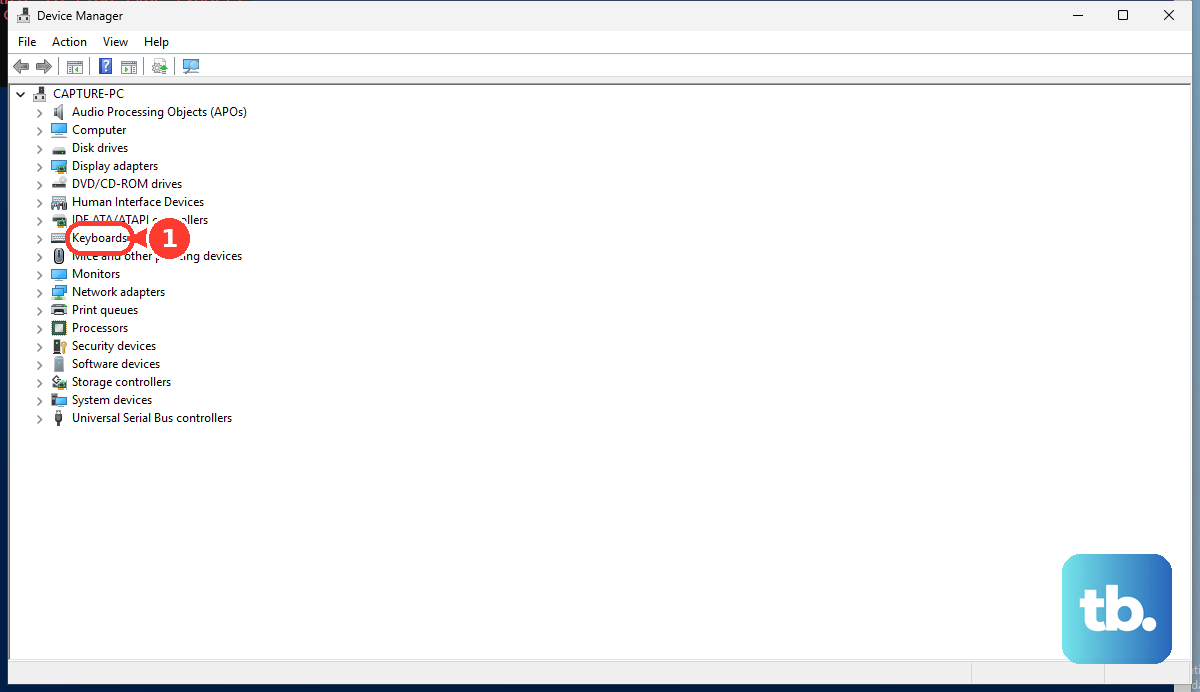
Choose Search automatically for updated driver software. Select Search for updated drivers on Windows Update when Windows offers it. If Device Manager shows a keyboard error or the driver is corrupted, reinstall the device.
Open Device Manager. Expand Keyboards. Right-click the keyboard. Select Uninstall device.
Restart the PC. If the keyboard does not return after restart, open Device Manager > Action > Scan for hardware changes.
7. Reset Brand Specific Keyboard Software
For Razer, update the keyboard firmware. Update Razer Synapse and Windows. Clean the keyboard with a microfiber cloth and compressed air. Connect directly to the computer instead of a hub, extender, or KVM.
Try a different USB port. Disable Razer Synapse and test. If the key works with Synapse disabled, perform a clean reinstall of Synapse.
For Corsair, unplug most wired Corsair keyboards. Hold ESC. Plug the keyboard back in while holding ESC. Keep holding until the keyboard flashes.
Unplug and reconnect it. For a K55 keyboard, unplug it. Hold FN + F4. Plug it back in.
Release FN + F4 after 10 seconds when the lighting flashes. Open iCUE to update the firmware. The K55 Pro and K55 PRO XT use the normal ESC reset method above.
For Surface Pro Keyboard or Type Cover, run Windows Update. Detach the keyboard or Type Cover. Force a restart. Reattach it.
Confirm the connection. After the Windows checks, use the current support path for your keyboard brand. Skip old consumer fixes like the retired Windows Keyboard Troubleshooter, random Scancode Map registry edits, SFC/DISM commands, and restarting Explorer.
The verified paths here are hardware checks, accessibility settings, Windows Update, Device Manager, and current vendor apps such as G HUB, Synapse, and iCUE.
8. Escalate Work PCs and Use Recovery Last
On a managed, school, kiosk-like, or work-issued PC, Windows key shortcuts can be blocked by policy or keyboard filtering. Ask your IT admin whether Windows Key hotkeys, Win, LWin, or RWin are blocked. The device administrator has to remove that restriction.
For a problem that started after an app, driver, or system change, open Control Panel > Recovery > Open System Restore. Select Next. Choose a restore point from before the problem. Follow the wizard.
You can also search the taskbar for Recovery or System Restore. For a problem that started immediately after a Windows update, open Windows Recovery Environment. Go to Troubleshoot > Advanced options > Uninstall Updates. Choose Uninstall latest quality update or Uninstall latest feature update.
For the last resort, open Settings > System > Recovery > Reset this PC on Windows 11, or Settings > Update & Security > Recovery > Reset this PC on Windows 10. Choose Keep my files. Review that apps and settings are removed before continuing.
Use recovery only after keyboard locks, hardware, accessibility settings, remaps, updates, drivers, and vendor software have been ruled out.
Frequently Asked Questions
Why does only my Windows key stop working?
A keyboard Game Mode, Win Lock setting, PowerToys remap, Filter Keys setting, or vendor app setting can target the Windows key while leaving normal typing untouched.
How do I open Start without the Windows key?
Click the Start button, turn on the On-Screen Keyboard from Settings > Accessibility > Keyboard, or use Voice Access in Windows 11 from Settings > Accessibility > Speech.
Can my company disable the Windows key?
Yes. Managed PCs can block Windows key hotkeys or specific Win, LWin, and RWin keys through policy or Keyboard Filter rules. IT has to remove that block.
When should I reset Windows for this problem?
Reset Windows only after the keyboard, accessibility settings, remaps, updates, drivers, vendor software, and managed-device restrictions have been checked. Reset this PC removes apps and settings even with Keep my files.