
When Netflix is not working or not opening on a Samsung TV, restart the TV fully first: unplug it, press the TV's power button once, wait a minute, then plug it back in. If Netflix opens but freezes or stays stuck loading, press Back (the curved-arrow Return button) on the remote, open Get Help from your profile menu and work through Netflix's own tools there: Check your network, Reload Netflix, then Sign out and sign back in.
On an error screen, choose More Details instead. Depending on the error, Netflix offers Check your network, Reload Netflix, or Sign out or Reset there. If that does not do it, Samsung's order for an app that will not work is to update the TV's software, delete and reinstall the app, and then reset Smart Hub. Clearing Netflix's cache and running Device Care are lighter steps, so try them before those.
The short version
- Restart properly: unplug the TV, press its power button, wait a minute.
- Use Netflix's tools: press Back, open Get Help (or More Details on an error screen), then try Check your network, Reload Netflix and Sign out.
- Every app fails: check the TV's connection and Smart Hub before changing Netflix. Run Network Status and restart the router.
- An error code: find it in the table below for Netflix's meaning and first fix.
- Still broken: clear the cache, run Device Care, update the TV with Netflix closed, reinstall Netflix, then reset Smart Hub.
Which fix to try first
Three questions point you to the right row of the table below. Does any other app work, does Netflix show a code, and does Netflix open at all? If every app on your Samsung TV stops working while it is online, check the TV's connection and Smart Hub before changing Netflix; our guide for when every app on your Samsung TV stops working goes further.
| What you see | Try this first | Then |
|---|---|---|
| Netflix will not open, or opens to a black screen | Restart the TV fully (see below) | If it opens to a black screen, sign out (with the arrow sequence below if no menu appears), then reinstall Netflix. If it does not open at all, reinstall Netflix |
| Netflix is stuck loading or freezes, but the TV still works | Restart the TV fully (see below) | Sign out, or try Get Help > Reload Netflix |
| "Netflix has encountered an error" with a code | Find the code in the error code table below | Follow Netflix's first fix for that code |
| Every app on the TV fails, not just Netflix | Settings > All Settings > Connection (Connections on some models) > Network > Network Status | Restart the modem and router |
| The TV isn't part of the Netflix Household | Select Update Netflix Household on that message | Netflix says it is also in Get Help or Settings. Ours lists Manage Netflix Household |
| "Netflix is no longer available on this device" | Check whether a streaming stick or console on HDMI has Netflix | See Netflix's supported devices at netflix.com/compatibledevices |
| Software Update or Reset is greyed out | Close Netflix and switch to another source | Run the update or reset again |
A few quick checks save time. Netflix keeps its Is Netflix Down page up to date during an outage, so a look there on your phone shows whether Netflix is reporting an outage. If the picture is fine but Netflix plays with no sound, the problem is the audio path, and if Netflix is not working on your phone or computer as well, start with our main Netflix guide.
Restart the TV fully, not just to standby
Pressing Power once does not restart a Samsung TV. Samsung explains that when you turn the TV off it is really in standby mode, while a cold boot actually shuts the TV down and reboots it, like restarting a laptop. That full restart is the first step on both Samsung's and Netflix's lists.
Netflix's own steps for a Samsung TV are to unplug it, press the power button on the TV once and wait 1 minute, or leave it unplugged for 3 minutes instead, then plug it back in and try Netflix again. Samsung's quicker way uses the remote: hold Power until the TV turns off and on again, which Samsung says takes about 5 seconds.
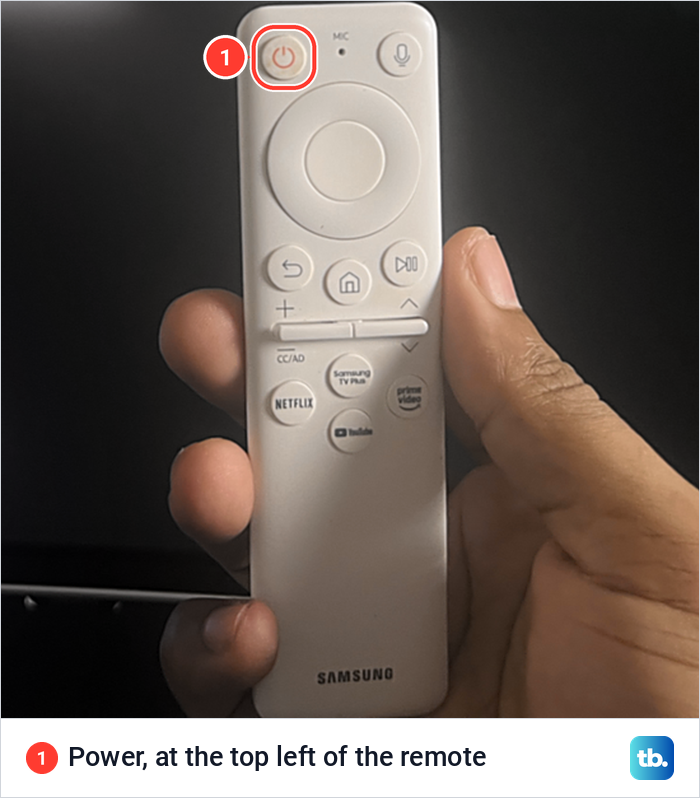
The screens here are from our Samsung Odyssey OLED G9, a smart monitor that runs the same Tizen software as Samsung's smart TVs. On the Samsung remote we use with it, Power is the button at the top left.
Use Netflix's Get Help menu
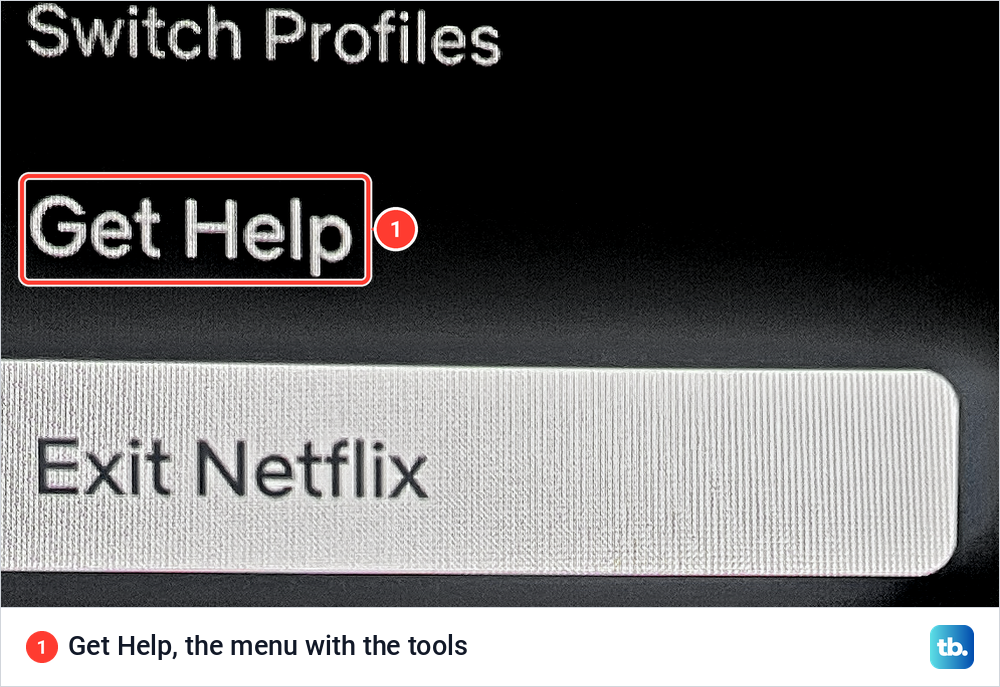
Netflix builds its repair tools into the app. Go to the Netflix home screen and press Back on the remote to reach the menu. If the menu runs along the top, go left to your profile icon and select Get Help; if it runs down the left side, Get Help is at the bottom. If you don't see Get Help at all, Netflix says to go up and select Settings.
On our screen, Netflix's profile menu held three choices: Switch Profiles, Get Help and Exit Netflix. Get Help is the one with the tools.
Ours listed Member, Device, Network, Video, Contact us, Check your network, Manage Netflix Household, Reload Netflix, Exit Netflix and Sign out, under Go back. Three of them are Netflix's fixes for an app that will not load or play, and they are worth trying in the order below.
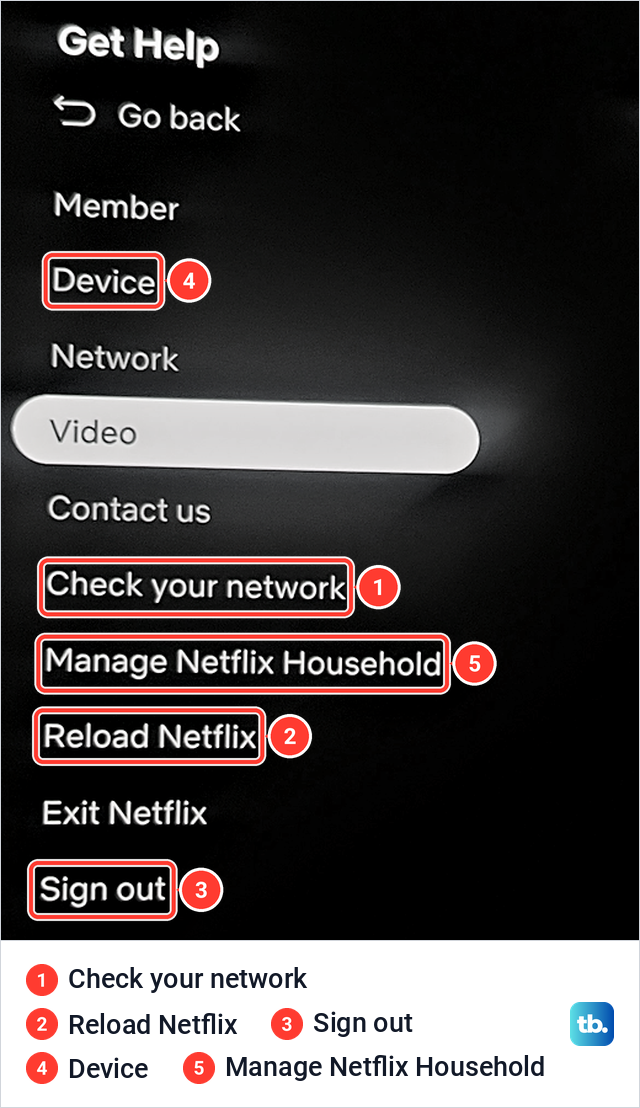
Check your network runs Netflix's own internet check from inside the app. Netflix says that if the check fails or shows an error, the TV usually isn't connected to the internet, and that if the speed is slower than you expect, your internet provider is the one to call. On an NW-2-5 error screen, the same check sits under More Details, and Netflix says a red X anywhere on it means the TV likely isn't connected.
Reload Netflix is Netflix's fix for errors caused by data stored on the TV, such as ui-800-4. Select it, and once the app reloads, try Netflix again. If you would rather close Netflix and open it fresh, our guide on how to restart a single app on a Samsung TV covers the Samsung side of that.
Sign out of Netflix and sign back in
Netflix lists signing out and back in on its Samsung TV troubleshooting pages, straight after a restart. In Get Help, select Sign out, then Yes, then sign back in and try Netflix again. Netflix says signing out of your account doesn't cancel it.
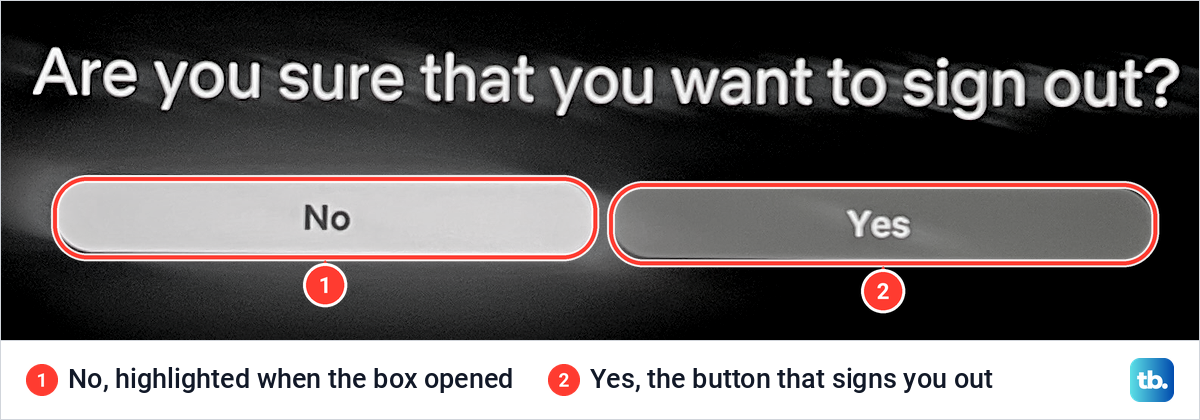
On our screen, Sign out asked "Are you sure that you want to sign out?" with No highlighted, so a stray press of the select button leaves you signed in. Move right to Yes to confirm, and have your Netflix password ready before you do.
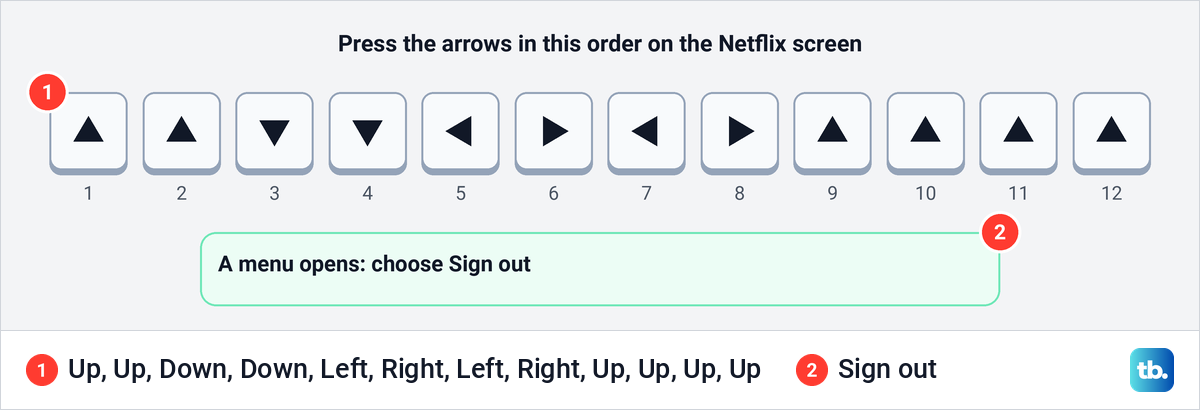
If no menu can be reached, Netflix gives a remote sequence for Samsung TVs: press Up, Up, Down, Down, Left, Right, Left, Right, Up, Up, Up, Up. A menu appears with options such as Sign out, Start Over, Reset or Deactivate, and the list differs slightly between Netflix's pages. On an error screen, More Details also offers Sign out or Reset.
For a full walkthrough of signing a TV out, see our guide on how to log out of Netflix on a TV. If you want to reset the app rather than sign out, see our guide to reset Netflix on a smart TV.
Clear the Netflix app cache
Samsung TVs with Device Care can clear one app's cache without touching the others. Samsung's path is Settings > All Settings > Support > Device Care > Manage Storage. Choose the app, select View Details, then pick Clear Cache. Close Netflix first, because Samsung says a setting is often greyed out while a streaming app such as Netflix runs in the background.
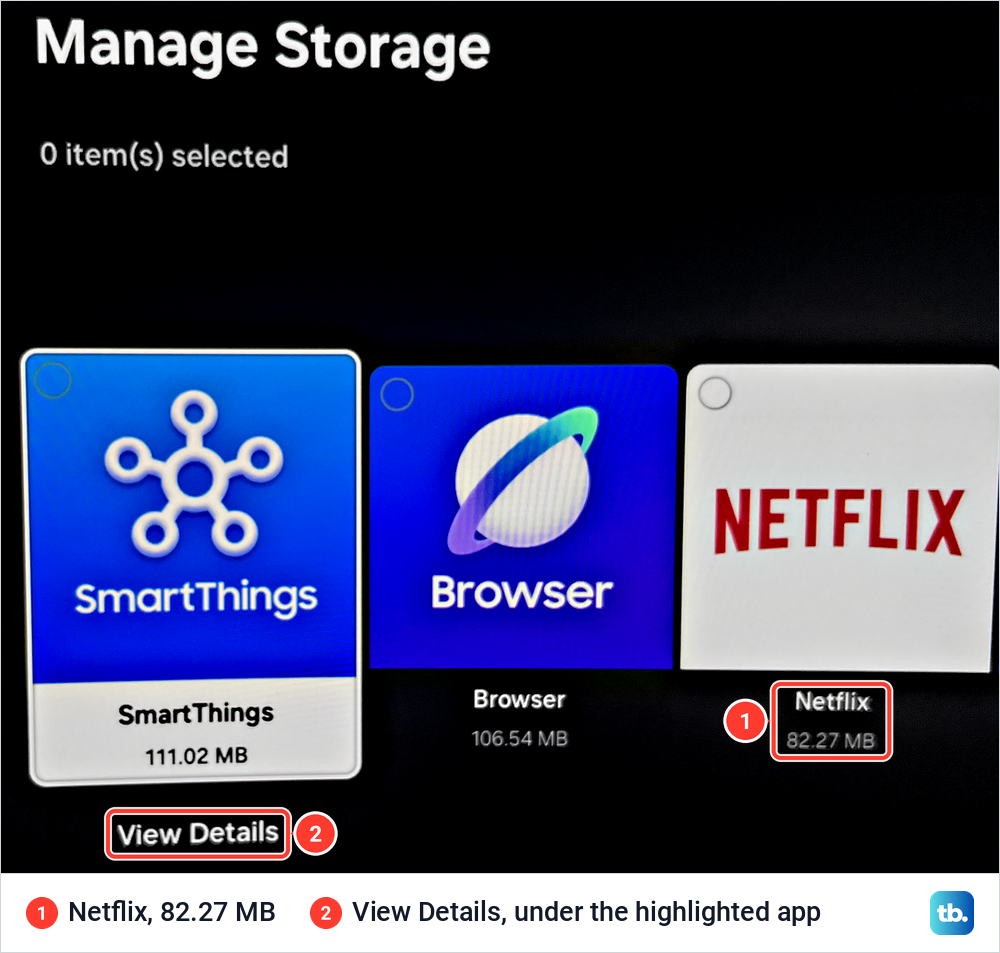
On our screen, Manage Storage listed each app as a tile with its size: SmartThings at 111.02 MB, the Browser at 106.54 MB and Netflix at 82.27 MB. View Details sat under the highlighted tile, so move to Netflix first.
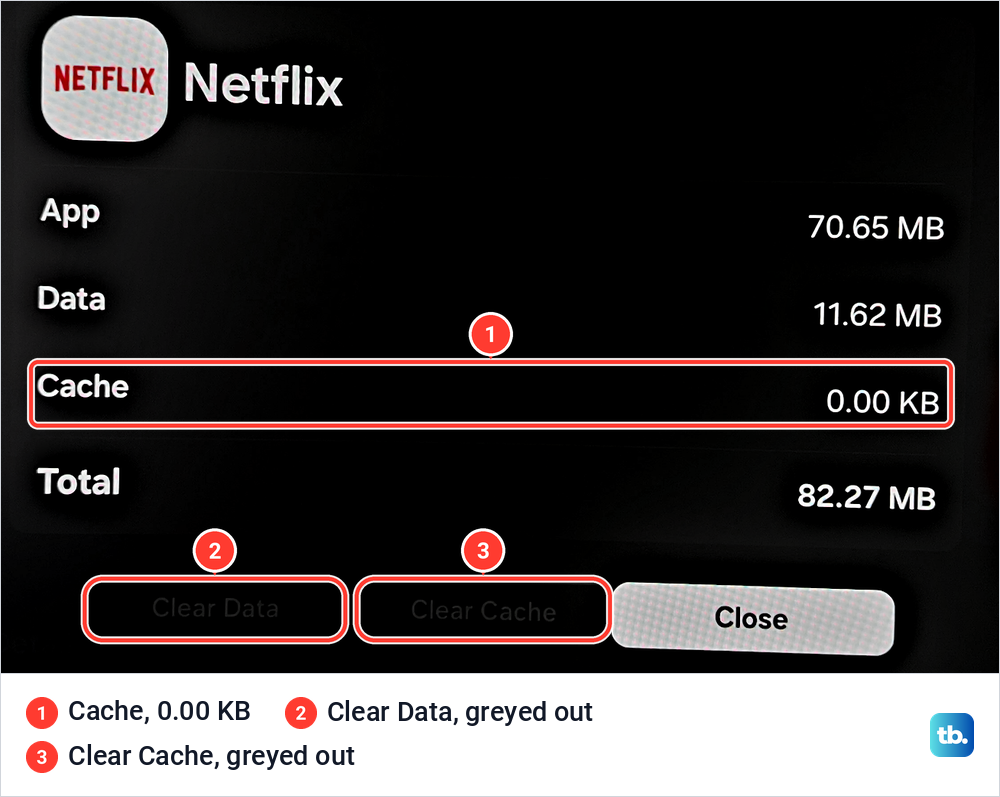
Netflix's details on our screen read App 70.65 MB, Data 11.62 MB, Cache 0.00 KB and Total 82.27 MB, and both Clear Data and Clear Cache were greyed out. The cache was already empty, so there was nothing for Clear Cache to do. Samsung's page also offers Clear Data but does not spell out what either button removes, so use Clear Cache when your TV shows a cache above zero.
To see what the button does when there is something to clear, we pressed Clear Cache on SmartThings, the first app in our Manage Storage list. Its cache dropped from 412.00 KB to 0.00 KB and its total from 111.02 MB to 110.62 MB, while App and Data stayed the same.
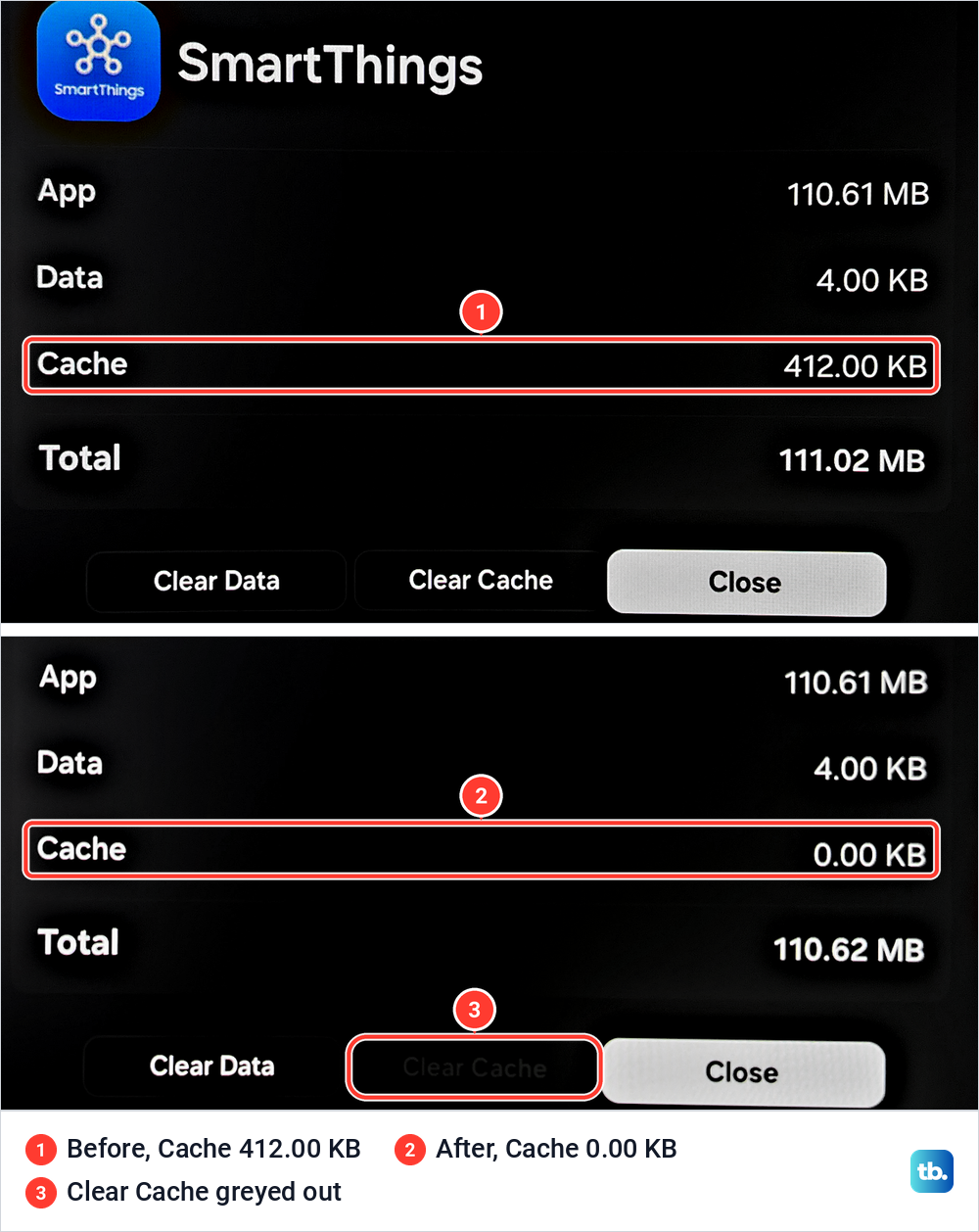
The Clear Cache button then turned grey. On both apps, Clear Cache was grey when the cache read 0.00 KB. Samsung's advice for a greyed-out setting is to close the app, so if either button is grey while its value is above zero, close Netflix and open View Details again. For other apps and older menus, see our walkthrough on clearing the app cache on a Samsung TV.
Run Device Care to free up memory
Device Care is Samsung's built-in clean-up. Select Start Device Care on the Device Care screen, and Samsung says that when the scan is complete, it clears cached memory and closes unused background apps to free up memory.
We ran it on our screen. At 89%, the rows for closing unused background apps and diagnosing storage and memory read Done, while Free up memory by clearing cached memory was still Processing. At 100%, all three read Done.
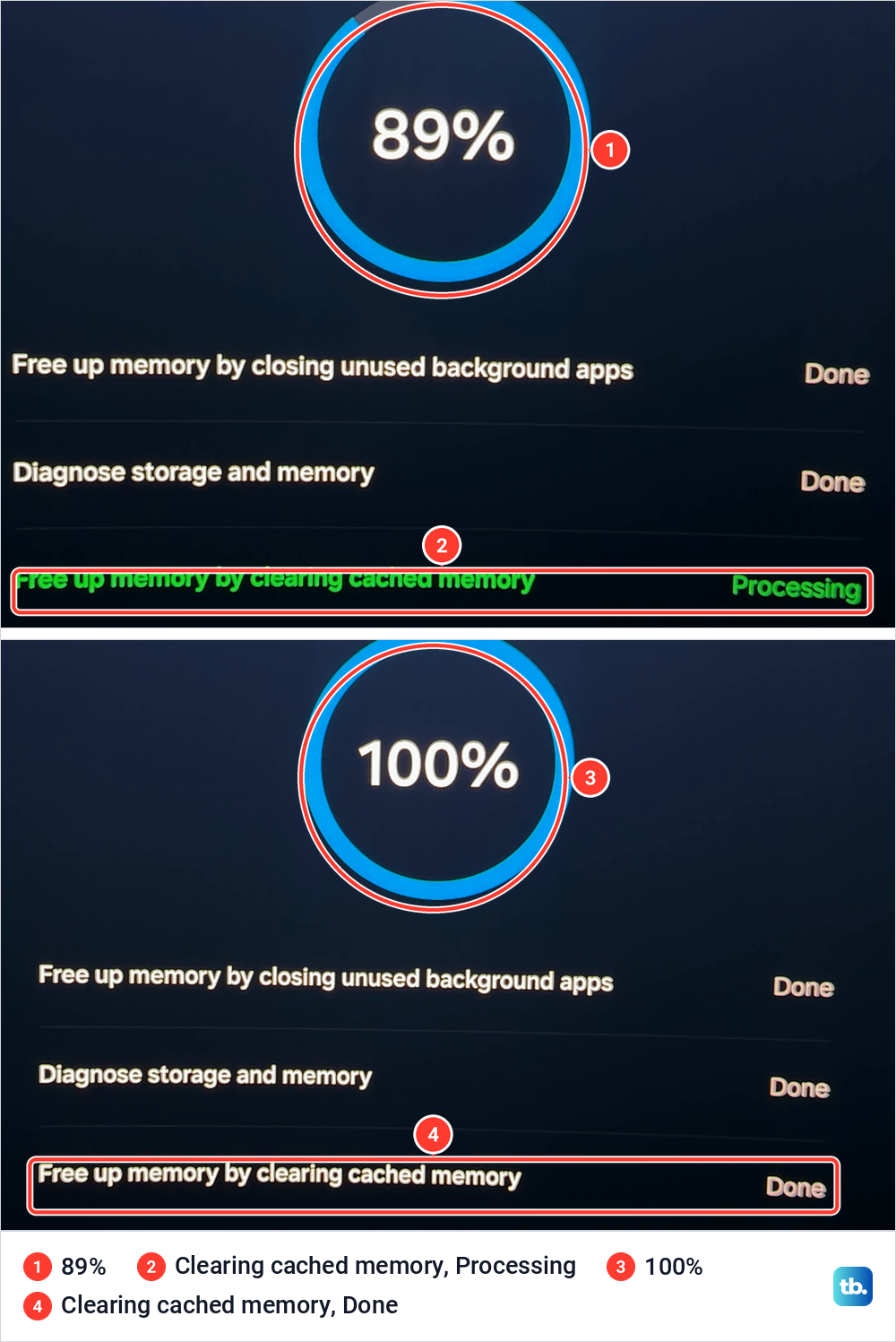
If the whole Samsung TV keeps freezing, not just Netflix, Device Care is only a first step. Our guide to slow response on a Samsung TV goes further into storage and memory.
Check the TV's own internet connection
If YouTube and other apps fail too, test the TV's connection before you touch Netflix. Samsung's path is Settings > All Settings > Connection > Network > Network Status. Samsung's 2025 TV manual labels it Connections, as our screen does, and Samsung notes that some models put Network under General. Samsung says any error message the test shows tells you the best way to fix the connection.
Self Diagnosis has a second check. Samsung's Smart Hub Connection Test, under Device Care > Self Diagnosis, diagnoses the wireless connection and can take a few minutes to run DNS and ISP blocking tests. On our screen it was one of 15 tests, with its label cut short to Smart H...
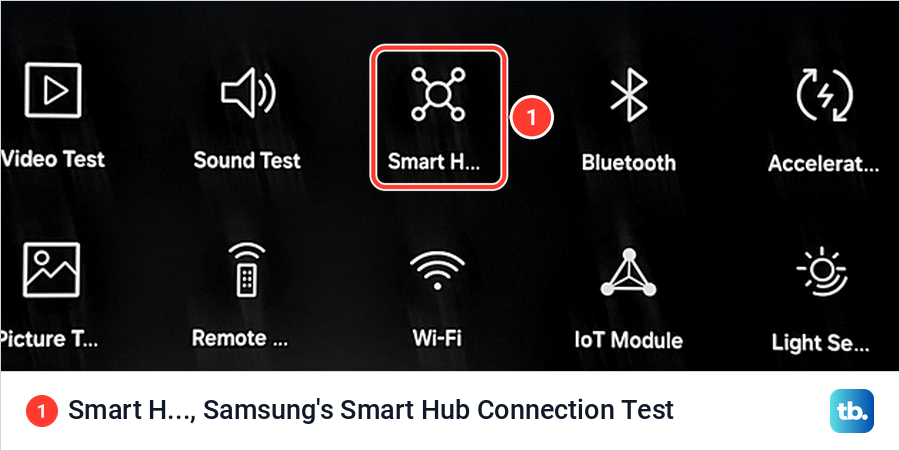
Then restart the network. Netflix's steps are to turn off the TV, unplug the modem and router, plug them back in after 30 seconds, wait 1 minute and turn the TV on. Samsung adds that you should begin with the device nearest the wall where the internet comes in and let it finish booting before the next.
Netflix recommends 3 Mbps for 720p, 5 Mbps for 1080p and 15 Mbps for 4K, on a steady connection. It also warns that hotel and apartment Wi-Fi may block streaming, and that some cellular, satellite or hotspot connections are too slow for it. If Netflix plays but keeps buffering, our fixes for when Netflix keeps buffering go further.
If Network Status fails or the TV cannot see your Wi-Fi, follow our fixes for a Samsung TV that will not connect to Wi-Fi. Samsung also notes that a wrong date and time can cause Wi-Fi trouble, so check that Clock Mode is set to Auto.
Put custom DNS back to default before trying 8.8.8.8
Typing 8.8.8.8 into the TV's DNS setting is common advice, but Netflix gives the opposite first step. For NW-3-6, ui-800-3, tvq-st-103 and a black screen on a TV, Netflix says that if you changed the connection settings, change them back to default, including custom DNS settings, a VPN or proxy, and custom modem settings.
Only after that does Netflix turn to DNS, and it sends you to your internet provider to check that the TV can reach secure.netflix.com, appboot.netflix.com, uiboot.netflix.com and fast.com, and to try a different DNS server. Samsung's 8.8.8.8 step, under DNS Setting > Enter Manually, is for a different problem: a TV whose own connection is bad or will not connect.
So if Netflix shows a network error while other apps work, undo any DNS change first. Samsung's path to the setting is Settings > All Settings > Connection > Network > Network Status > IP Settings > DNS Setting; change it away from Enter Manually, and keep the manual DNS for a TV that struggles to get online at all.
Update the TV software with Netflix closed
Samsung's path is Settings > All Settings > Support > Software Update > Update Now. If an update is available it installs itself and the TV restarts. Samsung says not to turn the TV off until it finishes, and that picture and sound settings may go back to their defaults afterwards.
The catch is that Software Update is greyed out while Netflix runs. Samsung says a greyed-out Software Update means a streaming app is running in the background or the TV is offline, so close Netflix and switch to the TV source or Samsung TV Plus first. On our screen, Software Update sat in Support below Device Care, Maintenance Mode and Remote Management.
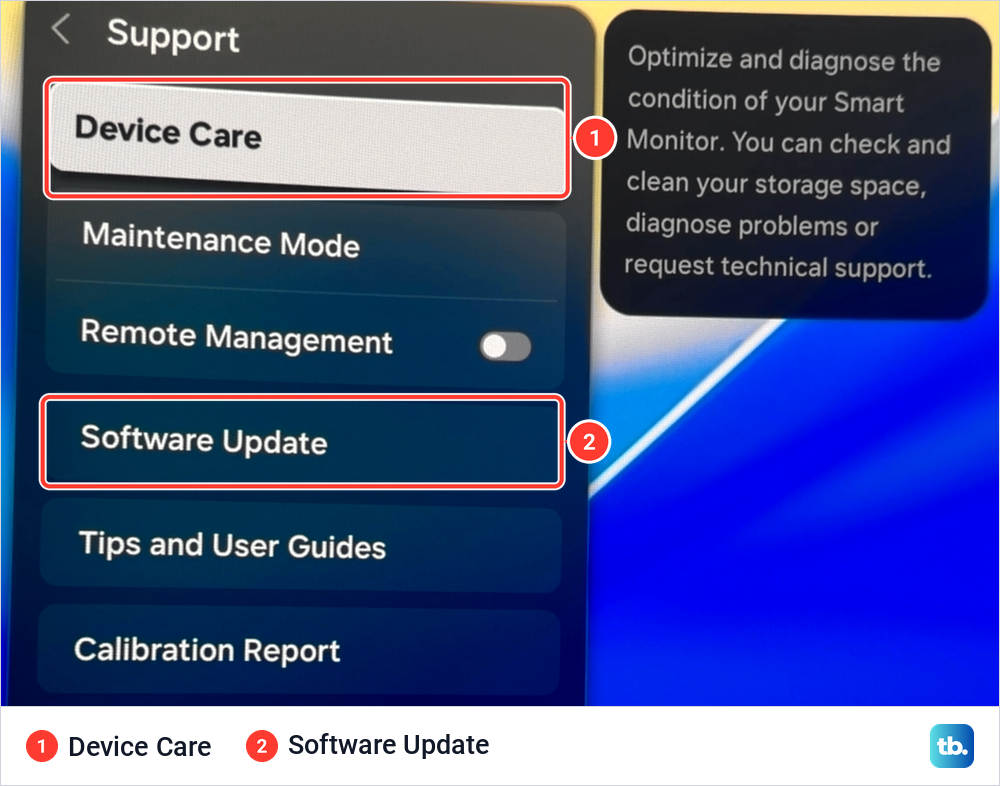
An update can take several minutes, so leave the TV alone until it restarts. Turning on Auto Update in the same menu keeps the TV current from then on.
Reinstall Netflix
Netflix's steps for a Samsung TV are to press Home, find Netflix, press and hold the select button for 3 seconds and choose Remove from the menu that appears. To put it back, press Home, select Apps, search for Netflix and choose Install.
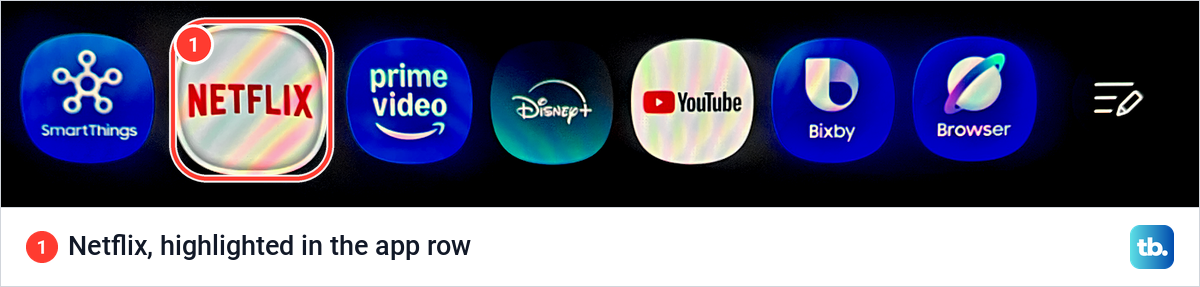
Samsung's own route goes through the Apps screen: open Apps, select the Settings icon in the top right corner, find Netflix and select Delete. If Delete is greyed out, Samsung says it is a recommended app, so select Reinstall instead.
Samsung says these steps sign you out, so have your password ready. Our guide to deleting apps on a Samsung TV shows the Delete and Reinstall buttons for other apps too.
Netflix error codes on Samsung TVs
Netflix's codes tell you where the fault is: the network, data stored on the TV, or a TV that Netflix no longer supports. The table gives Netflix's meaning for the codes its TV pages cover and the first thing Netflix tells you to try.
| Code | What Netflix says it means | Try first |
|---|---|---|
| NW-2-5 | The TV took too long to connect to Netflix, usually an internet problem | More Details > Check your network. A red X means the TV likely isn't connected |
| NW-3-6 | A network issue stops the TV from reaching Netflix | Put custom DNS, VPN, proxy and modem settings back to default |
| tvq-st-103 | A network problem is stopping the TV from reaching Netflix | Clear cookies at netflix.com/clearcookies on a phone or computer, then sign out, restart the TV and restore default connection settings |
| ui-800-3 | Information stored on the TV needs refreshing, or a network issue stopped Netflix opening | Restart the TV and sign out. On a Samsung TV, Netflix adds Reset Smart Hub |
| ui-800-3 (104001) | The TV may not be certified for Netflix, or the app is no longer available for it | Watch on another device that Netflix supports |
| ui-800-4 | An issue with data stored on the TV stops Netflix from playing | More Details > Reload Netflix |
| tvq-pm-100 | An issue with data stored on the TV stops Netflix from playing | Restart the TV fully |
| ui-113 or NW-4-7 | Data on the TV or the network stops Netflix, or the TV is no longer supported | More Details > Device, and check the SDK version |
| E123 | The account has reached its limit of devices watching at once | Stop Netflix on another device, wait 5 to 10 minutes |
| R40, R12 or R25-9 | The TV can no longer support Netflix | Use a streaming stick, cable box or console on HDMI |
If ui-800-3 has numbers in brackets after it, such as 104001, Netflix says to search its Help Center for that exact code to get the right steps. Netflix's pages for ui-800-3 and ui-800-4 tell Samsung owners they may need to reset Smart Hub, and its page for a Netflix that freezes asks you to contact Samsung for help with a Smart Hub reset, a firmware update or a factory reset.
When Netflix says the TV is no longer supported
Netflix says it may end support for a device that can no longer get the updates it needs from its maker or support new features. The messages include "Netflix is no longer available on this device", which points to Netflix's list of supported devices at netflix.com/compatibledevices, and the codes R40, R12 and R25-9 mean the same thing.
If you see ui-113 or NW-4-7 instead, Netflix says to choose More Details on the error screen, select Device and read the version next to SDK. Netflix says 4.1.5 or below means the app or software can't be updated to a supported version by the manufacturer, while 4.1.6 or above means the normal fixes are worth trying. Get Help on our screen also has an item called Device.
For those messages and codes, Netflix says your account and membership are not affected. Netflix's answer is to check whether a streaming stick, cable box or game console connected to the TV by HDMI has a Netflix app, and watch through that.
Netflix Household messages
If the TV says it isn't part of the Netflix Household for this account, select Update Netflix Household on that message, or from the Get Help or Settings menu. Our Get Help list has an item called Manage Netflix Household.
Away from home, select the button with Traveling in its name, from a non-Kids profile, to request a temporary access code. Netflix emails the account owner a link to the code, or texts it if the account has no email, and the code expires after 15 minutes.
If Netflix keeps signing you out or blocking the TV, our guide for when Netflix keeps kicking you out covers the account side. If you don't recognise the devices, sign out of Netflix on all devices and change the password.
Reset Smart Hub as the last app fix
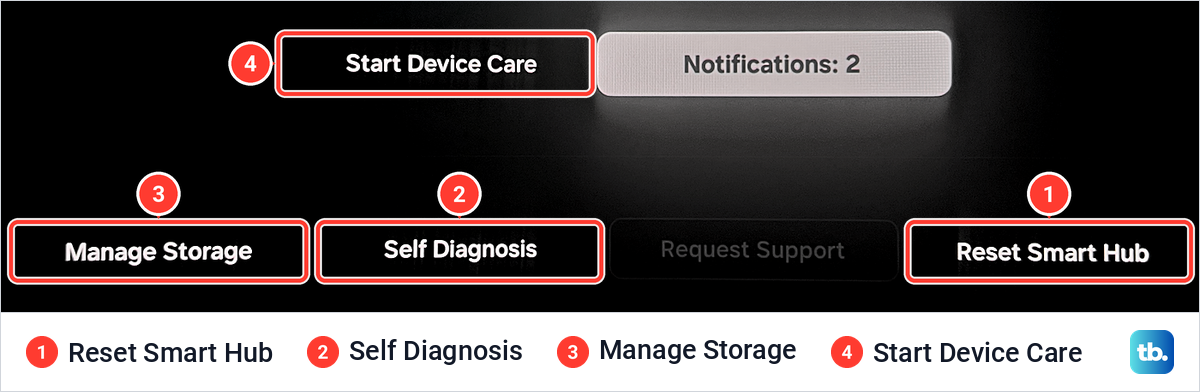
Reset Smart Hub is the last app-level fix on Samsung's list, and it is a heavy one. Samsung says it signs the TV out of your Samsung account and all of your apps, removes apps that are not pre-installed, and returns Smart Hub's settings to factory defaults. You may need to download Netflix again, and Samsung requires a Samsung account for streaming apps, so have that password ready too.
Close Netflix first. Samsung says you can't reset Smart Hub from inside Smart Hub or an app, so switch to Live TV or an HDMI input, and enter the PIN when asked, which is 0000 by default. Where the button sits depends on your TV's model year, and Samsung lists three places:
- 2025 models: Settings > All Settings > Support > Device Care > Reset Smart Hub.
- 2020 to 2024 models: Settings (then All Settings on 2022 and later models) > Support > Device Care > Self Diagnosis > Reset Smart Hub.
- Earlier models: Settings > Support > Self Diagnosis > Reset Smart Hub, with Device Care in between on some 2019 sets.
Our screen has the 2025 layout, with Reset Smart Hub on the Device Care screen itself next to Manage Storage and Self Diagnosis. If you are not sure which applies, look on the Device Care screen first, then inside Self Diagnosis.
After Reset Smart Hub, Samsung's app page adds a Flash Reset. With the TV on, Samsung's steps are to press and hold the physical button on the TV for 5 seconds and release it, then press and hold Power on the remote for 5 seconds, release it and wait about 30 seconds to a minute while the TV power cycles into reset mode.
Samsung says it worked only if you see the initial setup screen afterwards. Samsung's next step is to follow the initial setup instructions on screen, so expect to set the TV up again before you download Netflix again. This is not the cold boot from the restart section, because a Flash Reset starts with the TV's own button.
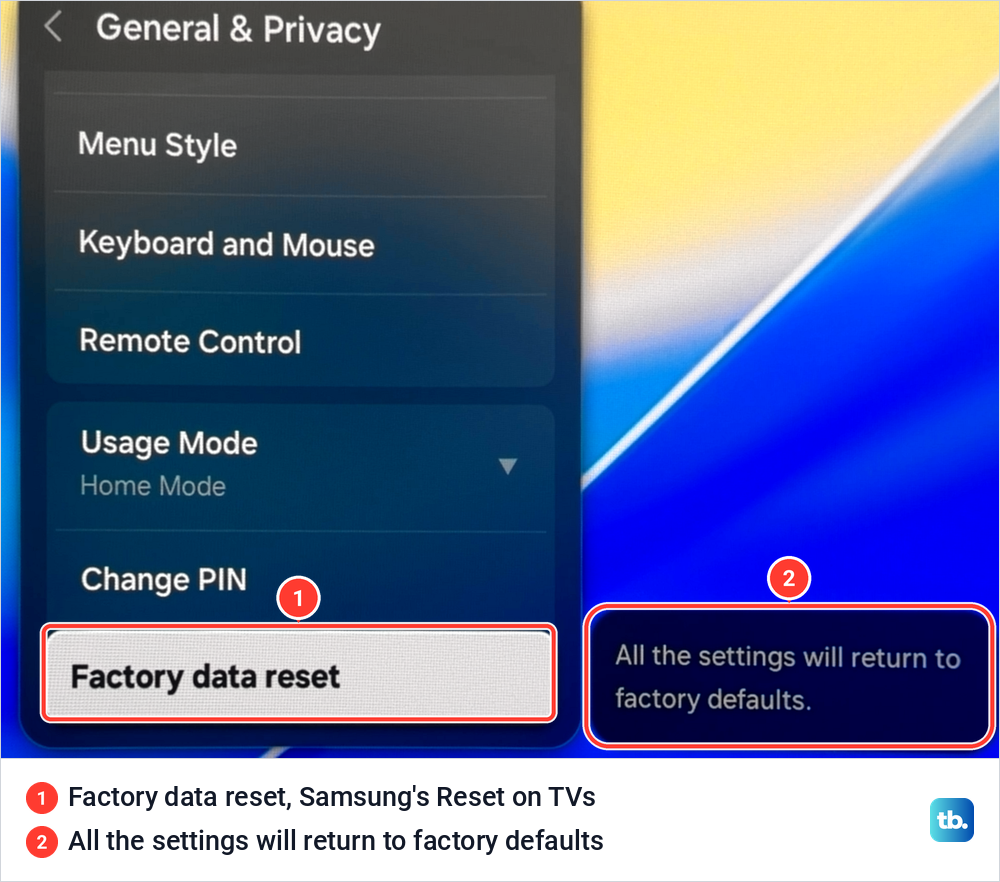
Netflix's page for a Netflix that freezes also asks you to get Samsung's help with a factory reset. Samsung's path is Settings > All Settings > General & Privacy > Reset, then your PIN, and Samsung says Reset is not available while you use an app like Netflix, so close it and switch to TV Plus or an HDMI source first.
Our screen shows the same item as Factory data reset, at the bottom of General & Privacy. Its note says all the settings will return to factory defaults.
Samsung's view is that if an app still fails after all of its steps, the TV is not the problem and the app's maker is responsible. At that point, Netflix's pages end with contacting its Customer Service.
How we tested this guide
Every photo here comes from our Samsung Odyssey OLED G9, a smart monitor that runs the same Tizen software as Samsung's smart TVs. On it we opened Netflix's profile menu, the Get Help list and the sign-out prompt, read Netflix's storage details in Manage Storage, cleared the SmartThings cache, ran Device Care to 100%, and opened Self Diagnosis, Support and the Factory data reset entry.
The steps for Samsung TVs follow Samsung's support pages and TV e-Manuals, and the Netflix steps and error meanings follow Netflix's Help Center. Menu names can differ slightly between model years.
Frequently Asked Questions
Why does Netflix work on my phone but not on my Samsung TV?
When Netflix freezes or will not load on a TV, Netflix says this usually happens when data stored on the device needs to be refreshed, or when a network issue stops Netflix from loading. Restart the TV fully, then use Get Help to check your network and to sign out and back in.
How do I clear the Netflix cache on a Samsung TV?
Go to Settings > All Settings > Support > Device Care > Manage Storage, select Netflix, choose View Details, then Clear Cache. If the button is greyed out and the cache reads 0.00 KB, there is nothing to clear, as on our screen.
Will reinstalling Netflix delete my account or profiles?
No. Netflix says signing out or deleting the app doesn't cancel your account, so you only need to sign in again.
What internet speed does Netflix need on a Samsung TV?
Netflix recommends 3 Mbps for 720p, 5 Mbps for 1080p and 15 Mbps for 4K, on a steady connection. You can test the TV's speed inside Netflix with Get Help > Check your network.
What does Netflix error NW-2-5 mean on a Samsung TV?
Netflix says the TV took too long to connect to Netflix, which usually points to an internet problem. On the error screen, choose More Details > Check your network, where a red X means the TV likely isn't connected.
What is the PIN for Reset Smart Hub?
Samsung's default PIN is 0000. If someone changed it, use that PIN instead, and the same PIN is asked for before a factory reset.
How do I know if my Samsung TV still supports Netflix?
If Netflix shows "Netflix is no longer available on this device" or the code R40, R12 or R25-9, Netflix no longer supports that TV. With ui-113 or NW-4-7, choose More Details > Device and read the SDK version, because Netflix says 4.1.5 or below means the TV can't be updated to a supported version.