Netflix stuck on an error screen or refusing to load on your smart TV? Start with a sign-out or a full restart, then move to clearing saved data or reinstalling if the problem sticks around. The steps below cover Netflix's own controls and the app settings on Samsung, LG, Roku, Google TV, Sony Android TV, and Fire TV.
Sign out of Netflix and sign back in
Start inside Netflix. From its home screen, press Back on your remote to reach the navigation controls.
If the menu runs across the top, go left to the profile icon, then select Get Help > Sign out > Yes. If it runs down the left side, go to the bottom and select Get Help > Sign out > Yes.
Sign back into Netflix. Try playing something to check the result.
Already stuck on an error screen? Open More Details and choose Sign out or Reset, whichever appears, then sign back in.
Restart the TV when Netflix is frozen
Give the TV a full restart, since standby alone does not complete the restart Netflix recommends.
- 1.Turn off the TV.
- 2.Unplug its power cable and leave it completely off for 15 seconds.
- 3.Reconnect the power cable.
- 4.Turn on the TV.
- 5.Open Netflix again.
Restore the connection when Netflix cannot connect
A home-network connection problem prevents Netflix from connecting even after an app reset.
On an Unable to connect to Netflix screen with a reload option, select More Details > Reload Netflix.
Try playback again after Netflix reloads.
If the error screen offers exit controls instead, select Exit or More Details > Exit Netflix.
Open Netflix again.
If the connection error continues, turn off the TV.
Disconnect your modem and router from power for 30 seconds.
Reconnect the network equipment.
Wait for the connection to stabilize.
Turn on the TV.
Reopen Netflix. Restarting the network may restore the connection without clearing Netflix's saved app data or resetting your account. If the error continues, contact your internet service provider.
Use the remote shortcut when the sign-out menu is missing
Can't find Get Help or Sign out? Netflix supports this remote shortcut on compatible TV apps, excluding Apple TV.
Inside Netflix, press these directional buttons in order: Up, Up, Down, Down, Left, Right, Left, Right, Up, Up, Up, Up.
Select whichever option appears: Sign out, Reset, or Deactivate. These labels vary by device; you only need the option your TV displays.
Sign back into Netflix.
Clear Netflix's saved app data
If signing out and restarting haven't helped, use the app settings on Google TV, Sony Android TV, or Fire TV. Follow the path for your TV's operating system.
On Google TV, open Settings > Apps > See all apps > Netflix > Clear data. This applies to supported Google TV sets, including Sony, TCL, and Hisense models; manufacturer menus vary.
Reopen Netflix.
Sign in if prompted.
On Sony Android TV, press Quick Settings or HOME, whichever your remote offers.
Navigate to Settings > Apps > See all apps.
If Netflix is missing, select Show system apps.
Select Netflix > Clear cache > OK.
Test Netflix again before clearing its data.
If the problem persists, return to Netflix's app settings and select Clear data > OK.
If another confirmation appears, select CLEAR ALL DATA > OK.
On Fire TV, go to Settings > Applications > Manage Installed Applications > Netflix > Clear Cache.
For a session and data reset, select Clear Data in the same app settings.
Reopen Netflix.
Sign in again.
If clearing Netflix's data doesn't solve the problem, try reinstalling the app using the instructions below.
Reinstall Netflix on your TV
Reinstall Netflix after the simpler resets fail. Some preinstalled versions cannot be removed, so use the controls available on your TV.
On Samsung TVs with this app menu, open Apps > Settings using the gear icon.
Select Netflix > Delete, or choose Reinstall if Delete is unavailable.
After deleting Netflix, press Return.
Use Search to find Netflix.
Select Install.
Open Netflix.
Sign in again.
On LG webOS 6.0 and webOS 21 through 24, go to Home > Edit App List > Netflix.
Select the trash icon. On webOS 5.0 or older, select the X above the app instead.
Confirm deletion with Yes.
Reinstall through Home > Apps > Search > Netflix > Install. On webOS 5.0 or older, find and install Netflix through LG Content Store.
Select Launch once installation finishes.
On Roku TV, highlight Netflix on the Home screen.
Press Star (*).
If the menu offers Restart, select it to try restarting just Netflix before removing it.
To remove Netflix, highlight Netflix on the Home screen again.
Press Star (*).
Select Remove app > Remove. On interfaces labeled Remove channel, use that option instead.
Restart the Roku TV through Settings > System > Power > System restart before reinstalling.
Add Netflix again from the Streaming Store. With a Netflix-button remote, use Netflix > Add channel > OK > Go to channel.
On Google TV with a removable Netflix installation, highlight Netflix under Your apps on the home screen.
Hold Select to open its options.
Choose View Details > Uninstall.
Use Search to find Netflix again.
Open the Netflix app result.
Select Install.
On Fire TV, go to Settings > Applications > Manage All Installed Applications > Netflix. If your interface uses Manage Installed Applications, open that menu instead.
Select Delete or Uninstall, whichever appears.
Use Search on the home screen to find Netflix.
Open its listing.
Select Free or Download, whichever appears.
Select Open after installation.
Sign the TV out from your phone or computer
Remote sign-out ends the TV's Netflix session when you can't reach its in-app menus.
Sign into Netflix in a phone or computer browser.
Open Manage Access and Devices.
Expand the target TV's entry using its down arrow. Entries take up to 48 hours to appear, and some devices are omitted.
Select Sign Out for that TV. This ends its session; it does not establish that the TV's local app cache has been cleared.
Sign back into Netflix on the television.
To end every device's session, select Sign Out of All Devices at the bottom of Manage Access and Devices.
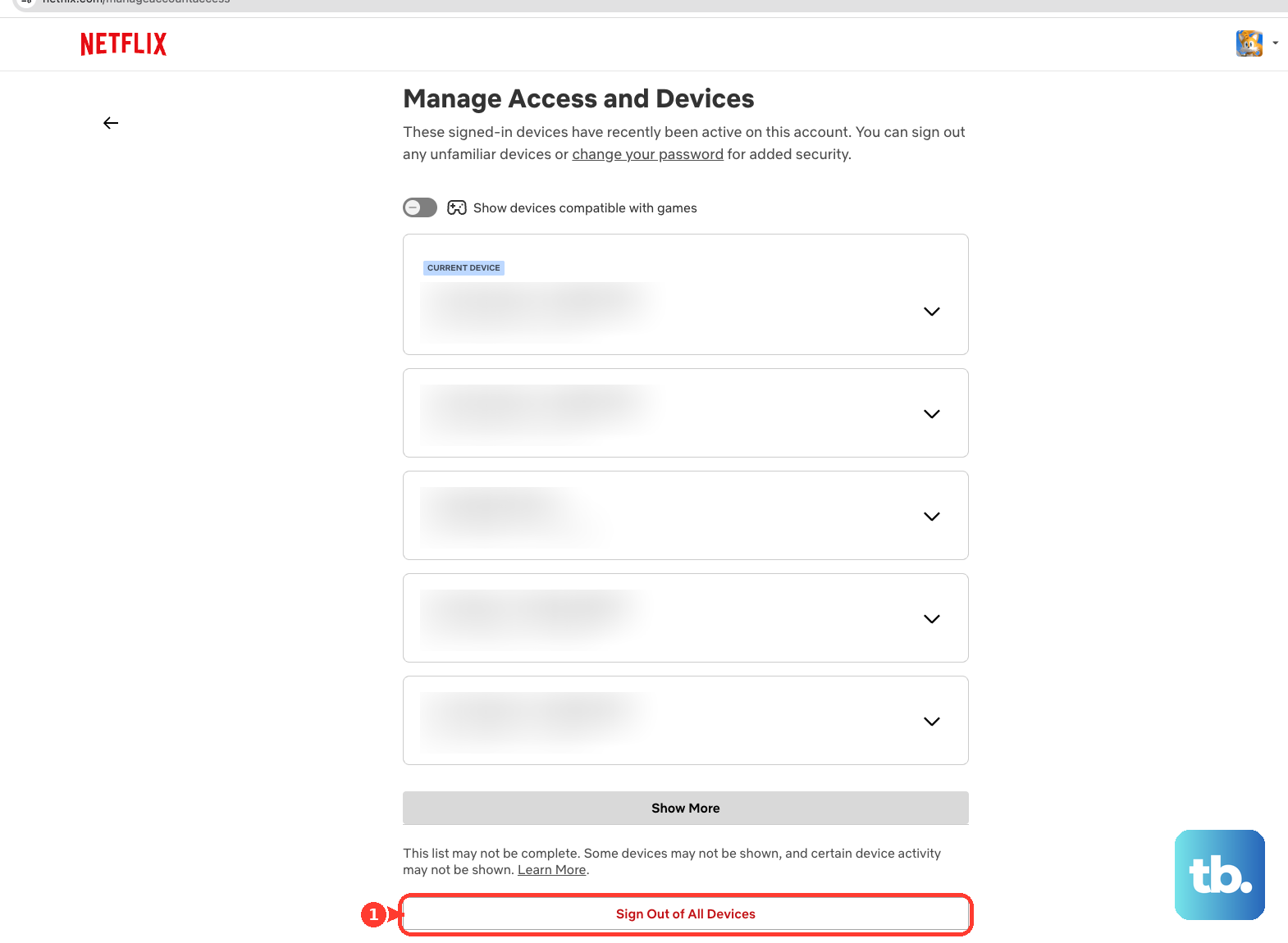
Confirm with Sign Out. This affects every signed-in device, including your television.
Sign back in on the TV and any other devices you want to keep using.
Frequently Asked Questions
Will resetting Netflix delete my profiles or cancel my subscription?
A local Netflix app reset does not erase your account profiles, change billing, or remove household restrictions. Have your sign-in details ready for any login prompt after clearing app data or reinstalling.
Why does Netflix still say my TV is not part of my Household?
A household mismatch needs a household update. Connect the TV to your intended home internet connection. From Netflix's home screen, press Back. Go left to the profile icon in the top menu, or go to the bottom of the left menu. Open Get Help or Settings, then select Manage Netflix Household > Update Netflix Household > Send Email. Open the email and select Yes, This Was Me > Confirm Update. If your account has no email and offers Send Text, use that option.
Do I need to factory reset my TV to fix Netflix?
Try signing out, fully restarting the TV, and using the app-level fixes first. A factory reset affects the whole television. The data removed depends on the platform and includes apps, stored account information, preferences, or other device data.
Can I reset Netflix on a Roku TV without the physical remote?
Yes. Connect the Roku mobile app on iOS or Android to a reachable Roku TV, then select Remote. Use its directional and Home controls to navigate Netflix's sign-out menu or the TV's restart settings. The app cannot discover a TV that is disconnected from the network after a reset.