
To log out of Netflix on a TV, go to the Netflix home screen and press Back on your remote to open the menu. Go left to your profile icon, or to the bottom of the menu if it runs down the left side, select Get Help, then Sign out, and choose Yes. That is Netflix's own path for most smart TVs and streaming players, Samsung and LG included.
Not in front of the TV? Sign it out from a phone or computer on Netflix's Manage Access and Devices page, or sign out of every device at once. Both routes are below, along with what to do when Get Help or Sign out is missing from the menu.
The short version
- On the TV: press Back on the Netflix home screen, open your profile, choose Get Help, then Sign out and Yes.
- No Get Help: go up to Settings, or press Up, Up, Down, Down, Left, Right, Left, Right, Up, Up, Up, Up and choose Sign out.
- Away from the TV: open Manage Access and Devices on a phone or computer and sign out that TV alone.
- Everything at once: Sign Out of All Devices sits at the bottom of the same page.
- Nothing is cancelled: Netflix says signing out or deleting the app does not cancel your membership.
Netflix sign out on every TV and player at a glance
| Your TV or device | How to sign out | Good to know |
|---|---|---|
| Most smart TVs and streaming players, including Samsung, current LG and Roku | Press Back, go to your profile (menu at the top) or the bottom of the menu (menu on the left), then Get Help, Sign out, Yes | No Get Help? Go up and choose Settings, or use the remote sequence |
| Samsung TV or Samsung smart monitor | The same Get Help path | Samsung says deleting or reinstalling a third-party app signs you out of it |
| Older LG TV showing Premium, Netcast or Setup | Netflix Deactivate, or Deactivate Netflix, in that menu | Newer LG TVs use the Get Help path |
| Roku 2 | Home, highlight Netflix, press the star key, Remove channel, then Remove channel again | Restore Netflix from Streaming Channels > Movies & TV > Netflix |
| TCL Roku TV | Press Back, select the Gear icon on the right, Sign out, Yes | Netflix's Roku TV page gives the Get Help path for the same sets |
| Amazon Fire TV | The Get Help path, or Settings > Applications > Manage All Installed Applications > Netflix > Clear Data | Netflix's Fire TV page calls Clear Data disconnecting the Fire TV from your account |
| Apple TV HD and later | Press Back (or Menu), go left to your profile icon, Get Help, Sign out, Yes | Deleting and reinstalling the app also signs you out |
| PlayStation 4 or 5 | Open Netflix, press O, select the gear icon, Sign Out, Yes | On a PS4, if that fails, delete Netflix from TV & Video |
| Xbox One or Xbox Series X and S | Press B for the Netflix menu, go left to your profile icon, then Get Help, Sign out, Yes | On an error screen, select More Details, then Sign out |
| A TV you cannot reach | Manage Access and Devices, the down arrow next to the TV, Sign Out | Sign Out of All Devices is at the bottom of that page |
Every row follows Netflix's Help Center, except the Samsung app note, which follows Samsung's support pages. Where a row names Clear Data or Remove channel, that is Netflix's own sign-out route for that device, not a workaround.
How to sign out of Netflix on your TV step by step
Our photos come from our Samsung Odyssey OLED G9, a smart monitor that runs the same Tizen software as Samsung's smart TVs, with its white Samsung remote. Netflix's instructions for other TVs use the same menu names, although the menu can run along the top or down the left side, and the remote will differ.
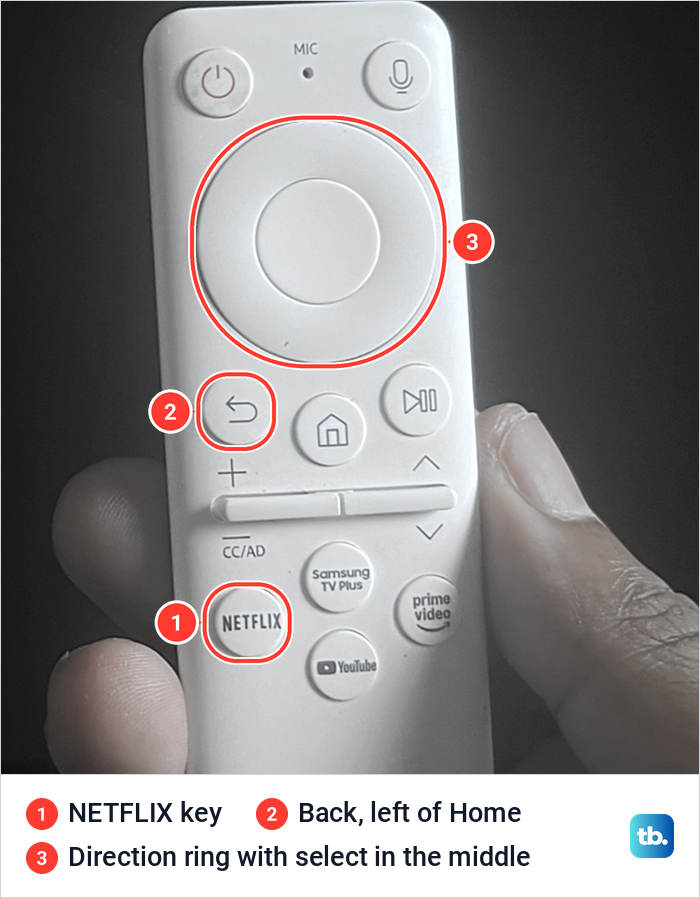
Start by opening Netflix. Netflix's instructions for remotes with a Netflix button are to press it from the TV home screen. Our remote has one, below the volume and channel keys, and the Back key with its curved arrow sits just left of Home.
On a remote without that key, open the home screen and pick Netflix from the app row. On our G9 it sat second in Smart Hub's row, between SmartThings and Prime Video.
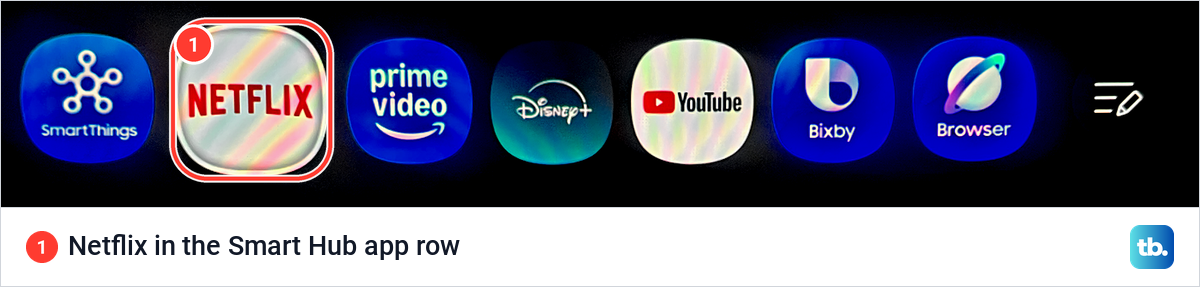
With Netflix on its home screen and nothing playing, press Back to open the menu. If the menu runs along the top, go left to your profile icon. If it runs down the left side, go to the bottom of it.
On our G9, the menu showed the profile with Switch Profiles, Get Help and Exit Netflix under it. Sign out was not among them.
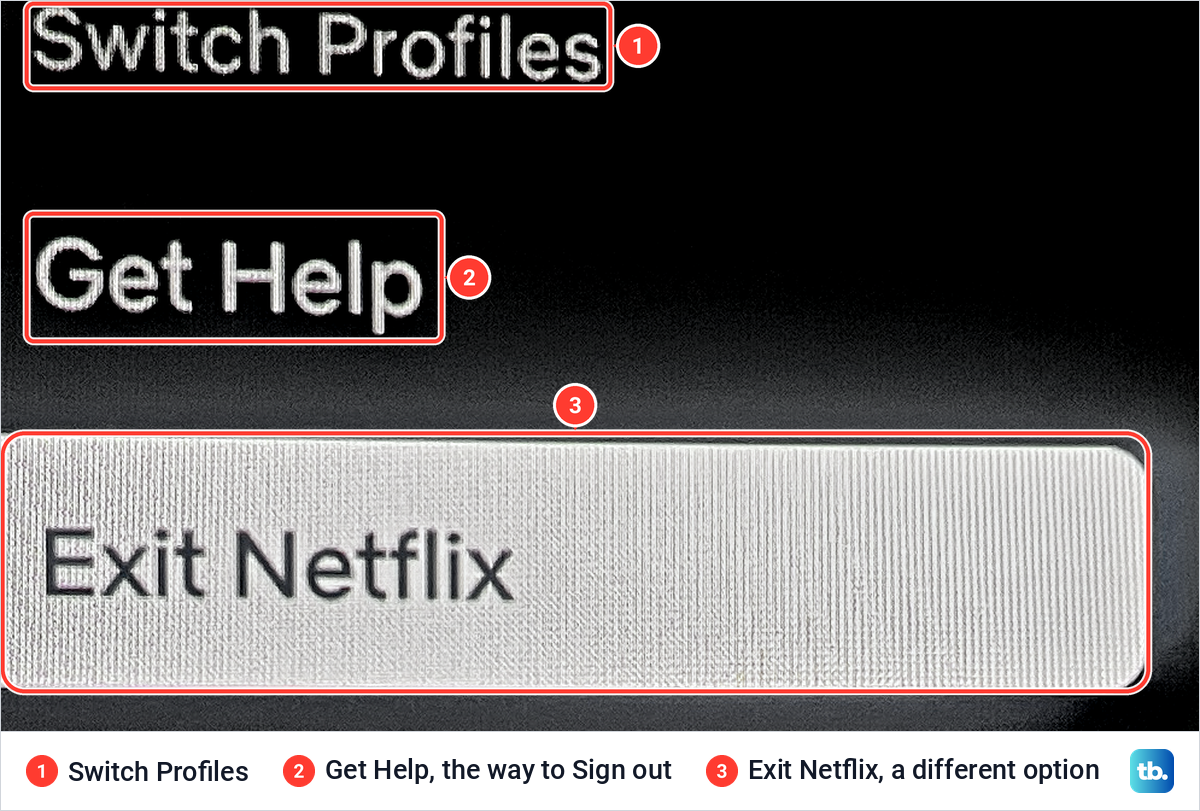
Select Get Help. Sign out lives here, one level below the first menu, which makes it easy to miss. On our G9 the list ran from Member, Device, Network and Video down to Check your network, Manage Netflix Household and Reload Netflix.
Sign out is the last item, and Exit Netflix sits directly above it. Read the label before you press select, because the two are one press apart.
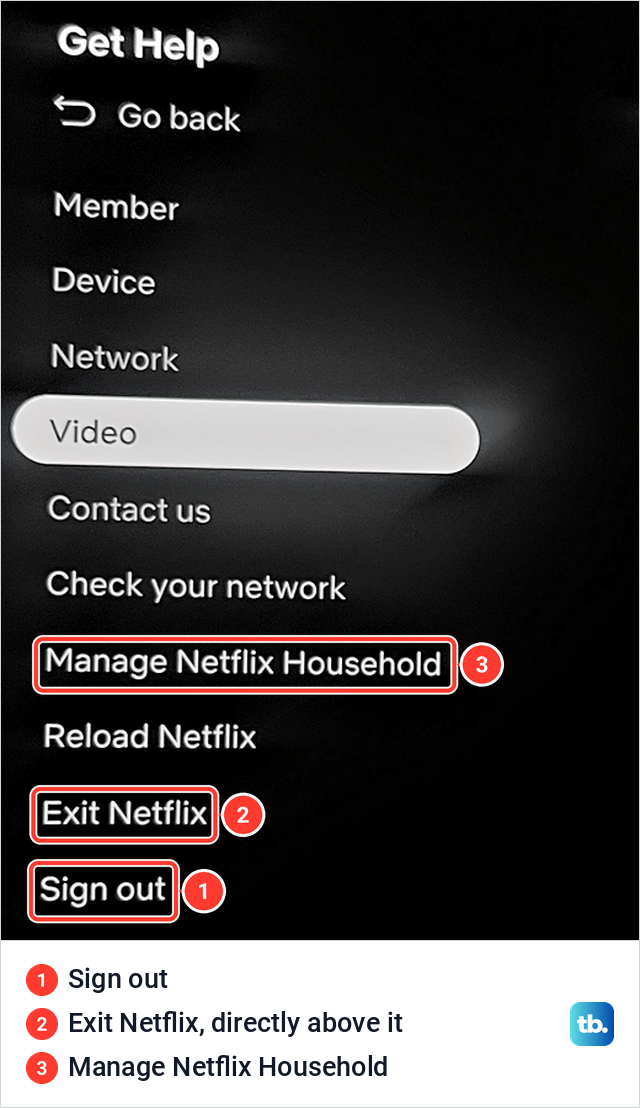
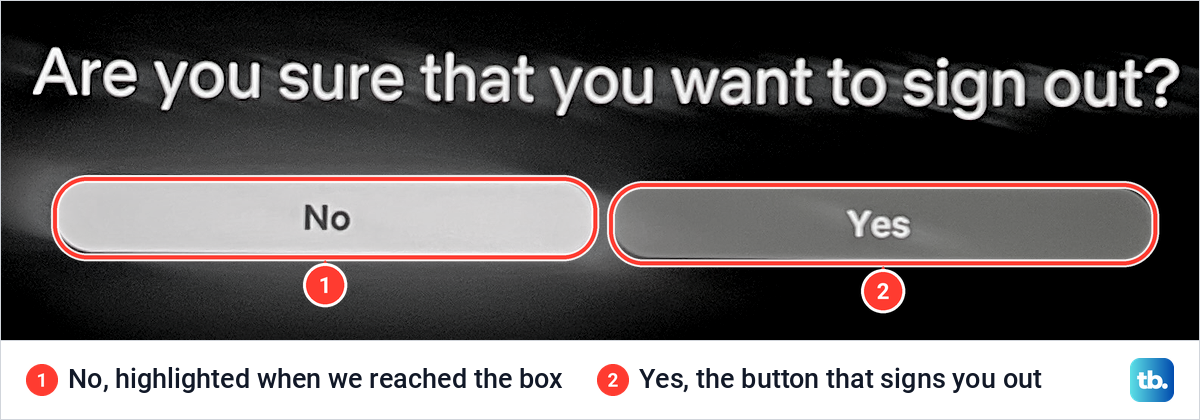
Select Sign out. When we did, Netflix asked "Are you sure that you want to sign out?" with two buttons, No and Yes.
No was the highlighted button on our screen, so pressing select straight away would choose No. Move right to Yes and press select to finish.
After Yes, the TV no longer holds your account, and Netflix asks for a sign-in the next time anyone opens it there. To sign back in later, Netflix offers a QR code for your phone's camera, netflix.com/tv2 on a phone or computer, or Use Remote.
If Get Help or Sign out is missing
Netflix's first fallback is in the same menu. If you do not see Get Help, go up and select Settings, then Sign out. Netflix gives that note on its Samsung, LG, Roku, TCL and Google TV pages.
If neither Get Help, Settings nor Sign out shows up, use the remote sequence from the Netflix home screen. Press Up, Up, Down, Down, Left, Right, Left, Right, Up, Up, Up, Up on the direction pad.
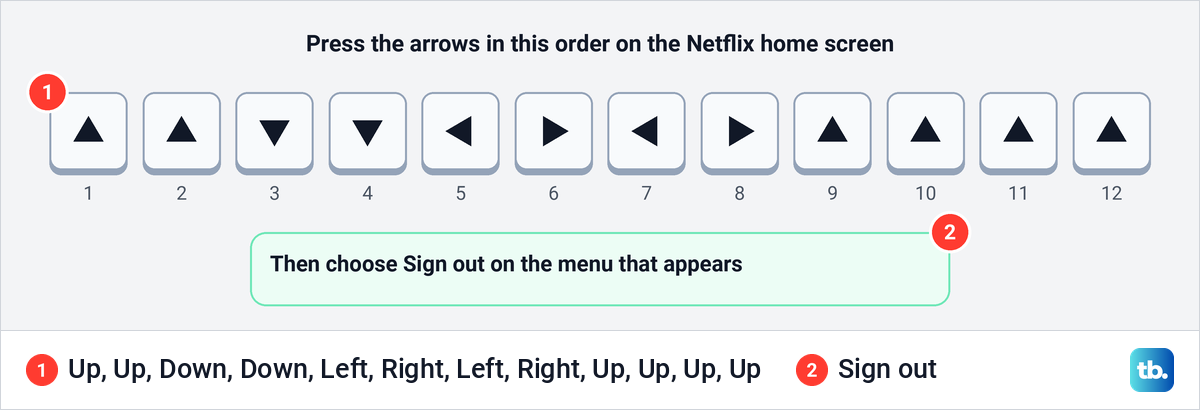
A menu then appears. Netflix's pages for Samsung, LG, Roku, TCL and Google TV list four options, Sign out, Start Over, Reset and Deactivate, while its general TV page lists three and leaves out Start Over. Pick Sign out, or Deactivate if Sign out is not listed.
Netflix says the sequence also works while you are signing in on a Samsung TV. That makes it the way to start over, or switch to a different email address, partway through a sign-in.
If the TV is stuck on a Netflix error screen, select More Details, then Sign out or Reset. Netflix then suggests signing back in and trying again. If you are signing out because the app keeps failing, it is one step of several to reset Netflix on a smart TV.
Sign out of a TV you cannot reach
A TV you left at a holiday rental, a hotel or an old home can be signed out from any phone or computer, as long as your subscription is active. Open Manage Access and Devices in a browser and sign in to your account if asked.
Find the TV in the list. Netflix shows the device type, the last profile that streamed on it and the last watched date and time, which helps you tell two TVs apart.
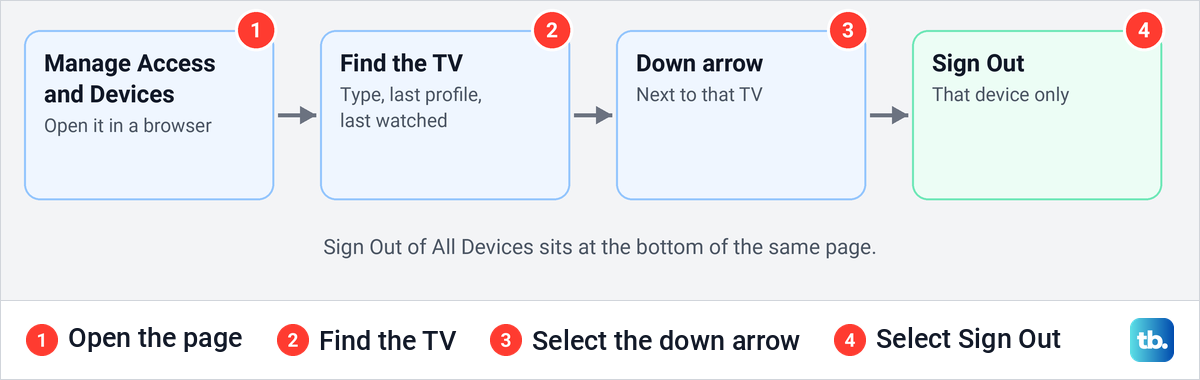
Select the down arrow next to that TV, then Sign Out. Only that device is signed out, and your other devices stay signed in.
The list is not always complete. Netflix says a device can take up to 48 hours to appear, and devices that have not been active in the last 90 days, or have only been used for Netflix games or Tudum, are not shown. Netflix's Sign Out of All Devices covers every device signed in to the account, so use it when the TV is not listed.
Signing out inside the Netflix app on your phone is different. From My Netflix, the profile name and Sign Out, it signs out the phone in your hand, not the TV.
Sign out of every device at once
At the bottom of Manage Access and Devices, select Sign Out of All Devices, then Sign Out to confirm. Every TV, phone and browser on the account is signed out, and each one has to be signed in again.
Use it when you cannot tell which device is which, or after a stay somewhere you no longer trust. If you want every phone, laptop and TV off the account in one go, our guide shows how to sign out of Netflix on all your devices, including the password-change route.
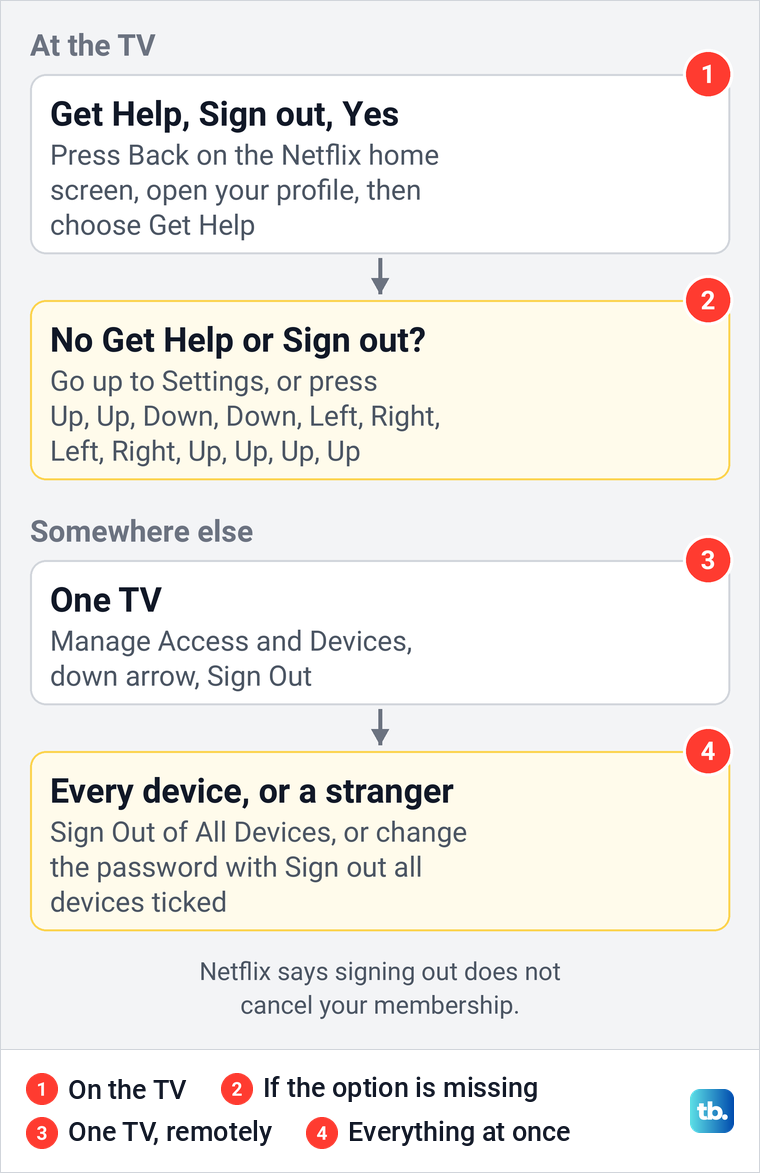
If someone else knows your password, signing out alone is not enough, because they can sign straight back in. Netflix's advice is to change the password and leave the Sign out all devices box ticked before you select Save. If the email or password on the account has already been changed, follow what to do if your Netflix account was hacked.
Log out of Netflix on a Samsung TV or smart monitor
Netflix's Samsung instructions use the same Get Help path described above, with the Settings fallback and the remote sequence behind it. Samsung's smart monitors carry the Netflix app too, and our G9 shows the same Get Help, Sign out and Yes steps that Netflix's Samsung instructions describe.
Get Help also lists Check your network and Reload Netflix. If you are signing out to fix a fault, our guide to Netflix not working on a Samsung TV covers the other fixes to try.
Samsung adds two heavier options of its own. Samsung says deleting or reinstalling a third-party app signs you out of it, so have your Netflix password ready first. If Delete is greyed out for Netflix, Samsung says to select Reinstall instead. Here is how to delete apps on a Samsung smart TV and put Netflix back afterwards.
The second is Reset Smart Hub. Samsung says it signs you out of your Samsung account and all of your apps, and removes every app that was not preinstalled. Samsung asks you to have the current login details for all of your app accounts ready before you start. Use it only when Netflix will not open at all.
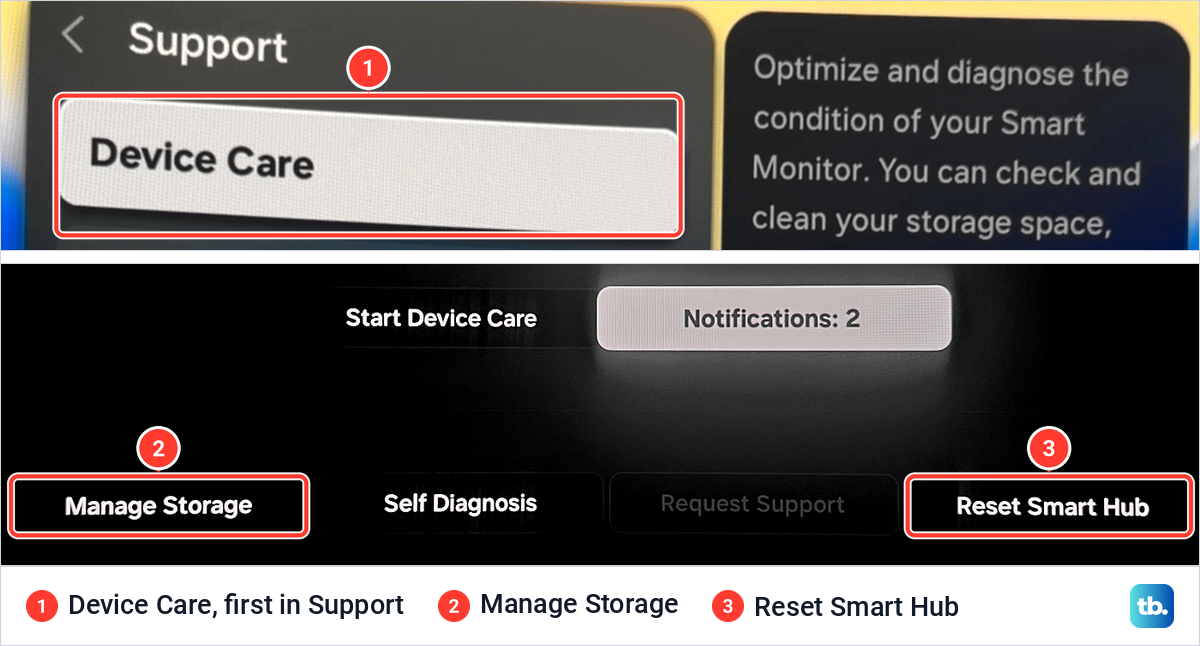
On our G9, Reset Smart Hub sits on the Device Care screen itself, under Settings > All Settings > Support > Device Care, next to Manage Storage and Self Diagnosis. Samsung's Australian instructions give that path for 2025 TVs. If Reset Smart Hub is not on your Device Care screen, open Self Diagnosis: Samsung's US page puts it there for TVs from 2019 on, and its Australian page does for 2016 to 2024 models.
Samsung asks for the TV's PIN, which is 0000 by default. Switch to Live TV or an HDMI input first, because Samsung says the reset will not run from inside Smart Hub or an app.
Clear Data is Netflix's sign-out route on Fire TV and on the Sony Google TV its help page describes, so it is tempting to try it in Samsung's Manage Storage too. On our G9, Clear Data was greyed out for Netflix even though it held 11.62 MB of data, while the same button was available for SmartThings. Netflix's cache read 0.00 KB, which is why its Clear Cache button was grey as well.
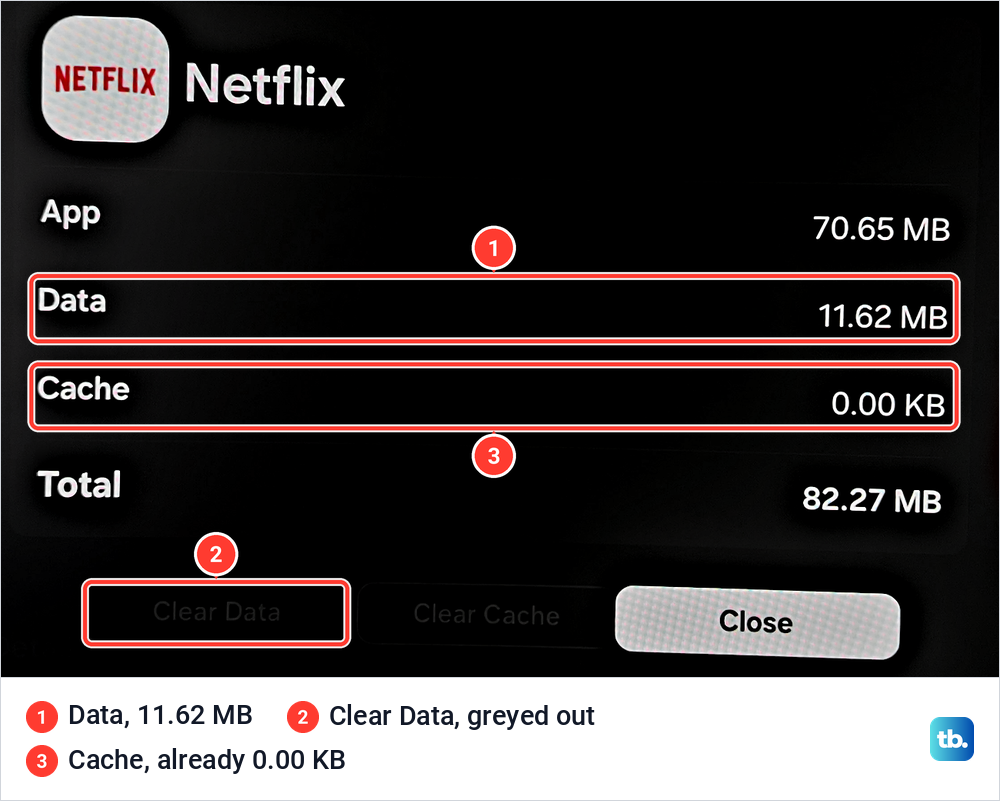
So on a Samsung screen, sign out from Netflix's own menu rather than counting on Manage Storage. Our guide on how to clear the app cache on a Samsung smart TV explains what each of those buttons removes for the apps that allow it.
Log out of Netflix on an LG TV
Current LG TVs use the standard path: Back, your profile, Get Help, Sign out, Yes. Netflix's LG page still lists three older home screens, and the menu to use depends on which option you see.
With Premium on screen, select Premium Apps, then Settings if it appears, then Options and Netflix Deactivate. Netflix notes that you may need the green button with two dots on the remote for the Options step.
With Netcast, select Netcast, then Setup, Service Maintenance and Netflix Deactivate, then OK. If Service Maintenance is not there, use the Setup steps. With Setup, select Setup, then Network, Netflix, Deactivate Netflix and YES. If none of those appear, Netflix sends you back to Get Help.
Log out of Netflix on Roku
Netflix's Roku page gives the standard Get Help path, with the same Settings fallback and remote sequence, for every Roku player except the Roku 2. Its Roku TV page gives the same path for Roku TVs from Haier, Hisense, Insignia, Sharp and TCL.
On a Roku 2, press Home, highlight the Netflix app and press the star key on the remote. Select Remove channel, then Remove channel again to confirm, and Netflix says the player is deactivated. It works the same way you remove apps from your Roku, and you restore Netflix from Streaming Channels > Movies & TV > Netflix.
Netflix's pages disagree about TCL Roku TVs. Its Roku TV page gives the usual Get Help path, while its TCL page says to press Back, select the Gear icon on the right, then Sign out and Yes. Try Get Help first and look for the gear if it is not there.
Log out of Netflix on Fire TV and Google TV
Netflix's general TV steps, the Get Help path, are written for any TV or streaming media player, so try them first on Amazon Fire TV. Netflix's Fire TV page adds a route that starts outside the app. From the home screen, go to Settings > Applications > Manage All Installed Applications, select Netflix and choose Clear Data, which Netflix describes as disconnecting the device from your account.
Hisense Google TVs use the standard Get Help path. Netflix's Google TV page also gives a Clear Data route for the Sony Google TV it describes, the set with a wireless keyboard remote: press Home, go to All Apps > Settings > Applications > Manage Applications, select Netflix, choose Clear Data and press OK. The same page says first- and second-generation Google TV devices made between 2012 and 2014 are no longer supported. Other Sony TVs follow the Get Help path.
Log out of Netflix on Apple TV, PlayStation and Xbox
Netflix runs on Apple TV HD (4th generation) and later. Press Back, which Netflix's Household page calls the Menu button on an Apple TV, then go left to your profile icon, select Get Help, then Sign out and Yes.
If you cannot reach Get Help, Netflix says deleting the app also signs you out. Highlight Netflix on the home screen, hold the center of the touch surface or clickpad until it wiggles, press Play/Pause and select Delete, then reinstall it from the App Store.
On PlayStation 4, PlayStation 4 Pro and PlayStation 5, open Netflix, press O, select the gear icon, then Sign Out and Yes. On a PlayStation 4, if that does not work, delete Netflix from the TV & Video section with the Options button.
On an Xbox One or Xbox Series X or S, pressing B in the Netflix app opens the Netflix menu. Go left to your profile icon, then select Get Help, Sign out and Yes, or use More Details on an error screen.
What signing out does and does not do
Signing out removes your account from that one screen. It does not stop the billing: Netflix says signing out or deleting the app does not cancel your account, so to stop paying you have to cancel your Netflix subscription from the account page.
Profiles belong to the account, not the TV. Each one keeps its own My List, ratings, viewing activity and settings, and Netflix's own fix for a profile setting that has not updated is to sign out of the device and sign back in. If your viewing activity is what you wanted gone, delete your Netflix viewing history instead.
A sign-out removes the whole account from that TV, not one profile. Switch Profiles changes who is watching and keeps the account signed in. If you share the TV and only want your own profile kept private, lock your profile with a PIN instead of signing out.
For a "Too many people are using your account" message, Netflix's fix is to stop Netflix on another device and wait 5 to 10 minutes, or upgrade to a plan that allows more devices to watch at the same time. If Netflix keeps signing you out when you did not ask it to, that is a different problem, covered in our guide for when Netflix keeps kicking you out.
Netflix Household and TVs you left behind
Netflix ties an account to a Household, the devices connected to the internet at the main place you watch. You update it from a TV through Get Help or Settings and then Manage Netflix Household, which sat three items above Sign out in the list on our G9.
A forgotten TV can get in the way. Netflix says a device still signed in from a hotel stay or someone else's home can stop a Household update, and the fix is to sign out of devices you do not recognize or sign out of all devices.
If you host guests and find someone else's account stuck on a Household screen, look for Sign Out on that screen. Netflix's Household screens offer it alongside Join Now when a verification code fails or the code limit is reached.
How we tested this guide
We photographed every Netflix screen shown here on our Samsung Odyssey OLED G9, a smart monitor that runs the same Tizen software as Samsung's smart TVs, using its Samsung remote. That covers the menu under the profile, the Get Help list, the sign-out confirmation, and Netflix in Device Care and Manage Storage.
What happens after Yes, and the steps for other TVs, streaming players, consoles and the Netflix website, follow Netflix's Help Center. The Samsung app, Reset Smart Hub and PIN details follow Samsung's support pages.
Frequently Asked Questions
How do I log out of Netflix on my TV without the remote?
Use a phone or computer. Open Manage Access and Devices on Netflix, select the down arrow next to the TV and choose Sign Out, or choose Sign Out of All Devices at the bottom of the page.
Does signing out of Netflix delete my profiles?
No. Profiles belong to your Netflix account, not to the TV, and each keeps its own My List, ratings and viewing activity. Signing out only removes the account from that one screen.
Can I log out of just my profile on a TV?
No, a sign-out takes the whole account off that TV. Use Switch Profiles to change who is watching, and add a Profile Lock PIN if you want your profile kept private.
Does logging out of Netflix cancel my membership?
No. Netflix says signing out of your account or deleting the app does not cancel it, so you keep paying until you cancel your membership from your Netflix account.
Why is my TV missing from Manage Access and Devices?
Netflix can take up to 48 hours to list a device. It also leaves out devices that have not been active in the last 90 days, or have only been used for Netflix games or Tudum. Sign Out of All Devices covers every device signed in to the account, so use it if the TV is not listed.
I forgot to log out of Netflix at a hotel or Airbnb. What now?
Sign that TV out from Manage Access and Devices, or sign out of all devices if you cannot tell which entry it is. Netflix says a TV left signed in after a stay can also block your Household update, so do it even if you trust the place.
How do I sign back in on the TV?
Open Netflix, choose Sign in and scan the QR code with your phone's camera. You can also go to netflix.com/tv2 on a phone or computer, or netflix.com/atv for Apple TV, or switch to Use Remote and ask for a sign-in link or type your password.
Why does Netflix say too many people are using my account?
Other devices on your account are already watching. Netflix's fix is to stop playing or close the app on one of them, then wait 5 to 10 minutes before you try again, or upgrade to a plan that allows more devices to watch at the same time.