

If your Samsung TV is not connecting to Wi-Fi, run Network Status under Settings > All Settings > Connection > Network, or General > Network on some older models, to see where the connection breaks, then restart the TV and router in order and rejoin with the correct password. An X between the TV and the router points to the TV or your home Wi-Fi, such as the password, signal, band or a router setting.
An X between the router and the internet points to the link between your home network and your provider. If other devices on the same Wi-Fi are online while the TV is not, keep working through the TV steps below before you call the provider.
The short version
- Run Network Status first: it shows whether the TV to router link or the router to internet link failed.
- Restart in order: hold Power on the remote for a cold boot, then power cycle the modem, router and TV from the wall outward.
- Rejoin with the right password: delete the network under Manage Saved Networks and type the password again, minding capital letters.
- Network missing: check for a hidden network, your model's 2.4 or 5 GHz support, and whether the TV can see a phone hotspot.
- Last steps: Reset Network, a software update by cable or USB, a factory reset, then Samsung service.
| What you see | Check first | Next step |
|---|---|---|
| X between the TV and the router | Password, signal bars and band | Delete the saved network and rejoin |
| X between the router and the internet | Another device on the same Wi-Fi | If it works, the manual DNS step; if not, restart the modem and contact your provider |
| Wrong password message | Show password and capital letters | Delete the saved network and type it again |
| Your network is not in the list | Hidden network, 2.4 or 5 GHz support | Add Network, then the hotspot test |
| Connects, then keeps dropping | 1 or 2 bars, distance, other devices | Move the router closer, try the other band or a cable |
| Connected, but apps do not load | Smart Hub Connection Test | The guide for the app that fails |
| No networks at all, not even a hotspot | Your model's band support | Request service from Samsung |
Run Network Status first
Samsung's troubleshooting runs this test early and suggests repeating it after each later step. On current models the path is Settings > All Settings > Connection > Network > Network Status, and Samsung says some models put Network under General instead. If an error message appears, Samsung says it will tell you the best way to resolve the connection, so read it before you change anything.
Our photos come from our Samsung Odyssey OLED G9, a smart monitor that runs the same Tizen software as Samsung's smart TVs. On it, the top-level item is called Connections rather than Connection, with "Network · Bluetooth" under the name, and Network is the first row inside it.
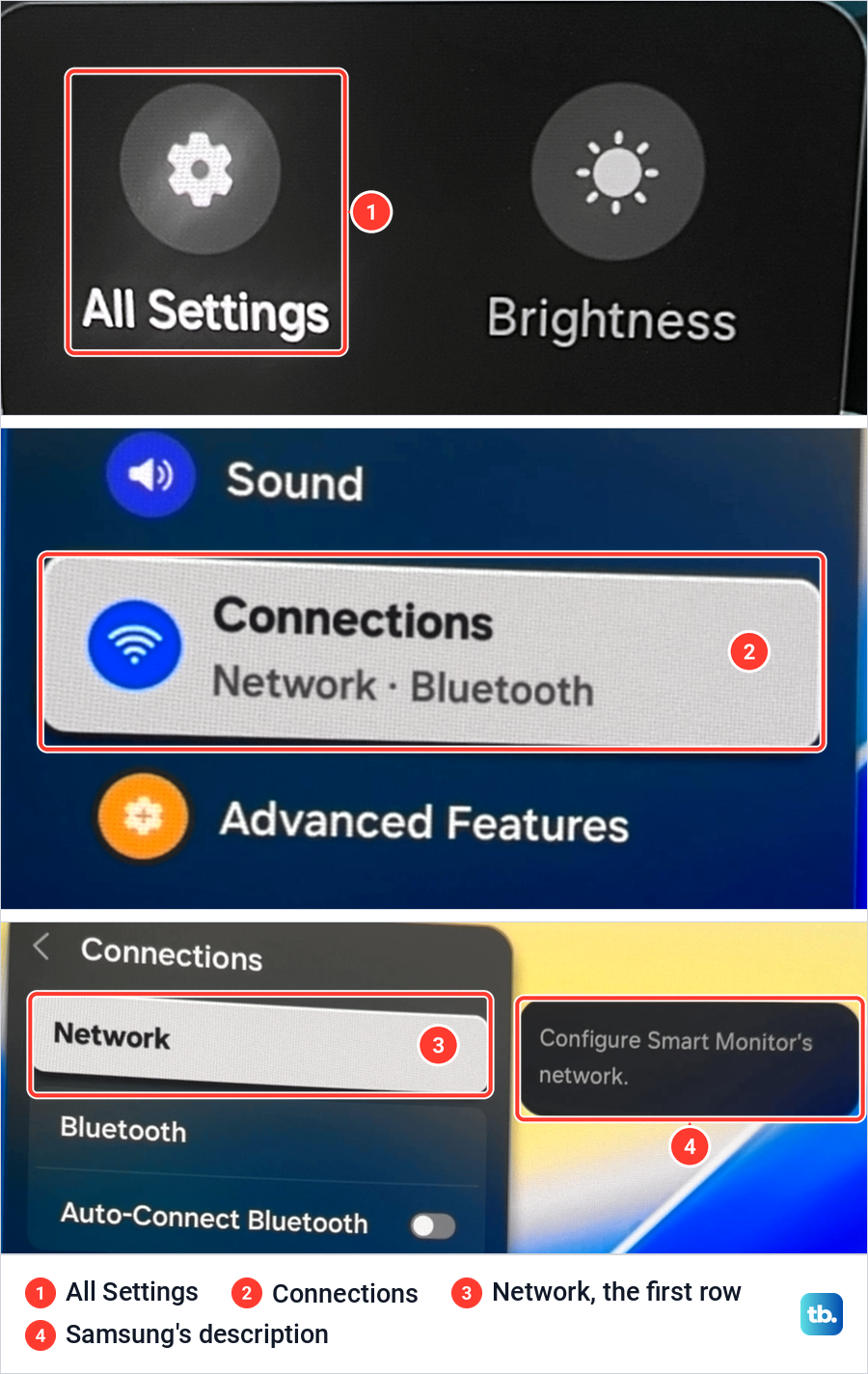
Beside that row, Samsung's note on our monitor reads "Configure Smart Monitor's network", the same job the Network menu does on a TV. Samsung's TV instructions put Network Status, Open Network Settings and Reset Network inside it, and the rest of this guide uses all three.
What the X on the Network Status screen means
The test draws your connection as a chain from the TV to the router to the internet, shown as an Earth icon. Samsung says an X between the TV and the router means the issue is with either the TV or the home network. An X between the router and the Earth icon means there is an issue between your home network and your internet provider.
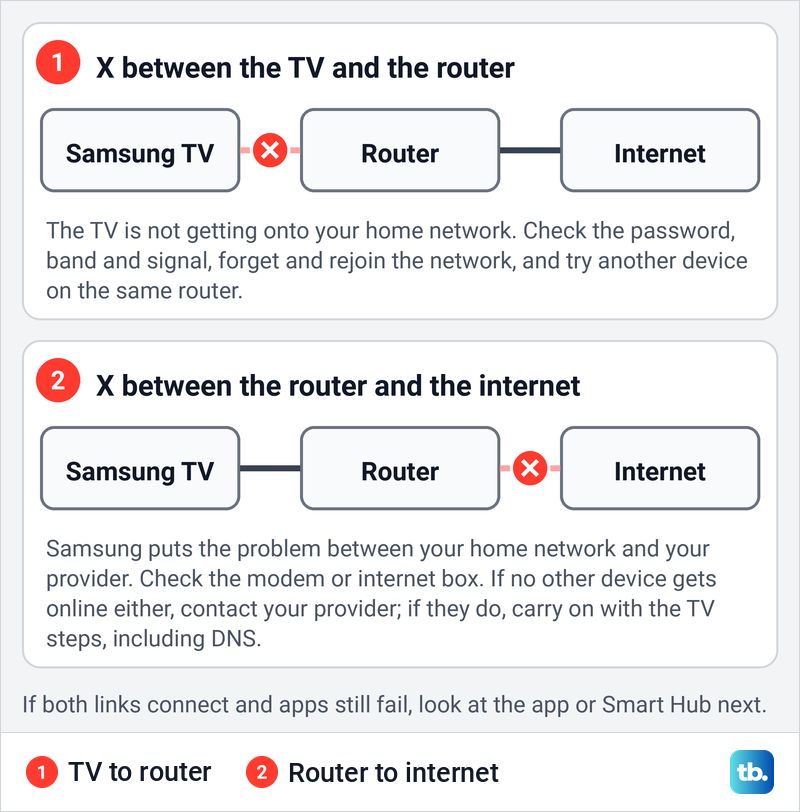
The two results call for different fixes, so do not reset the TV for a fault further up the line. For the first link, Samsung suggests connecting a different device to the router: if it connects and works, the TV side is the problem. For the second, check that your internet box is connected, and if it is, contact your provider.
A phone joined to the same Wi-Fi and held next to the TV is the easiest second device. Samsung also uses it as a rough signal check: if the phone shows only one or two bars there, the signal may be too weak for the TV as well. The TV's own signal bars, covered later, are the direct reading.
Samsung's US steps send you to the provider only when no other device on the network can get online either. If your phone works and the TV does not, carry on with the steps below, which include a manual DNS server.
Restart the TV, then the modem and router in order
A cold boot is the quickest fix and changes no settings. Samsung's method is to hold down Power on the remote until the TV turns off and on again, which Samsung says should only take about 5 seconds. Our guide on how to restart your Samsung TV also covers the unplug method for when the remote does not respond.
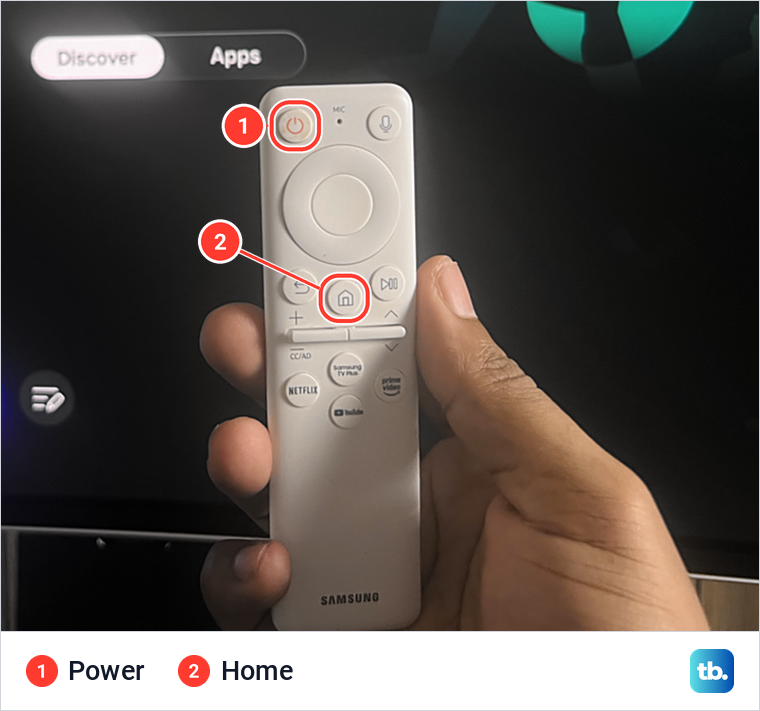
On our monitor's white Samsung remote, Power is the round key at the top left and Home is the house key under the navigation ring. Samsung's UK steps start their menu paths from Home: press it, then go to Menu > Settings > All Settings.
If the TV was on Wi-Fi before, give it a moment after it comes back on. Samsung says a TV may take some time to reconnect after powering on, and to wait 30 seconds before you check.
If the cold boot changes nothing, power cycle the whole chain. Samsung says to unplug every network device and the TV, then plug them back in starting at the wall where the internet signal comes in, letting each one finish booting before the next. In most homes that means the modem or internet box first, then the router, then each mesh unit or extender in the path, and the TV last.
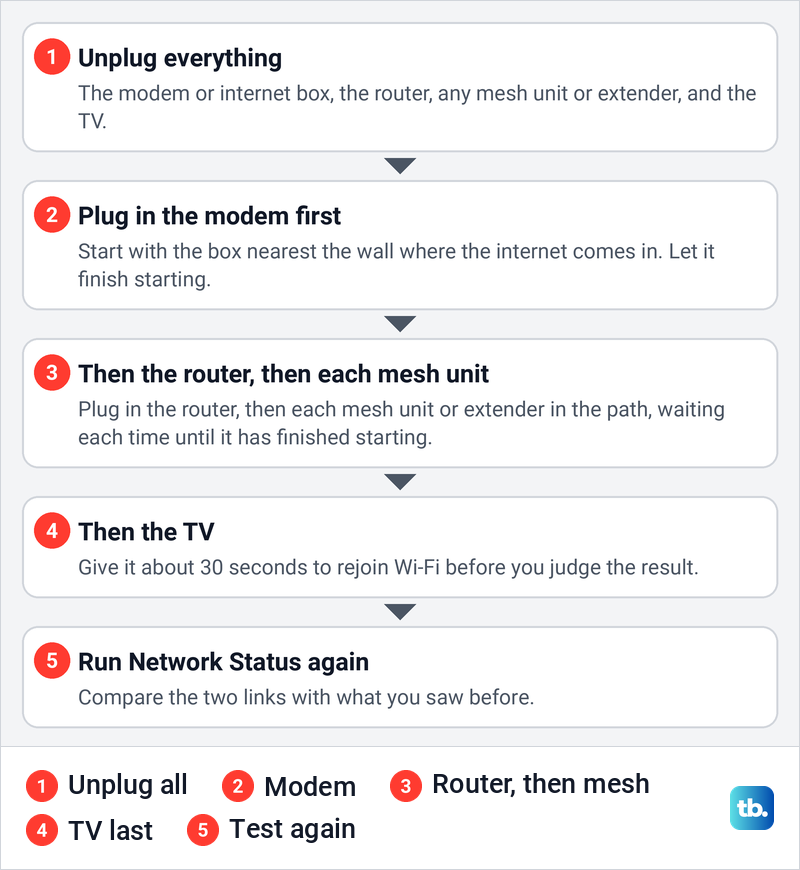
Run Network Status again once the TV is back. If the first link now connects but the second still fails, check that the internet box is connected. If no other device can get online either, call the provider; if they can, carry on with the steps below.
Check the password and forget the saved network
Samsung calls an incorrect password the most common reason Wi-Fi connections fail. When you type it on the TV, use the show password setting, because passwords are case sensitive and a stray character is easy to miss. If the router's password has never been changed, Samsung says the default is typically printed on the bottom of the router.
A TV that remembers an old password needs the saved network removed first. Samsung's path is Settings > All Settings > Connection > Network > Open Network Settings > Wireless, then scroll to the bottom of the list, select Manage Saved Networks, pick the network and select Delete. Then choose the network again from the Wireless list and type the password.
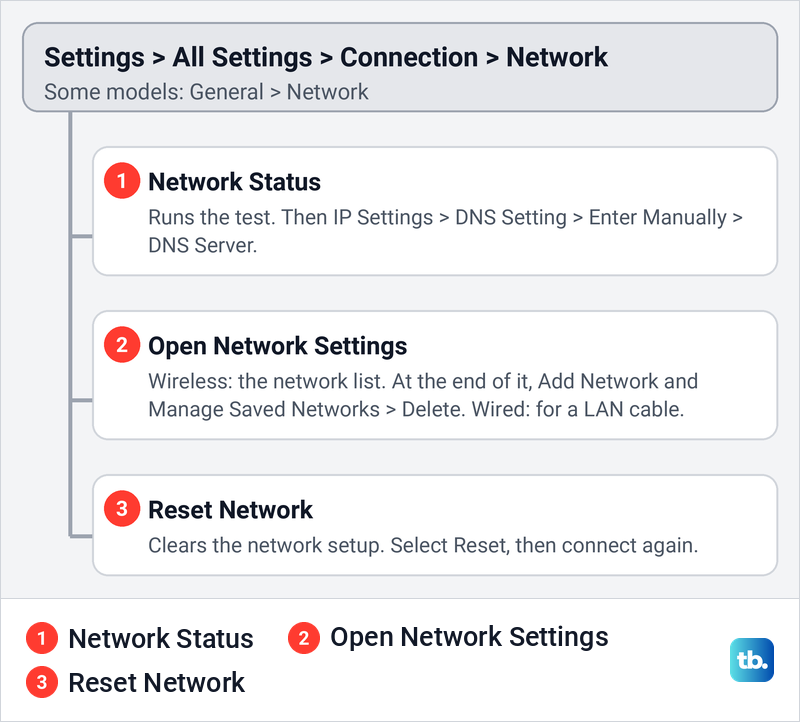
This matters most after a change. If someone recently used our steps to change your Wi-Fi router password, every saved device needs the new one, and the TV is easy to forget. Samsung also says that if a password is difficult to enter, changing it to a simpler one shows whether the old one was being typed wrong.
If your Wi-Fi network is not in the list
A network that does not appear can be hidden, on a band the TV cannot use, or too weak to show. Samsung says a hidden network can still be joined by name: scroll to the end of the list of networks, select Add Network and type the name exactly. If that fails, Samsung suggests unhiding the network while you troubleshoot and hiding it again afterwards.
Band support depends on the model. Samsung says network requirements vary between TVs and are listed in the user manual, and it names certain 2018 models (NU6***, NU71**, NU72** and NU73**) that only support 2.4 GHz and cannot detect a 5 GHz network. To check yours, find your Samsung TV model and read its specifications before you change the router.
The quickest test is a phone hotspot. Samsung says to have a phone create a network and see whether the TV detects it, and that if the TV can detect any other network, service is not required and the issue is with the network that is missing. If your TV only supports 2.4 GHz and your phone lets you choose the hotspot's band, pick 2.4 GHz before you try, because Samsung warns the test may not work with some older models.
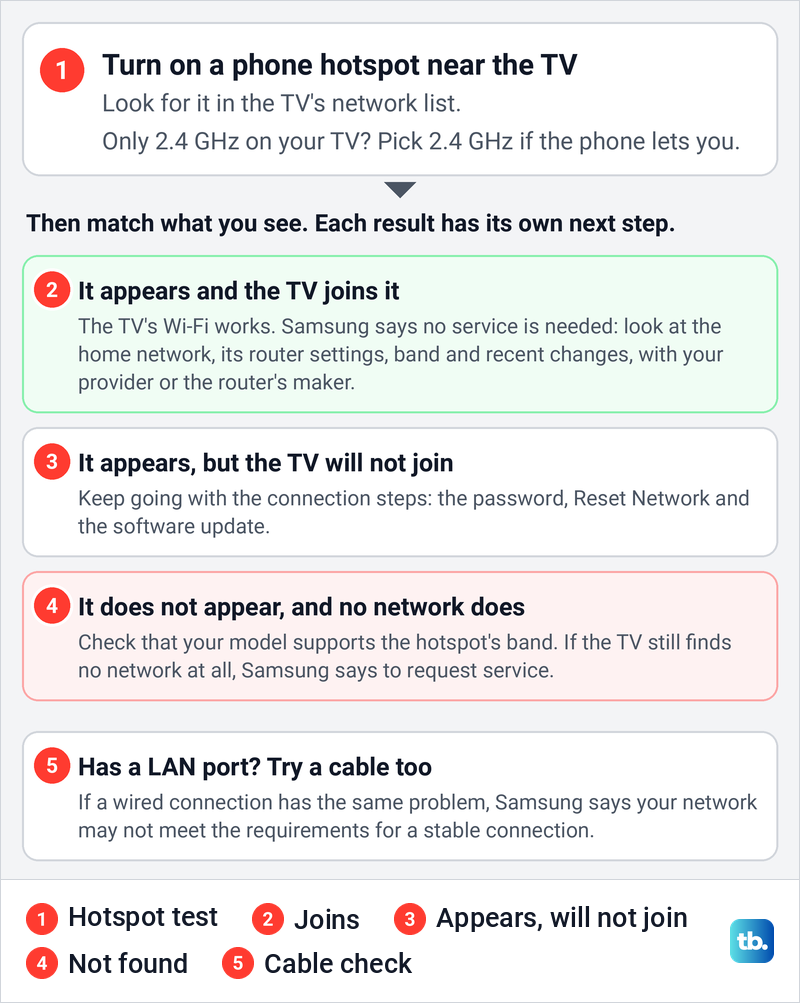
If the TV finds and joins the hotspot, its Wi-Fi is working and the fix lies in your home network, starting with the signal and router checks below. If the hotspot appears in the list but the TV will not join it, carry on with the password, Reset Network and update steps.
If the TV finds no network at all, not even the hotspot, check your model's band support first. If it still sees nothing after Samsung's steps, requesting service is Samsung's last step.
Fix a weak signal or a TV that keeps disconnecting
A connection that drops again and again often shows in the signal. Samsung says to check how many bars your network has in the Wi-Fi list, and that with only 1 or 2 bars the signal may be too weak for the TV to connect properly. A router that is far away or behind obstacles can still appear in the list without holding a stable connection.
Samsung's fixes here are physical: move the router and TV closer together, clear obstacles between them, or add a repeater. Samsung's UK support adds that 5 GHz normally offers a faster speed but not as much distance as 2.4 GHz, and says to test with both. If your TV supports both bands, join each one in turn and keep the steadier one.
Too many devices can also weaken the signal. Samsung suggests disconnecting the other Wi-Fi devices and trying the TV again, and says that if that works, you have more devices connected than your router can handle. Its answer is to upgrade the router or connect fewer devices at once.
A cable avoids the radio link entirely if your TV has a LAN port. Connect it, then go to Open Network Settings and select Wired. Samsung's UK support says Ethernet usually offers more stable and faster speeds than Wi-Fi, and that if the same issues appear over a LAN cable, your network may not meet the basic requirements for a stable connection.
Check the router when another network works
If the TV joins a hotspot but not your home Wi-Fi, look at what is different about the router. Samsung says the default router settings are fine in most cases, but if the TV lost its connection right after a router change, that change is likely the cause and should be changed back. To compare settings, open your router settings from a phone or computer that is already on that network.
Samsung's support page for Ukraine lists router settings for a TV whose Wi-Fi keeps dropping: channel 6 on 2.4 GHz, channel 44 on 5 GHz, WPA2-PSK security with AES encryption, and DHCP switched on. Treat those as a compatibility test rather than a rule for every set, and check your TV's manual for the security types it supports. If your router allows it, set up a guest Wi-Fi network for the test so the rest of the home keeps its own settings.
If the router came from your internet provider, Samsung says to ask them for help; otherwise ask the router's maker. If either tells you to start over, read how to reset a router without wiping its setup first, so you know whether the button you press restarts it or erases it.
Check the clock and try another DNS server
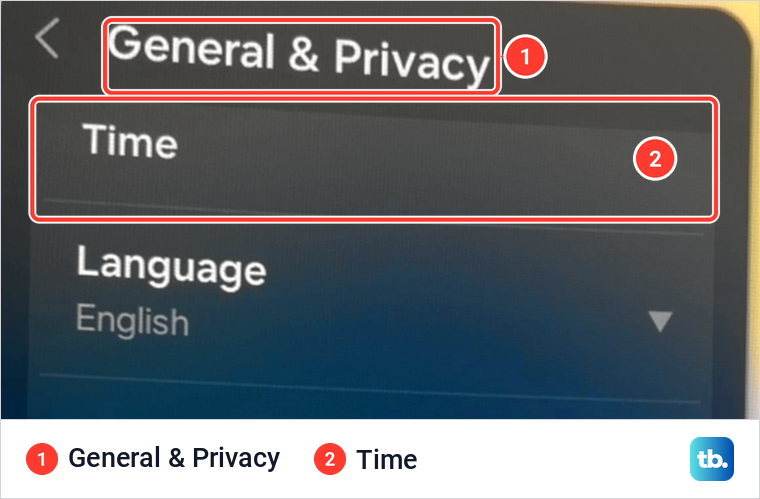
Samsung's UK support says an incorrect date and time on your Samsung TV can lead to Wi-Fi issues, and to make sure the time is correct or Clock Mode is set to Auto. Its path is Settings > All Settings > General & Privacy > System Manager > Time > Clock. Our monitor has no System Manager step: Time sits directly in General & Privacy, just above Language.
Samsung lists a manual DNS server as a later step for a TV that will not connect, after you have checked that other devices on the same network can get online. If none of them can, Samsung says to contact your provider instead.
The US path is Settings > All Settings > Connection > Network > Network Status > IP Settings, then DNS Setting > Enter Manually and DNS Server. If your remote has no number keys, pick each digit from the number selector on screen, then select Done.
Samsung's US steps say to enter 8.8.8.8 in that DNS Server field and try connecting again. If nothing changes, put DNS Setting back the way it was, because the fault lies somewhere else.
The same IP Settings screen can switch the TV's own address from Get Automatically to Enter Manually. Samsung's UK support lists that as a troubleshooting step, but a wrong address cuts the TV off, so use it only with the address, gateway and DNS your router or provider gives you. Samsung's Ukraine page asks for DHCP on the router, which hands out those addresses automatically.
Reset Network before anything bigger
Reset Network clears the TV's network setup so you can connect from scratch. Samsung's path is Settings > All Settings > Connection > Network > Reset Network, then select Reset when asked. Samsung says to go back to the network settings afterwards and connect again, so have your Wi-Fi password ready.
Do not confuse it with Reset Smart Hub. Samsung says a Smart Hub reset deletes all information related to Samsung accounts, linked service accounts, Smart Hub service agreements and Smart Hub apps, so it is an app fix, not a Wi-Fi one. On TVs, Samsung's path is Settings > Support > Device Care > Self Diagnosis > Reset Smart Hub; on our monitor it sits directly in Support > Device Care, well away from the network settings.
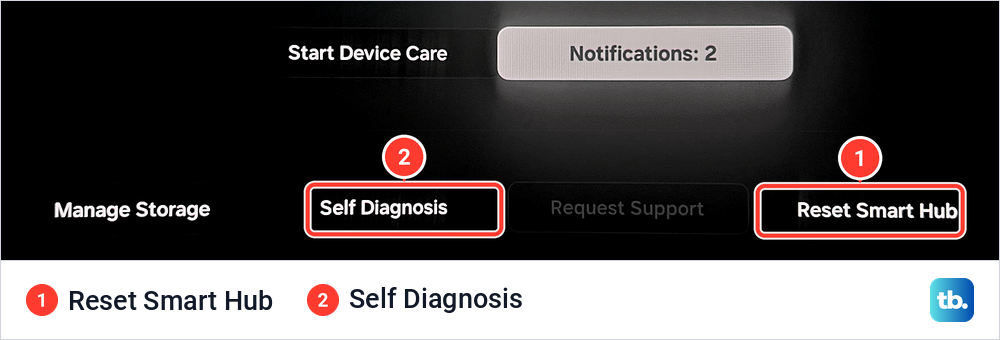
Self Diagnosis, in the same row of Device Care, holds the tests covered in the apps section below. Leave Reset Smart Hub until both Network Status links connect and apps still fail.
Update the TV software without Wi-Fi
Samsung lists a software update among its Wi-Fi fixes, which is awkward when the TV cannot get online. If your TV has a LAN port, a cable gives it the connection it needs for Settings > All Settings > Support > Software Update > Update Now. Samsung says not to turn the TV off until the update is complete, and that it restarts automatically when it finishes.
On our monitor, Software Update sits in Support, three rows below Device Care. That is where Samsung's TV steps send you for both the online update and the USB update.
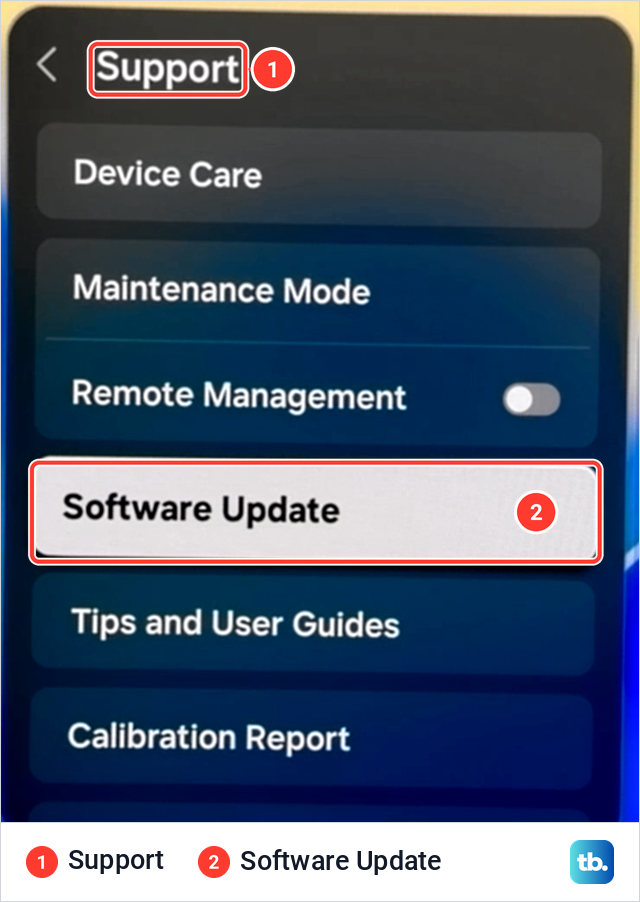
Without a cable, use a USB drive. Download the file for your exact model from Samsung's Download Center or your country's Samsung site, unzip it, and copy all the files to an empty FAT32 drive without putting them inside another folder. Plug the drive into the TV, select Support > Software Update > Update Now and Yes if asked, and wait for the TV to reboot before you remove the drive.
When the TV is online but apps still fail
If Network Status connects both links and apps still will not load, the fault is past your Wi-Fi. Samsung's Smart Hub Connection Test checks your internet connection, your ISP, the Samsung server and the Apps service, and it sits in Settings > Support > Device Care > Self Diagnosis, or Support > Self Diagnosis on some models. On our monitor, the Self Diagnosis grid of 15 tests includes a Wi-Fi tile and a tile cut short as "Smart H…".
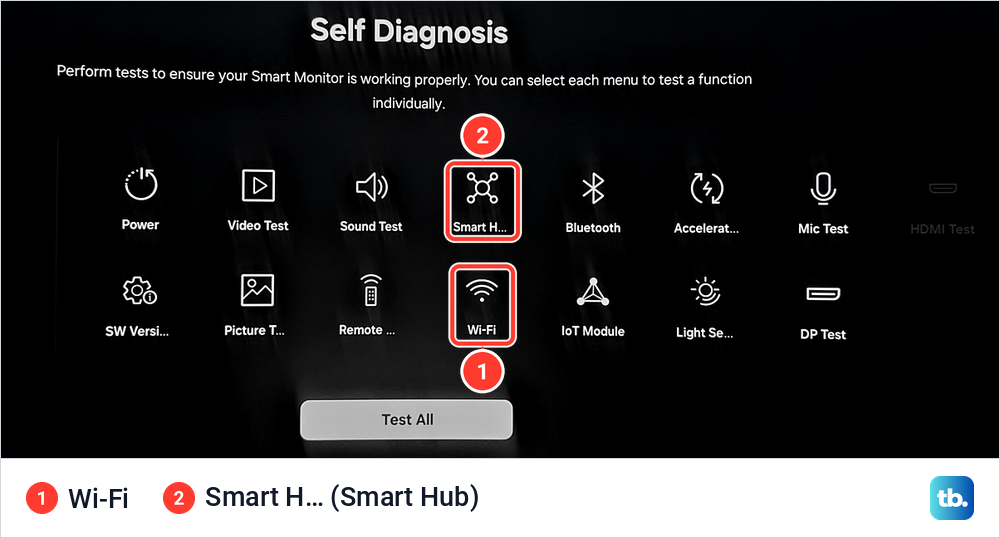
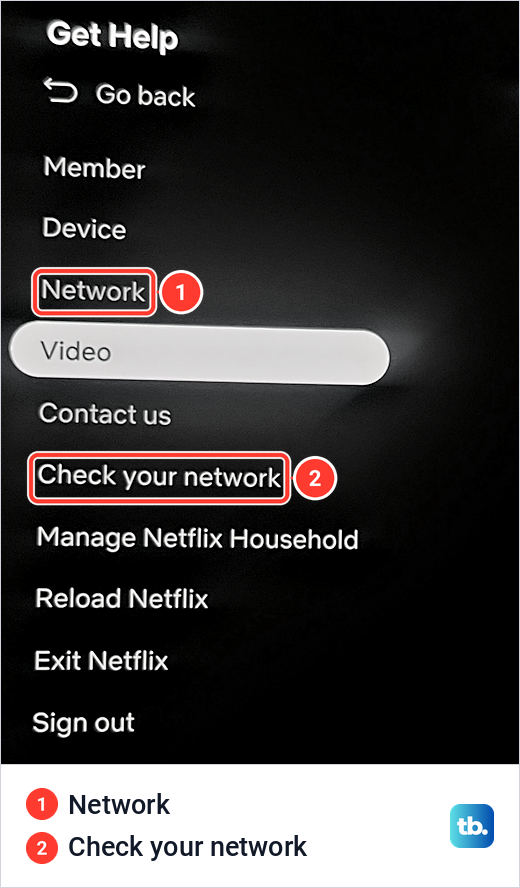
If several apps fail on a connected TV, follow our guide to fix Samsung TV apps that will not load. When only Netflix fails, start inside the app. On our monitor, Netflix's Get Help screen lists Check your network a few rows below Network, and our steps to fix Netflix on a Samsung TV cover what to do after that.
Error codes and when to contact Samsung
Samsung's Wi-Fi support pages do not give TV network error codes one fixed meaning. Its UK page for Disney+ links error 102 to a wireless internet connection that is not available, often because of the router, but that page covers one app. For codes such as 101, 107 or 012, read the whole message on screen and run Network Status, which tells you which link failed.
One message has its own steps. If the TV says its MAC address has failed, Samsung says to factory reset the TV under Settings > All Settings > General & Privacy > Reset with your PIN, which is 0000 by default, and to request service if the MAC address fails again.
A factory reset is also Samsung's last software step for ordinary Wi-Fi trouble, and Samsung's UK support says it removes all downloads and resets all settings. Follow our guide to factory reset a Samsung TV and keep your Wi-Fi password at hand, because Samsung's US page says network settings are kept while its UK page says you will need to reconnect.
After that, Samsung suggests asking your provider or router maker for help, and if they find the TV is the source, requesting service through Samsung's Support Center or your country's Samsung site. The same applies if the TV detects no networks at all after the hotspot test.
How we tested this guide
Our photos come from our Samsung Odyssey OLED G9, a smart monitor that runs the same Tizen software as Samsung's smart TVs, and its white Samsung remote. On it we opened All Settings, Connections, General & Privacy, Support, Device Care, Self Diagnosis and Netflix's Get Help screen to show where each setting lives and what it is called on that screen.
Network Status, the Wi-Fi list, saved networks, IP and DNS settings, Reset Network, the power cycle, the update and the service steps follow Samsung's own support pages for TVs. Where Samsung's TV menus use a different name from our screen, such as Connection for Connections, we give Samsung's wording.
Frequently Asked Questions
Why will my Samsung TV not connect to WiFi when my phone does?
Hold the phone next to the TV on the same network and run Network Status on the TV. An X between the TV and the router while the phone works points to the password, band, signal or the TV's saved network. If the TV also joins a phone hotspot, check the router settings next.
What does the X between my TV and router mean?
Samsung says the issue is with either the TV or the home network. Check the password, the signal bars and the band, then delete the saved network and join it again.
Why does my TV say connected to WiFi but have no internet?
An X between the router and the internet points to the link between your home network and your provider. Check another device on the same Wi-Fi and restart the modem and router, and if nothing gets online, contact your provider. Samsung's manual DNS step is for a TV that stays offline while other devices on the same network work.
Why is my Samsung TV not finding my WiFi network?
The network may be hidden, on 5 GHz for a model that only sees 2.4 GHz, or too weak at the TV. Use Add Network for a hidden name, check your model's band support and try a phone hotspot.
Why does my Samsung TV keep disconnecting from WiFi?
One or two signal bars, distance, walls and too many connected devices can all make the link unstable. Move the router closer, try the other band, disconnect other devices, or use a cable if the TV has a LAN port.
What does Samsung TV error 107 or 012 mean?
Samsung's Wi-Fi support pages do not give these codes one fixed meaning. Read the full message on screen and run Network Status to see which link failed.
Can I update a Samsung TV without WiFi?
Yes. Use a cable if the TV has a LAN port, or download your model's file from Samsung, copy it to an empty FAT32 USB drive and select Update Now under Support > Software Update.