

When a Samsung TV keeps buffering, first find out whether one title, one app or every app pauses, then run Network Status and measure the download speed on the TV itself. Compare that speed with what the streaming service asks for. If it falls short, improve the Wi-Fi signal, try Ethernet, pause other downloads and restart the modem and router before you touch an app's cache, the TV's software or DNS.
A phone speed test beside the sofa does not tell you what the TV receives, because the TV has its own Wi-Fi radio, its own position and sometimes its own band. If the menus and the remote are slow even when nothing is playing, follow our guide to fix a slow Samsung TV as well, and keep going with the network checks below if video still pauses to load.
The short version
- If only one app pauses, try another title and another app before you change anything on the network.
- Run Settings > All Settings > Connection > Network > Network Status for the connection, then test speed in Netflix's Check your network or at Fast.com in the TV's browser.
- Compare the result with the service's own figure, for example 15 Mbps for Netflix in 4K and 20 Mbps for YouTube in 4K.
- Try the other Wi-Fi band or a cable, pause other heavy traffic, and restart the modem and router.
- Only then cold boot the TV by holding Power for about 5 seconds, clear one app's cache or update the software.
Tell buffering from a slow TV
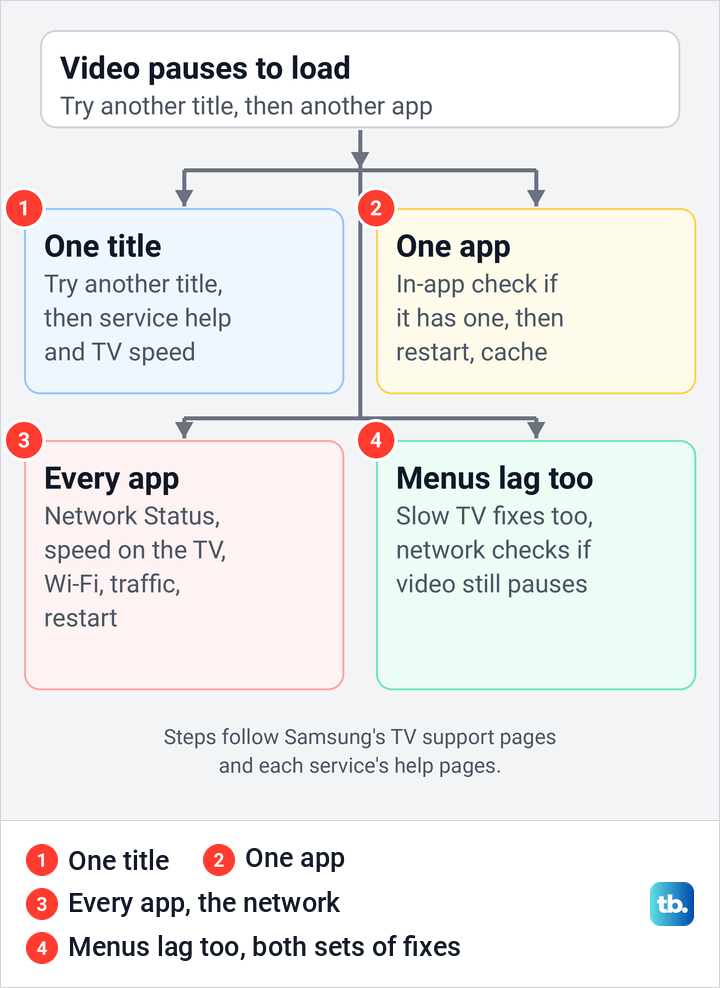
Buffering means the video stops to load while the rest of the TV still answers the remote. Before you change a setting, notice how far the problem reaches.
| What you see | Check on the TV | First action |
|---|---|---|
| One title keeps pausing | Play another title in the same app | If the first title still pauses, check the service's help and the TV's speed |
| One app keeps pausing | Play a video in a different app | Run an in-app network check if the app has one, then restart the app or clear its cache |
| Every streaming app pauses | Network Status, then a speed test on the TV | Improve the Wi-Fi signal and pause other traffic |
| Network Status shows an error | Read the message it gives | Repair the Wi-Fi or router connection first |
| Pauses only at busy times | Repeat the speed test with other devices idle | Check router settings and your plan with the provider |
| Menus and the remote lag too | Open Home and Settings with no video playing | Follow the slow TV fixes as well, and keep the network checks if video still pauses |
In its troubleshooting for the Apple TV app, Samsung first suggests trying a video in a different streaming app, such as YouTube or Netflix. If the other app plays smoothly, the network is probably fine and the fault sits with the first app or its service.
Check the TV's network connection
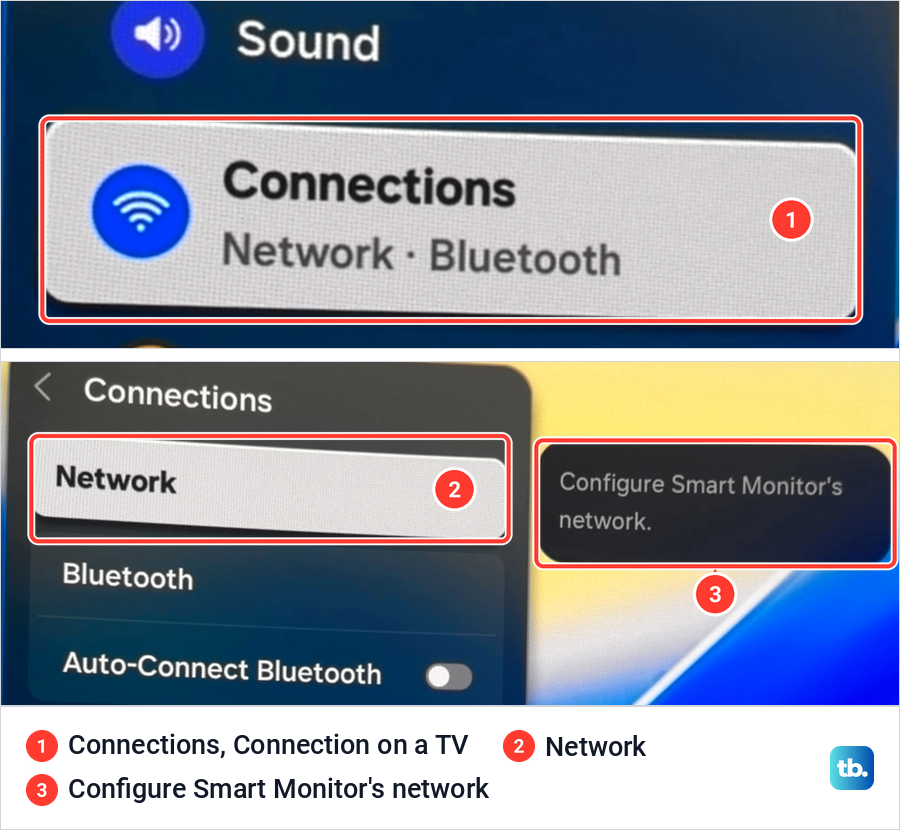
Network Status is Samsung's test of the link between the TV and the internet. Samsung's path is Settings > All Settings > Connection > Network > Network Status, and on some models you open General first and then Network. If an error message appears, Samsung says it will tell you the best way to resolve the connection.
The photos here come from our Samsung Odyssey OLED G9, a smart monitor that runs the same Tizen software as Samsung's smart TVs. Samsung's TV pages call the category Connection, and our monitor shows the same item as Connections, with Network as its first row and the note "Configure Smart Monitor's network".
Treat Network Status as a pass or fail for the connection, not as a speed reading. A TV can be connected and still receive too little bandwidth for smooth video. If Network Status cannot reach the internet at all, first restore your Samsung TV Wi-Fi connection, then come back to the speed checks.
Measure download speed on the TV
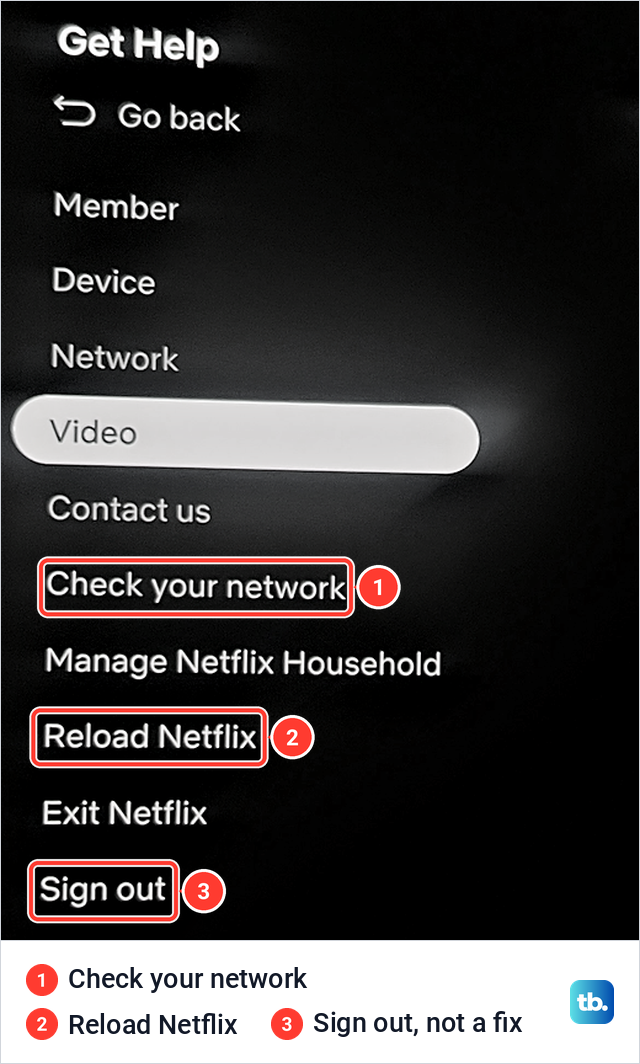
Run the speed test on the TV right after a pause. Netflix has a test built into its app. From the Netflix home screen, press Back to reach the menu, then go to your profile icon, select Get Help and then Check your Network, or find Get Help at the bottom when the menu sits on the left. If Get Help is missing, Netflix says to go up and select Settings.
Netflix says the app then checks that it can reach the internet and Netflix, and measures your connection speed. On our monitor, Netflix's Get Help screen listed Check your network above Manage Netflix Household, Reload Netflix, Exit Netflix and Sign out, so it is easy to land on the wrong row.
For a test that does not depend on one app, Samsung's own advice is to open the web browser on your TV and go to Fast.com to check your network speed. Type the address into the browser and wait for the large number to settle. That number is what the TV receives over its current connection.
If a phone is fast on the same network but the TV cannot get online, troubleshoot TV internet when your phone works. If only Netflix fails while other apps play, use the steps to fix Netflix on your Samsung TV instead of reworking your whole network.
Compare the speed each service asks for
There is no single speed for every app, so compare your reading with the service's own figure, listed below with Samsung's figure for the Apple TV app. Each describes a steady connection, not a promise that video never pauses.
| Service | Published speed | What the figure means |
|---|---|---|
| Netflix | 3 Mbps for 720p, 5 Mbps for 1080p, 15 Mbps for 4K | Stable speed recommended for each quality |
| YouTube | 2.5 Mbps for 720p, 5 Mbps for 1080p, 20 Mbps for 4K | Approximate sustained speed for each format |
| YouTube on a TV | 7 Mbps for HD | Minimum in YouTube's TV video troubleshooting |
| Prime Video live | 1 Mbps for SD, 5 Mbps for HD | Minimum download speed for live streams |
| Apple TV app | 5 Mbps for HD, 25 Mbps for 4K | Samsung's figure in its Apple TV app steps |
YouTube gives two different numbers for HD. Its general format table says 5 Mbps for 1080p, while its TV troubleshooting asks for at least 7 Mbps, so use 7 Mbps as the safer target on a TV. Other services publish their own figures.
If your reading sits above the figure and video still pauses, run the test again right after the next pause, and repeat it at the time of day when pauses happen. A number that swings points you to the Wi-Fi signal and to other devices on the network, which the next sections deal with.
Improve the Wi-Fi signal and try the other band
In the Wireless list, at Settings > All Settings > Connection > Network > Open Network Settings > Wireless, Samsung says one or two bars may be too weak for the TV to connect to the internet properly. A TV far from the router, or with walls and furniture in the way, can hold a connection that is strong enough to join but not strong enough to stay stable. Samsung's fix is to move the router and TV closer together or add a repeater.
Samsung also suggests forgetting the network and joining it again. In the same Wireless list, scroll to the bottom, select Manage Saved Networks, choose your network and select Delete, then reconnect to it from the Wireless list.
Netflix's placement advice is to move the router and the TV closer, ideally into the same room, keep the router away from other wireless devices and appliances, and keep it in the open and off the floor, on a desk or a bookshelf. Netflix says routers get better reception there. After each move, run the speed test on the TV again.
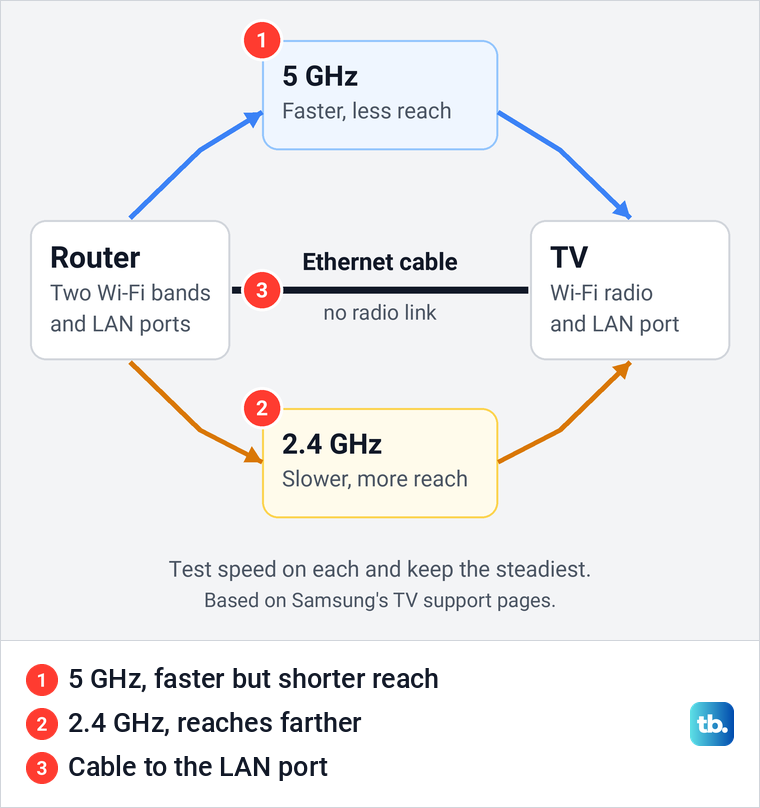
Many routers offer a 2.4 GHz and a 5 GHz network. Samsung says 5 GHz normally offers a faster speed but not as much distance as 2.4 GHz, and suggests testing with both connections. To switch, select the other band's network in the same Wireless list if your router lists it separately. Run the speed test on each band from the TV's usual spot and keep the steadier one.
Some older sets cannot see 5 GHz at all. Samsung lists certain 2018 models, the NU6, NU71, NU72 and NU73 series, as 2.4 GHz only, so a missing 5 GHz network does not mean the router is broken. If you are not sure which model you have, check the model of your Samsung TV first.
Try Ethernet without assuming it is faster
Samsung's instruction is to connect an Ethernet cable to the LAN port on the back of the TV, or on the One Connect Box for models that have one, and the other end to your router or modem. On the model years that page covers, you then select Settings > General > Network and the TV connects.
Do not assume the cable will be faster. Samsung's 2023 TV user manual, which covers a range of its QLED, Crystal UHD and OLED series, lists the wired connection as 100/10 Mbps. That is above every figure in the table, so a model with that port can still stream 4K over a cable, but the cable is not automatically the faster choice.
Run Fast.com or Netflix's check on the cable and keep whichever connection gives the steadier readings. Samsung's wired troubleshooting includes replacing the Ethernet cable with one you know works, and its manual asks for a CAT 7 (STP type) cable, so try another cable before you rule wired out.
Pause other traffic and check the router
Prime Video's buffering advice is to pause other internet activity, especially if other devices are using the network at the same time. Large game downloads, cloud backups and other streams are examples worth pausing while you test.
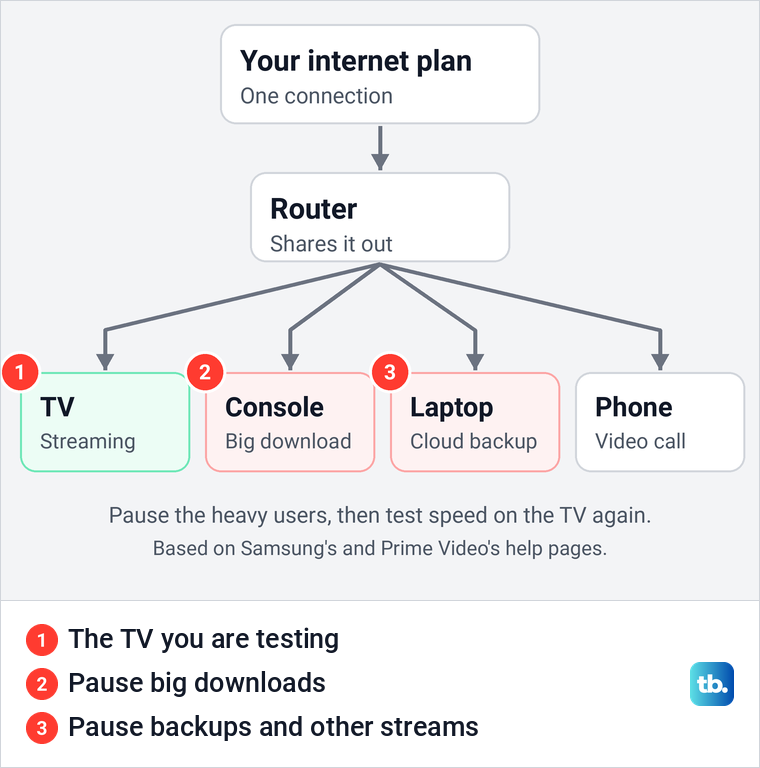
Samsung suggests a stronger test: disconnect all the other devices on your network, then try the TV again. If that makes the TV better, Samsung says you either have more devices than your router can handle, or you are using the entire amount of bandwidth your internet provider supplies. The answer is then fewer devices at once, a better router or a faster plan.
Router settings matter only if something changed. Samsung says the default settings for home networks are fine in most cases, but if the TV worked well and the connection went bad right after a change to the router's bandwidth allocation settings, you may need to revert that change. Ask your provider for help if it supplied the router, or the router's maker if you bought it separately.
Run the same speed test on a laptop or phone at the same time as the TV. If several devices also fall short of the service's figure, the TV is not the issue, and you can diagnose slow internet at home from there.
Restart the modem, router and TV in order
A restart in the right order changes no setting, so it is a safe step before anything bigger. Netflix's steps are to turn off or unplug the TV, unplug the modem, and the router if it is a separate box, for 30 seconds, then plug in the modem and wait until no new indicator lights are blinking. Then do the same for the router, and turn the TV back on.
Samsung's version works outward from the wall. Plug in the device the internet signal enters first, let it finish booting, then the next device toward the TV, so the TV comes back last.
Samsung's cold boot for the TV itself is to hold the Power button on the remote until the TV turns off and back on, which Samsung says should only take about 5 seconds. On our white Samsung remote, Power is the button at the top left.
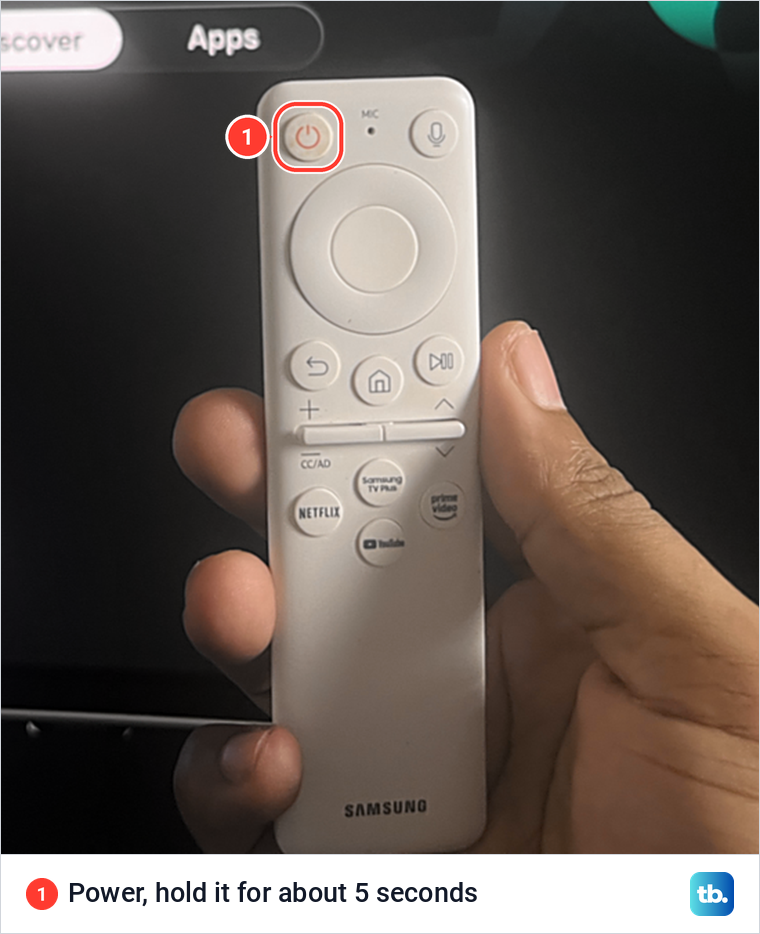
If your remote is missing, Samsung's alternative is to unplug the TV for 30 seconds. Our guide shows how to restart your Samsung TV correctly in either way, then replay the same title.
Lower the quality only where the app allows it
A lower quality setting helps when your speed swings or sits close to the service's figure. In YouTube on a TV, open the video player, select Settings, then Quality, and choose the quality you want.
Netflix's quality setting is changed in a web browser rather than on the TV. Using a browser, you open your Account page, select Profiles, choose a profile and then Playback settings, and each profile keeps its own setting. Auto is the setting Netflix describes as adjusting automatically to deliver the highest possible quality for your current connection speed.
Netflix says a setting other than Auto may help video quality on a network with varying speeds, but if that causes buffering or freezing, change it back to Auto. If you set High to get 4K and the pauses started then, that is the first thing to undo.
Let Device Care close background apps
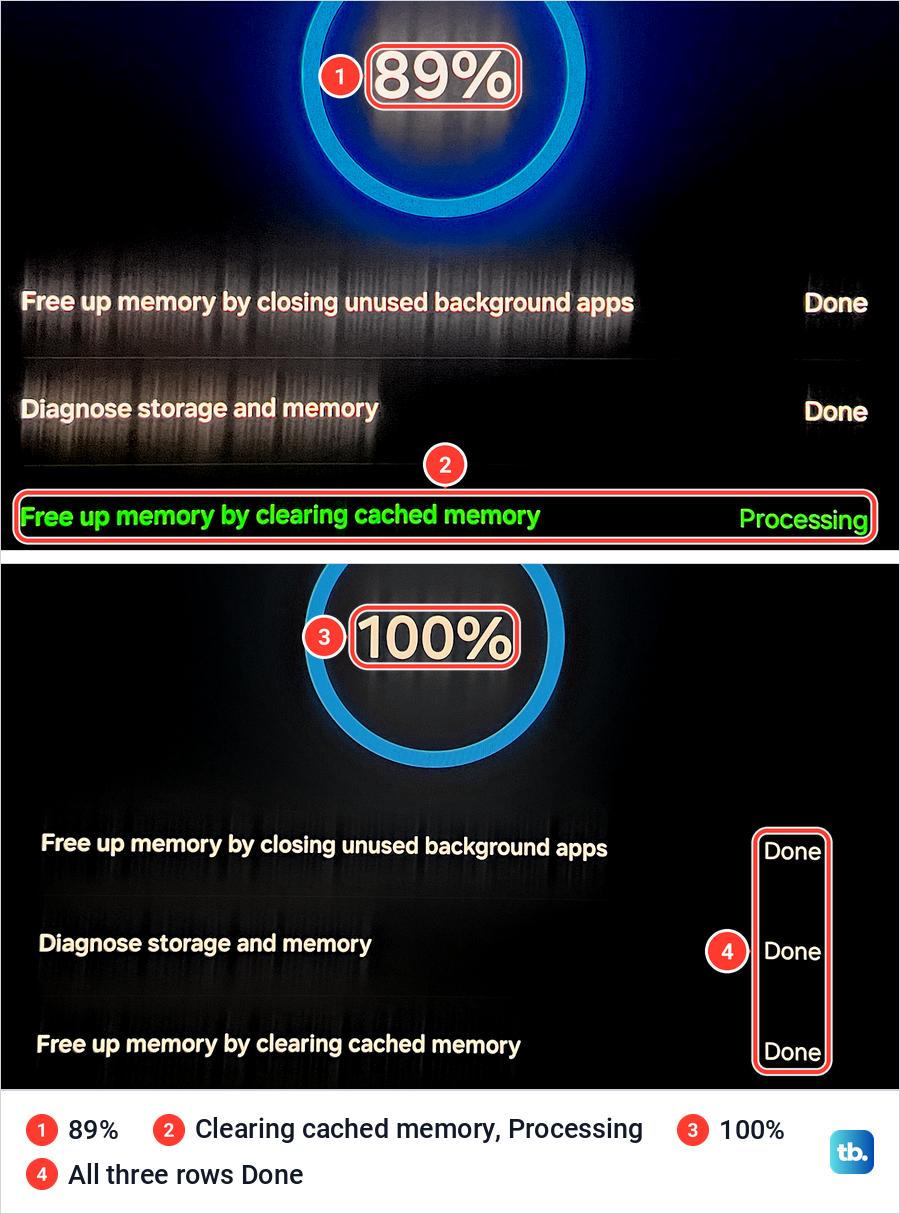
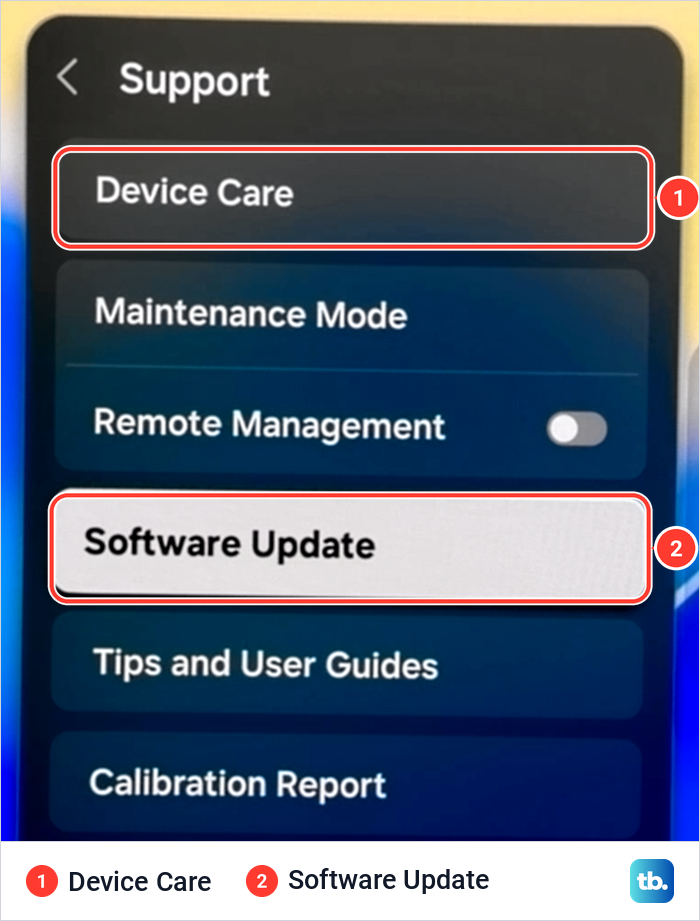
Samsung says that when Device Care finishes its scan, it clears the cached memory, frees it and closes unused background apps. Samsung's path is Settings > All Settings > Support > Device Care, and on our monitor the button then reads Start Device Care.
We ran it on our monitor and watched it reach 89% with two rows already done, closing unused background apps and diagnosing storage and memory, while clearing cached memory was still processing. It then reached 100% with all three rows marked Done. Device Care frees memory, it does not fix the network.
Fix one app after the network checks pass
When every other app plays smoothly, work on the one that pauses. Start small and restart the affected streaming app before you change its stored data. Then look at its storage under Settings > All Settings > Support > Device Care > Manage Storage, choose the app and select View Details.
On our monitor, Manage Storage listed each app with its size, with Netflix at 82.27 MB. View Details sat under the highlighted app, which was SmartThings in our photo.
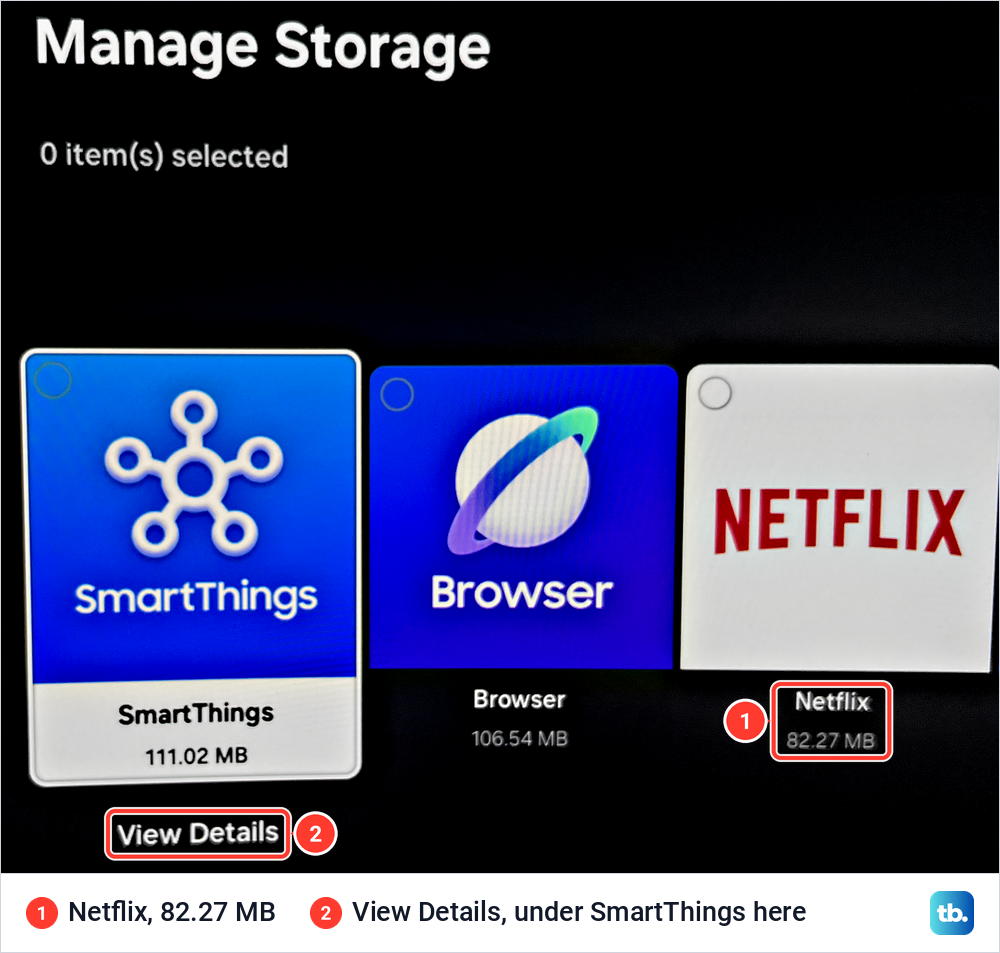
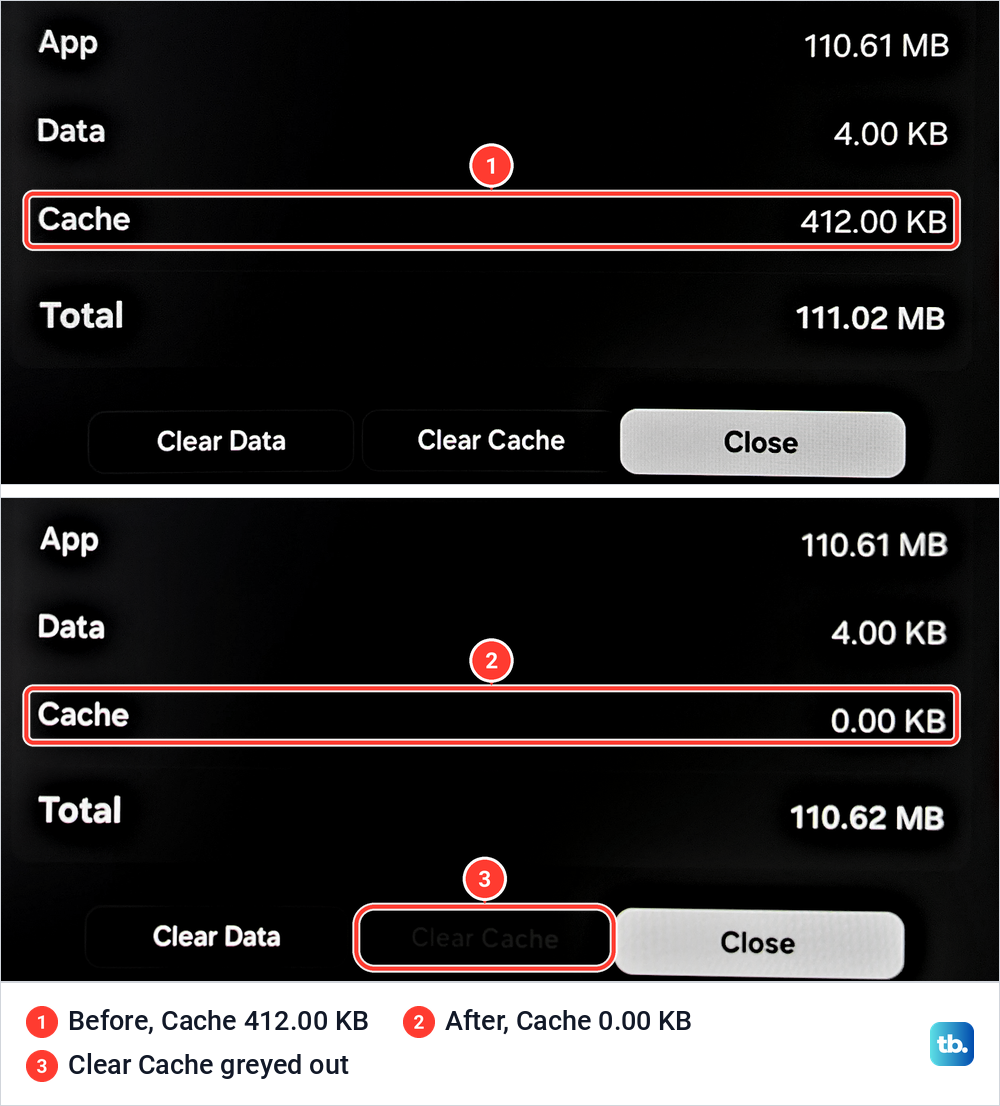
Samsung says View Details is where you can select Clear Data and Clear Cache for the chosen app, depending on the app. Clear Cache is the small step. We cleared the SmartThings cache on our monitor, and its Cache line dropped from 412.00 KB to 0.00 KB while the app and its data stayed in place.
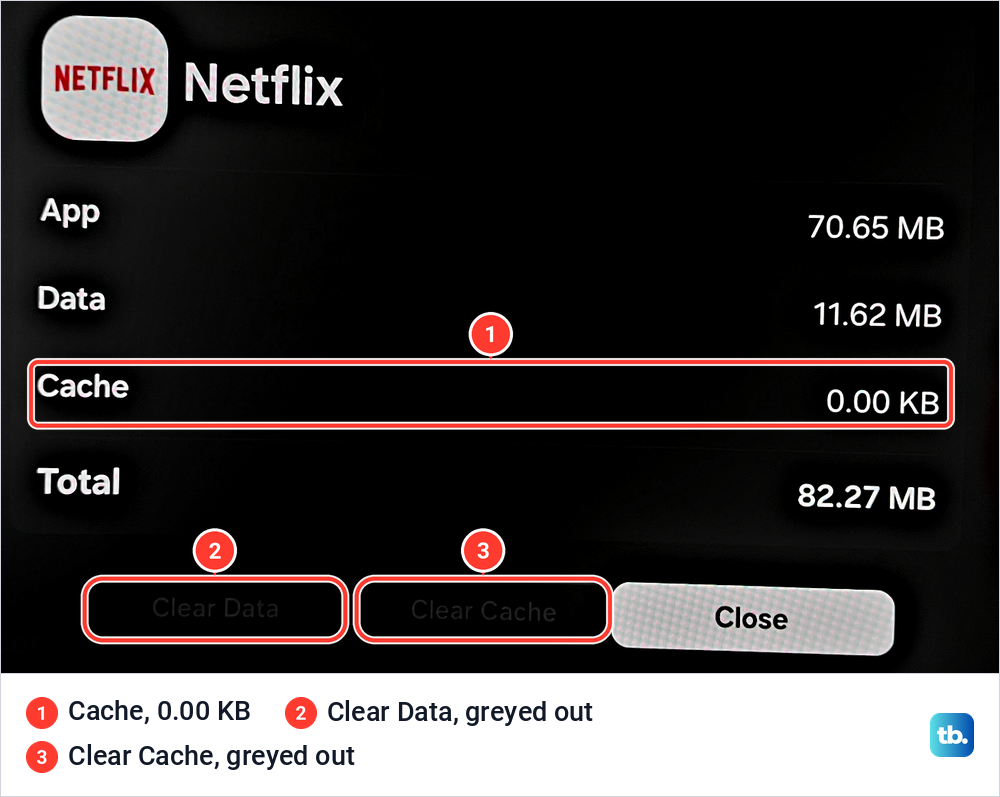
The buttons are not always available. When we opened Netflix's details, its cache already read 0.00 KB and both Clear Data and Clear Cache were greyed out, so on our screen there was nothing to clear for Netflix. Clear Data is the bigger step, since it removes the app's stored data rather than its temporary files.
If the app still stalls, follow the full steps to clear the Samsung TV app cache. Samsung's order for an app that keeps failing is a cold boot, a software update, deleting the app and installing it again, and lastly Reset Smart Hub. If reinstalling becomes necessary, check how to delete a Samsung TV app and keep its sign-in details ready.
Do not reset Smart Hub just because video pauses. Samsung lists it as a last step when an app keeps failing after a cold boot, update and reinstall, and warns that it signs you out of your Samsung account and all of your apps. When Network Status passes but several apps will not open at all, use the steps for Samsung TV apps that are not working instead.
Update the TV's software
Samsung puts a software update in its order of fixes for an app that keeps failing. Samsung's steps are Settings > All Settings > Support > Software Update > Update Now, and if an update is available, it installs automatically and the TV reboots. Samsung adds that video and audio settings may reset to their defaults after an update.
On our monitor, Software Update sits in the Support menu three rows below Device Care. The same menu holds both steps, so you can run Device Care and check for an update in one visit.
Use manual DNS only for a connection error
Changing DNS is not a way to add speed. Samsung lists it among its fixes for a TV that will not connect properly, after Network Status. The path is Settings > All Settings > Connection > Network > Network Status > IP Settings, then DNS Setting > Enter Manually, then DNS Server, where Samsung's example is to enter 8.8.8.8 and try connecting again.
On some models you open General first and then Network. Samsung places this step after Network Status reports a connection problem, so if Network Status passes and video still pauses, the Wi-Fi, traffic and restart steps above are the ones to repeat.
When to contact your internet provider
A hotspot test separates the TV from your network. Samsung suggests creating a hotspot on a phone and connecting the TV to it. If the TV works on another network, Samsung says service is not required and the issue is with your network, so contact your provider if it supplied the router, or the router's maker if you bought it.
Before you call, collect a few facts. Netflix lists what to tell your provider, and the same facts help with any service.
- Whether the problem happens on one device or on other devices on the same network.
- Whether the TV connects over Wi-Fi or directly with a cable.
- The speed result from Fast.com, ideally taken while the problem happens.
Netflix says your provider can check for an outage in your area and fix router or modem problems. For a TV that connects but streams badly, Samsung's last steps are a full reset and then a call to your provider or router maker, and Samsung says the TV does not need service. Read what happens when you factory reset a Samsung TV before you choose the reset.
How we tested this guide
Every photo here comes from our Samsung Odyssey OLED G9, a smart monitor that runs the same Tizen software as Samsung's smart TVs. On it we ran Samsung's Device Care scan to 100%, cleared the SmartThings cache from 412.00 KB to 0.00 KB, and opened Netflix's Get Help screen, the Connections menu, Manage Storage and the Support menu to show where each step lives.
The Network Status, Wi-Fi, Ethernet, DNS and service steps follow Samsung's own TV support pages and its 2023 TV user manual. The Netflix, YouTube and Prime Video steps and speed figures follow each service's own help pages.
Frequently Asked Questions
Why does my Samsung TV keep buffering when my phone is fast?
The TV has its own Wi-Fi radio and sits in a different spot, so it can get a weaker signal than your phone. Test speed on the TV itself, with Netflix's Check your Network or Fast.com in the TV's browser, and compare it with the phone held next to the TV.
How do I test internet speed on a Samsung TV?
Open the TV's Browser app and go to Fast.com, or use Get Help and then Check your Network in the Netflix app. Network Status under Connection and Network checks whether the TV can reach the internet, but it is not a speed test.
What internet speed does a Samsung TV need for 4K?
It depends on the service, not the TV. Netflix recommends 15 Mbps for 4K and YouTube about 20 Mbps, while Samsung's steps for the Apple TV app give 25 Mbps.
Should my Samsung TV use 2.4 GHz, 5 GHz or Ethernet?
Samsung says 5 GHz is normally faster but reaches less far than 2.4 GHz, so test both from where the TV sits. A cable removes the wireless link, but many Samsung TVs list a 100 Mbps wired connection, so compare the actual readings.
Why does only one streaming app buffer on my Samsung TV?
If other apps play smoothly, the network is probably fine. Try another title, run the app's own network check if it has one, then restart the app and clear its cache.
Will changing DNS stop my Samsung TV from buffering?
Samsung lists manual DNS as a fix for a TV that will not connect properly, not as a way to add speed. If Network Status passes and the speed is low, work on the Wi-Fi signal, other traffic and your plan instead.
Why does my Samsung TV buffer more in the evening?
Other people at home are more likely to be streaming, gaming or downloading at the same time. Samsung says a TV that improves when other devices disconnect points to an overloaded router or a plan that is fully used. Run the speed test at the time of the pauses with other devices idle, and if it is still below the service's figure, give your provider that result.