
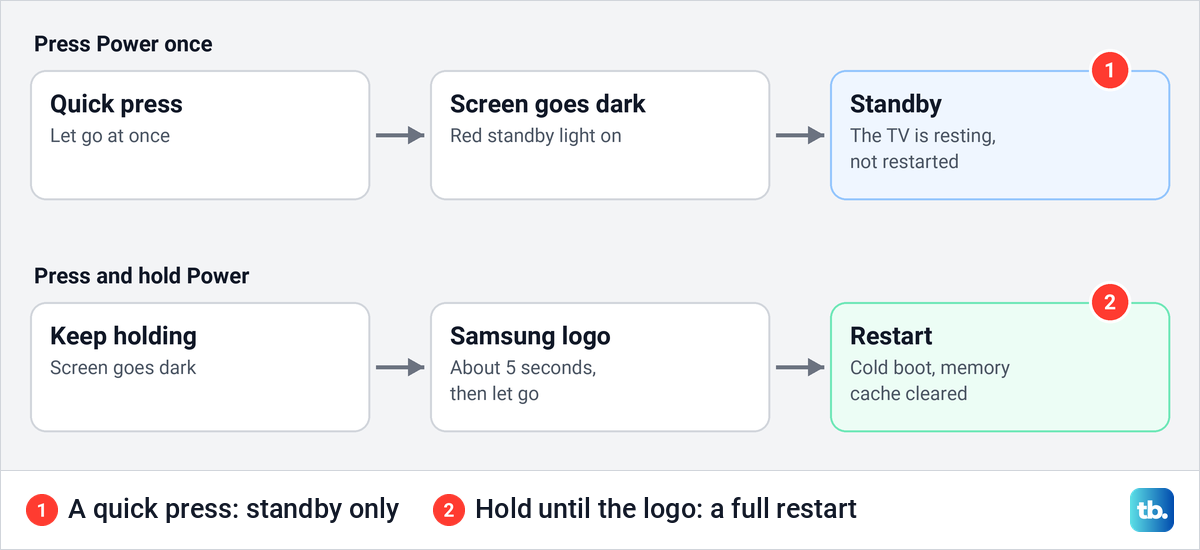
To restart a Samsung TV, turn it on, then press and hold the Power button on the remote and keep holding while the screen goes dark and the Samsung logo appears, about 5 seconds, then let go. Samsung calls this a cold boot. It reboots the TV and clears its memory cache, and it deletes nothing.
A quick press of Power is not a restart. Samsung says that when you turn the TV off that way, "it is really in standby mode", while a cold boot "actually shuts the TV down and reboots it, like restarting a laptop". If the remote does nothing at all, unplug the TV instead and leave it unplugged for 30 seconds to a minute.
The short version
- Restart: hold the remote's Power button until the Samsung logo appears, about 5 seconds.
- A quick press is not a restart: it puts the TV in standby, or on The Frame and some 2025 models switches to Art mode.
- Remote not working: unplug the TV for 30 seconds to a minute, plug it back in and turn it on.
- Never hold the TV's own button for 5 seconds and then the remote's Power: that sequence is Samsung's Flash Reset, which sends the TV back to first-time setup.
- The Frame and some 2025 models: holding Power switches the TV off, so unplug it to restart.
- Still slow afterwards: run Device Care from Settings > Support.
Restart a Samsung TV with the remote
The TV has to be on when you start. Point the remote at the TV, press and hold Power, and do not let go when the picture disappears. Keep holding until the Samsung logo comes back on screen, then release the button and let the TV finish starting up.
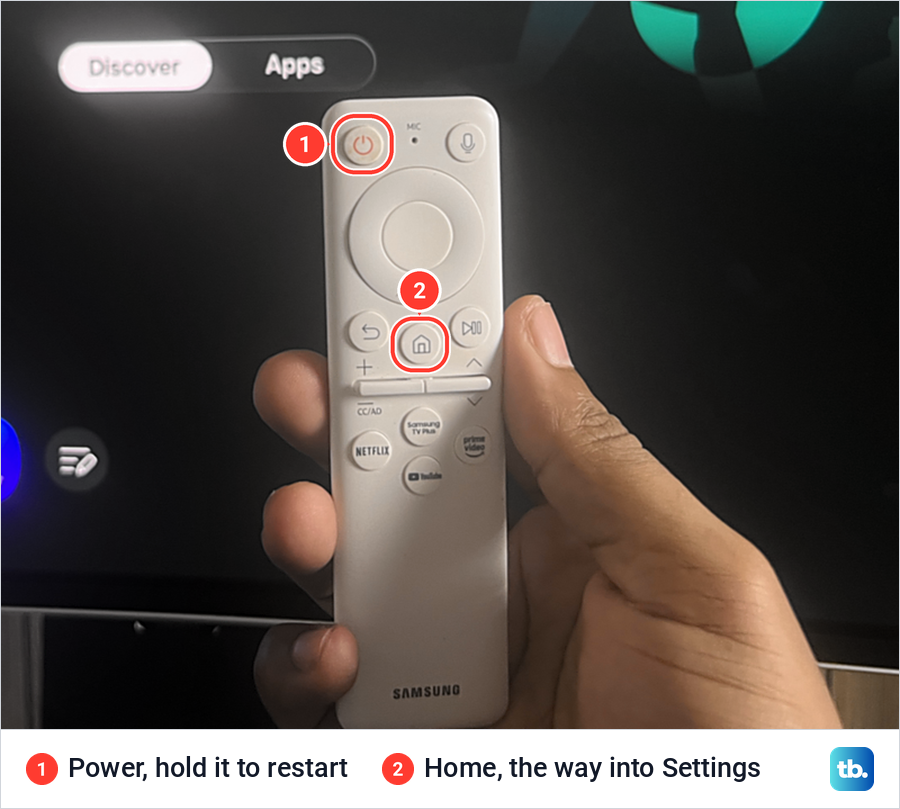
The photo above shows the Samsung remote we use with our Samsung Odyssey OLED G9, a smart monitor that runs the same Tizen software as Samsung's smart TVs. Power is the round button at the top left, above the navigation ring. Return, Home and Play/Pause sit in the row under the ring, and Home is the way into Settings further down.
Samsung's pages put the hold at "about 5 seconds", and its Hong Kong page describes the same thing in two stages: hold for more than 3 seconds until the screen turns off, then keep holding until the Samsung logo reappears. The logo is the sign to watch for, not a stopwatch. If you let go while the screen is still dark, press Power to turn the TV back on and try again, holding until the logo appears.
Samsung says the cold boot clears the memory cache and that the TV "should run more smoothly" afterwards. Its pages tie the restart to symptoms such as menus that load slowly, apps that freeze or crash, a TV that takes a while to turn on, glitches in the menu and picture problems. Its own description of the feature is "a software reset (reboot) rather than a factory reset", so your apps, sign-ins and settings stay as they were.
Use the remote that belongs to this TV. Samsung's Hong Kong restart page asks you to check that the correct remote is paired with the TV before you start. If only one app is stuck and the rest of the TV works, you can restart just the app that froze instead of the whole TV.
Why a quick press of Power is not a restart
A short press puts the TV in standby (on The Frame and some 2025 models it switches to Art mode instead), and Samsung says it is the cold boot, holding Power until the logo appears, that shuts the TV down and reboots it. The red standby light tells you which state you are in.
Samsung says the red light is on when the TV is off but plugged in, and off while the TV is in use or has no power at all. On a Samsung monitor the same light is blue.
There are three different jobs that people call a reset. A restart, by the remote or by the plug, erases nothing, and Samsung's UK page says unplugging "does not erase data from your TV". A Smart Hub reset removes apps and sign-ins, and a factory reset erases everything. The table below puts them side by side.
Some 2025 models add a twist. Samsung's 2025 e-Manual describes a Power Button Option under Settings > All Settings > General & Privacy > Power and Energy Saving > Remote Control (on some screens Remote Control sits directly under General & Privacy), set to Art/TV by default, where a short press switches between Art mode and TV mode instead of turning the set off.
Setting the option to On/Off makes a short press turn the TV on or off, and Samsung notes that not every model has it. On some models, Samsung says pressing and holding Power turns the TV off, so if holding it does not bring back the Samsung logo, unplug the TV for a full restart.
Restart, standby and reset at a glance
| What you want | What to do | What happens | Erases anything? |
|---|---|---|---|
| Turn the TV off for now | Press Power once | Standby. The screen goes off and the red standby light comes on (The Frame and some 2025 models switch to Art mode instead) | No |
| Restart a slow or glitchy TV | Hold the remote's Power until the Samsung logo appears, about 5 seconds | Samsung's cold boot. The TV shuts down, reboots and clears its memory cache | No |
| Restart when the remote does nothing | Unplug the TV, wait 30 seconds to a minute, plug it in and turn it on | The same cold boot, by cutting the power | No |
| Turn the TV off without a remote | Press the TV's own Controller button and choose Power off | Off, not a restart | No |
| Free memory after a restart | Settings > Support > Device Care > Start Device Care | Closes unused background apps and clears cached memory | No |
| Fix apps that still fail after a restart | Settings > Support > Software Update > Update Now, then delete and reinstall the app | The TV installs any update and reboots itself | The app you delete, until you download it again; video and audio settings may also return to defaults |
| Fix apps that fail even after that | Device Care > Self Diagnosis > Reset Smart Hub (a Device Care button on some screens), PIN 0000 by default | Smart Hub settings return to defaults, and Samsung account details and Smart Hub apps are removed | Yes, apps and sign-ins |
| Start over completely | Settings > General & Privacy > Reset, as a last resort | Factory settings | Yes, everything |
Menu names differ a little between model years, and our monitor shows the same items under Settings > All Settings. If an option is not where the table says, check your Samsung TV's model and its e-Manual before you hunt further.
Restart by unplugging the TV
Unplugging is Samsung's cold boot for when the remote is lost, flat or ignored. Samsung's US steps are to leave the TV on, pull the power cord out of the wall outlet, wait 30 seconds, plug it back in and turn the TV on. Its Canadian page gives the same 30 seconds.
Samsung's UK page words it differently. It says to power the TV off first, disconnect the plug, and reconnect it "after about a minute", and it adds a safety note: do not touch the plug with wet hands. Waiting a full minute satisfies both versions.
Samsung's steps do not include holding any button while the TV is unplugged. Pull the plug, wait, plug it back in, and that is the whole job. If your TV has a One Connect Box, Samsung says to unplug that as well.
If the TV shares a surge protector or power strip with your router and you switched the whole strip off, give the router time to start up and reconnect before you judge the TV. If the TV still shows no network once the router is back, follow our steps for when the TV Wi-Fi drops while other devices connect.
Restart a Samsung TV without the remote
Most Samsung TVs have a Controller button on the set itself. Samsung puts it at the bottom centre or bottom right edge on recent models, usually where the red standby light is. If it is not there, Samsung's US pages say most newer TVs have buttons on the back right side, and the user manual shows yours. Our guide also shows where the power button is on your Samsung TV if you still cannot find it.
Press the Controller button to turn the TV on or off. On 2025 models, a press while the TV is on opens a Control menu at the bottom of the screen; keep pressing to move through it, then press and hold the button on Power off to select it. Samsung documents this only as on and off, not as a restart, so unplug the TV when you need a full restart without the remote.
The TV's own button also tells you whether the remote is the problem. Samsung's rule is simple: if the TV turns on with its own button but not with the remote, the remote needs attention. A Smart Remote that lost its link needs you to pair the Samsung remote with your TV again.
Samsung's own reset for a battery remote is to take the batteries out, hold Power for eight seconds, and put them back. For the solar remote on 2021 and newer TVs, Samsung says to hold Return and Enter together for 10 seconds and then pair it again.
Use the SmartThings app as a remote
The SmartThings app on a phone can stand in for a lost remote. Samsung's usual route needs three things: the TV registered in SmartThings, a Samsung account, and an internet connection. On some 2025 TVs that are not yet registered, Samsung's e-Manual gives a shortcut instead: turn the TV on with its own button and scan the QR code on the screen to open the mobile remote.
Once the TV is registered, open the app, tap Menu, then All devices, and select your TV to bring up an on-screen remote. That phone remote has Home and Back, plus arrows and a touch area for moving through menus, so you can reach Settings > Support > Device Care without the physical remote. Samsung documents the app as a remote, not as a restart tool, and none of its pages describes a press and hold in the app that cold boots the TV.
Turning a TV on from a phone uses a setting called Power On with Mobile, which the 2025 e-Manual puts under Settings > All Settings > Connections > Network > Expert Settings. Samsung's US support page gives Settings > General > Network > Expert Settings instead.
Do not hold both power buttons in a row
Many guides tell you to hold the TV's own button for 10 seconds or more to restart it. Samsung documents no such restart, but it does document a similar sequence that resets the TV. Its Flash Reset is to hold the physical button on the TV for 5 seconds, then hold Power on the remote for 5 seconds.
Samsung says that after this "the TV will power on in reset mode", and that the flash reset worked "only if you see the initial setup screen". You then go through first-time setup and download your apps again. Samsung lists it as a step for stubborn app problems, after Reset Smart Hub, not as a restart.
So for a plain restart, hold only the remote's Power button. If the remote is not available, unplug the TV rather than experimenting with long presses on the set.
Restarting The Frame
The Frame breaks the usual rule. Samsung says a short press of Power switches between TV mode and Art mode, and a press and hold turns The Frame off completely. Samsung Canada puts that hold at about 3 seconds, and its Gulf page warns that holding Power turns The Frame off, so avoid accidental presses.
Samsung documents no remote restart for The Frame, only that long press to switch it off. For a full restart, unplug it as described above and plug it back in.
Run Device Care after the restart
If the TV still feels slow once it is back, run Device Care, which sits in the Support menu. Samsung's path on its TVs is Settings > Support > Device Care, and the 2025 e-Manual starts from Home, then the left directional button, then Settings. On our monitor, the Settings panel opens with an All Settings tile, and Support is the last item in All Settings.
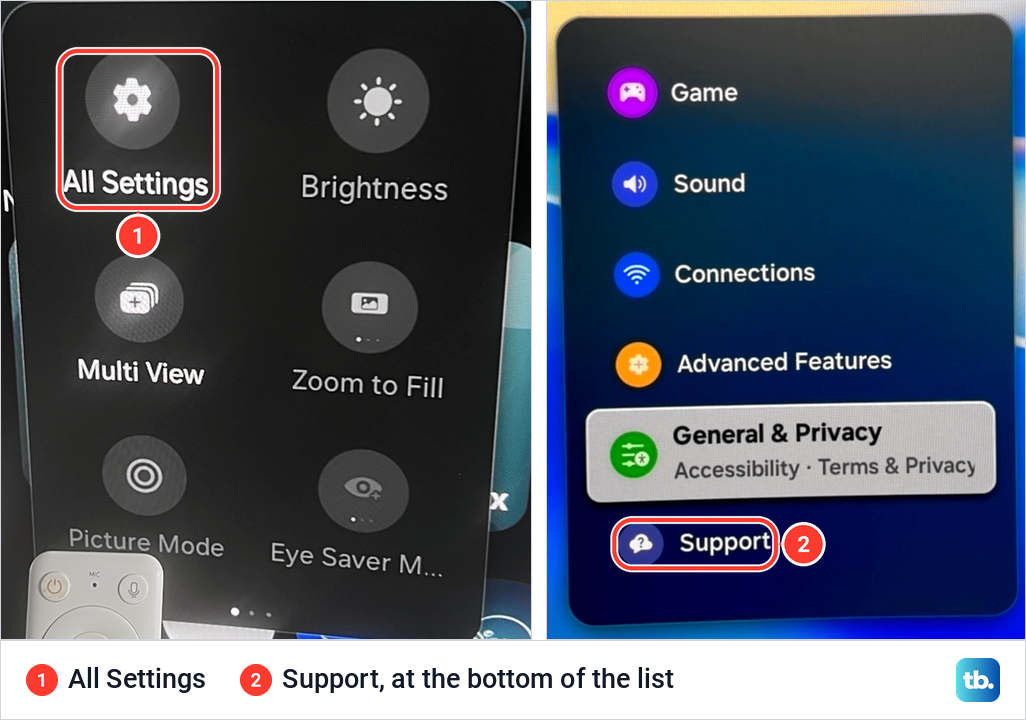
Support lists Device Care first. The same menu holds Software Update and Remote Management, which come up again below, and the help text beside Device Care on our monitor reads "Optimize and diagnose the condition of your Smart Monitor".
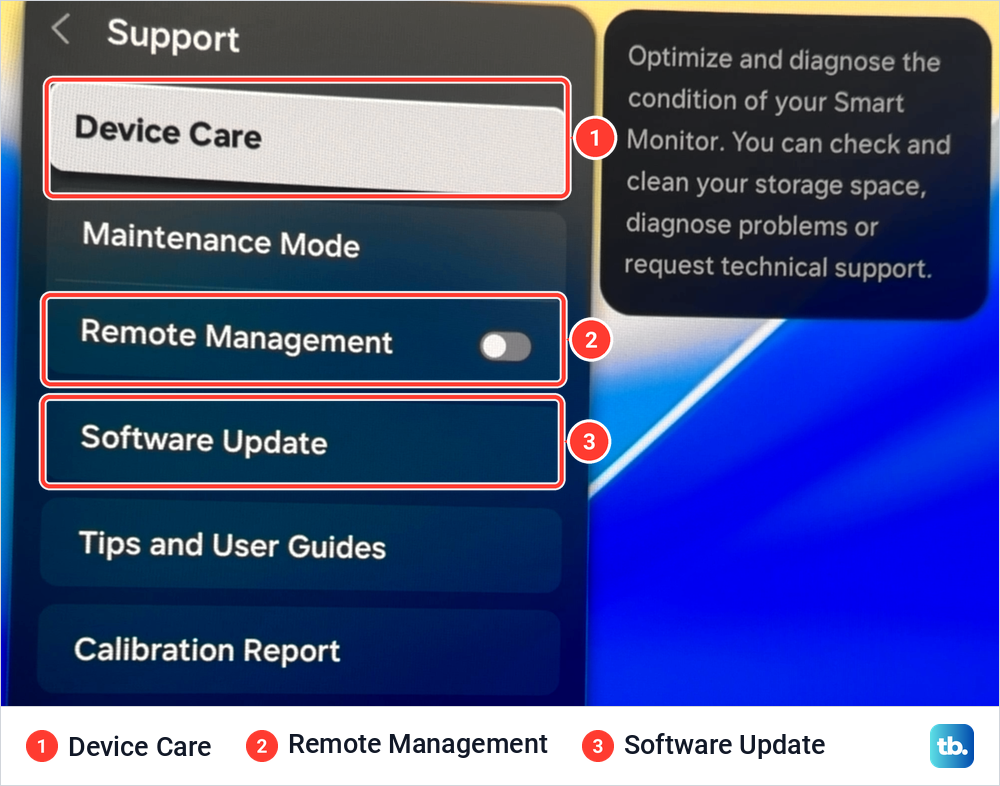
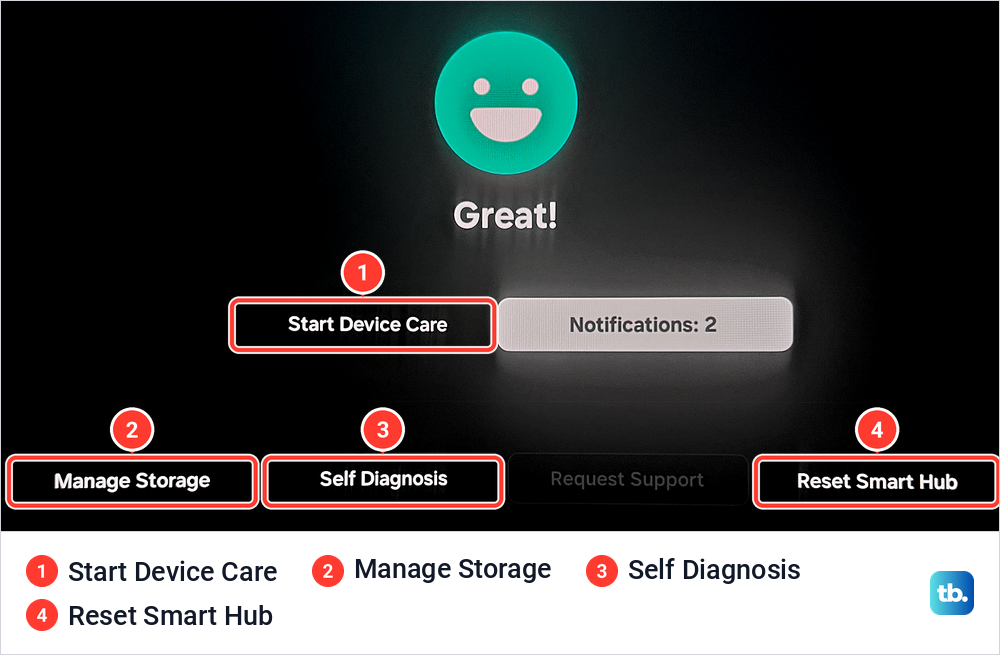
Device Care opens on a status screen with a large Start Device Care button and four tools underneath. Samsung's Canadian page says Device Care shows the TV's status as Good or Moderate when you open it; the status on our monitor read Great, under a green smiling face. Manage Storage, Self Diagnosis and Reset Smart Hub sit in the bottom row on our screen, and Request Support was greyed out.
Samsung says that when the scan completes, "it clears the cached memory and closes unused background apps to free up additional memory". When we ran Start Device Care on our monitor, the screen listed three steps: Free up memory by closing unused background apps, Diagnose storage and memory, and Free up memory by clearing cached memory. At 89% the first two read Done and the cache step read Processing.
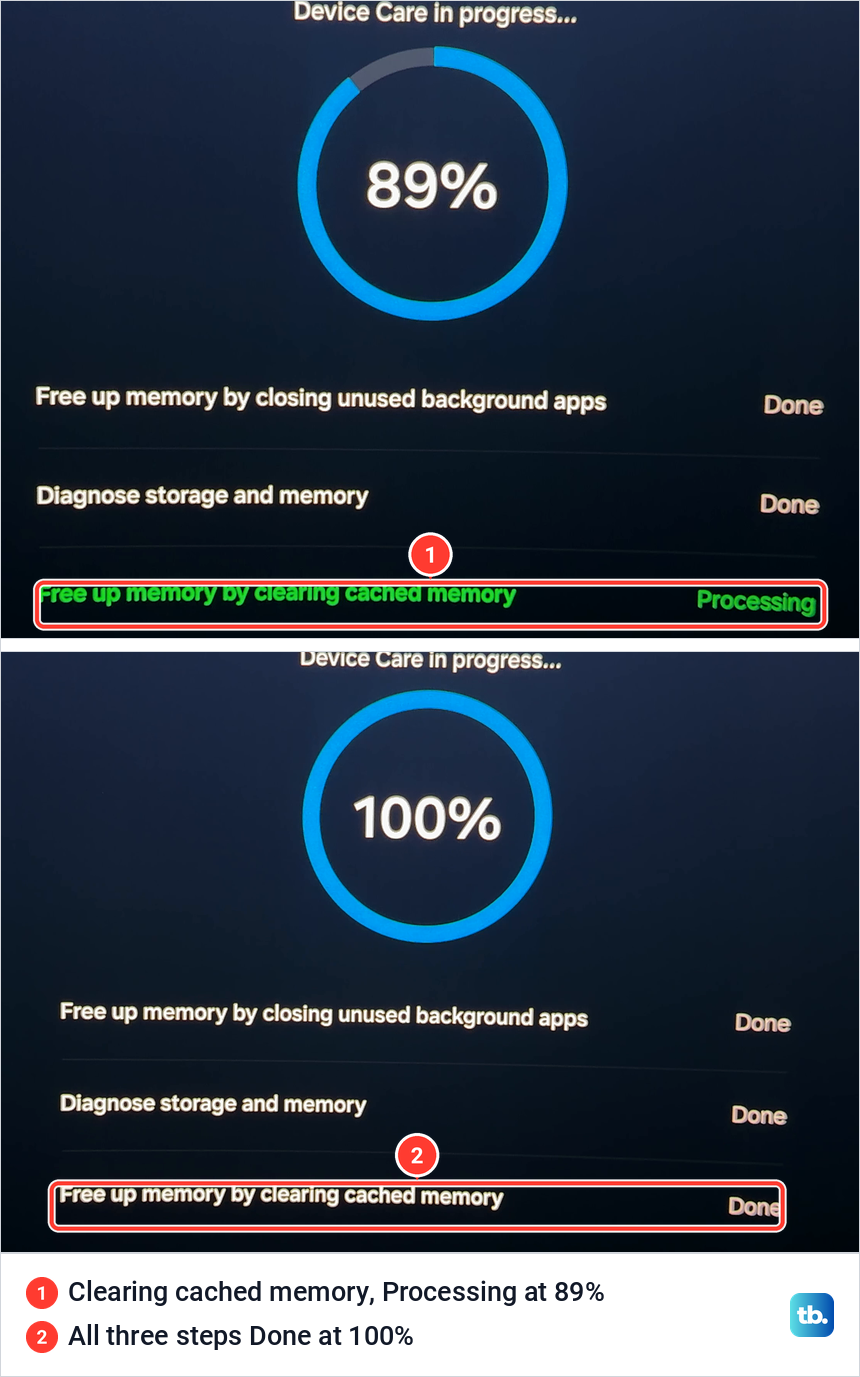
At 100% all three rows read Done. A result screen followed with "Optimization and diagnostics are complete." at the top and two items listed: The screen looks small or cropped, and Auto Power Off is enabled.
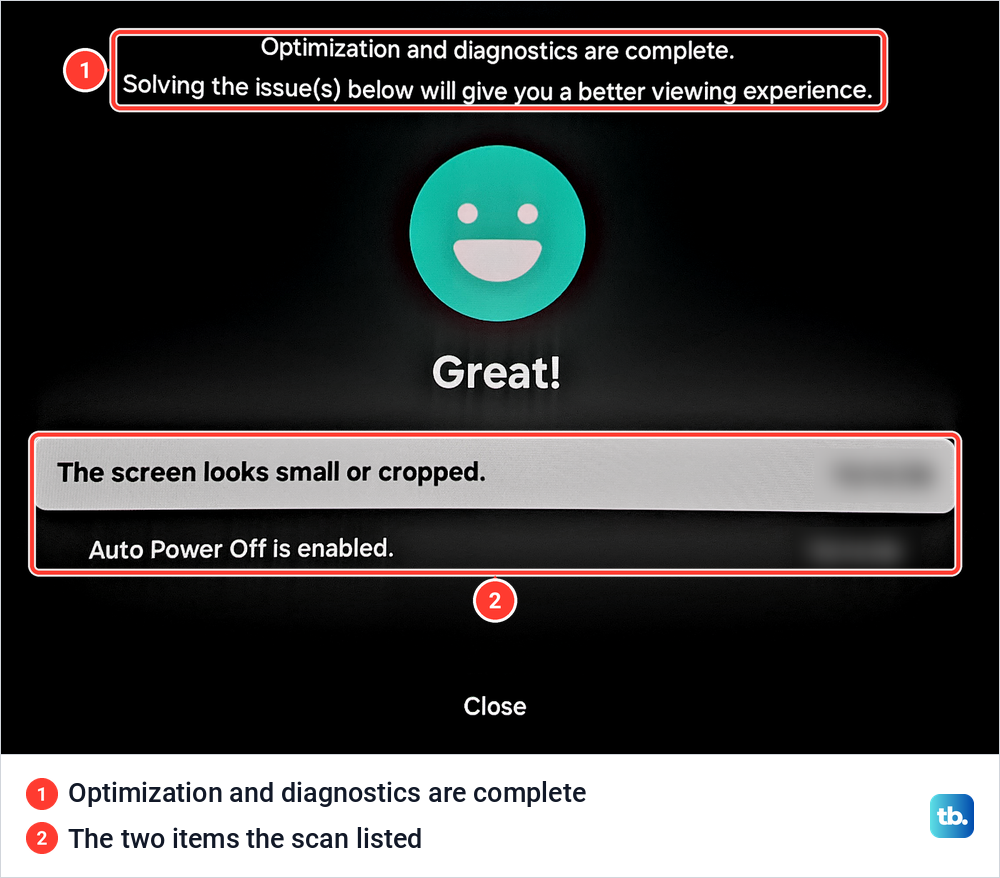
Device Care was already showing two notifications before we started the scan, so read the list as things worth checking rather than faults the scan discovered. Auto Power Off is a setting, not a fault, and it matters further down because it switches a TV off on purpose.
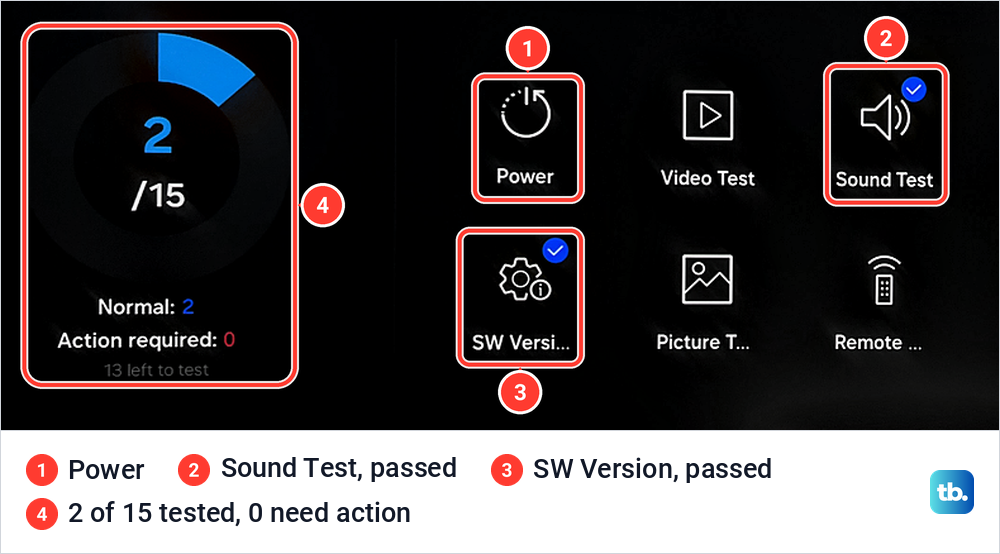
Self Diagnosis, on the same screen, runs individual tests. Our monitor counts 15 tests, starting with Power, and Samsung's 2025 e-Manual says the Power item on its TVs shows "the power supply history". The two we ran, Sound Test and SW Version, both came back normal.
Manage Storage, the first tool in the bottom row, lists your apps with their sizes and lets you clear the cache for one app when a single app misbehaves. If menus still lag after a restart and a Device Care scan, work through our guide for a Samsung TV that is slow to respond.
When a restart does not fix it
Samsung gives a fixed order for apps that freeze, crash or will not load: cold boot the TV, update its software, delete the app and download it again, and only then reset Smart Hub. Samsung Canada also suggests checking for a software update before any reset, because an update "may resolve most of the issues".
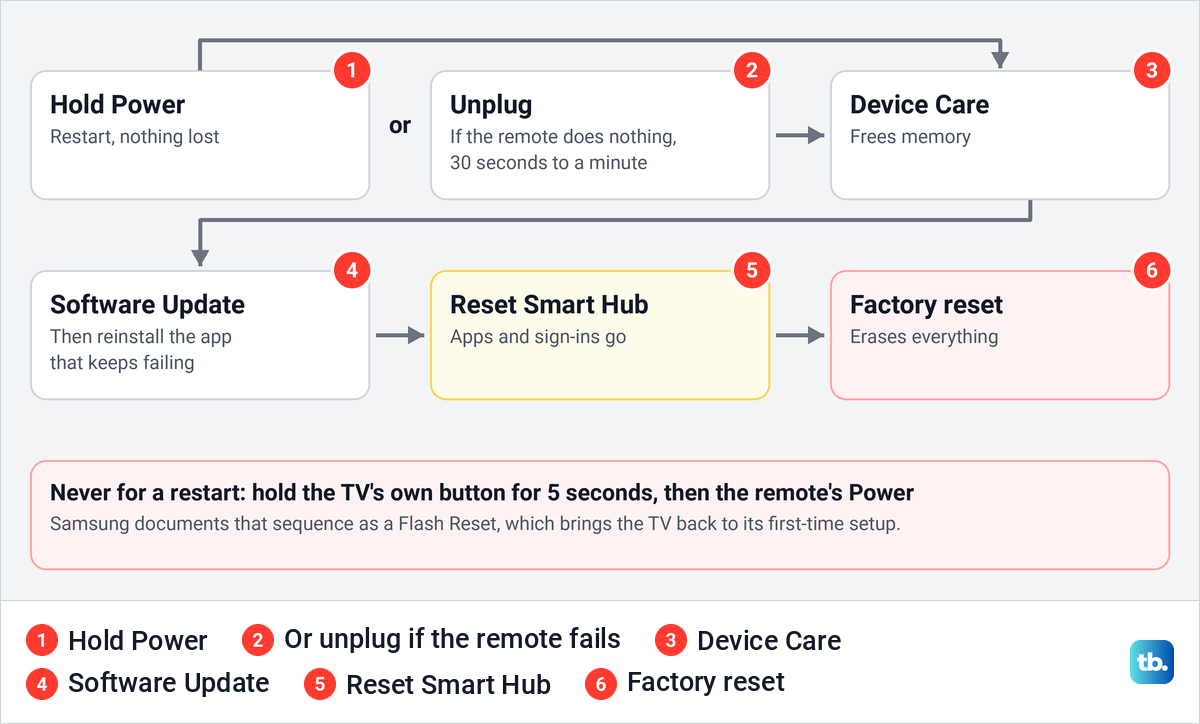
To update, go to Settings > Support > Software Update and select Update Now. Samsung says an available update installs automatically and the TV reboots by itself, that updates generally take a few minutes, and that you should not turn the TV off until it is finished. It also warns that video and audio settings may return to their defaults after an update.
Reset Smart Hub is the next step up. On TVs from 2019 onward Samsung puts it under Settings > Support > Device Care > Self Diagnosis, with a default PIN of 0000; on our monitor it is a button on the Device Care screen itself. Samsung says it returns Smart Hub settings to their defaults and deletes Samsung account details, linked service accounts and Smart Hub apps, so you will sign in again afterwards.
If one streaming app fails after every restart, as with Netflix not working on a Samsung TV, fix that app before you reset anything else. If the whole picture locks up again within days, see our fixes for a Samsung TV that keeps freezing.
A factory reset is Samsung's last resort, and it is not a restart. Samsung's path is Settings > General & Privacy > Reset, at the bottom of the list, and it asks for your PIN. Samsung says to write down your Wi-Fi network and password first, and that Reset is not available while an app such as Netflix or YouTube is open.
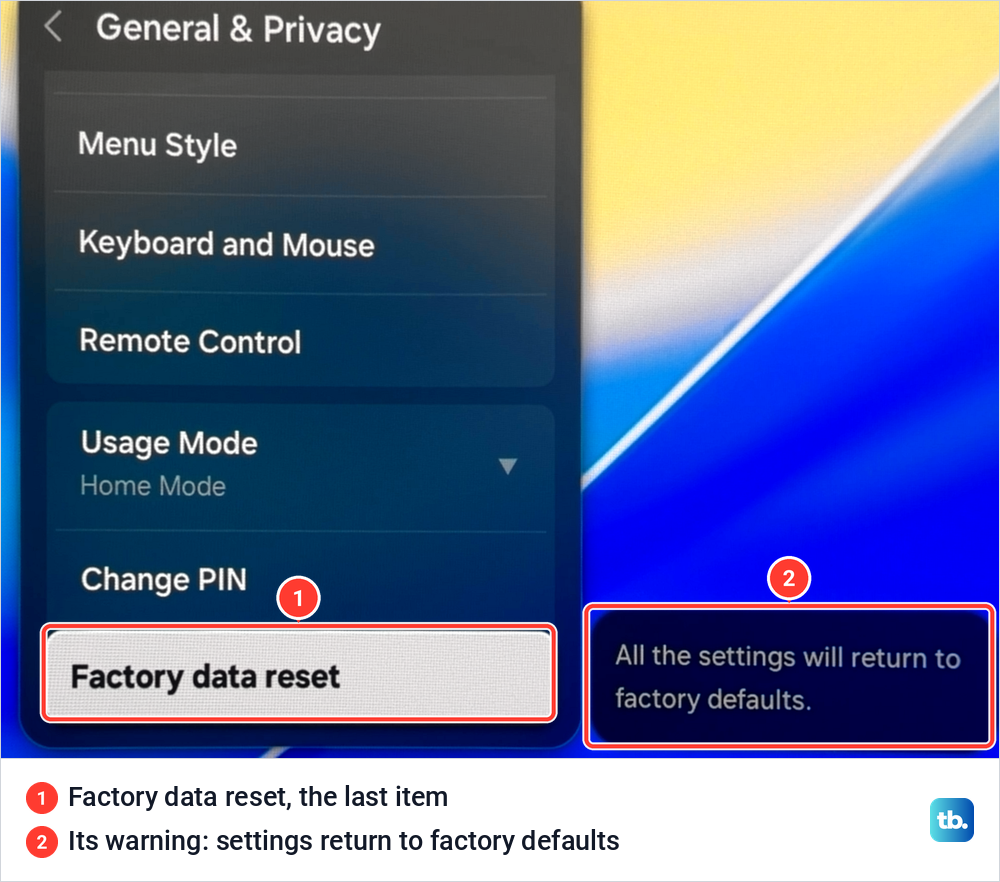
On our monitor the item is called Factory data reset, under Change PIN, with the warning "All the settings will return to factory defaults." Selecting it asked for the PIN before anything else. If none of this helps, Samsung's Support > Remote Management lets its service centre reach the TV over the internet and reset it for you.
If the TV restarts by itself or will not come back on
When the TV stays dark after a restart, look at the standby light. Samsung's checks are: if the light is on, try the remote and then the TV's own button, and if neither works while the light is on, the TV needs service. If the light is off, unplug the TV for 30 seconds and try a different outlet that you know works.
A light that keeps blinking after a 30-second unplug is, in Samsung's words, a sign that something is wrong with the TV. Samsung also advises plugging the TV straight into the wall rather than a surge protector, which can wear out and stop giving the TV the voltage it needs. Our guide to a red standby light that keeps flashing covers that case, and there is more for a Samsung TV that will not turn on.
If your Samsung TV keeps turning on and off by itself, Samsung's first steps are to unplug it for 30 seconds and check the power cord for damage. Anynet+ (HDMI-CEC) lets some HDMI devices switch the TV on with them, and Power On with Mobile lets phones do the same. Samsung's path to turn Anynet+ off is Settings > General > External Device Manager, and on our monitor External Device Manager sits in General & Privacy.
Timers are the other thing to check. Samsung's 2025 e-Manual names Sleep Timer, Off Timer and Auto Power Off as features that can switch a TV off on its own. Its troubleshooting page puts Sleep Timer and Off Timer under Settings > All Settings > General & Privacy > Time and Auto Power Off under General & Privacy > Power and Energy Saving.
The settings chapter of the same manual lists all three under Power and Energy Saving, which is where our monitor shows them. Auto Power Off on our monitor was set to 4 hours, which is the item Device Care listed.
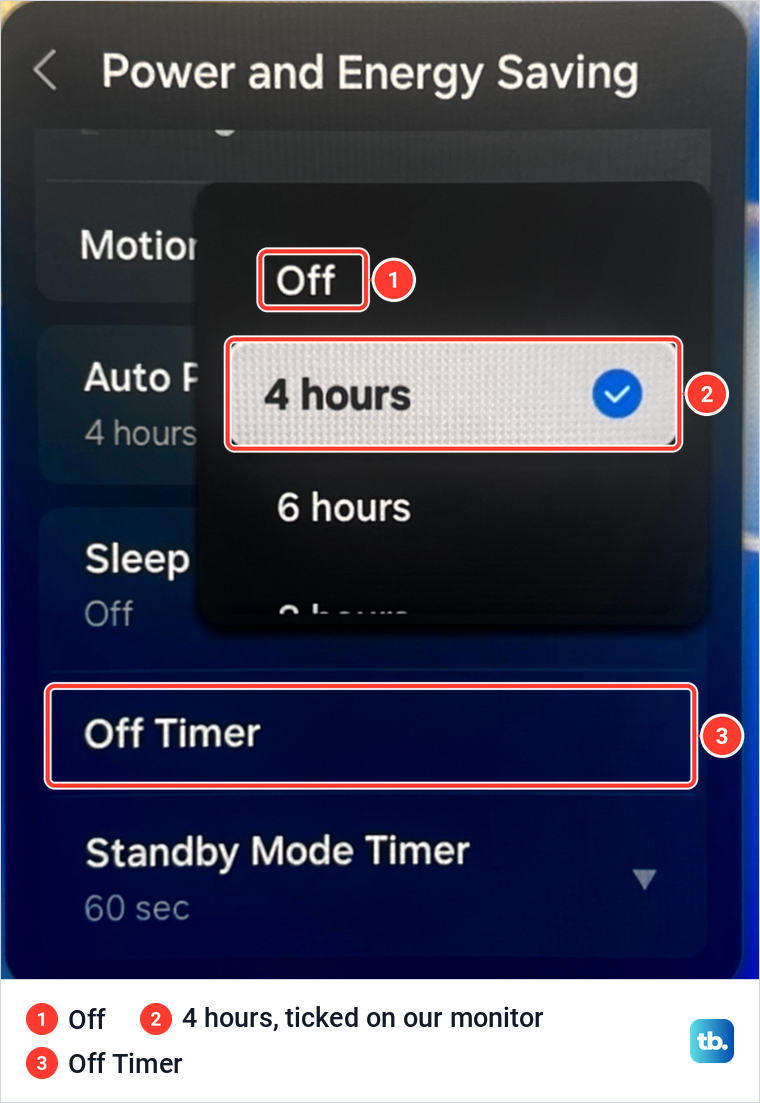
Samsung's first suggestion for a TV that turns itself off is to disable some of these energy features. Choose Off in the Auto Power Off list, and check that Sleep Timer is off and Off Timer has no schedule set.
How we tested this guide
Our photos come from our Samsung Odyssey OLED G9, a smart monitor that runs the same Tizen software as Samsung's smart TVs, and the white Samsung remote we use with it. On it we walked from All Settings to Support and Device Care, ran Start Device Care to 100%, ran two Self Diagnosis tests, and opened the Auto Power Off list and the Factory data reset PIN prompt.
The steps for holding Power, unplugging, the TV's own Controller button, SmartThings, The Frame, Software Update and the resets follow Samsung's own support pages and TV e-Manuals. Where Samsung's TV menus use a different path from our screen, we give Samsung's wording first.
Frequently Asked Questions
How do I restart my Samsung TV with the remote?
With the TV on, press and hold Power on the remote. Keep holding while the screen goes dark and the Samsung logo appears, about 5 seconds, then let go and wait for the TV to finish starting.
Is turning a Samsung TV off the same as restarting it?
No. A short press of Power puts the TV in standby, or on The Frame and some 2025 models switches it to Art mode. Samsung says a cold boot, holding Power until the logo appears, "actually shuts the TV down and reboots it".
How long should I unplug my Samsung TV to restart it?
Samsung's US and Canadian pages say 30 seconds, and its UK page says about a minute. Waiting a full minute covers both, and you do not need to press anything while it is unplugged.
Does restarting a Samsung TV delete anything?
No. Samsung calls the cold boot a software reboot rather than a factory reset, and says unplugging does not erase data. Reset Smart Hub, a factory reset and Samsung's Flash Reset are what remove apps, sign-ins or settings, and Samsung warns that a software update can return video and audio settings to their defaults.
Can I restart my Samsung TV with my phone?
The SmartThings app works as a remote once the TV is added to it with a Samsung account, and some unregistered 2025 TVs show a QR code that opens the mobile remote. Samsung does not document a full restart from the app, so unplug the TV for that.
How do I restart a Samsung Frame TV?
A short press of Power switches The Frame between TV and Art mode, and holding Power turns it off completely. For a full restart, unplug it for 30 seconds to a minute and plug it back in.
Why does my Samsung TV keep restarting by itself?
Start by unplugging it for 30 seconds and plugging it straight into a wall outlet, then update the software. Check Anynet+, Power On with Mobile and the TV's timers, and treat a standby light that keeps blinking as a sign the TV needs service.