You settle in to watch something, press play, and Netflix stalls. Maybe the app crashes the moment it opens, the screen freezes mid-show, or you get a message like "Unable to connect to Netflix," NW-2-5, or tvq-pb-101. Sometimes it just buffers forever.
Almost every Netflix problem traces back to one of three things: stale data stored on the device, a network that cannot reach Netflix's servers, or an app or device that needs an update. A smaller set of issues come from your Netflix Household, your profile name, or a temporary outage on Netflix's end.
The fixes below are ordered quickest and most common first, with the exact menu paths for every surface (TVs, streaming sticks, phones, browsers, and consoles). One warning up front: clearing app data, resetting the app, or reinstalling will sign you out and delete any downloads on that device, so have your password ready before you start.
Restart the Device and Your Home Network
This is Netflix's standard first move and it clears the largest share of crashes, freezes, and connection errors. "Completely off" matters here: the device must be fully powered down, not in sleep or standby, and a phone must be off, not just locked.
- 1.Turn off the device. If it has a power cable, unplug it. Leave it off for 15 seconds, then turn it back on and try Netflix again.
- 2.If that does not work, restart your network: turn off the device, unplug the modem and router for 30 seconds, plug them back in, wait 1 minute, then turn the device on.
For a cable or set-top box, leave it unplugged for 1 to 3 minutes instead of 15 seconds.
Sign Out and Back In
If a restart alone does not fix it, sign out next. From the Netflix home screen, open the menu, find Get Help, select Sign out, then select Yes. Sign back in and retry.
If the on-screen menu will not open on a smart TV or Blu-ray player, use the hidden remote sequence to reach the sign-out and diagnostics menu: Up, Up, Down, Down, Left, Right, Left, Right, Up, Up, Up, Up, then select Sign out.
Reload or Reset the App on Your TV
On many smart TVs, the error screen itself offers a refresh. Select More Details > Reload Netflix (or More Details > Exit Netflix), then reopen the app.
If it keeps freezing, restart the TV by unplugging it from power, pressing the TV's power button once, waiting 1 minute (or leaving it unplugged for 3 minutes), then plugging it back in. If problems persist, contact the TV manufacturer to request a Smart Hub reset, a firmware update to the latest version, or a factory reset.
Clear the App Data on Your Phone or Streaming Stick
Stale stored data is Netflix's single most-cited cause of crashes and "Could not load data." Clearing it signs you out and removes downloads, so keep your password handy.
On Android, tap and hold the Netflix icon, tap App info, then Storage & cache > Clear storage > OK. On an iPhone or iPad, open the device Settings app, go to Apps > Netflix, and turn on the Reset switch. On a Fire TV Stick, go to Home > Settings > Applications > Manage Installed Applications > Netflix > Clear data, then Clear cache.
Clear the Netflix Cookie in Your Browser
If Netflix will not load or sign in at netflix.com on a computer, use the dedicated cookie reset. This is distinct from wiping your whole browser's cookies.
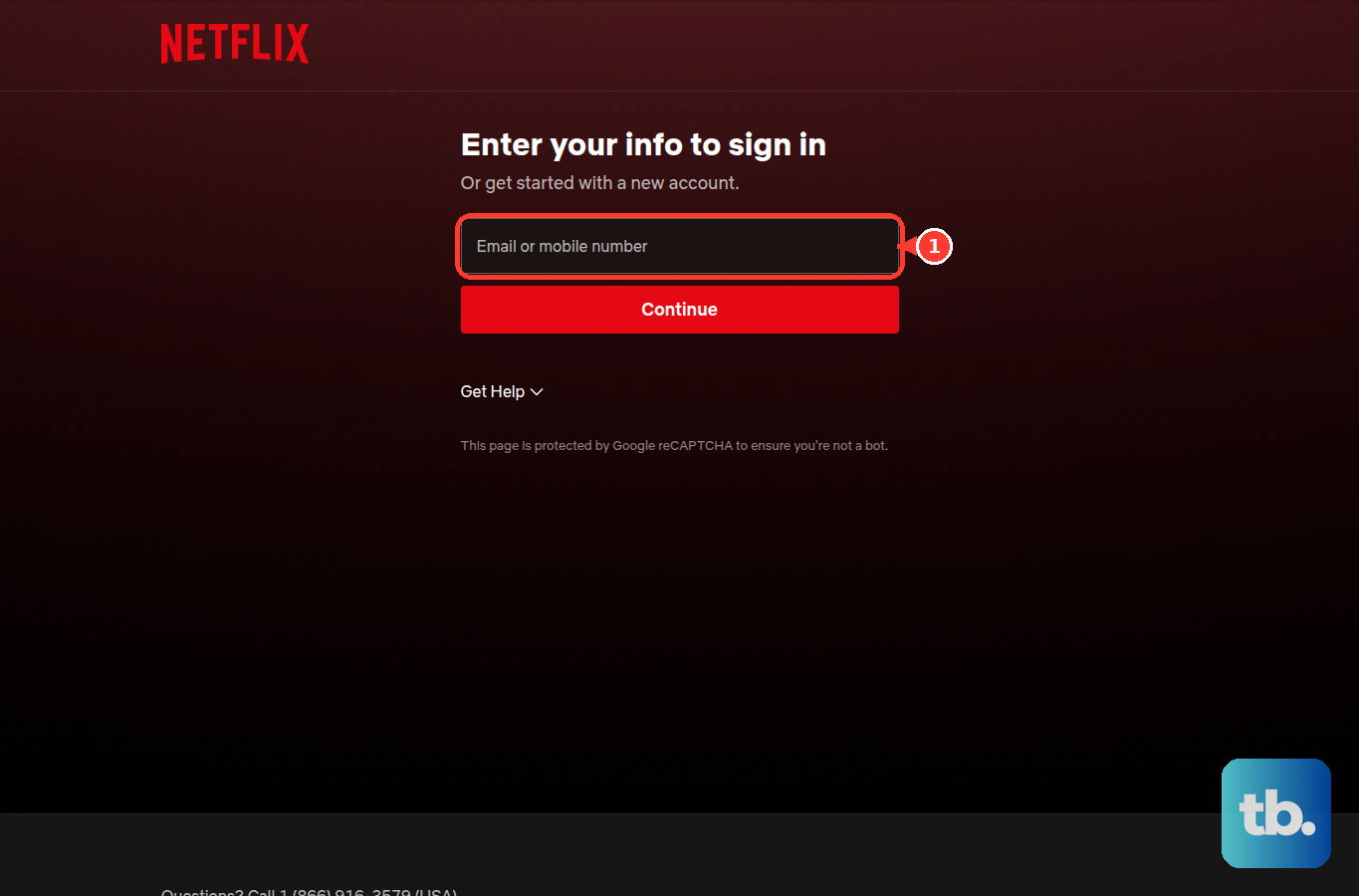
- 1.Go to netflix.com/clearcookies. This automatically signs you out.
- 2.Select Sign In and re-enter your email and password.
- 3.If needed, fully shut down the computer (Mac: Apple menu > Shut Down; Windows: Start > Power > Shut down; Chromebook: system menu > Sign out > Shut down), wait at least 10 seconds, then restart.
Reinstall the Netflix App
When clearing data is not enough, remove and reinstall. On Android, open the Netflix page in the Google Play Store, tap Uninstall, then Install. On iPhone or iPad, tap and hold the app, tap Remove app > Delete app > Delete, then reinstall from the App Store. On Apple TV, highlight the app, hold the center button until the icons jiggle, press Play/Pause, choose Delete, then reinstall from the App Store.
On Roku, highlight the Netflix channel, press the Star (*) button, select Remove app > OK, then press the Netflix button or use the channel store to Add channel > OK. On a PlayStation 4, uninstall and reinstall from the home screen.
Update the App and Your Device
An outdated app or operating system causes crashes and version errors. Update the Netflix app in the Google Play Store or App Store, then update the device OS in its Settings.
Error 5072 ("This version is no longer supported by Netflix") is an update problem, not a network one, and updating only the app is not enough; the device OS must be updated too. On Apple TV, update tvOS via Settings > General > Software Updates. If an Apple TV reports software 6.2.1 or earlier, it may be unsupported and you should contact Apple.
Fix Error NW-2-5 and Console DNS Settings
NW-2-5 means your device took too long to reach Netflix. On the error screen, select More Details > Check your network and look for a red X, and test another internet app to confirm the connection.
Restart the device and your home network as above, then improve your Wi-Fi: move the router central and off the floor, keep it away from other wireless devices and metal appliances, or add a wireless repeater. On PlayStation and Xbox, set DNS to Automatic, since incorrect DNS stops the console from finding Netflix's servers. If it persists, contact your ISP to check for outages.
Set the Correct Date and Time on Consoles
On a PlayStation 4, a wrong clock can cause freezing. Go to Settings > Date and Time > Set Using Internet > Set Automatically. This applies to consoles, not TVs or phones.
Remove Special Characters From the Profile Name
On streaming media players, an apostrophe, symbol, or emoji in a profile name can by itself trigger "Unable to connect to Netflix." On netflix.com, open your Account page and edit the profile name to remove those characters, then retry on the device.
Register the Device to Your Netflix Household
If you see "Your TV/device isn't part of the Netflix Household," playback is being blocked. Select Update Netflix Household from the message and follow the on-screen steps; on a phone or computer, connect to the same Wi-Fi as a registered TV, update the Household from that TV, then restart the app.
If you are away from home, select "I'm Traveling" or "Watch Temporarily" (a non-Kids profile is required), choose Send Email or Send Text, open the "Get Code" link, and enter the 4-digit code on your device within 15 minutes. You can also choose Troubleshoot This TV and scan the QR code with your phone (on home Wi-Fi), or review and remove unrecognized devices at netflix.com/manageaccountaccess.
Fix Buffering and Low Video Quality
Buffering and blurry video usually mean your speed is below Netflix's minimums: 3 Mbps or higher for HD (720p), 5 Mbps for Full HD (1080p), and 15 Mbps for 4K Ultra HD. Test your connection at fast.com, or on a TV press Back to open the menu, then go to Get Help > Check your Network.
Avoid public Wi-Fi, cellular, satellite, and mobile-hotspot connections; hotels, schools, and offices often block or throttle video services, so ask the network owner whether Netflix is blocked. To cap quality and reduce data on the web, go to your Account page > Profiles > [profile] > Playback settings and choose Low, Medium, High, or Auto. In the mobile app, tap My Netflix > [profile name] > App Settings > Cellular Data Usage.
If video looks low quality on a computer, the browser may be the limit: on Windows only Edge and Chrome reach Ultra HD (and only with extra hardware), while Firefox and Opera cap at 1080p. Use a supported browser at a current version (Chrome 117+, Edge 118+, Firefox 111+, Opera 92+, or Safari 14+ on macOS).
Reset Netflix on a Cable Set-Top Box
For tvq-pb-101 on a provider box, first unplug it for 1 to 3 minutes, then power it back on. On Xfinity X1, press the Xfinity button, press the A button, scroll right, select Reset Netflix (select it twice), then Restart Netflix. On Contour, press the Contour button, press the A button, then scroll right and reset Netflix the same way.
Handle Sign-In Errors and Netflix Outages
If you see "We are having technical difficulties and are actively working on a fix" or "There was a problem signing in," first confirm your email and password are correct and try again. Then clear the cookie at netflix.com/clearcookies and sign back in.
If it still fails, the cause may be a temporary disruption on Netflix's side. In that case the right move is simply to wait a while and retry, rather than keep troubleshooting your own device.
Frequently Asked Questions
Will clearing data or reinstalling delete my downloads?
Yes. Clearing app data or storage, turning on the Reset switch, and reinstalling all sign you out of that device and delete any downloaded titles on it. Have your Netflix password ready before you do any of these.
What internet speed does Netflix actually need?
Netflix recommends 3 Mbps or higher for HD (720p), 5 Mbps for Full HD (1080p), and 15 Mbps for 4K Ultra HD. Test your connection at fast.com and compare.
What is the hidden remote code on smart TVs for?
If the on-screen menu will not open, the sequence Up, Up, Down, Down, Left, Right, Left, Right, Up, Up, Up, Up reaches the sign-out and diagnostics menu on many smart TVs and Blu-ray players.
Why does Netflix work elsewhere but not on this device?
The device or profile may not be part of your Netflix Household, which blocks playback from an unregistered or unfamiliar location. Select Update Netflix Household to register it, or use the temporary travel code if you are away from home.
How do I fix error 5072?
It is an update problem, not a network one. Update the device's operating system, not just the Netflix app. On Apple TV, update tvOS via Settings > General > Software Updates; if it reports software 6.2.1 or earlier, contact Apple.
The travel code never worked. Why?
The temporary access code expires 15 minutes after you request it, and it cannot be requested from a Kids profile. Generate a new code from a non-Kids profile and enter it promptly.