
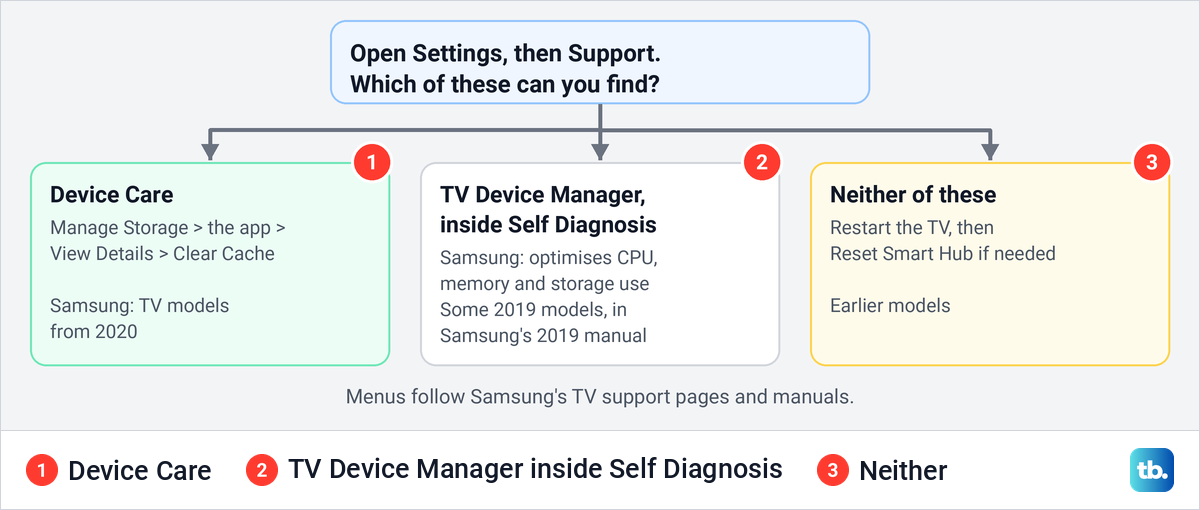
To clear the cache on a Samsung TV that has Device Care, press Home on the remote, open Settings (then All Settings if a quick panel opens first) and go to Support > Device Care > Manage Storage. Highlight the app, select View Details, then select Clear Cache. Samsung offers this per-app option on TV models from 2020 onward, and Clear Data on the same screen goes a step further. If Support has no Device Care, see the section on older Samsung TVs.
One result surprised us. Start Device Care is the button most guides call the one-press cache cleaner, yet when we opened Manage Storage after it reached 100%, SmartThings showed 412.00 KB of cache. Only Clear Cache took it to 0.00 KB.
The short version
- Newer Samsung TVs: press Home, then Settings, All Settings, Support, Device Care, Manage Storage, the app, View Details, Clear Cache.
- Start Device Care frees memory: Samsung says it clears cached memory and closes background apps. Use Clear Cache for one app.
- Clear Cache greyed out: on our monitor it went grey when the cache read 0.00 KB. If a button stays grey, close the app, since Samsung says a running streaming app can grey out settings.
- Older TVs: some 2019 sets have TV Device Manager under Self Diagnosis, and earlier sets rely on a restart or Reset Smart Hub.
- Restart to clear memory: hold Power on the remote until the TV turns off and back on, about 5 seconds, or unplug it for 30 seconds.
Where to clear cache on your Samsung TV
A Samsung TV has several things that people call cache, and each lives in a different menu. The table puts them side by side. Menu names follow Samsung's TV support pages and manuals.
| Where to go | What it clears | Which TVs have it |
|---|---|---|
| Settings > All Settings > Support > Device Care > Manage Storage > the app > View Details > Clear Cache | That app's cache. In our test the Cache line dropped to 0.00 KB and the app and its data stayed | Models from 2020 |
| The same View Details screen > Clear Data | That app's data, in Samsung's words | Models from 2020 |
| Support > Device Care > Start Device Care | Samsung says it clears cached memory and closes unused background apps | Models from 2020 |
| Internet (Browser on some screens) > Settings icon > Web Browser Settings > General > Delete History | The web browser's history | Smart TVs with the Internet app |
| Broadcasting > Expert Settings > HbbTV Settings, or Data Service on US sets > Delete Browsing Data | Saved cookies, in Samsung's words | Listed in Samsung's manuals for 2019 and later sets, where the region supports it |
| Settings > Support > Self Diagnosis > TV Device Manager | Samsung says it optimises CPU, memory and storage use | Some 2019 models (Samsung's 2019 manual) |
| Hold Power on the remote until the TV turns off and on | Samsung says it clears the memory cache | Samsung smart TVs except The Frame; Samsung's other way is to unplug for 30 seconds |
| Device Care > Reset Smart Hub (Self Diagnosis or the Smart Hub menu on older sets) | Every app's settings and sign-ins, plus your Samsung account on the TV | Samsung smart TVs; where it sits varies by year |
The menus changed in 2019 and again in 2020, so the year of your set decides which rows apply. The quickest check is to open Support and see what is listed. To find the exact model number as well, here is how to check the model of your Samsung TV.
Clear one app's cache in Manage Storage
Our photos come from our Samsung Odyssey OLED G9, a smart monitor that runs the same Tizen software as Samsung's smart TVs, with its white Samsung remote. The menu names in this section are the ones Samsung's TV pages use.
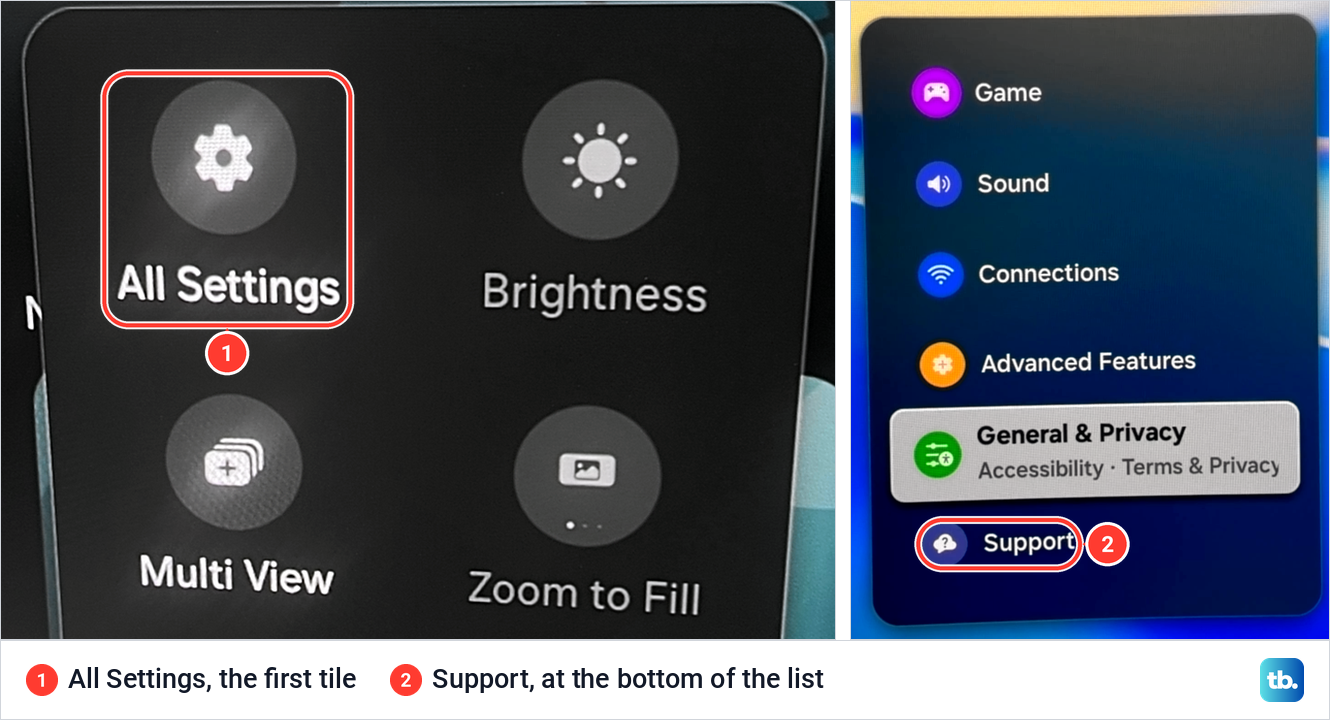
Press Home and move to Settings. On our monitor that opened a small quick panel first, with All Settings as its first tile. Select it, scroll to the bottom of the list and open Support, which sits under General & Privacy.
Select Device Care, the first item in Support on our monitor. Samsung's TV manual describes it as the place to optimise and diagnose the TV and to check and clean your storage space. Our monitor shows the same item with the same description, with Smart Monitor where a TV says TV.
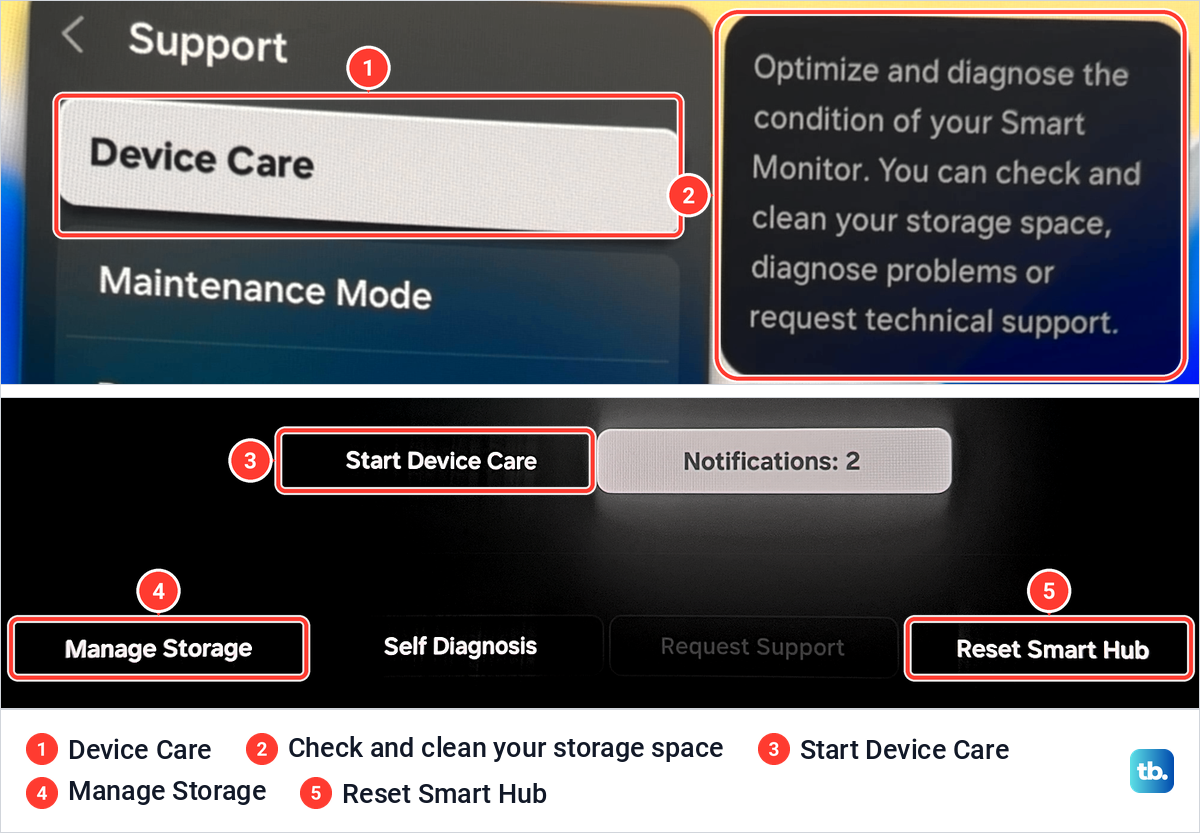
The Device Care screen has Start Device Care in the middle and a row of buttons along the bottom. Select Manage Storage, the first of them. Self Diagnosis and Reset Smart Hub sit on the same row, and both come up further down.
Manage Storage shows apps as tiles, with their sizes underneath. On our monitor SmartThings came first at 111.02 MB, followed by Browser at 106.54 MB and Netflix at 82.27 MB.
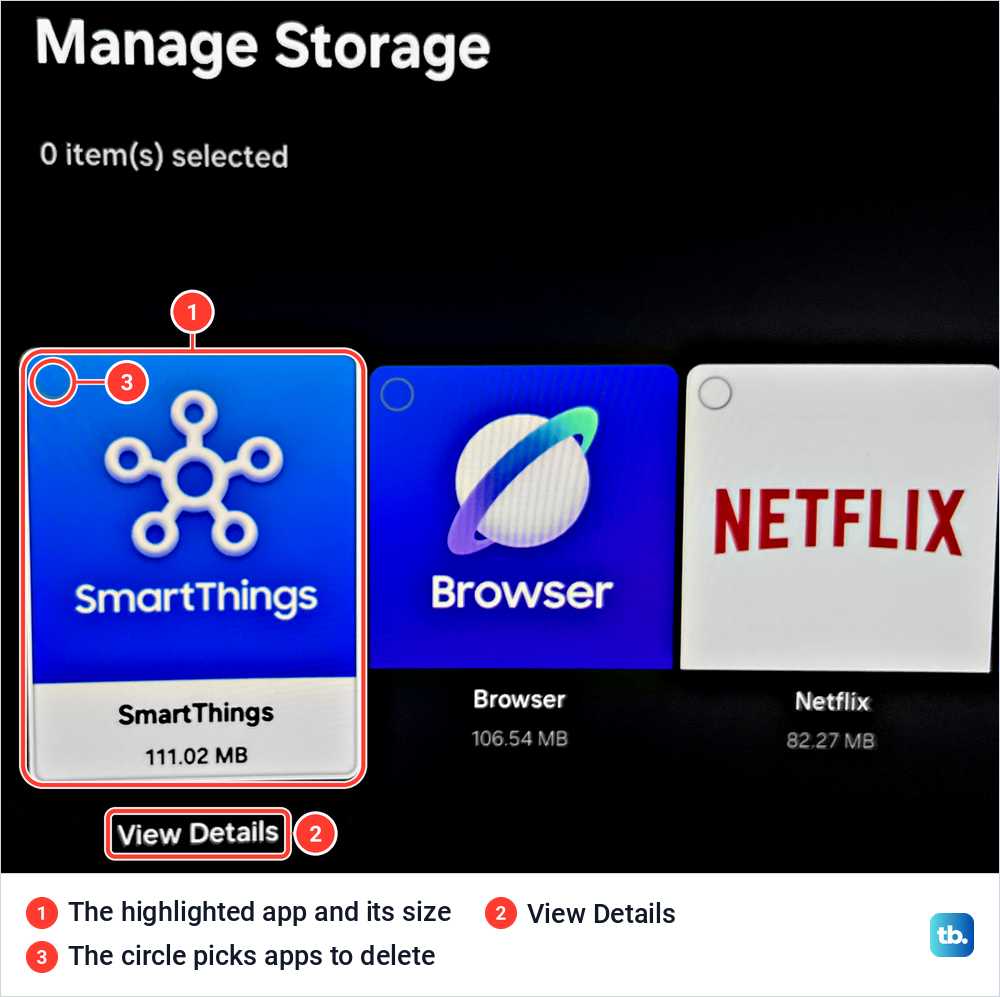
Move along the row until the app you want is highlighted. A View Details button appears under the highlighted tile, so move down to it and select it. The small circle on each tile is for picking apps to delete, which is a different job.
The details panel lists four lines, App, Data, Cache and Total, above three buttons. Select Clear Cache to empty the cache, then Close. Samsung notes that sequences and steps may vary depending on the model of your TV, and its support pages in several countries use these same names.
What Clear Cache and Clear Data remove
Here is what Clear Cache did on our monitor. Before, SmartThings showed App 110.61 MB, Data 4.00 KB, Cache 412.00 KB and Total 111.02 MB. After we selected Clear Cache, the Cache line read 0.00 KB and the Total fell to 110.62 MB.
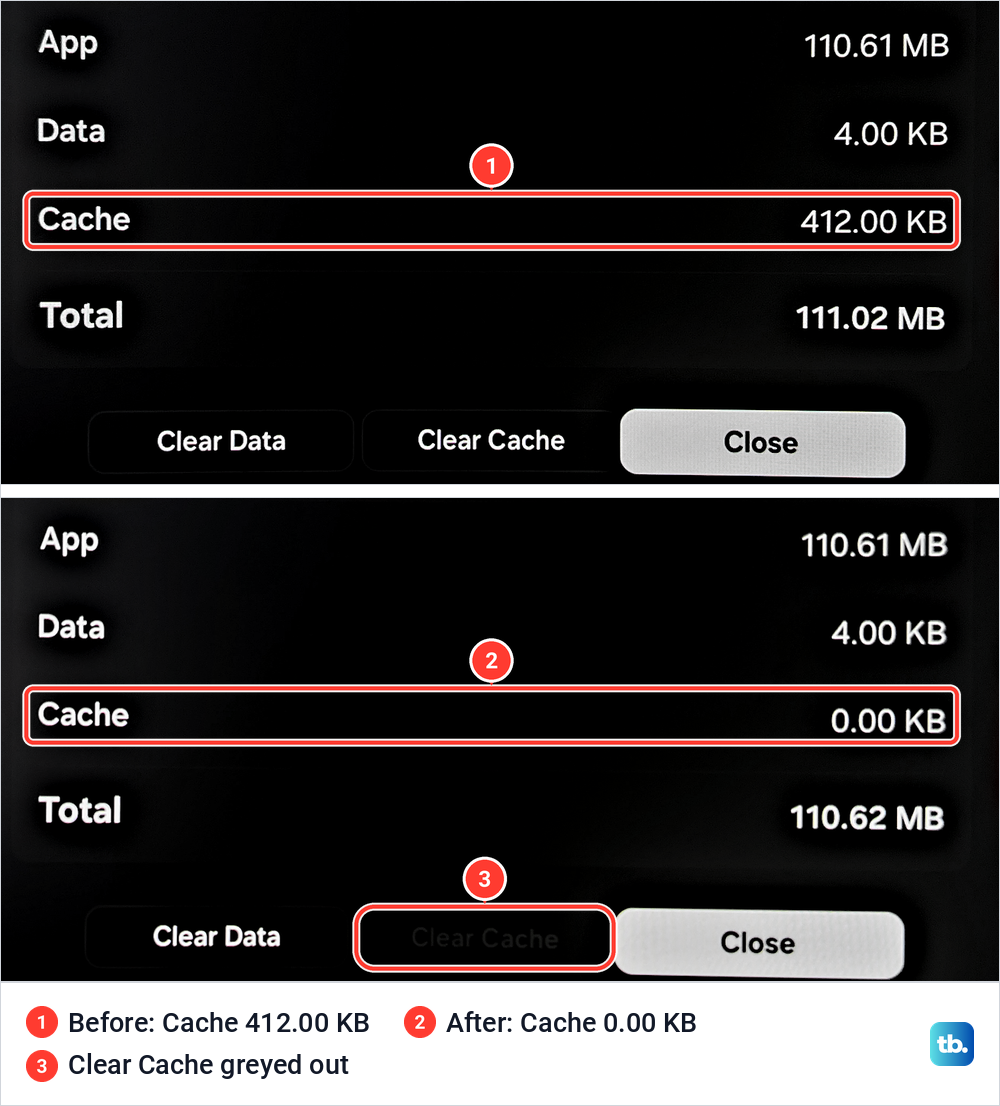
App and Data did not move. Only the Cache line and the Total changed. The Clear Cache button also turned grey, because there was nothing left for it to clear. That is why Clear Cache is the safe first step for an app that misbehaves.
Clear Data is the bigger step. Samsung's pages say only that it clears the app's data, and they do not list what goes with it. Keep it for an app that still misbehaves after Clear Cache, and have that app's sign-in details at hand before you select it.
On our monitor the cache was small. SmartThings gave up 412.00 KB, well under one percent of its size, and Netflix had none. If the real problem is storage, the section on running low on space below is the one to read.
Why Clear Cache or Device Care is greyed out
The simplest reason is the one we saw: there is no cache to clear. SmartThings' Clear Cache went grey once its cache read 0.00 KB. Netflix showed a cache of 0.00 KB before we touched it, and its Clear Cache button was grey from the start.
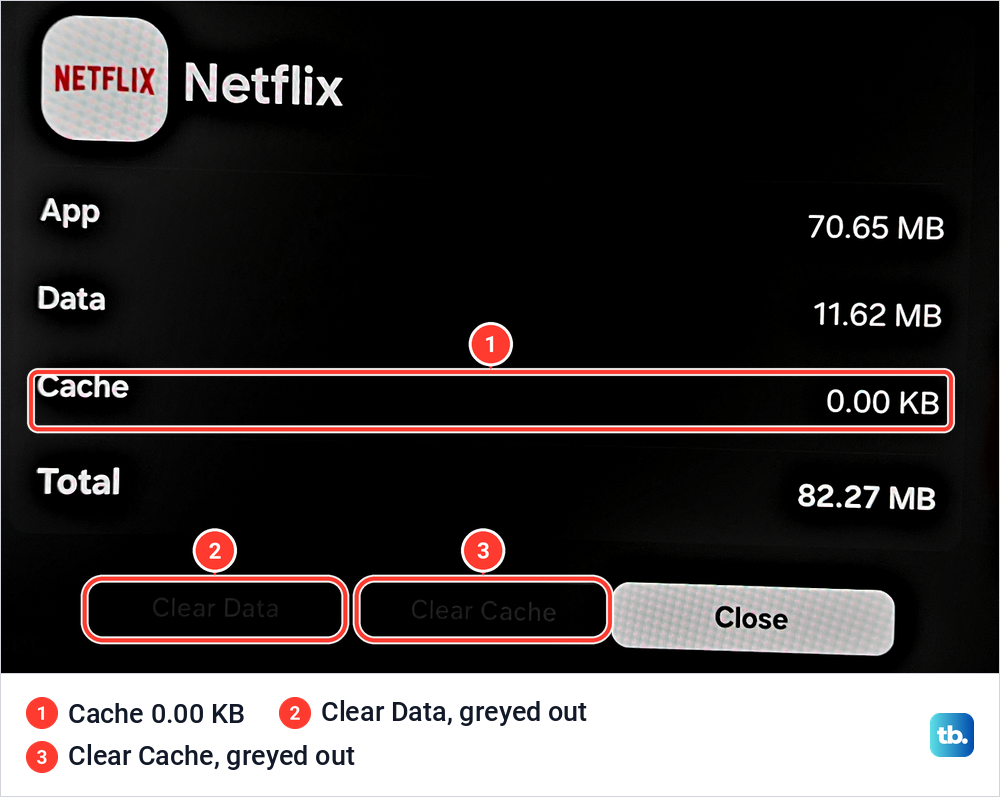
Netflix's Clear Data button was grey too, although the app held 11.62 MB of data. Samsung gives a second reason that may apply here. Many times, it says, a setting is grayed out "because a streaming app is running in the background, such as Hulu or Netflix", and closing the app should make it available.
So if a button you need is grey, close or restart the app and open View Details again. Try the same when a Device Care option says it is not available, since Samsung's advice is about settings in general. Samsung adds that some items, such as Software Update and Contact Support, stay grey while the TV has no internet connection.
If Support has no Device Care entry at all, nothing is broken. Older sets use the menus in the section on older Samsung TVs further down.
What Start Device Care actually clears
Samsung's description of the scan is about memory. When the diagnosis is complete, its Canadian support page says, "it clears the cached memory and closes unused background apps to free up additional memory." That is memory, which Samsung explains fills up as you run more apps, rather than the files each app keeps in storage.
Our run showed the same three jobs as rows on the screen. At 89%, "Free up memory by closing unused background apps" and "Diagnose storage and memory" read Done, while "Free up memory by clearing cached memory" was still Processing.
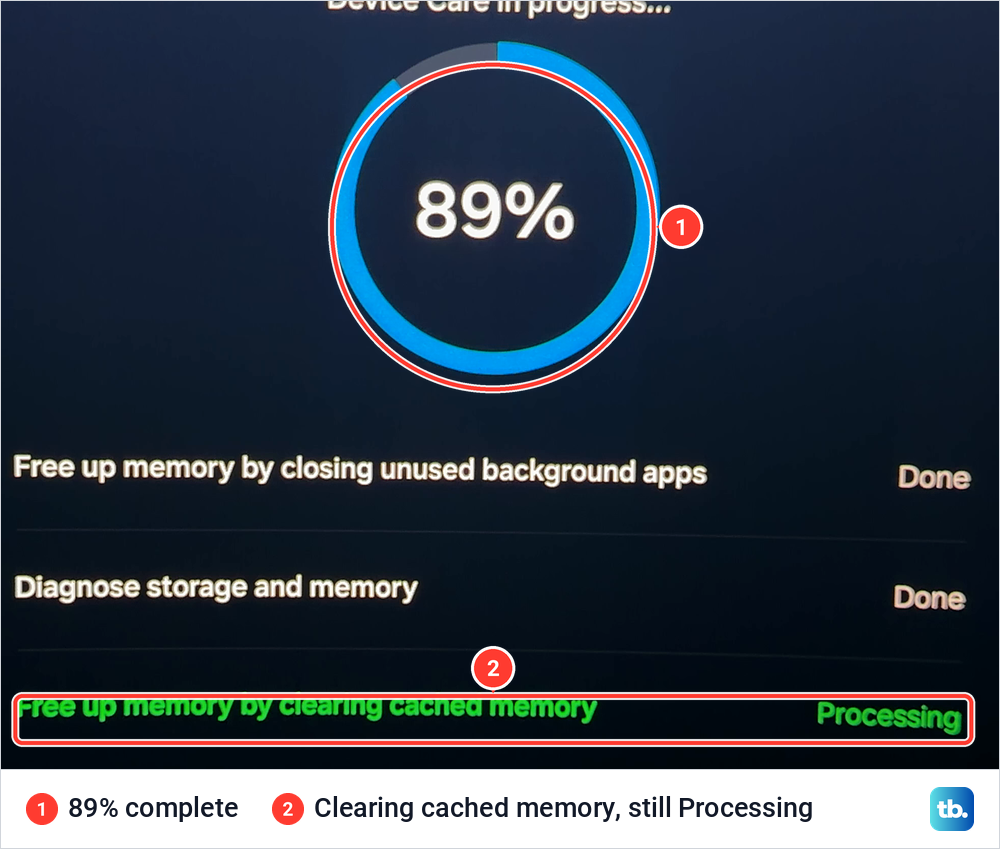
The counter then reached 100% and all three rows read Done. The result screen then said that optimization and diagnostics were complete.
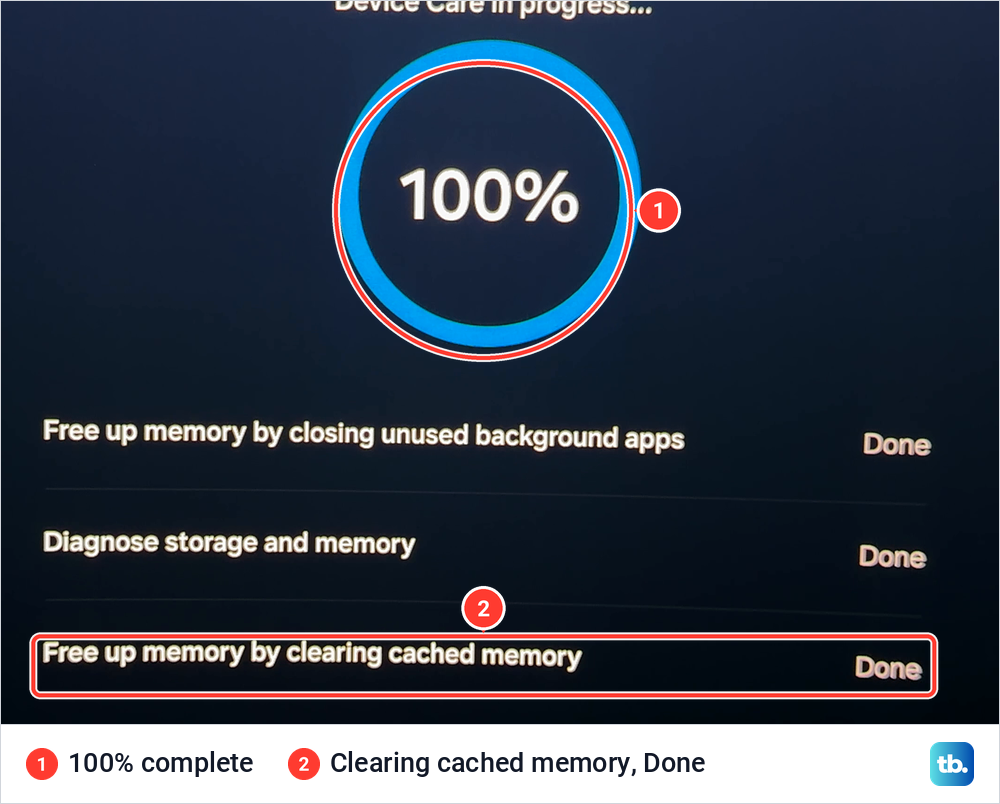
After that we opened Manage Storage. SmartThings showed 412.00 KB of cache, and it took Clear Cache to bring that to zero. The scan frees memory and closes apps, as Samsung says. To empty one app's cache, use Clear Cache.
Run both when the whole TV feels sluggish. Device Care is one of the fixes for a Samsung TV that responds slowly, and that guide also covers software updates, Game Mode and Reset Smart Hub.
Free up storage when the TV runs low on space
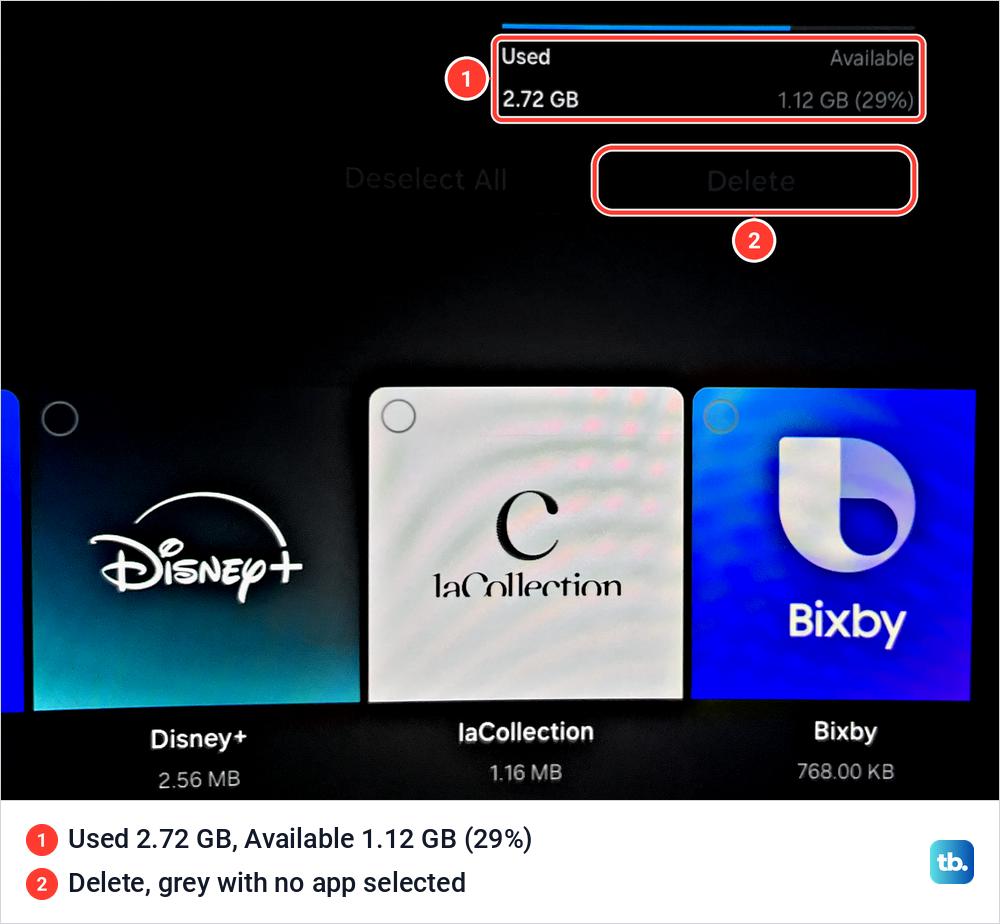
The bar at the top of Manage Storage shows how much room is left. On our monitor it read Used 2.72 GB and Available 1.12 GB (29%). Samsung marks a TV as Moderate when the screen shows 0% flash storage available, with less than 70 MB of writable storage left.
Samsung's order for freeing space is to clear app cache and data first, then reset Smart Hub, and only then reset the TV. Look at the Data line as well as the Cache line in View Details, because data can be the bigger number. Netflix held 11.62 MB of data and no cache at all on our monitor.
Removing an app you no longer use frees more room than clearing its cache, since SmartThings' App line alone was 110.61 MB against 412.00 KB of cache. The same Manage Storage screen is where you delete apps on a Samsung TV: select each app you want to remove, then Delete. On our monitor Delete was grey with no app selected, and Samsung notes that default preinstalled apps cannot be selected and deleted.
Clear the web browser's history
The browser keeps its own history, separate from Manage Storage. Samsung's steps are to open the Internet browser, select the Settings icon, then Web Browser Settings, General and Delete History. Select Yes to confirm, and a screen tells you the history has been deleted. These steps come from Samsung's UK support page, and menu names may differ on newer sets.
The name differs between screens. Samsung's current TV manual calls the app Internet, while our monitor labels it Browser on the Smart Hub app row and in Manage Storage. Browser is in the Manage Storage list on our monitor, at 106.54 MB, so the View Details steps from earlier apply to it.
If pages still will not open after clearing the history, here is how to fix the web browser on a Samsung TV. It also covers network checks and Reset Smart Hub.
Delete broadcast cookies with Delete Browsing Data
Many guides call Delete Browsing Data the cache clear for older Samsung TVs. Samsung's manuals describe it in four words: "Delete all saved Cookies." Samsung describes nothing else, so it is not a way to clear an app's cache.
On European sets it sits under Settings > Broadcasting > Expert Settings > HbbTV Settings, and newer manuals put Broadcasting under All Settings > General & Privacy. Samsung's US manual lists the same item under General & Privacy > Broadcasting > Data Service.
Samsung adds that the function may not be supported depending on the model or geographical area. Its 2019 manual lists it, while its 2018 manual lists only the HbbTV on and off switch, so do not be surprised if an older set does not have it.
Clear cache on an older Samsung TV
If your 2019 Samsung TV has no Device Care, go to Settings > Support > Self Diagnosis > TV Device Manager. Samsung's manual for that year says it lets you "view at a glance and easily optimise the CPU usage, memory usage, and the storage space of the TV", and lists it among the settings on the first screen as well.
Samsung's 2018 and 2015 manuals list neither Device Care nor TV Device Manager. For those sets, Samsung's next step is Reset Smart Hub, and a restart clears the memory cache, as described below.
Samsung's own pages disagree slightly about which year Device Care arrived. Its Australian page says per-app clearing is for TV models from 2020, while one US page sends 2019 owners to Device Care. Go by what your Support menu shows rather than by the year alone.
Restart the TV to clear its memory
Turning a Samsung TV off with the remote does not restart it. In Samsung's words, "When you turn it off, it is really in standby mode." A cold boot shuts the TV down fully and starts it again, like restarting a laptop.
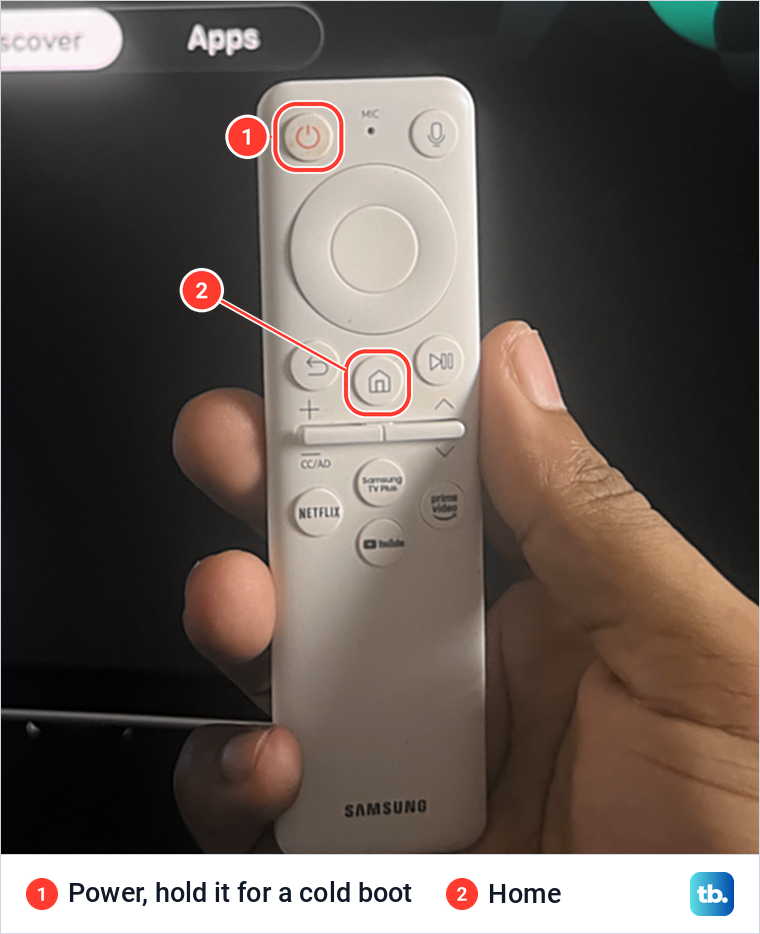
To cold boot, hold Power on the remote until the TV turns off and on again. Samsung says this should only take about 5 seconds, and that afterwards the memory cache is cleared. On our white remote, Power is the round button at the top left.
No remote to hand, or the TV does not restart? Samsung's other way is to unplug the TV from the wall outlet, leave it unplugged for 30 seconds and plug it back in. Samsung's Belgian support page notes that the remote method is not available on The Frame TVs, so use the plug there. Samsung's US instructions cover its smart monitors and projectors in the same way.
Samsung describes a restart as clearing the memory cache, so use it alongside Clear Cache for an app that keeps misbehaving. A cold boot is also one of the first things to try for a Samsung TV that keeps freezing.
When one streaming app keeps failing
If several apps fail at the same time, look beyond one app's cache and start with the guide for apps that will not load even though the TV is online. If it is one app, try that app's own fix first, if it has one, then Clear Cache. For YouTube, start with our steps for when the YouTube app shows only a black screen.
Netflix has its own. Netflix says error ui-800-4 happens "when an issue with data stored on your device stops Netflix from playing", and its fix is to select More Details on the error screen, then Reload Netflix. Reload Netflix is also in Netflix's Get Help menu. Netflix's way there is to select Get Help at the bottom of the menu on the left, or under your profile icon when the menu is at the top.
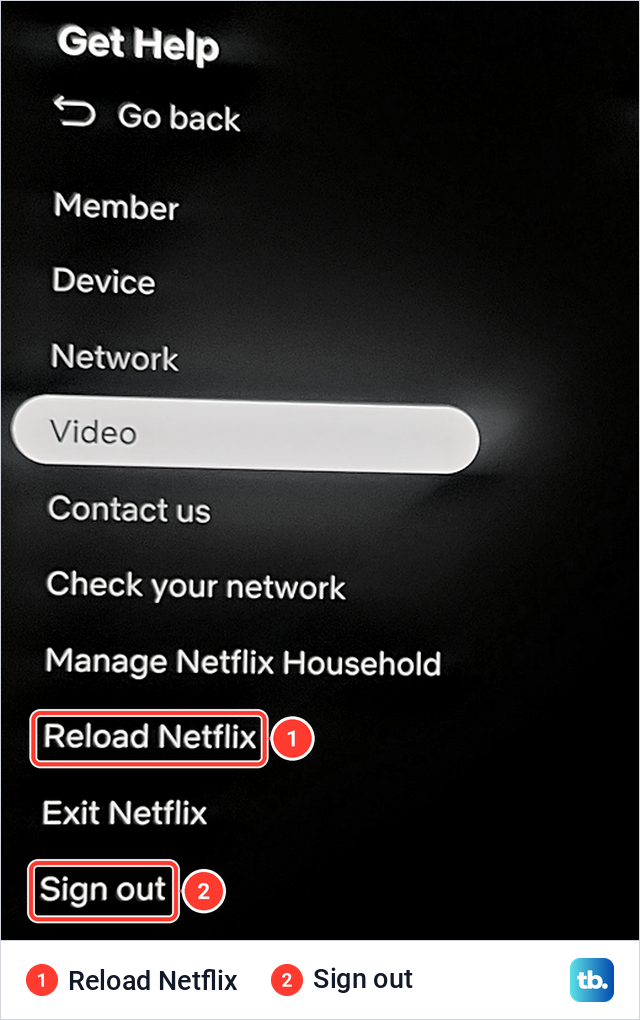
If that does not help, Netflix's next steps are to restart the device and then sign out and back in, and here is how to sign out of Netflix on a TV. For error codes and the rest of Netflix's checklist, see our guide to Netflix not working on a Samsung TV. Netflix also tells Samsung owners they may need to reset Smart Hub.
Reset Smart Hub when clearing cache is not enough
Reset Smart Hub is the step after cache. Samsung says it "resets all Smart Hub settings to their factory defaults and deletes all information related to Samsung accounts, linked service accounts, Smart Hub service agreements, and Smart Hub applications." The TV signs you out of your Samsung account and all of your apps, and you may need to download apps again.
Write down your app passwords before you start. Where the button is depends on your menus. On our monitor, and in Samsung's guides for recent TVs, Reset Smart Hub is on the Device Care screen itself. Samsung's 2020 manual puts it under Device Care > Self Diagnosis, 2018 and 2019 sets have it under Support > Self Diagnosis, and 2015 sets under MENU > Smart Hub.
The TV asks for your PIN. Samsung's default is 0000, or 1111 on sets sold in France and Italy, unless you changed it. If storage is still short afterwards, Samsung's last step is a full reset of the TV.
How we tested this guide
We worked through these menus on our Samsung Odyssey OLED G9, a smart monitor that runs the same Tizen software as Samsung's smart TVs, using its Samsung remote. We opened Device Care from Settings, ran Start Device Care to 100%, then opened Manage Storage, read the storage bar and the app sizes, cleared SmartThings' cache and read Netflix's storage details and its Get Help menu.
The browser steps, Delete Browsing Data, the older-model menus, the cold boot and Reset Smart Hub follow Samsung's TV support pages and manuals. The Netflix steps follow Netflix's Help Center. Menu names on your TV may differ slightly by model and region.
Frequently Asked Questions
How do I clear the cache on my Samsung TV?
On a model from 2020 or later, press Home and go to Settings, All Settings, Support, Device Care, Manage Storage. Highlight the app, select View Details, then Clear Cache. Older sets do not have this screen.
Why is Device Care not available on my Samsung TV?
Close any app that is running, because Samsung says settings are often greyed out while a streaming app runs in the background. If Support has no Device Care at all, the TV is older: some 2019 sets have TV Device Manager under Self Diagnosis, and earlier sets have no per-app cache option, so restart the TV or reset Smart Hub.
Does clearing the cache log me out or delete my apps?
On our monitor Clear Cache left the app installed, with the App line at 110.61 MB and the Data line at 4.00 KB, and only the Cache line went to 0.00 KB. Clear Data goes further, and Samsung describes it only as clearing the app's data.
Does Device Care clear the cache for all apps?
Samsung says the scan clears cached memory and closes unused background apps. When we opened Manage Storage after our scan reached 100%, SmartThings showed 412.00 KB of cache until we cleared it there.
How do I clear the cache on an older Samsung TV?
Some 2019 sets have TV Device Manager under Settings, Support, Self Diagnosis. Earlier sets have no per-app option. Samsung's next step for them is Reset Smart Hub, and a cold boot clears the memory cache.
Does turning off my Samsung TV clear the cache?
No. Samsung says a TV that has been turned off is in standby mode. Hold Power on the remote until the TV turns off and on again, about 5 seconds, to clear the memory cache. On The Frame, unplug it for 30 seconds instead.
What is the PIN to reset Smart Hub?
It is 0000 by default, and 1111 on sets sold in France and Italy. If you changed the PIN, use yours.