
To restart an app on a Samsung TV, hold the Return button on the remote for at least one second to close it, then open it again from the Home screen, and it starts fresh. Samsung's TV manuals say that hold ends the running app, and you can also press Return once and choose Exit if the app asks.
Pressing Home only switches to the Home Screen, and a quick press of Power only puts the TV in standby, so neither one restarts the app. If closing it does not help, run Device Care or clear the app's cache, then restart the whole TV by holding Power until it turns off and on again, or by unplugging it on The Frame and The Terrace. Updating, reinstalling and resetting Smart Hub come after that.
The short version
- Close it properly: hold Return for at least a second, then open the app again from Home.
- Home is not a close button: it switches to the Home Screen, and a quick press of Power is only standby.
- Netflix has its own restart: open Get Help, then choose Reload Netflix or Exit Netflix.
- Several apps are slow: Start Device Care closes unused background apps and clears cached memory.
- One app keeps failing: clear its cache in Manage Storage, under View Details.
- Still frozen: hold Power until the TV restarts, or unplug it for 30 seconds, which is the way on The Frame and The Terrace.
Which fix to try first
Start at the top of this table and stop as soon as the app behaves. Each row is a bigger step than the one before it.
| What to do | When to use it | What it does |
|---|---|---|
| Press Return on the app's first screen and choose Exit | You want to leave an app the normal way | Closes the app after it asks |
| Hold Return for a second or more, then open the app from Home | One app is slow, glitchy or stuck on a screen | Samsung's manuals say it ends the running app, so it starts fresh |
| Get Help, then Reload Netflix or Exit Netflix | Netflix will not load or play | Netflix's own restart of its app |
| Settings > All Settings > Support > Device Care > Start Device Care | Several apps are slow or the TV feels sluggish | Closes unused background apps and clears cached memory |
| Manage Storage, the app, View Details, Clear Cache | The same app keeps failing | Empties that one app's cache |
| Hold Power until the TV turns off and back on | The app is frozen and Return does nothing, on any model except The Frame and The Terrace | Samsung's cold boot, which restarts the TV and clears its memory cache |
| Unplug the TV for 30 seconds | The remote does nothing at all, or you have The Frame or The Terrace | The same restart without the remote |
| Settings > All Settings > Support > Software Update > Update Now | The app crashes after every fresh start | Installs newer TV software, and the TV reboots by itself |
| Apps > App Settings, the app, Reinstall | The app still fails after all of that | A fresh copy of the app, and you sign in again to a third-party app |
| Settings > All Settings > Support > Device Care > Reset Smart Hub | Nothing else has worked | Signs you out of all apps and your Samsung Account, and removes apps that were not pre-installed |
Samsung's paths for 2022 and later TVs go through All Settings, as written here, while its paths for older TVs skip that step. On our monitor, All Settings is the first choice in the panel that Settings opens. Samsung warns that reinstalling a third-party app and Reset Smart Hub both sign you out, so keep your passwords handy before the last two rows.
Close the app with the Return button
Return is the button with the curved arrow. Samsung's TV manuals for 2019, 2020, 2023, 2025 and 2026 models all print the same line for it: "When pressed for 1 second or more, the running function is terminated." Samsung's guide for app developers says the same from the other side, that long-pressing Return "forces the application to terminate".
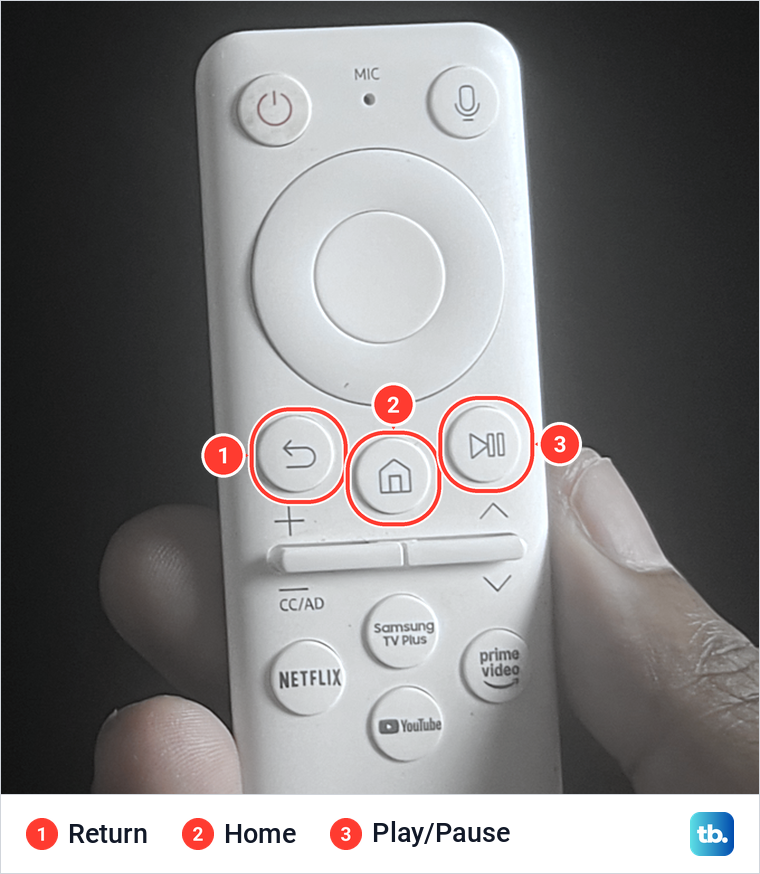
The photo shows the white Samsung remote we use with our Samsung Odyssey OLED G9, a smart monitor that runs the same Tizen software as Samsung's smart TVs. Return sits at the left of the row under the round navigation pad, with Home in the middle and Play/Pause on the right.
To close a stuck app, press and hold Return for at least a second, then let go. A short press is a different command. Samsung's manuals describe it as "Press to return to the previous menu", so inside an app it usually just steps back one screen.
The everyday way out is gentler. Samsung's UK support page says to press Return and, "If an information window appears, select Exit". Some apps skip the question and close at once, and because each app draws its own exit pop-up on its first screen, the button can read Yes instead of Exit.
Do not hold Return together with Play/Pause. Samsung's 2026 TV manual says holding those two for 3 seconds is how you pair the Samsung remote with your TV again, so it closes nothing.
Open the app again so it starts fresh
After a real exit, press Home and select the app in the row along the bottom of the screen. On our monitor the row runs SmartThings, Netflix, Prime Video, Disney+, YouTube, Bixby and Browser, with an edit button at the end.
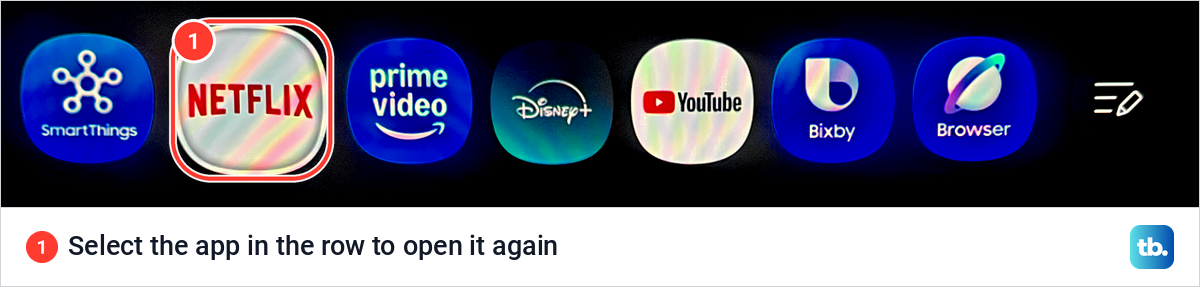
Samsung's developer guide explains why this counts as a restart. When you exit an app, "the current application state is not stored", and when it is launched again, "the application state is reset".
Why Home and the power button do not restart an app
Samsung's manuals describe Home simply as "Press to switch to the Home Screen", not as a way to close anything. Its developer guide says that when you switch from an app to another app or input, the app saves its state to memory and hides in the background, and "The application state is recovered when the application is resumed." Going to the Home Screen is a switch away from the app too, so expect it to pick up where it was, stuck screen and all.
Holding Home does not close anything either. On supported 2025 models a long press of Home gives the function of the AI button, and on supported 2026 models it can open Vision AI Companion. Samsung's manual for its smart monitors says a long press there opens the Control PAD.
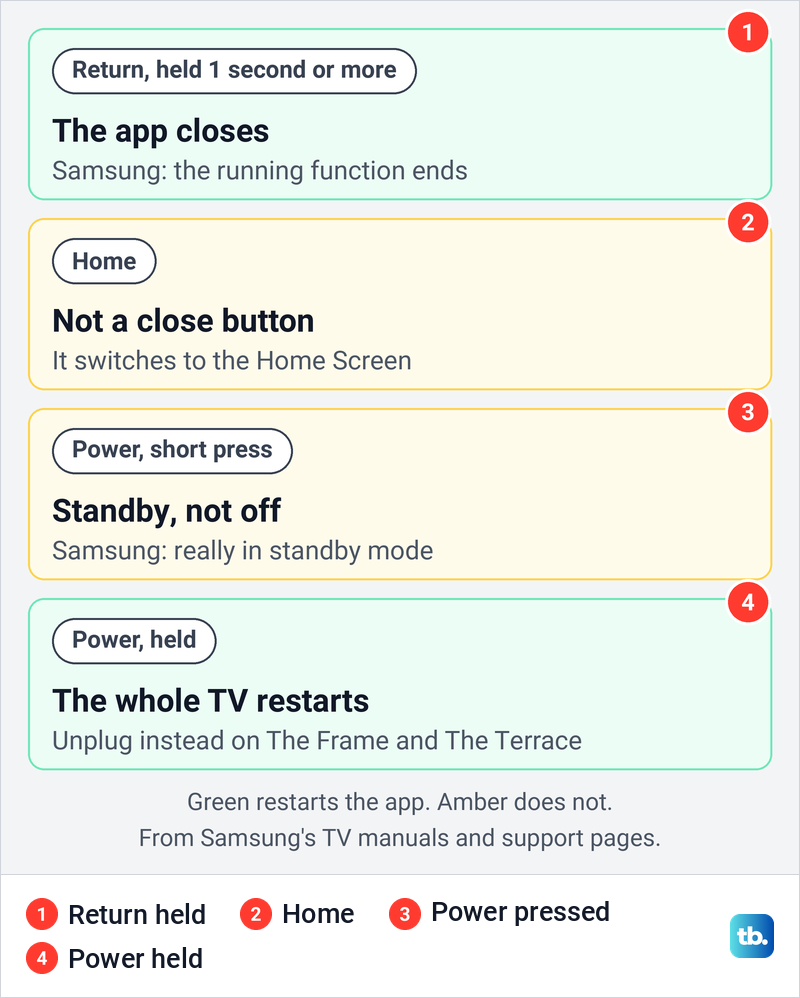
The power button has the same trap. Samsung's support page puts it plainly: "When you turn it off, it is really in standby mode." Only a cold boot "actually shuts the TV down and reboots it", in Samsung's words, and that step comes further down.
Some guides tell you to open App Settings and choose Force Stop, or to hold a Menu button and pick Close all apps. Neither appears in any of the Samsung TV manuals or support pages behind this guide. In App Settings, Samsung's 2025 manual lists Add to Home, Delete, Lock/Unlock, Reinstall and View Details for each app, and nothing that force-stops one.
Restart Netflix from its own menu
Netflix also builds its own restart into the app, which helps when holding Return does not clear the problem. Netflix's help pages say to go to the Netflix home screen and press the back button on your remote, which is Return on a Samsung remote, to open the menu. On our monitor that menu lists Switch Profiles, Get Help and Exit Netflix.
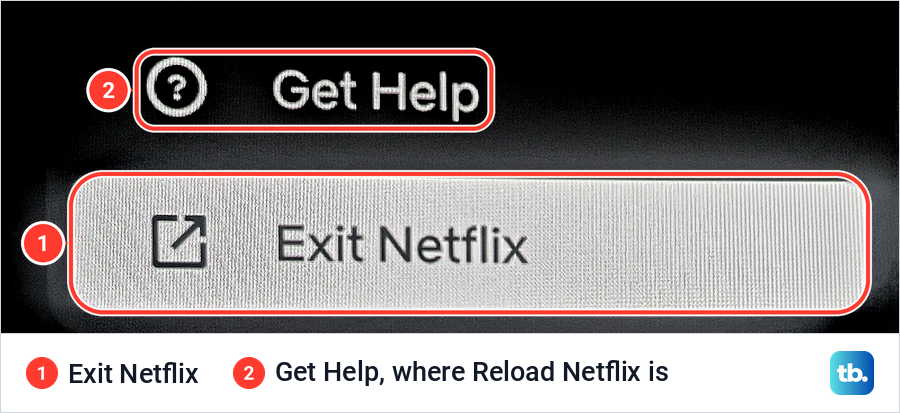
Netflix counts Exit Netflix as a restart of its app. Its steps are to select Exit Netflix, open Netflix again from the Home screen, then try again.
Get Help holds the second tool. On our monitor it listed Reload Netflix and Exit Netflix just above Sign out, with no error on screen. Netflix's help page for the "Unable to connect to Netflix" error offers the same two from the error screen: choose More Details, then Reload Netflix, or select Exit, or More Details and then Exit Netflix.
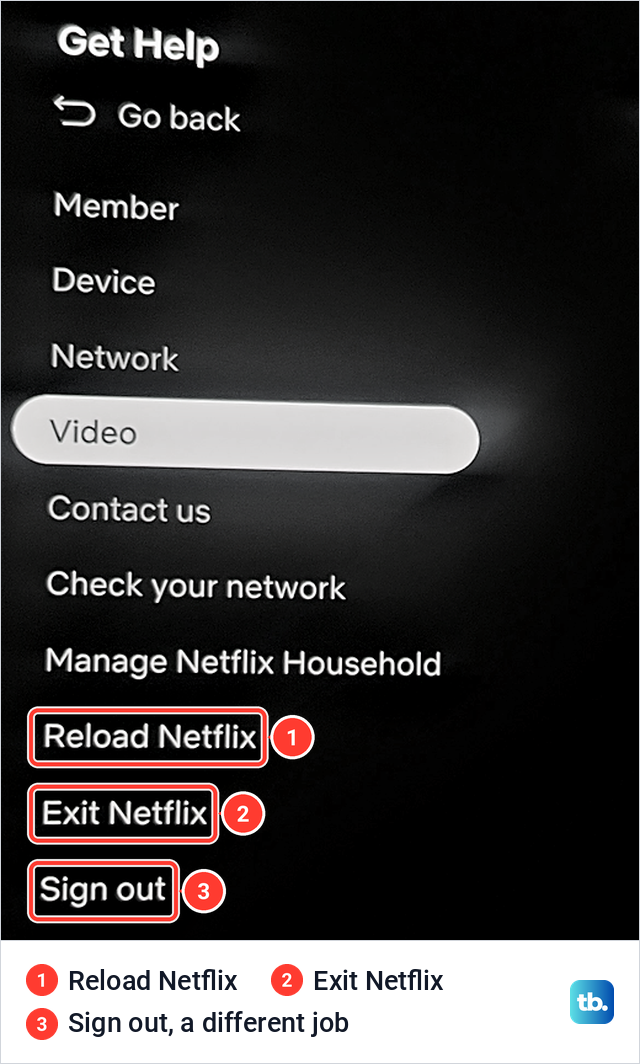
Netflix says that error happens when data stored on your device needs to be refreshed, or when your network stops your device from reaching Netflix. Sign out sits right under the two tools and is a different job, so leave it unless you mean to sign out of Netflix on a TV. If Netflix still will not start after a reload, our guide to Netflix not working on a Samsung TV goes through error codes and network checks.
Let Device Care close background apps
When several apps feel slow, or you cannot tell which one is stuck, Device Care is the wider clean-up. Samsung says that when its scan is complete, "it clears the cached memory and closes unused background apps to free up additional memory." Open Settings > All Settings > Support > Device Care.
Select Start Device Care in the middle of the screen. The same screen holds Manage Storage, which the next section uses, and Reset Smart Hub, which is the last step on this page.
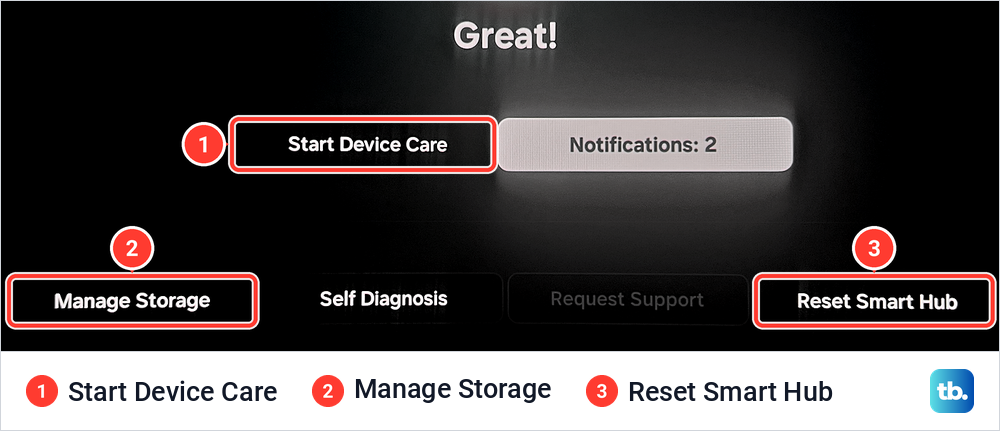
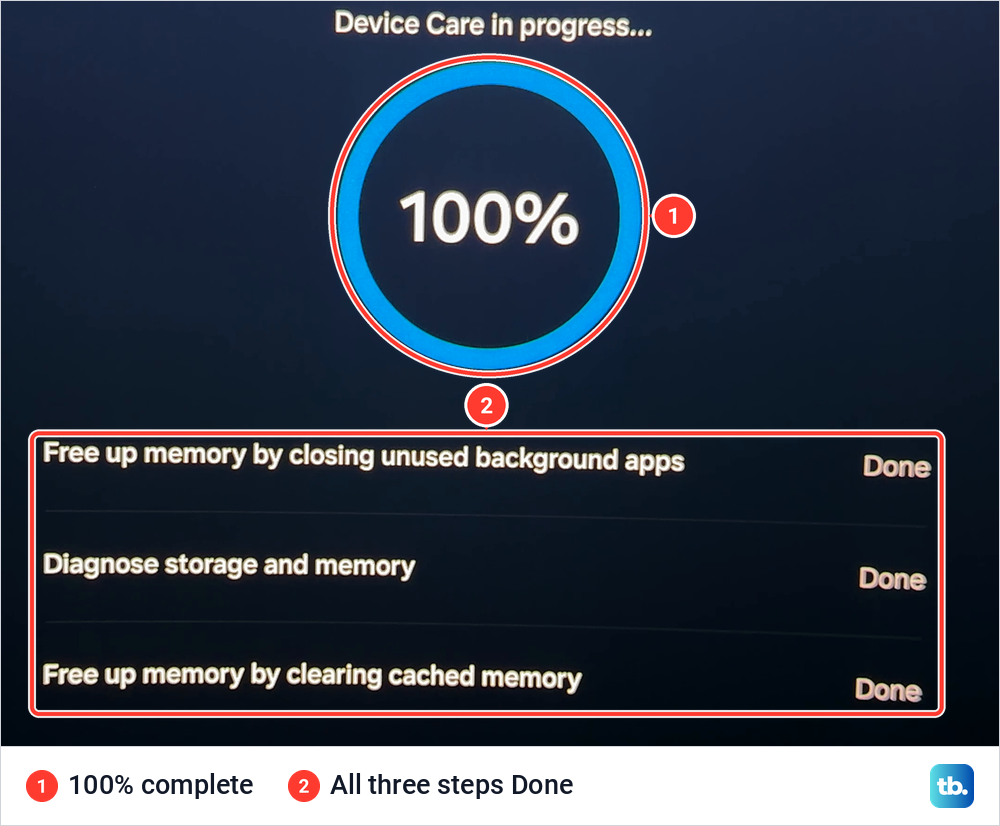
When we ran Start Device Care on our monitor, the scan listed three steps. At 89%, Free up memory by closing unused background apps and Diagnose storage and memory already read Done, while Free up memory by clearing cached memory was still Processing.
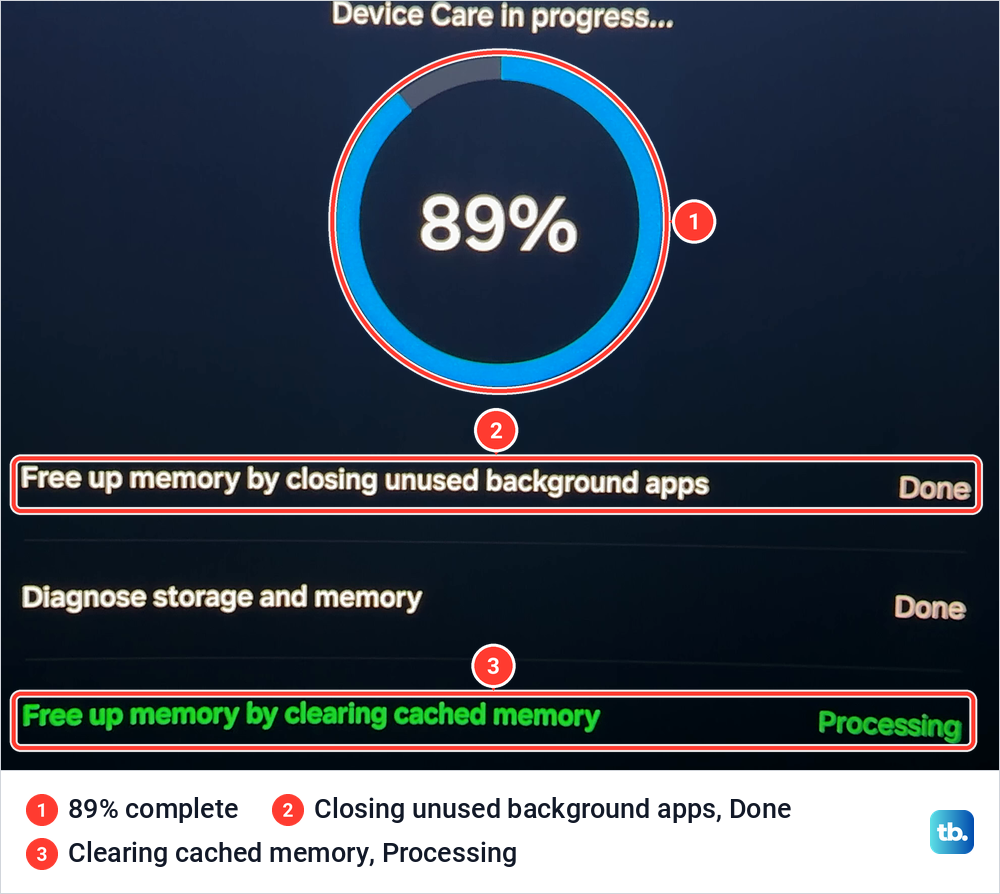
The scan finished at 100% with all three steps marked Done. You do not pick the apps Device Care closes, so it suits a sluggish TV better than one frozen app.
Samsung's 2019 TV manual has TV Device Manager under Self Diagnosis instead, which it says optimises CPU usage, memory usage and storage space. If menus lag even with no app open, work through our fixes for slow response on a Samsung TV.
Clear the app's cache
If the same app keeps freezing after a restart, clear its stored cache. Samsung's path on its TVs is Settings > All Settings > Support > Device Care > Manage Storage, then the app, then View Details, where Clear Data and Clear Cache sit side by side.
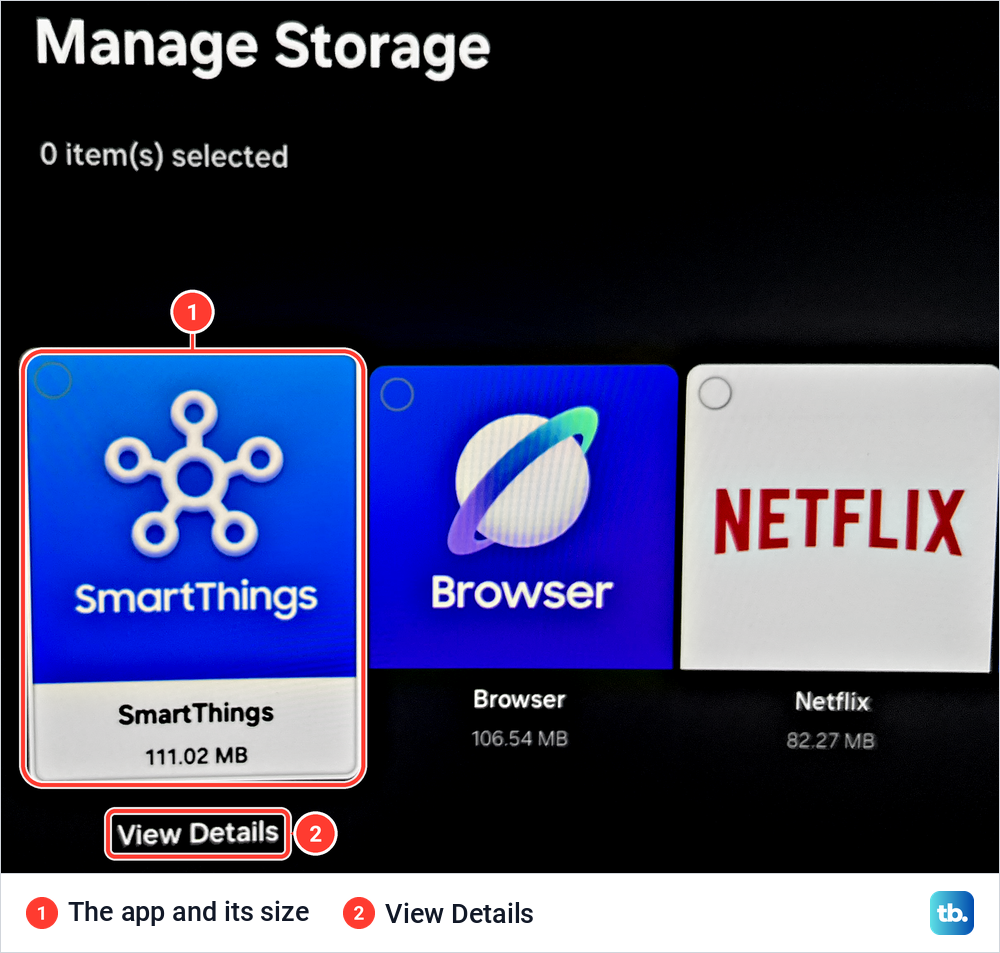
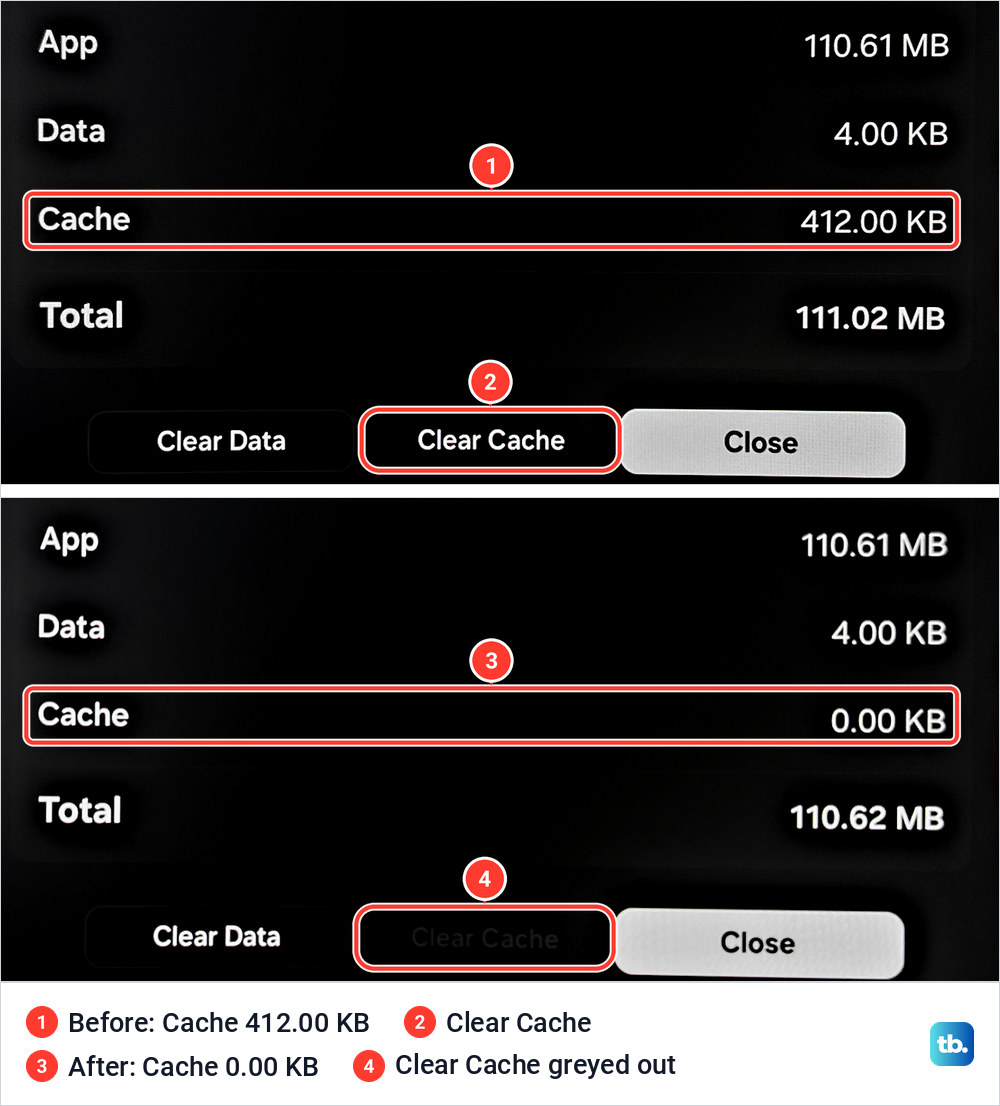
We opened SmartThings, listed first at 111.02 MB, and pressed Clear Cache. Its cache dropped from 412.00 KB to 0.00 KB and the total from 111.02 MB to 110.62 MB, while App (110.61 MB) and Data (4.00 KB) stayed exactly the same. Clear Cache then turned grey.
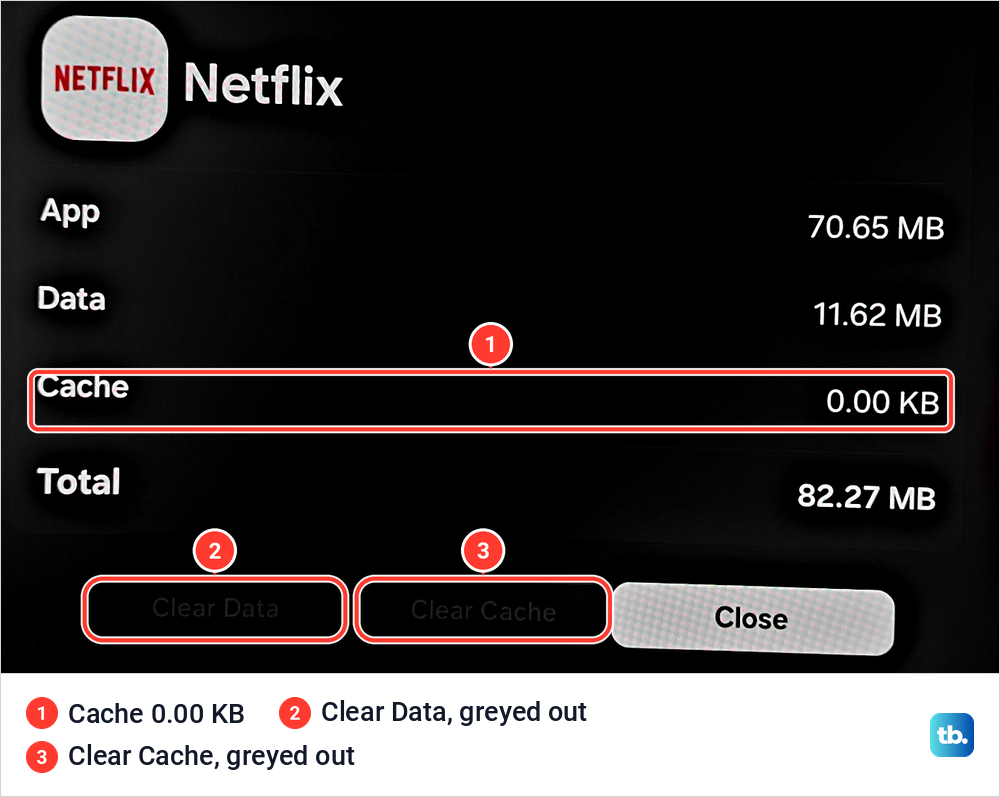
Not every app lets you clear it. On our monitor Netflix showed Cache 0.00 KB, and both Clear Data and Clear Cache were greyed out. When that happens with Netflix, its own Reload Netflix in Get Help is the other way to refresh it.
Samsung's pages list Clear Data beside Clear Cache but do not say what it removes, so this guide sticks to Clear Cache. There is more detail in our guide on how to clear the cache on a Samsung TV.
Restart the TV when the app stays frozen
If Return does nothing and the app will not let go, restart the whole TV. Samsung calls it a cold boot: hold down the Power button on the remote "until the TV turns off and on again", which "should only take about 5 seconds". Samsung says a cold boot clears the memory cache, and its Caribbean support page calls it "a software reset (reboot) rather than a factory reset", so it does not wipe the TV.
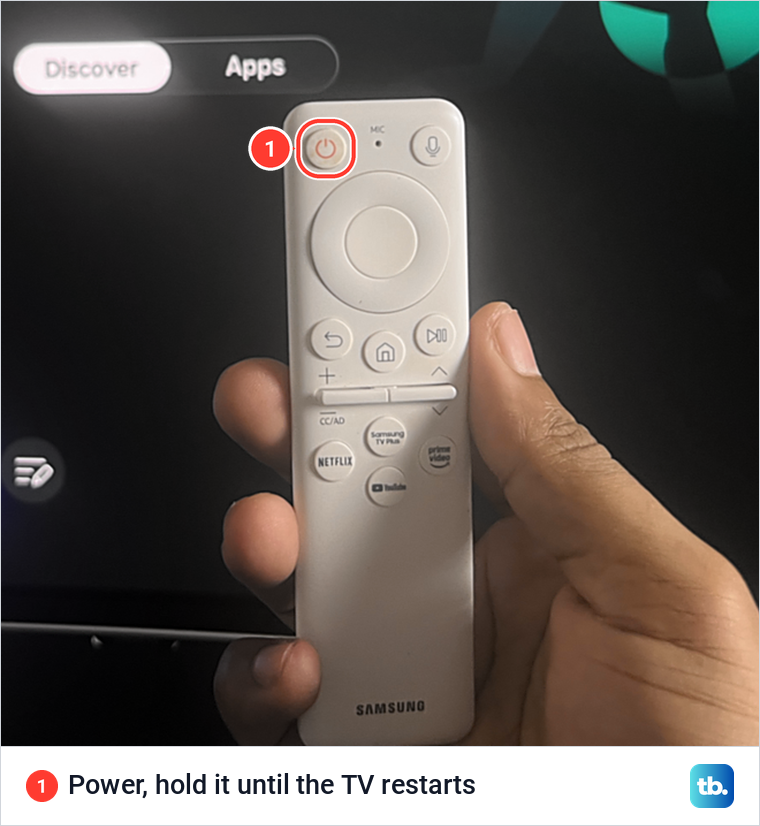
Without a working remote, unplug the TV from the wall, leave it unplugged for 30 seconds and plug it back in, which is Samsung's own instruction. Netflix's steps for a frozen Netflix app on a Samsung TV allow longer: unplug it, press the TV's own power button once and wait 1 minute, or leave it unplugged for 3 minutes. If the TV ignores every button, check our fixes for a Samsung remote that stops responding before you blame the app.
There are two exceptions. On The Frame and The Terrace, Samsung's 2023 manual says pressing and holding Power turns the TV off completely, so unplug it instead. And if you only want a restart, do not hold the TV's own button before the remote's Power button. Samsung documents that sequence as a Flash Reset, which powers the TV on in reset mode, so you follow the initial setup again and download the app again.
If the whole screen locks up rather than one app, follow our fixes for a Samsung TV that keeps freezing. If it stays dark after you plug it back in, see what to do about a Samsung TV that won't turn on.
Stop an app from opening by itself
If a stuck app is back every time you switch the TV on, Autorun Last App is the likely reason. Samsung's manual says: "If Autorun Last App is set to on, the last used app is automatically run when you turn on the TV." Turning it off stops that, although Samsung notes the function may not be supported depending on the app.
On 2023 TVs, and in the manual for our monitor, the switch is under Settings > All Settings > General & Privacy > Start Screen Option. Samsung's 2025 TV manual moves Start Screen Option to Advanced Features, so look there on newer models. On 2019 and 2020 TVs, Samsung's manuals put Autorun Last App under Settings > General > Smart Features.
Update the app and the TV software
An app that crashes after every fresh start may need a newer version. Samsung's steps are to press Home, open Apps, scroll down to App Settings and set Auto Update to on. For the TV itself, go to Settings > All Settings > Support > Software Update and select Update Now.
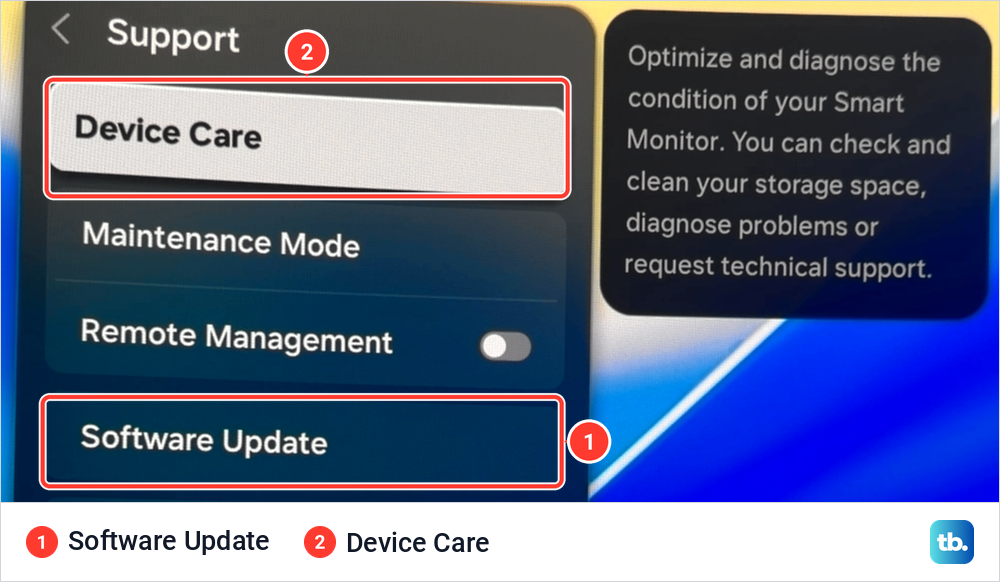
On our monitor, Software Update sits in the same Support menu as Device Care, directly under Remote Management. Samsung says that if an update is available it installs automatically and the TV reboots, so do not turn it off until the update is complete.
If Software Update or another setting is greyed out, Samsung says it is often because a streaming app such as Hulu or Netflix is still running in the background, and that Software Update is also greyed out when the TV is not connected to the internet. Open that app, hold Return inside it to close it, then go back to Settings. If the update changes nothing, look at our fixes for apps that fail even though the TV is online.
Reinstall the app
When an app fails after a restart, a cache clear and an update, install a fresh copy. Samsung's 2025 TV manual puts the tools in App Settings, at the bottom of the Apps screen. Select the app, then Reinstall, and reinstallation starts.
Samsung's US support page says that if Delete is greyed out, "this is a recommended app. Select Reinstall instead." Samsung's Hong Kong page says default apps such as Netflix and YouTube cannot be deleted. Samsung warns that deleting or reinstalling a third-party app signs you out, so have your login details ready before you start.
Removing an app's tile from the Home screen is not the same as uninstalling it. Samsung says recommended apps cannot be deleted but can be removed from the Home screen. For the full steps, including apps you cannot remove, see how to delete apps on a Samsung TV.
Reset Smart Hub as the last step
Reset Smart Hub is the heavy option, so keep it for last. Samsung says it "will log you out of all apps and your Samsung Account" and "will also remove all apps that are not pre-installed". Switch the TV to Live TV or an HDMI input first, because Samsung says you cannot reset Smart Hub from inside Smart Hub or an app.
On 2025 TVs, Samsung's path is Settings > All Settings > Support > Device Care > Reset Smart Hub, which matches the button on our monitor's Device Care screen. On 2020 to 2024 models it sits one level deeper, under Device Care > Self Diagnosis. The default PIN is 0000 unless someone has changed it.
If your menu does not match either path, check the model of your Samsung TV to see which year applies. If nothing on this page helps, Netflix's own advice for Samsung TVs is to contact Samsung for help resetting Smart Hub, upgrading the firmware or performing a factory reset.
How we tested this guide
Our photos come from our Samsung Odyssey OLED G9, a smart monitor that runs the same Tizen software as Samsung's smart TVs, and the white Samsung remote we use with it. On it we opened Netflix's menu and its Get Help list, ran Start Device Care to 100%, and cleared the cache for SmartThings, noting the numbers before and after.
The steps for holding Return, the exit question, standby, cold boots, unplugging, The Frame and The Terrace, Autorun Last App, reinstalling, updates and Reset Smart Hub follow Samsung's own TV support pages and e-Manuals. The Netflix steps follow the Netflix Help Center. Where Samsung's TV menus use a different path from our screen, we give Samsung's wording.
Frequently Asked Questions
How do I force close an app on a Samsung TV?
Hold Return on the remote for at least one second. Samsung's TV manuals say a press of 1 second or more ends the running function, and its developer guide says a long press forces the app to close. Then open the app again from Home.
Does pressing Home close an app on a Samsung TV?
Not by Samsung's description. Its manuals say Home switches to the Home Screen, and its developer guide says an app you switch away from hides in the background, ready to resume. Holding Home does not close it either, because on supported 2025 and 2026 models a long press can open Samsung's AI features instead.
Does turning off a Samsung TV close the apps?
Not reliably. Samsung says a quick press of Power only puts the TV in standby, not fully off. Hold Power until the TV turns off and on again, or unplug it for 30 seconds, which is the way on The Frame and The Terrace.
Why does an app open by itself when I turn on my Samsung TV?
Autorun Last App is switched on. Turn it off under Settings > All Settings > General & Privacy > Start Screen Option, or under Advanced Features > Start Screen Option on 2025 models. On 2019 and 2020 TVs it is under Settings > General > Smart Features.
How do I close all apps at once on a Samsung TV?
The Samsung TV manuals and support pages behind this guide list no option that closes every app at once. Run Start Device Care, which closes unused background apps, or restart the TV by holding Power until it turns off and on again. On The Frame and The Terrace, unplug it instead.
Which of these steps sign me out of my apps?
Samsung warns that deleting or reinstalling a third-party app signs you out, and that Reset Smart Hub logs you out of all apps and your Samsung Account. Its pages give no such warning for closing an app, Device Care or clearing the cache.
Why is Software Update greyed out on my Samsung TV?
Samsung says a streaming app such as Hulu or Netflix running in the background is a common reason, and that Software Update is also greyed out when the TV is not connected to the internet. Open the app, hold Return inside it to close it, then go back to Settings.
Can I restart an app without the remote?
Unplug the TV from the wall for 30 seconds and plug it back in, which is Samsung's own instruction when you have no remote. The SmartThings app on your phone can also stand in for the remote once your TV is added to it, and Samsung lists Home and Back among its buttons.