
To delete an app on a current Samsung TV, press Home on the remote, open Apps, scroll down to App Settings, select the app, then choose Delete and select Delete again to confirm. Delete is Samsung's word for uninstall, and it removes the app with its data. On Samsung's newest TVs you can also highlight the app under Downloaded App, press and hold Select, and choose Delete twice. Older models use a gear icon or an Options menu instead, as the table below shows.
Two things catch people out. Many apps that come with the TV, such as Netflix and YouTube, cannot be deleted, so their Delete option is greyed out. You can hide their tile instead, or choose Reinstall if one misbehaves. Deleting an app also signs you out of it, and Netflix says that neither signing out nor deleting its app cancels your Netflix plan.
The short version
- Current Samsung TVs: press Home, open Apps, scroll to App Settings, pick the app, then select Delete twice.
- Samsung's newest menus: highlight the app under Downloaded App, press and hold Select, then select Delete twice.
- By size: Settings > All Settings > Support > Device Care > Manage Storage shows installed apps with their sizes and has its own Delete button.
- Delete greyed out: Samsung's US pages call it a recommended app, which cannot be deleted. Remove its tile from the Home screen, or choose Reinstall if it misbehaves.
- Before you delete: you will sign in again after reinstalling, and signing out of Netflix or deleting its app never cancels the plan.
Which delete menu your Samsung TV has
Samsung has moved the Delete option more than once, and the menu names change with the model year and the region. Find the row that matches what your screen shows.
| Route | Use it when you see | What to select |
|---|---|---|
| Home > Apps > App Settings | An App Settings row at the bottom of the Apps screen | Highlight the app, then Delete, then Delete in the pop-up |
| Home > Apps > Downloaded App | A Downloaded App row on the Apps screen | Press and hold Select on the app, then Delete, then Delete |
| Home > Apps > Settings icon | A gear icon at the top right of the Apps screen | Select the app, then Delete, then Delete |
| Home > Settings > All Settings > Support > Device Care > Manage Storage | Installed apps listed with their sizes and a selection circle | Select the app, then Delete at the top right |
| Home > APPS > Options | A K, M, N or R series TV | Select the app, then Delete, then Delete again |
| Smart Hub > Apps > My Apps | An E, F, H or J series TV | Options, Delete My Apps, the app, Delete, Yes, then OK |
The first two rows are Samsung's current menus, and its newest user guide mentions both, so one TV may show both. Samsung groups its steps for older sets by series letter, so check your Samsung TV's model before you pick one of the last two rows. Samsung India lists App Settings for A, B, C and D series TVs.
Delete an app from App Settings
This is the route Samsung's support pages in the US, the UK and Canada give, and its recent user guides say the same. It works for apps you installed yourself, while built-in apps show Delete greyed out.
Our photos come from our Samsung Odyssey OLED G9, a smart monitor that runs the same Tizen software as Samsung's smart TVs. Its Home screen has Discover and Apps tabs at the top, a Now Playing tile, and a row of app tiles along the bottom.
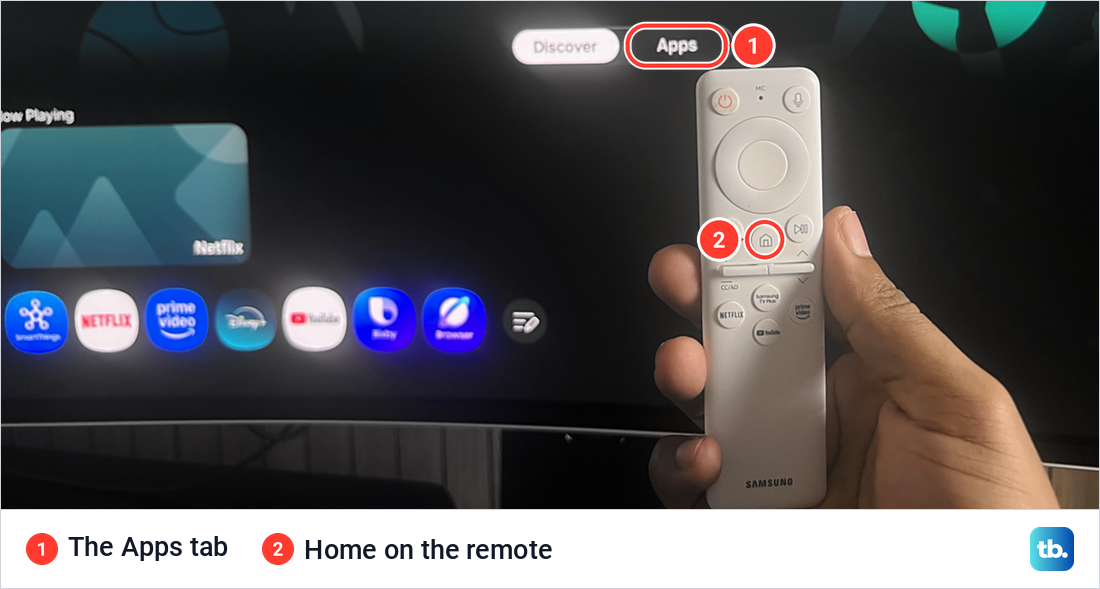
- 1.Press Home on the remote and select Apps.
- 2.Scroll all the way down to the bottom of the Apps screen and select App Settings.
- 3.Highlight the app you want to remove, and a menu opens under it.
- 4.Select Delete in that menu.
- 5.Select Delete again in the pop-up to confirm.
Samsung adds two warnings. The app's data goes with it, and its troubleshooter says deleting or reinstalling a third-party app signs you out, so have your login details ready. Samsung also says you can reinstall the app at any time from Apps.
The menu under each app holds more than Delete. Samsung lists Add to Home, Lock, Move, Reinstall and View Details there, and Reinstall and Lock matter later if Delete turns out to be greyed out.
Delete an app by holding Select on it
Samsung's pages for its newest TVs, which run One UI Tizen, describe a quicker route. Open Apps from the Home screen and find the app under Downloaded App. Highlight it, then press and hold Select, the centre of the round pad on the remote, until an options menu appears.
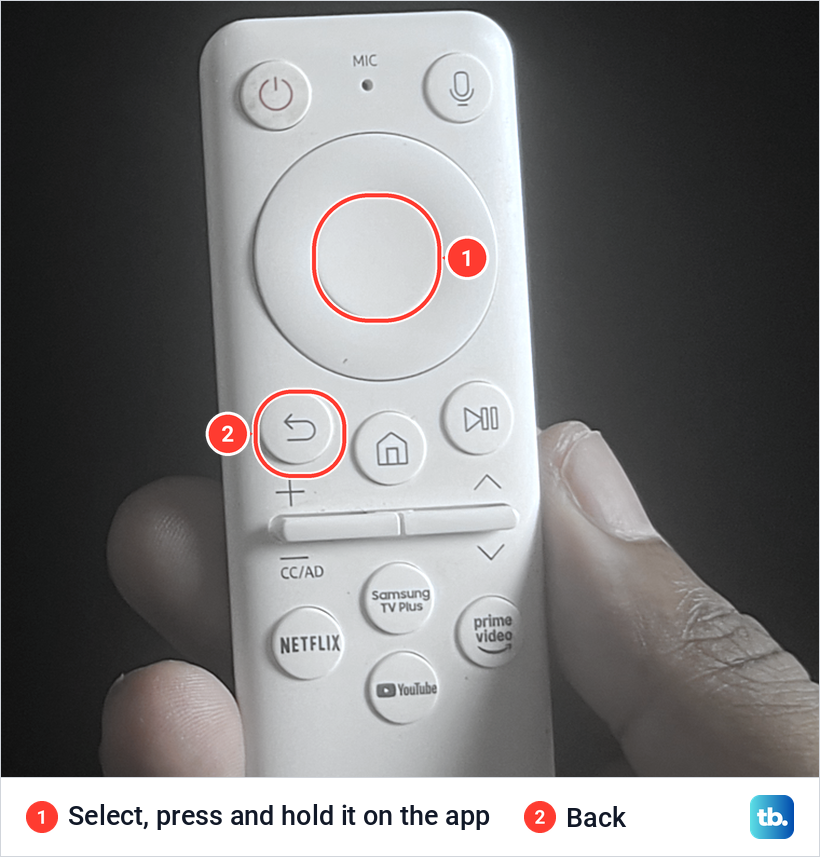
Select Delete in that menu, then Delete again when the confirmation pop-up appears. Samsung notes that some apps may not have the Delete option or show it greyed out, and that menu names vary with the model, software version and region.
Samsung documents this route for its newest menus, so if holding Select brings up no Delete option, use App Settings as described above. If no button on the remote responds at all, our guide to a Samsung remote that is not working covers that case.
Delete apps from Manage Storage in Device Care
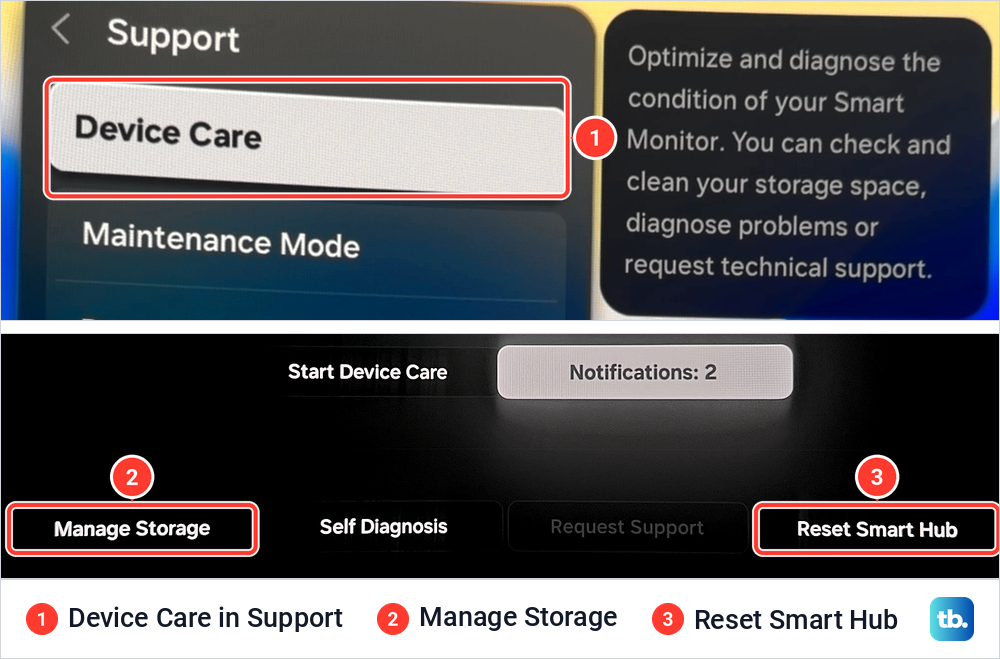
Device Care is the better place when space is the reason you are deleting, because it shows each app's size before you choose. Samsung's path is Settings > Support > Device Care > Manage Storage. On our monitor, Settings opened a quick panel first, and its All Settings tile led to the full list with Support at the bottom, which is how Samsung's Australian steps describe it too.
Support listed Device Care first, with a note that it lets you check and clean your storage space. The Device Care screen showed a Start Device Care button, with Manage Storage, Self Diagnosis, Request Support and Reset Smart Hub in a row along the bottom.
Manage Storage opened with "0 item(s) selected" at the top left and an empty circle in the corner of every app tile. Each tile showed the app's size, and View Details sat under whichever tile was highlighted.
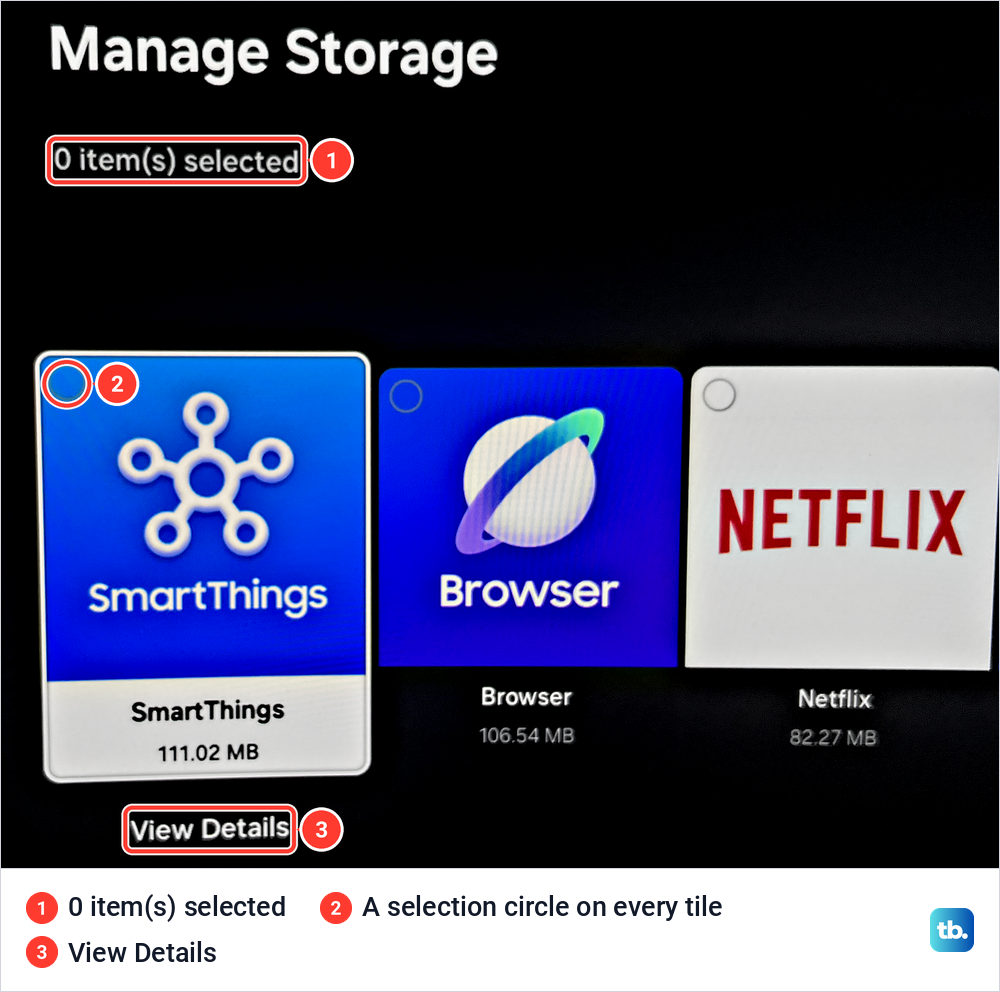
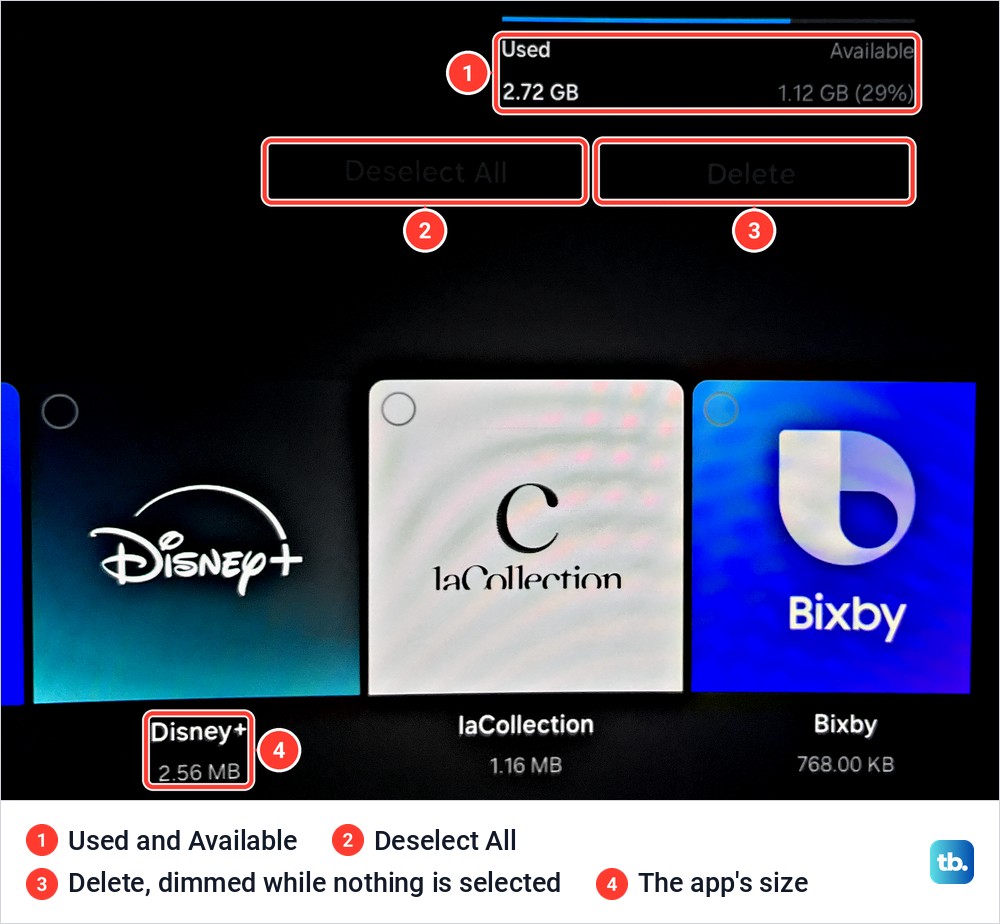
Samsung's steps are to select the app you want to delete and then select the Delete button at the top right. On our screen that corner held Deselect All and Delete, both dimmed while nothing was selected, under a bar reading Used 2.72 GB and Available 1.12 GB (29%). Samsung's pages note that the default installed apps may not be selected here, the same built-in rule as a greyed-out Delete.
Check how much space an app uses first
Highlight a tile in Manage Storage and select View Details to see where the space goes. The panel splits the total into App, Data and Cache, with Clear Data, Clear Cache and Close buttons underneath.
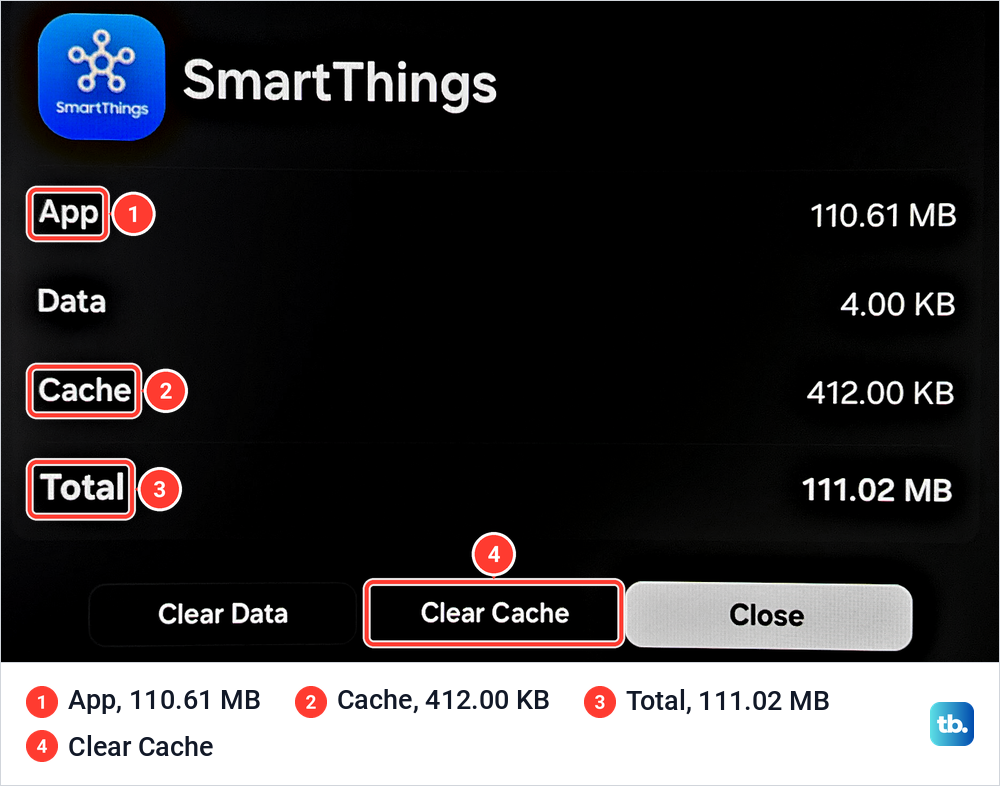
That split is worth a look before you delete anything. On our monitor SmartThings took 111.02 MB, and 110.61 MB of that was the app itself, with only 412.00 KB of cache. When we selected Clear Cache, the cache dropped to 0.00 KB and the total fell to 110.62 MB, so clearing it won back less than half a megabyte.
Samsung lists clearing app cache and data as one way to free up storage, but on our monitor this cache was too small to matter. If the Cache and Data lines are small, clearing them will not free much, while deleting an app you never open frees its whole total. If an app is slow or stuck rather than unwanted, clear the app's cache from this same panel before you delete it.
On our screen Netflix, which Samsung lists as a default app, took 82.27 MB, while Disney+ took 2.56 MB and laCollection 1.16 MB, against 2.72 GB in use. If the TV's internal memory is short, Samsung says some apps can be installed on a USB device instead.
Samsung says app updates may fail when the TV does not have enough storage. If the TV is slow rather than short of space, our guide to a Samsung TV that responds slowly covers that.
Why Delete is greyed out on some apps
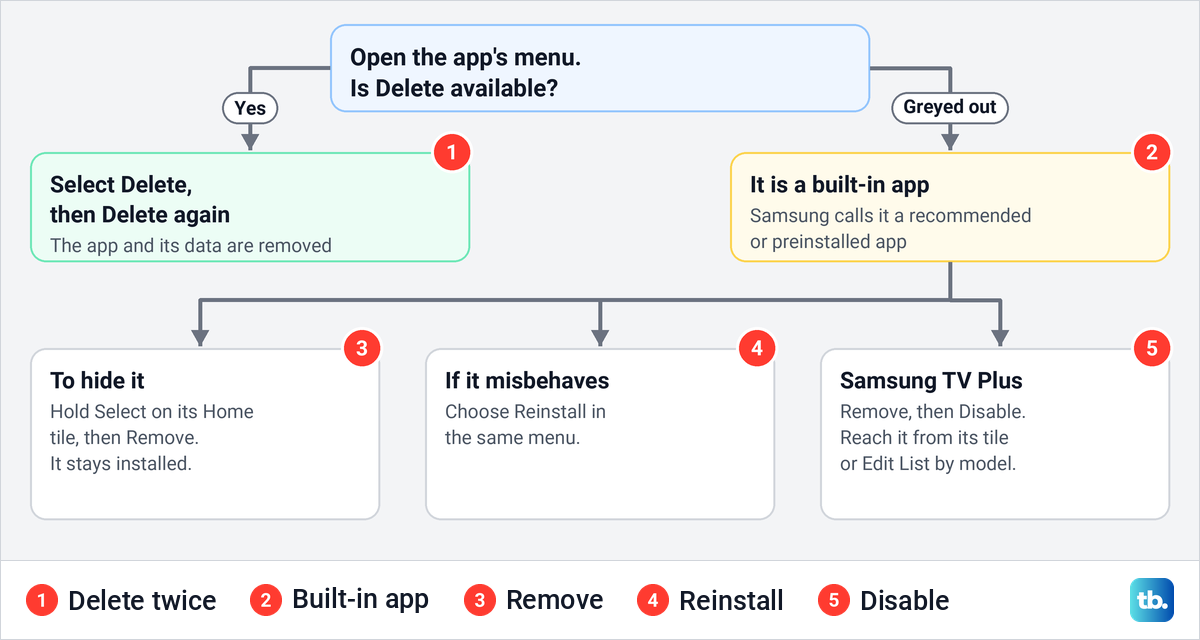
Samsung ties a greyed-out Delete to apps that came with the TV, which its US troubleshooter calls recommended apps and its India page calls preinstalled. Samsung's user guides put it plainly, "Standard apps cannot be uninstalled", and Samsung Hong Kong names Netflix and YouTube as default apps that cannot be deleted. Samsung adds that the default apps differ by model and region.
Samsung's US troubleshooter gives the next step. "If Delete is grayed out, this is a recommended app. Select Reinstall instead." Reinstall sits in the same menu as Delete, so a built-in app that misbehaves can still be refreshed even though it cannot be removed.
If Netflix is the app you wanted gone because it keeps failing, our fixes for Netflix on a Samsung TV are the better next step. The same goes for YouTube. Select Reinstall in App Settings if it misbehaves, and if the YouTube app shows a black screen, that guide covers the other fixes.
Selling or giving away the TV? Netflix usually stays installed, so sign out of Netflix on the TV before it leaves the house. Reset Smart Hub, described below, signs you out of every app and your Samsung account in one go.
Hide an app you cannot delete
Removing an app from the Home screen hides its tile without uninstalling it. Samsung's US steps are to highlight the app on the Home screen, press and hold Select, choose Remove, then Remove again to confirm. The same menu offers Move if you would rather push the tile further along the row.
The app row on our monitor ends in a round icon with lines and a pencil. Samsung's support pages call it List Edit, and its newest user guide calls it Edit List. Select it, highlight an app and press Down, and Samsung says the app moves to a section called Choose the item you want to add, where it can be added back later.
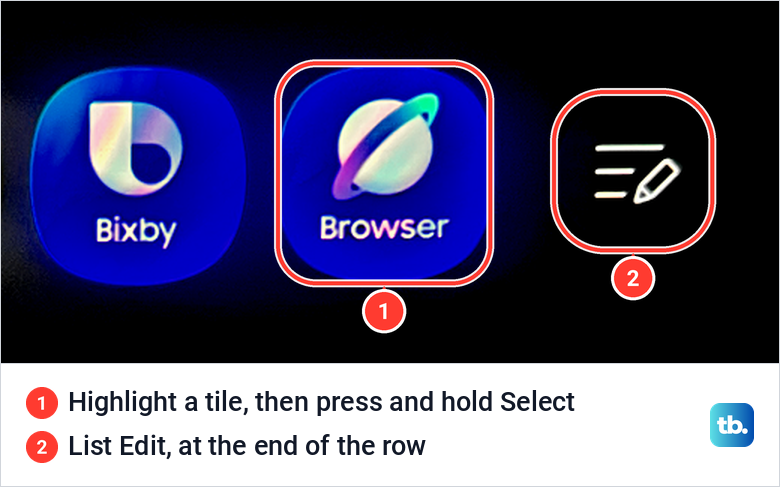
Samsung is plain about the result. Removing an app from the Home screen "does not uninstall it", so the app stays installed and keeps its storage. Remove is for tidiness, not for space.
To keep children out of an app rather than hide it, lock it. Open Apps, scroll to App Settings, select the app and choose Lock, and from then on it asks for the TV's PIN, which is 0000 by default.
Samsung's newest user guide puts Change PIN under General & Privacy > PIN Settings, and our monitor lists Change PIN directly in General & Privacy. To lock a single Netflix profile instead, our guide explains how to lock a Netflix profile with a PIN.
Turn off Samsung TV Plus instead
Samsung TV Plus, the free channel service, works differently. Samsung says it runs on its smart TVs, projectors and smart monitors, and its own steps disable it rather than delete it. Our remote even has a dedicated Samsung TV Plus button beside the Netflix and Prime Video buttons.
The way in depends on the model year. Samsung Singapore's steps for 2025 TVs are to highlight Samsung TV Plus on the Home screen, press and hold Select and choose Remove. Samsung Australia sends 2022 to 2026 TVs through Edit List on the Home screen, where you select the app and choose Remove, and 2020 and 2021 TVs through the down button on the Samsung TV app, then Remove.
Remove on its own only takes Samsung TV Plus off the Home screen, while Disable removes the TV Plus icon and the TV Plus channels. Samsung Australia adds that the app itself cannot be uninstalled. To bring it back, highlight Samsung TV Plus under Connected Devices, then press and hold Select on 2025 and 2026 TVs or press the down button on 2022 to 2024 TVs, and choose Add to Home.
Reinstall an app you deleted
Samsung's current steps are to select the Search icon on the Home screen, type the app's name, select it and choose Install. When the download finishes, Open launches it. The TV needs an internet connection and a signed-in Samsung account, which Samsung requires for its app store.
An app that is still installed but broken does not need deleting at all. Select it in App Settings and choose Reinstall, and Samsung's guides say reinstallation starts. Either way, sign back in to the app afterwards, since Samsung says these steps sign you out.
Deleting and reinstalling is the heavy fix, so close and restart the app first if it only froze. Samsung's troubleshooter puts a restart of the TV and a software update ahead of deleting and reinstalling, with Reset Smart Hub after it, and our guide to Samsung TV apps that will not load covers the other fixes.
One caution for older sets. Samsung Canada says that if you cannot find an app in the store, it is likely not compatible with your TV model, which is more common with older TVs. Keep that in mind before you delete an app you rely on.
Remove every downloaded app with Reset Smart Hub
To clear out every app you added in one go, Samsung's tool is Reset Smart Hub, not a factory reset. Samsung Australia says it logs you out of all apps and your Samsung account and removes all apps that are not pre-installed, while Smart Hub settings return to their factory defaults. You then download the apps you want again.
Samsung's path on its 2025 and later TVs is Settings > All Settings > Support > Device Care > Reset Smart Hub, and our monitor shows the same button on its Device Care screen, number 3 in the Device Care picture above. On 2020 to 2024 models it sits one level deeper, under Device Care > Self Diagnosis, and on 2016 to 2019 sets it is under Settings > Support > Self Diagnosis. Either way it asks for the PIN, which is 0000 by default.
Switch to Live TV or an HDMI input first, because Samsung says Smart Hub cannot be reset from inside Smart Hub or an app. A factory reset is a much bigger step. Our monitor's Factory data reset sits at the bottom of General & Privacy with the warning that all the settings will return to factory defaults.
Uninstall apps on older Samsung TVs
Older Smart Hub layouts put a Settings icon, shaped like a gear, at the top right of the Apps screen. Select it, pick the app, then select Delete and Delete again. Samsung's US troubleshooter and its Hong Kong page both describe that version.
Samsung India gives the older routes by series. On K, M, N and R series TVs, press Home, open APPS, select Options, choose the app, then Delete and Delete again. On E, F, H and J series TVs, open Apps from the Smart Hub panel, select My Apps and the Options icon at the top, choose Delete My Apps, pick the app, then select Delete, Yes and OK.
How we tested this guide
Our photos come from our Samsung Odyssey OLED G9, a smart monitor that runs the same Tizen software as Samsung's smart TVs, with its white Samsung remote. On it we photographed the Home screen with its Apps tab, followed Settings through All Settings and Support to Device Care, and read Manage Storage, its storage bar and the View Details panels for SmartThings and Netflix. We also cleared the SmartThings cache and compared the panel before and after.
The App Settings and Downloaded App menus, every step from the first Delete onward, and Reinstall, Remove, Lock, Disable, Reset Smart Hub and the older menus follow Samsung's own support pages and user guides. The point about your Netflix plan follows Netflix's Help Center.
Frequently Asked Questions
Why can't I delete some apps on my Samsung TV?
They are built in. Samsung's guides say standard apps cannot be uninstalled, so their Delete option is greyed out, and Samsung's US troubleshooter says to select Reinstall instead if one of them misbehaves.
Can I delete Netflix or YouTube from a Samsung TV?
Usually not. Samsung names both as default apps that cannot be deleted, and which apps are built in varies by model and region. To hide one, highlight its tile on the Home screen, press and hold Select and choose Remove.
Does deleting Netflix cancel my subscription?
No. Netflix says deleting the app does not cancel your account, so cancel the Netflix plan itself from your Netflix account if you want to stop paying.
How do I delete all apps on a Samsung TV at once?
Use Reset Smart Hub in Device Care. Samsung says it removes all apps that are not pre-installed and signs you out of your apps and your Samsung account, and it asks for the PIN, 0000 by default.
What is the difference between Remove and Delete?
Remove only takes the tile off the Home screen, and the app stays installed. Delete uninstalls the app and removes its data.
How do I get a deleted app back?
Select Search on the Home screen, type the app's name, select it and choose Install. You need an internet connection and a signed-in Samsung account, and you will have to sign in to the app again.
Can I get rid of Samsung TV Plus?
You can disable it, though Samsung says the app cannot be uninstalled. Depending on the model year, reach it by pressing and holding Select on its Home screen tile or through Edit List, choose Remove, then Disable, which removes its icon and its channels.