
To fix a lagging Samsung TV, hold the remote's Power button until the screen goes off and the Samsung logo comes back, which restarts the TV properly and clears its memory. Then open Settings > Support > Device Care and select Start Device Care. If one app is still slow, clear its cache in Manage Storage, install the latest software, and keep Reset Smart Hub and a factory reset for last.
A slow Samsung TV is not always the same problem, though. Menus that crawl point to memory, one sluggish app points to that app, videos that keep buffering point first to your network, and a game that answers the controller late is input lag, which Game Mode exists to cut. The table below matches each kind of lag to the fix to try first.
The short version
- Hold Power on the remote until the Samsung logo returns. A short press only puts the TV in standby.
- Run Settings > Support > Device Care > Start Device Care to close background apps and free memory.
- Clear a slow app's cache in Manage Storage > View Details. Clear Data signs you out of the app, so leave it for later.
- For games, turn on Game Mode. On 2022 to 2024 Game Bars, Input Lag Fastest turns Game Motion Plus off for less delay.
- Try Reset Smart Hub before a factory reset, and have your app logins ready for both.
Why your Samsung TV is lagging
Samsung's own explanation is memory. The more apps you run, the more memory the TV uses, and when it gets low the TV can take a while to turn on, apps start slowly and menus load slowly. Samsung also names built-up cache data, outdated software and background updates as causes.
| What you notice | What it usually is | Do this first | Then |
|---|---|---|---|
| Menus and the Home screen are slow, or the TV takes a while to turn on | Memory running low | Hold Power until the Samsung logo returns | Run Start Device Care |
| One app is slow or stalls | That app's cache, or the app itself | Clear Cache in Manage Storage | Delete the app and install it again |
| Menus are quick but videos buffer | Often the network, sometimes the app | Run the Smart Hub Connection Test in Self Diagnosis | Check the Wi-Fi and the router |
| Games respond late to the controller | Input lag | Turn on Game Mode | On 2022 to 2024 Game Bars, set Input Lag to Fastest |
| Motion looks juddery, smeared or too smooth | The Picture Clarity settings | Set Picture Clarity to Off or Custom | Adjust Blur Reduction and Judder Reduction |
| Remote presses arrive late | The remote's battery or a remote setting | Charge the remote or replace its batteries | Check Slow Button Repeat if held buttons crawl, then pair the remote again |
| Still slow after all of that | Software or Smart Hub data | Install the latest software | Reset Smart Hub, then a factory reset |
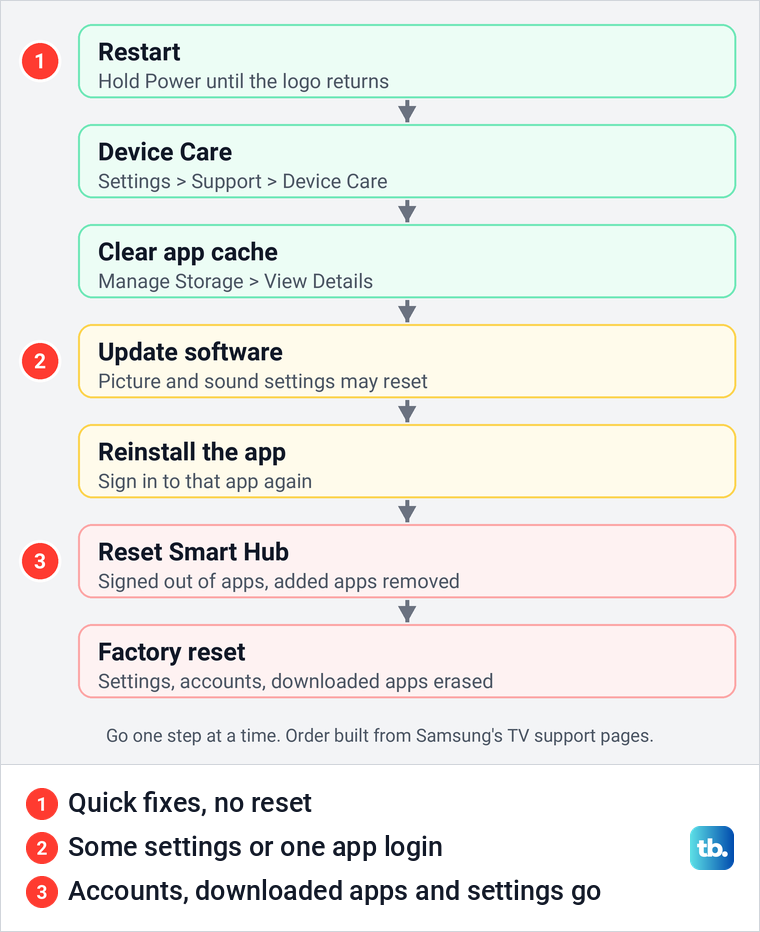
Start with the row that matches what you see. If the whole TV is slow and nothing points to one cause, work through the fixes in the diagram below in order, an order built from Samsung's own support pages: restart, Device Care, the app's cache, a software update, reinstalling the app, Reset Smart Hub and, last, a factory reset.
This guide is about a TV that still responds, only late. If the picture or a menu stops responding altogether, our guide to a Samsung TV that keeps freezing covers that problem.
Restart the TV the right way
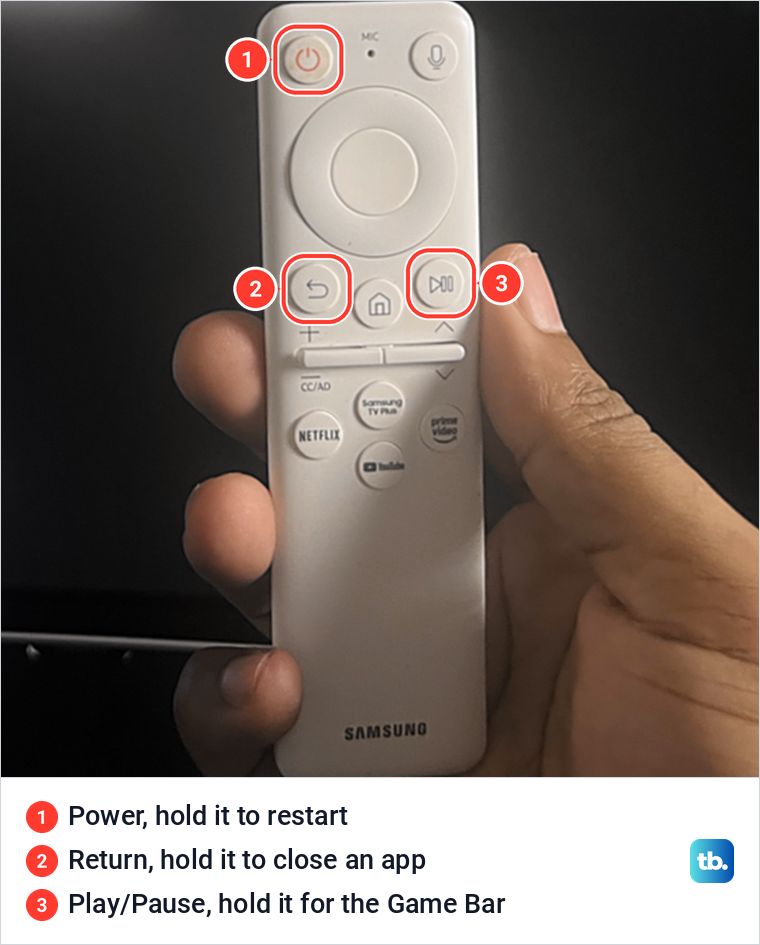
Pressing Power briefly does not restart a Samsung TV. Samsung says it only puts the TV in standby, while a cold boot shuts it down and starts it again like a laptop, which clears the memory cache.
To do it, hold Power on the remote while the TV is on and keep holding as the screen goes off. Samsung says this takes about 5 seconds, and to keep holding until the Samsung logo appears again. Samsung adds that this does not work on The Frame, so unplug a Frame instead, as described below.
The photos here come from our Samsung Odyssey OLED G9, a smart monitor that runs the same Tizen software as Samsung's smart TVs, so its menus closely follow the ones Samsung documents for its TVs. The steps for Samsung TVs follow Samsung's own TV support pages and e-Manuals.
No remote, or the TV ignores it? Unplug the TV from the wall, wait, then plug it back in and switch it on. Samsung's US and Canadian pages say to wait 30 seconds and its UK page says about a minute, so a full minute covers both.
Samsung also warns not to touch the plug with wet hands. If you switch off a whole power strip that your router shares, Samsung says to give the router time to reconnect before you judge the TV.
Hold only the remote's button for this restart. Samsung documents a separate Flash Reset, in which you hold and release the button on the TV itself and then hold the remote's Power, and it returns the TV to its initial setup screen, so you would have to set it up again.
Run Device Care to free up memory
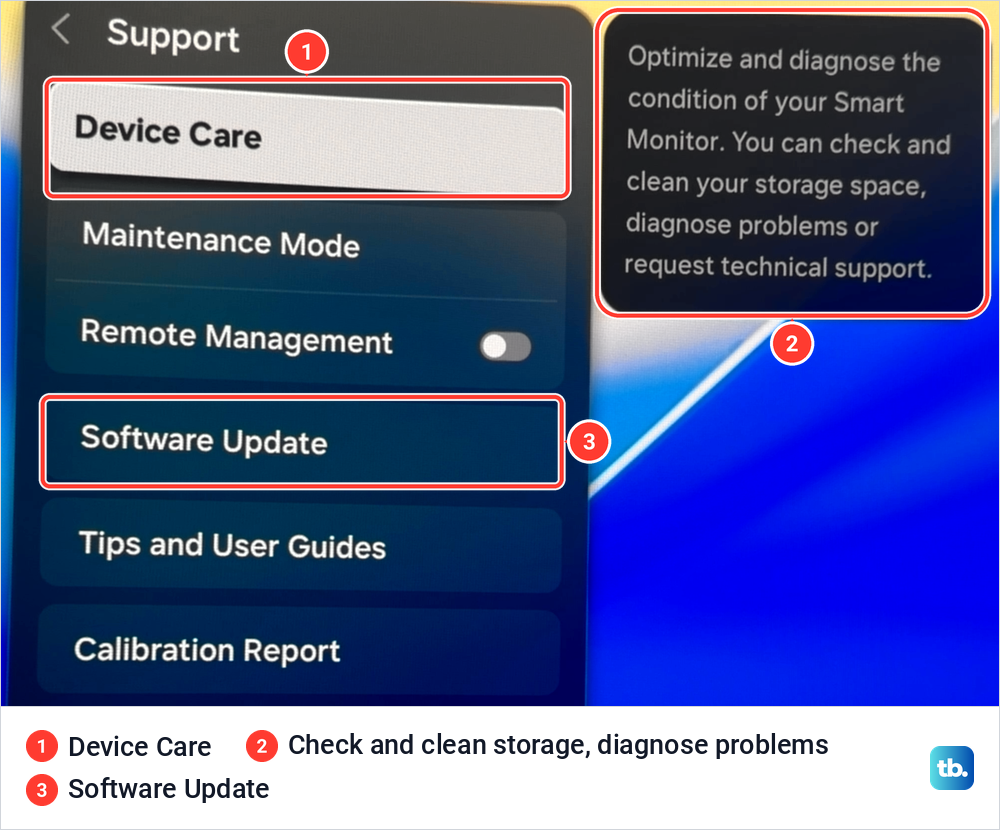
Device Care is Samsung's built-in check-up. Samsung says that when the scan completes, it clears the cached memory and closes unused background apps to free up more memory. Samsung's manuals show it from the 2020 models on, so on older TVs rely on the restart above and Reset Smart Hub further down.
- 1.Press Home, open Settings, and select All Settings if a quick settings panel appears first.
- 2.Select Support, then Device Care.
- 3.Select Start Device Care and wait for the scan to reach 100%.
- 4.Read the result screen, then select Close.
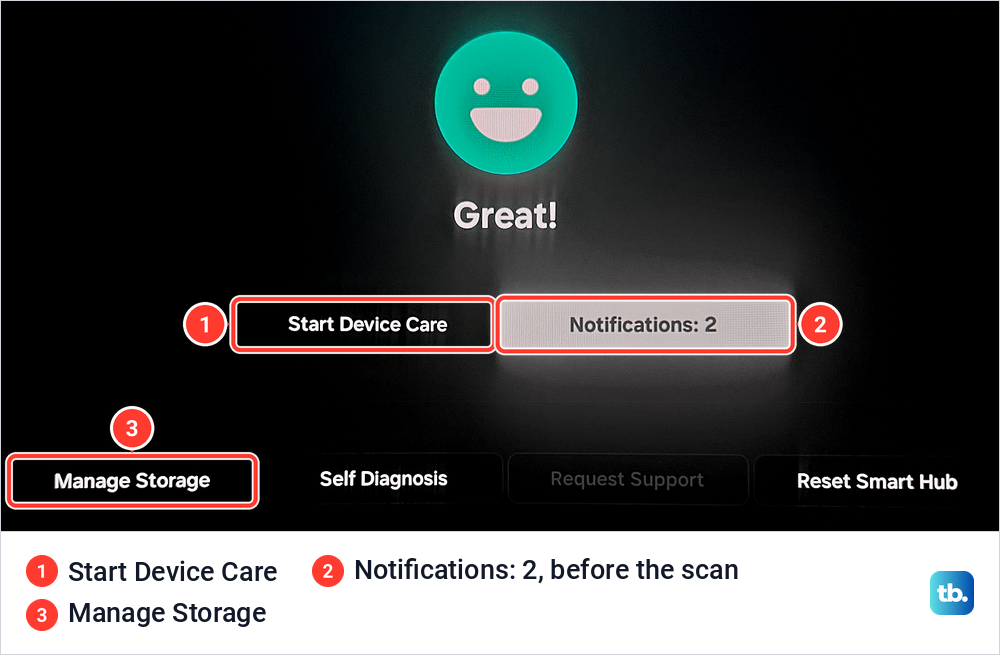
On our monitor, the Device Care screen opened on a status that read Great, with Start Device Care in the middle and four buttons along the bottom: Manage Storage, Self Diagnosis, Request Support (greyed out) and Reset Smart Hub. Samsung says a TV sorts its status into Good or Moderate, so the wording on a TV can differ.
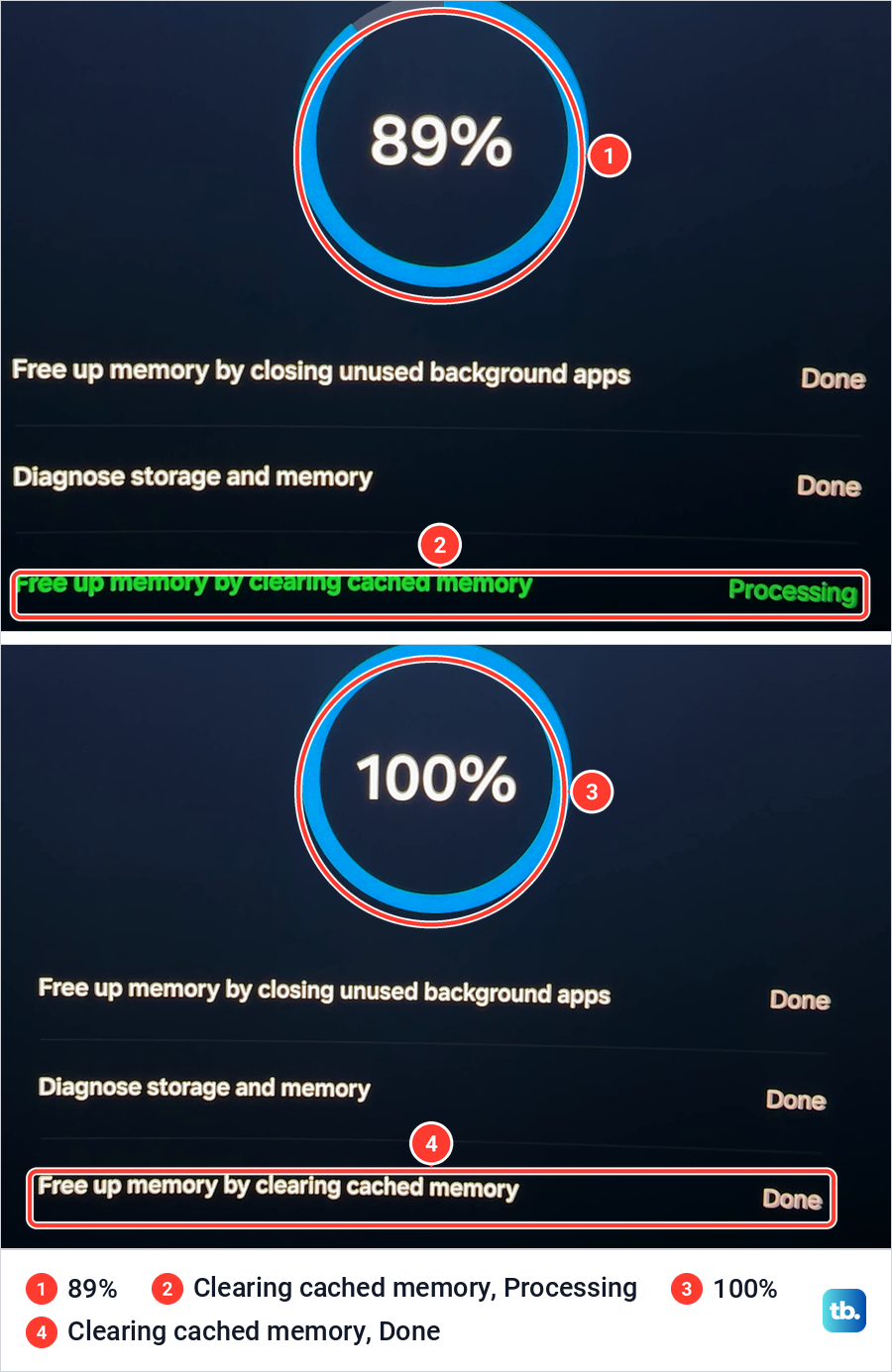
When we selected Start Device Care, the screen listed three jobs: free up memory by closing unused background apps, diagnose storage and memory, and free up memory by clearing cached memory. At 89% the first two read Done and the cache step still read Processing. By 100% all three read Done, even though the heading still said Device Care in progress.
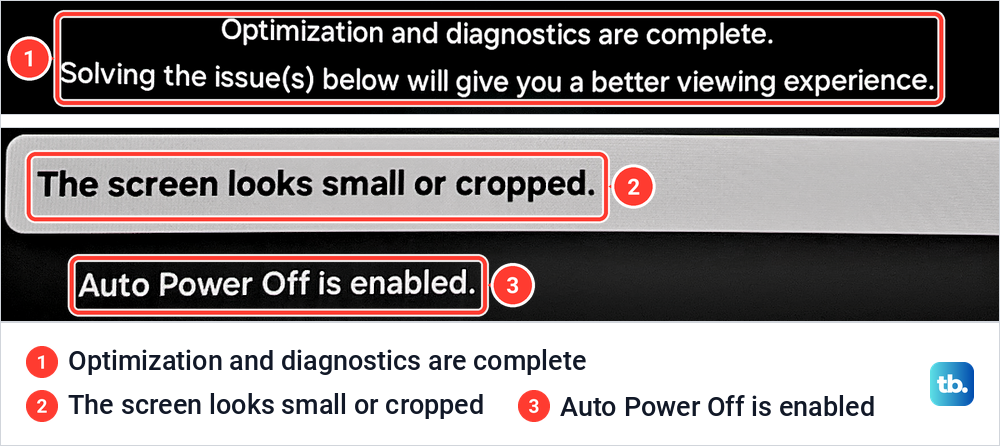
The result screen said optimization and diagnostics were complete and listed two suggestions: the screen looks small or cropped, and Auto Power Off is enabled. Neither is a speed problem, and the screen already showed two notifications before the scan, so read the list as reminders rather than a diagnosis.
If Device Care is greyed out, an app may still be running in the background. Samsung says a greyed-out setting often means a streaming app is still running, so close it or switch to the TV source or an HDMI input and try again. Samsung adds that if Device Care stays grey, you should restart the TV and try once more.
Free up storage and clear the slow app's cache
Device Care's cache step is about memory. Each app also keeps a stored cache of its own, listed app by app under Device Care > Manage Storage, with a View Details screen for each one. Samsung names built-up cache data as one reason apps and menus load slowly.
Manage Storage on our monitor showed 2.72 GB used and 1.12 GB, or 29%, still available, at the top right, where Samsung says to look. With no app selected, its Delete button was greyed out.
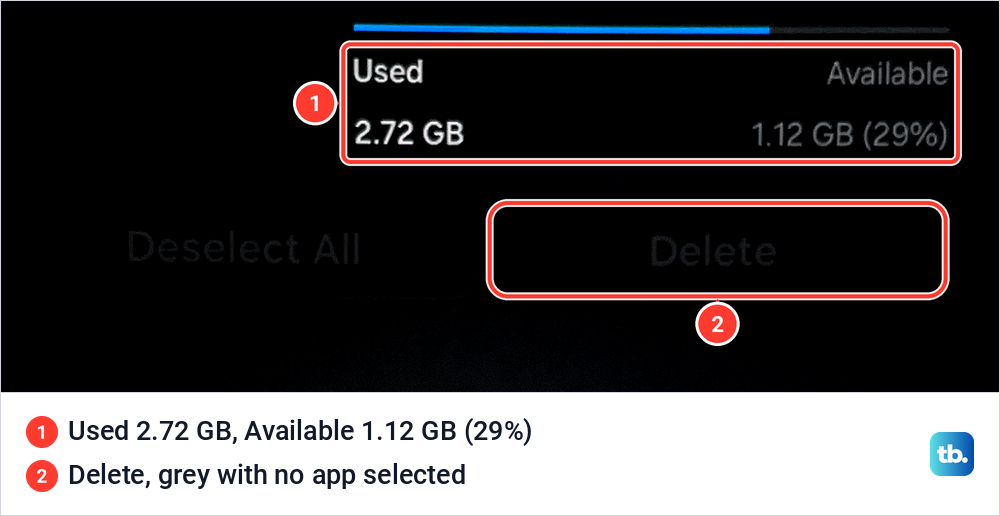
If free space is low, delete the apps you never open. Samsung says recommended apps that came with the TV cannot be deleted, so their Delete option stays grey.
To clear one app's cache, select the app in Manage Storage, choose View Details, then select Clear Cache. On our monitor, SmartThings showed a 412.00 KB cache before and 0.00 KB after, and its total fell from 111.02 MB to 110.62 MB. The App and Data figures did not change, and the Clear Cache button turned grey with nothing left to clear.
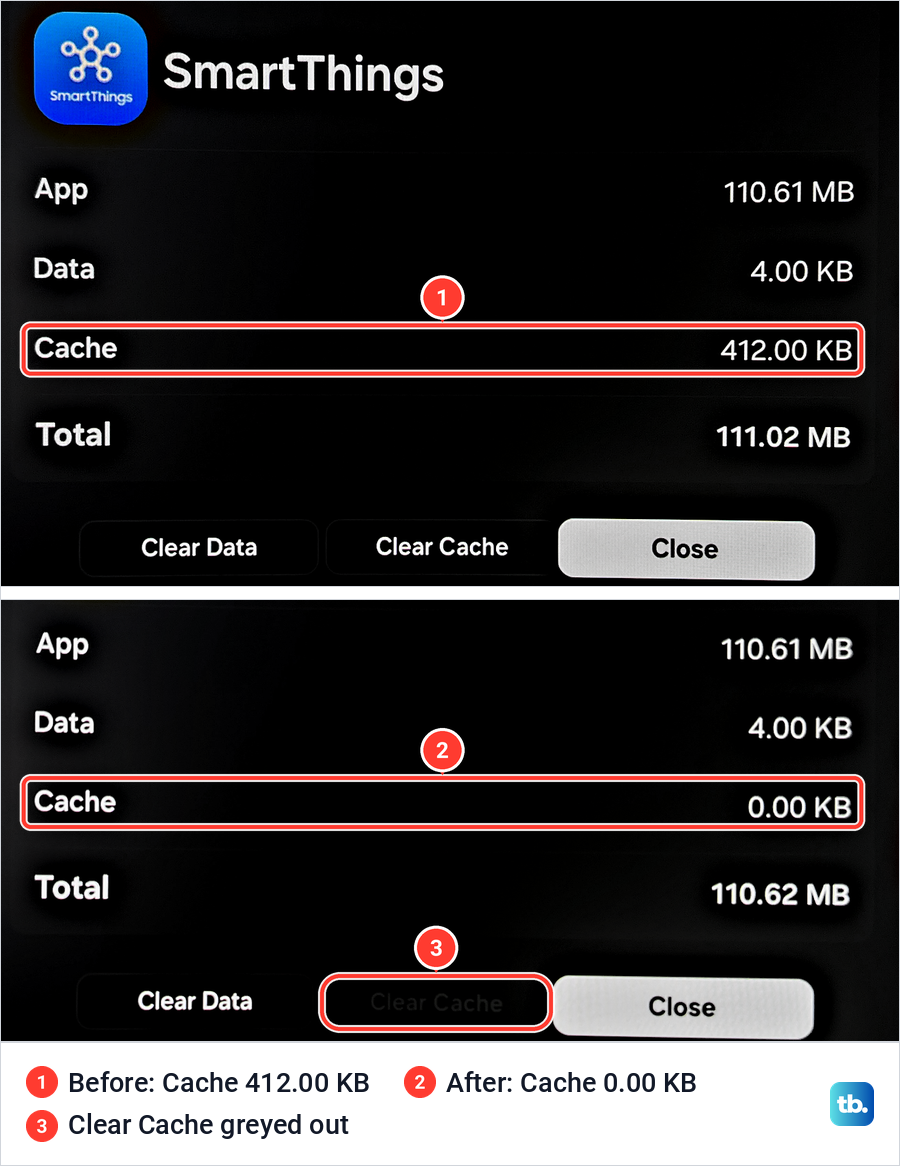
Leave Clear Data for an app that still misbehaves, because Samsung says clearing data signs you out of that app. Netflix on our monitor already showed 0.00 KB of cache with both buttons greyed out, so not every app has something to clear. Our guide on how to clear an app's cache has the full steps.
Update the TV software
Samsung says outdated software can carry bugs that slow a TV down, and it suggests checking for an update before any reset. Open Settings > All Settings > Support > Software Update and select Update Now. On our monitor it sits in the same Support list as Device Care.
Samsung says updates usually take a few minutes and the TV restarts by itself when one finishes, so do not switch it off while it installs. Its e-Manual adds that picture and sound settings may return to their defaults after an update. Auto Update is turned on by default once you accept the Smart Hub terms during setup.
If the TV feels slower right after an update, start again at the top of this guide. Restart it by holding Power, run Device Care, and check those picture and sound settings.
If Software Update is greyed out, Samsung says a streaming app is running in the background. Switch to the TV source or press the Samsung TV Plus button on the remote, then try again.
Without an internet connection, update from a USB drive instead. Samsung says to download the newest firmware file for your model from its Download Center, unzip it, and copy the files to an empty FAT32 drive without putting them inside another folder. Then plug the drive into the TV and select Support > Software Update > Update Now.
When only one app is slow
If one app drags while the rest of the TV is quick, start with that app. Samsung says holding Return for a second or more ends the function that is running. That lets you close and reopen the app before you try anything bigger. Then clear its cache as shown above.
Samsung's order for an app that freezes, crashes or will not load is a cold boot, a software update, deleting the app and installing it again, and lastly Reset Smart Hub. To reinstall, open Apps, select the settings icon at the top right, pick the app and select Delete.
If Delete is greyed out, Samsung says it is a recommended app, so select Reinstall instead. Otherwise press Return, select the search icon, find the app and select Install, with your login details ready.
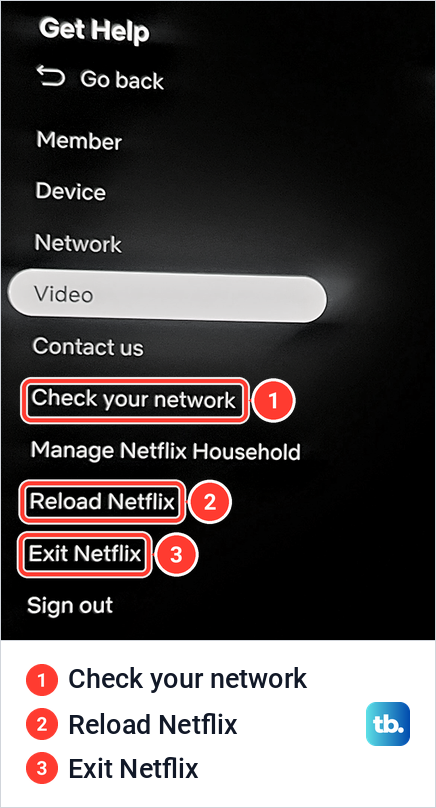
If Netflix is the slow app, open its own Get Help menu first. On our monitor, Get Help sits in the menu on the left of the Netflix app, under Switch Profiles, and it lists Check your network, Reload Netflix and Exit Netflix. Reloading is a smaller step than reinstalling. For an app that will not open at all, rather than one that is slow, our apps guide has the full list of fixes.
Turn on Game Mode to cut input lag
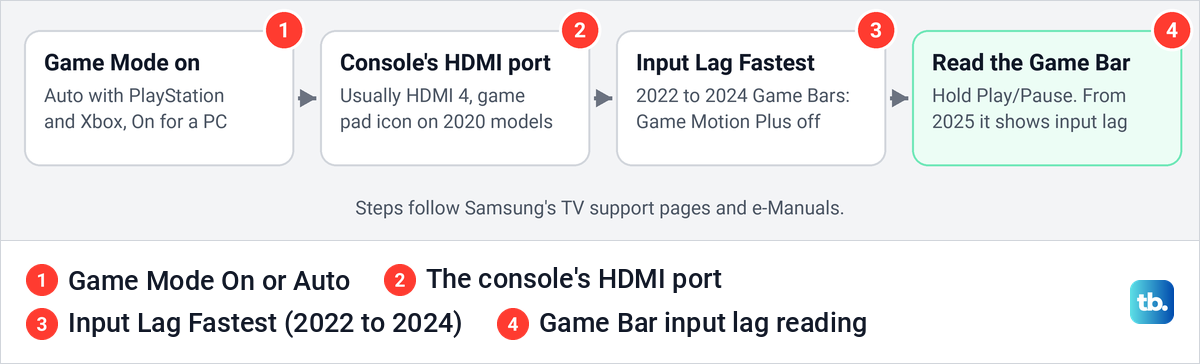
Input lag is the delay between your controller's actions and the response on the screen, in Samsung's words, and Game Mode is Samsung's fix for it. When you connect a PlayStation or Xbox, Samsung says Game Mode is set to Auto and turns itself on. For a PC or another game source, set it to On yourself.
Where the switch lives depends on the model year. Samsung's 2025 and 2026 e-Manuals put it under Settings > All Settings > Advanced Features > Game Mode Settings > Game Mode. The 2023 manual and Samsung's US page for 2024 models use Connection in place of Advanced Features, and 2018 to 2022 models keep it under General > External Device Manager > Game Mode Settings.
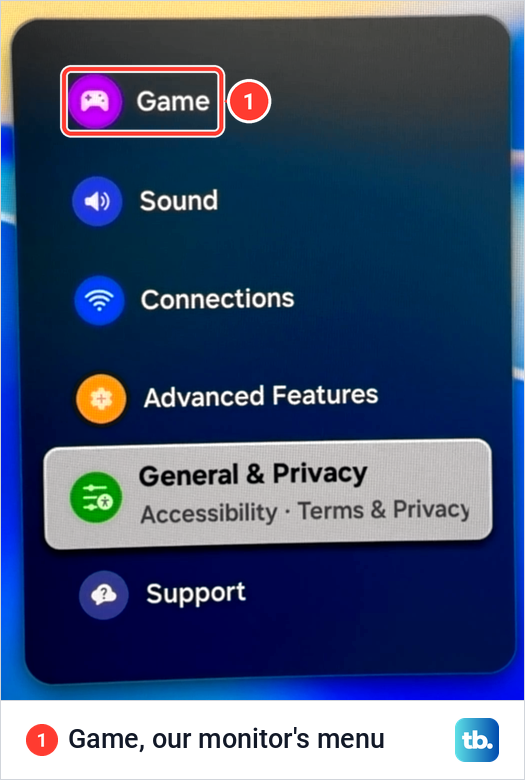
On our monitor, All Settings shows Game as its own entry at the top of the list, above Sound, Connections and Advanced Features. That Game entry is a monitor layout, which Samsung's monitor manual also shows. On a TV, use the TV path above.
Game Mode only works on an external input, so switch to the console's HDMI input before you look for it. Samsung's UK page says consoles usually belong in HDMI 4, marked with a game pad icon on its 2020 models. If the console's picture drops out or the TV does not see it, those are HDMI connection problems rather than lag.
Expect two side effects. Samsung says Game Mode switches Picture Mode and Sound Mode to Game and the screen may shake somewhat, so it is not meant for normal TV viewing.
Use the Game Bar and Game Motion Plus
With Game Mode set to On or Auto and a console connected, hold Play/Pause on the remote for a second to open the Game Bar. Samsung's 2022 to 2024 Game Bars have an Input Lag setting, and choosing Fastest turns off Game Motion Plus. From 2025 the Game Bar shows input lag as a live reading instead.
Not every TV has a Game Bar. Samsung lists it for Q7F and higher models in 2025, and for M70H and higher models plus the U9000H in 2026.
Samsung is not consistent about Game Motion Plus. Its 2022 guide says input lag is reduced when Game Motion Plus is off, while its 2025 and 2026 Game Bar pages describe it as smoothing that also reduces input lag. On a 2022 to 2024 TV, set Input Lag to Fastest, which turns it off. On a 2025 or newer TV, watch the Game Bar's input lag reading, and note that Samsung says turning on VRR disables Game Motion Plus anyway.
Check the motion settings
If what you see is motion that looks juddery, smeared or unnaturally smooth, rather than a delay, it is a picture setting. Samsung calls it Picture Clarity on recent TVs and Auto Motion Plus on 2018 and 2019 models, and it is set to Auto by default. Find it under Settings > All Settings > Picture > Expert Settings > Picture Clarity Settings.
Choose Off to drop the smoothing or Custom to tune it. Custom offers Blur Reduction, Judder Reduction and LED Clear Motion, and Samsung warns that with LED Clear Motion on, the screen may flash or look darker. Samsung adds that most films are shot at 24 frames per second, so heavy smoothing gives them the soap opera look.
These options change how motion looks, and Samsung's e-Manual offers them as the answer to blurring or juddering. In Game Mode the same choices appear under Game Motion Plus Settings. For a delay between controller and screen, Game Mode is the fix.
When the remote is the slow part
Sometimes the TV is fine and the remote is late. Samsung's e-Manual says that if the remote responds very slowly, its battery might be low or dead, so charge a solar remote through its USB-C port or turn it over to expose the solar cell, and replace the batteries in an older remote. Samsung says a battery remote can be reset by removing the batteries and holding Power for eight seconds.
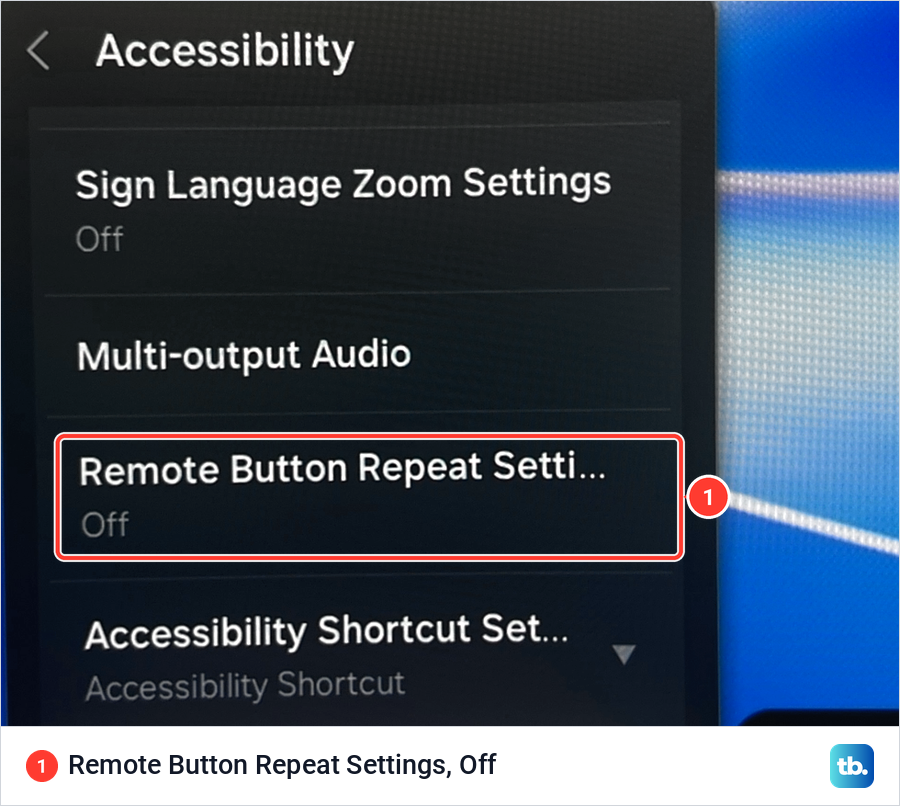
An Accessibility setting can also slow buttons on purpose. Under Settings > All Settings > General & Privacy > Accessibility > Remote Button Repeat Settings, Samsung's Slow Button Repeat slows the remote when you press and hold a button. On our monitor that setting read Off. Check it on a TV that someone else set up.
On a 2021 or newer TV with a solar remote, Samsung says holding Return and Enter (the centre of the navigation pad) for 10 seconds resets it, after which you need to pair the remote again. A remote that ignores presses altogether has its own set of fixes.
When videos buffer but menus are fine
If menus respond quickly and only streaming stalls, check the network first, although the app itself can also be the cause, as the one-app section above explains. Samsung lists slow internet speeds as one cause of slow apps, and videos that keep buffering have their own fixes. If the TV's Wi-Fi will not connect or keeps cutting out, fix that first.
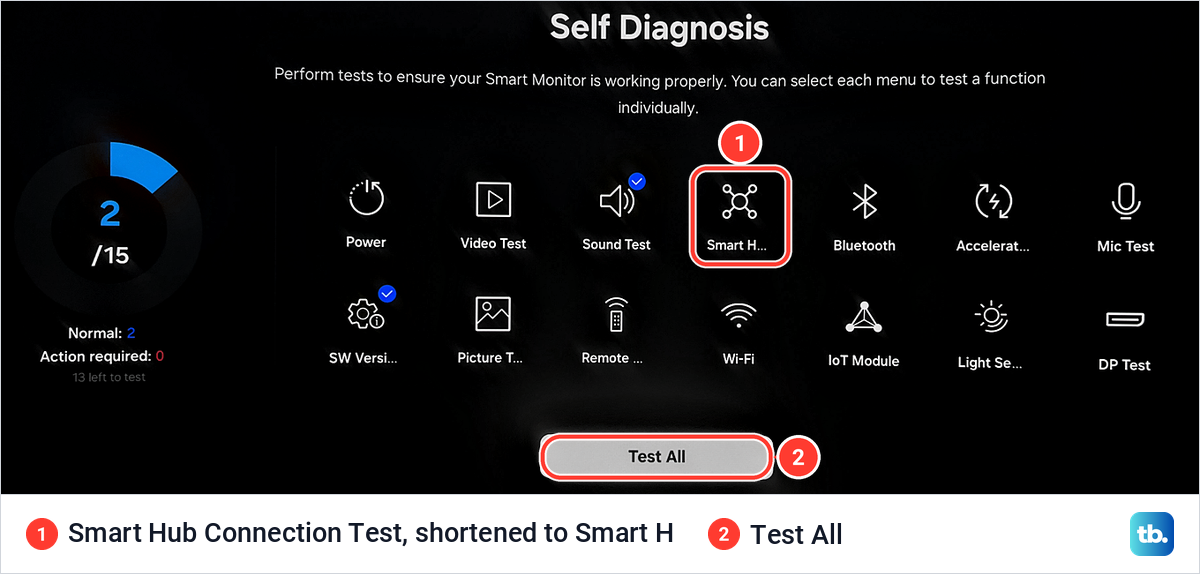
Samsung's Self Diagnosis menu includes a Smart Hub Connection Test, which Samsung says checks the wireless connection, DNS and ISP blocking and may take a few minutes. Open Settings > Support > Device Care > Self Diagnosis and select it, and note that our monitor shortens its name to Smart H.
Reset Smart Hub
Reset Smart Hub is the step before a full reset, and Samsung recommends it when TV apps are slow or behave strangely. Samsung says it signs you out of your Samsung account and every app, deletes the linked service account information and Smart Hub agreements stored on the TV (your online accounts themselves stay), and removes all apps that were not preinstalled. Write down your logins first.
Samsung says the TV must be on Live TV or an HDMI input, because Smart Hub cannot be reset from inside an app. On 2025 and 2026 TVs, open Settings > Support > Device Care > Reset Smart Hub, the same separate button our monitor shows. On 2020 to 2024 models it sits one level deeper, under Device Care > Self Diagnosis, and on 2016 to 2019 TVs under Settings > Support > Self Diagnosis.

Enter your PIN to confirm. Samsung says the default is 0000 unless you changed it, and its European manuals give 1111 for some French and Italian models. Samsung says the TV is ready again in about a minute.
Factory reset as the last step
Samsung calls a factory reset the last resort. Samsung says it returns the settings to their factory defaults and signs the TV out of your Samsung account and removes all downloaded apps, so try every step above first. Samsung also says to write down your channel list, Wi-Fi network and password before you start.
Samsung's US page says the reset keeps network settings, while its UK page asks you to note the router name and password in advance, so note them anyway. The reset is also unavailable while an app such as Netflix or YouTube is open, so switch to another source first.
On 2025 and 2026 TVs the item is Settings > All Settings > General & Privacy > Factory data reset, which is also its name and place on our monitor, at the bottom of General & Privacy under Change PIN. Samsung's US support page calls it Reset under General & Privacy. 2019 to 2022 TVs keep it under General > Reset, and 2018 TVs under Support > Self Diagnosis > Reset.
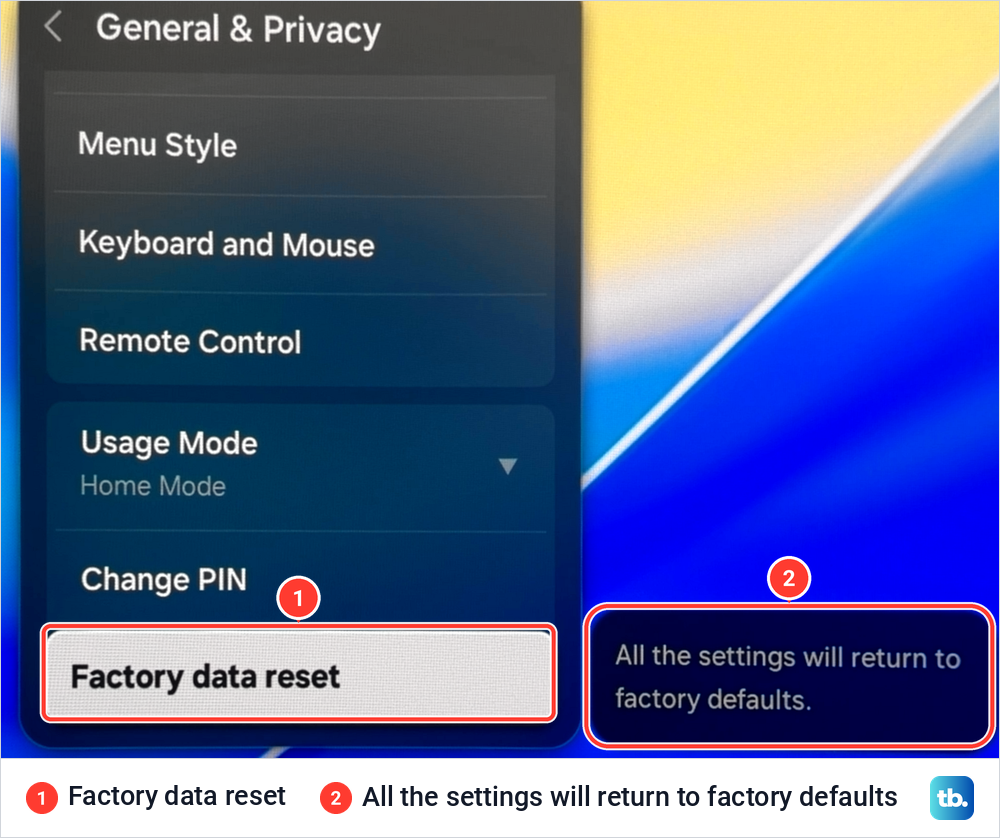
Selecting Factory data reset on our monitor brought up a PIN prompt first. Samsung says that after you enter the PIN and select Reset, the TV turns off and on again by itself and opens the Initial Setup screen. If you would rather not do it yourself, Samsung says a service centre can reset the TV for you through Support > Remote Management while it is online.
Menu names by model year
Samsung moved several of these menus between model years, which is why written steps often fail to match the screen in front of you. Find your TV's model year first, then use the column that fits.
| Setting | 2016 to 2019 | 2020 to 2022 | 2023 and 2024 | 2025 and later |
|---|---|---|---|---|
| Device Care | Not in the 2018 and 2019 manuals, so restart the TV instead | Settings > Support > Device Care | Settings > Support > Device Care | Settings > Support > Device Care |
| Reset Smart Hub | Support > Self Diagnosis | Device Care > Self Diagnosis | Device Care > Self Diagnosis | Device Care, as its own button |
| Game Mode Settings | General > External Device Manager (2018 and 2019) | General > External Device Manager | All Settings > Connection | All Settings > Advanced Features |
| Motion setting | Auto Motion Plus Settings (2018 and 2019) | Picture Clarity Settings | Picture Clarity Settings | Picture Clarity Settings |
| Factory reset | Support > Self Diagnosis > Reset (2018), General > Reset (2019) | General > Reset | General & Privacy > Reset | General & Privacy > Factory data reset |
On a 2019 TV, look in both places, because Samsung's US page lists Device Care for 2019 models while its 2019 manual does not. Names can also differ by model, and your TV's e-Manual has the exact path.
How we tested this guide
Every photo here comes from our Samsung Odyssey OLED G9, a smart monitor that runs the same Tizen software as Samsung's smart TVs. On it we ran Device Care from start to result, checked Manage Storage and cleared the SmartThings cache, ran two Self Diagnosis tests, and opened the Support, All Settings, Accessibility and General & Privacy menus down to the Factory data reset PIN prompt.
The steps that restart, update or reset a TV, along with Game Mode, the Game Bar, Picture Clarity and the remote resets, follow Samsung's own TV support pages and e-Manuals. Where Samsung's regional pages disagree, as they do on how long to unplug and on Wi-Fi after a reset, this guide gives both versions.
Frequently Asked Questions
Why is my Samsung TV so slow all of a sudden?
Often because its memory is low. Samsung says the more apps you run, the more memory the TV uses, and built-up cache data, outdated software and background updates slow it further. Hold Power until the Samsung logo returns, then run Device Care.
Why is Device Care greyed out on my Samsung TV?
Often an app is still running in the background, or the current source does not allow it. Close the app or switch to the TV source or an HDMI input, and if Device Care stays grey, restart the TV.
Does clearing the cache delete my apps or logins?
Clear Cache does not remove the app, and on our monitor it left the SmartThings App and Data sizes unchanged while the cache went from 412.00 KB to 0.00 KB. Samsung's sign-out warning is about Clear Data, so try Clear Cache first.
Does Game Mode reduce input lag on a Samsung TV?
Yes, that is what Samsung built it for. It turns on by itself when a PlayStation or Xbox is connected, and you set it to On for a PC. On 2022 to 2024 Game Bars, Input Lag Fastest turns Game Motion Plus off, which Samsung says reduces input lag.
What PIN does Reset Smart Hub ask for?
The default is 0000 unless you changed it. Samsung's European manuals give 1111 for some French and Italian models and say the default may differ by region.
Will a factory reset make my Samsung TV faster?
It can help when nothing else has, since Samsung offers it as the last resort for apps or internet problems a restart does not fix. It also removes your accounts, downloaded apps and settings, so try Device Care, a software update and Reset Smart Hub first, and note your logins and Wi-Fi password before you reset.