You left Netflix signed in somewhere you no longer control: a hotel TV, an Airbnb streaming stick, an ex's tablet, or a device you sold. Maybe you just noticed a profile streaming from a place you do not recognize and you want everyone kicked off at once.
The fastest fix lives on the Netflix website, not inside the mobile app. A single button signs out every device connected to your account in one action, without changing your password. If you suspect someone has your actual password, there is a second method that forces a new password as it signs everyone out.
Below are all the verified methods, ordered quickest and most common first. Use the account owner's login for anything that touches account settings; sub-profiles cannot reach these controls.
Sign Out of All Devices From the Web (Fastest)
This is the primary way to do exactly what the title promises. It signs out every device at once and does not require a password change. You need a web browser; this works on desktop or a mobile browser, but not from inside the Netflix app's own account screen.
- 1.Open a web browser and sign in as the Netflix account owner.
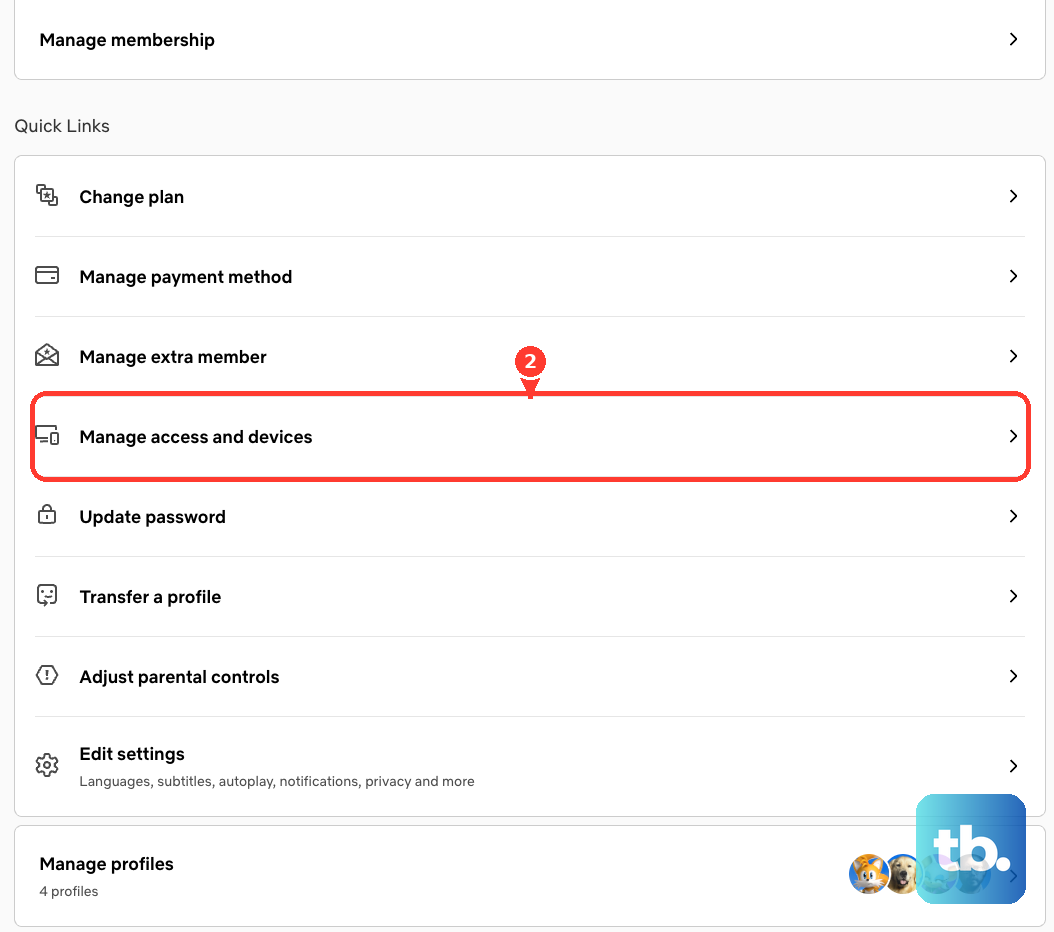
- 2.Go to the Manage Access and Devices page in your account area.
- 3.Click or tap Sign Out of All Devices at the bottom of the page.
- 4.Confirm by selecting Sign Out in the pop-up.
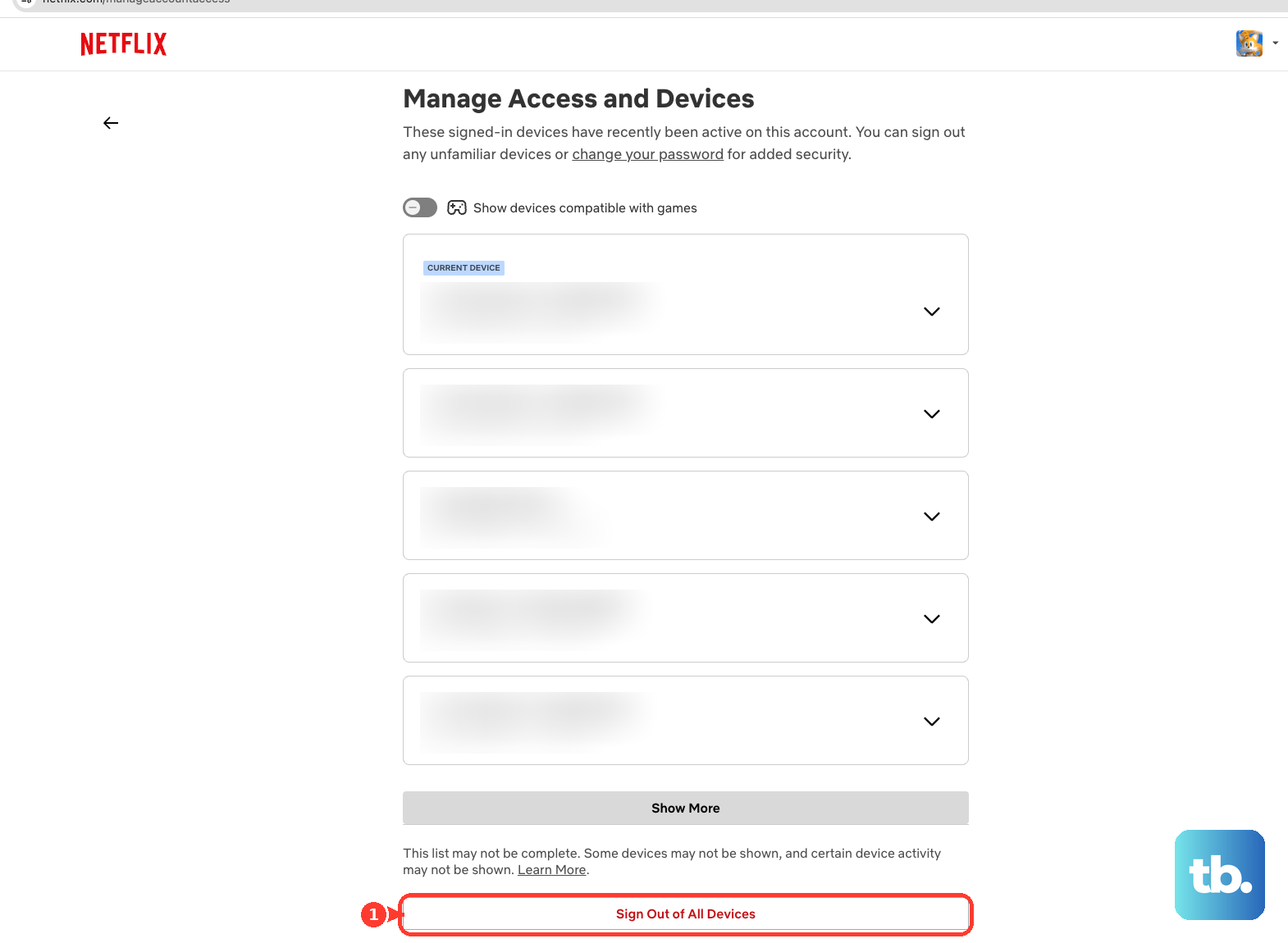
Every device currently signed in is signed out and must sign in again to keep watching. That includes family members at home and the device you are using right now, so warn anyone watching before you press it.
Sign Out One Specific Device Instead
If you only need to remove a single device, for example one hotel TV, you do not have to log everyone out. The same Manage Access and Devices page lets you target one entry.
Go to the Manage Access and Devices page.
Select the dropdown arrow next to the device you want to remove.
Choose Sign Out.
Each listing shows the device type, the most recent profile used to stream on it, and the last watched date and time. Use those details to confirm you are signing out the right one before you commit.
Sign Out Everywhere by Changing Your Password
Use this route if you suspect someone unauthorized knows your current password. It is a different mechanism from the button above: here you set a new password and tick a checkbox, so the intruder loses access even if they try to sign back in.
Go to your Netflix Account page and start a password change.
Set a strong new password. Netflix advises one that is unique to Netflix and not reused on other sites or apps, at least 8 characters long, and a combination of letters, numbers, and symbols using both upper and lower-case letters.
Check the box Sign out of all devices before saving.
Save the new password.
Netflix's own note on this reads: signing out of all devices will remove all devices connected to your account, and you will need to sign in again with your new password on any devices you wish to use. Important: if you change the password but leave that box unticked, devices already signed in can keep streaming until their session refreshes or expires; they are not kicked off immediately.
Sign Out on the Android Device in Your Hand
When you just want to log out of the phone or tablet you are holding, the in-app option is quickest. Remember this only affects this one device.
Open the Netflix app.
In the lower right, tap My Netflix.
At the top, tap the profile name.
Tap Sign Out, then tap Sign Out to confirm.
Sign Out on the iPhone or iPad in Your Hand
The path is the same on iOS. Again, this signs out only the device you are using, not the rest of your account.
Open the Netflix app.
In the lower right, tap My Netflix.
At the top, tap the profile name.
Tap Sign Out, then tap Sign Out again to confirm.
Sign Out Directly on a Smart TV
If you still have the remote for the TV in question, you can log out from the app itself rather than going through the website. This handles one device at a time.
Open the Netflix app on the TV and go left to your profile icon.
Select Get Help.
Select Sign Out, then select Yes to confirm.
Use the Hidden Remote Sequence on a TV
When the normal menu or Get Help option is hard to reach, a directional key sequence can bring up the same options. Behavior can vary by TV brand, model, and app version, so treat it as a fallback.
From within the Netflix app on the TV, press these buttons in this order on the remote: Up, Up, Down, Down, Left, Right, Left, Right, Up, Up, Up, Up.
On the menu that appears, select Sign Out and confirm.
Things to Know Before You Sign Out
A few quirks trip people up. Knowing them ahead of time saves a confused second attempt.
Devices can take up to 48 hours to appear on the Manage Access and Devices page, so a newly used device may not show right away.
Not everything is listed. Devices inactive for 90 or more days, devices used only for Netflix games, and Tudum-only access do not appear, and complete details may not display for every device.
The Netflix app for Windows can show up as Edge browser on this page, not as a Windows app. Do not mistake it for an unknown intruder.
After signing out everywhere, you and anyone you authorize must sign in again on every device you still want to use.
When a Device Keeps Asking You to Sign In
A device will not stay signed in to Netflix forever, so an occasional re-sign-in is normal. Being prompted every single time you open the app is different; that points to a device issue or setting that is keeping Netflix from staying signed in, rather than your account.
The remote sign-out feature will not fix this. For a device that demands sign-in on every launch, Netflix directs you to contact the company that made the device and ask them to help update the device's firmware or software to the latest version, or restore the device to its original settings.
Frequently Asked Questions
Does signing out of all devices change my password?
No. The Sign Out of All Devices button on the Manage Access and Devices page logs everyone out without requiring a password change. The password reset is a separate flow with its own checkbox; use that one only if you think someone knows your current password.
Can I sign out other devices from inside the Netflix app?
No. The in-app Sign Out only logs out the device you are holding. To sign out all devices or a specific remote device, you must use the Netflix website's account area in a browser.
Will this kick my family off too?
Yes. Sign Out of All Devices signs out every device at the same time, including family members watching at home and the device you are using. You cannot choose which devices to keep; everyone has to sign back in.
How do I sign out of just one device I left logged in?
On the Manage Access and Devices page, select the dropdown arrow next to that device and choose Sign Out. The page shows the device type, last profile used, and last watched time to help you identify the right one.
Why can't I find the sign-out option on my account?
You must be signed in as the account owner. Sub-profiles do not have access to account-management features like Manage Access and Devices or the password change, so they cannot sign out other devices.
I changed my password but a device is still watching. Why?
If you changed the password without ticking Sign out of all devices, existing sessions can keep streaming until they refresh or expire. Go back and either use Sign Out of All Devices, or change the password again with that box checked.