Netflix kicking you out usually comes down to a stuck app session, blocked cookies, outdated software, account limits, or a Netflix Household prompt. Start with the fastest reset, then use the fix that matches where Netflix fails.
The steps below cover TVs, streaming sticks, phones, tablets, computers, browsers, and game consoles.
Restart the device first
This fixes Netflix dropouts caused by a frozen app session or a device that never fully powered down.
Turn off the device that keeps kicking you out of Netflix.
If it has a power cable, unplug it from power.
Make sure it is fully off, not in sleep or standby mode.
Leave it off for 15 seconds.
Turn it back on.
Open Netflix and try again.
Sign out inside the Netflix app
On most TVs and streaming devices, open Netflix, press Back on your remote, then choose the profile icon from the top menu. If your app uses a left menu, go to the bottom of that menu instead.
Select Get Help, choose Sign out, then confirm with Yes. Sign back in with your Netflix email and password, then start the same title again.
If Netflix is showing an error screen, choose More Details, then select Sign out or Reset. Sign in again and test Netflix.
When Get Help is missing, stay on the Netflix screen and press Up, Up, Down, Down, Left, Right, Left, Right, Up, Up, Up, Up, then choose Sign out, Reset, or Deactivate. Use the Apple TV steps below instead on Apple TV.
Clear Netflix data or reinstall the app
Use this when Netflix opens, signs in, then throws you out again after a restart.
On Android, tap and hold Netflix.
Tap App info.
Open Storage & cache.
Tap Clear storage.
Confirm with OK, then try Netflix again.
On Fire TV, open Settings.
Choose Applications.
Open Manage installed applications.
Select Netflix.
Choose Clear data, then choose Clear data again.
Select Clear cache.
Unplug the Fire TV for 30 seconds, plug it back in, then try Netflix again.
On iPhone or iPad, force-quit Netflix.
Open Settings.
Tap Apps. If your Settings list does not show Apps, skip this step.
Choose Netflix.
Turn Reset on.
Open Netflix and enter your email and password.
If the reset does not stick, uninstall Netflix and install it again from your device's app store.
Reinstalling Netflix signs you out and removes downloaded titles, so test streaming before downloading anything again.
Fix browser cookies and sign-in loops
The most common browser cause is blocked or stale Netflix cookies.
Go to netflix.com/clearcookies, sign in again, and try Netflix in the same browser.
In Chrome on a computer, open Settings, go to Security & Privacy, choose Cookies and other site data, then select Allow all cookies. On Chrome or Chromebook, open Settings, choose Privacy and security, open Third-party cookies, then select Allow third-party cookies.
In Safari on iPhone or iPad, open Settings, tap Apps, choose Safari, open Advanced, and turn Block All Cookies off. If your Settings list does not show Apps, find Safari in the main list instead. On Mac, open Safari, choose Settings, go to Advanced, and leave Block all cookies unchecked.
In Firefox, open Settings, choose Privacy & Security, and turn Delete cookies and site data when Firefox is closed off. For cookie-blocking errors, set Enhanced Tracking Protection to Standard.
Do not troubleshoot Microsoft Silverlight for Netflix playback. Use a supported HTML5 browser such as Google Chrome, Microsoft Edge, Safari, Mozilla Firefox, or Opera.
Stop extra streams on your account
This applies when Netflix says your account is in use on another device, your account is in use on too many devices, too many people are using your account right now, or you see E123.
Stop playback on another device using the account, or close Netflix on that device.
Wait 5 to 10 minutes.
Try Netflix again on the device that was kicked out.
If you do not recognize the activity, open Netflix on the web and go to Account.
Open Manage access and devices.
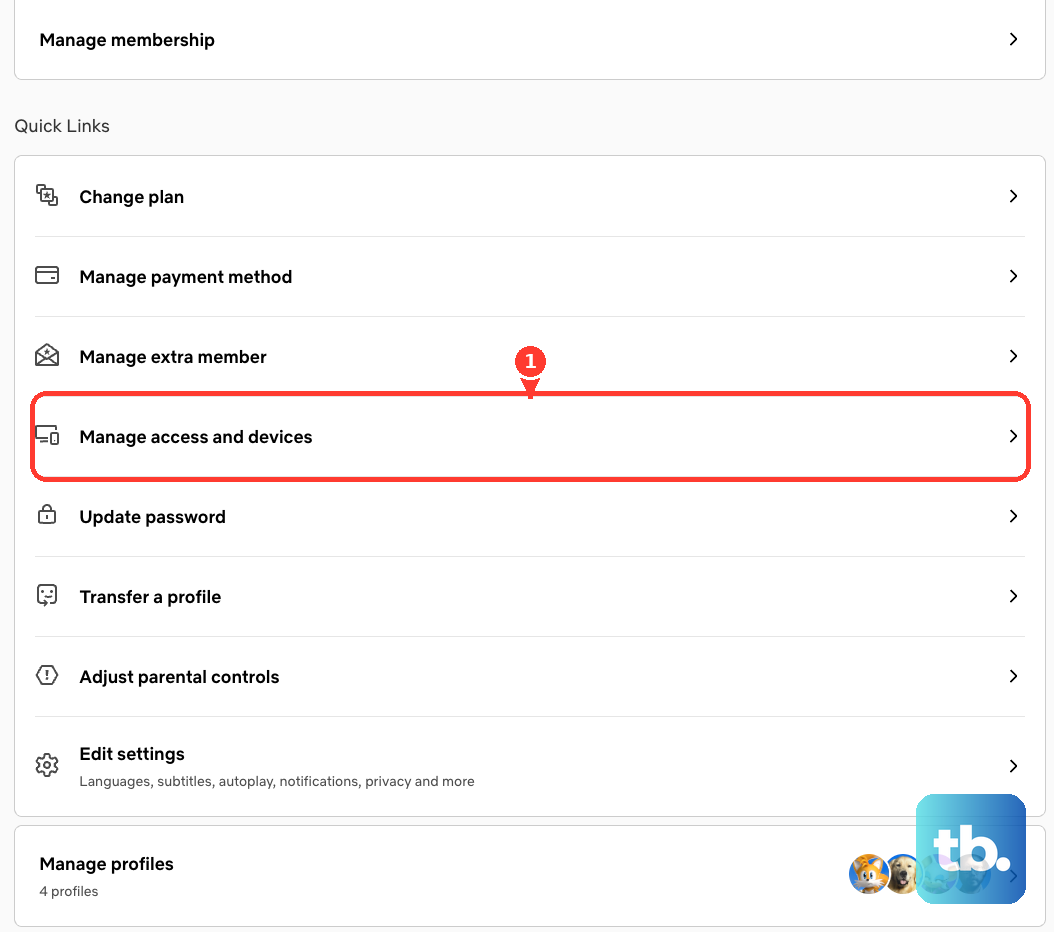
Use the down arrow next to the device.
Choose Sign Out.
For a broader reset, return to Manage access and devices.
Choose Sign Out of All Devices.
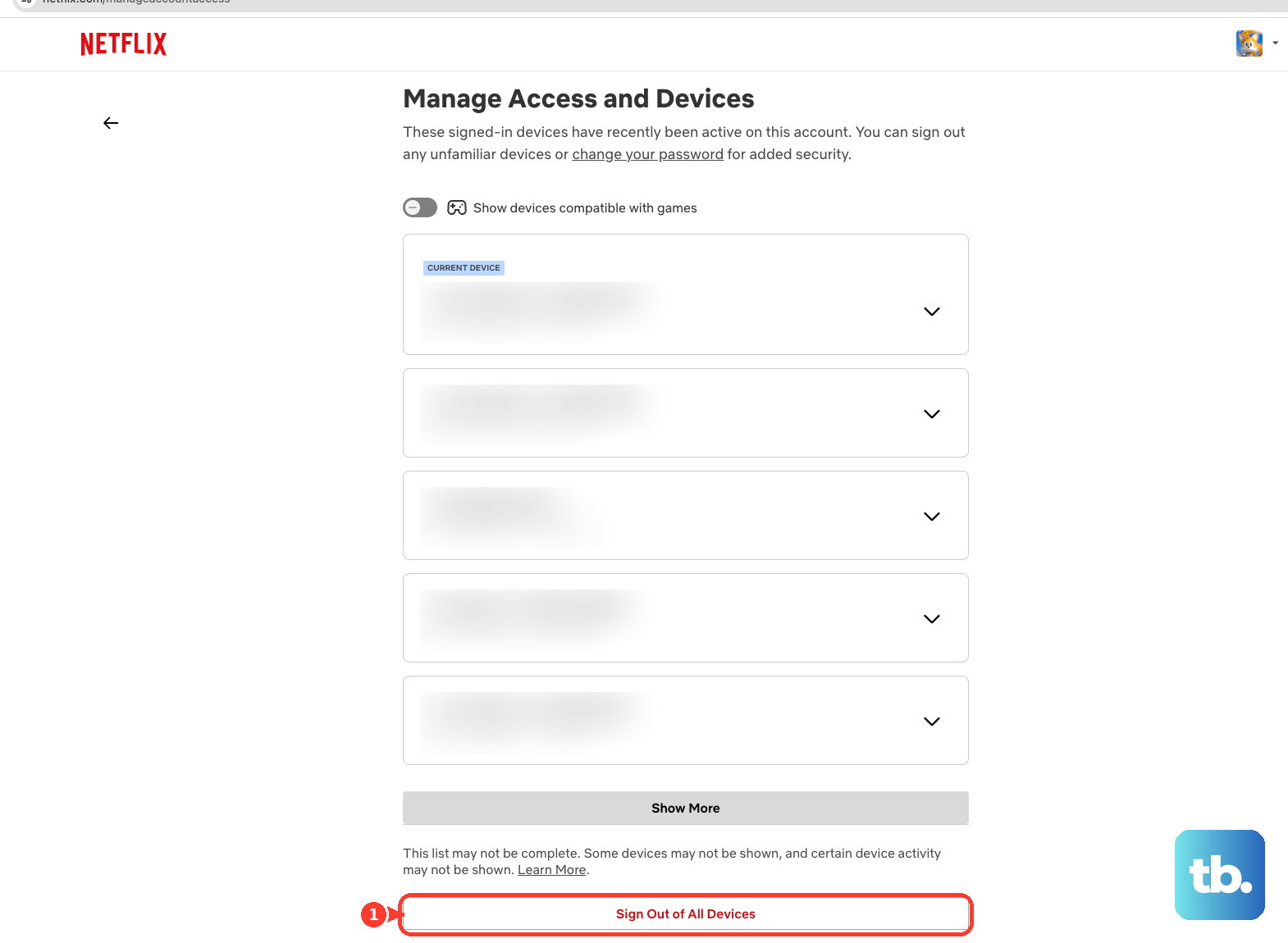
Confirm with Sign Out.
Every device on the account will need to sign in again.
Update Netflix Household from the TV
Use these steps when a TV says it is not part of the Netflix Household.
- 1.On the TV prompt, choose This is My Account.
- 2.Select Update Netflix Household, then choose Troubleshoot This TV.
- 3.Scan the QR code with a phone or tablet camera.
- 4.Tap Next, confirm the mobile device is on your home Wi-Fi, then tap Next again.
- 5.Choose Get Code, scan the new QR code, then select Start Watching.
Update Netflix and device software
Outdated app or device software can trigger repeat sign-in prompts and unstable playback. Update Netflix first, then update the device.
On Android, open Netflix in Google Play and tap Update. If Update is not shown, the app is already up to date.
On iPhone or iPad, open the App Store, tap Search, enter Netflix, choose Netflix, then tap Update. The latest Netflix app requires iOS or iPadOS 18 or later.
To update iPhone or iPad software, open Settings, choose General, open Software Update, then tap Download and Install when it appears.
On Android, open Settings, choose System, open Software update, then follow the onscreen steps.
On Roku, press Home, go to Settings, choose System, open Software update, then select Check now.
On Apple TV, open Settings, go to System, choose Software Updates, then select Update Software and Download and Install when available.
On Fire TV, press Home, open Settings, choose My Fire TV, open About, then select Check for Updates.
Check the network when Netflix drops midstream
Use this when Netflix signs in but drops you during playback or fails again after the app fixes. Run the check on the same device that keeps getting kicked out.
On a computer, phone, or tablet, open a browser and go to fast.com.
Wait for the test to finish.
On a TV, streaming media player, or game console, there is usually no web browser, so use the test inside the Netflix app instead. Open Netflix, press Back to reach the menu, choose Get Help, then select Check your Network.
If the test does not finish or returns an error, fix the device or home network connection before testing Netflix again.
Turn off the device.
Unplug the modem and router from power.
Wait 30 seconds.
Plug the modem and router back in.
Wait 1 minute.
Turn on the device and try Netflix again.
If you are using a VPN, turn it off and test Netflix again.
If sign-in errors continue, reset network settings on the affected device. Restore the modem or router to default settings only after the simpler network steps fail.
Use the device-specific fix
Use the matching fix when Netflix still kicks you out after the restart, sign-out, app reset, updates, and network check.
- 1.Fire TV: go to Settings, open Display and Sounds, choose HDMI CEC Device Control, turn it Off, then try Netflix again.
- 2.Roku: highlight Netflix, press the Star button, choose Remove app, confirm with Remove, press the Netflix button on the remote, choose Add channel, select OK, then open Go to channel.
- 3.Apple TV: highlight Netflix, press and hold the center of the remote touch surface or clickpad ring until Netflix wiggles, press Play/Pause, choose Delete, confirm Delete, then reinstall Netflix from the App Store.
- 4.Xbox One: open My Games & Apps, choose Apps, highlight Netflix, press the Menu button, select Manage App, choose Uninstall All, confirm Uninstall All, then reinstall Netflix from Store.
- 5.Windows: open Settings, choose Windows Update, select Check for Windows updates, then test Netflix. If third-party security software is interfering, update it, briefly turn it off, test Netflix, turn it back on, and contact the security-software maker if Netflix only works while it is off.
Frequently Asked Questions
Why does Netflix keep asking me to sign in every time?
A stuck app session, stale cookies, outdated software, saved password trouble, or an account change can cause repeated sign-in prompts. Sign out inside Netflix, clear cookies or app data, then update Netflix and the device software.
Will reinstalling Netflix delete my downloads?
Yes. Reinstalling Netflix signs you out and removes downloaded titles on phones, tablets, and supported devices.
Why does Netflix say too many people are using my account?
Your account is already streaming on more devices than the plan allows. Stop playback or close Netflix on another device, wait 5 to 10 minutes, then try again.
What should I do if Netflix says my TV is not part of the Household?
Use the TV prompt to update or troubleshoot Netflix Household. You need a phone or tablet with a camera and access to your home Wi-Fi.











