
To delete a Gmail account and keep your Google Account, open Manage your Google Account from Gmail, go to Data & privacy, scroll to Tools and select Remove data from services you no longer use, then select Delete next to Gmail and verify an email address that is not Gmail. Drive, Photos, your Google Play purchases and the rest of the account stay.
Nothing is removed until you verify that address. After that, the Gmail address can no longer send or receive email, Google says it deletes your emails and settings after 30 days, and nobody else can ever use the address. You may still be able to get it back if you change your mind, so the step is less final than it sounds.
Download your mail with Google Takeout before you start. If you want everything gone, Drive and Photos included, delete the whole Google Account instead. If you only want Gmail off your phone, removing the account from the app leaves your Google Account and its Gmail untouched.
The short version
- Remove only Gmail in your Google Account under Data & privacy > Tools > Remove data from services you no longer use.
- You need an email address that is not Gmail and not linked to another Google Account.
- Save your mail first with Google Takeout, which gave us one week to download the file.
- Nothing is removed until you verify the new address, and then Gmail deletes your mail and settings after 30 days.
- Nobody else can ever use the address, and you may be able to add Gmail back later.
Remove Gmail or delete the whole Google Account
Google treats Gmail as one service inside your Google Account, so you can remove it on its own. Google says deleting your Gmail account won't delete your entire Google Account, while deleting the Google Account loses all the data and content in it, like emails, files, calendars and photos. Pick the row that matches what you actually want.
| What you want | Where to do it | What happens |
|---|---|---|
| Stop using the Gmail address and keep the Google Account | Google Account > Data & privacy > Tools > Remove data from services you no longer use | After you verify a non-Gmail address, Gmail deletes your mail and settings after 30 days, and nobody else can use the address |
| Close everything | Google Account > Data & privacy > Tools > Delete your Google Account | The data in every product is deleted, including mail, files, calendars and photos |
| Get the account off one phone | Gmail app > profile picture > Manage accounts on this device | The account leaves that phone only, and Gmail and the Google Account stay |
| Get a different Gmail address | Google Account > Personal info > Email > Google Account email | The old address becomes an alternate and keeps receiving mail, if Google offers the change |
| Empty the mailbox and keep the address | Gmail > select all > Delete | Messages go to Trash and are deleted for good after 30 days |
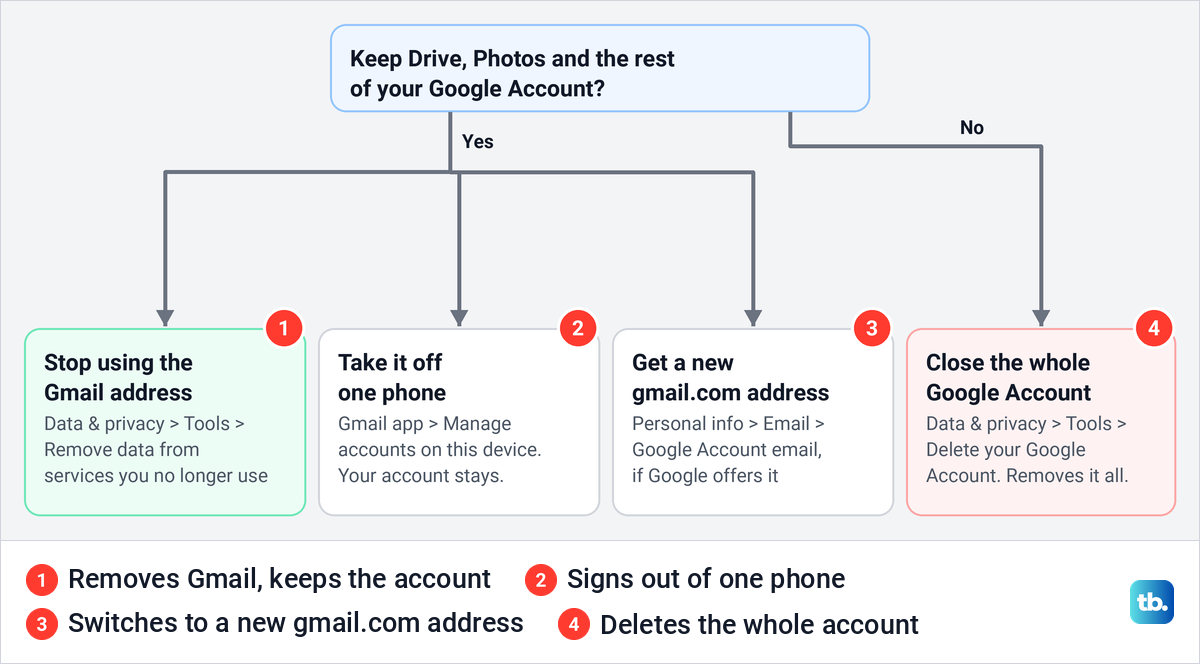
On our PC, both Data & privacy routes in that table sat under one heading, Tools, at the bottom of the page. Older instructions send you to a Data from apps and services you use section or a More options link, but neither was on the page when we opened it. The chart below helps you pick a row with one question.
What happens when you remove Gmail
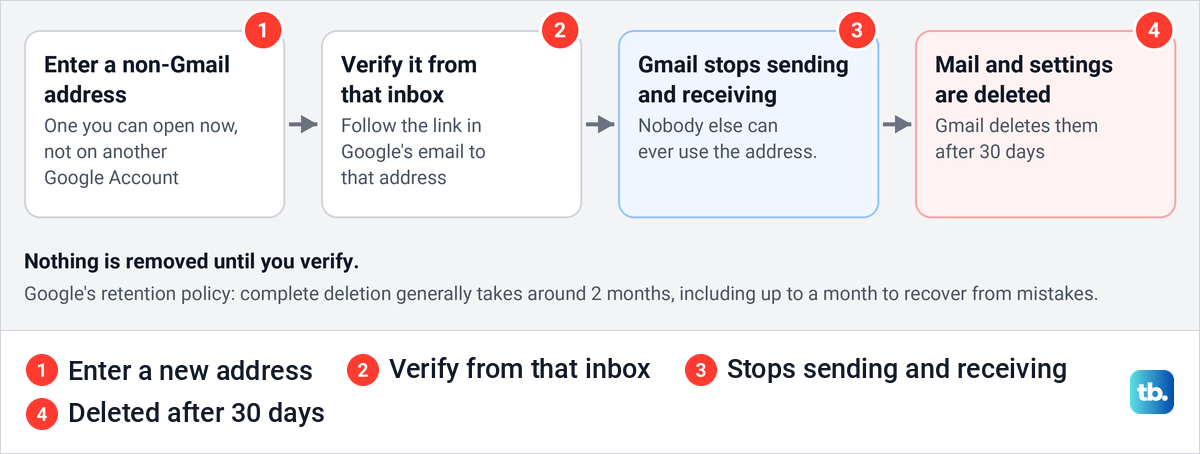
Removal starts only after you enter an alternate address and verify it from that inbox. Google says your Gmail address and emails aren't removed from your Google Account until you do.
Once the removal goes through, you can no longer use the Gmail address to send or receive email. Google says Gmail deletes your emails and settings after 30 days, and that the address can't be used by anyone in the future. Mail you already sent stays with the people who got it, because Google says deleting your data does not remove the copies kept by recipients.
Everything else in the Google Account stays. Google names your activity across Google services and your Google Play purchases as examples, and its documentation for company administrators says non-Gmail data is not affected. You keep using Drive, Photos and the rest with the same password, signing in with the new address.
Google's general retention policy says complete deletion of data in any Google product generally takes around 2 months, often including up to a month-long recovery period. Treat the 30 days as Gmail's own figure and the 2 months as Google's general time for deleting data completely from its servers.
Before you remove Gmail
Start with the alternate address, because it is a common place to get stuck. Google says it can't be a Gmail address and can't be an address that's already linked to another Google Account. It also has to be an inbox you can open right now, since the verification link goes there.
A second Gmail address will not work, and neither will an address you already use to sign in to a different Google Account. If every address you own ends in gmail.com, make a new email account with another provider first.
Next, move everything that uses the Gmail address while it can still receive mail. Google's advice is to add a new email address for online banking, social media and apps, because password resets stop arriving once the address is gone. Start with your bank and your phone carrier, then work through the rest, and change your email address on LinkedIn and on other sites as you go.
If you want a few weeks of overlap, set up email forwarding in Gmail to the new address now. Watch what still arrives at the old address, move those logins too, and remove Gmail once it goes quiet.
If you are leaving because someone got in, secure a hacked Google Account first. Google suggests Security Checkup to see what was accessed before you delete anything.
Download your Gmail with Google Takeout
Google tells you to download your data before you remove Gmail, and Google Takeout is the tool for it. Downloading does not delete anything from Google's servers, so running it is safe. Open takeout.google.com while signed in to the account, which on our PC opened straight away with no password prompt. If you use more than one Google Account, check the profile picture at the top right of Takeout before you select anything.
Takeout starts with nearly everything selected. Ours showed 59 of 60 products ticked, so select Deselect all first, then scroll to Mail and tick it. The Mail row said Messages and attachments in your Gmail account in MBOX format, and User settings from your Gmail account in JSON format.
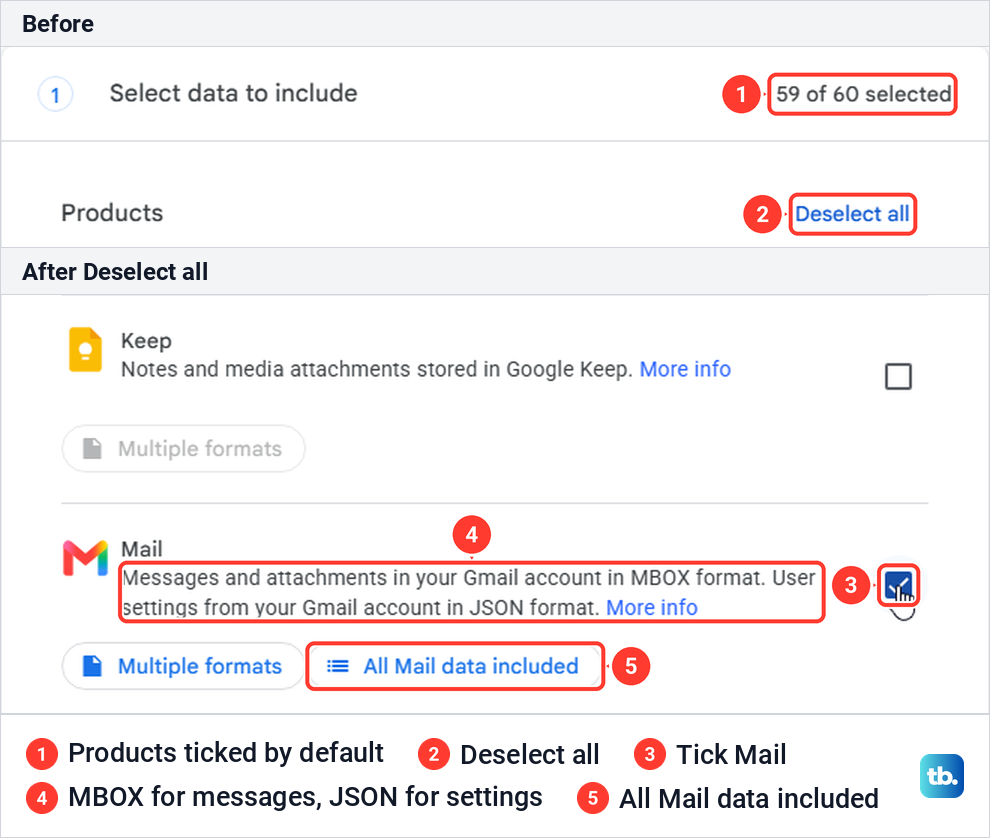
The All Mail data included button opens Mail content options. Include all messages in Mail is ticked, and the box for each label below it stays greyed out while it is. Google says this kind of button is how you download only some of a product's data, so leave it as it is to get all your mail.
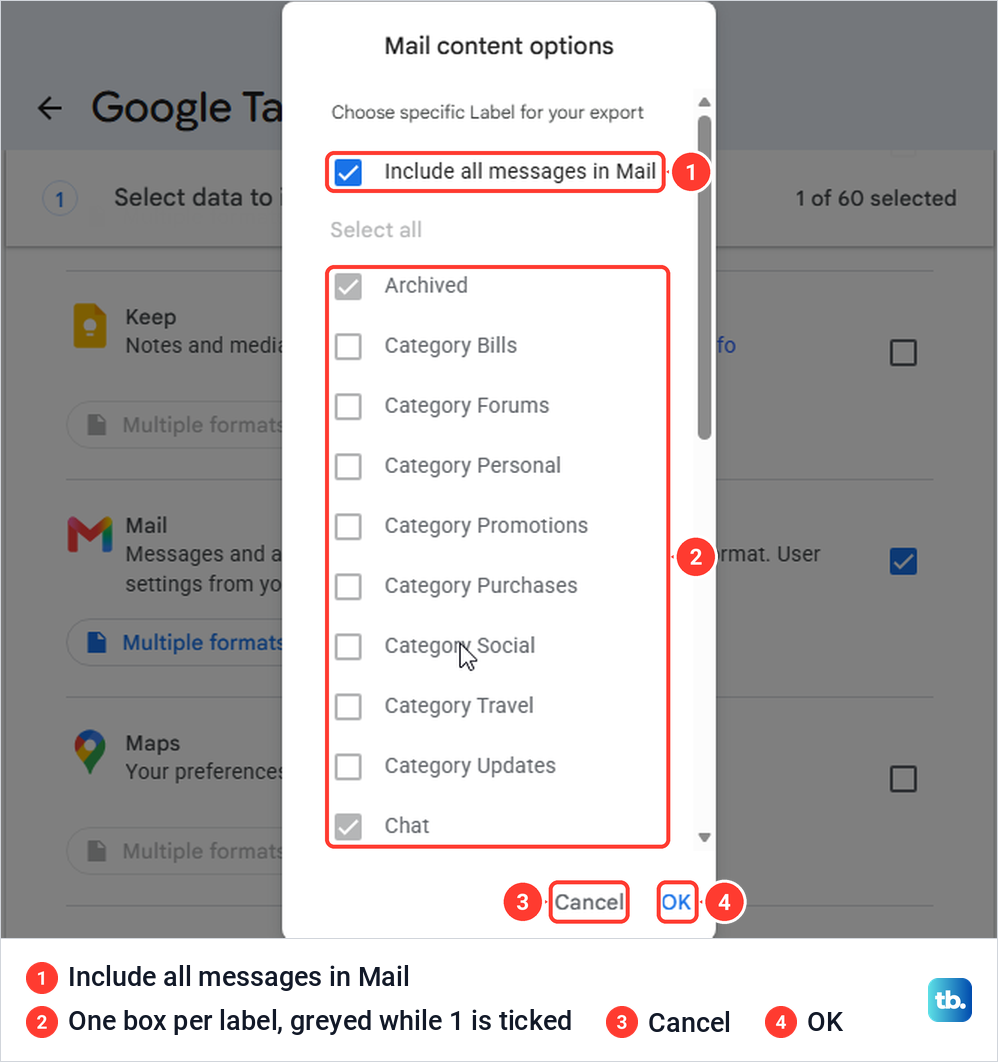
Google also says you can't export by date range, and that each message's labels are kept in a header called X-Gmail-Labels. Select Next step at the bottom of the list. Under Destination, Transfer to offered four choices on our PC: Send download link via email, Add to Drive, Add to Dropbox and Add to Box. Google's help page also lists OneDrive, but it was not in ours.
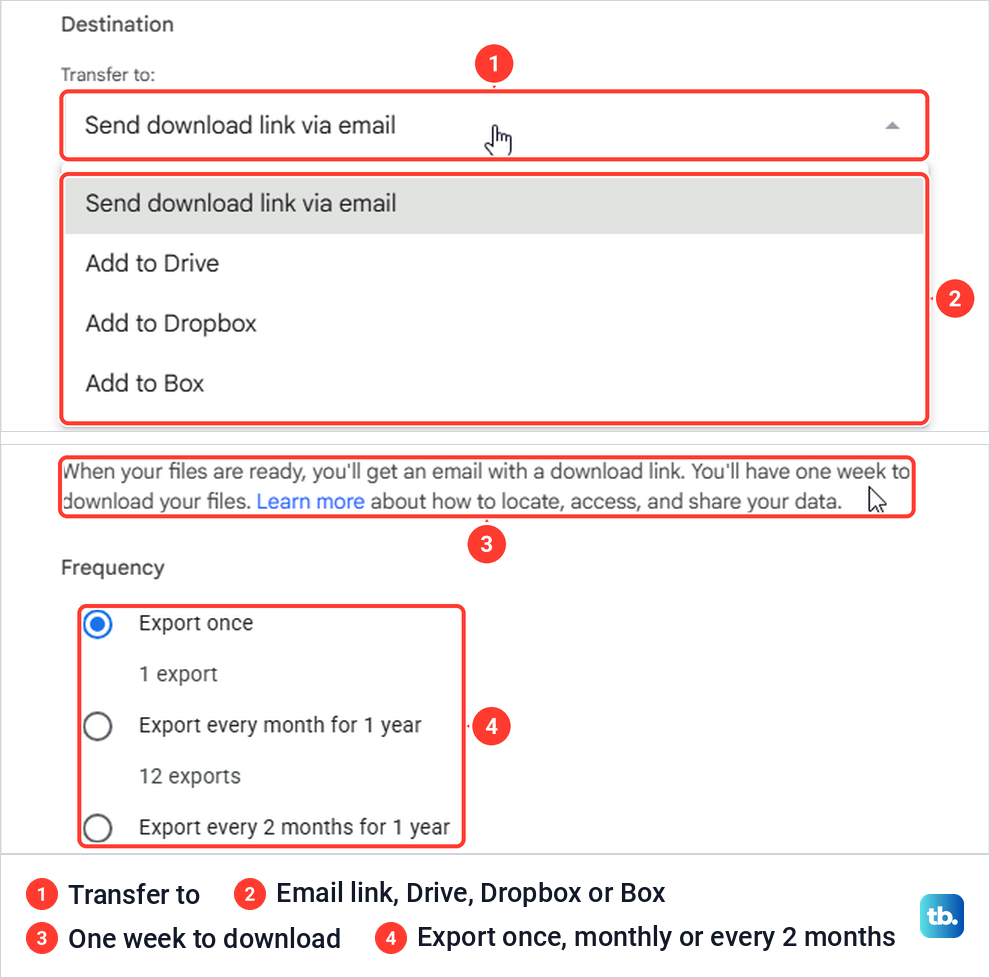
Send download link via email is the simplest choice. The page says you'll have one week to download your files, and Google says each archive can be downloaded 5 times. Add to Drive also works here, since removing Gmail leaves Drive alone, but Google says the archive then counts toward your storage.
Under Frequency, choose Export once. Our list also had Export every month for 1 year and Export every 2 months for 1 year, which only make sense for an account you keep using.
File type and size come last. A .zip file can be opened on almost any computer, while Google says a .tgz file may need additional software on Windows. File size was 2 GB by default, with 1, 4, 10 and 50 GB in the list, and Google says a mailbox larger than that size is split into several archives, so choose 50 GB to keep the split down.
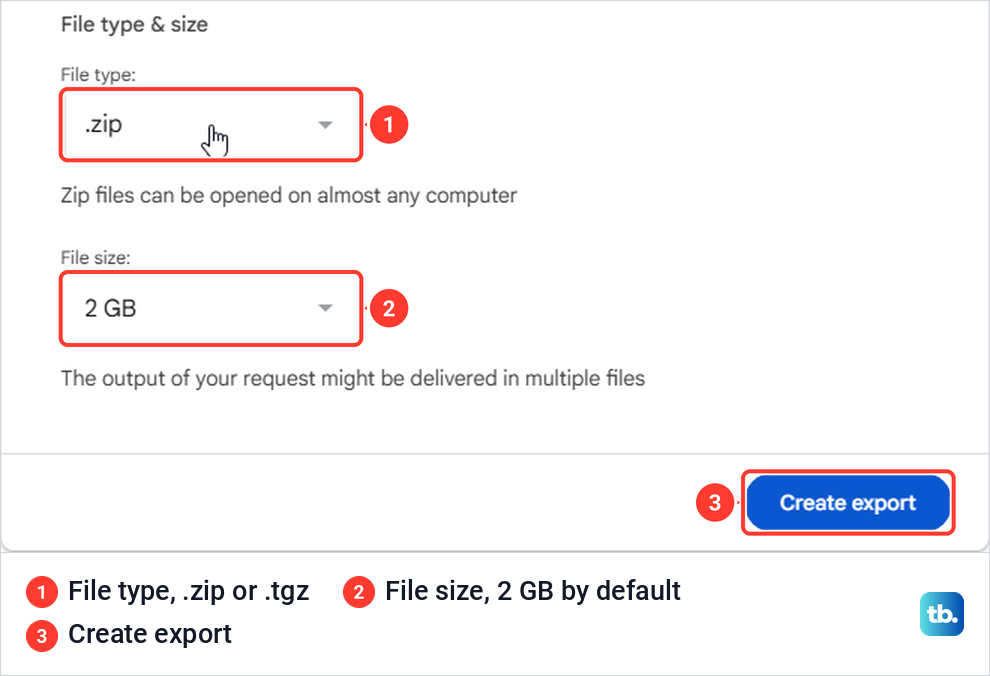
Select Create export. When we ran a small test export of another product, Takeout started without asking for the password, and the email titled Your Google data is ready to download reached the Gmail inbox within a minute. Google says a large mailbox can take from a few minutes to a few days, though most people get the link the same day.
The email's Manage Google Takeout request button opened a page with an expiration date seven days after the request, a count of how many times the file had been downloaded, and a Download button. Download asked for the Google Account password. Wait for this email and download the file before you remove Gmail, because the link arrives in the very inbox you are about to give up.
Open the archive on a computer rather than a phone, as Google recommends. It holds a file named archive_browser.html that lists what is inside, and your messages are in the MBOX file. Keep a second copy somewhere safe, because the copy in Gmail is deleted 30 days after the removal.
Remove Gmail from your Google Account on a computer
These are the screens in Microsoft Edge on Windows 11, version 25H2. If more than one Google Account is open in the browser, check that the profile picture at the top right shows the one you want to remove Gmail from, or sign out of your Google accounts and sign back in with only that one.
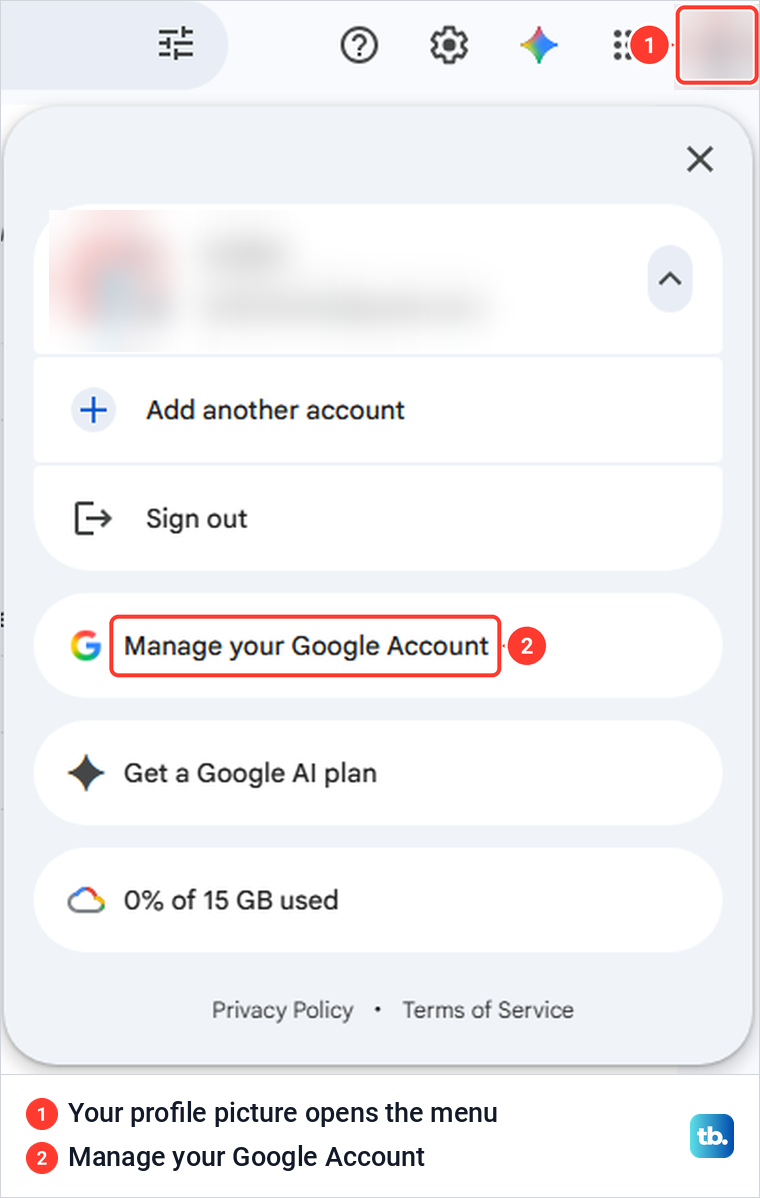
Open Gmail and select your profile picture at the top right. The menu lists Add another account, Sign out and Manage your Google Account. Select Manage your Google Account, which on our PC opened the Google Account in a new tab.
Select Data & privacy in the menu on the left and scroll to the bottom of the page. The last heading is Tools, and ours held Google Dashboard, Download your data, Remove data from services you no longer use, Remove results about you, Make a plan for your digital legacy and Delete your Google Account.
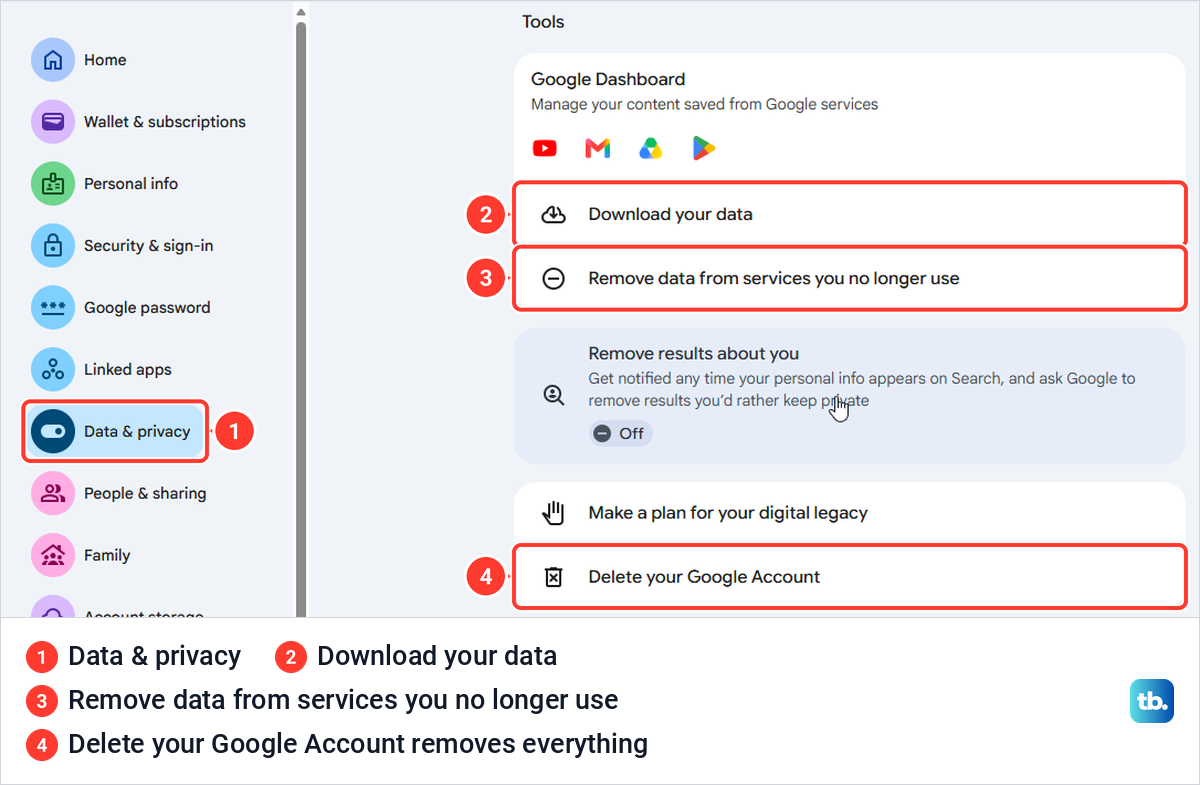
Select Remove data from services you no longer use, and take care not to pick Delete your Google Account a few rows below it. The link points to myaccount.google.com/deleteservices, and typing that address into Edge took us to the same next screen.
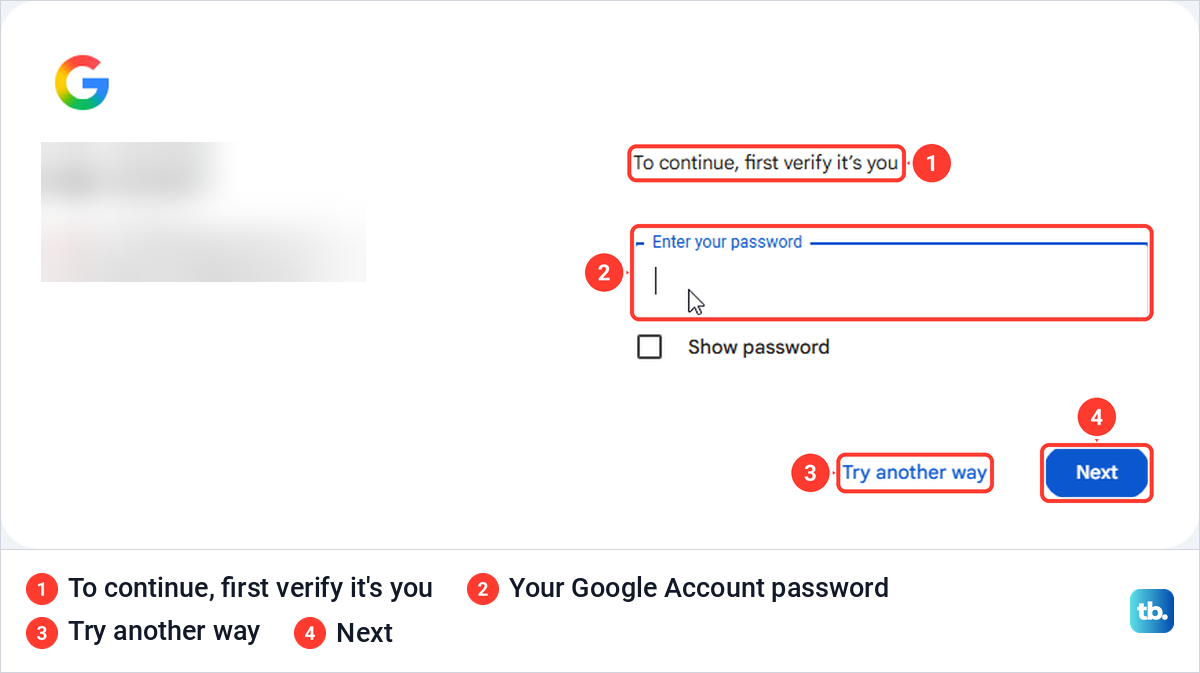
Google then asks you to prove it is you. On our PC the screen said To continue, first verify it's you, with an Enter your password box, a Try another way link and a Next button. Type your Google Account password and select Next, and if you no longer know it, recover your Google password first.
Google calls the page that opens next Delete a Google service. Next to Gmail, select Delete, enter an alternate email address that meets the rules above and select Next. Another of Google's help pages calls that button Send verification email, so select whichever label your screen shows. Google says this sends an email to the alternate address.
Verify the new address to finish
Open the inbox of the alternate address and follow the link in the message from Google. Google's documentation for administrators describes a last screen where you select Yes and then Delete Gmail, so if you see it after the link, read it carefully before you confirm. If the message does not arrive, check that inbox's spam folder, then start again from Data & privacy, which is safe to do.
Google's page for administrators describes a slightly different flow, moving an account to a work address. It says the old @gmail.com address can still be used to sign in there, even though it no longer sends or receives mail.
Your Google Account keeps its password, and the new address becomes its main email. Since the account still holds Drive, Photos and everything else, turn on 2-Step Verification if it is not on already.
Remove Gmail in the Gmail app on Android or iPhone
The Gmail app has the same route on a phone or tablet. On Android, open the Gmail app, tap your profile picture at the top right and tap Manage your Google Account. Tap Data & privacy, scroll to Tools and tap Remove data from services you no longer use.
Sign in when Google asks, tap Delete next to Gmail, enter an alternate email address and tap Next. Google gives the same steps for the Gmail app on an iPhone or iPad, and the same rules for the alternate address and the 30 days apply.
If you don't use the Gmail app on an iPhone or iPad, Google says to go to myaccount.google.com in the browser instead. Either way, the verification email goes to the alternate address.
Removing the account from your phone does not delete it
Many people who search for this only want Gmail off a phone. Google says the Gmail app on a phone or tablet can only remove your account from the device, and that removing it doesn't delete your Google Account. To read the mail again, you sign in on another device.
That still has side effects. Google says removing the account from the Gmail app also signs you out of other Google apps on the phone, like Maps and YouTube, and on Android it deletes that account's email, contacts and settings from the device. If taking the account off one phone is all you want, follow the steps to log out of the Gmail app rather than removing Gmail.
The same idea applies on a computer when you remove a Google account from Chrome. The account leaves that browser and keeps working everywhere else.
Get your Gmail address back if you change your mind
Google says that even if you remove your Gmail address, you can get it back. Open Gmail, sign in to your Google Account and follow the steps on the screen. Google adds that if it's been a while since you removed the address, you might not be able to get your emails back.
When you add Gmail again, Google says the Gmail address becomes the primary username on your account and the address you had been signing in with becomes the recovery address. Act quickly if you are unsure, since Gmail deletes the mail after 30 days, and keep your Takeout archive either way.
Google also says you can't call it for help signing in, and that it doesn't work with any service that claims to provide account support. If you deleted the whole Google Account rather than only Gmail, the steps to recover a deleted Google Account are different.
Other ways to stop using a Gmail address
If you only want a different gmail.com address, you may not need to remove Gmail at all. Google says a Google Account email that ends in gmail.com may be changeable to another gmail.com address, from Personal info > Email > Google Account email. If Google offers the change, the old address becomes an alternate, mail to both addresses arrives, and your data stays.
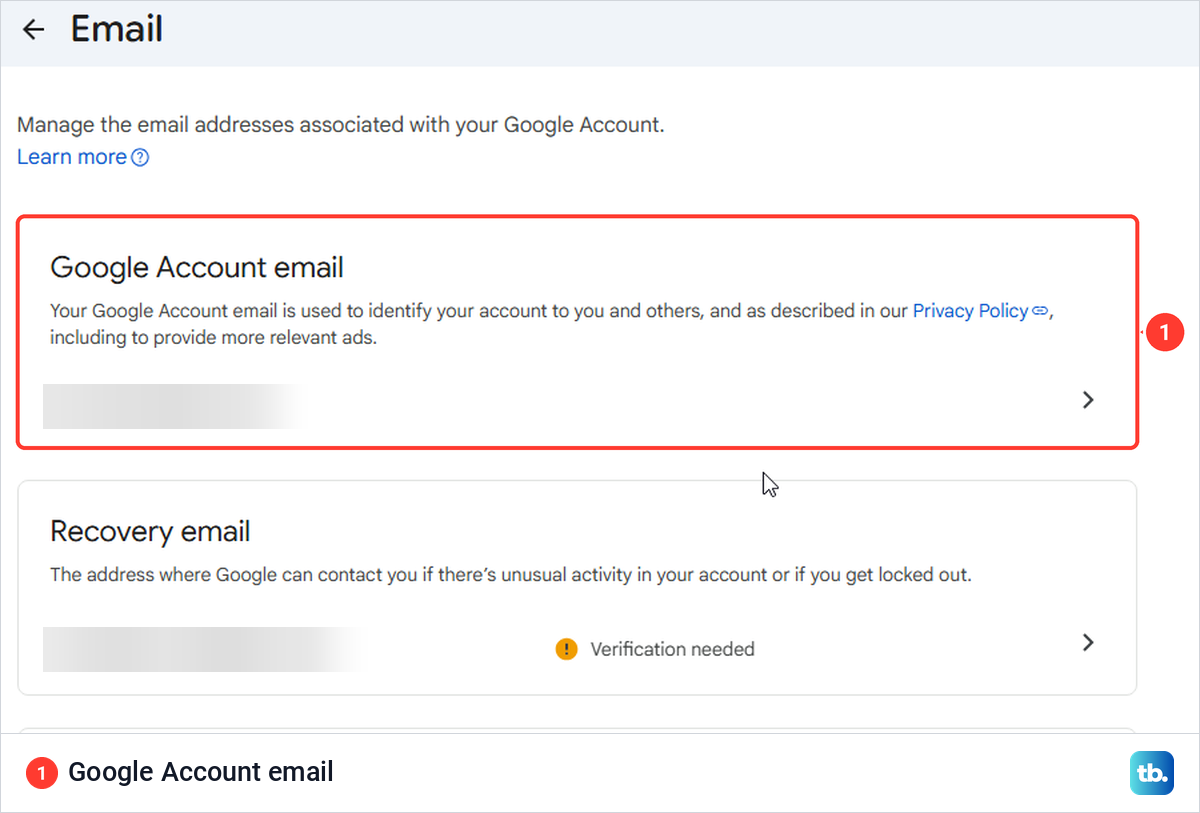
On our PC the Email page listed Google Account email, Recovery email, Contact email, Alternate emails and About me emails, and selecting Google Account email asked for the password first. Google says the option then appears as Change Google Account email, and if you don't have it, the change might not be possible. You can only switch to a new gmail.com address once every 12 months and three times in total.
If the mail is the problem rather than the address, you can mass delete emails in Gmail and keep the account. Google says deleted messages wait in Trash for 30 days before they are permanently deleted. If a full mailbox is what brought you here, you can also free up Gmail storage without losing the address.
If one sender is the problem, block an email sender before you give up on the address. If you would rather start over on a separate account, create a new Gmail account and keep the old one until everything has moved.
Leaving the account alone is not a plan either. Google says it may delete a personal Google Account, or the data in one product, after at least two years of inactivity.
If Google will not let you remove Gmail
If Google refuses the alternate address, check it against the two rules in Before you remove Gmail. If it breaks either one, use a different address or make a new one with another provider.
Google says an account that ends in @gmail.com has no administrator, so the decision is yours alone. If you use Gmail through work, school or another group, Google says to contact your administrator instead.
If Google asks for a password you no longer know, recover the account first, because both the removal page and the Takeout download asked for the password on our PC. If your account has 2-Step Verification turned on, Google says the Takeout download may also ask for an additional verification step.
How we tested this guide
We tested this in Microsoft Edge on Windows 11, version 25H2, running a Google Takeout export of Mail and opening the removal link's password check.
Frequently Asked Questions
Can I delete Gmail without deleting my Google Account?
Yes. Remove Gmail under Data & privacy > Tools > Remove data from services you no longer use, and use another address as the account's main email from then on. Google says the rest of your Google Account, like your activity and Google Play purchases, is not affected.
What happens to my emails when I delete Gmail?
Nothing is removed until you verify the new address. After that, Google says Gmail deletes your emails and settings after 30 days, while messages you sent stay with the people who got them.
Can I get my Gmail address back?
Google says you can. Open Gmail, sign in to your Google Account and follow the steps on the screen, but if it has been a while the old emails may not come back.
Can someone else take my old Gmail address?
No. Google says a removed Gmail address can't be used by anyone in the future. Google says the same holds even after a whole Google Account is deleted.
Why won't Google accept my other email address?
Google does not allow a Gmail address or one already linked to another Google Account. Use a different address you can open, or create one with another email provider.
I removed the account from the Gmail app. Is it deleted?
No. Google says the Gmail app can only remove the account from that phone, and your Google Account and its Gmail stay as they were.
How do I delete a work or school Gmail account?
Your administrator manages that account. Google says to contact them.