To mass delete emails on Gmail, open Gmail on a computer, open the inbox, tab, label or search results you want to clear, check the top Select box, click the notice link to select all conversations, then click Delete. Review the selection before deleting so it covers the right mail.
The short version
- On a computer, the selection notice lets you include conversations beyond the current page.
- Search by sender, age or attachment before deleting a smaller group.
- The Android, iPhone and iPad apps select up to 50 messages by default.
- Ordinary deletion moves mail to Trash, where you can recover it for up to 30 days.
- Empty Trash to reclaim storage, but review it before permanently deleting anything.
- Use a filter for repeat clutter; remove the Gmail service only if you want to stop using that address.
| Method | What it does | Time | Use it when |
|---|---|---|---|
| Desktop selection | Clears an entire view | About a minute; one-minute shortcut setup | A category or label should go |
| Search deletion | Targets matching mail | A few minutes | Keep other messages |
| Mobile deletion | Deletes batches or individual mail | About a minute per 50 messages; one-minute swipe setup | You use Android, iPhone or iPad |
| Empty Trash | Permanently removes mail | Under a minute | Reclaim storage |
| Google One cleanup | Reviews storage items | 5 to 15 minutes | Storage is the problem |
| Deletion filter | Deletes matching incoming mail | A few minutes, once | Clutter keeps returning |
| Remove Gmail | Removes the email service | About 10 minutes; mail deleted after 30 days | Retire the address |
| Delete Google Account | Removes account data | About 15 minutes plus data download | Leave all its services |
Delete every email in a desktop view
Select the whole view
Open Gmail on a computer and choose Inbox, All mail or a label on the left, or the Promotions tab at the top of the inbox. Check the Select box above the message list, then read the selection notice before pressing anything else.
The first selection covers the current page. A notice above the list reads, for example, "All 50 conversations on this page are selected. Select all 2,000 conversations in Inbox." Click the second part to include conversations beyond the visible page, then click Delete in the toolbar.
Choose All mail carefully if you keep archived messages. Archiving removes messages from the inbox but leaves them in All mail, so those messages belong in your review too.
Turn on keyboard shortcuts
Open Gmail on a computer, click Settings at the top right, then choose See all settings. Find the Keyboard shortcuts section in Settings before returning to your message list.
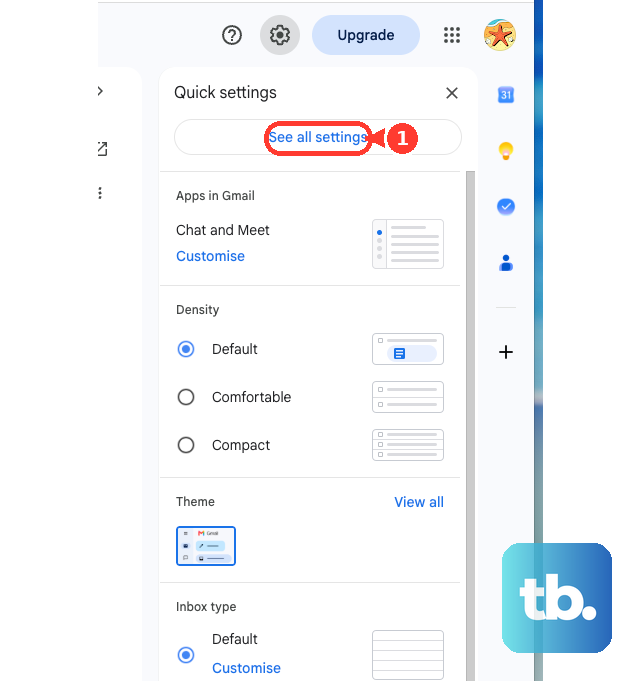
Select Keyboard shortcuts on, then click Save Changes at the bottom. With shortcuts enabled, use * then a to select all conversations on the page, or x to select one conversation. Press # to delete the selection with the default shortcut assignments.
Read the selection notice before deleting a large view, and use its all conversations link when needed. Do not assume a key selection includes every result beyond the current list. If a shortcut does not work, check that shortcuts are enabled; support also depends on your language and keyboard.
Search for the messages you want to delete
Enter your criteria in Gmail's search box and press Enter. Use from:[email protected] for one sender, category:promotions for promotional mail or label:newsletters for a label named newsletters. Replace the example sender or label with your own.
For older mail, use before:2025/01/01 to search before that date, or older_than:2y for mail older than two years. You can combine sender and date criteria rather than deleting everything from a sender. Review the results to check that the query matches your intended cleanup.
To find large messages with attachments, enter has:attachment larger:10M. For PDFs, try filename:.pdf larger:5M, or use older_than:2y has:attachment to review older messages containing attachments. These searches help you choose mail by size or age rather than by its position in the inbox.
Check the top Select box in the results, use the notice link to include all matching conversations when offered, then click Delete. Use in:anywhere only when you want the search to include Spam and Trash too. Review those results separately before making a permanent deletion.
Delete messages in the mobile apps
Delete batches on Android
Open the Gmail app on your Android phone or tablet and touch and hold a message. At the top left, tap the box next to Select all, then tap Delete at the top. By default, Gmail selects up to 50 messages.
To select 50 more messages, scroll to the top of the page and tap Select all again. Search first if you only want mail from a particular sender or date range. For an entire mailbox view, use the computer workflow to avoid managing repeated mobile selections.
Delete batches on iPhone and iPad
Open the Gmail app, touch and hold a message, then tap the box next to Select all at the top left. Tap Delete at the top to remove the selected messages. The app selects up to 50 messages by default.
For another 50 messages, scroll to the top and tap Select all again. You can enter search criteria before selecting messages if you want a narrower cleanup. Check the selected mail before deleting, especially when a search covers several senders.
Use swipe deletion for individual messages
Swipe deletion helps finish a small cleanup after the bulk work. On Android, open Menu, then Settings, General settings and Swipe actions. Beside Right swipe or Left swipe, tap Change, then Delete.
On iPhone or iPad, open Menu and Settings, then choose Inbox customizations under Inbox. Tap Mail swipe actions, choose Right swipe or Left swipe, then select Trash.
Review and empty Trash
Ordinary Gmail deletion moves messages to Trash, where you can recover them for up to 30 days. After 30 days, they are permanently deleted. Review that folder before emptying it, because permanent deletion removes your ability to restore the mail yourself.
On a computer, click More on the left, then Trash. Click Empty Trash now to clear the folder, or check individual messages and click Delete forever to remove only those. To rescue a message instead, select it, click Move to and choose its destination.
On Android, iPhone or iPad, open the Gmail app, tap Menu, then Trash and Empty trash now. Messages in Trash still count toward storage until permanently removed. After a large cleanup, storage totals can take up to 72 hours to update, so an unchanged total does not mean you should delete more mail immediately.
Review Gmail storage with Google One
Use Google One when you need to review what is consuming account storage. Your storage is shared across Gmail, Google Drive and Google Photos, so reducing the inbox alone may not solve the problem. Treat Gmail deletion through the storage manager as permanent and review the selected items carefully.
On a computer, open Google One, click Storage, then Free up account storage under Get your space back. Under Clean up by service, choose Gmail and select the items to delete. Click Delete, read the consent wording, check the confirmation box and click Permanently delete.
On Android, open Gmail, Google Drive or Google Photos and tap your profile picture or initial. Select the correct account with the down arrow if needed, then tap Manage storage or the cloud storage indicator. Under Clean up by service, select Gmail, choose items, tap Review, then Delete and Move to trash or Permanently delete as shown.
On iPhone or iPad, open one of those apps and tap Clean up space or Manage storage. Choose Gmail under Clean up by service and select items. Swipe right on an item to mark it for deletion or left to keep it.
Tap Review and Delete, then choose the deletion option shown. Before confirming, check Google's storage manager instructions: Gmail items deleted through this flow cannot be recovered.
Create a filter for recurring clutter
On a computer, click Show search options in Gmail's search box and enter the criteria for mail you want to remove. Click Search first to review the matches. Use a precise sender or condition so important mail does not become part of the rule.
Return to the search options, click Create filter, choose Delete it as the action, then click Create filter again. You can also begin from an existing message by checking its box, clicking More and choosing Filter messages like these. Review those criteria before saving the filter.
For messages already in the mailbox, use the search and selection workflow above. If a later reply escapes the filter, check whether it meets the same criteria; a reply is only filtered when it matches. Do not broaden a rule without reviewing the extra mail it would include.
To change the rule, open Settings, then See all settings and Filters and Blocked Addresses. Find the filter and choose Edit or Delete. After editing, click Continue and Update filter; confirm removal with OK when deleting a filter.
Why Gmail has not deleted everything
Check the scope of your selection first. On a computer, checking the top box selects the current page until you click the notice's all conversations link. On a phone, Select all selects up to 50 messages by default, so use desktop Gmail for a larger selection.
If the right-click menu is unavailable, select messages and use the toolbar's Delete button. The right-click menu can have problems when an account has more than 250,000 emails. The toolbar lets you continue without depending on that menu.
If mail disappears from the inbox but storage stays full, review Trash and the storage used by other Google services. Review messages before permanently removing them. If you keep encountering unexpected deletions, inspect Filters and Blocked Addresses for a rule using Delete it.
What changes for work and school accounts
Check your organization's rules before clearing work or school mail at scale. Google Vault retention rules or holds can preserve messages even after they leave your mailbox, so emptying Trash is not a promise that every organizational copy disappears.
Ask your administrator about retention and whether you are allowed to remove the Gmail service. Use the ordinary search and selection methods for an approved mailbox cleanup.
Delete the Gmail address or the whole account instead
Deleting messages keeps your address and your account. If you want to retire the Gmail address itself and keep Drive, Photos and the rest, follow the steps to delete a Gmail account without closing your Google Account. Gmail deletes your emails and settings 30 days after the service is removed, and you need an alternate address that is not Gmail.
To close everything, including files, calendars and photos, delete your Google Account instead, after downloading what you want to keep. If you cannot sign in because you forgot the password, recover your Gmail account first.
Frequently Asked Questions
Can I mass delete all Gmail emails from the mobile app?
Only in batches. The Android, iPhone and iPad apps select up to 50 messages by default. Use Gmail on a computer and the all conversations selection link when you want an entire view included.
Does deleting Gmail messages free storage immediately?
Ordinary deletion moves messages to Trash, and they still count toward storage there. Empty Trash after reviewing its contents, then allow up to 72 hours for storage totals to update after a large cleanup.
Can I delete old Gmail messages by date?
Yes, search with before:, after: or older_than: to find the mail you want. Review the results, select them, expand the selection through the notice link when offered and click Delete.
Is Delete forever recoverable in Gmail?
You cannot restore messages yourself after using Delete forever. Gmail items removed through Google One storage cleanup are also permanently deleted, so review them before confirming.
Can I get back a batch deleted by mistake?
For ordinary deletion, you can recover messages from Trash for up to 30 days unless they were permanently deleted sooner. On a computer, open Trash, select the messages, click Move to and choose where to put them.