Maybe you are switching to a new email address, consolidating several inboxes into one, or you simply want a backup copy of every message landing somewhere you check more often. Whatever the reason, Gmail can automatically send a copy of incoming mail to another address so nothing slips past you. The setup takes only a few minutes on a computer, and once it is verified, Gmail handles the rest in the background.
This guide walks through the full process: adding a forwarding address, confirming it, switching forwarding on, and deciding what Gmail does with its own copy. It also covers how to forward only certain messages with a filter and how to turn everything off later if your needs change.
What You Need Before You Start
Email forwarding in Gmail is configured from a computer using a web browser, so have one ready before you begin.
You will also need to be signed in to the Gmail account you want to forward messages from, since that is where every setting below lives.
It also helps to have access to the destination inbox during setup.
Gmail sends a verification message to that address, and you will need to open it and click a link before forwarding can be turned on.
Opening the Right Settings Page
Start by opening Gmail on your computer using the account you want to forward messages from.
Once your inbox loads, look to the top right of the screen for the gear-shaped Settings icon.
In the top right, click Settings.
Click See all settings to open the full settings menu.
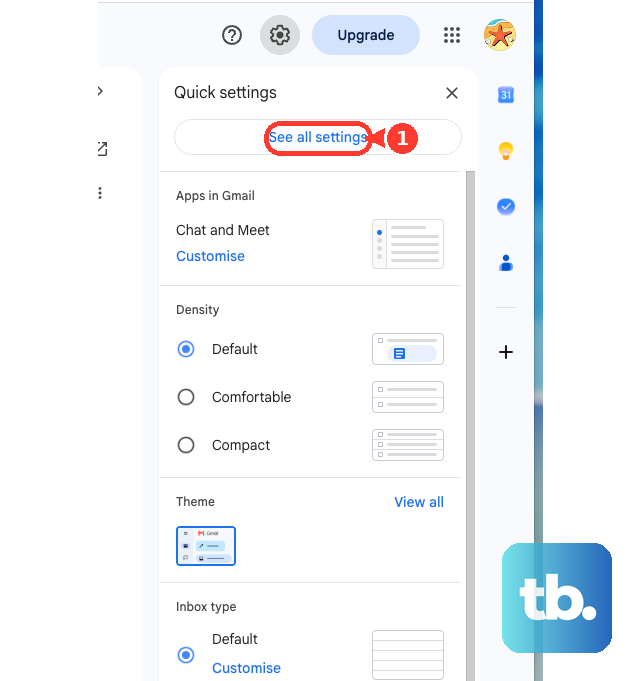
The quick Settings panel only shows a handful of options, so the See all settings step matters.
It opens the complete page where the forwarding controls live, organized across a row of tabs near the top.
Adding the Address You Want to Forward To
With the full settings page open, find the tab named Forwarding and POP/IMAP.
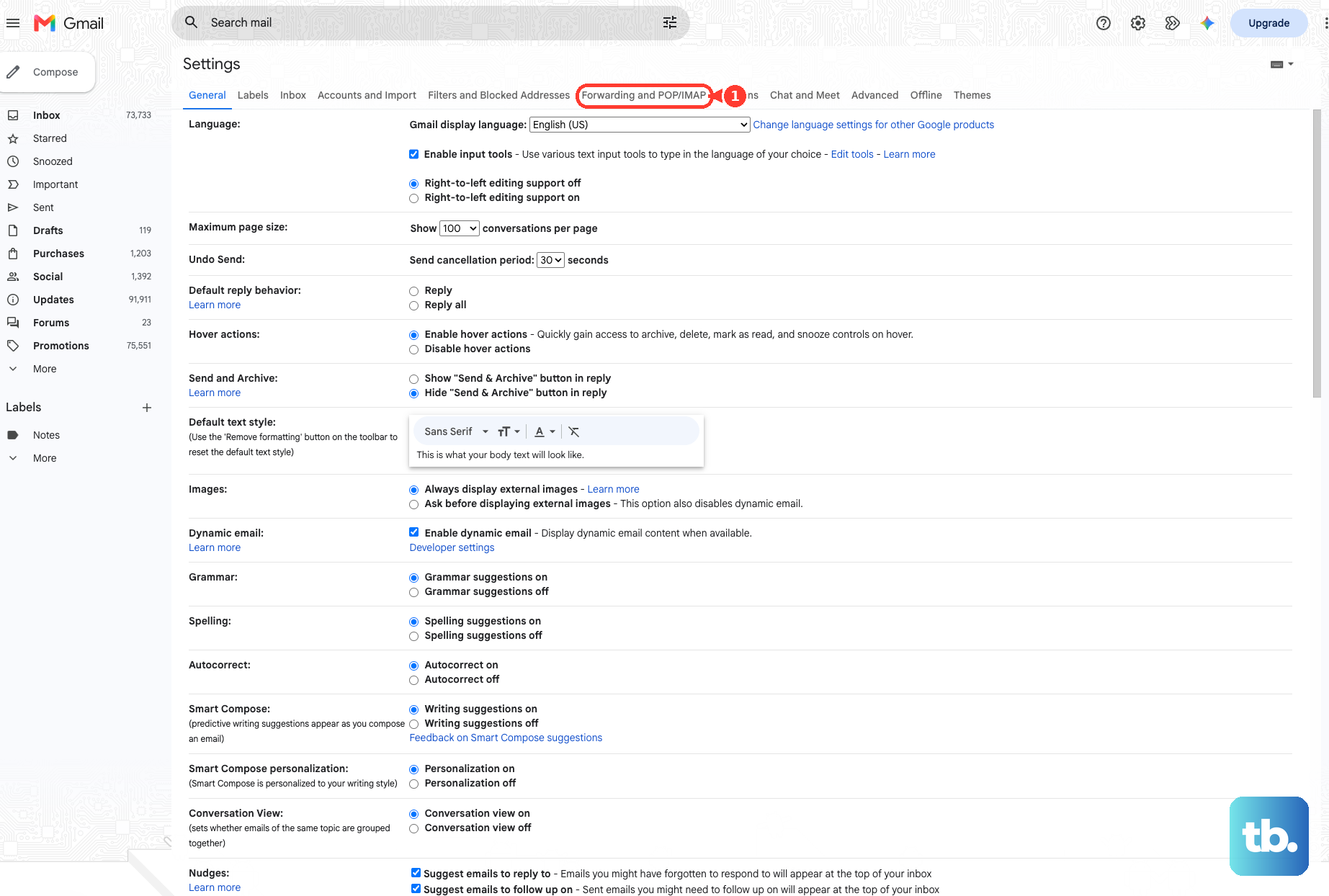
In some accounts this tab is simply labeled Forwarding, so look for either wording across the tab row.
Click the Forwarding and POP/IMAP tab.
In the Forwarding section, click Add a forwarding address.
Type the email address you want to forward messages to.
Click Next, then Proceed, then OK.
Those three confirmations in a row are normal.
Gmail is making sure you intend to send copies of your mail elsewhere, since forwarding moves real messages to an outside inbox.
Once you click OK, Gmail begins the verification step automatically.
Confirming the Forwarding Address
Before Gmail will redirect anything, it needs proof that you control the destination inbox.
As soon as you add the address, a verification message is sent to it without any extra action on your part.
Switch over to the other email account, the one you entered as the forwarding target, and open that verification message.
Inside, you will find a link to confirm forwarding; click it to complete this step.
This handshake is what stops anyone from quietly rerouting your mail to an address they do not own.
If the message has not arrived yet, give it a moment and check again, including any folder where automated mail tends to land.
Forwarding cannot be enabled until the link is clicked.
Switching Forwarding On
Now return to the settings page for the account you are forwarding from.
Refresh the browser so Gmail registers that the address has been verified, then head back to the same tab as before.
- 1.Refresh the browser on the settings page.
- 2.Open the Forwarding and POP/IMAP tab again.
- 3.Select Forward a copy of incoming mail to.
- 4.Pick the verified address from the list.
Next, decide what Gmail should do with its own copy of each message.
You can choose how the original is handled in this mailbox, and Google recommends the Keep Gmail's copy in the Inbox option so the message still sits in your main inbox as usual.
Saving and Confirming It Works
None of these choices take effect until you save them.
Scroll to the bottom of the settings page and click Save Changes to lock in your forwarding setup.
From that point on, Gmail forwards every new incoming message to the address you chose.
The one exception is mail that Gmail classifies as spam; those messages are not forwarded, which keeps junk from cluttering your second inbox.
Existing messages already in your account are not sent over, so forwarding applies to new mail going forward.
A Quick Test
To make sure everything is wired up correctly, send yourself a fresh message or wait for the next one to arrive.
It should appear in both the original Gmail inbox (if you kept the copy there) and the forwarding destination.
Forwarding Only Certain Messages With a Filter
Sometimes you do not want every message redirected, only mail from a specific sender or matching certain words.
Gmail handles this through filters, which let you forward a narrower slice of your incoming mail instead of all of it.
Before setting this up, disable automatic forwarding so the filter is the only thing doing the redirecting.
Then build the filter from the search box at the top of Gmail.
Turn off automatic forwarding first.
In the Gmail search box, click Show search options.
Enter your search criteria, such as a sender or keyword.
Click Create filter.
Select Forward it and choose the forwarding address.
Click Create filter to finish.
If you want to send matching messages to more than one inbox, create a separate filter for each address.
Each filter can target its own set of criteria, so you can route different kinds of mail to different places.
Turning Forwarding Off Later
If you no longer need messages copied elsewhere, you can switch forwarding off just as easily as you turned it on.
Open Gmail on your computer using the account that is currently forwarding messages.
Click Settings, then See all settings.
Open the Forwarding and POP/IMAP tab.
In the Forwarding section, click Disable forwarding.
Click Save Changes.
After saving, new mail stays put in its original inbox and nothing is sent to the other address.
You can always repeat the earlier steps if you decide to set forwarding up again.
Frequently Asked Questions
Why hasn't the verification message arrived at my forwarding address?
The verification message is sent automatically the moment you add the address, so allow a little time for it to land in the destination inbox. Open the message there and click the verification link inside; until that link is clicked, Gmail will not let you turn forwarding on.
Will my spam get forwarded too?
No. Once forwarding is enabled and saved, Gmail forwards all new incoming messages except those it classifies as spam. That junk stays out of your second inbox, so only legitimate mail is copied across.
Can I keep a copy of forwarded mail in my original Gmail inbox?
Yes. When you turn forwarding on, you choose what Gmail does with its own copy of each message, and Google recommends the option to keep Gmail's copy in the Inbox. With that selected, the message appears in both your original inbox and the forwarding destination.
How do I forward mail to more than one address?
Automatic forwarding sends mail to a single chosen address, so to reach multiple inboxes use filters instead. Create a separate filter for each address, with each one set to forward matching messages to its own destination.
How do I stop forwarding once it's set up?
Open Gmail on a computer with the account that is forwarding, go to Settings, then See all settings, and open the Forwarding and POP/IMAP tab. Click Disable forwarding in the Forwarding section, then click Save Changes to stop sending copies elsewhere.