A sender keeps showing up after you delete the messages, mark them as spam, or unsubscribe. Blocking the sender is the direct fix, but the control sits in a different place in Gmail, Outlook, Apple Mail, Yahoo, AOL, Proton Mail, Fastmail, and mail.com. The provider paths below match official instructions verified in July 2026, and they separate true blocking from filters, cleanup tools, and admin-only controls.
1. Block Gmail senders from an open message
In Gmail, open the message, select More next to Reply and choose Block followed by the sender's name; the Gmail app on Android, iPhone and iPad uses the same menu, and future mail from that sender goes to Spam. To block a whole domain, unblock someone or decide between blocking and unsubscribing, follow our full guide on how to block emails on Gmail.
2. Add Outlook senders from Junk email
- 1.Open Settings, then Mail, then Junk email.
- 2.Under Blocked senders, enter the email address and select Add.
- 3.To block a full domain, use Blocked domains, enter the domain, and select Add.
- 4.Select Save.
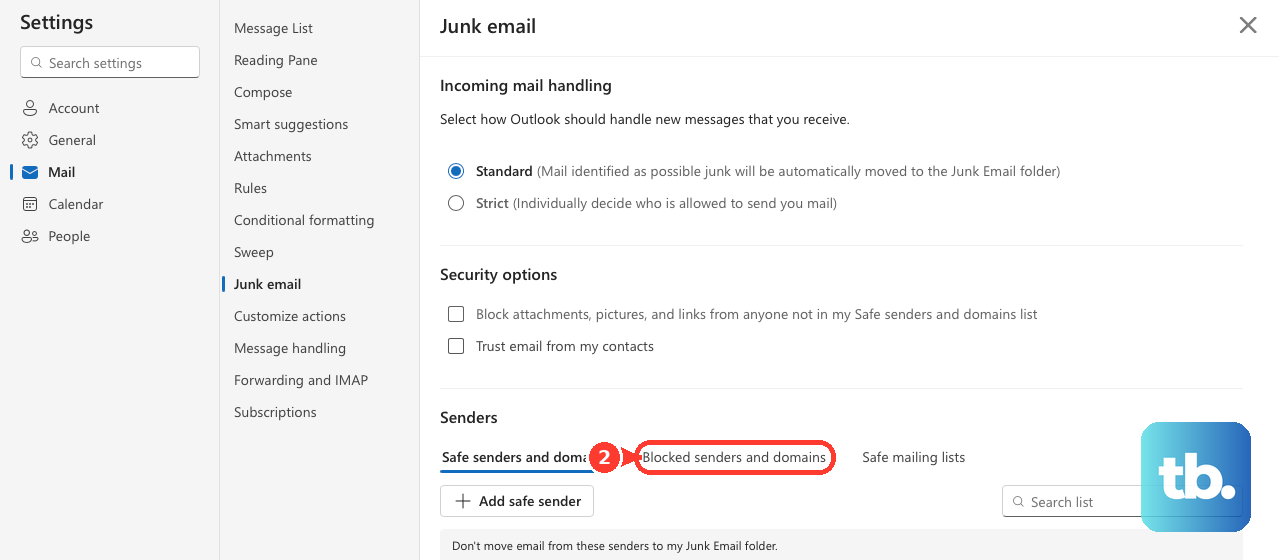
Outlook.com, Outlook on the web, and Microsoft-hosted accounts in new Outlook for Windows use the Junk email settings page for addresses and domains. New Outlook for Windows does not block senders for third-party accounts such as Gmail, Yahoo, or iCloud; block those at the email provider instead. In new Outlook for Windows with more than one account, select the account first, then open Settings, Mail, and Junk email.
In classic Outlook for Windows, right-click a message, choose Block, then select Block Sender. From the ribbon, select the message, open Home, go to the Delete group, select Block, then choose Block Sender. To manually add a sender or domain in classic Outlook, open Home, go to the Delete group, select Block, Junk E-mail Options, Blocked Senders, Add, enter the address or domain, then select OK. Exchange Global Address List entries are treated as safe and cannot be added to the blocked list.
3. Set Apple Mail and iCloud rules apart
Apple Mail blocking uses blocked contacts. iCloud Mail rules are filters, so keep those separate when deciding whether to block a contact or route matching messages.
iPhone or iPad Mail: open the email, tap the contact at the top, tap View Contact Card, then tap Block this Contact. Apple sends email from blocked addresses to Trash.
iOS 26 or iPadOS 26 Settings: open Settings, Privacy & Security, Blocked Contacts, Add Blocked Contact, enter the contact, then tap Block Contact.
Mail on Mac: select a message, move the pointer next to the sender name in the message header, click the arrow, then choose Block Sender.
On Mac, decide what blocked mail does from Mail, Settings, Junk Mail, then Blocked. Enable Enable blocked mail filtering, then choose Mark as blocked mail, but leave it in my Inbox or Move it to the Trash. Use Manage Blocked Contacts to edit the list.
For iCloud Mail rules on iCloud.com, open the Settings button at the top of the Mailboxes list, choose Settings, Rules, Add, name the rule, set the sender or message criteria, choose an action such as Move to Trash, then select Add. On iPhone, open Settings, tap [your name], iCloud, Mail, iCloud Mail Rules, Add Rule, set the message criteria and action, then tap Add.
4. Catch Yahoo and AOL senders
Yahoo Mail on the web: open More options, Settings, Security and Privacy, then under Blocked addresses, select Add, enter the email address, and select Save. Yahoo documents up to 1000 blocked email addresses.
Yahoo Mail Plus: open Settings, Security and Privacy, add the domain in the blocked domain controls, then save it. Yahoo documents up to 500 blocked domains while Mail Plus is active.
Yahoo Mail spam or mailing lists: open or select the message and choose Spam or Mark as spam. When an unsubscribe option appears at the top of an open mailing-list message, use Unsubscribe.
AOL Mail on the web: open or select the email, choose the More icon, select Block Senders, choose whether to delete emails already received from the sender, then select Ok.
Yahoo and AOL keep address blocking in webmail controls. Use the web path when you need the provider's blocked-address list, then use spam or unsubscribe controls for mailing lists.
5. Drop Proton Fastmail and mail.com senders
Proton, Fastmail, and mail.com support direct blocking. They also support domain entries through their settings paths.
Proton Mail web or desktop app: open the email, click the sender's name and address in the From field, select Block messages from this sender, then select Block.
Proton Mail on Android, iPhone, or iPad: open the email, tap the sender's profile icon, tap Block this address, then tap Block.
Proton Mail block list: open Settings, All settings, Filters, Spam, block, and allow lists, Add address or domain, Block, choose Email or Domain, enter the value, then select Add address. Proton says block list entries are dropped and not delivered.
Proton Mail mobile block list: open the hamburger menu, Settings, Spam and filters, Add address or domain, Block, choose Email or Domain, enter the value, then tap Add address or Add domain.
Fastmail: open Settings, Filters & Rules, Blocked senders, View and edit, type an email address, then select Block. To block a domain, enter the domain and select Block. Fastmail sends future mail from blocked senders to Trash.
mail.com: open Settings, Blocklist, enter the address or domain, then select Save. mail.com treats blocklisted address or domain mail as spam.
6. Route stubborn mail with filters
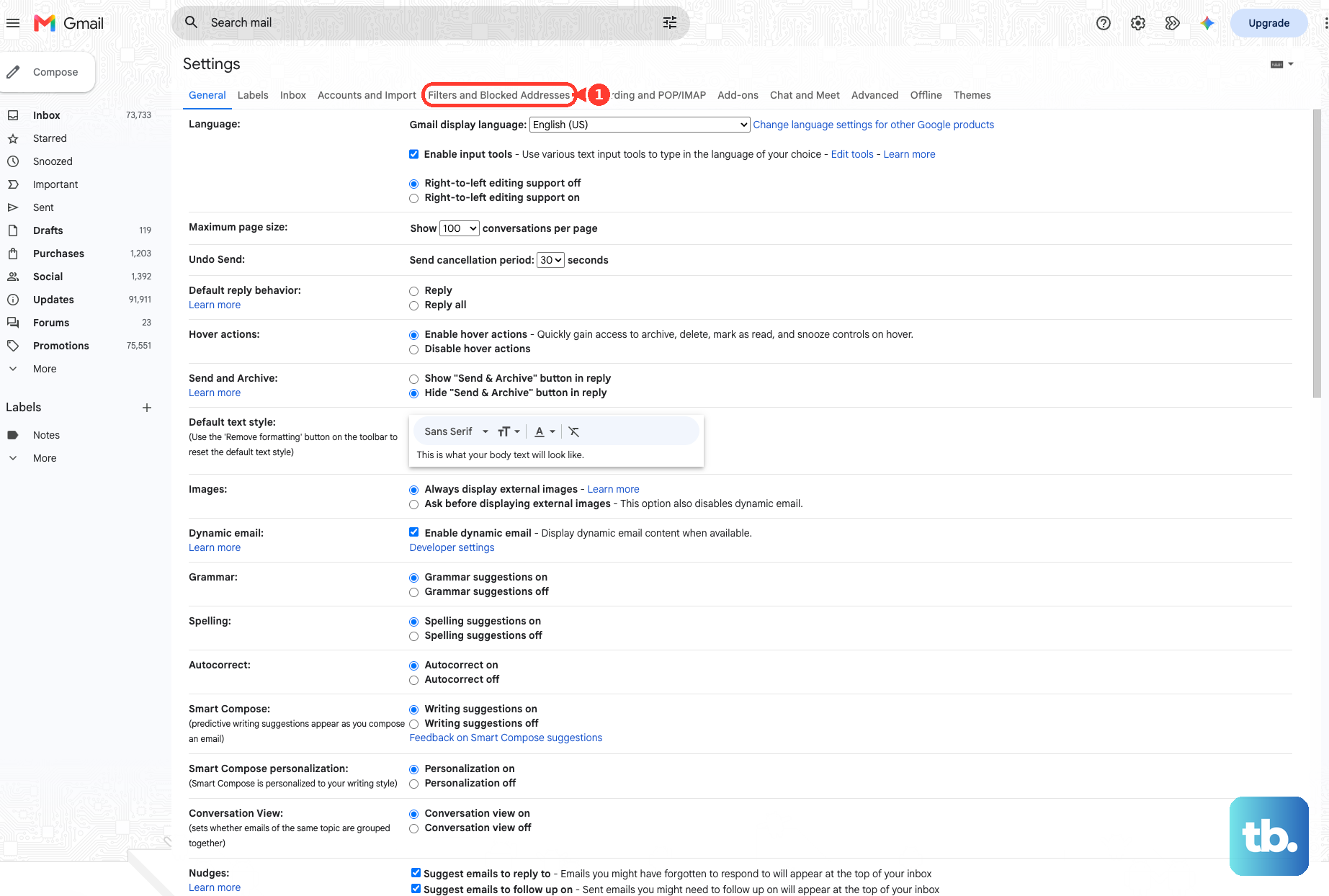
Gmail on the web: open Settings, See all settings, Filters and Blocked Addresses, then select Create a new filter.
Enter the sender in From and select Create filter.
Choose an action such as Delete it, then select Create filter.
Filters solve a different problem from blocking. Use them when you want to delete, route, or catch messages by sender, domain, or broader criteria.
Outlook on the web has Sweep for cleanup-style deletion. Select an email from the sender, choose Sweep, then select an automatic delete option for incoming email from that sender.
Thunderbird uses a client filter. Select a message, right-click or Ctrl-click the sender's address, choose Create Filter From..., name the filter, then set the action to Delete Message. This is a Thunderbird desktop filter, not a provider-level blocked-sender list.
7. Unsubscribe from newsletters cleanly
Use unsubscribe and cleanup tools for newsletters and promotional senders when those controls are present. Blocking hides future mail from that sender; unsubscribe tools act on the subscription controls the provider exposes.
Outlook.com: open Settings, Mail, Subscriptions. Under Your current subscriptions, find the sender, select Unsubscribe, then select OK. Microsoft does not offer unsubscribe for some messages, including messages filtered into junk or senders already in blocked senders or domains.
Proton Mail: use the Unsubscribe button in the email header. If the header button is absent, use the sender's unsubscribe link in the message body. Use the Newsletters view to manage subscription senders.
iCloud Mail Cleanup on iCloud.com: select an email in Updates or Promotions, open the bottom-right more actions control, select Unsubscribe, then select Unsubscribe again. Apple limits Mail Cleanup availability by language.
8. Avoid broad blocks and old Outlook paths
Whole-domain blocking catches every address at that domain, so use it only when every mailbox at that domain is unwanted. Outlook.com, new Outlook for Windows, Proton Mail, Fastmail, mail.com, and Yahoo Mail Plus provide domain-blocking paths in the official instructions.
AOL Mail has a stricter contacts-only setting. Open Settings, More Settings, Security and privacy, turn on Block all senders except contacts, then select Ok. That blocks non-contact senders, so use it only for mailboxes where missing messages from new people is acceptable.
Classic Outlook for Windows also has country and encoding controls under Home, the Delete group, Block, Junk E-mail Options, then International. Use Blocked Top-Level Domain List to select country or region codes, or Blocked Encodings List to select encodings. These controls are specialized junk-mail controls, not the normal fix for one sender.
Work and school mailboxes add admin policy. Google Workspace admins open Google Admin console, Menu, Apps, Google Workspace, Gmail, Spam, Phishing and Malware, Blocked senders, then Configure, Edit, or Add another rule. Microsoft 365 admins use Microsoft Defender portal, Email & collaboration, Policies & rules, Threat policies, then Tenant Allow/Block Lists or Anti-spam. Zoho Mail admins open Zoho Mail Admin Console, Security & Compliance, Spam Control, Blocked List, choose Emails, Domains, IP Addresses, TLDs, or Blocked Recipients, select Add, choose an action, then select Add. The IP Addresses option is available only to organizations on a paid plan, not the free plan.
Do not use old Outlook Web App instructions that send you to Block or allow for Outlook.com, Outlook on the web, or new Outlook for Windows. The current path for those products is Settings, Mail, then Junk email.
Frequently Asked Questions
How do I block a sender in Outlook for iPhone or Android?
Select the email, tap the top-right three-dot menu, choose Report Junk, then choose Block Sender.
How does AOL Desktop Gold block an address?
Sign in to Desktop Gold, open the read email view, right-click the email address, select Add to Blocked Addresses, then select Ok. You can also open Settings, Mail, Spam Controls, and enter addresses under Block mail from addresses I specify.
Does Hide My Email block a specific sender?
No. On iPhone, open Settings, [your name], iCloud, Hide My Email, choose the address, then tap Deactivate Email Address. That stops the alias from forwarding; it does not block one sender at your real mailbox.
What if spam comes through a Fastmail alias?
For Fastmail with 1Password Masked Email, open the 1Password Login item, use the down arrow next to the email address, then choose Block Incoming Emails. For a Fastmail catch-all custom domain, create or select the specific alias in Fastmail alias settings and disable it so messages to that alias bounce.