
To block emails on Gmail, open an email from the sender, select More (the three dots) next to Reply, choose Block followed by the sender's name, then select Block again to confirm. Every email that address sends after that goes straight to your Spam folder. The Gmail app on Android and iPhone uses the same More menu, and a filter on a computer handles a whole domain.
Blocking is narrower than most people expect. In our tests, emails a sender had already sent stayed in the inbox after the block, and the blocked sender got no bounce or delivery report in the minutes we watched. Google also says a block does not unsubscribe you from a mailing list, so newsletters are better handled with Unsubscribe, and scams with Report phishing.
We blocked, checked and unblocked two test senders in Gmail on Windows 11, version 25H2, and opened Gmail's filter and subscription screens to see exactly what they offer. Two things surprised us: the only way to block from the inbox list is through Report spam, and Gmail's filters have no option that sends mail to Spam.
The short version
- On a computer: open the email, select More next to Reply, then Block, and confirm.
- In the Gmail app: open the email, tap More next to Reply, then Block.
- A whole domain: on a computer, put @ and the domain in From under Show search options, then Create filter and Delete it.
- Newsletters: select Unsubscribe next to the sender's name, or More, then Manage subscriptions in the left menu.
- Change your mind: Settings > See all settings > Filters and Blocked Addresses, then unblock.
Block, filter, unsubscribe or report spam
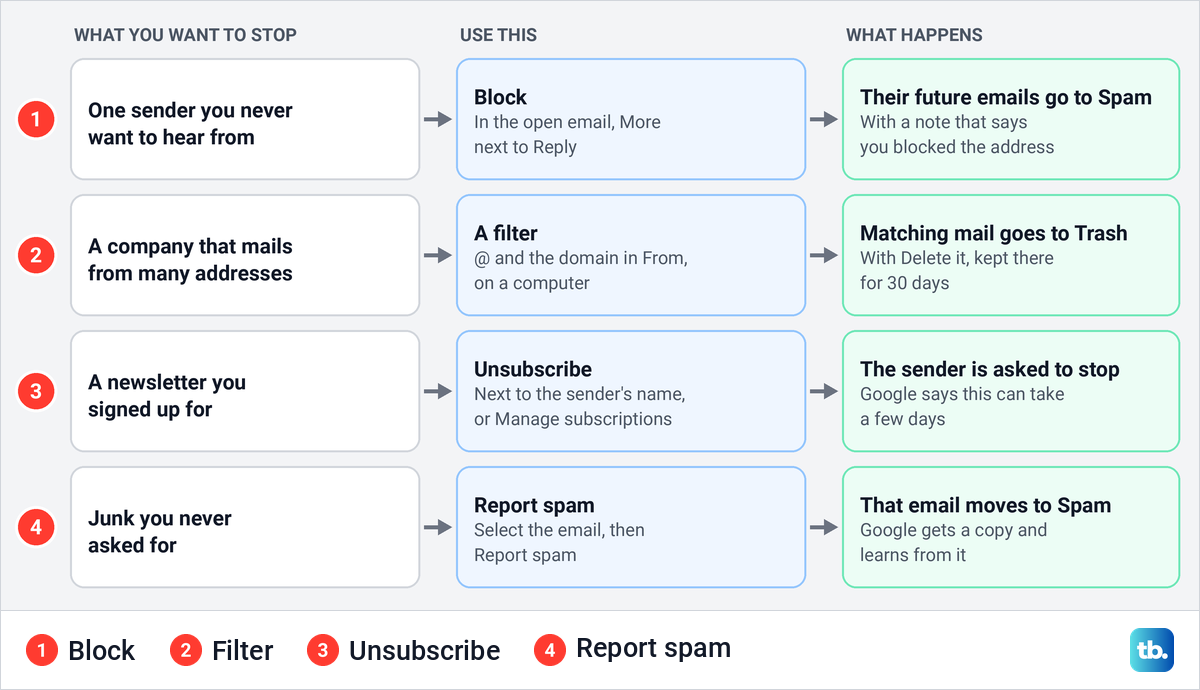
Gmail has several tools for unwanted mail, and each one does something different. Pick the one that matches what you are trying to stop.
| What you want | Where to do it | What happens |
|---|---|---|
| Stop one sender | Open their email, select More next to Reply, then Block | Their future emails go to Spam |
| Stop a whole company or domain | On a computer, Show search options, @ and the domain in From, Create filter, Delete it | Matching mail goes to Trash, where Gmail keeps it for 30 days |
| Stop a newsletter you signed up for | Unsubscribe next to the sender's name, or More, then Manage subscriptions | The sender is asked to stop, which Google says can take a few days |
| Get rid of junk you never asked for | Select it, then Report spam | That email moves to Spam, Google gets a copy and Gmail gets better at catching similar mail |
| Deal with a scam or fake email | Open it, select More next to Reply, then Report phishing | Google gets a phishing report about that email |
| Undo a block | Settings, See all settings, Filters and Blocked Addresses, unblock | Gmail says their messages will appear in your Inbox |
Block a sender from an email on a computer
Blocking starts from an open email, so find a message from the person or company you want to stop. These steps are for Gmail in a web browser on a computer.
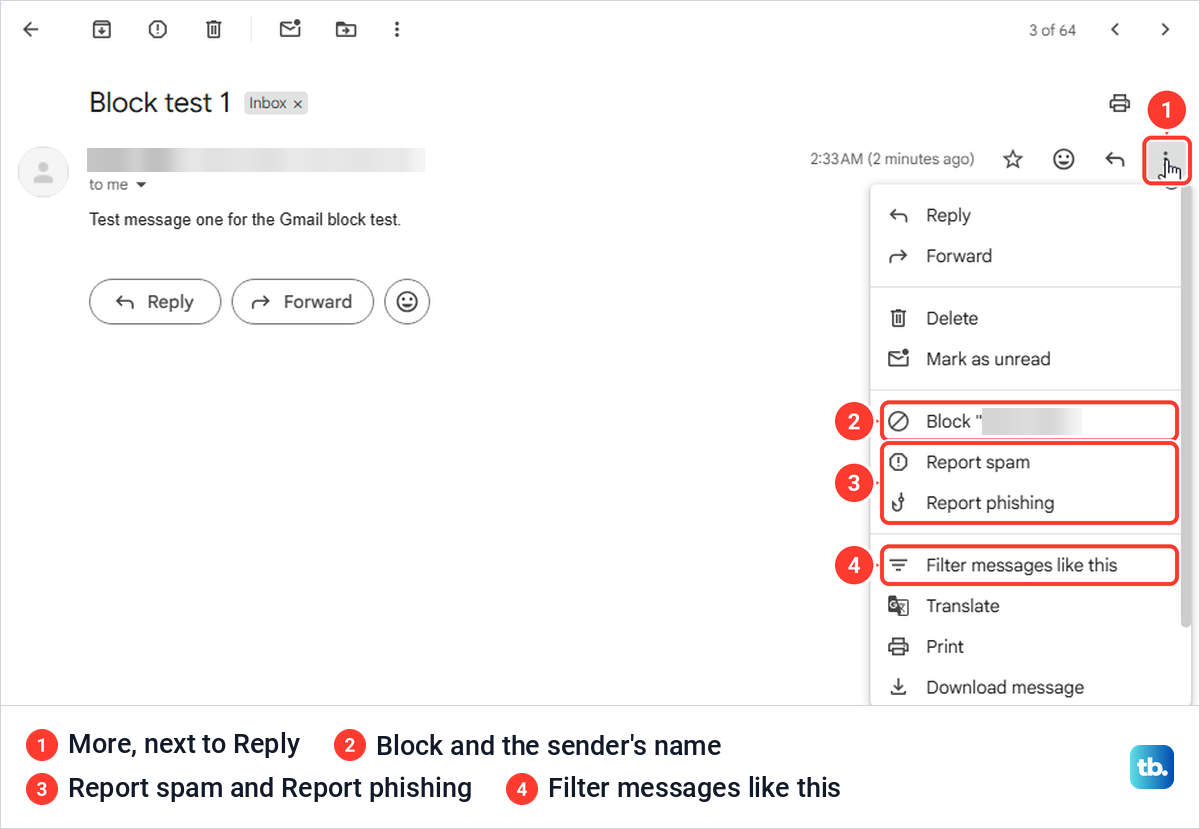
Open Gmail and click the email from the sender. At the top right of the message, next to the Reply arrow, select More, the three vertical dots. The menu that opens lists Block followed by the sender's name in quotes, with Report spam and Report phishing directly under it.
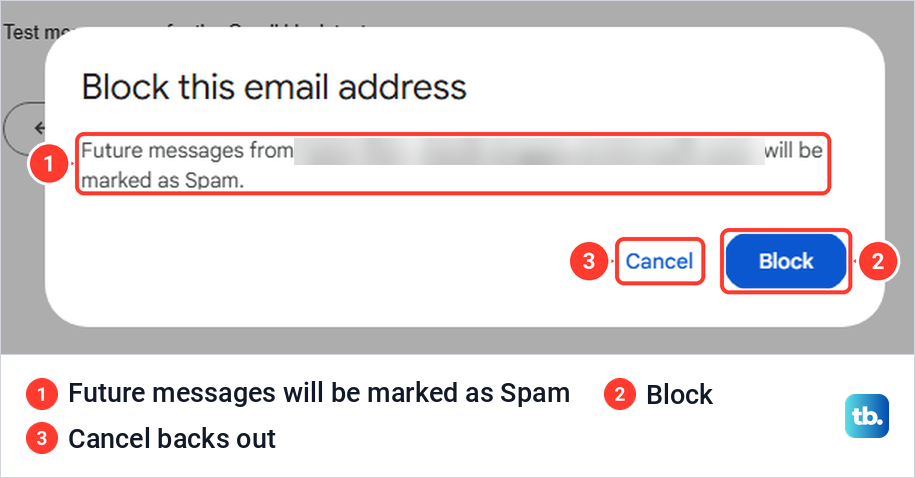
Select Block. Gmail does not block straight away: a box titled Block this email address says future messages from the name and address shown will be marked as Spam, with Cancel and Block buttons. Check the address in that box before you confirm, because the address is what goes on the blocked list, not the display name.
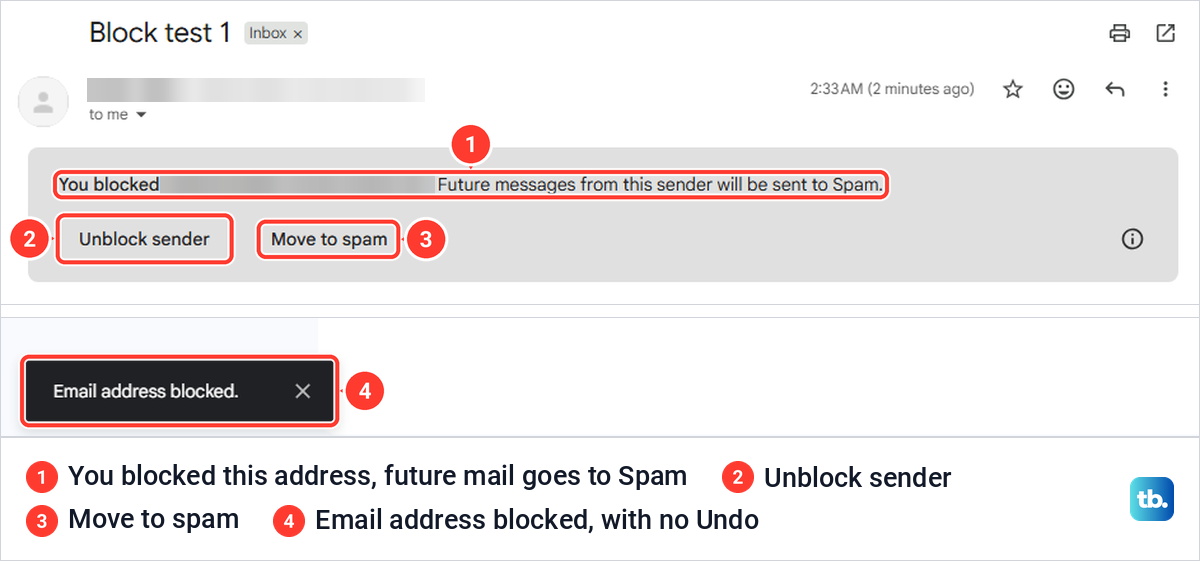
Select Block in the box to finish. On our PC a dark bar at the bottom left said Email address blocked for a few seconds, with only a close button and no Undo. If you blocked the wrong person, the way back is in the email itself, as the next section shows.
What happens after you block someone
Blocking changes what happens to new mail only. The email you blocked from stays where it is, and Gmail adds a grey note to it that names the address and says future messages from this sender will be sent to Spam. Under the note are Unblock sender and Move to spam, so you can undo the block or move that one email at once.
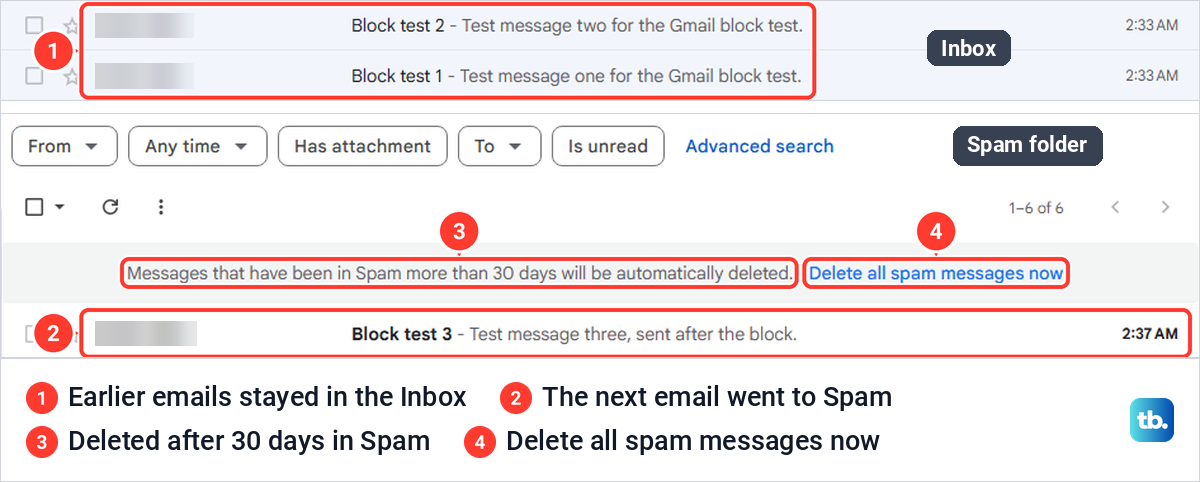
Older mail did not move either. Both emails our test sender had sent before the block were still in the inbox a minute later, and neither was in Spam. To clear out what a sender already sent, search for their address and mass delete emails in Gmail in one pass.
New mail behaves differently. We sent another email from the blocked address, and it was in Spam within about a minute, at the top of the list. The Spam folder's banner says messages that have been in Spam more than 30 days will be automatically deleted, next to a Delete all spam messages now link.
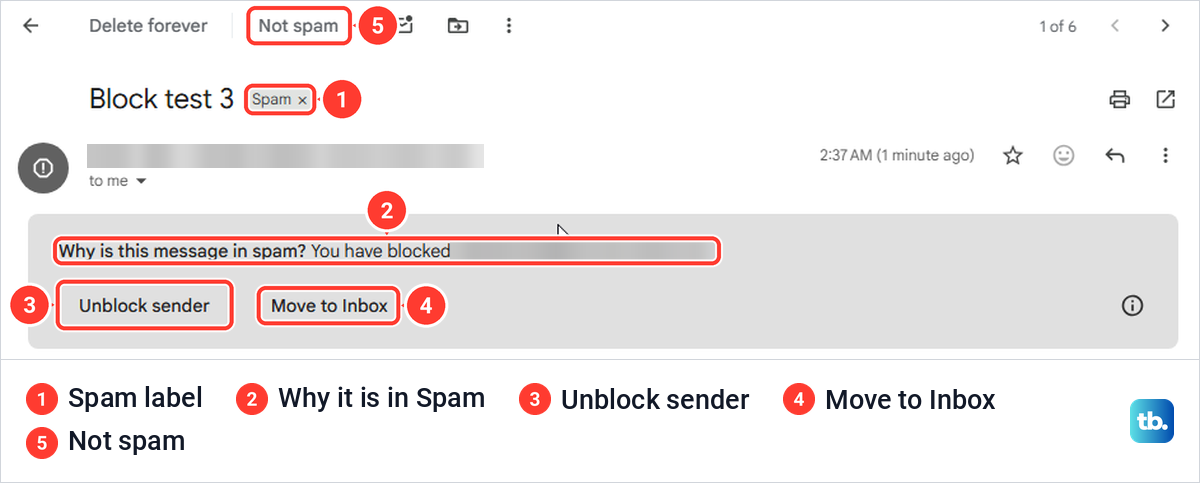
Open a blocked sender's email in Spam and Gmail explains why it is there. The banner asks why the message is in spam and answers that you have blocked the address, with Unblock sender and Move to Inbox beside it. Google says that while a sender is blocked, Gmail keeps treating their emails as spam even if you move one out of Spam, so unblock first if you want their mail back.
Nothing came back to the sender that we could see. We blocked a second test address, kept its mailbox open, and found no bounce, no delivery report and nothing from Google in the 12 minutes after it sent an email, while that email sat in our Spam. The sending mailbox showed no sign that anything had gone wrong.
A Gmail block covers email only, and Google treats blocking someone in Google Chat as a separate setting. The block also applies only to mail in your Gmail account, so if you read mail in other services too, see how to block a sender in Outlook, Apple Mail and other mail apps.
Block emails in the Gmail app on Android and iPhone
Google's steps for the Gmail app are the same on Android, iPhone and iPad. Open the Gmail app, open the email from the sender, tap More next to Reply at the top right, then tap Block followed by the sender's name. Google says all future emails from them then go to Spam, as they do on a computer.
Unblocking in the app works from a message too. Open an email from the blocked sender, tap More, then Unblock with their name. If you cannot find one, Google's tip is to tap Menu at the top left, then Spam, where their newer mail will be.
Two jobs need Gmail on a computer. Google's help pages for the app have no list of blocked senders, and its filter instructions begin on your computer, so a whole-domain block or a review of everyone you blocked means opening Gmail in a browser on a PC or Mac.
Block someone on Gmail without opening the email
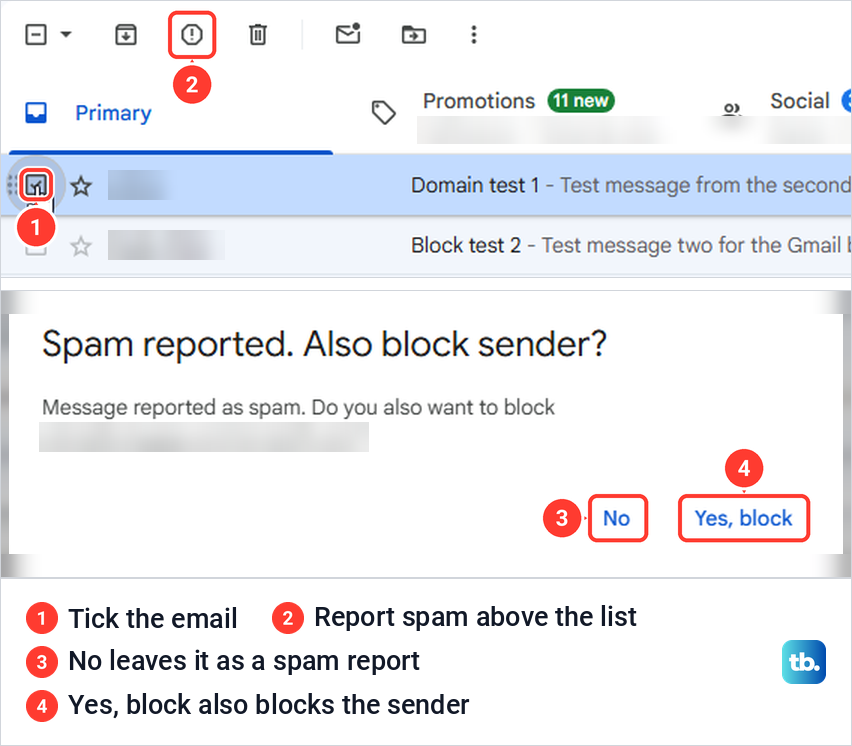
There is no Block command in the inbox list, but Report spam there can offer one. Tick the email, select Report spam above the list, and if Gmail asks whether to block the sender too, select Yes, block. On our PC it asked, naming the sender's address, and the question's title said the spam report had already been made, so the email is reported either way. If Gmail does not ask, open one of their emails and use Block from the More menu.
The ordinary menus have no Block. With an email ticked on our PC, the More menu above the list offered Snooze, Add to Tasks, Label as, Forward as attachment, Filter messages like these, Mute, Share to help improve Google and Switch to advanced toolbar, and right-clicking the email gave a longer menu without Block or Report spam.
If you want their mail deleted or archived without reporting it, use a filter instead. Tick the email in the list, select More above the list, then Filter messages like these. Gmail opens its search options with From already filled in with the sender's full address, ready for Create filter, which can delete or archive their mail without you opening any of it.
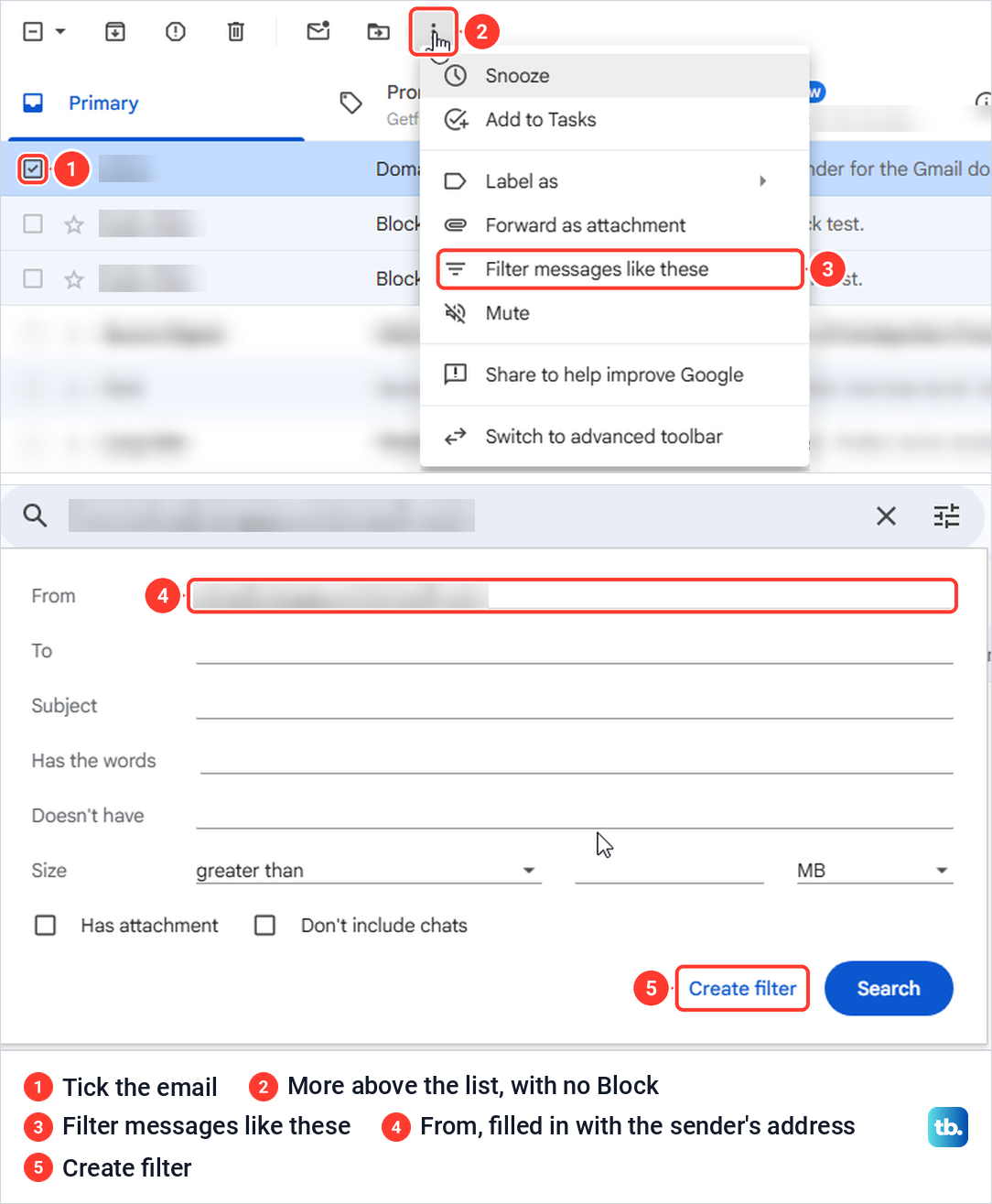
The right-click menu has one more useful item, Find emails from followed by the sender's name, a shortcut to search for everything they have sent. To block without reporting anything, open any one of their emails and use the More menu next to Reply.
Block a whole domain with a Gmail filter
Block works on one address, so a company that writes from news@, offers@ and support@ needs a filter instead. Gmail has no Block command for a whole domain, so on a personal account the tool is a filter built from Gmail's search options. It works in Gmail on a computer.
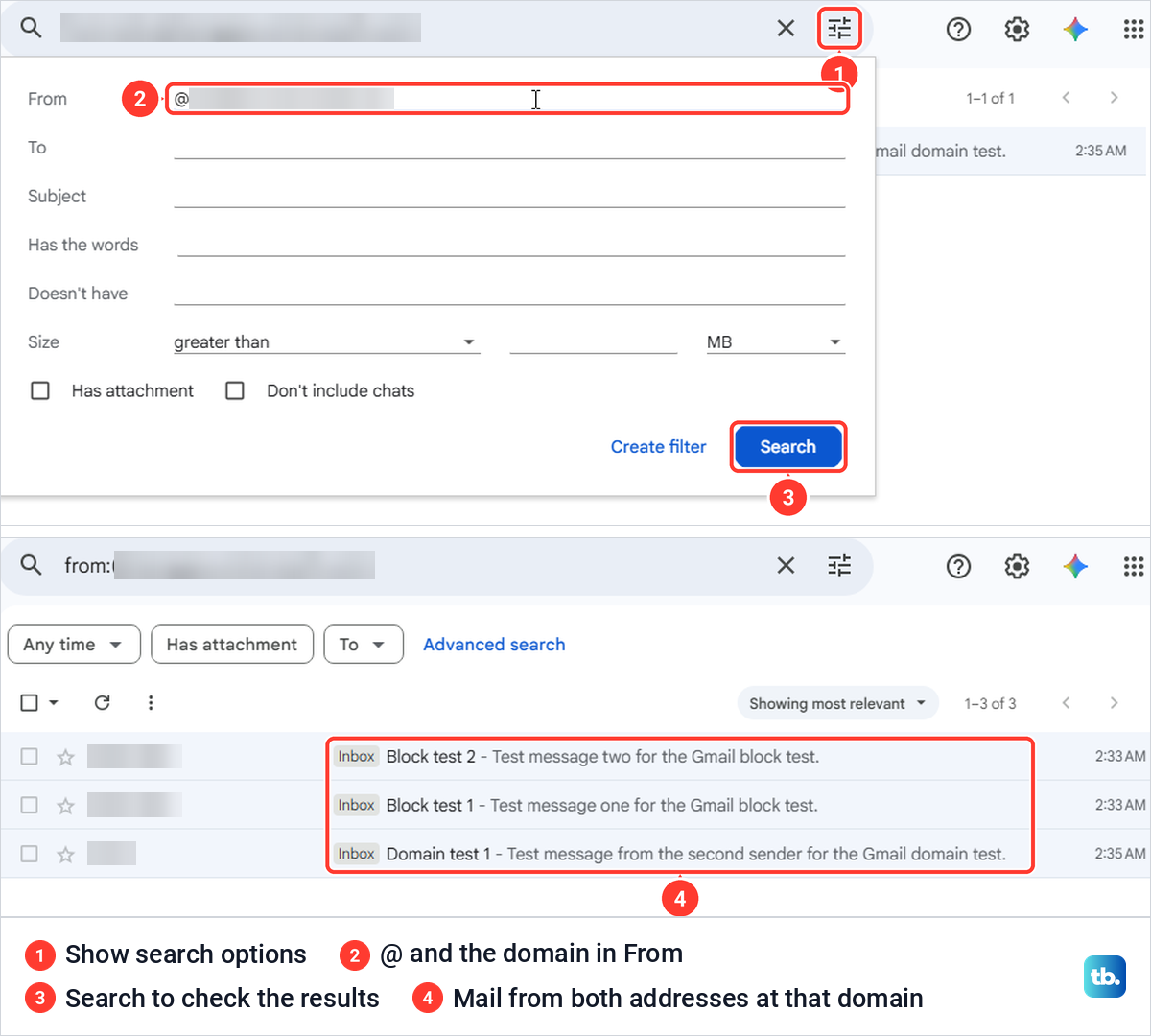
In the search box at the top, select Show search options, the sliders icon at the right end. In From, type @ followed by the domain, for example @example.com, and leave the other fields empty. Select Search first to check what the filter will catch.
When we searched From for @ and our test domain, Gmail listed the emails from both of our test addresses on that domain, three of three in the inbox. It did not list the email from that domain that was already sitting in Spam, and Google's search help has a separate in:anywhere operator for searches that include Spam and Trash.
Open Show search options again, and From still holds the domain. Select Create filter, and Gmail shows a page headed When a message is an exact match for your search criteria, with a list of actions. Tick Delete it, and tick Also apply filter to the number of matching conversations if you want the mail you already have dealt with too.
Then select Create filter at the bottom. Google says filters manage your incoming mail, and Gmail keeps anything it deletes in Trash for 30 days before removing it for good, which leaves time to rescue a wrong catch.
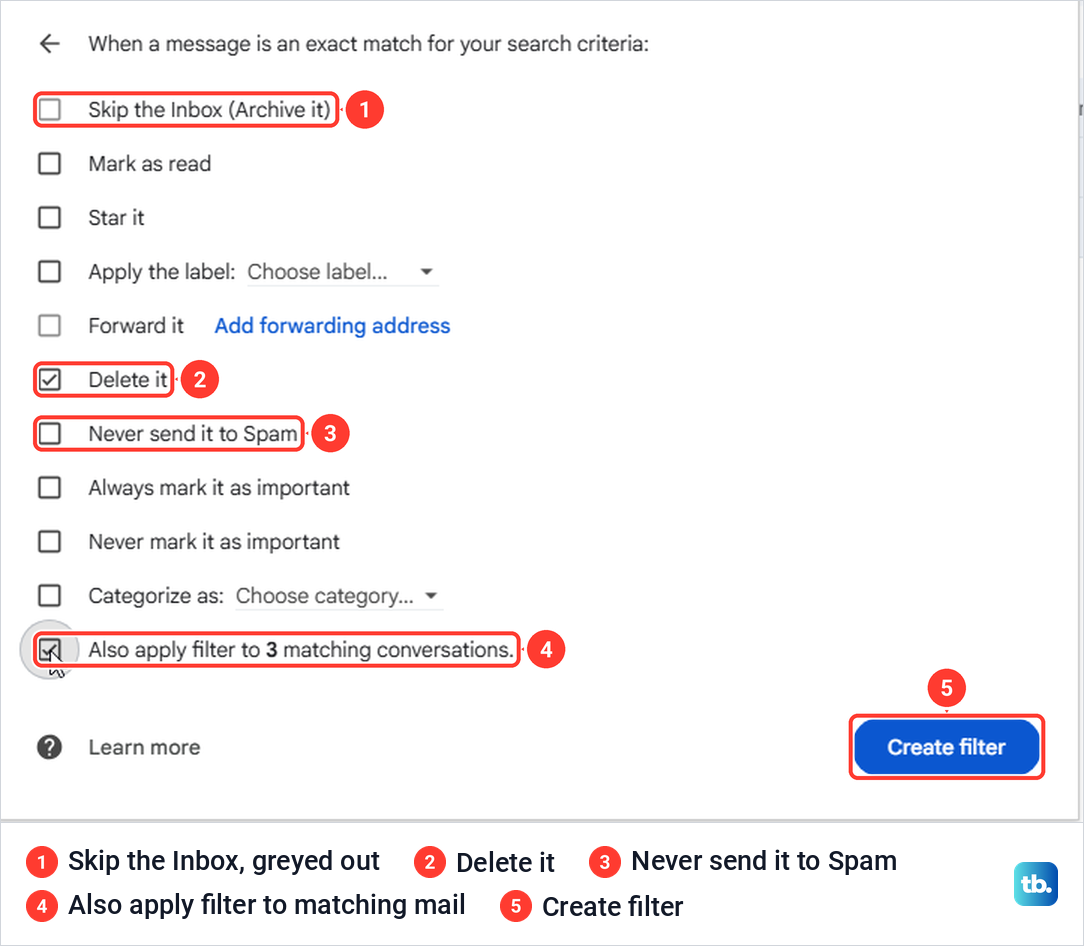
The action list on our PC had no option that sends mail to Spam. The only Spam setting was Never send it to Spam, which does the opposite, so a filter can delete, archive, label, star, forward, mark or categorize mail, but not mark it as spam. Ticking Delete it also greyed out Skip the Inbox (Archive it), so you pick one or the other.
If deleting feels too strong, combine Skip the Inbox (Archive it) with Apply the label, which keeps the mail out of sight without throwing it away. You can still find archived emails in Gmail later by searching for the label or the sender.
Google's Gmail documentation for developers sets a maximum of 1,000 filters. To change or remove one later, go to Settings, See all settings, Filters and Blocked Addresses, and select Edit or Delete next to it.
Find and unblock senders you blocked
Gmail keeps the blocked list on a computer. Select Settings (the gear at the top right), then See all settings, then the Filters and Blocked Addresses tab. Under your filters, a heading says the following email addresses are blocked and their messages will appear in Spam, followed by one row per address.
Each row has a checkbox and an unblock link at the right. The link removes one sender after a box that says their messages will appear in your Inbox, and for several at once you tick their boxes and select Unblock selected addresses. On our PC the sender disappeared from the list straight away, and a bar confirmed the address was unblocked.
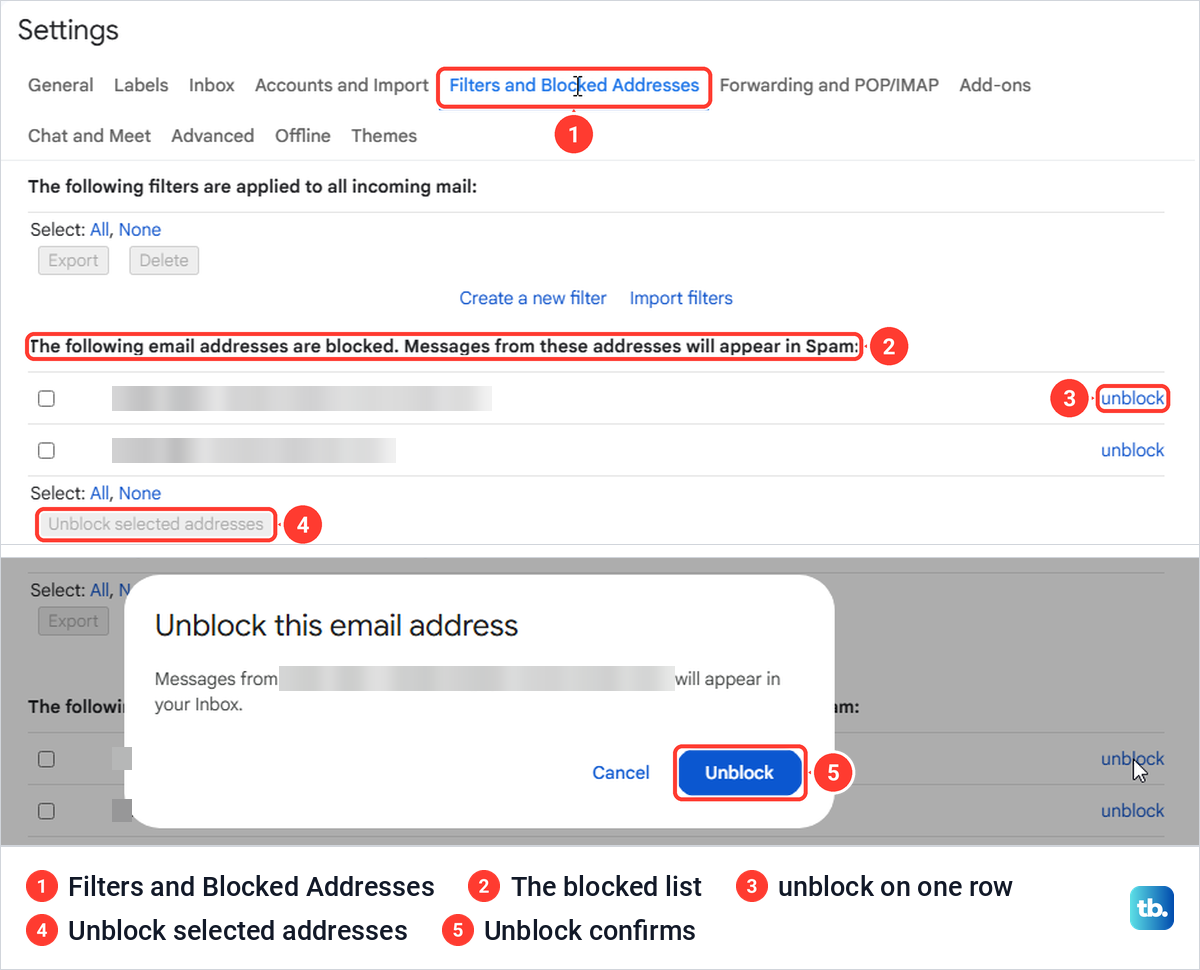
You cannot add a block on this page, because you add senders from their emails or from Report spam. Google says their mail should stop going to Spam once they are unblocked. For the full routine, including what to do when mail still lands in Spam afterwards, here is how to unblock an email address in Gmail.
Unsubscribe instead of blocking newsletters
For newsletters and shop emails you signed up for, Google suggests unsubscribing rather than blocking. Google says blocking does not take you off a mailing list, so their mail keeps coming and Gmail files it in Spam. Unsubscribing asks the sender to stop.
To unsubscribe from one email on a computer, open it and select Unsubscribe next to the sender's name, then Unsubscribe or Go to website in the pop-up. Some senders only offer Go to website, which means finishing on their page. In the Gmail app the steps are the same, with taps.
Manage subscriptions does it for a whole sender at once. In the left menu, select More, then Manage subscriptions, and in the Gmail app tap Menu at the top left, then Manage subscriptions. On our PC it opened a Subscriptions page that listed each sender with how many emails they had sent recently, such as 20+ emails recently, and an Unsubscribe icon at the right of each row.
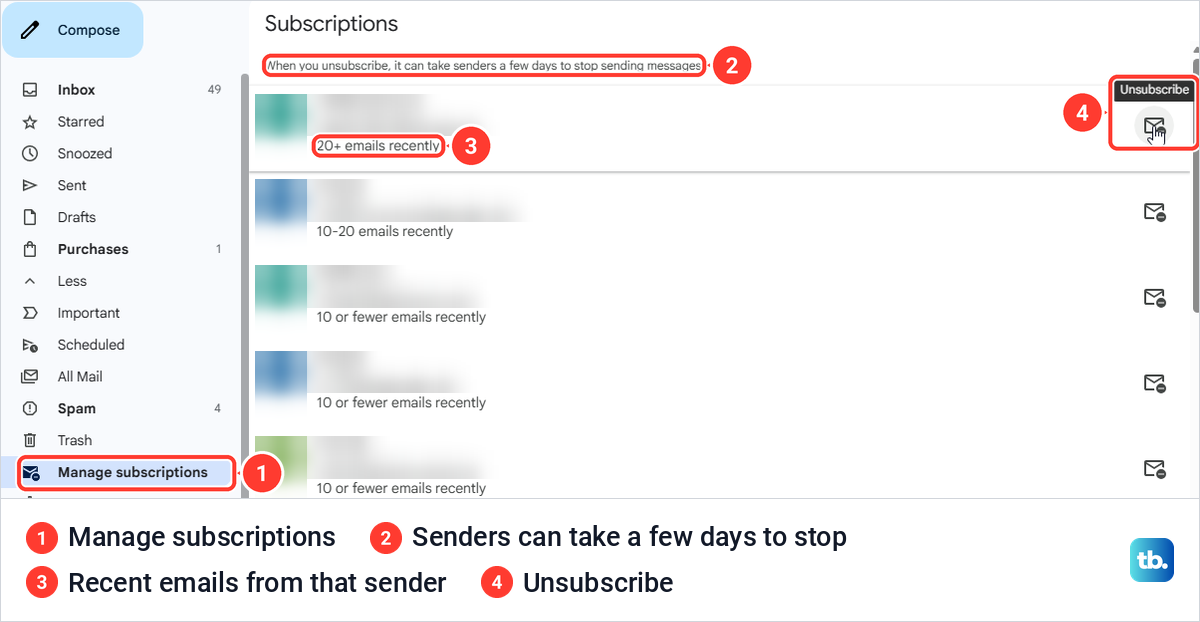
Google says unsubscribing from one email may only take you off one of a sender's lists, while Manage subscriptions unsubscribes you from all of that sender's active lists. The page itself warns that senders can take a few days to stop. Google says any new email from a sender you unsubscribed from there goes to Spam with a banner explaining why.
Google started rolling out Manage subscriptions on July 8, 2025. Google also requires senders of more than 5,000 messages a day to Gmail accounts to support one-click unsubscribe in their marketing and subscription emails. If dozens of lists are involved, work through them with our guide to bulk unsubscribe from email newsletters, and for labels and archiving see how to clean up your Gmail inbox.
Report spam or phishing instead
Report spam is for junk you never asked for. In an open email it is the round icon with an exclamation mark in the toolbar above the message, labelled Report spam when you point at it, and it is also in the More menu next to Reply. In the inbox list, tick one or more emails and select Report spam above the list.
From the inbox list, Gmail may also ask whether to block the sender, as shown earlier. When we chose No, only that conversation moved to Spam, with an Undo link in the bar at the bottom.
Google says reporting spam sends Google a copy of the email and helps Gmail spot similar mail. If you report something by mistake, open it in Spam and select Report not spam. On our PC Gmail moved it back and said future messages from that sender would be sent to the Inbox.
Use Report phishing, under Report spam in the More menu next to Reply, for a fake email that tries to get a password, payment or personal details. Google says its emails never ask for the password of an account you are signed in to, and warns that look-alike addresses may swap the letter O for a zero. Learn to spot a phishing email before you click anything in it.
If you already clicked a link or typed a password, follow the steps to recover from a phishing scam straight away. Google also recommends that you turn on 2-Step Verification for your Google Account, so a stolen password alone is not enough to get in.
Why blocked emails still reach your inbox
A block never stops delivery. Gmail still accepts mail from a blocked address and files it in Spam, so a blocked sender's email in Spam means the block is working.
If their email is in your inbox, the most likely reason is that it came from a different address. Open it and check the address shown next to the sender's name at the top, then block that address or filter the whole domain. For more detail about where it came from, select More next to Reply, then Show original. Senders who rotate addresses on one domain are exactly what a domain filter is for.
Google adds two warnings. Spam from someone in your contacts usually means a hacker has taken over their account, and a sudden flood of sign-ups and promotions can bury security alerts from sites you use. In that case check whether your Google Account was hacked and secure it.
When junk from many different senders keeps getting through, the problem is wider than one address, and our fixes for when Gmail spam filters are not working cover it. If spam suddenly arrives from lots of new senders, check if your email was part of a data breach.
If someone uses Gmail to harass or threaten you, Google says they are breaking Gmail's Program Policies. If you feel you are in danger, Google's advice is to contact your local authorities right away.
Gmail blocks are not in your Google Account blocked list
Your Google Account has its own Blocked list, and it is a different thing. To find it, select your profile picture in Gmail, then Manage your Google Account, People & sharing, and Blocked in the Contacts section.
We opened it while two senders were blocked in Gmail. People & sharing said No blocked users, and the Blocked users page said No users currently blocked. Google confirms that email addresses blocked in Gmail do not show up there and do not take effect across Google products.
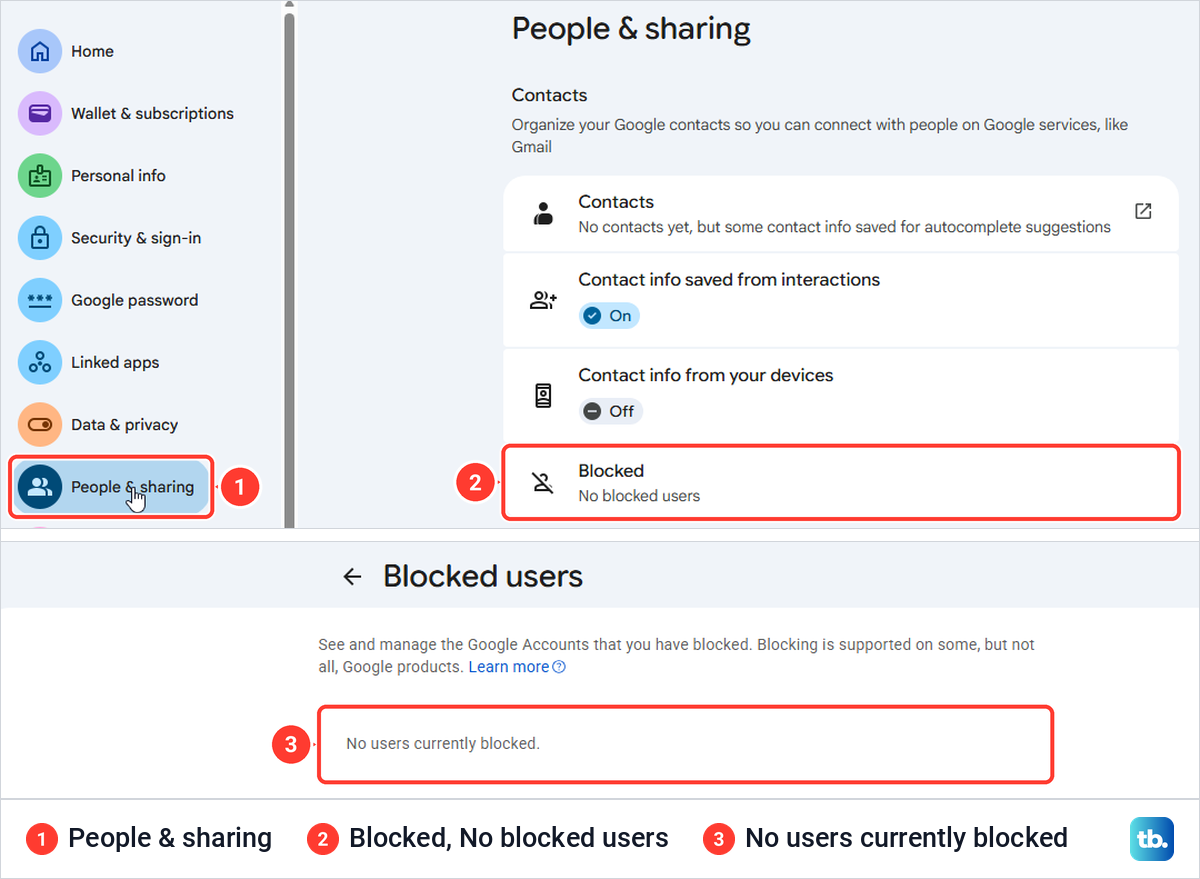
That page is for Google Accounts you block in products such as Google Chat, where Google says a block also reaches certain other Google services. To see your Gmail blocks, use Filters and Blocked Addresses in Gmail on a computer, and to undo one you can also select Unblock sender in any of their emails.
Block senders on a work or school Gmail account
Google's guide for work and school accounts gives the same Block steps, from the More menu in an open email. Google says your admin can also block addresses or whole domains for everyone in the Admin console, under Apps, Google Workspace, Gmail, Spam, Phishing and Malware, and that mail is rejected rather than sent to Spam.
Admins can also set rules that mark certain emails as spam. If wanted mail keeps landing in Spam on a work account, Google says to contact your admin.
How we tested this guide
We tested this in Gmail in a web browser on Windows 11, version 25H2, blocking two sending addresses and then unblocking both.
Frequently Asked Questions
Does someone know if you block them on Gmail?
Not that we saw. When we blocked a test address and sent an email from it, the message was filed in our Spam, and the sending mailbox had no bounce, delivery report or notice from Google 12 minutes later.
Can you block a whole domain in Gmail?
Not with the Block command, which works on one address. On a computer, search with @ and the domain in From, then use Create filter and choose Delete it, and on a work account your admin can block a domain for everyone.
Why do I still get emails from someone I blocked?
If they are in Spam, the block is working, because Gmail still accepts the mail and files it there. If they reach your inbox, the most likely reason is that the email came from another address, so check the address next to their name and block that address or filter the domain.
Does blocking someone on Gmail delete their old emails?
No. Emails that arrived before the block stayed in our inbox, so search for the sender and delete them, or make a filter with Delete it and tick Also apply filter to the matching conversations.
How do I see my blocked senders in the Gmail app?
Google's app instructions have no blocked list. Open Gmail on a computer and go to Settings, See all settings, Filters and Blocked Addresses, because your Google Account's Blocked users page does not show Gmail blocks.
Is blocking the same as reporting spam?
No. Block sends one address's future email to Spam, while Report spam moves the selected email to Spam and sends Google a copy so Gmail learns what to catch, and from the inbox list Gmail may then offer to block the sender as well.
Does unsubscribing block the sender?
No, and blocking does not unsubscribe you either. Google says that after you unsubscribe in Manage subscriptions, any new email from that sender goes to Spam with a banner explaining why.