A Google Account can stay attached to Chrome through browser sign-in, a saved Chrome profile, a phone-level account, or a Chromebook user profile. That is why signing out of Gmail is not always enough. Start with the option that matches where the account still appears, and use the heavier removal steps only when you also want local Chrome data or device access cleared.
Sign out of Chrome on your computer
Open Chrome on your Windows PC, Mac, or Linux computer and select Profile at the top right.
Choose Sign out of Chrome. This removes the account from Chrome sign-in and sync for that desktop profile, but it does not delete your Google Account.
When the account is already signed out of a Google service such as Gmail, or Chrome shows the account in an error state, choose Remove account from Chrome instead.
If this does not remove the account from the profile picker or you want the local Chrome data gone too, delete the whole Chrome profile next.
Delete the Chrome profile tied to the account
Select Profile in the top-right corner of Chrome.
Under Other Chrome profiles, select Manage Chrome profiles.
Find the profile connected to the Google Account you want to remove.
Select More for that profile.
Choose Delete, then confirm with Delete.
Deleting a Chrome profile removes that profile's local bookmarks, history, passwords, and settings from the computer, so use sign-out instead when you only want to stop Chrome sync.
Stop Chrome from adding the account back
The most common cause is Chrome sign-in prompts after you use a Google service such as Gmail, Search, or YouTube.
On desktop Chrome, select Profile, open Google Services Settings, then look under Other Google services for your sign-in preference.
Choose the non-sign-in preference when Chrome offers one.
On Android, open Chrome, tap More, then Settings.
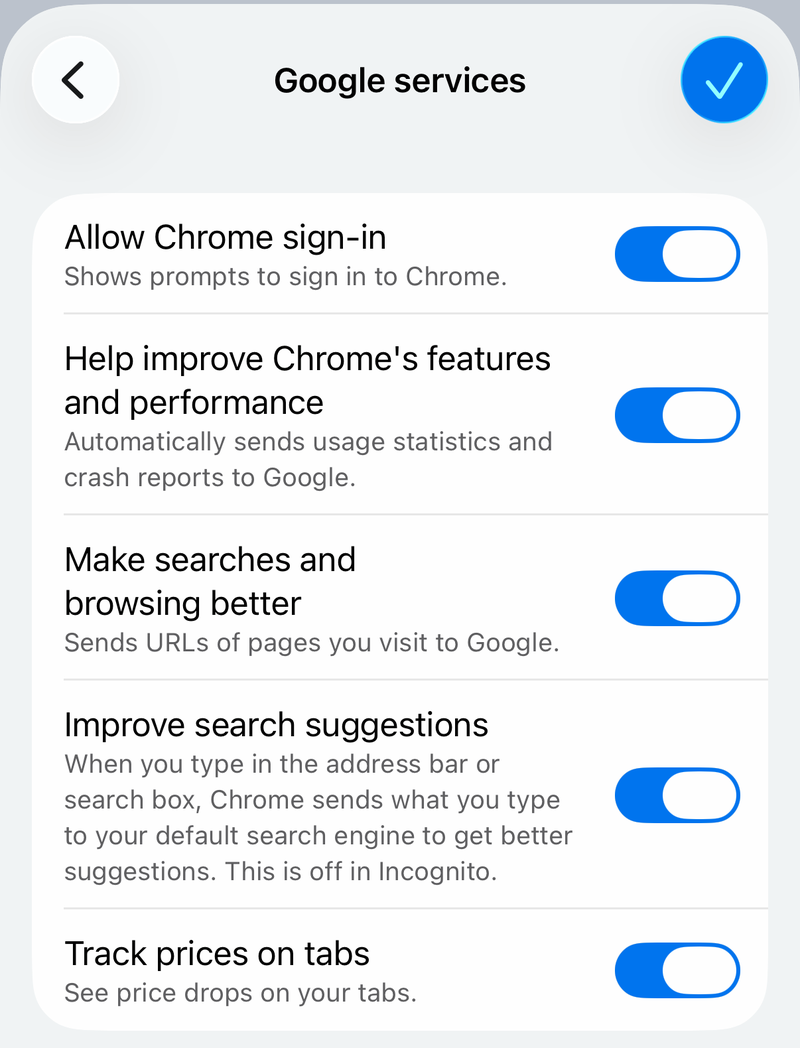
Under You and Google, tap Google services, then turn off Allow Chrome sign-in.
On iPhone or iPad, open Chrome, tap More, then Settings.
Open Google Services and turn off Allow Chrome Sign-in.
Clear website sign-ins after removal
This clears the cookies Chrome has stored after the account is removed from Chrome. Deleting them may sign you out of sites that remember you, but it does not guarantee that every site session ends.
In Chrome's address bar, type Delete browsing data.
Select the Chrome Action chip that appears.
Choose a time range such as All time.
Select Cookies and other site data.
Select Delete data.
Deleting cookies while signed in to Chrome does not sign you out of your Google Account, so use Sign out of Chrome first when the account itself is the problem.
Remove the account from Chrome on Android
Use Chrome sign-out when you only want the account out of Chrome. Use Android settings when you want the Google Account removed from the whole phone or tablet, including other Google apps.
For Chrome only, open the Chrome app, tap More, then Settings.
Tap your name and choose Sign out.
To remove the account from the Android device, open the device Settings app and go to Passwords & accounts.
Tap the Google Account under Accounts.
Choose Remove account, confirm with Remove account, then select Delete.
Some Android devices use a different account menu name. Look for Users & accounts, Passwords, Password, passkeys & accounts, Passwords, passkeys & autofill, or Manage accounts.
If it is the only Google Account on the device, enter the phone or tablet's pattern, PIN, or password to finish.
Sign out a device you no longer have
For a lost, sold, shared, or unreachable device, sign it out remotely from your Google Account.
- 1.Go to your Google Account and open Security & sign-in.
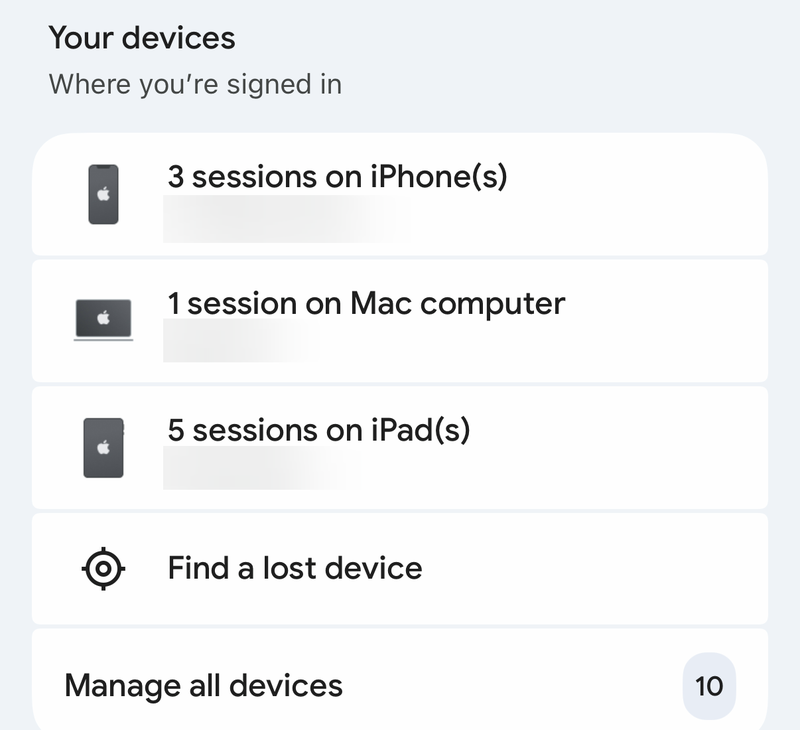
- 2.Under Your devices, select Manage all devices.
- 3.Choose the device or session that still has access to the account.
- 4.Select Sign out.
- 5.If several sessions share the same device name, sign out of every session with that name.
Sign out of Chrome on iPhone or iPad
Open the Chrome app on your iPhone or iPad.
Tap More.
Open Settings.
Tap your name.
Select Sign Out.
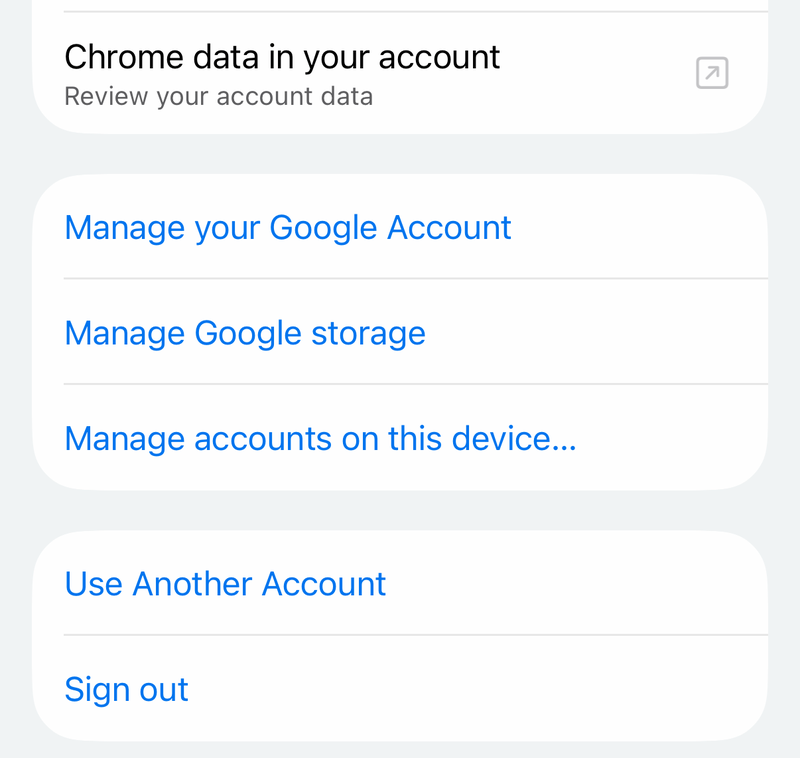
To stop Chrome from prompting you to sign in again after using Google services, open More, then Settings, then Google Services, and turn off Allow Chrome Sign-in.
Handle Chromebook accounts
On a Chromebook, removing a user profile starts from the sign-in screen. Select the profile, choose the Down arrow next to the profile name, select Remove this user, and confirm Remove this user. This removes the account from the Chromebook, not the Google Account itself.
For an additional Google Account on ChromeOS, select the time at the bottom right, open Settings, then Accounts. In Additional account, open Menu next to the account name and choose Remove this account.
The Chromebook owner account is different. To remove or change it, sign out, press and hold Ctrl + Alt + Shift + r, choose Restart, select Powerwash, then Continue. Powerwash erases user data on the Chromebook hard drive.
Older Chrome desktop guides may mention Manage People, Remove this person, or chrome://settings/people. Use the current desktop path instead: Profile, Other Chrome profiles, Manage Chrome profiles, More, Delete, then Delete.
Ask an admin for managed Chrome
This applies when Chrome shows Managed by your organization, or when a work or school account will not stay removed. Managed browsers and managed Chromebooks can restrict Chrome sign-in or force specific account rules.
A Managed by your organization notice does not always mean a work or school administrator is involved. Software, apps, or extensions installed on a personal device can set Chrome policies too. Check chrome://management to see whether the browser is managed, then check chrome://policy for policies you do not recognize, and remove any unwanted programs or extensions behind them.
Use the normal sign-out or profile removal steps first.
When Chrome blocks the change, asks for a required account, or restores the account after removal on a browser or Chromebook that is genuinely managed by a work or school organization, contact the organization administrator.
On a managed Chromebook, some account removal and Powerwash options are not available without administrator action.
Frequently Asked Questions
Does removing a Google Account from Chrome delete the Google Account?
No. Signing out of Chrome, removing it from Chrome, or deleting a Chrome profile only removes access from that browser or device. The Google Account still exists.
Will deleting a Chrome profile remove my bookmarks and passwords from the computer?
Yes. Deleting the Chrome profile removes that profile's local bookmarks, history, passwords, and settings from the computer.
Why am I still signed in to Gmail after removing an account from Chrome?
Chrome sign-in and website sign-ins are separate. After signing out of Chrome, clear Cookies and other site data if you also want to remove website sessions.
How do I remove the account from Chrome on a phone I no longer have?
Open your Google Account, go to Security & sign-in, choose Manage all devices under Your devices, select the device or session, and choose Sign out.