You typed your password and Google rejected it, or you spotted a sign-in alert from a city you've never visited.
Maybe a contact replied to a message you never sent, or emails are vanishing from your inbox before you read them.
Those are the classic signs that someone else has gotten into your Google Account.
When you reset credentials, use a strong password generator rather than inventing a variation of the old password.
Random passwords generated locally in the browser are far harder to crack or guess.
The good news: Google gives you direct controls to confirm a breach, lock the intruder out, and harden everything so it doesn't happen again.
This guide walks you through every check and fix in order, starting with the fastest, highest-impact moves and ending with optional advanced protection.
Work through the sections top to bottom.
If you can still sign in, skip straight to changing your password and reviewing recent activity.
If you're locked out, start with account recovery.
Recover Access If You're Locked Out
If an attacker changed your password and you can't sign in, go to the account recovery page at accounts.google.com/signin/recovery.
There is no attempt limit, so wrong guesses won't end the process; keep trying with your best answers.
Answer the verification questions as accurately as you can to prove you own the account.
This same page handles cases where someone changed your info or deleted the account.
If you forgot which email you use, recover your username first at accounts.google.com/signin/usernamerecovery using a recovery phone or email plus the full name on the account.
When asked for your last password, enter the most recent one you remember.
If you can't recall it, use any previous one, or take your best guess.
When asked for connected emails, provide any recovery, alternate, or contact address tied to the account.
Recovery works far more reliably from a device, browser, and location you normally use, such as your home computer in Chrome or Safari.
Check your Spam folder for a legitimate message titled "Your Google support inquiry."
Google never calls or emails you asking for your password or codes, and you should avoid any third-party "recovery service."
Once you're back in, immediately reset your password to a strong one you have never used before.
Change Your Password Immediately
Whether you just recovered the account or never lost access, change the password first at myaccount.google.com/signinoptions/password.
This severs an attacker's active session.
If someone was signed in, they may know any reused password too.
Change it on every other site or app that uses the same password or your Google email address.
Note that some changes to recovery info can take up to 7 days to take effect.
Review Recent Security Activity
Now confirm what the intruder did.
Open your Google Account, select Security & sign-in, find the Recent security events panel, and choose Review security events.
Scan the list for anything you don't recognize.
If you find activity that wasn't you, select No, it wasn't me and follow the on-screen steps to secure the account.
If it was you, select Yes and move on.
Sign Out Unrecognized Devices
Kick out any device that isn't yours.
On a computer, go to myaccount.google.com, click Security & sign-in, and in the Your devices panel click Manage all devices.
On Android, iPhone, or iPad, open your Google Account, tap Security & sign-in, then under Your devices tap Manage all devices.
Review everything signed in over the last few weeks.
You may see "sessions" rather than individual devices; a session is a sign-in period from a browser, app, or service, so an unfamiliar session still warrants action.
Tap or click the device you want to remove and select Sign out.
You can confirm no one else remains at google.com/devices.
Check Each Security Setting for Tampering
An attacker often edits your recovery details so they can get back in later.
Open each of these and confirm everything belongs to you.
Check Recovery phone at myaccount.google.com/signinoptions/rescuephone.
Next check Recovery email at myaccount.google.com/recovery/email.
Then review Alternate and contact emails at myaccount.google.com/email.
After that, verify Account name at myaccount.google.com/name.
Continue with 2-Step Verification at myaccount.google.com/signinoptions/two-step-verification.
Finish by checking Activity logs at myaccount.google.com/notifications.
Watch for these compromise signs: unfamiliar changes to critical settings, unrecognized sign-ins, emails missing from Trash, or messages in "Sent" you never wrote.
Audit Your Gmail Settings
Gmail has several settings an intruder can abuse to quietly siphon or hide your mail, so reset your password before auditing if you haven't already.
In a browser, click the Settings gear (top right) and choose See all settings.
Under General, confirm your Signature text is correct and the Vacation responder isn't turned on without reason.
Under Accounts and Import, check Send mail as, where every address should be yours.
In the same area, check Grant access to your account, where there should be no unknown delegates.
Still there, check Check mail from other accounts (using POP3).
Under Filters and Blocked Addresses, make sure no filter forwards mail to an unknown account or auto-deletes messages without your knowledge.
Under Forwarding and POP/IMAP, confirm nothing forwards your mail elsewhere and that POP/IMAP settings are correct.
Turn Off Unauthorized Forwarding
If you spot forwarding you didn't set up, someone may still have access.
Change your password first so they can't simply re-add it, then turn forwarding off.
- 1.In Gmail, click the Settings gear, then See all settings.
- 2.Open the Forwarding and POP/IMAP tab.
- 3.In the Forwarding section, click Disable forwarding.
- 4.At the bottom, click Save Changes.
Remove Unknown App Access
A connected third-party app can keep reading your data long after a password change.
Go to myaccount.google.com/connections (also reachable via Google Account > Security).
Review every linked app and remove access for anything you don't recognize or no longer trust.
Going forward, only grant access to apps you trust, and never hand over your password directly, since that grants full account access instead of limited permissions.
Run Password Checkup
Find any password that's exposed, weak, or reused.
In any browser, go to passwords.google.com, select Go to Password Checkup, then Check passwords.
In Chrome, go to More > Passwords and autofill > Google Password Manager, then choose Checkup.
The tool flags three categories: exposed passwords (published in breaches online), weak passwords (obvious phrases or keyboard patterns), and reused passwords (the same one across accounts).
Change anything flagged; Chrome can generate strong replacements.
Verify nothing was hidden by an attacker under Dismissed warnings, since a dismissed alert conceals a still-risky password.
Turn On 2-Step Verification
This is the single best defense against a repeat break-in.
Go to myaccount.google.com/signinoptions/two-step-verification (or Google Account > Security & sign-in), choose Turn on 2-Step Verification under How you sign in to Google, and follow the prompts.
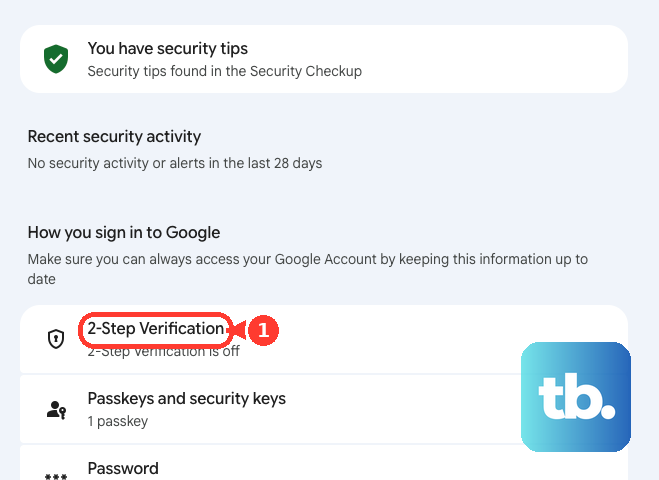
Pick a second step: Google prompts on your phone (tap Yes or No to a sign-in), passkeys or security keys (fingerprint, face scan, device PIN, or a hardware key over USB/NFC), an authenticator app for offline one-time codes, 6-digit SMS or voice codes, or printable 8-digit backup codes.
Allow up to 7 days for Google to trust a new phone number, never share codes or backup codes, and only skip verification on trusted, non-shared devices.
Run a Security Checkup
For a guided sweep, go to myaccount.google.com/security-checkup.
It gives personalized recommendations that can include adding recovery options, turning on 2-Step Verification, managing passwords, turning off access for apps that use less secure sign-in technology, enabling screen locks, and keeping software updated.
A green shield means your account is secure; otherwise follow the on-screen steps to fix flagged issues.
Check Your Other Google Services
Compromise rarely stops at Gmail.
Review the rest of your account.
For Chrome, uninstall extensions you don't recognize, update to the latest version, and delete unfamiliar saved payment information.
For Google Drive, review activity and file versions for anything unusual and recover deleted files if needed.
For Google Photos, check for album sharing you don't recognize and stop sharing it.
For Location, turn off any Location Sharing that looks unfamiliar.
For YouTube, Blogger, Google Ads, Google Pay, Google Play, review for unauthorized changes, uploads, or charges, and report any purchases you didn't make.
If banking details or personal documents were stored in the account, contact your financial institutions to verify there are no unauthorized instructions.
Remove Malware From Your Devices
If malware captured your credentials, fixing the account alone won't help.
Install and run trusted anti-virus software, and consider resetting the computer to factory settings after backing up your files.
Use a secure browser such as Google Chrome, enable the Password Alert feature so you're warned if you type your Google password on a non-Google site, turn off access for less secure apps, and use your device's screen lock.
Consider the Advanced Protection Program
If you're at elevated risk, such as a journalist, activist, campaign staffer, business leader, or IT admin, enroll in the Advanced Protection Program from your Google Account settings.
First add a recovery email and phone and turn on 2-Step Verification.
Enroll using a passkey (fingerprint, face scan, or screen lock/PIN) or any FIDO-compliant security key, such as a Titan Security Key over USB or NFC; the program is free.
Afterward, sign-in requires that passkey or key, so no one can get in with just your username and password, and only Google apps plus verified third-party apps can reach your data.
Note it can block some non-Google services, Apps Script, and app passwords, so it isn't friction-free.
Frequently Asked Questions
How long does account recovery take, and can I get locked out by guessing wrong?
There is no attempt limit, so incorrect guesses won't lock you out of the recovery process; keep trying with your best answers. Recovery works most reliably from a device, browser, and location you normally use to sign in.
Google sent me an email asking to confirm my password during recovery. Is it real?
No. Google never calls or emails you asking for your password or verification codes. A genuine recovery message arrives titled "Your Google support inquiry" and may land in Spam, but it will never request your password. Avoid third-party "recovery services" entirely.
I found email forwarding I never set up. What should I do first?
Change your password before disabling the forwarding. If you turn off forwarding while the attacker still has access, they can simply re-add it. After the password change, open the Forwarding and POP/IMAP tab, click Disable forwarding, and save.
I changed my password, so why review connected apps and devices too?
A connected third-party app or a signed-in device session can retain access independently of your password. Remove unrecognized apps at myaccount.google.com/connections and sign out unfamiliar devices or sessions under Manage all devices to fully cut off the intruder.
Why does my recovery phone change not work right away?
Some changes to recovery information, and Google trusting a new phone number, can take up to 7 days to take effect. Plan for that delay rather than assuming the change failed.
My Gmail settings look different from older guides. Did an attacker change the layout?
Not necessarily. IMAP is now always on and its enable/disable option is gone, and POP support for checking mail from other accounts is being retired, so the settings you see can legitimately differ from older instructions.