
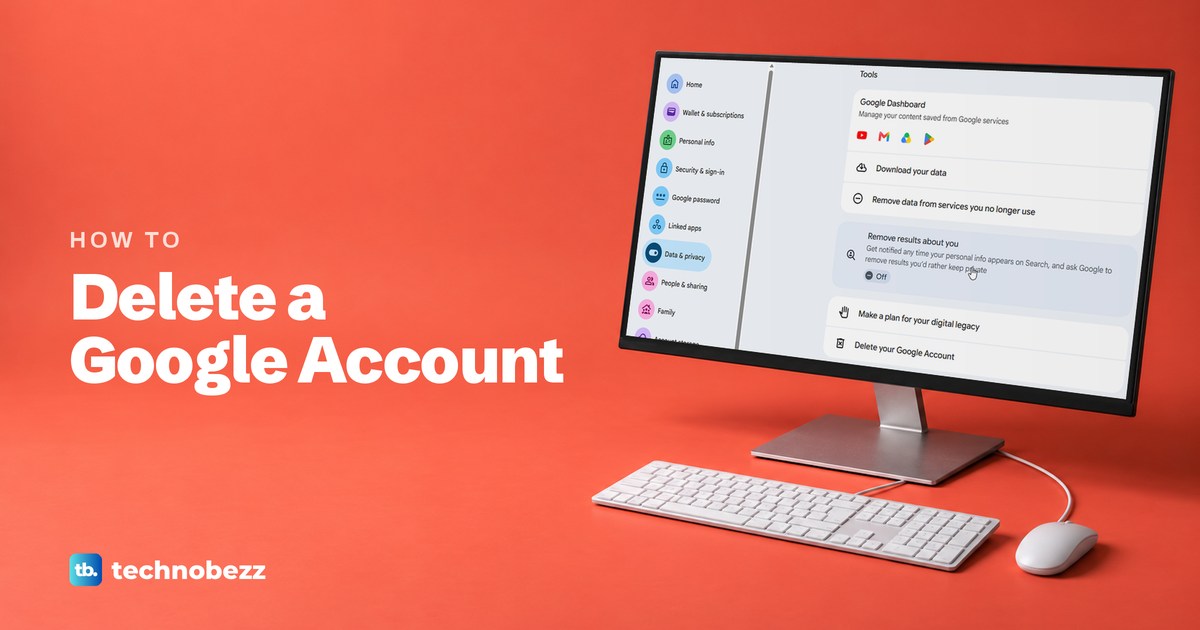
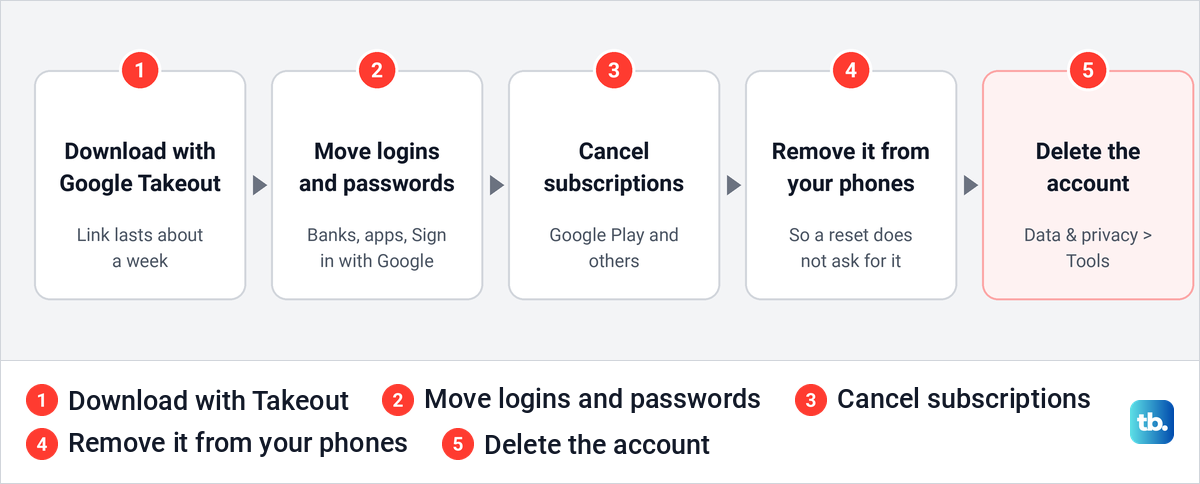
To delete a Google account, open myaccount.google.com on a computer, select Data & privacy, scroll down to Tools and select Delete your Google Account. Google asks for your password, then opens its delete page, where you follow the instructions on screen. Once Google's recovery window has passed, the account is gone permanently, so save anything you want to keep first.
Deleting the account removes every email, file, photo and calendar in it. Gmail, Drive, Play and the Sign in with Google button on other sites stop working for that account, and nobody can create a new account with the same username. Treat the decision as final.
If you only want the account off a phone, a tablet or a computer, you do not need to delete it at all. Removing it from a device deletes nothing in the account itself. It is also a job to finish on every Android phone before you delete the account, because Android's device protection can ask for that account after a factory reset.
The short version
- Delete it here: myaccount.google.com, then Data & privacy, then Delete your Google Account under Tools.
- Save first: export with Google Takeout, and download the files within the week Google gives you.
- Move what depends on it: bank and app logins, Sign in with Google sites, saved passwords and Play subscriptions.
- Phones before the delete button: remove the account from every phone before you delete it.
- Treat it as permanent: Google does not promise a fixed recovery window.
Delete your Google account or just remove it
These are two different jobs, and the words get mixed up. Removing an account takes it off one device and leaves the account and everything in it online. Deleting it closes the account everywhere, for good. The table shows where each job is done.
| What you want | Where to go | What happens |
|---|---|---|
| Close the whole account | myaccount.google.com > Data & privacy > Tools > Delete your Google Account | Everything in it is deleted, and the username can never be used again |
| Keep the account, drop one service such as Gmail | Data & privacy > Tools > Remove data from services you no longer use | Only that service's data goes. Dropping Gmail needs another email address to sign in with |
| Take it off an Android phone | Settings > Passwords & accounts > the account > Remove account | Its email, contacts and settings leave the phone, and the account stays |
| Take it off a Samsung Galaxy | Settings > Accounts and backup > Manage accounts > the account > Remove account | The same, and Samsung may ask you to confirm it is you |
| Take it off an iPhone | Gmail app > profile picture > Manage accounts on this device > Remove from this device | The Gmail app stops using it, and the account stays |
| Take it off a Chromebook | Sign-in screen > the profile > Down arrow > Remove this user | It leaves the Chromebook, and the account stays |
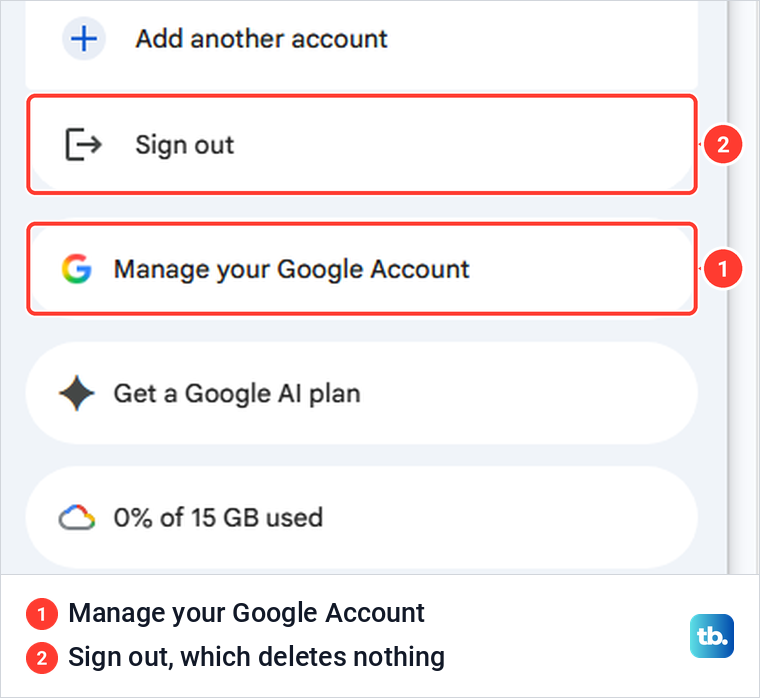
| Leave a shared computer | Profile picture > Sign out | Nothing is deleted |
| Let it lapse | Stop using it for two years | Google may delete a personal account after two years without activity, unless an exception applies, such as a past digital purchase |
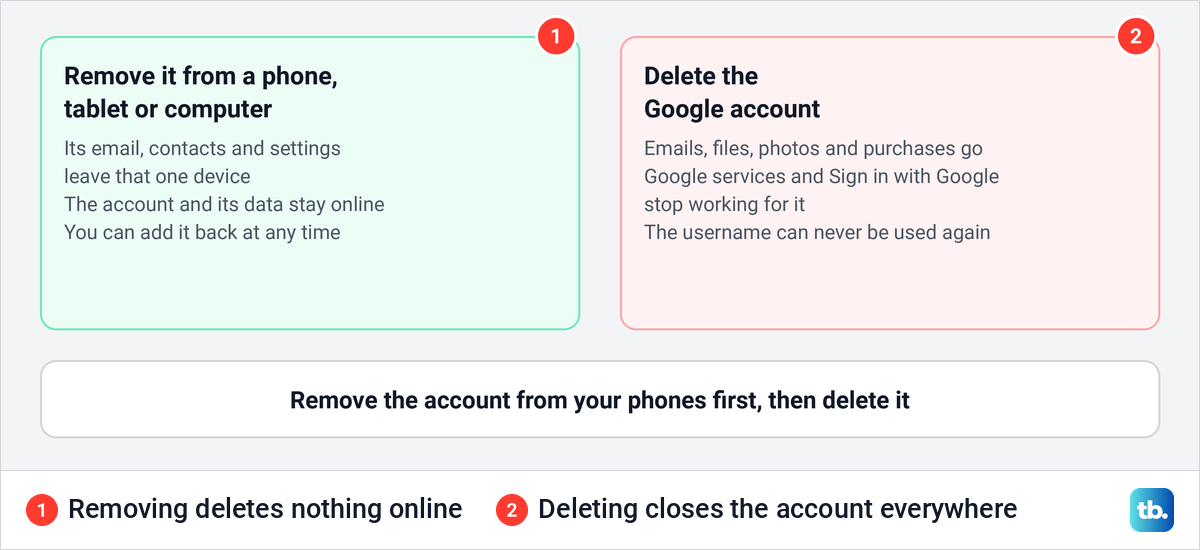
If you only want the account off a shared or borrowed computer, sign out of a Google account there instead, which deletes nothing. Everything below is about closing the account for good, and the order matters: save, move, remove from phones, then delete.
What you lose when you delete a Google account
Google's list starts with the content itself: you lose "all the data and content in that account, like emails, files, calendars, and photos." You can no longer use Google services that you sign in to with that account, such as Gmail, Drive, Calendar and Play. Subscriptions and anything you bought with the account on YouTube or Google Play, including apps, movies, games, music and TV shows, go too.
An Android phone feels it most. Google says you can no longer get or update apps from the Play Store with that account, purchased music, movies and books stop working, and game progress may be lost. Contacts stored only in the Google account, and not separately on the phone, are lost as well, and new photos and downloads are no longer saved to Drive.
A Chromebook loses the Chrome apps and extensions tied to the deleted account, although anyone can still sign in with an account that has not been deleted. If the account is the primary owner of a YouTube channel, YouTube says the channel is deleted with it, including its videos, comments and playlists.
Two losses catch people out later. Every app or website where you used the Sign in with Google button loses that sign-in, and the Gmail address itself can never be registered again by you or anyone else. Other Google accounts you own are not touched: Google says deleting one "won't delete the others."
Download your data with Google Takeout
Google Takeout copies your data out of the account and leaves the original in place, so running it changes nothing in the account. Open takeout.google.com in the browser where you are signed in. On our PC it opened straight away, with no password prompt.
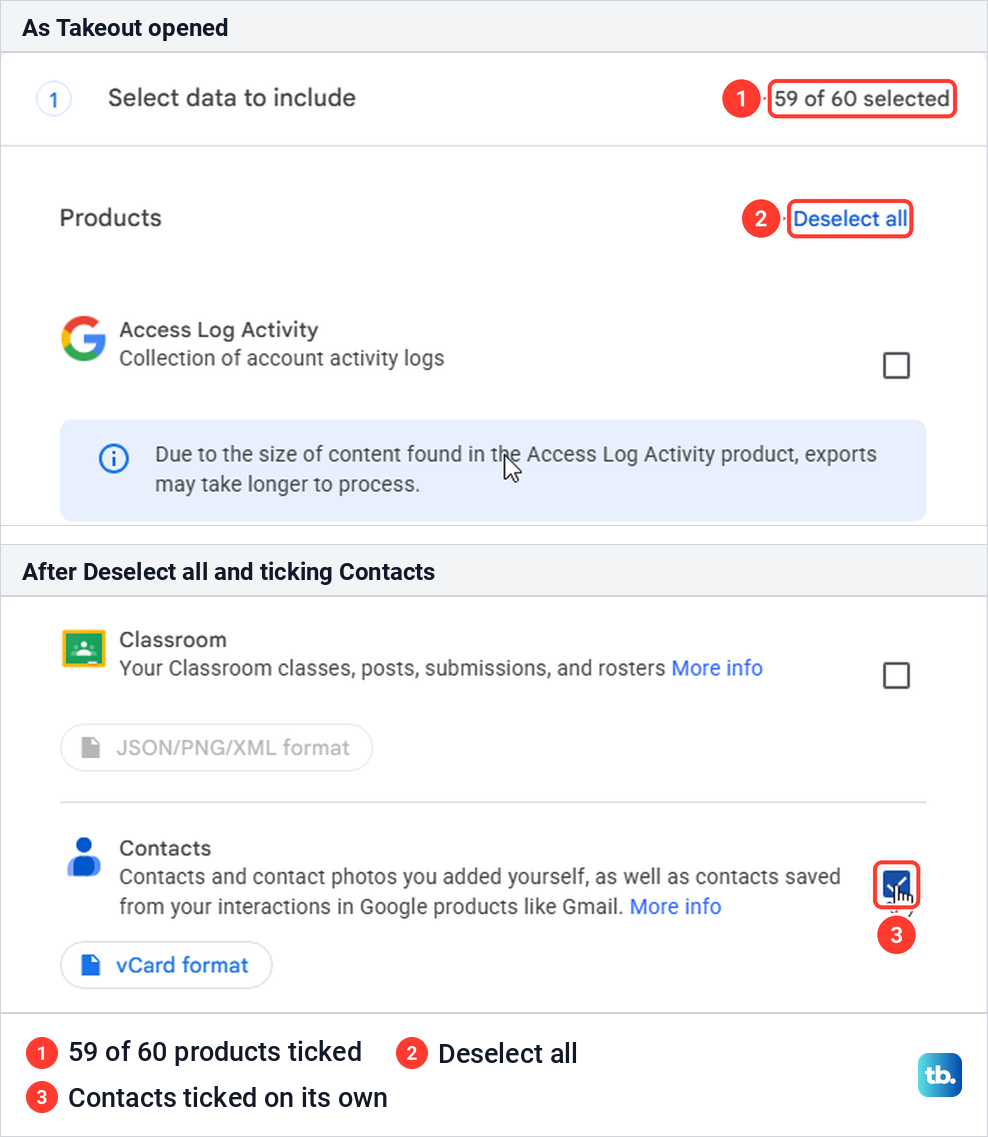
Google says the products you use are ticked automatically. When we opened it, 59 of 60 products were ticked. The one left out was Access Log Activity, with a note that its size can make exports take longer. If you are leaving Google for good, keep everything ticked and tick Access Log Activity too, or select Deselect all and tick only what you need, then select Next step.
The second step sets where the files go and how. Transfer to offered four choices on our PC: Send download link via email, Add to Drive, Add to Dropbox and Add to Box. Google's help page also lists OneDrive, which was not in the list we saw. The email option carries the line "You'll have one week to download your files."
Under Frequency, keep Export once. The other two choices, every month or every 2 months for a year, are for ongoing backups. File type was .zip by default, which Google says opens on almost any computer, and File size was 2 GB, with 1, 4, 10 and 50 GB in the list. Choose 50 GB if you have a lot of mail or photos, because Google splits anything larger than the chosen size into several files.
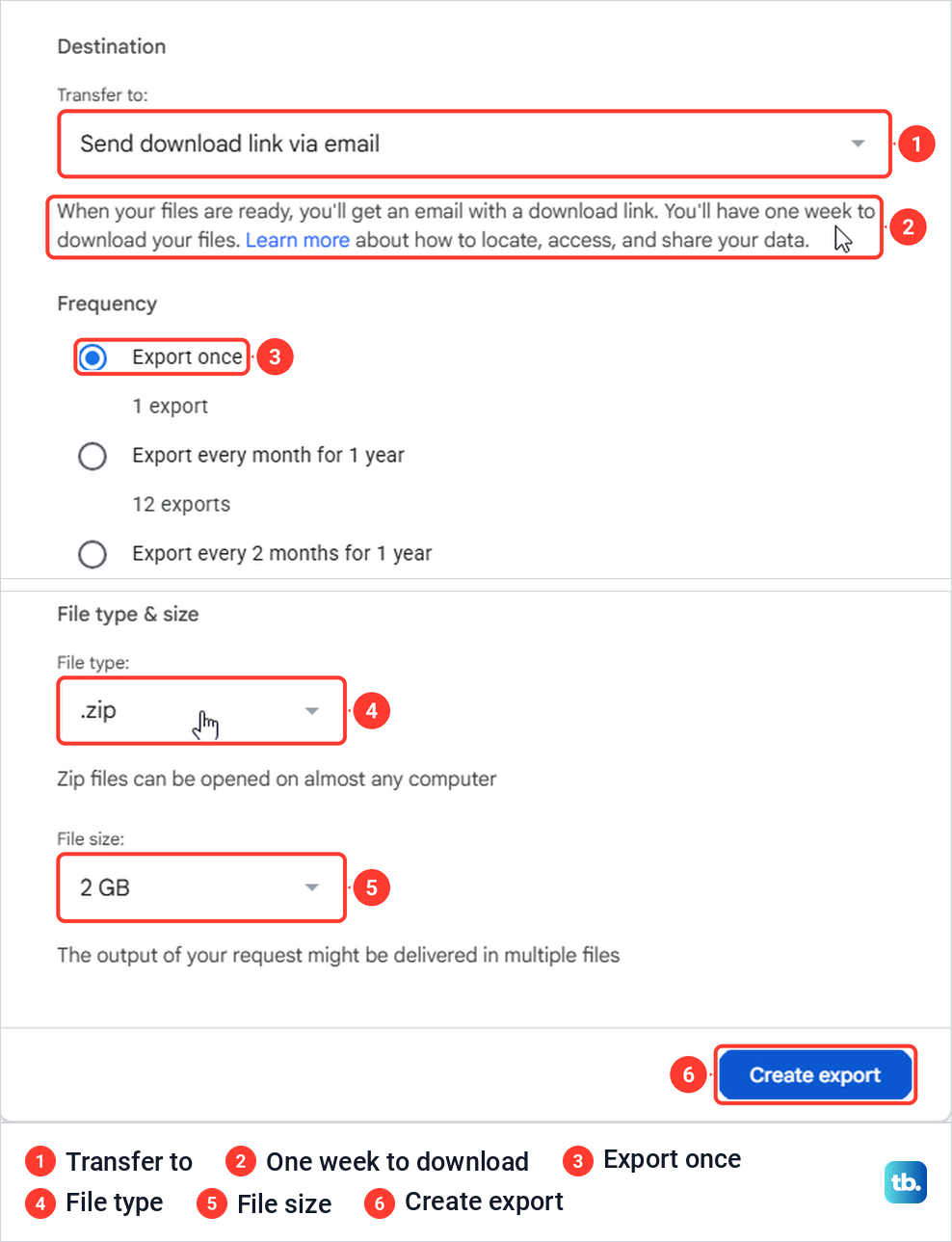
Select Create export. The page then said Google was creating a copy and that the process "can take a long time (possibly hours or days)". Our export held only contacts, and the ready email arrived within the same minute. It linked to a page with the download and an expiration date one week after the request.
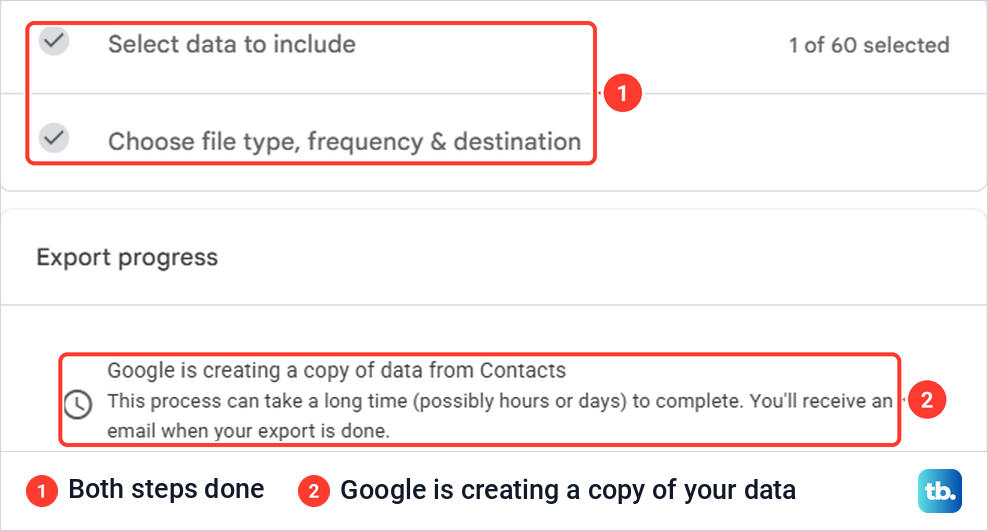
When we selected Download on that page, Google asked for the account password again before the file came down. Google says most people get the link the same day, that an archive expires in about 7 days, and that each one can be downloaded only 5 times. Download it on a computer before you delete the account, while you can still sign in to it.
If you chose Add to Drive, move the archive somewhere else before you delete the account, because it sits inside the account you are deleting. Items that are still being deleted, such as photos or documents you removed recently, are not included. If you are keeping a second Google account, you can also move your Google Photos to another account instead of downloading them. Each archive includes a file named archive_browser.html that explains what is inside.
Move your logins, passwords and subscriptions
Google's own checklist asks you to give banks, social networks and apps a new email address before the Gmail address disappears. Do this while you can still receive their confirmation emails. If you want a Google address to replace this one, create a new Gmail account first and give that address out instead.
Sites where you sign in with the Google button need separate attention. Google says that when the account is deleted, your Sign in with Google data is deleted too, "which includes your sign-in credentials for the linked app." Its advice is to sign in to that app with a username and password, or contact the developer. The apps themselves may keep what you already shared with them.
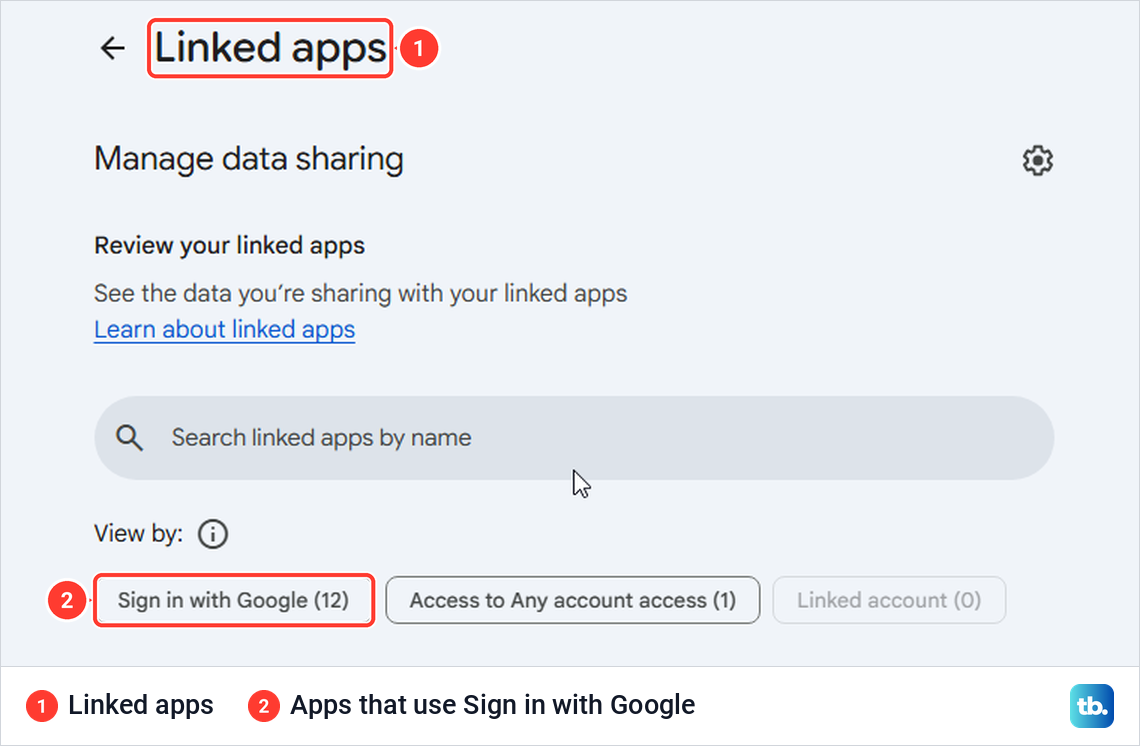
To see which sites are involved, select Linked apps in the Google Account menu, or go to myaccount.google.com/connections. It opened without a password prompt on our PC. Under View by, the Sign in with Google chip filters the list, and the number in brackets shows how many apps use it. Visit each one and add a password or another email address there.
Saved passwords go with the account too. Google's steps in Chrome are More, then Passwords and autofill, then Google Password Manager, then Settings, then Export passwords and Download file. Import that file as soon as you set up a password manager, then delete it. Google warns that if you keep the file, anyone who uses the device can open it and read your passwords.
Paid plans are the last item. Google says only that you lose access to subscriptions, not that billing stops, and its Play help adds that uninstalling an app does not cancel its subscription. Go through Google Play's subscriptions list and cancel subscriptions you no longer need before you delete. The Google Account menu has a Wallet & subscriptions page that is a good place to start.
Remove the account from your phones first
Android has device protection that ties a phone to the Google account signed in on it. Google says that after a factory reset, setup asks for a Google account that was previously synced to the phone, and "If you can't give this information during setup, you won't be able to use the device at all after factory reset." Google also says the way to turn that protection off is to remove your Google account from the device.
So remove the account from every phone and tablet before you delete it. Only then restore a phone to factory settings if you are selling or passing it on. Google's Family Link help states the risk plainly for child accounts: deleting one before removing it from a signed-in device means the device "may lock and require a factory reset."
Remove a Google account from a phone without deleting it
On Android, Google's steps are to open Settings, tap Passwords & accounts, tap the account and then Remove account, and confirm. Some phones call the menu Users & accounts, Passwords, passkeys & autofill, Password, passkeys & accounts, or Manage accounts, and some steps only work on Android 14 and later. Removing an account deletes its email, contacts and settings from the device, and if it is the only Google account there, you need the screen lock to finish.
On a Samsung Galaxy, Samsung's path is Settings > Accounts and backup > Manage accounts, then the Google account, then Remove account twice. Samsung says this "will not permanently delete your account" and that you may be asked to verify your identity if device protection is on.
On an iPhone, the Gmail app's profile picture opens Manage accounts on this device, where each account has a Remove from this device link. For Apple's own Mail app, Apple's steps are Settings > Apps > Mail > Mail Accounts, then the account and Sign Out or Delete Account. Apple notes that this only removes the account from the iPhone and does not close it.
On a Chromebook, select the profile on the sign-in screen, select the Down arrow next to its name and choose Remove this user twice. Google says the account itself still exists afterwards. The owner account, usually the first one used on the Chromebook, can only be removed by erasing the Chromebook.
The same rule holds for the browser, so you can remove a Google account from Chrome and keep the account itself. If the account should only leave one app, log out of the Gmail app and leave the rest of the phone signed in.
Delete your Google account on a computer
Go to myaccount.google.com and sign in, or start from Gmail. In Gmail, select your profile picture at the top right and choose Manage your Google Account. On our PC that opened the Google Account in a new browser tab.
Select Data & privacy in the menu on the left. The page is long, with sections for Personalization & activity, Personalized ads, Data sharing and Other settings. Scroll to the last section, Tools, where Delete your Google Account is the last row, below Download your data and Remove data from services you no longer use. The direct address is myaccount.google.com/deleteaccount.
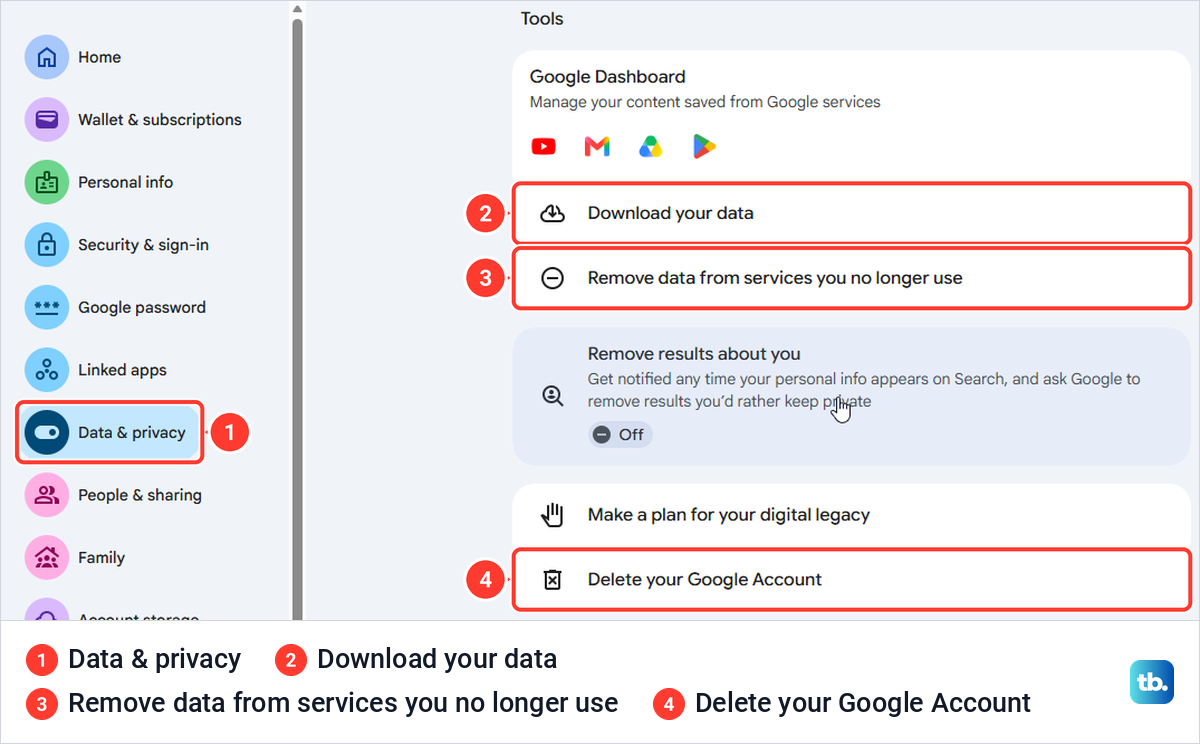
Google's help page still tells you to scroll to "Your data & privacy options" and open More options. On our PC neither existed, and the delete row sat directly under Tools. If your page looks different, type Delete your Google Account in the Search Google Account box at the top.
Select Delete your Google Account. Google showed a page that read "To continue, first verify it's you", with an Enter your password box, a Try another way link and Next. Typing the direct address brought up exactly the same check. If neither the password nor Try another way works for you, recover the account before you can delete anything.
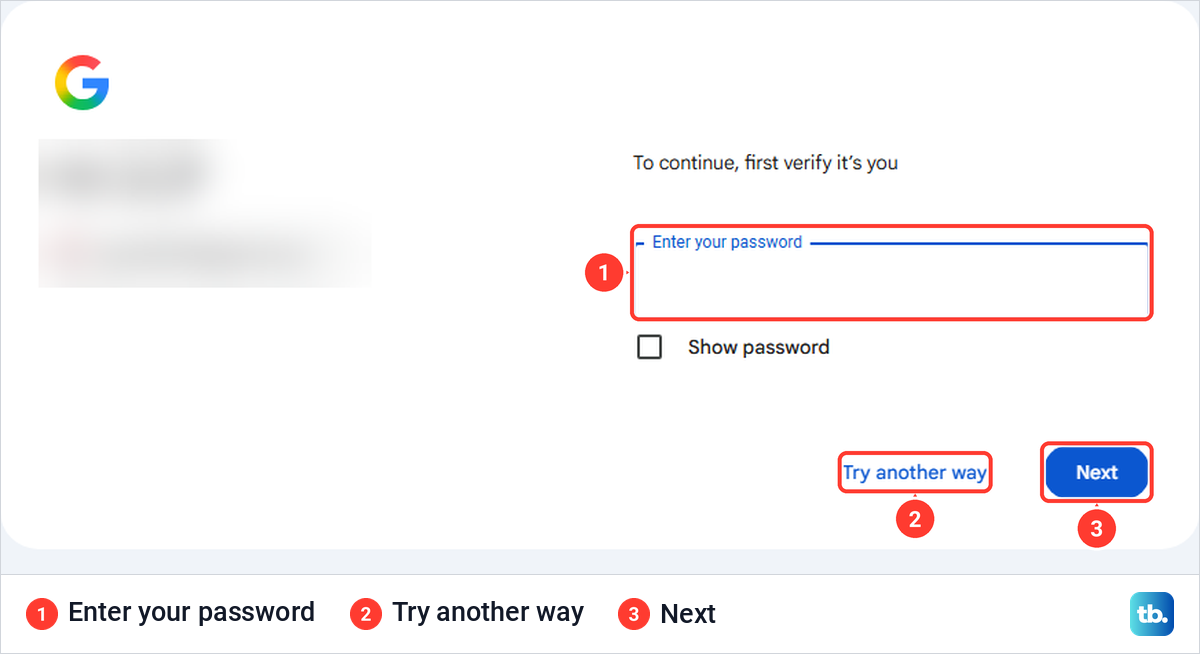
After the password, Google's only instruction is to follow the steps on its delete page. Read that page carefully before you confirm, because this is the step that cannot be undone once the recovery window has passed. If you have more than one Google account, make sure the right one is shown, since only that account is deleted.
Delete your Google account from a phone
There is no separate phone process. Google's delete help page shows the same text for Android, iPhone and computers, and on a phone you reach the same Data & privacy page through the Gmail app or the phone's settings.
On an Android phone or tablet, open the Gmail app, tap your profile picture at the top right, tap Manage your Google Account and then Data & privacy. Another route is Settings > Google, then your profile picture and Manage your Google Account. On an iPhone or iPad, use the Gmail app the same way. From Data & privacy the steps match the computer ones.
A computer is still the better place to do it. Takeout archives are easier to download and check there, and Google recommends viewing them on a computer rather than a phone.
How long you have to change your mind
Google does not give a number of days for a personal account. Its help page on deleting an account says you "might be able to recover it within a certain amount of time", and its recovery page adds that "If the account was deleted a while ago, you may not be able to recover it." The 20-day figure in Google's help is for Google Workspace, where an administrator can restore a deleted work user for 20 days.
Google's data policy describes the clean-up in general terms. Removing deleted data "generally takes around 2 months" and "often includes up to a month-long recovery period", while encrypted backups can hold data for up to 6 months. Payment records are kept longer for tax and accounting. None of that is a promise that a deleted account can be brought back for a month.
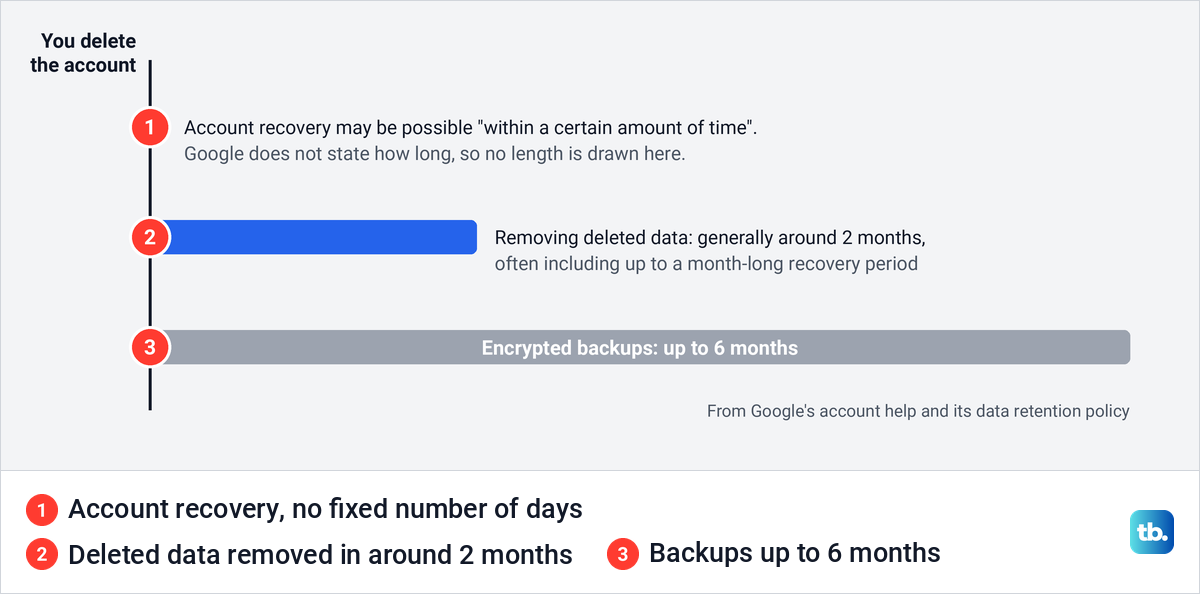
If you change your mind, start straight away, because the steps to recover a deleted Google account only work for a limited time. Google's route is accounts.google.com/signin/recovery, where you answer questions to prove the account is yours. Google says a recovered account gets its data back, and you then set a password you have not used on it before.
Delete only part of your account instead
To drop a single product, select Remove data from services you no longer use under Tools on the Data & privacy page. On our PC it asked for the password first, both from that row and from the direct address, myaccount.google.com/deleteservices. Google's steps from there are to find the product in the Delete a Google service list and select Delete next to it.
You can delete a Gmail account on its own that way, but Google needs another email address that is not Gmail so you can keep using the account's other services, and it deletes your emails and settings after 30 days. A YouTube channel can be closed without touching the rest of the account, but YouTube says that cannot be done on a phone, so use a computer.
If privacy is the real reason, you can delete your Google search history and keep everything else. You can also turn off ad personalization so Google stops tailoring ads to the account. If the real problem is a full mailbox, it is easier to free up Gmail storage than to start again.
Work, school and child accounts
An account that comes from your job or school belongs to the organization. Google's advice for those is to contact your administrator, who manages and deletes such accounts.
For a child under 13, or the age that applies in your country, a parent deletes the account in the Family Link app under the child's Controls > Account settings > Delete account. Older children delete their own account. Remove a child's account from every phone and tablet first, for the locking reason above.
If you cannot sign in or the account was hacked
The delete page sits behind Google's check that it is really you, so you need to be able to sign in before you can delete the account. Reset your Google password first if you have lost it, and update your recovery email and phone while you are there. Google suggests keeping recovery details current in case you want the account back later.
If the account was taken over, find out what was accessed before you close it. Google recommends running Security Checkup first, because it can no longer review activity once the account is deleted. Our guide on how to check whether your Google account was hacked walks through what to look for, from saved passwords to payments.
How we tested this guide
We tested this in Microsoft Edge on Windows 11, version 25H2, running a Google Takeout export of contacts and following the delete link to the password check.
Frequently Asked Questions
Can I recover a deleted Google account?
Possibly, for a while. Google says you "might be able to recover it within a certain amount of time" and gives no number of days. Go to accounts.google.com/signin/recovery as soon as you can and answer the questions as fully as possible.
Does removing a Google account from my phone delete it?
No. Removing it takes the account's email, contacts and settings off that phone, while the account and everything in it stay online. You can add it back later.
What happens to my Gmail address when I delete my Google account?
It is deleted with the account. Google does not let anyone create an account with a username that was used before and deleted, so the address cannot be taken over.
What happens to my YouTube channel?
If the account is the channel's primary owner, YouTube deletes the channel along with it. If you only want the channel gone, YouTube lets you close it on a computer and keep the account.
Will deleting my Google account cancel my subscriptions?
Google says you lose access to them, not that billing stops. Cancel each subscription in Google Play before you delete the account, since uninstalling an app does not cancel it either.
Can I delete a Google account without the password?
Not unless you can prove it is you. When we selected Delete your Google Account, Google asked for the password first, with a Try another way link below it. If neither works for you, recover the account or reset the password first, then delete.
Can I delete a work or school Google account?
Ask the administrator who manages it. Google's advice for accounts that come through work, school or another group is to contact the administrator.
Will Google delete my account if I stop using it?
It can. Google may delete a personal account after two years without activity across Google, with exceptions such as an account that has a current subscription, a gift card balance, or has been used to buy a digital item such as a book or movie. Accounts from work or school are not covered by that policy.