Trying to log out of the Gmail app gets confusing fast because phones and tablets do not use the same sign-out flow as Gmail on a computer. On Android, iPhone, and iPad, the fix is usually removing the Google Account from Gmail or from the device. Start with the option that matches what you want to do.
Remove the account from Gmail on Android
This fixes Gmail app sign-out on an Android phone or tablet. Open the Gmail app. Tap your Profile picture or initial. Tap Manage accounts on this device.
Choose the Google Account you want to remove. Tap Remove account. This also signs you out of other Google apps on that Android device.
Sign out of Gmail on iPhone or iPad
Use the Gmail account manager to remove the account from that device.
- 1.Open the Gmail app.
- 2.Tap your Profile picture or initial.
- 3.Tap Manage accounts on this device.
- 4.Tap Remove from this device.
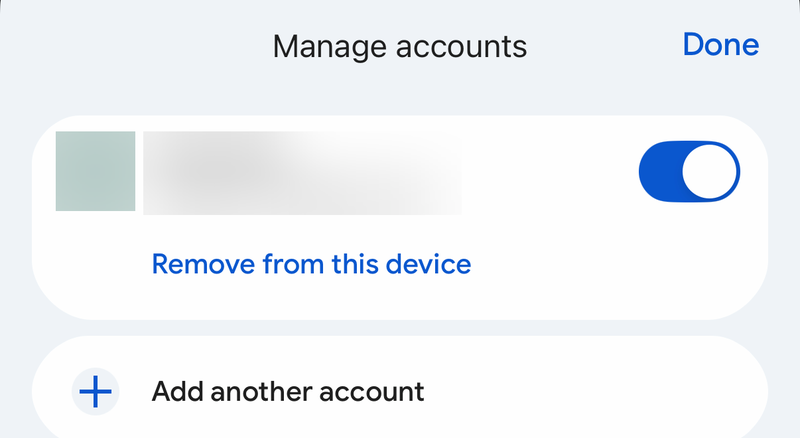
Turn off a Gmail account on iPhone without removing it
Open the Gmail app. Tap Menu. Tap the account that is signed in. Tap Manage accounts.
Turn off the switch next to any account you do not want active in Gmail. Tap Done. This keeps the Google Account intact while taking it out of active use in Gmail.
Use Android Settings instead
This method applies when you want to remove the Google Account from Android itself instead of starting inside Gmail. It removes associated email, contacts, and settings from the device, including Gmail app access.
Open the Settings app. Go to Passwords & accounts. If your phone uses a different label, look for Users & accounts, Passwords, Passwords, passkeys & autofill, Password, passkeys & accounts, or Manage accounts.
Under Accounts, tap the Google Account you want to remove. Tap Remove account. Tap Remove account again.
Tap Delete. If this is the only Google Account on the phone, enter the device pattern, PIN, or password when asked.
Sign out a lost or unused device remotely
This fixes Gmail access on a phone, tablet, browser, app, or service you cannot reach. Go to your Google Account. Open Security & sign-in.
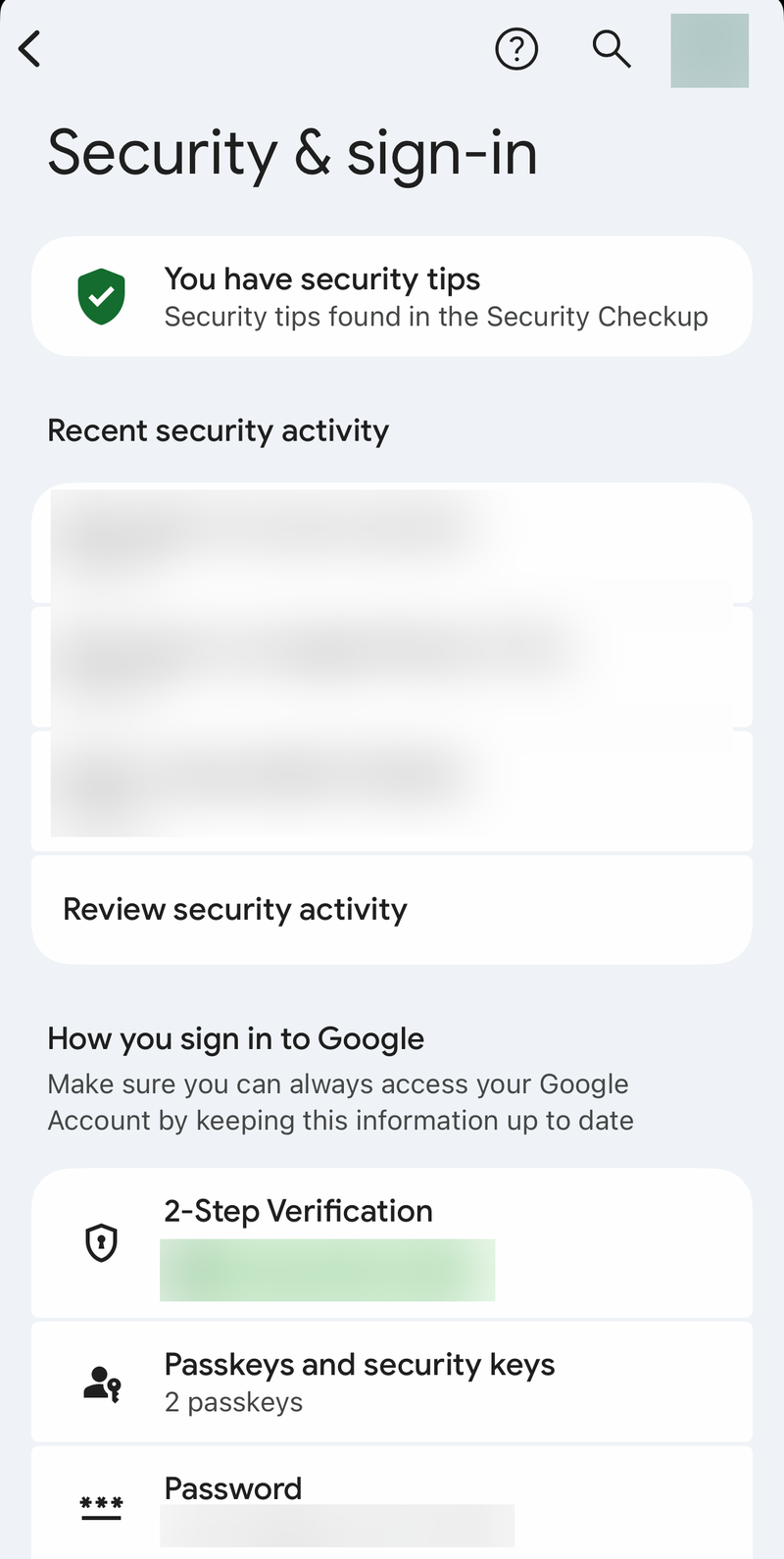
Under Your devices, choose Manage all devices. Select the device or session you want to remove. Tap or click Sign out. If one device shows more than one session, repeat the same sign-out for each session.
Change your password for account security
A password change is for security trouble, not everyday Gmail app logout. Google says changing or resetting your password signs you out everywhere except devices used to verify it is you, some third-party apps with account access, and helpful home devices.
On Android, go to Settings > Google > Your name > Manage your Google Account > Security & sign-in > Password. Enter the new password, then choose Change Password.
On the web, go to myaccount.google.com > Security & sign-in > Password. If you cannot sign in, use Google Account recovery and choose a new password.
Remove or disable the Gmail app
On iPhone or iPad, touch and hold the Gmail app. Tap Remove App.
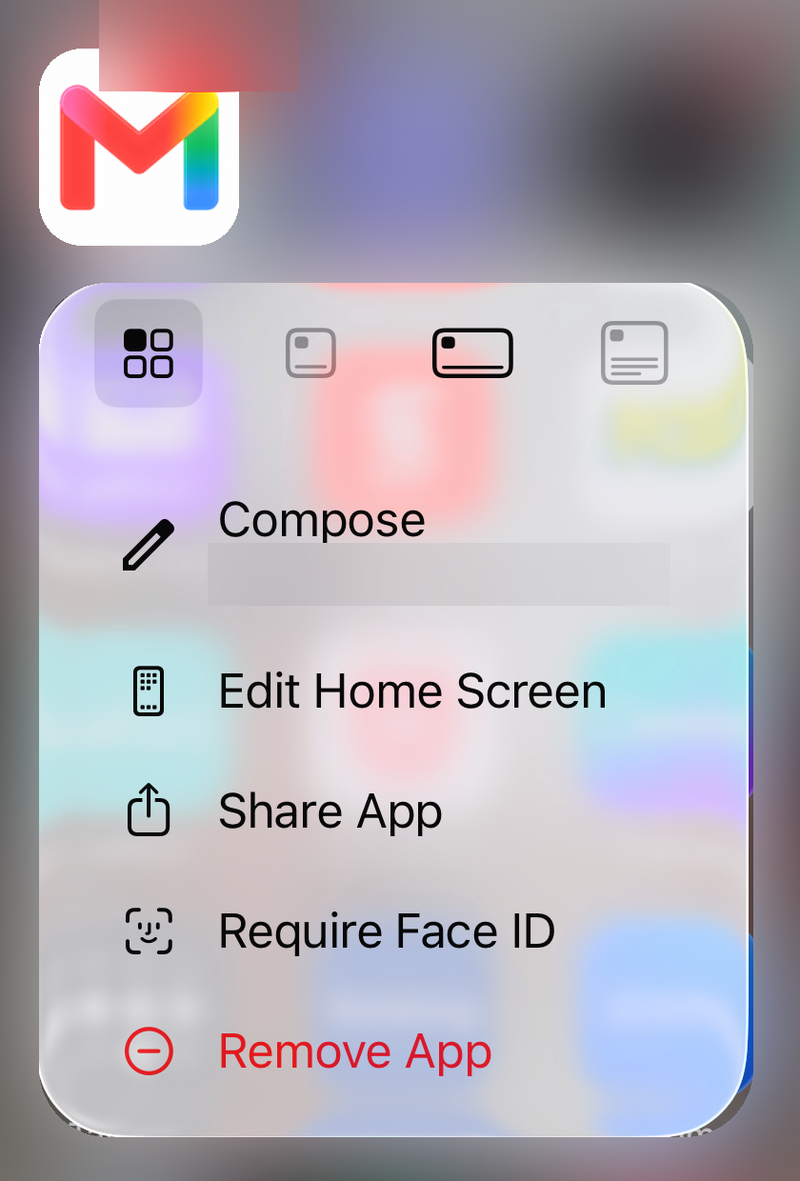
Tap Delete App. Tap Delete.
On Android, open the Google Play Store. Tap the Profile icon. Go to Manage apps & devices > Manage. Select Gmail.
Tap Uninstall. If Gmail came preinstalled and cannot be removed, open Settings > Apps & notifications > Gmail > Disable. Deleting or disabling Gmail removes the app from use on that device, but it does not delete your Google Account.
Skip old Gmail logout tricks
The most common outdated tip is using Gmail’s desktop Last account activity page to sign out of other sessions. That page now points you to Details at the bottom right of Gmail on a computer, plus password changes and Gmail security tips for suspicious activity.
Force-closing Gmail, clearing cache, clearing Gmail app data, turning off sync or notifications, removing a Gmail widget, switching accounts, and signing out in a mobile browser do not log you out of the Gmail app.
Use admin controls for work or school Gmail
This applies when the Gmail account is managed by an organization, such as a work or school Google Account. Admin controls can reset a password, reset sign-in cookies, wipe corporate data from a managed mobile device, and sign out a limited set of managed devices.
In the Google Admin console, an admin can go to Menu > Directory > Users, open the user’s account page, choose Security > Sign-in cookies, then choose Reset.
Google says resetting sign-in cookies signs the user out of mobile devices and browsers, but it does not sign them out of apps such as Gmail. To reach the Gmail app itself, reset the password as well: on Android the user is told to verify their identity and cannot send or receive new mail until they sign in again, and on iOS the Google Account is removed from the account list and has to be added back.
The separate Sign out user control is narrower. It covers computers managed by Fundamental management or standalone Google Credential Provider for Windows (GCPW), plus Assistant-enabled smart home devices such as Google Nest smart displays and speakers.
Admins can also go to Menu > Directory > Users, point to the user, choose Reset password, set the new password option, choose Reset, then reset Sign-in cookies.
For personal Gmail accounts, use the regular Gmail, Android, iPhone, or Google Account steps above. Admin tools are not available for ordinary consumer accounts.
Frequently Asked Questions
Can I log out of only the Gmail app on Android?
No. On Android phones and tablets, Gmail app sign-out works by removing the Google Account from the device, which also signs you out of other Google apps on that device.
Does removing Gmail from my phone delete my Google Account?
No. Removing the account from a device, deleting the Gmail app, or disabling Gmail on that device does not delete the Google Account itself.
Can I keep my Google Account on iPhone but stop using it in Gmail?
Yes. In the Gmail app on iPhone or iPad, open Menu, tap the signed-in account, choose Manage accounts, turn off the switch next to that account, and tap Done.
What should I do if my phone was lost or stolen?
Use your Google Account security page, open Security & sign-in, go to Manage all devices, select the device or session, and choose Sign out. For a lost Android phone, Find Hub can also factory reset the device when the required conditions are met.