You want to lock down your Google Account so a stolen password alone can't get anyone in. Two-Step Verification adds a second check after your password, and once it's on, every new sign-in needs both something you know and something you have.
The fastest path is through your Google Account settings on any device. Below you'll find the steps for desktop, Android, and iPhone, the second-step methods ranked by security, how to set up backup codes and an authenticator app, and how to get back in if you lose your phone.
One note before you start: these steps are for a personal Google Account. If yours is a work, school, or organization-managed account, the options may differ and Google directs you to contact your administrator.
Turn On 2-Step Verification on Desktop
This is the core flow and the quickest way to enable protection. Use any browser.
Go to myaccount.google.com and sign in.
Click Security & sign-in. In the live interface this tab often appears simply as Security; they are the same place.
Under How you sign in to Google, select Turn on 2-Step Verification. If you are already on the 2-Step Verification page, click Get Started.
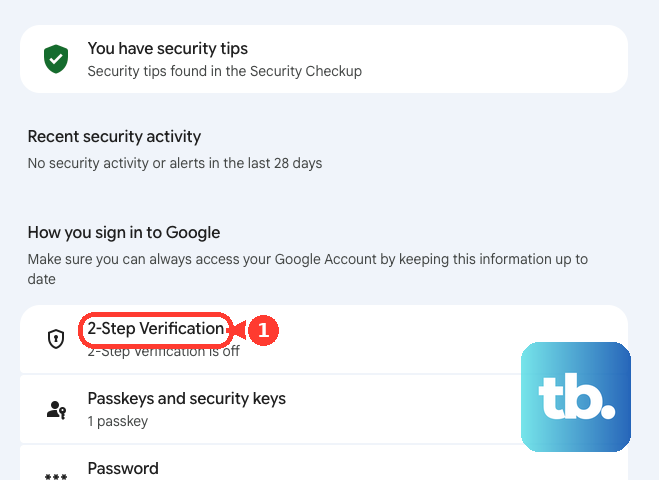
Re-enter your password if prompted.
Follow the on-screen steps and, when offered the choice, select the second-step method you want (Google Prompts, a security key, an authenticator app, or a text or voice code).
After your chosen method is validated, click Turn on to confirm.
Turn On 2-Step Verification on Android
You can do this entirely from your phone through the Gmail app.
Open the Gmail app, tap your profile image or initials in the top-right corner, and tap Manage your Google Account. (You can also go to myaccount.google.com.)
Then tap the Security tab (Google's help text labels it Security & sign-in).
Under How you sign in to Google, tap 2-Step Verification or Turn on 2-Step Verification, then tap Get Started.
Follow the on-screen steps and confirm to turn it on.
On Android, Google Prompts is the recommended second step. It sends a push notification to your signed-in device; tap Yes to allow a sign-in or No to block it. This requires updated Google Play services.
Turn On 2-Step Verification on iPhone and iPad
The path mirrors Android and starts in the Gmail or Google app.
Open the Gmail or Google app, tap your profile image or initials in the top-right, and tap Manage your Google Account (or go to myaccount.google.com).
Next tap the Security tab (Google's help text labels it Security & sign-in).
Under How you sign in to Google, tap 2-Step Verification and then Get Started.
Follow the on-screen steps and confirm to turn it on.
Google Prompts on iPhone require Gmail, Google Photos, YouTube, or the Google app installed and signed in. Tap Yes or No on the prompt to approve or deny a sign-in.
Choose the Right Second Step
After enabling, you can add or switch your second step. They are listed here strongest first.
Google Prompts (recommended): a push notification to your Android phone or iPhone; tap Yes to approve or No to block. Helps protect against SIM-swap and phone-number-based attacks.
Passkeys: sign in with a fingerprint, face scan, or device screen lock (PIN). Phishing-resistant, and can be created on a phone, computer, or hardware security key. Requires a device with a fingerprint sensor, face scan, screen lock, or a hardware key.
Hardware security keys: small physical devices you connect to your phone, tablet, or computer. One of the most secure second steps.
Authenticator app: generates one-time codes that work without internet or mobile service.
QR code: scan a code shown on your computer with your mobile device. Less vulnerable to phone-based attacks.
Text message or voice call: a 6-digit code by SMS or read out by phone call. More vulnerable to phone-number-based attacks.
Backup codes: single-use 8-digit codes you print or download for when your phone is unavailable.
Set Up Google Authenticator
This gives you codes that work with no signal. 2-Step Verification must already be on, and on Android the device needs Android 5.0 or later (account sync needs app version 6.0 or later).
On your device, open myaccount.google.com/two-step-verification/authenticator.
Tap Set up authenticator (on some devices this appears as Get Started).
Either scan the displayed QR code with the Authenticator app or enter the provided setup key manually, then enter the 6-digit code the app generates to confirm.
To move codes to a new phone manually: install Authenticator on the new device and tap Get Started. On the old device, open the menu, tap Transfer accounts then Export accounts, select the accounts, and tap Next. On the new device, tap the menu, Transfer accounts, then Import accounts, and scan the QR code shown on the old device.
If codes are rejected, check that your device date, time, and time zone are correct and auto-synced. As of Authenticator 7.0 the in-app time-correction setting was removed, so the app relies on your operating-system clock.
Create and Save Backup Codes
Backup codes are your safety net if your phone is lost or has no signal. Set these up before you finish.
Go to your Google Account and click Security & sign-in.
Under How you sign in to Google, click 2-Step Verification (re-enter your password if prompted).
Scroll to Backup codes and click Continue or Get backup codes (or Show codes if some already exist) to view your set of 10 eight-digit codes.
Click Download Codes to save them as a file, or click Print. Store them somewhere safe.
To replace the set, click the Refresh icon or Get new codes. This creates a new set and automatically inactivates all old codes.
At sign-in, choose the backup-code option and enter one unused 8-digit code. Each works only once, so mark it as used afterward. Note that backup codes cannot be downloaded if your account is enrolled in Google's Advanced Protection Program.
Set Up a Backup Method So You Are Not Locked Out
Before you walk away, add at least one backup second step: backup codes, Authenticator, a second phone, a security key, or a passkey on another device. Also confirm a current recovery email and phone number. If your primary device is lost, this is what gets you back in.
A few cautions worth respecting. Newly added phone numbers can take up to 7 days for Google to trust before they work as a second step. Only select Don't ask again on this device on devices you personally own and don't share. And avoid using a Google Voice number for your codes; signing out of the Google Voice app means you can't retrieve the code, which can lock you out.
Fix Common 2-Step Verification Problems
If something goes wrong during or after setup, work through the matching fix below.
Lost or stolen phone: sign out of the device remotely and change your password, then sign in using a backup method (another signed-in phone, alternate phone number, backup code, security key, or a passkey from another device) or a previously trusted device. You can also ask your carrier to move your number to a new device.
Lost security key: sign in with your password and an alternate method, remove the lost key, get a replacement, and add the new key. With no backup, use account recovery, typically a 3 to 5 business-day identity-confirmation process.
Lost backup codes: open your 2-Step Verification settings, select Show codes, then Get new codes (the old set becomes inactive).
Didn't get an SMS code: Google may have sent a Prompt instead. Check that your device can receive texts and has signal. If you requested several codes, only the newest works. Voice codes are left as voicemail if the call can't connect.
Apps stopped working: sign in to the affected app again, or generate and use an App Password.
Can't sign in at all: follow Google's account recovery process to confirm your identity.
Frequently Asked Questions
Which second step is the most secure?
Hardware security keys and passkeys are the strongest, both phishing-resistant. Google Prompts is the recommended everyday option because it resists SIM-swap and phone-number attacks. Text message and voice codes work but are the most vulnerable to phone-number-based attacks.
Will Google ever call or message me to ask for a code?
No. Google states it will never call to ask for a verification code, and it never asks for a backup code except at sign-in. Never share either with anyone.
Why does the authenticator keep rejecting my codes?
Almost always a clock issue. Authenticator 7.0 and later use your device's operating-system clock, so make sure your date, time, and time zone are correct and set to sync automatically.
What happens to my old backup codes when I generate new ones?
Generating a new set automatically inactivates the entire old set. Each code is also single-use, so once you sign in with one it stops working.
Why did I get a tab labeled "Security" instead of "Security & sign-in"?
They are the same tab. Google's help pages say "Security & sign-in," while the live interface often shows just "Security." Use whichever your screen displays.
I just added a new phone number but it won't work as a second step. Why?
Newly added phone numbers can take up to 7 days for Google to trust before they function as a verification method. Keep an existing method active until the new number is trusted.