
To rotate the screen on Windows 11, right-click an empty part of the desktop, select Display settings, open the Display orientation list and choose Landscape, Portrait, Landscape (flipped) or Portrait (flipped). The screen turns at once, and you then select Keep changes before a short countdown runs out. A sideways or upside-down screen goes back to normal when you choose Landscape in the same list and select Keep changes.
Ctrl + Alt + arrow, the shortcut most rotation guides lead with, is not part of Windows. It comes from graphics software, and when we pressed Ctrl + Alt with each arrow key on our Windows 11 PC, nothing turned. Microsoft's own key here is Windows + O, and it locks the orientation on tablets rather than turning the picture.
On our Windows 11 PC, the confirmation box opened with Revert selected. Pressing Enter out of habit therefore undoes your change, so select Keep changes instead.
The short version
- Rotate: open Settings > System > Display, pick an option under Display orientation, then select Keep changes.
- Upside down or sideways: choose Landscape in the same list.
- Keyboard only: press Windows + R, type ms-settings:display, press Enter, Tab to Display orientation, press Alt + Down, pick Landscape and press Enter, then quickly press Shift + Tab and Enter to keep it.
- Ctrl + Alt + arrow: graphics software, not Windows, so it may do nothing on your PC.
- Two monitors: select the one to turn at the top of Display settings first.
- Tablets and 2-in-1s: press Windows + O to lock the screen the way it is.
Ways to rotate the screen at a glance
| Method | What it does | Where it works |
|---|---|---|
| Settings > System > Display > Display orientation | Turns the picture to one of four orientations, then asks you to keep the change | Windows 11, and Windows 10, where Microsoft's steps call the list Orientation |
| Right-click the desktop > Display settings | Opens the same page in two clicks | Windows 11 |
| Windows + R, then ms-settings:display | Opens the same page without the mouse | Windows 11 |
| Ctrl + Alt + an arrow key | Turns the main display, Up for Landscape and Down for Landscape (flipped) | PCs whose graphics software has rotation hotkeys switched on, such as AMD Software's Display Hotkeys |
| NVIDIA Control Panel > Display > Rotate display | Offers four rotations for one display or several | PCs with NVIDIA graphics |
| Windows + O | Locks the current orientation without turning anything | Tablets and 2-in-1s that turn the screen by themselves |
The table describes Windows 11 with its default settings. We ran the three Windows routes and both shortcuts on our PC, while the AMD and NVIDIA rows follow those companies' instructions.
Rotate your screen in Display settings
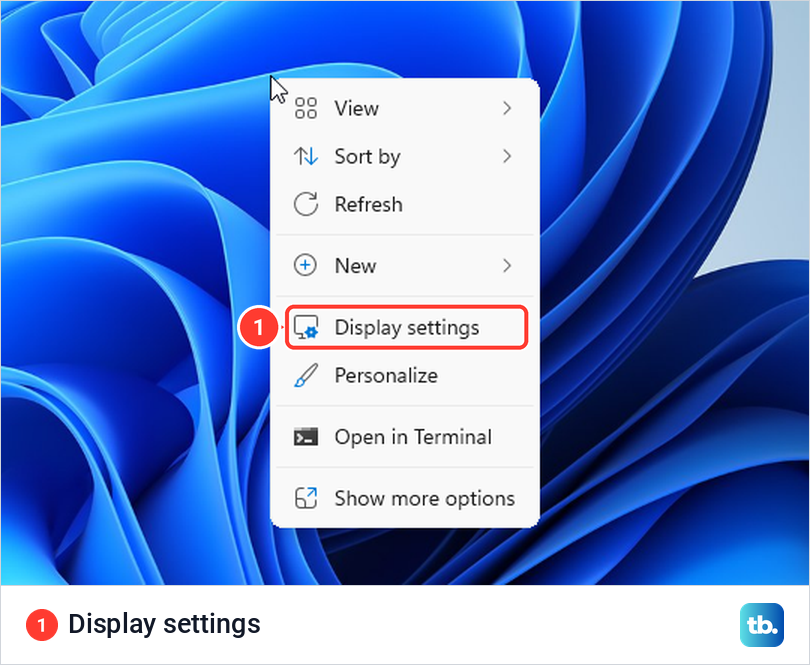
Display settings is the method Windows itself provides, and Intel and AMD point to it in their own support pages. Right-click an empty part of the desktop and select Display settings. On our PC that opened Settings straight on System > Display, so there was no need to pick System and Display again.
Look for the Scale & layout group. Display orientation sits there below Scale and Display resolution, the controls that our guide to changing display settings in Windows walks through. On our PC it was in view without scrolling, so open the list to see the four choices.
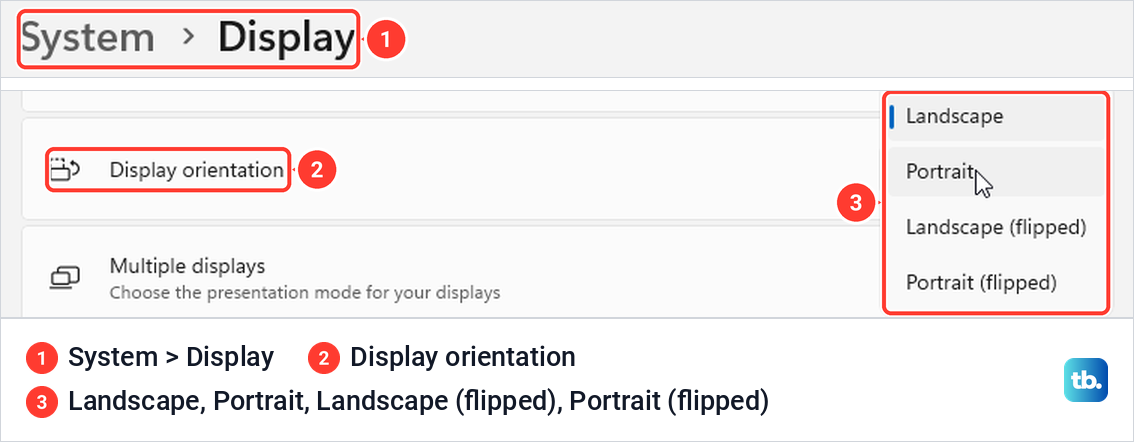
Our list read Landscape, Portrait, Landscape (flipped) and Portrait (flipped), in that order. Microsoft's page says Windows will recommend an orientation for your screen, but on our PC none of the four carried a Recommended label.
There are two other ways in. Press Windows + I to open Settings and select System, where Display was the first row on our PC. You can also type rotation in the Settings search box, which suggested Change the orientation of the display.
If nothing happens when you press Windows + I, fix the Settings app when it won't open, then come back to this step. The keyboard route from the Run box is in the section on fixing a sideways screen below.
Pick the right orientation
The four names describe the picture, not the monitor. Landscape is the normal wide view, and Landscape (flipped) is the same view turned upside down. Portrait and Portrait (flipped) turn the picture a quarter turn, one each way, for a monitor that stands on its end.
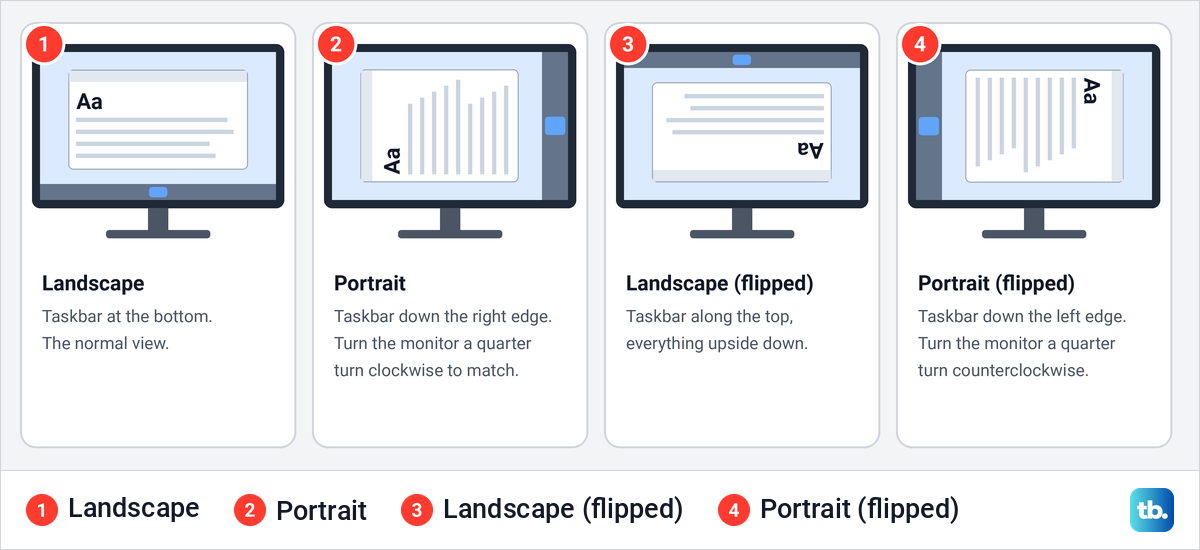
Windows only turns the picture. Microsoft says that if you change the orientation of a monitor, you'll also need to physically rotate the screen. When we chose Portrait on our unturned screen, the taskbar ran down the right-hand edge and every line of text read from bottom to top, which is what your monitor shows until you turn it.
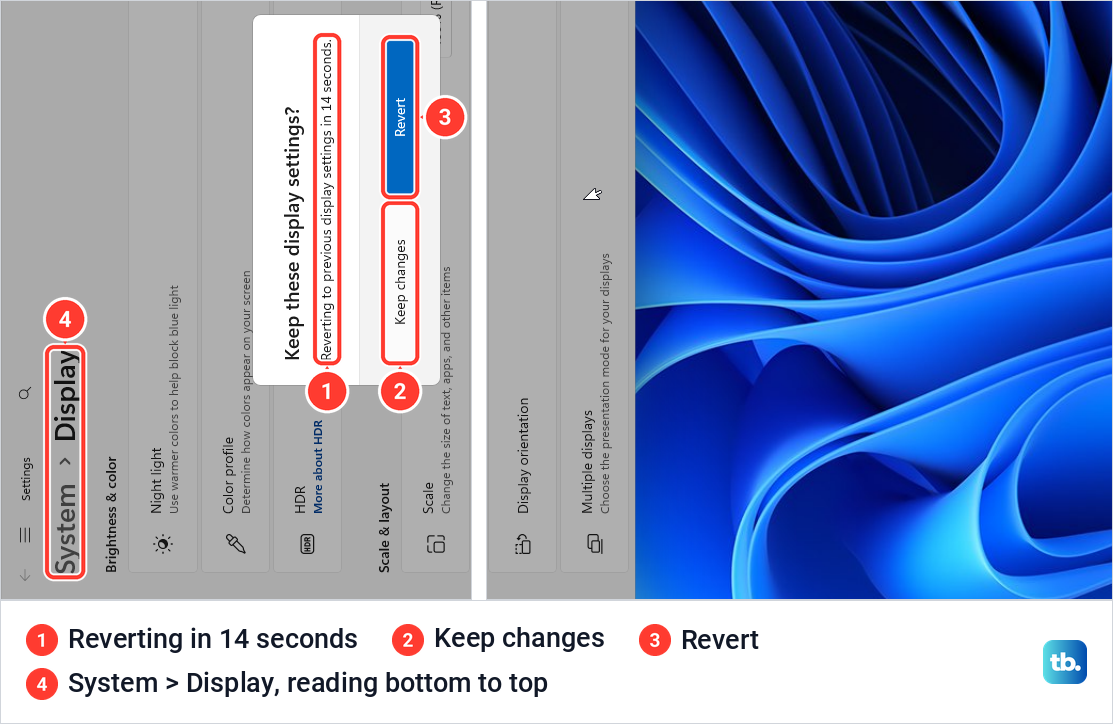
So for Portrait, turn the monitor a quarter turn clockwise, which brings that right-hand edge to the bottom. Portrait (flipped) put our taskbar on the left edge instead, so it suits a monitor turned the other way. If your stand only pivots one way, pick whichever of the two leaves the taskbar at the bottom.
Keep changes or let Windows switch back
The moment you pick an orientation, the screen turns and a box asks "Keep these display settings?" It has two buttons, Keep changes and Revert, under a line that counts down. On our PC the countdown started at 15 seconds.
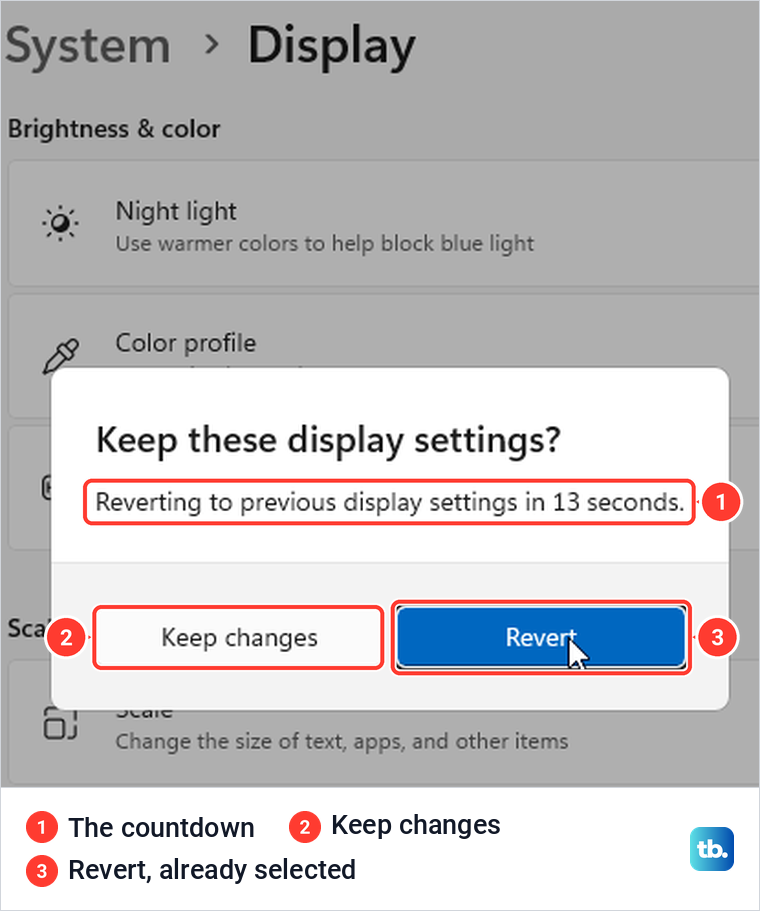
Select Keep changes to stay with the new orientation. When we left the box alone, the screen went back to its old orientation by itself as the countdown ran out, so a wrong choice undoes itself if you simply wait.
Watch the keyboard here. On our PC the box opened with Revert already selected, so pressing Enter put the old orientation back straight away, and Esc did the same. Click or tap Keep changes rather than pressing Enter out of habit.
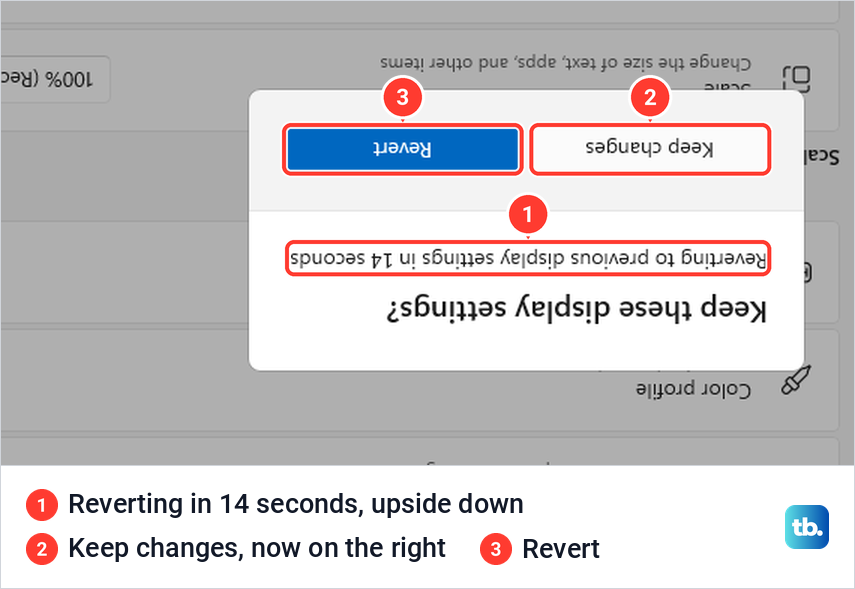
On an upside-down screen the box is upside down as well. Keep changes then appears to the right of the blue Revert button, the opposite of where it normally sits, so read the label before you click.
Fix a sideways or upside-down screen
If your screen turned after a stray key press, open the Display orientation list as above and choose Landscape. The picture is the right way up again as soon as the box appears, which makes Keep changes easy to hit with the mouse or a finger. If a tablet or 2-in-1 keeps turning as you move it, see the Rotation lock section below.
If a graphics hotkey caused it, AMD's instructions say Ctrl + Alt + Up returns to Landscape on PCs where its Display Hotkeys are switched on. On our PC the same keys did nothing, so go to Settings if they fail for you too.
Put the screen back with only the keyboard
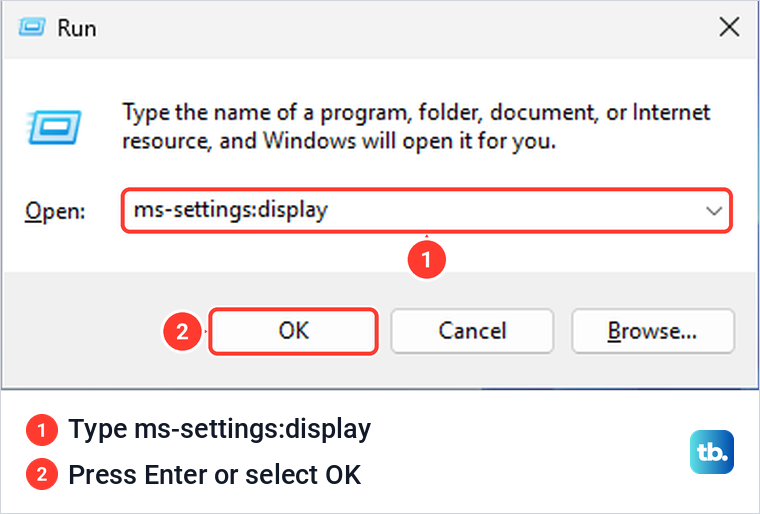
A turned screen makes the mouse hard to aim, so the keyboard is often quicker. Press Windows + R, type ms-settings:display and press Enter. On our PC that opened Settings straight on System > Display.
Press Tab until a highlighted outline, the focus ring, sits on the Display orientation list. On our turned screen it took nine presses, past the Night light, Color profile, HDR and Scale controls. Your page may have more or fewer controls, so watch for the focus ring rather than counting.
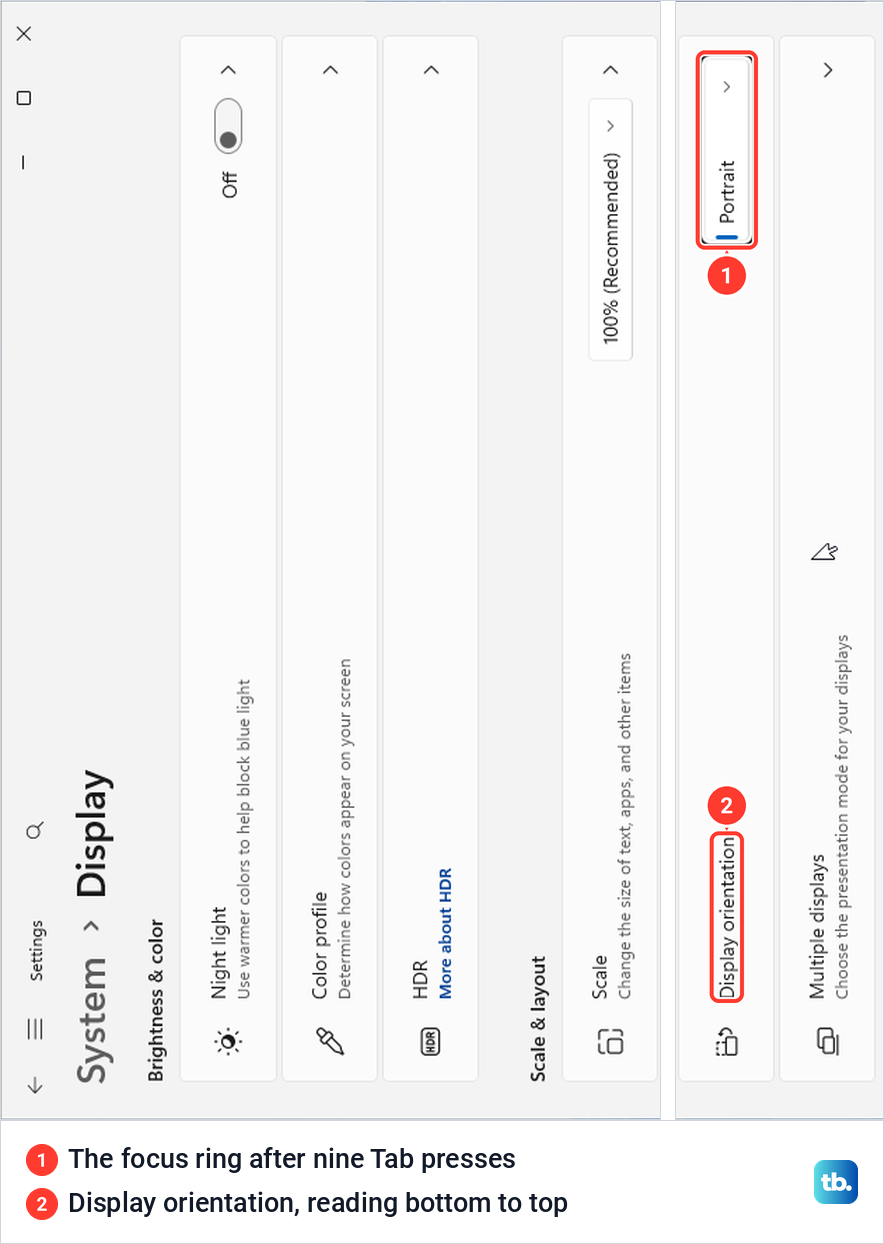
Press Alt + Down to open the list, use the arrow keys to highlight Landscape and press Enter. Our screen turned back at once, and the confirmation box appeared with Revert selected.
Now the change has to be kept, and the countdown is already running. If the mouse works, click Keep changes, because the screen is already the right way up. With only the keyboard, press Shift + Tab once to move to Keep changes, then press Enter straight away.
Speed is what matters here. On our PC, when we chose Portrait and then pressed Shift + Tab and Enter within about five seconds, the change stayed. When we pressed them after the countdown had run out, the box had already closed and the screen had turned back, so repeat the steps and press Shift + Tab and Enter as soon as the box appears.
If Windows + R does nothing either, the problem is wider than the display. Our guide to Windows keyboard shortcuts that stop working covers that case.
Why Ctrl + Alt + arrow may do nothing
Windows has no shortcut that turns the screen. Microsoft's full list of Windows keyboard shortcuts has no rotation entry, and its Ctrl + Up arrow and Ctrl + Down arrow entries move the text cursor between paragraphs. We pressed Ctrl + Alt with each of the four arrow keys on our Windows 11 PC, on the desktop and in Notepad, and the screen never moved.
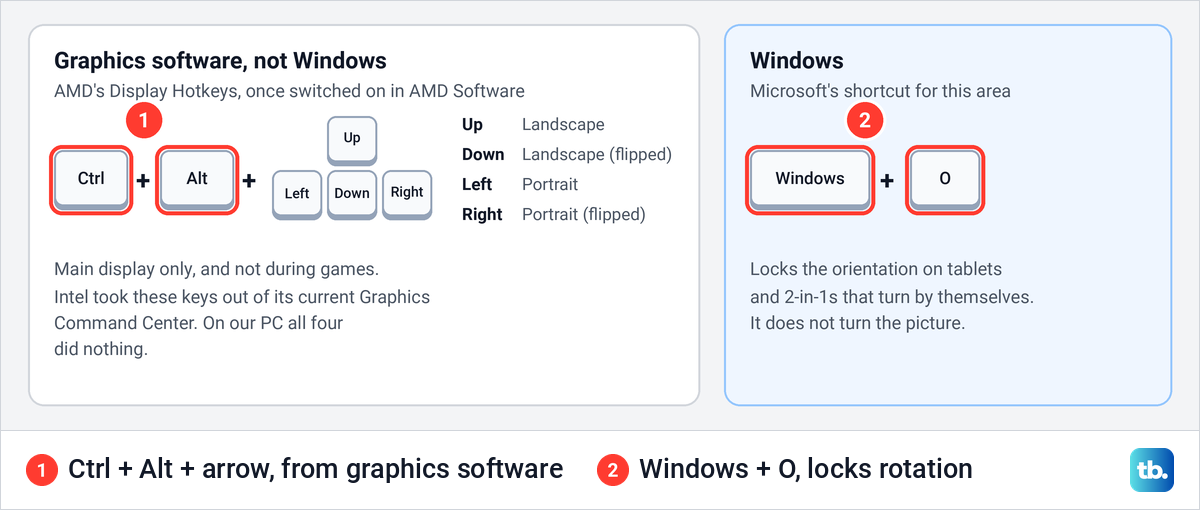
The keys come from graphics software. Intel says rotation and the rotation hotkeys have been removed from its current Intel Graphics Command Center. AMD's still work, but only after you switch on Display Hotkeys in AMD Software, only on the main display, and not during gameplay.
At least one PC maker's support page still describes Intel's older Hotkeys tab, where the rotation keys could be set to Ctrl + Alt or Ctrl + Shift. If selecting text with Ctrl + Shift + arrow turns your monitor, look for that hotkey setting in your graphics app and switch it off.
Rotate the screen from Intel, AMD or NVIDIA software
Intel's current Graphics Command Center no longer changes the orientation. Intel says to use Change screen orientation in Windows settings, or its separate Intel Graphics Command Center (Beta) app. If Intel's app is missing or misbehaving, update and fix the Intel graphics driver, though Windows settings do the job without it.
AMD's steps are to open AMD Software, type Hotkeys in its search box and open the Display Hotkeys result. Set Use Hotkeys and Use Display Hotkeys to Enabled, and Ctrl + Alt + Up gives Landscape, Down gives Landscape (flipped), Left gives Portrait and Right gives Portrait (flipped). If AMD Software is missing or out of date, start with how to update AMD drivers.
On a PC with NVIDIA graphics, NVIDIA's instructions are to open NVIDIA Control Panel and select Rotate display under Display. Its choices are No rotation (Landscape), 90 degrees to the left (Portrait), 90 degrees to the right (Inverted Portrait) and 180 degree rotation (Inverted Landscape). If you cannot find it, here is how to open NVIDIA Control Panel when it is missing.
Whichever chip your PC has, its driver matters too. Microsoft's display page says that if you see unexpected changes in your screen resolution, your graphics driver might need to be updated, and it points to Settings > Windows Update > Check for updates. To get a driver from your PC maker or the chip maker instead, see how to find and update your graphics card driver.
Rotate one monitor when you have two or more
Microsoft's instructions start one step earlier when more than one display is connected: choose the display you want to change. Select that monitor's box at the top of Display settings, and select Identify if you are not sure which is which, since Microsoft says a number then appears on each screen. Then choose its Display orientation.
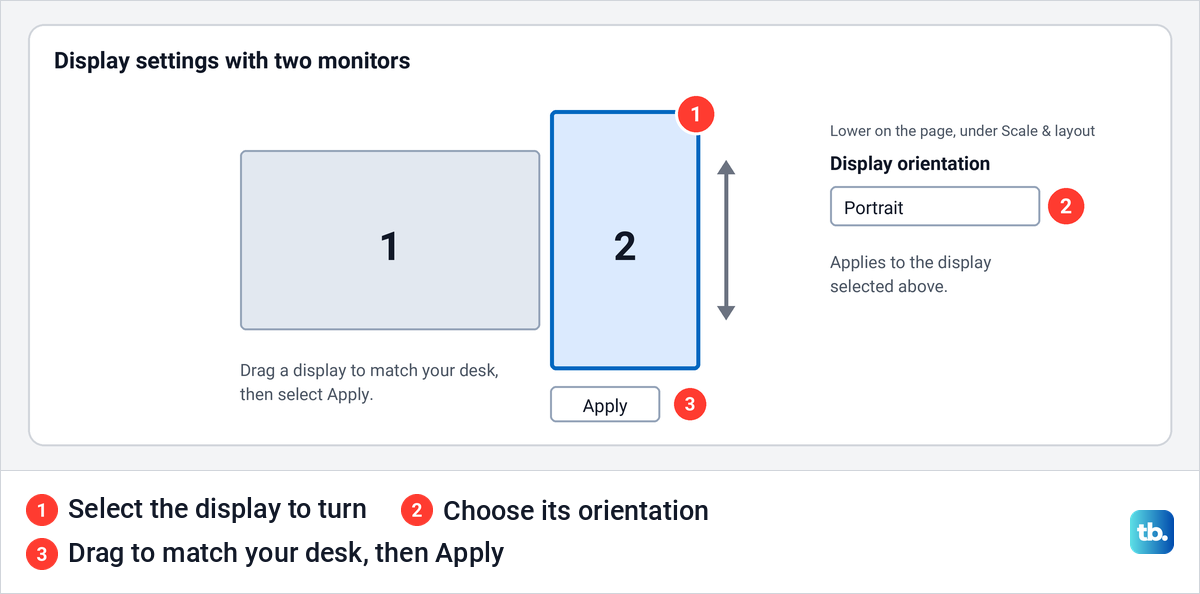
After a monitor is turned, check the layout. Microsoft's steps are to select and drag the displays to match how they sit on your desk, select Apply, then move the mouse pointer across them to test it. The rest of the layout options are in our guide to arrange multiple displays in Windows 11.
Graphics hotkeys behave differently here. Intel's and AMD's hotkeys only turn the main display, so to use them on another monitor you have to make it the main display first. If the second screen is not part of your desktop yet, first set up dual monitors on Windows to connect it, or work through our fixes for a second monitor that Windows does not detect.
Rotation lock on tablets and 2-in-1 laptops
Rotation lock belongs to devices that turn the screen by themselves when you turn them. Microsoft's testing guide for such devices says to search for Rotation Lock in Settings and turn it on, and its keyboard shortcut list gives Windows + O to lock the device orientation.
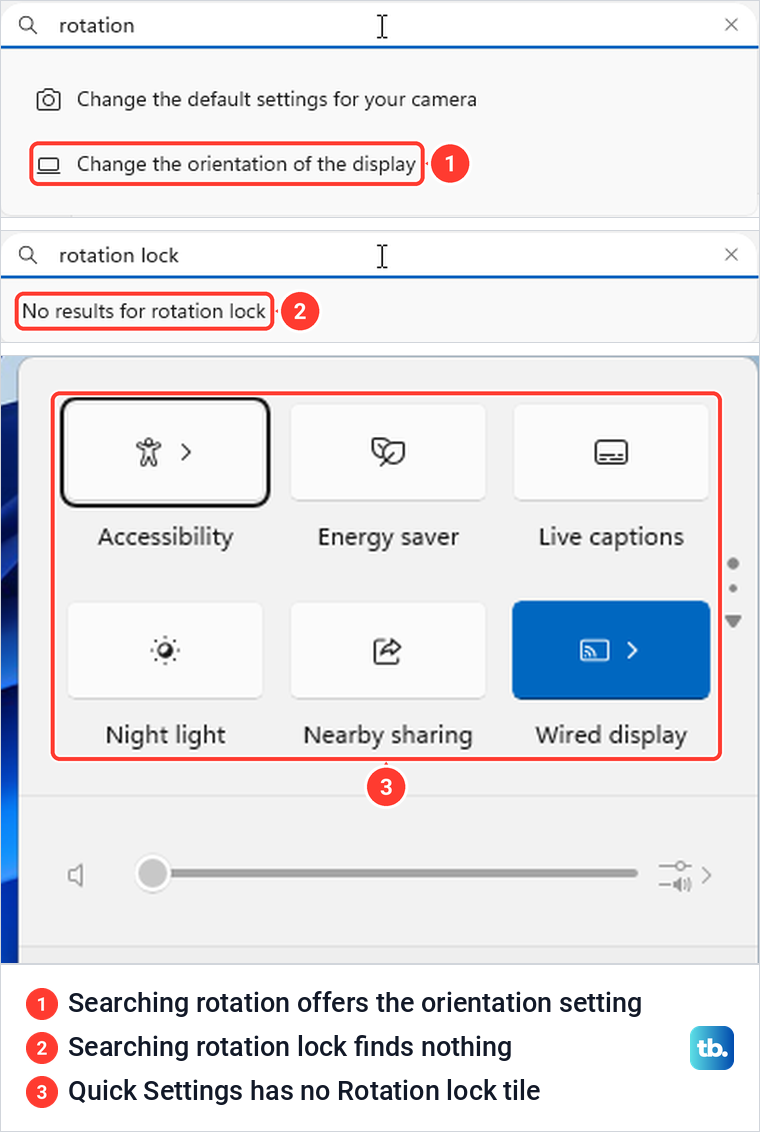
On our PC there was no Rotation lock at all. Searching Settings for rotation lock found nothing, Quick Settings had no such tile, and Windows + O did nothing visible. If your PC never turns its screen on its own, there is nothing to lock.
On a 2-in-1 the switch can be there but greyed out. An HP guide written for Windows 10 says this can mean a removable keyboard is attached or a convertible is in laptop mode, and the fix is to take the keyboard away or change the convertible to tablet mode. That fits Microsoft's description of Windows 11, which turns tablet mode on by itself when the keyboard is detached or the device is folded into a tablet.
The same HP guide puts the switch under Scale and layout in Display settings. If it is not there, HP's guide says the device does not support the feature.
Stop the screen from rotating by accident
When a screen turns without you touching Settings, check two things. If a key combination did it, switch the hotkeys off in the graphics software that owns them, which in AMD Software means turning Display Hotkeys off again.
If a tablet or 2-in-1 turns as you move it, press Windows + O or turn on Rotation lock to keep the current orientation. If the switch is greyed out, the HP advice above applies.
Rotate the screen on Windows 10
Microsoft's Windows 10 steps follow the same path. They are Start > Settings > System > Display, then choose a screen orientation from the drop-down list labelled Orientation. Windows 10 support ended on October 14, 2025, and our guide explains what the end of Windows 10 support means for your PC.
How we tested this guide
We tested this on Windows 11, version 25H2, with a single display, trying the four orientations in Display settings.
Frequently Asked Questions
Is there a keyboard shortcut to rotate the screen in Windows?
Not in Windows itself. Ctrl + Alt + arrow comes from graphics software, so it works only where graphics software has rotation hotkeys switched on, such as AMD's Display Hotkeys or older Intel graphics tools, and it did nothing on our PC. Windows + O locks the orientation on devices that turn by themselves, but it does not turn the picture.
How do I fix an upside-down screen on Windows?
Open Settings > System > Display, choose Landscape under Display orientation and select Keep changes. Without a mouse, press Windows + R, type ms-settings:display, press Enter and Tab to the Display orientation list. Then press Alt + Down, pick Landscape, press Enter and quickly press Shift + Tab and Enter to keep it before the countdown ends.
Why did my screen rotate by itself?
Two common causes are a graphics hotkey pressed by accident and a tablet or 2-in-1 turning the screen as you move it. Switch the hotkeys off in your graphics software, or lock the orientation with Windows + O or Rotation lock.
Why is Rotation lock greyed out?
An HP guide says a greyed-out Rotation lock can mean a removable keyboard is attached or a convertible is in laptop mode, so detach the keyboard or switch to tablet mode. On our PC, which never turns its screen by itself, there was no Rotation lock at all.
How do I rotate only one monitor?
Select that monitor at the top of Display settings, using Identify if you are not sure which number is which, then change its Display orientation. Intel's and AMD's hotkeys only turn the main display.
How do I put my monitor in portrait mode?
Turn the monitor on its stand, then choose Portrait or Portrait (flipped), whichever leaves the taskbar at the bottom. Microsoft says you also need to physically rotate the screen, because the setting only turns the picture.
Where is the rotate option in Windows 10?
Open Start > Settings > System > Display and use the orientation drop-down list, which Microsoft's steps call Orientation. Microsoft says support for Windows 10 ended on October 14, 2025.