

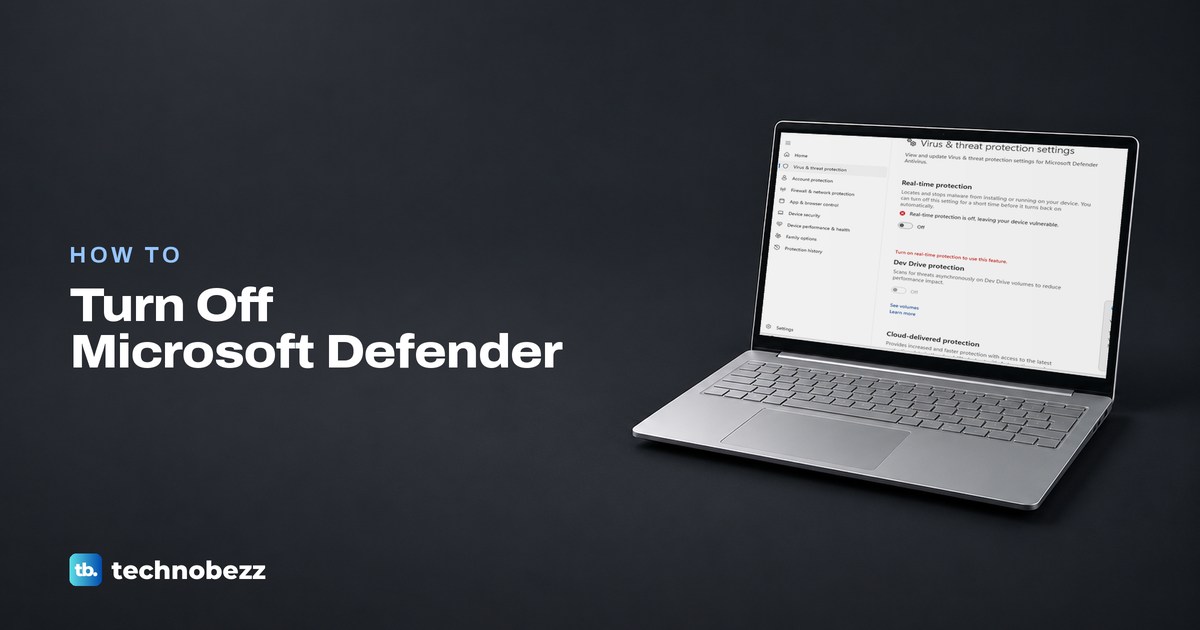
To turn off Microsoft Defender (Windows Defender) for a while, open Windows Security, select Virus & threat protection, select Manage settings under Virus & threat protection settings, and switch Real-time protection to Off. Select Yes when Windows asks for permission. Microsoft says it turns back on by itself after a short while, but on our PC it was still off an hour later, so switch it back on yourself when you are done.
If Defender is blocking one file or program you trust, an exclusion is the safer, lasting fix, and a file it quarantined can be restored from Protection history. If you want Defender off for good, install and turn on a compatible antivirus that registers with Windows Security, and Windows turns Defender off by itself. We switched real-time protection, cloud-delivered protection and Tamper Protection off and on in Windows Security on Windows 11, version 25H2, and timed how long real-time protection stayed off.
The short version
- Turn it off for a while: Windows Security > Virus & threat protection > Manage settings > Real-time protection Off, then Yes.
- Shortcut: press Windows + R, type windowsdefender://threatsettings and press Enter to land on the switch.
- Do not wait for it to come back: Microsoft says after a short while, but on our PC it was still off after 65 minutes.
- Leave Tamper Protection on: the real-time switch moved without turning it off.
- One blocked file: add an exclusion, or restore it from Protection history.
- Off for good: install and turn on a compatible antivirus that registers with Windows Security, and Windows turns Defender off by itself.
Which Defender setting to change
Most people who want Defender off really want one thing to stop being blocked. Pick the row that matches your job, because the narrower setting keeps the rest of the PC protected.
| What you want | Where to go in Windows Security | What you give up |
|---|---|---|
| Pause all scanning while you install something you trust | Virus & threat protection > Manage settings > Real-time protection | Files you open or download are not scanned while it is off |
| Stop Defender flagging one file or folder | Manage settings > Exclusions > Add or remove exclusions | Only that item goes unscanned, until you remove the exclusion |
| Get back a file Defender quarantined | Protection history > the item > Actions > Restore | That one file is back on your PC |
| Open an app stopped by a "Windows protected your PC" warning | More info > Run anyway on the warning itself | One SmartScreen warning skipped for that app |
| Keep Defender off for good | Install and turn on a compatible antivirus that registers with Windows Security | Protection moves to that product until it expires or is removed |
| Change it on a work or school PC | Ask your IT department | Their policy decides what you can switch |
Turn off real-time protection in Windows Security
Press Windows, type Security and open Windows Security, which was the best match on our PC. It opens on Security at a glance. Select Virus & threat protection in the left menu, then Manage settings under the heading Virus & threat protection settings.
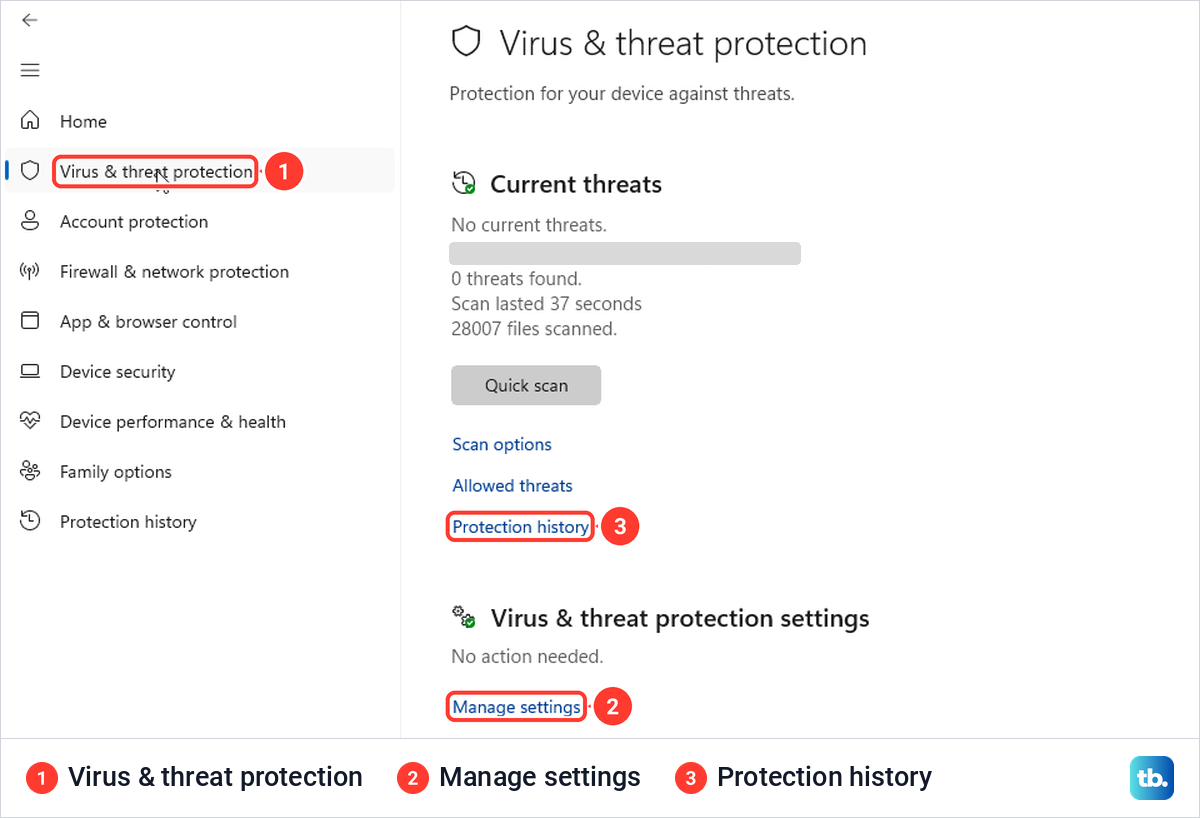
Settings leads to the same app. Open Settings > Privacy & security > Windows Security and select Open Windows Security. If nothing happens when you click it, follow our fixes for when Windows Security will not open.
Real-time protection is the first switch on Manage settings, and like every switch there it was on by default on our PC. Click it, and a User Account Control window asks "Do you want to allow this app to make changes to your device?" for Windows Security, so select Yes. The switch then reads Off with the warning "Real-time protection is off, leaving your device vulnerable".
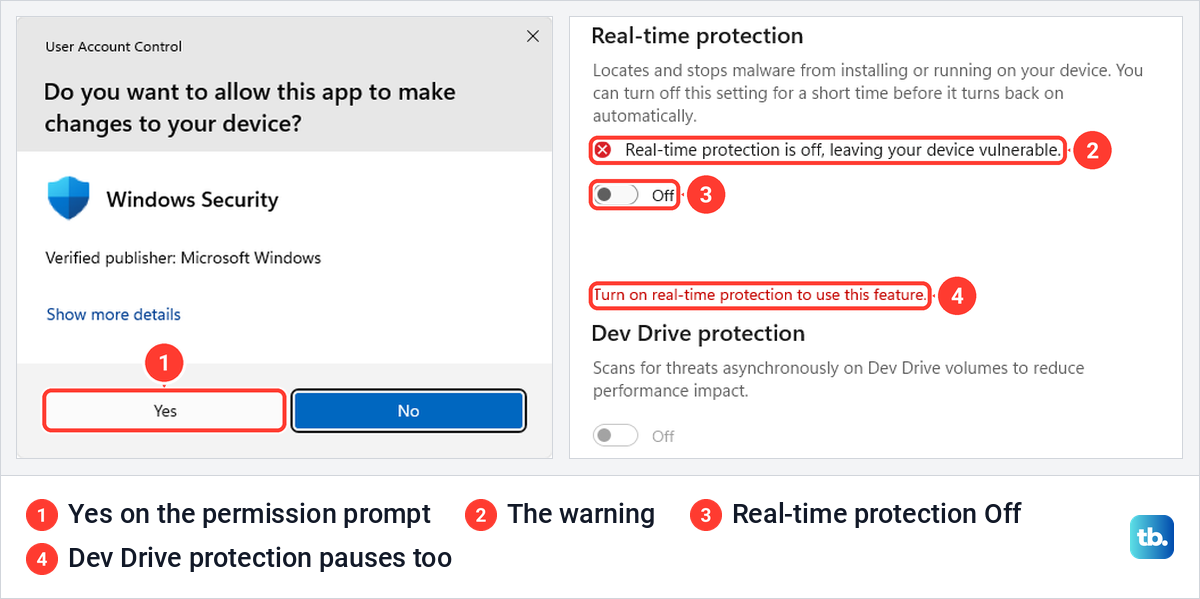
Dev Drive protection switched off with it and greyed out, with the note "Turn on real-time protection to use this feature". Controlled folder access showed a similar note further down the page.
There is a quicker way to the switch. Press Windows + R, type windowsdefender://threatsettings and press Enter. On our PC that opened Windows Security straight on Manage settings, with the keyboard focus already on the Real-time protection switch.
What Windows shows while it is off
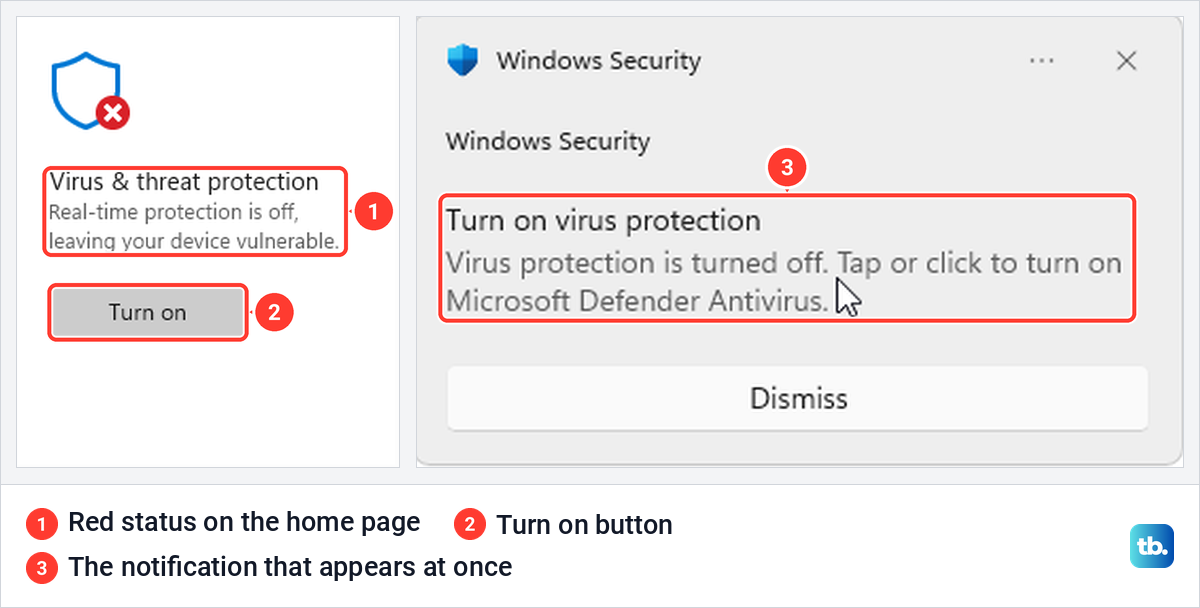
A notification appeared the moment we selected Yes, headed "Turn on virus protection" and saying "Virus protection is turned off". On the home page the Virus & threat protection tile turned red with a Turn on button, and the Windows Security shield in the taskbar's hidden icons gained a red cross.
How long real-time protection stays off
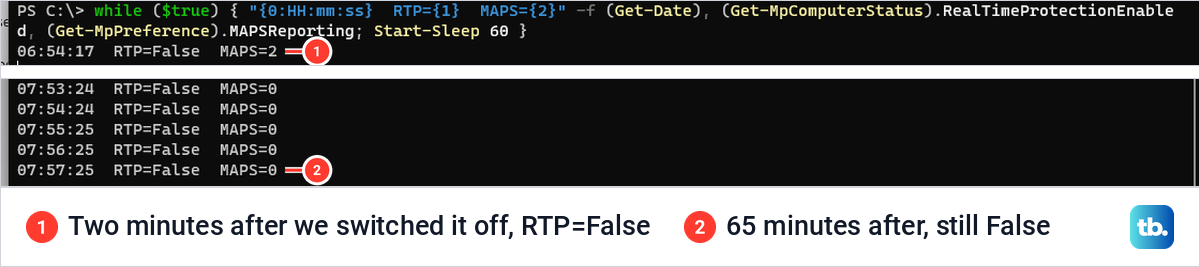
Microsoft says real-time protection turns back on automatically after a short while, and it gives no time. On our PC it was still off after 65 minutes. We left Terminal reading the status once a minute from two minutes after the switch-off, and every line read False. Defender's own event log showed the switch-off and nothing turning it back on.
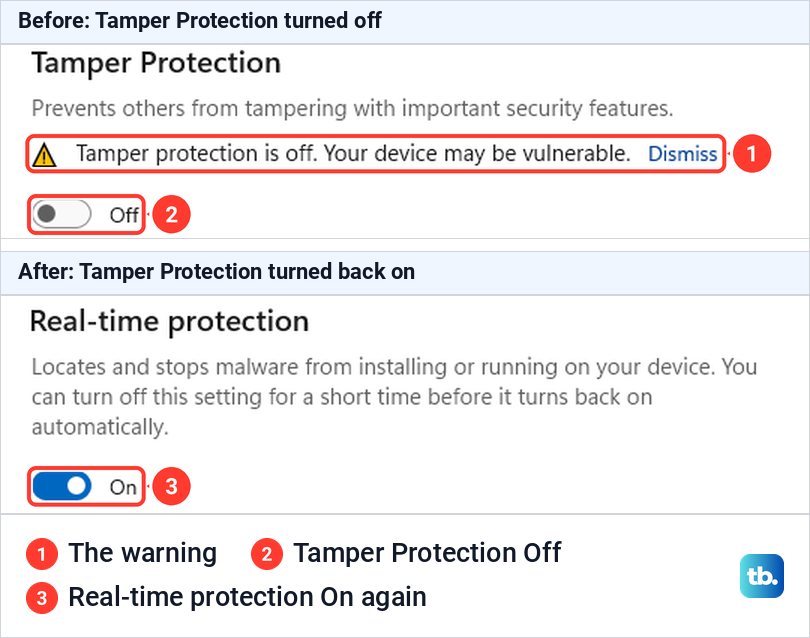
What did bring it back was Tamper Protection. When we switched Tamper Protection off and then on again, real-time protection came back on with it. Turning Tamper Protection off asked for permission and showed the warning "Tamper protection is off", while turning it back on asked for nothing.
One hour on one PC is not a rule, but it is a good reason not to rely on the timer. Microsoft's pages on the switch only say "after a short while" and do not mention a restart. Turn Real-time protection back on yourself as soon as the install or file copy is done. Microsoft says scheduled scans keep running while it is off.
Browsing while protection is off is a real risk. Microsoft says files you open or download are not scanned, and anything downloaded or installed waits until the next scheduled scan. Be wary of anyone who asks you to switch protection off, because fake Microsoft virus alert pop-ups often do exactly that.
Do you need to turn off Tamper Protection first
No. Many guides, and one line on Microsoft's own support page, say Tamper Protection must be off before real-time protection will switch off. The same Microsoft page also says an administrator can still change these settings in Windows Security while Tamper Protection is on, and only other apps are blocked. On our PC real-time protection switched off with Tamper Protection on, and it stayed off when we left the page and came back.
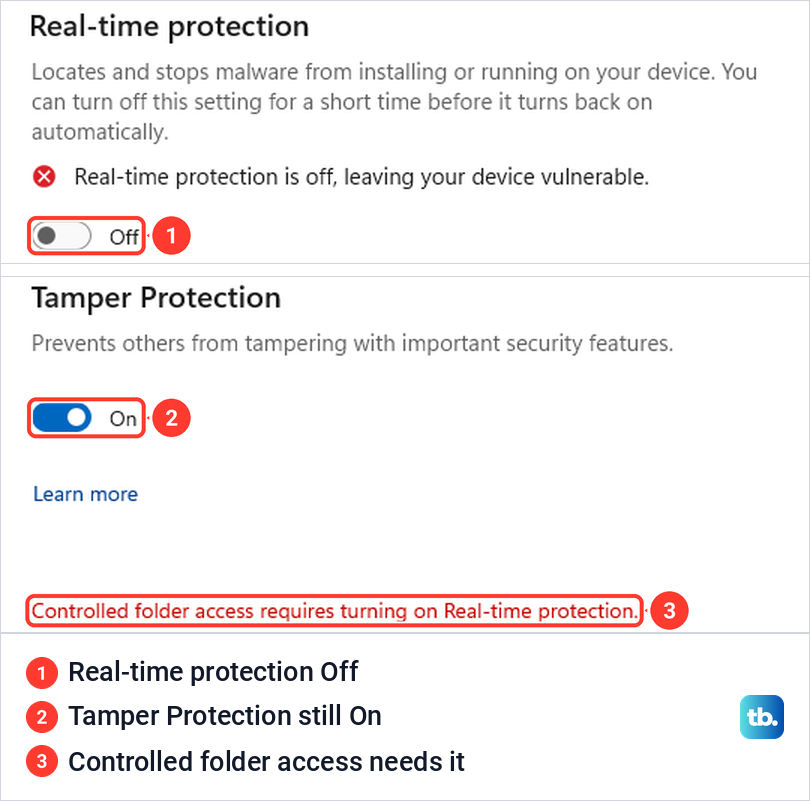
Tamper Protection stops other programs, scripts and policies from changing Defender's settings, and Microsoft turns it on by default for home PCs. Microsoft says changes made through the registry, PowerShell or Group Policy are blocked or ignored while it is on. We saw that ourselves, because a PowerShell command meant to turn real-time protection off ran without an error and changed nothing.
So leave Tamper Protection on. If the Real-time protection switch is greyed out, the reasons Microsoft gives are a work or school policy that manages the setting, or an account without administrator rights.
Cloud-delivered protection and sample submission
Cloud-delivered protection is the switch below real-time protection. Windows describes it as faster protection with access to the latest protection data in the cloud, and Microsoft says it powers block at first sight, which blocks new malware within seconds. It is on by default, and Microsoft recommends keeping it on.
Turning it off does not pause scanning, so it rarely helps with a blocked file. On our PC it asked for permission like the other switches, showed "Cloud-delivered protection is off", and left Automatic sample submission on.
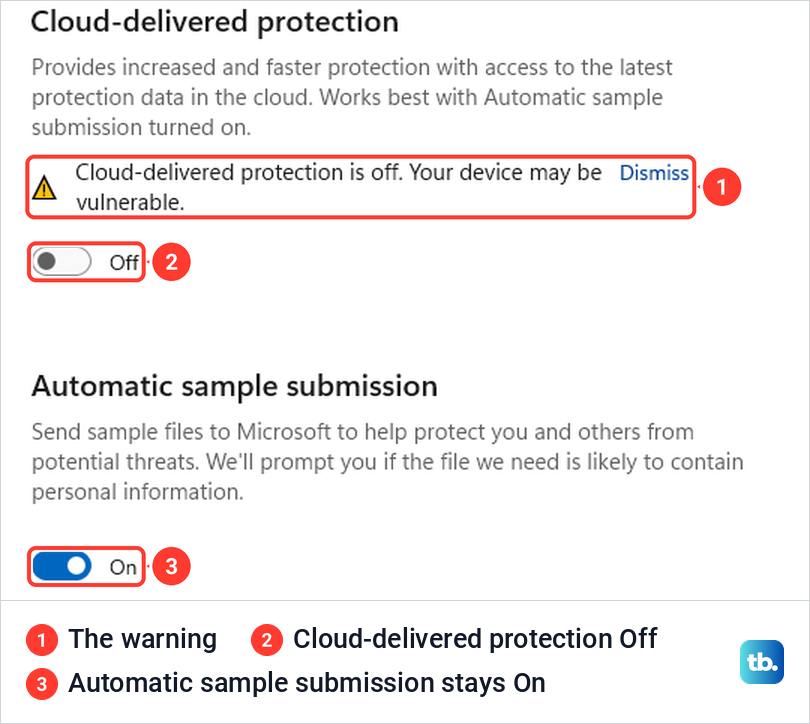
It did not come back by itself. It stayed off for the hour we watched, and it was still off after we switched Tamper Protection off and on again, although Microsoft's documentation says turning Tamper Protection on also turns cloud-delivered protection on. Check this switch yourself whenever you have changed Defender's settings.
Automatic sample submission sends suspicious files to Microsoft for a closer look, and the setting says Windows will prompt you if a file it needs is likely to contain personal information. Defender's security intelligence arrives through Windows Update, so check for and install Windows updates if Windows Security says protection is out of date. You can also select Protection updates > Check for updates on the Virus & threat protection page.
Let one file or folder through with an exclusion
Microsoft's own support page advises excluding the file or folder instead, because that is safer than turning the whole antivirus off. An exclusion lasts until you remove it, and everything else stays protected.
Open Manage settings, scroll to Exclusions at the bottom and select Add or remove exclusions, then Yes on the permission prompt. Select Add an exclusion and pick one of the four types it offered on our PC: File, Folder, File type or Process.
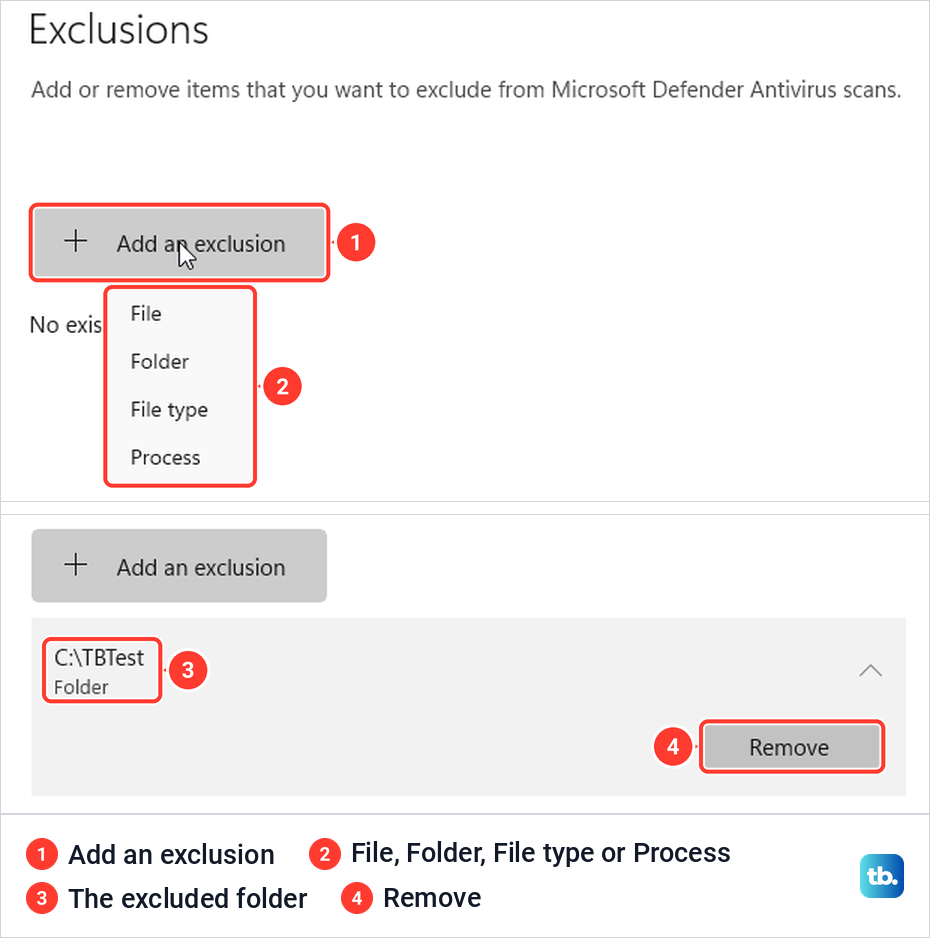
We chose Folder and picked our folder in the Select Folder window, and it appeared in the list with Folder under its path. Tamper Protection was on the whole time and did not get in the way. To undo it, select the entry and then Remove.
Microsoft describes the types this way. File and Folder exclude one file, or a folder and everything in it, and File type excludes every file with an extension such as .pdf. Process excludes the files a program opens, but only from real-time scanning.
The exclusion really does stop scans. We put a harmless antivirus test file in the excluded folder, and Defender ignored it when it was saved and when we scanned the folder. Once we removed the exclusion, the same scan caught it at once and Windows showed "Threats found".
Keep exclusions narrow, and use the full path to the file rather than a bare file name. Microsoft's list of places never to exclude includes the whole C: drive, C:\Users, Temp folders and the program folders of installed apps. Remove the exclusion when you no longer need it.
Get back a file Defender removed
If Defender has already quarantined a file you need, the way back is Protection history in the left menu of Windows Security. Microsoft says it keeps events for two weeks, and you need administrator rights to see the details.
On our PC the item showed as "Threat quarantined", marked Severe. Expanding it asked for permission, then showed what was detected, its status and the affected file, with an Actions button. Actions offered two choices, Restore and Remove.
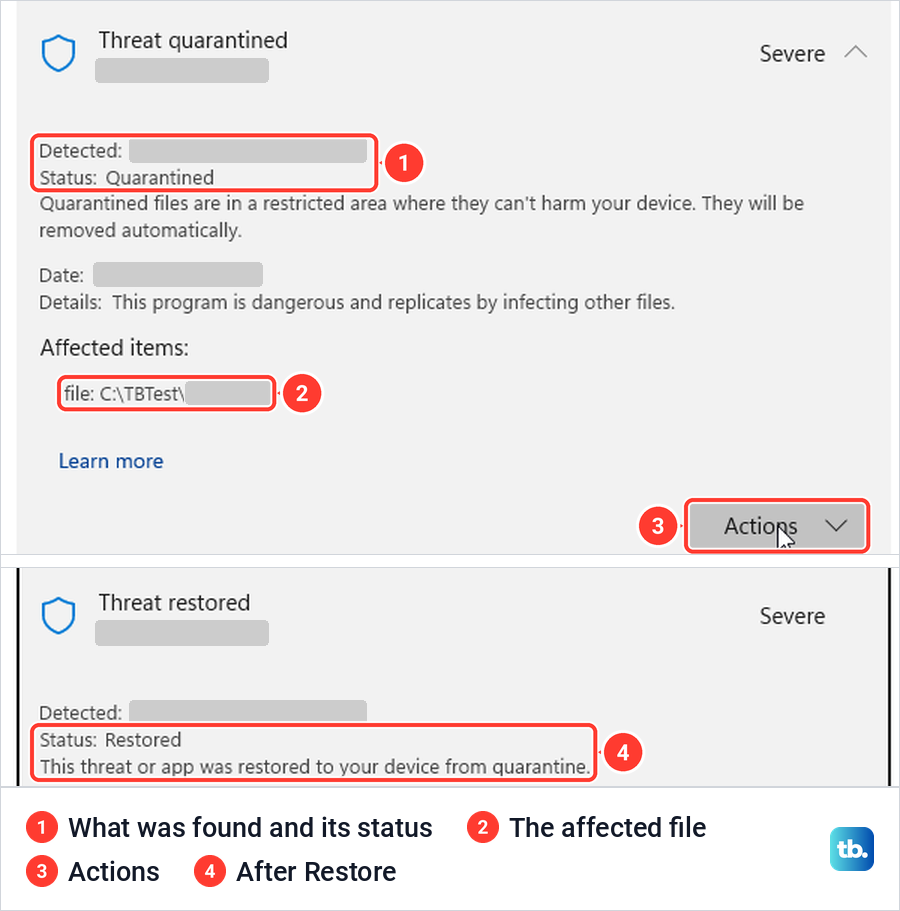
Microsoft says Restore puts the file back where Defender detects it again, as a new "Threat found, action needed" item where you choose Allow on device. On our PC that did not happen. After Restore the card changed to "Threat restored" with no Actions left, a new scan did not flag the file, and Allowed threats still said "No threats".
So after Restore, Defender may not flag that file again. Only restore a file you are sure is safe, and add an exclusion for it if Defender flags it again. If you are not sure, leave it in quarantine and check your PC for viruses first.
A "Threat blocked" item works differently. Microsoft says that file has already been removed, so Allow only applies the next time Defender sees it and you need to download it again. Anything you allow is listed under Virus & threat protection > Allowed threats, where Don't allow undoes it.
When SmartScreen or Smart App Control is blocking you
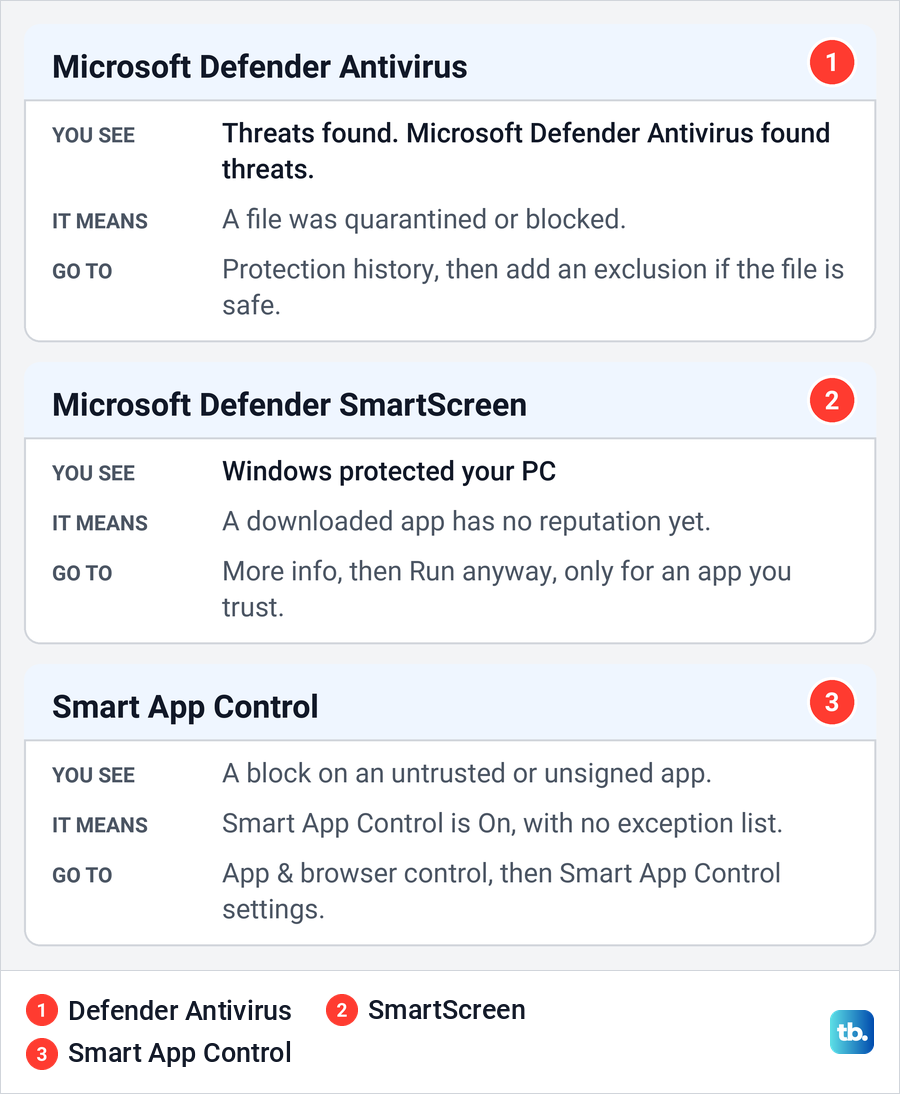
A blue "Windows protected your PC" window is not the antivirus. It is Microsoft Defender SmartScreen, which Microsoft says checks downloaded files against a list of well-known files and warns when a file has no reputation yet. Real-time protection was still off on our PC when SmartScreen stopped our test program, so the antivirus switch does not affect it.
We saw it when we opened a small unsigned program that Windows treated as downloaded from the internet. The window said "Microsoft Defender SmartScreen prevented an unrecognized app from starting", with only a Don't run button. Selecting More info added the app name, "Publisher: Unknown publisher" and a Run anyway button.
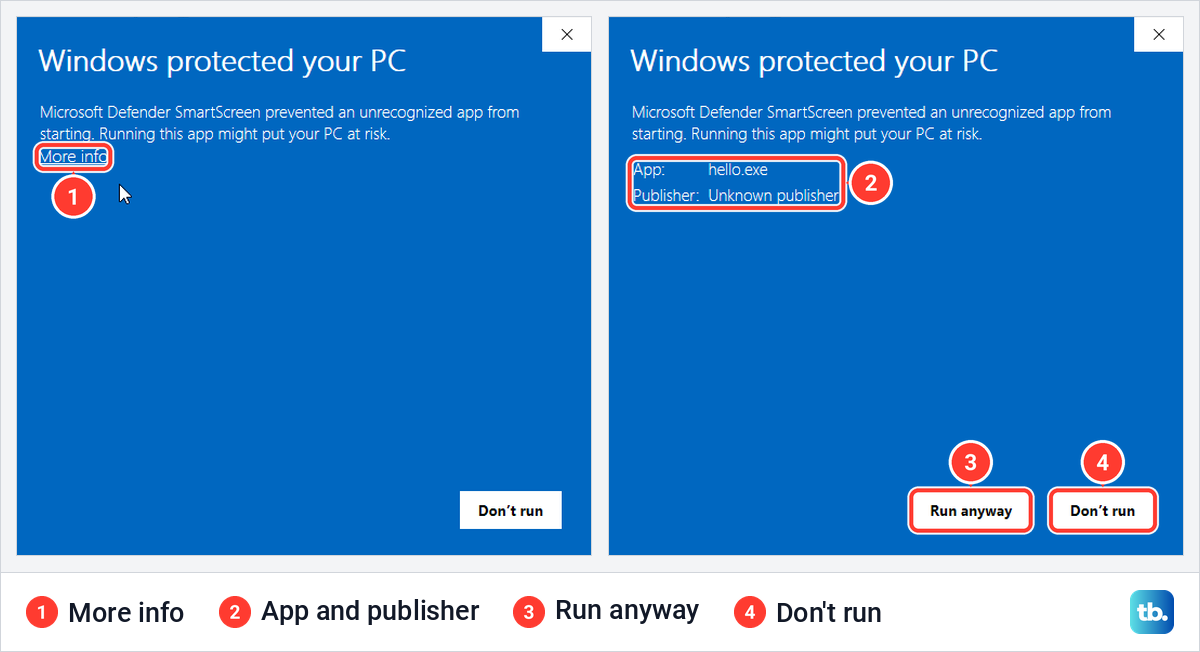
Select Run anyway only for an app from a source you trust. The file's Properties window showed why it was flagged, "This file came from another computer and might be blocked to help protect this computer", with an Unblock box beside it.
The switches live in App & browser control > Reputation-based protection settings, where Check apps and files was on by default on our PC. In Microsoft Edge the matching switch is Protect from harmful sites and downloads, under Settings > Privacy, search, and services > Security. Run anyway for one app is safer than switching either of them off.
Smart App Control is a third blocker. Microsoft says it blocks apps that are unsigned or carry an invalid signature, and there is no way to make an exception for one app. Its settings page under App & browser control offers On, Evaluation and Off. Ours was in Evaluation, and it was SmartScreen, not Smart App Control, that stopped our test program.
Microsoft's preferred route is to ask the app's developer for a copy signed with a valid signature. To run the blocked copy itself, you have to turn off Smart App Control for the whole PC. Microsoft's App & browser control page still says turning it back on needs a reset or a reinstall, but its newer Smart App Control FAQ says recent Windows updates allow it to be turned back on without one.
Install another antivirus to keep Defender off
Windows Security has no switch that keeps Defender off for good. Microsoft says that if another antivirus app is installed and turned on, Microsoft Defender Antivirus turns off automatically, and if you uninstall that app, Defender turns back on automatically. That is the only permanent route Microsoft documents.
Microsoft's technical pages call this disabled mode, which happens by itself on Windows 10 and 11. With Smart App Control on or in evaluation, Defender may go into passive mode instead. Microsoft says Defender can also turn back on automatically if the other product expires or stops providing real-time protection, so after a subscription lapses, check Security providers, below, to see what is protecting the PC.
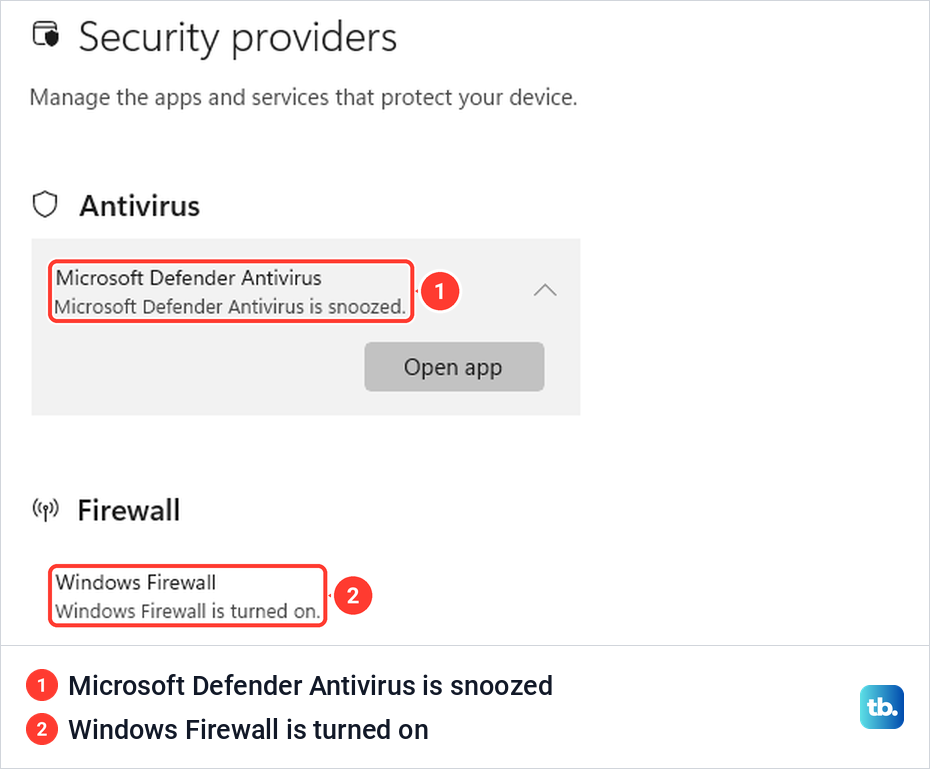
To see which product is in charge, open Windows Security and select Settings at the bottom left, then Manage providers. The same link sits under Who's protecting me? on the Virus & threat protection page. While real-time protection was off on our PC, the Antivirus card read "Microsoft Defender Antivirus is snoozed".
With another antivirus in charge, Microsoft says Windows Security shows that product on the Virus & threat protection page and offers Microsoft Defender Antivirus options. There, limited periodic scanning lets Defender scan now and then as a second opinion.
Do not disable the Windows Security app itself. Microsoft warns that doing so can show stale information and can stop Defender switching back on after you remove the other antivirus. The old tricks are retired too, because Microsoft lists the Turn off Microsoft Defender Antivirus policy as not used and says it has removed the DisableAntiSpyware and DisableAntivirus registry keys.
Check whether Defender is really off
The quickest check is the Virus & threat protection tile on the Windows Security home page, which turns red while protection is off. For a definite answer, Microsoft gives a PowerShell command that reports both switches. Open Terminal on Windows by pressing Windows + X and choosing Terminal (Admin), then run this.
Get-MpComputerStatus | Select-Object RealTimeProtectionEnabled, IsTamperProtectedTrue means the setting is on and False means it is off. While real-time protection was off on our PC, it returned RealTimeProtectionEnabled False and IsTamperProtected True. The command only reads the settings and changes nothing.
Turn Microsoft Defender back on
Open Manage settings again, or use the windowsdefender://threatsettings shortcut, and switch Real-time protection to On. If you turned off Cloud-delivered protection or Tamper Protection, switch those on as well. On our PC cloud-delivered protection was still off an hour later. Then remove any exclusion you no longer need.
If something may have got in while protection was off, run a Microsoft Defender Offline scan, which checks the PC before Windows loads. If Defender stays off because another antivirus is installed, here is how to uninstall programs in Windows 11, and Microsoft says Defender turns back on once that antivirus is gone. For the opposite problem, see what to do when Microsoft Defender keeps turning off.
What is different on Windows 10
Windows 10 uses the same Windows Security app with a different way in. Microsoft's route is Start > Settings > Update & Security > Windows Security > Virus & threat protection, then Manage settings under Virus & threat protection settings. In older versions of Windows 10 there is no Manage settings link, so select Virus & threat protection settings instead.
Older versions also call the app Windows Defender Security Center. Smart App Control, phishing protection and Dev Drive protection do not exist on Windows 10, and Microsoft says Windows 10 in S mode shows fewer options. If you are not sure which system you run, check which version of Windows you have first.
Microsoft ended standard support for Windows 10 on October 14, 2025, and only PCs enrolled in its Extended Security Updates program get critical and important security updates after that, for as long as the enrolment lasts. Microsoft says home users could enrol for one year, and Defender's security intelligence updates for Windows 10 continue through October 2028. Our guide to Windows 10 end of life covers your options.
Work and school PCs
On a PC your work or school manages, the switches may be greyed out or missing. Microsoft says settings deployed with Group Policy are greyed out and cannot be changed on the PC, and that a policy beats whatever a local administrator picks in Windows Security. Ask your IT department instead of looking for a way around it.
Administrators manage these settings centrally, and Microsoft recommends Microsoft Intune with an endpoint security Antivirus policy. With Tamper Protection on, Microsoft says Group Policy changes might appear to succeed while Tamper Protection blocks them. For a protected setting that has to be off for a while, Microsoft points administrators to troubleshooting mode in Defender for Endpoint.
Windows Firewall is a separate switch
Turning off real-time protection does not touch the firewall. With real-time protection off on our PC, Firewall & network protection still showed "Firewall is on" for the domain, private and public networks, and Security providers said "Windows Firewall is turned on".
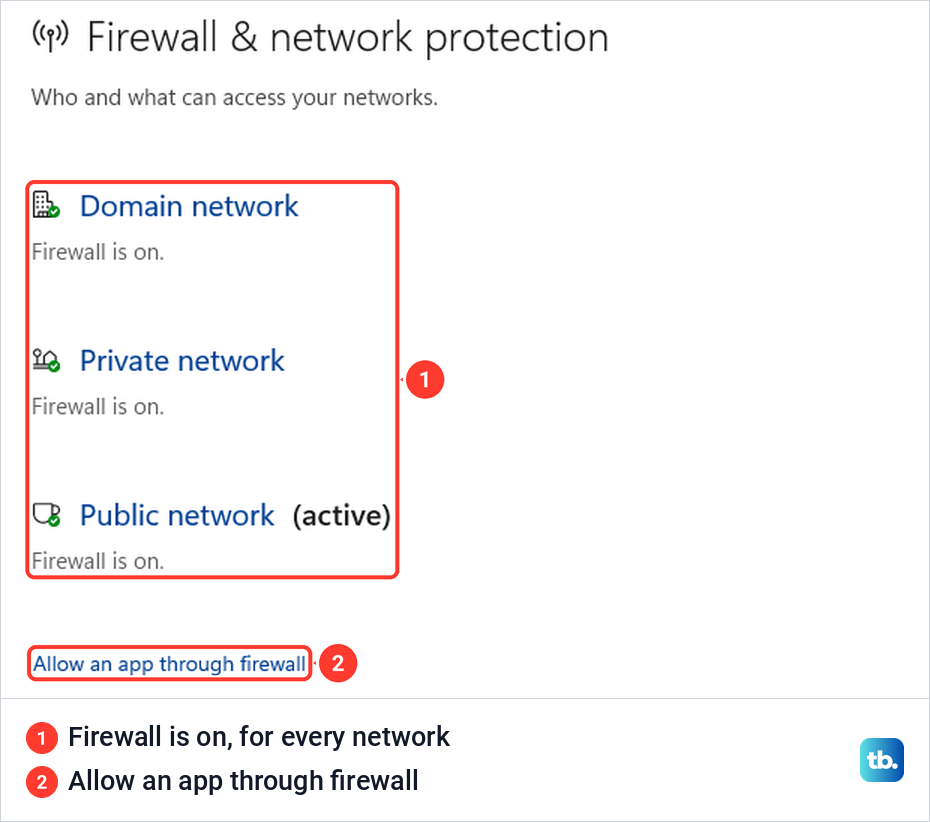
Microsoft's advice for a blocked app is to allow it through the firewall rather than turn the firewall off. On our PC Allow an app through firewall opened the Allowed apps list in Control Panel, where Change settings makes Allow another app available. If the app being blocked is your browser, here is how to allow Microsoft Edge through the firewall.
How we tested this guide
We tested this on Windows 11, version 25H2, in the Windows Security app, switching real-time protection off and back on.
Frequently Asked Questions
Can I permanently disable Windows Defender?
Not with a switch. Install and turn on a compatible antivirus that registers with Windows Security, and Microsoft says Defender turns off by itself and turns back on if you uninstall that antivirus. Microsoft lists the old Group Policy setting as not used and has removed the registry keys older guides rely on.
How long does Windows Defender stay off?
Microsoft only says real-time protection turns back on after a short while. On our PC it was still off after 65 minutes, and it came back when we turned Tamper Protection off and on again. Switch it back on yourself rather than waiting.
Why can't I turn off real-time protection?
If the switch is greyed out, Microsoft says a work or school policy manages it, or you need an administrator account. Tamper Protection did not stop it on our PC, where the switch moved with Tamper Protection on.
Do I need to turn off Tamper Protection to disable Defender?
No. In Windows Security an administrator can switch real-time protection off with Tamper Protection on, which is what happened on our PC. Tamper Protection blocks other apps, scripts and policies, so leave it on.
Is it safe to turn off Windows Defender?
Only briefly, for a file you trust. Microsoft warns that files you open or download are not scanned while it is off, so switch it back on as soon as you are done. If the real reason is a slow PC, fix Antimalware Service Executable using too much CPU instead.
How do I stop Windows Defender from deleting a file?
Restore it from Protection history if it is quarantined, then add an exclusion for the file or its folder. An exclusion stopped both real-time and on-demand scans of our test folder until we removed it.
Does turning off Defender turn off the firewall?
No. Windows Firewall is a separate switch under Firewall & network protection, and on our PC it stayed on while real-time protection was off.
Is the Microsoft Defender app the same as Windows Security?
No. Microsoft says the Microsoft Defender app comes with a Microsoft 365 Family or Personal subscription, while Windows Security is built into Windows and includes Microsoft Defender Antivirus. Windows Firewall, which Control Panel still calls Windows Defender Firewall, is a third thing, built into Windows and on by default.