The Windows 11 installer gets messy when you start with the wrong path, skip pending updates, leave hardware attached, or run into a compatibility block. Start with the method Microsoft recommends for your PC, then move to the direct installer, USB media, ISO, or repair tools only when that path fits the job. These steps cover the current Microsoft consumer options for Windows 11 2025 Update, version 25H2.
Start With Windows Update
The most common Windows 11 installer mistake is downloading a tool before checking the upgrade Microsoft offers in Windows Update.
On Windows 10, select Start > Settings > Update & Security > Windows Update > Check for updates.
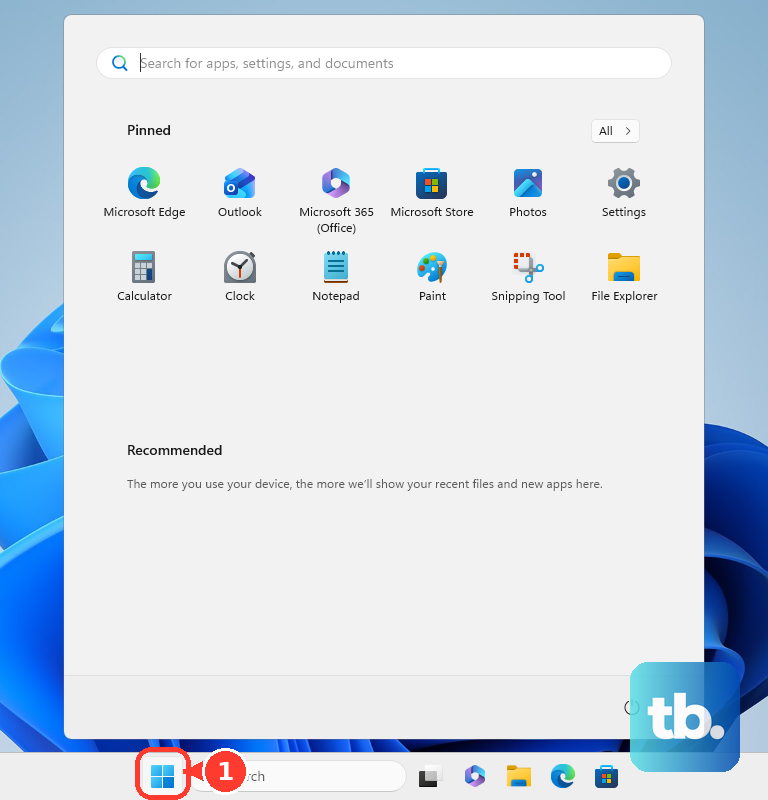
When Windows 11 appears for that PC, select Download and install.
When the software license terms appear, select Accept and install.
Keep the Windows Update page open and watch Status for download and installation progress.
Windows 10 support ended on October 14, 2025, and Microsoft still recommends moving compatible Windows 10 PCs to Windows 11 through Windows Update when the upgrade is offered.
Use The Windows 11 Installation Assistant
Open Microsoft’s Download Windows 11 page at https://www.microsoft.com/en-us/software-download/windows11.
Under Windows 11 Installation Assistant, select Download Now.
Run the downloaded app and select Run when Windows asks for confirmation.
Wait for the hardware compatibility check to finish.
Select Accept and Install.
When the assistant is ready, select Restart Now.
Use Installation Assistant for Windows 10 version 2004 or higher, or a Windows 11 x64 PC with a Windows 10 or Windows 11 license, administrator rights, 9 GB of free disk space, and Windows 11-compatible hardware.
Create A USB Installer For Another PC
This method fits a clean install, a reinstall, or a PC that needs Windows installed from removable media. It creates Windows 11 x64 installation media, so use the Arm64 ISO page for an Arm-based PC.
Go to Microsoft’s Download Windows 11 page and select Download Now under Create Windows 11 Installation Media.
Run MediaCreationTool.exe as an administrator and select Accept.
When setup asks What do you want to do?, select Create installation media for another PC, then select Next.
Choose the language, edition, and 64-bit architecture.
Select USB flash drive for a bootable USB, or select ISO file for the DVD or ISO workflow. For the USB option, use a blank USB flash drive with at least 8 GB.
To clean install from the media, attach the USB drive or insert the DVD and restart the PC. On the install screen, choose the language, time, and keyboard preferences, select Next, then select Install Windows.
Mount An ISO When Setup Is Hard To Reach
The most common ISO snag is a file association problem that keeps Windows Explorer from opening the installer cleanly.
Download the Windows 11 Disk Image (ISO) for x64 devices from Microsoft’s Download Windows 11 page.
For an Arm-based PC, use Microsoft’s Download Windows 11 for Arm-based PCs page, because the Installation Assistant and Media Creation Tool do not run or create media for Arm-based PCs.
After the ISO downloads, right-click the file and select Properties.
On General, select Change... next to Opens with:, choose Windows Explorer, then select Apply.
Right-click the ISO again and select Mount.
Open the virtual disc and double-click setup.exe.
To verify the download, open Windows PowerShell and run Get-FileHash C:\Users\user1\Downloads\<filename>.iso. Compare the SHA256 result with Microsoft’s hash table for that language and architecture.
Fix The Usual Install Errors First
Clear the quick blockers before you retry the Windows 11 installer.
Unplug nonessential hardware, including headphones, printers, scanners, speakers, USB flash drives, and external hard drives. Undock the laptop if it is connected to a docking station.
Install important updates from Start > Settings > Windows Update > Check for updates on Windows 11, or Start > Settings > Update & Security > Windows Update > Check for updates on Windows 10.
Update third-party hardware drivers from the hardware manufacturer’s website and follow the manufacturer’s installation instructions.
Uninstall non-Microsoft antivirus from Control Panel\Programs\Programs and Features, then use Windows Defender during the upgrade.
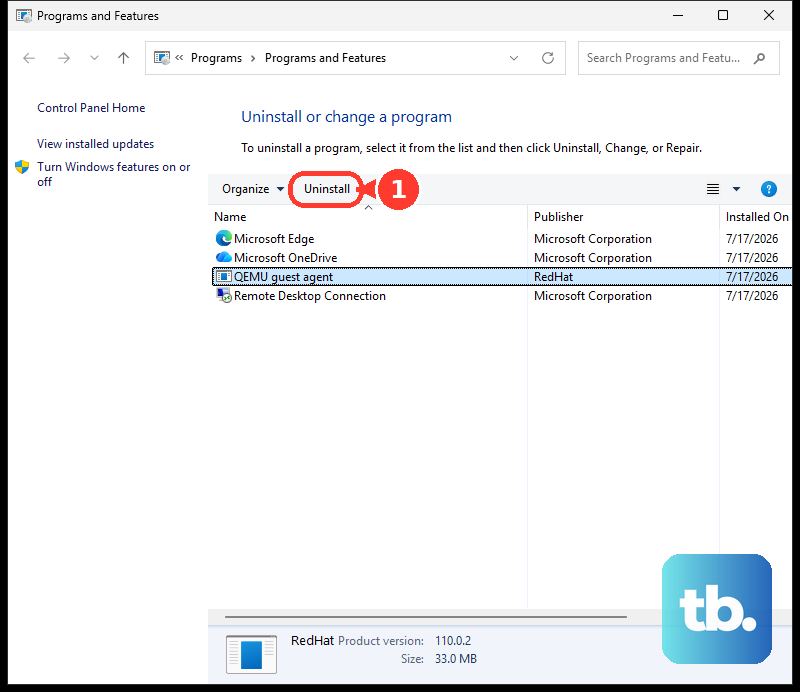
Restart the PC, keep temporary hardware disconnected, then retry the upgrade or installation.
Run The Windows Update Troubleshooter
Use this when the Windows 11 upgrade comes through Windows Update but fails, stalls, or shows an update/install error. Microsoft provides an automated troubleshooter in the Get Help app and a Settings route on Windows 11.
On a Windows 11 device, run the automated Windows Update troubleshooter in the Get Help app from Microsoft’s support link.
Let Get Help run diagnostics and apply fixes.
You can also select Start > Settings > System > Troubleshoot > Other troubleshooters.
Under Most frequent, select Run next to Windows Update.
Restart when the troubleshooter finishes.
Go to Start > Settings > Windows Update > Check for updates and install available updates before trying again.
Handle What Needs Your Attention
A What needs your attention message means Windows Setup found a compatibility block involving a driver, hardware, app, or Windows feature. Read the item on the screen before continuing.
If Windows says no action is needed, stay on the current version until Windows Update offers the upgrade.
For an incompatible app, connect to the internet, select Learn more or update instead, update the app from the provider, return to the message, then select Refresh.
For a pre-release flight signing message, select Enable only when you are joining and trust Insider builds. For a privacy-setting block, change the required privacy setting and retry the upgrade.
Repair Windows Without Starting Over
Use these repair paths when Windows still runs but installer trouble points to a damaged Windows installation.
Open Start > Settings > System > Recovery. If Fix problems using Windows Update is displayed, select Reinstall now, choose the automatic restart option, then select OK. Microsoft notes this option needs Windows 11 with the 2022 annual update (version 22H2) or later plus the February 2024 optional update or later, and that it might be unavailable on work or school PCs whose updates are managed by the organization.
Open the USB, DVD, or mounted ISO inside Windows and run setup.exe. Choose Keep personal files and apps, Keep personal files only, or Keep nothing, then select Install.
Open an elevated command prompt and run Microsoft’s system-file repair sequence with DISM first, then System File Checker, before retrying the install or update.
Use Reset PC from Start > Settings > System > Recovery. Choose Keep my files or Remove everything, then choose Cloud download or Local reinstall.
After a problematic upgrade, use Go back from Start > Settings > System > Recovery while that option is available.
Watch For Work PC Policies And Old Advice
The most common reason a work or school PC hides the normal Windows 11 installer path is update management by the organization.
Managed Windows PCs get feature updates offered, deferred, locked to a release, paused, or blocked through organization tools such as Group Policy, MDM policies, Microsoft Intune, or Windows Autopatch.
Contact your IT admin instead of bypassing those policies.
Skip guides that teach Windows 11 requirement bypasses as a fix. Microsoft’s current position is not to install Windows 11 on devices that do not meet minimum system requirements, and Microsoft recommends rolling back to Windows 10 when Windows 11 has been installed on unsupported hardware.
Ignore legacy deployment instructions that rely on /WDSDiscover or /WDSServer. Microsoft’s current Windows Setup command-line documentation says those options are no longer available starting with Windows 11, version 21H2.
Frequently Asked Questions
What is the safest way to use the Windows 11 installer?
Start with Windows Update when it offers Windows 11 on an eligible Windows 10 PC. Use Installation Assistant for a direct x64 upgrade, Media Creation Tool for USB media, and ISO for mounting, virtual machines, or Arm-based PCs.
Does the Windows 11 Installation Assistant work on Arm PCs?
No. Microsoft says the Installation Assistant and Media Creation Tool do not run or create media for Arm-based PCs. Use the Arm64 ISO download page instead.
Can I keep my files when reinstalling Windows 11?
Yes. When you run setup.exe from installation media inside Windows, Setup offers Keep personal files and apps, Keep personal files only, or Keep nothing. Reset this PC offers Keep my files or Remove everything.
What should I do when Windows 11 setup is blocked by my work PC?
Contact your IT admin. Organization policies in Group Policy, MDM, Intune, or Windows Autopatch control feature update offers, deferrals, pauses, release locks, and blocks on managed PCs.