You want to drop an emoji into a message, email, document, or browser field, but Windows does not put an obvious emoji button in every app. Windows 10 and Windows 11 already include a built-in emoji panel, and Microsoft documents the same core shortcut for both versions. Start with that shortcut, then use the app-specific controls when Outlook, Teams, or Word gives you a better path.
1. Open the Windows emoji panel first
The built-in emoji panel is the fastest route in apps and websites that accept text input.
Place the cursor in the text field where the emoji belongs.
Press Windows key + Period or Windows key + Semicolon.
Select an emoji with the mouse, choose a category tab, or type an emoji name to search.
Select the emoji to insert it.
Use this first for messages, documents, search boxes, browser fields, and email bodies. It avoids extra apps and uses the Windows picker Microsoft documents for Windows 10 and Windows 11.
2. Search faster inside the emoji keyboard
Do not scroll through the whole set unless you want to browse. After pressing Windows key + Period, type a word and select the matching emoji.
On Windows 11, the same panel includes tabs for Emoji, GIF, Kaomoji, Symbols, and Clipboard history. Pick the tab that matches what you want, then choose the item. Windows 10 supports emoji search and categories, while Microsoft documents the broader tabbed panel for Windows 11.
3. Show the taskbar emoji button in Windows 11
Open Settings.
Select Personalization.
Select Taskbar.
Set Emoji and more to Always, While Typing, or Never.
Select the Emoji and more icon in the system tray, then select an emoji.
Use this on Windows 11 builds with the Emoji and more system-tray control when you want a visible taskbar button instead of a keyboard shortcut. If that setting is not present on your PC, use Windows key + Period. That shortcut is the supported route across Windows 10 and Windows 11.
4. Add emojis from the touch keyboard
The touch keyboard gives tablets, touch PCs, and on-screen keyboard users a direct emoji button.
Tap inside the text field so the touch keyboard opens, or select the Touch keyboard icon in the system tray.
Select the emoji button on the touch keyboard.
Select the emoji to insert it.
To keep the touch keyboard icon visible in Windows 11, right-click the taskbar and select Taskbar settings. Go to Personalization > Taskbar, then under System tray icons, set Touch keyboard to Always, When no keyboard attached, or Never.
5. Insert emojis in Outlook Teams and Word
In Outlook, the Windows picker works directly inside the message body.
Click inside the Outlook message body.
Press Windows key + Period.
Select the emoji or symbol.
Select × to close the picker.
Outlook also converts known text codes such as :-). For add-ins in classic Outlook for Windows, select Home > Get Add-ins, search for Emoji, choose an add-in, and select Add. In new Outlook for Windows, select More apps > Add apps, search for the add-in, and select Add.
In Microsoft Teams, select Emoji, GIFs and Stickers on the right side of the message box. Search or browse the galleries, select the emoji, GIF, or sticker, then select Send. For a shortcode, type :, start entering the emoji name, select the suggestion, or press Enter for the top match.
In Word for the web, select Insert > Emoji. Choose one of the emojis shown, or select More Emojis for the full set. Word for the web also converts a few typed character sequences into emojis.
6. Stop automatic emoji replacements
Press Ctrl+Z immediately when Word or Outlook changes punctuation into an emoji and you only want to undo that one replacement.
To manage the setting in Word, select File > Options > Proofing > AutoCorrect Options, then adjust Replace text as you type. In Outlook, select File > Options > Mail > Editor Options > Proofing > AutoCorrect Options, then adjust Replace text as you type. To remove one punctuation replacement, type it in the Replace box, select the highlighted AutoCorrect entry, and choose Delete.
7. Navigate emojis without a mouse
Press Windows logo key + Period to open the emoji panel.
Press Tab until the tab you want is announced, such as Most recently used, Emoji, GIF, Kaomoji, Symbols, or Clipboard history.
Use Left arrow or Right arrow, then press Enter to choose a section.
Use the arrow keys to select an item, then press Enter to insert it.
Windows also supports keyboard, screen reader, and voice access routes for emoji entry. To search instead, press Tab until you reach the search field, type the emoji name, and press Enter. With Voice Access, say Show keyboard, say the number shown for the emoji button, say the number shown for the emoji, then say Hide keyboard.
8. Fix missing emoji search or GIFs
Update Windows first when the emoji panel opens but search or GIFs behave incorrectly.
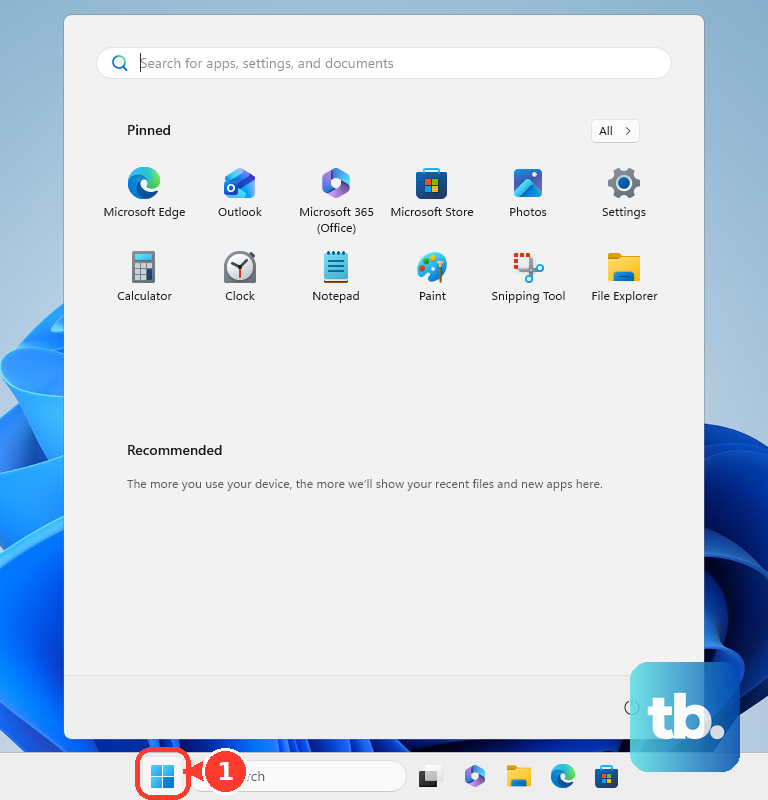
- 1.Select Start.
- 2.Open Settings.
- 3.Select Windows Update.
- 4.Select Check for Windows updates.
- 5.If updates appear, select Download & install.
- 6.Restart when Windows prompts you.
For Windows 11, Microsoft says updates released June 23, 2026 and later include GIPHY as the emoji panel GIF provider after the previous provider was retired. For Windows 10, Microsoft documents an emoji panel search issue fixed by the July 2025 non-security update KB5062649 or later. Use Windows Update for the current consumer fix.
Skip older advice about a Chrome emoji flag or a Windows Registry change for the emoji picker. Current Microsoft guidance lists Windows key + Period and Windows key + Semicolon as the supported Windows emoji panel shortcuts.
9. Check work or school restrictions
Managed PCs and managed Microsoft 365 accounts can have centrally controlled emoji settings, including the touch keyboard emoji button, Expressive Input UI updates, Outlook add-ins, Teams custom emoji, and Teams custom emoji deletion or creation.
On a personal PC, use the Windows shortcut, touch keyboard, and app pickers above. On a work or school PC with missing emoji controls, contact the IT administrator for the device or Microsoft 365 account.
Frequently Asked Questions
What is the Windows emoji keyboard shortcut?
Press Windows key + Period or Windows key + Semicolon while the cursor is in a text field, then select an emoji from the Windows emoji panel.
How do I add emoji from the Windows touch keyboard?
Open the touch keyboard from the system tray or by tapping a text field, select the emoji button, then choose the emoji you want to insert.
Can I type emoji shortcodes in Microsoft Teams?
Yes. In the Teams compose box, type :, start entering the emoji name, then select a suggestion or press Enter to insert the top match.
Why did the GIF tab stop working in the Windows 11 emoji panel?
Install Windows updates. Microsoft says Windows 11 updates released June 23, 2026 and later include GIPHY as the emoji panel GIF provider.