Looking for settings on this computer gets confusing fast because the name changes by device. A Windows PC uses Settings, a Mac uses System Settings, and a Chromebook opens settings from the time menu. Start with the shortcut for your device, then use search inside Settings to jump straight to the control you need.
1. Press the fastest Windows Settings shortcut
On Windows 11, the direct shortcut is the one to try first.
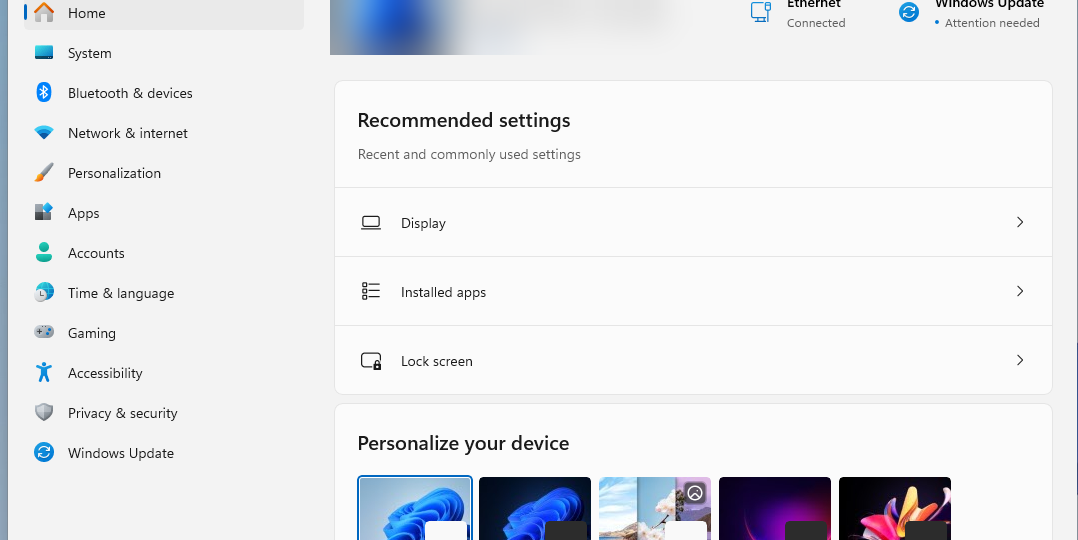
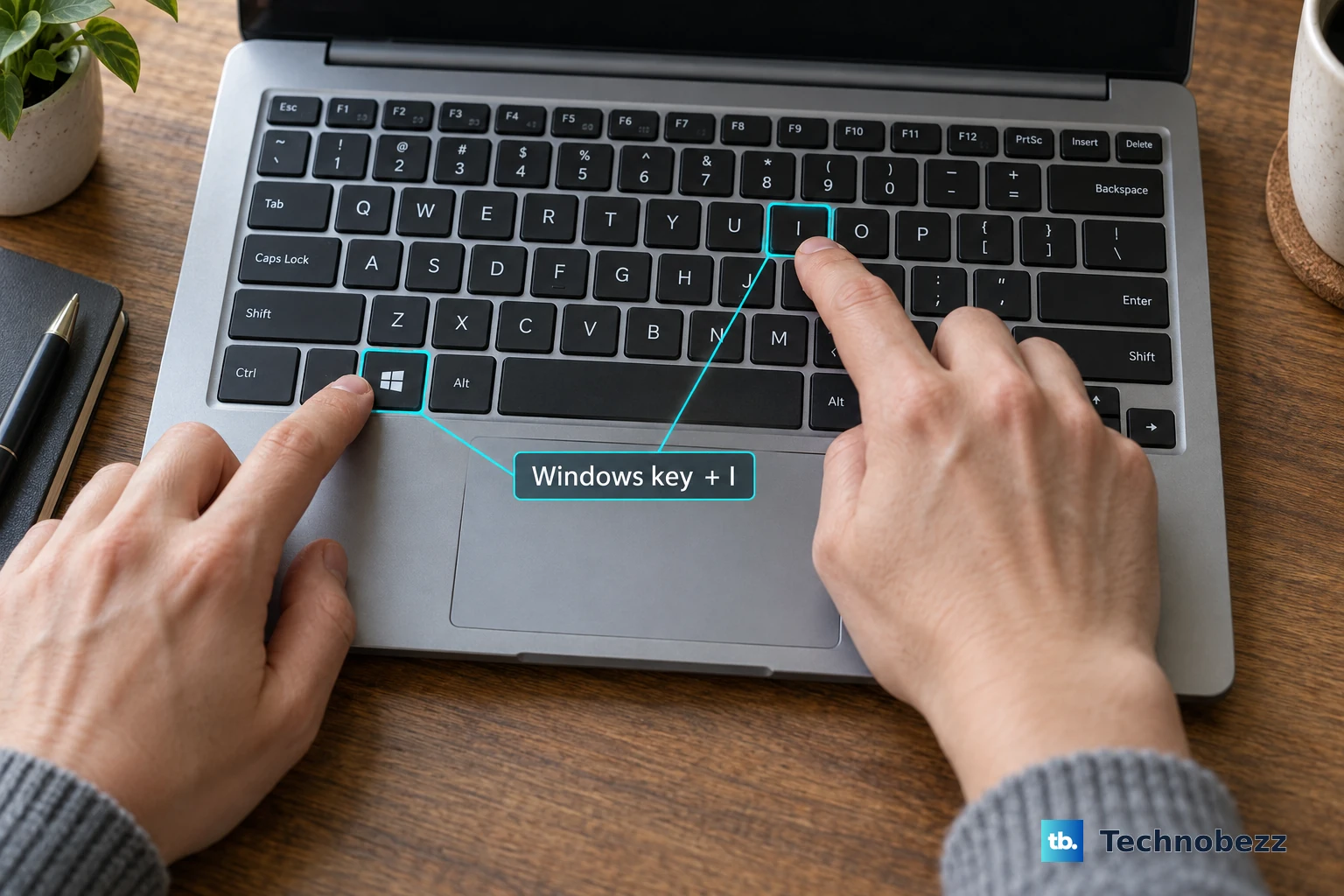
Press Windows key + I.
Select a sidebar category such as System, Bluetooth & devices, Network & internet, Personalization, Apps, Accounts, Privacy & security, or Windows Update.
If your keyboard is not handy, right-click Start, then select Settings.
You can also select Start > Settings.
2. Search when the Settings icon is missing
Select Search on the taskbar.
Type Settings.
Select Settings from the results.
Windows search is the cleanest route when you cannot see the Settings icon.
Another quick route is to press the Windows key, type Settings, then select Settings.
Once the app opens, select the search box and type a setting name such as display or notifications.
For keyboard navigation, press Ctrl + E inside Windows Settings, type the setting name, use the arrow keys to move through the results, then press Enter.
3. Jump straight to Windows pages
Some Windows controls open from the place you are already using.
To change the desktop look, right-click an empty area of the desktop, select Personalize, then select Background if you want wallpaper controls.
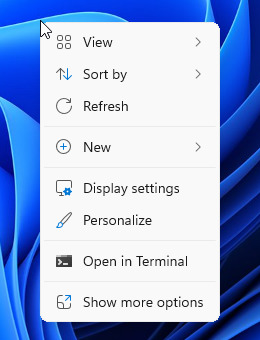
Taskbar controls work the same way: right-click the taskbar, then select Taskbar settings.
- 1.Press Windows key + R.
- 2.Type ms-settings:.
- 3.Press Enter.
The command route above opens Windows Settings directly.
If Windows 11 voice access is running, say Open Settings, Start Settings, or Show Settings.
4. Open System Settings on a Mac
Choose Apple menu > System Settings.
Select the setting you want in the sidebar.
On macOS Ventura 13 or later, Apple calls the main settings app System Settings.
You can also click the System Settings icon in the Dock.
For keyboard search, press Command-Space bar, enter System Settings, then press Return.
Once System Settings is open, click the search field, type words for the setting, then click a suggested result in the sidebar.
With Siri enabled, ask Siri to open System Settings.
5. Find Settings on a Chromebook
Chromebook Settings starts from the status area.
At the bottom right, select the time.
Select Settings.
For the keyboard route, press Alt + Shift + S, then select Settings.
To search inside Chromebook Settings, type a keyword in the search bar at the top.
Press Ctrl + F to move to the search bar, then choose an option from the dropdown.
Starting from the Launcher works too: select Launcher in the corner, enter Settings or related keywords, then select the Settings result.
6. Open settings inside apps and browsers
Windows apps - Open the app, select the gear icon, or select More > Settings.
Mac apps - Open the app, click the app name in the menu bar, then choose Settings.
Google Chrome - Open Chrome, select More at the top right, then select Settings.
Microsoft Edge - Select Settings and more at the top right, then select Settings.
Firefox - Click the menu button, then select Settings.
On Mac, click Firefox in the menu bar, then select Settings (or Preferences in some cases).
Computer settings and app settings are separate.
Change an app by opening that app first, then using its own settings menu.
For Chrome permissions on one website, open the site, select View site information to the left of the web address, select Site settings, then change the permission.
7. Check managed work or school settings
Work and school computers can have settings controlled by an administrator.
On a Mac, installed profiles live in Device Management.
Choose Apple menu > System Settings.
Click General in the sidebar.
Click Device Management.
Select a profile, then click the Remove button when removal is available.
If you cannot remove a Mac profile, ask the person who provided it.
On managed Chromebooks, Chrome Enterprise or Education settings are controlled in the Google Admin console.
On managed Windows PCs, Settings pages can be shown or hidden by policy.
8. Ignore old Settings names in older tutorials
Older Windows instructions often mention Control Panel.
It remains in Windows for compatibility, but use Settings whenever the same option appears there.
For Mac instructions, the old name to watch for is System Preferences.
That name belongs to macOS Monterey 12 or earlier.
On macOS Ventura 13 or later, choose Apple menu > System Settings.
Windows 10 instructions such as Start > Settings and Windows key + I still describe those PCs, but Windows 10 support ended on October 14, 2025.
For current Windows steps, use the Windows 11 routes above.
Frequently Asked Questions
What is the fastest way to open settings on this computer?
On Windows, press Windows key + I. On Mac, choose Apple menu > System Settings. On Chromebook, select the time at the bottom right, then select Settings.
How do I open Settings without a mouse?
On Windows, press Windows key + I. On Mac, press Command-Space bar, type System Settings, then press Return. On Chromebook, press Alt + Shift + S, then choose Settings.
Why do I see System Preferences instead of System Settings?
System Preferences is the older Mac name used on macOS Monterey 12 or earlier. On macOS Ventura 13 or later, Apple uses System Settings.
Are browser settings the same as computer settings?
No. Browser settings only affect that browser. Open Chrome, Edge, or Firefox and use its own Settings menu when you want to change browser behavior.
Where are website permissions in Chrome?
Open the website in Chrome, select View site information to the left of the web address, select Site settings, then change the permission.