

Copy and paste breaks in Windows 11 when the shortcut, Clipboard history, browser permission, app, keyboard, or Windows system files get in the way. Start with the fastest checks, then move through the exact Settings paths that fix the problem.
Every step below uses current Microsoft or Google-supported methods for Windows 11, checked as of July 18, 2026.
1. Test the normal copy and paste commands
Confirm that Windows is receiving a real copy or paste command before changing settings.
Select the text, file, image, or item again, then press Ctrl+C to copy, Ctrl+X to cut, or Ctrl+V to paste.
If those shortcuts fail, try Ctrl+Insert to copy and Shift+Insert to paste.
You can also right-click the selected item and choose Copy, Cut, Paste, or Paste as plain text when the app shows those commands.
When the right-click menu works but Ctrl+C or Ctrl+V fails, skip to the keyboard section. That points to the shortcut keys, not the Windows clipboard.
2. Turn on Clipboard history
Press Windows logo key + V.
If Windows shows the Clipboard panel with a setup prompt, select Turn on.
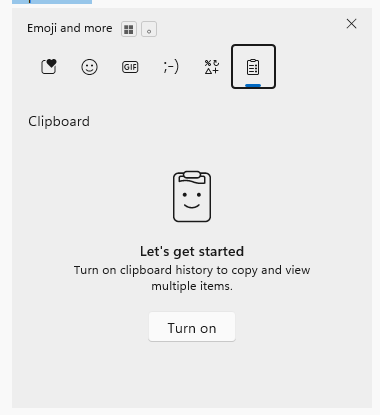
Copy a small piece of text, press Windows logo key + V again, then select the copied item from the list.
You can switch it on from Settings too: select Start > Settings > System > Clipboard, then set Clipboard history to On.
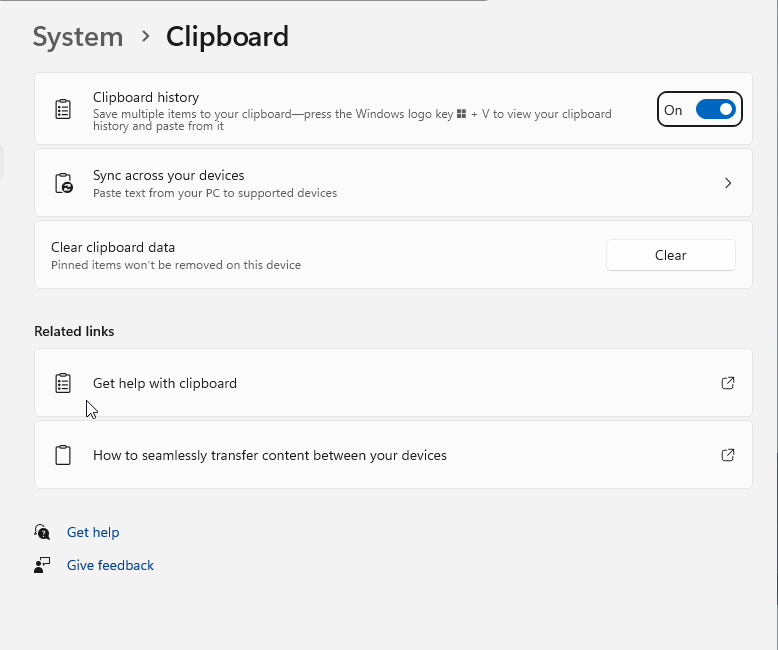
Clipboard history stores up to 25 entries and supports Text, HTML, and Bitmap items up to 4 MB per item. It fixes problems with the Windows logo key + V history panel, not every basic Ctrl+C and Ctrl+V failure.
3. Clear the clipboard list
A stale Clipboard history list needs a clean reset. Select Start > Settings > System > Clipboard. In Clear clipboard data, select Clear.
This clears local and cloud clipboard data except pinned items. After that, copy one word from Notepad and paste it into another app.
To clear the device clipboard history quickly, press Windows logo key + V and select Clear all at the top of the Clipboard history window.
To remove one item, press Windows logo key + V, select See more (...) beside the item, then select Delete.
4. Allow clipboard access in your browser
- 1.On the affected page, select the View site information button in the address bar (shown as a lock icon in Microsoft Edge and as a tune or site-controls icon in current Chrome).
- 2.Under site permissions, find Clipboard.
- 3.In Microsoft Edge, choose Allow from the Clipboard drop-down. In Chrome, turn Clipboard on for the site.
- 4.Reload the page and test copy and paste again.
Use this path when copy and paste only fails in a website.
Chrome also gives you a Settings route: select More > Settings > Privacy and security > Site settings, open the affected site's permissions, then set Clipboard to Allow.
For Office for the web, use Ctrl+C, Ctrl+X, and Ctrl+V on Windows. To paste without source formatting, use Ctrl+Shift+V in Chrome, Firefox, or Chromium-based Microsoft Edge.
5. Repair the app that blocks paste
When copy and paste fails in one Windows app and works everywhere else, fix that app directly through Start > Settings > Apps > Installed apps.
Find the affected app, select More options (...), then choose Advanced options if it appears.
Some apps do not have Advanced options; for those, open Control Panel > Programs > Programs and Features, right-click the program, and select Repair, or Change if Repair is not available.
Select Repair, open the app, and test copy and paste again.
If the same app still fails, return to the same page and select Reset.
Some apps do not show Repair or Reset. In that case, go to Start > Settings > Apps > Installed apps, select More options (...) for the app, choose Uninstall, then reinstall it from Microsoft Store or the app vendor's official installer page.
6. Check the keyboard shortcuts
Look for the shortcut pattern first: right-click Copy and Paste work, but Ctrl+C and Ctrl+V do not.
Test another keyboard.
Check and clean the Ctrl, C, V, Insert, and Shift keys.
Review your keyboard settings. For driver updates, use Windows Update or Device Manager for the keyboard device where applicable.
While you test, use Ctrl+Insert and Shift+Insert as backup shortcuts. If those work, you have a practical workaround while you isolate the failing key or driver.
7. Update Windows or remove a bad update
Install current Windows updates before deeper repairs.
Select Start > Settings > Windows Update, then select Check for updates. Install available updates and restart when Windows asks.
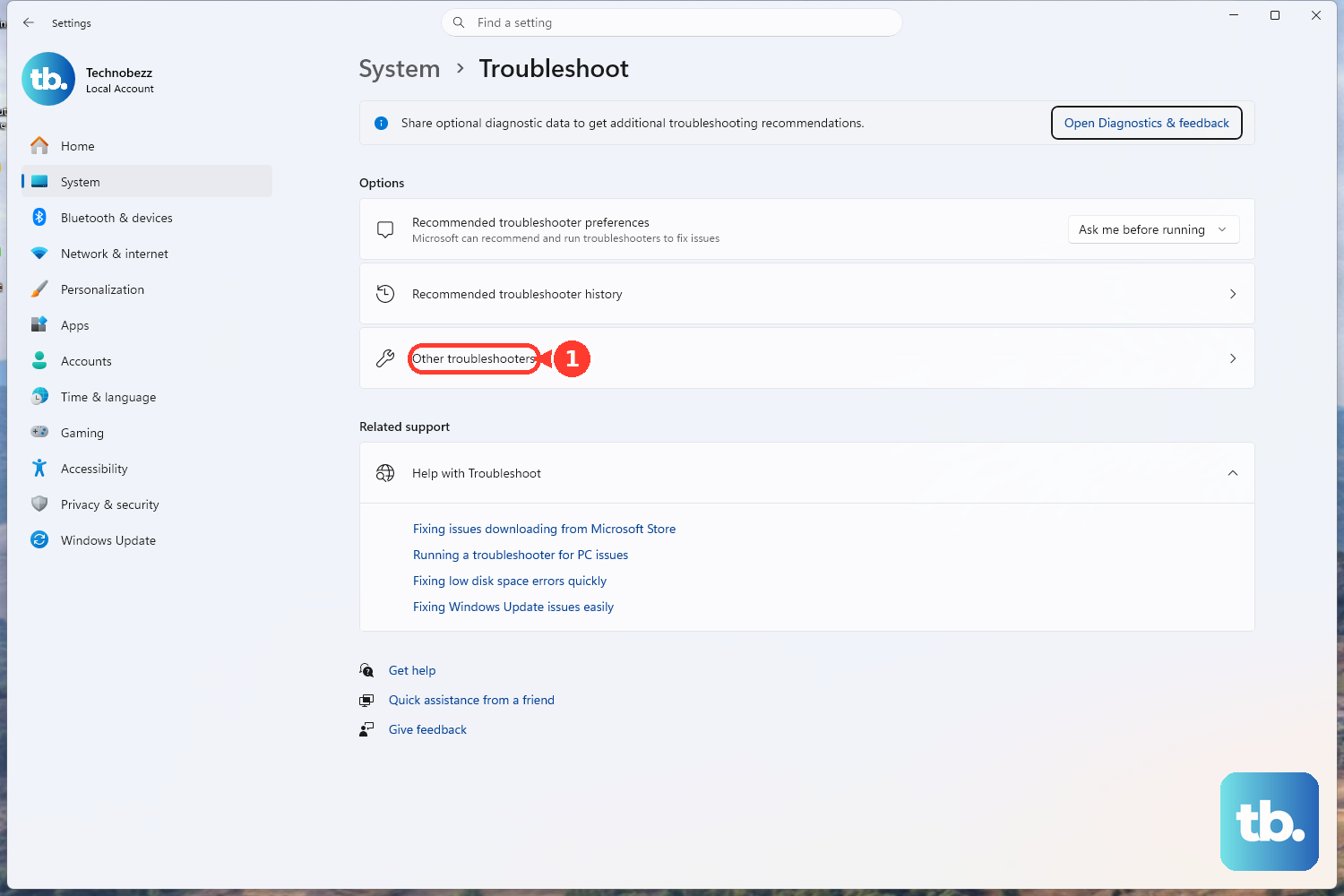
If Windows Update itself fails, open Start > Settings > System > Troubleshoot > Other troubleshooters. Under Most frequent, select Run next to Windows Update, restart, then check for updates again.
If copy and paste broke immediately after one specific update, remove that update: select Start > Settings > Windows Update > Update history > Uninstall updates, select the suspected update, choose Uninstall, and restart when prompted. Some updates cannot be uninstalled; if Uninstall is unavailable, follow Microsoft's Windows release health guidance instead of forcing removal. Use this only for a clear update regression, then reinstall security updates when Microsoft releases a fix.
8. Repair Windows system files
Use system repair after the app, browser, keyboard, Clipboard history, and update checks.
Open Command Prompt or Terminal as administrator. Run DISM.exe /Online /Cleanup-image /Restorehealth first, because DISM provides the files needed to repair corrupted system files.
When DISM finishes, run sfc /scannow to scan and repair the system files.
Restart the PC.
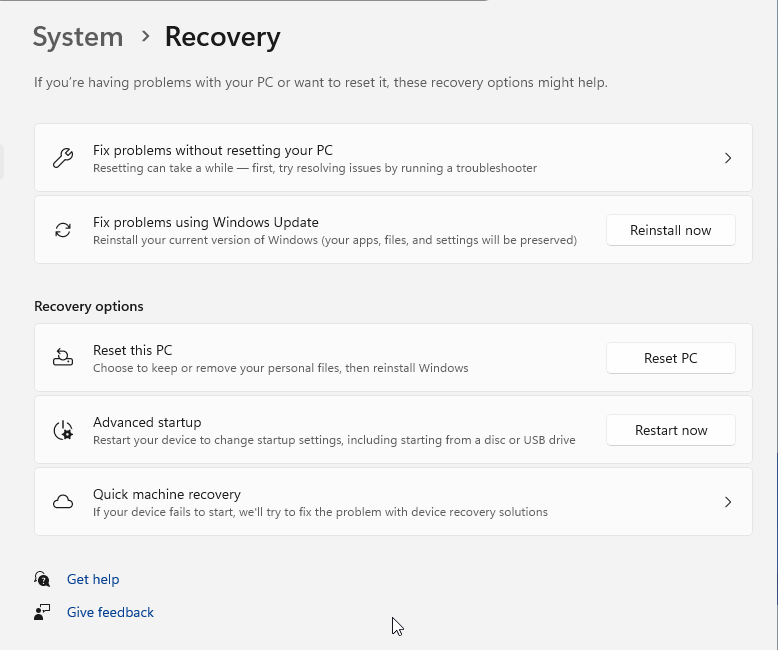
For the last built-in repair route, select Start > Settings > System > Recovery. Under Fix problems using Windows Update, select Reinstall now, choose whether to allow automatic restart after installation, and follow the prompts. If Fix problems using Windows Update is missing, the PC may be managed by a work or school, or it may need Windows 11 22H2 plus the February 2024 optional update or later.
9. Fix remote or managed clipboard limits
Remote Desktop and managed work or school PCs have their own clipboard controls. For a normal Remote Desktop connection, open the connection settings before reconnecting, go to Local Resources, and make sure Clipboard is selected.
On a managed PC, open Settings > Accounts > Access work or school.
If Clipboard history, cross-device sync, browser clipboard permissions, or remote copy and paste are missing or grayed out, contact the organization that manages the device.
Admins control these features through current Windows, Edge, Chrome, Remote Desktop, Azure Virtual Desktop, or Windows 365 clipboard policies. That includes clipboard history, cloud clipboard, browser clipboard site permissions, and remote clipboard redirection.
Frequently Asked Questions
Why does Ctrl+C not work but right-click Copy does?
That points to the keyboard shortcut path. Test another keyboard, check the Ctrl, C, V, Insert, and Shift keys, then use Windows Update or Device Manager for keyboard driver updates where applicable.
Does Clipboard history fix normal Ctrl+C and Ctrl+V?
Clipboard history mainly fixes the Win+V saved-items panel. Basic Ctrl+C and Ctrl+V still depend on the app, browser permission, keyboard, and Windows clipboard behavior.
How do I sync copied text between Windows 11 devices?
Go to Start > Settings > System > Clipboard, turn on Clipboard history, open Sync across your devices, choose Automatically sync text that I copy, and sign in with the same Microsoft account or work account on each Windows device.
Can I copy and paste between Android and Windows 11?
Yes, with Microsoft SwiftKey cloud clipboard. On Android, open Microsoft SwiftKey > Rich input > Clipboard and turn on Sync clipboard history to the cloud. On Windows, turn on Clipboard history and Sync across devices, then sign in with a Microsoft account.
How do I test the clipboard from Terminal?
In Command Prompt or Terminal, run echo test | clip, then paste into Notepad. In PowerShell, run Set-Clipboard -Value "test" and then Get-Clipboard to confirm the text is stored.