You open Windows Update expecting one button, then end up staring at driver updates, restart prompts, pause controls, and Store app updates that live somewhere else. The main path is simple on Windows 11 once you separate system updates from optional drivers and app updates. Use the official Microsoft-supported routes below, starting with the normal update check and moving only as far as your situation requires.
1. Start with the Windows Update check
Use this first when you want to check for Windows updates and install anything Microsoft is offering for your Windows 11 PC.
- 1.Select Start.
- 2.Open Settings.
- 3.Select Windows Update.
- 4.Select Check for updates.
- 5.When updates appear, select Download & install.
- 6.Restart the PC when Windows prompts you.
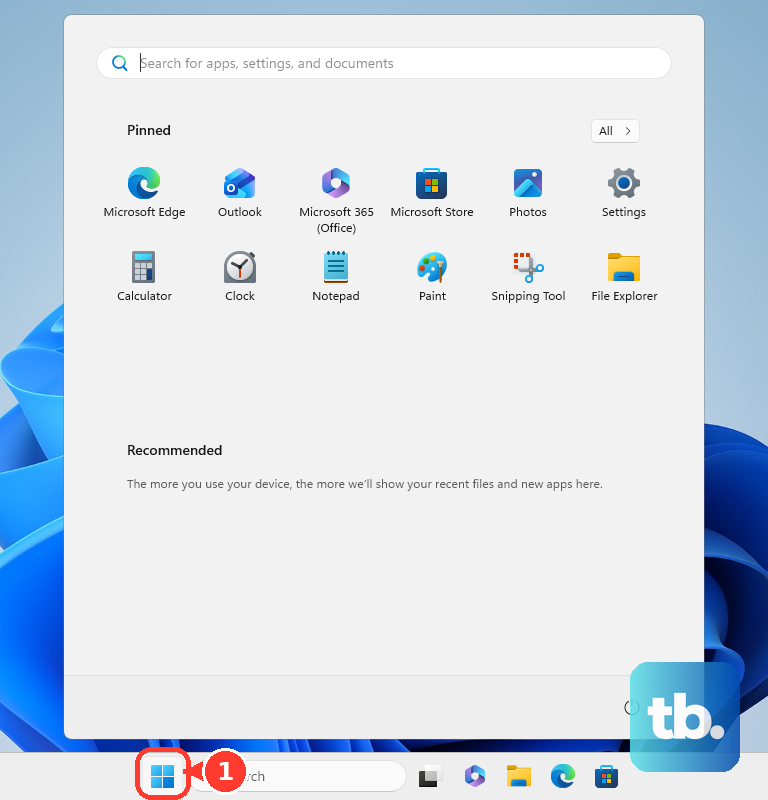
Windows 11 downloads and installs regular updates automatically. Opening Windows Update gives you the current status and lets you start the check yourself.
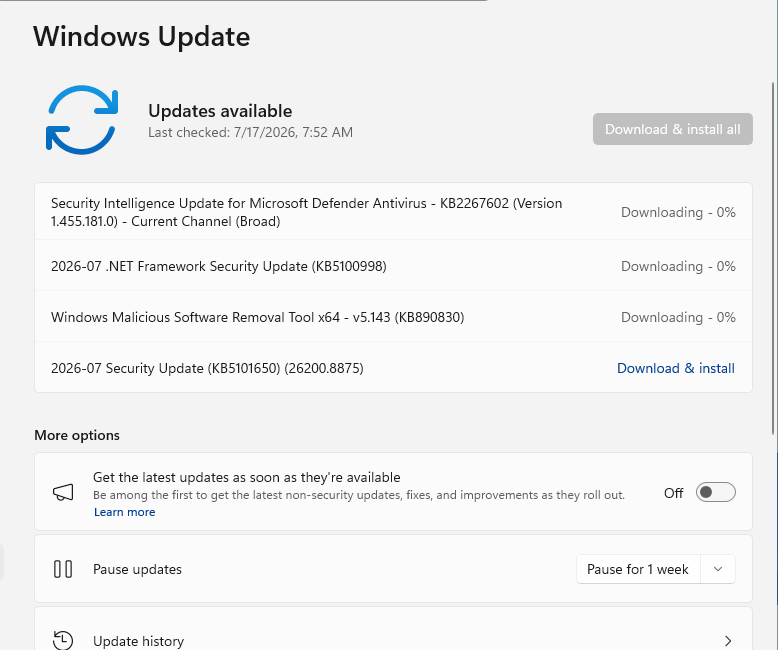
For a faster jump to the same Settings page, press Windows logo key + R, enter ms-settings:windowsupdate, then use Check for updates. To open the direct Windows Update action surface, use ms-settings:windowsupdate-action.
2. Turn on newer update offers sooner
For non-security and feature updates Microsoft makes available early, open Start, select Settings, select Windows Update, turn on Get the latest updates as soon as they're available, then select Check for updates.
On a managed school or work PC, the administrator controls this setting. Use the visible Windows Update status on that device as the source of truth.
3. Add optional drivers when listed
Begin by selecting Start, then open Settings. Next, select Windows Update, select Advanced options, and after that, select Optional updates.
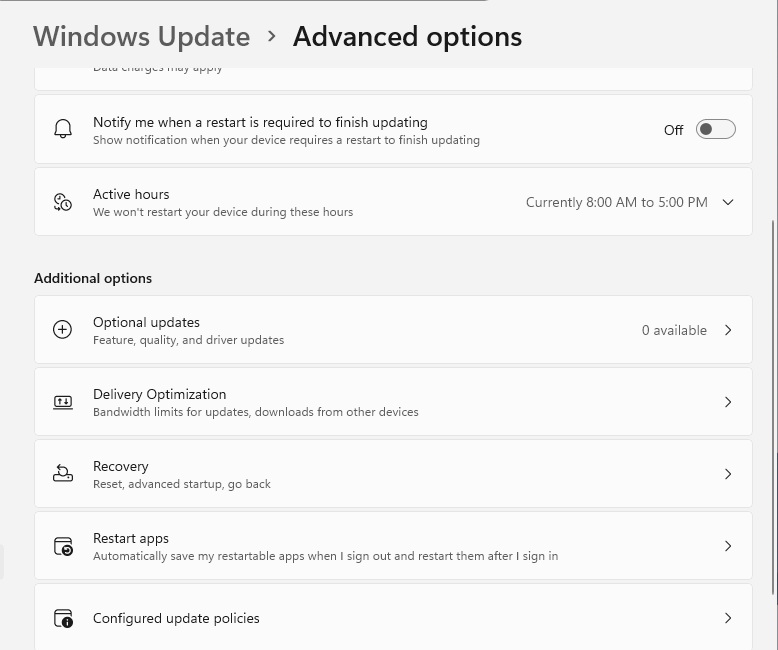
Select the listed driver or additional update you want to install. Finish by selecting Download and install.
Driver updates and additional updates do not always appear in the main update list. Check the optional page when Windows Update is working but a device still needs an offered driver or extra package.
Use Optional updates only for updates listed there. The standard Check for updates path remains the main route for regular Windows updates.
4. Choose the restart window
When an update needs a restart, set the restart timing before it interrupts your work: open Start, select Settings, select Windows Update, select Schedule the restart, then choose a convenient time.
Set active hours separately to reduce surprise restarts. Open Settings, select Windows Update, select Advanced options, then open Active hours. Active hours control restart timing; they do not control whether updates are offered.
5. Pause updates only when timing matters
Use pause when you need a short delay before Windows installs updates. Start by selecting Start, open Settings, then select Windows Update.
Pick a date in the Pause updates control. When you are ready to update again, return to Windows Update and resume updates. Windows checks for updates again after you unpause.
6. Run the updater fix when installs stall
On Windows 11, Microsoft says to start with the automated Windows Update troubleshooter in Get Help: type get help in the search box, open Get Help, enter windows update troubleshooter in the search bar, then run it. If that does not fix the problem, use the Settings route below.
First, select Start, open Settings, choose System, select Troubleshoot, continue by selecting Other troubleshooters, and next to Windows Update, select Run.
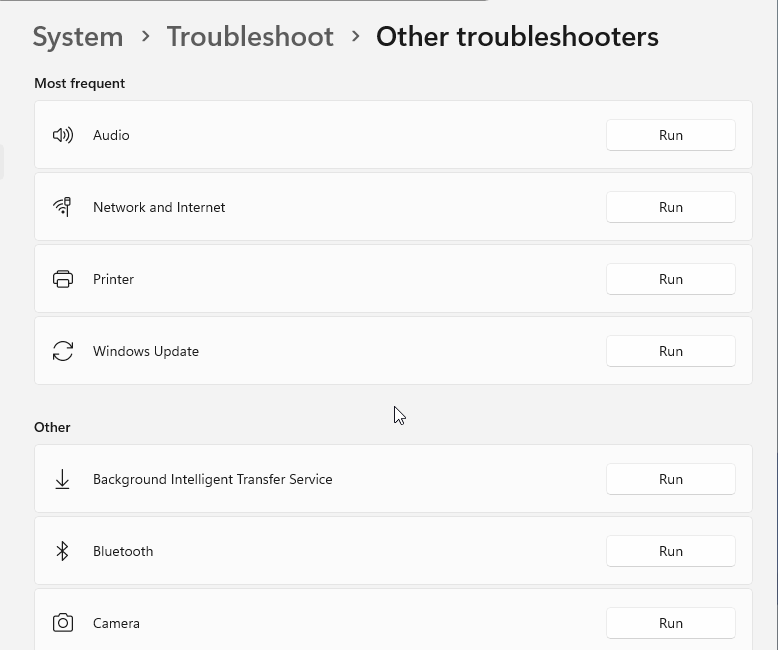
After the troubleshooter finishes, restart the PC. Return to Start, then Settings, then Windows Update. Select Check for updates.
When Windows Update gets stuck or fails, run the built-in troubleshooter, restart, and check again.
For a keyboard and screen-reader route, press Windows logo key + I, type Update in Settings search, use Down Arrow to choose Windows Update settings, press Enter, tab to Check for updates, then press Enter. For optional updates, tab to Advanced options, open Optional updates, select update checkboxes with Spacebar, then use Download and install.
7. Review history or remove a bad update
The update history page shows what Windows already installed. Open Start, select Settings, select Windows Update, then select Update history.
To remove a recent update from Settings, stay in Update history, select Uninstall updates, choose the update, then select Uninstall. Some updates cannot be removed.
If Windows will not start normally after an update, use the recovery route Microsoft documents. Open Windows Recovery Environment, select Troubleshoot, select Advanced options, select Uninstall Updates, then choose Uninstall latest quality update or Uninstall latest feature update.
8. Update Microsoft Store apps separately
Windows Update handles the operating system. Microsoft Store apps update from the Store library.
Open Microsoft Store, then select Library. From there, select Check for Updates or Get updates.
To turn on automatic Store app updates, open Microsoft Store, select your Profile, open Store Settings, then turn App updates on. Some app publishers manage updates inside their own apps.
9. Use current routes instead of old Windows 10 fixes
Select Start, open Settings, select Update & Security, and now select Windows Update. Select Check for updates.
When the Windows 11 upgrade is ready, select Download and install. Select Accept and install, then select Restart now when prompted.
For ordinary consumers, Windows 10 is legacy because Microsoft ended free Windows Update software updates and security fixes on October 14, 2025. If you need more time, Microsoft's Consumer Extended Security Updates (ESU) program keeps eligible Windows 10 version 22H2 PCs receiving critical and important security updates until October 12, 2027, and you can enroll up to that date. Eligible Windows 10 version 22H2 PCs that meet Windows 11 requirements still use Microsoft's documented upgrade path through Windows Update.
For Windows 11 install tools, use Microsoft's official Windows 11 download page for Windows 11 Installation Assistant, installation media, or ISO options. Older instructions that rely on Control Panel, Cortana, or wuauclt.exe are not current Windows 11 consumer update methods.
Frequently Asked Questions
Do Windows updates install automatically in Windows 11?
Yes. Microsoft says Windows 11 automatically downloads and installs regular updates. Use Settings > Windows Update to confirm status or run a manual check.
How do I get Office updates through Windows Update?
Open Settings > Windows Update > Advanced options, then turn Receive updates for other Microsoft products when you update Windows on.
Is the Microsoft Update Catalog meant for everyday updating?
No. Microsoft recommends the Microsoft Update Catalog for advanced users and administrators. Most consumers should use Settings > Windows Update.
Can Copilot install Windows updates for me?
No. Microsoft says the Copilot app can provide PC information when permissioned, but it cannot change settings or fix issues. Use Windows Update in Settings.