
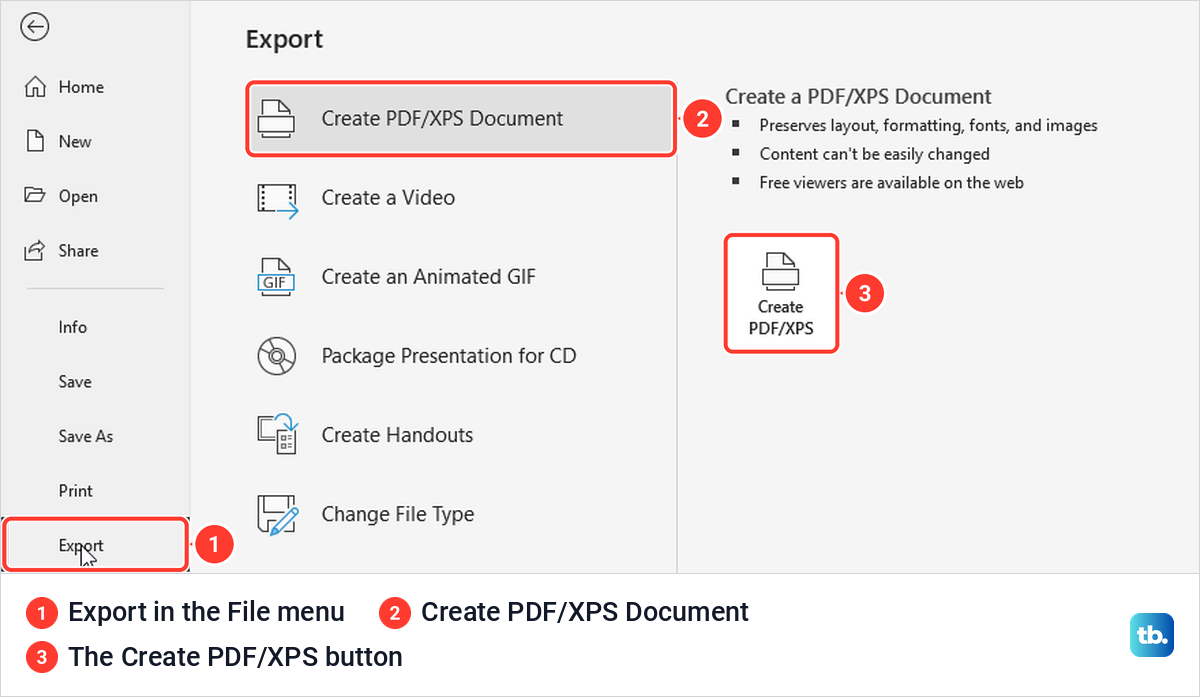
To save PowerPoint as a PDF on Windows, open File > Export > Create PDF/XPS Document, select Create PDF/XPS, name the file and select Publish. PowerPoint writes a separate PDF copy and leaves your presentation as it was. Before you publish, the Options button switches the PDF from every visible slide to one slide, a range, handouts or notes pages.
In PowerPoint for the web, choose File > Export > Download as PDF and then Download. Saving, exporting and converting PowerPoint to PDF all mean the same thing here, and no extra converter is needed. What does differ is Export against Print, which treated hidden slides differently on our PC, and the web print copy lost our slide's link.
The short version
- Windows: File > Export > Create PDF/XPS Document > Create PDF/XPS, then Publish.
- Keyboard: press Alt, F, E, A one after another, or press F12 and pick PDF.
- One slide, handouts or notes: select Options before you publish.
- Hidden slides: Export leaves them out by default, but Print to PDF put ours in.
- PowerPoint for the web: File > Export > Download as PDF, then Download.
- Before you share: open the PDF and check the pages and links.
PowerPoint to PDF methods at a glance
| What you need | Where to go | What the PDF contains |
|---|---|---|
| Every visible slide | File > Export > Create PDF/XPS Document > Create PDF/XPS | One slide per page, hidden slides left out by default |
| One slide | Options > Current slide | The selected slide only |
| A run of slides | Options > Slide(s) From and To | The visible slides in that range |
| Several slides on a page | Options > Publish what > Handouts | 1, 2, 3, 4, 6 or 9 slides per page |
| Speaker notes | Options > Publish what > Notes pages | One slide per page, with its note below when it has one |
| F12, the Save As window | Save as type > PDF, then Save | The same choices as Export, through Options |
| Ctrl + P, a print layout | Printer > Microsoft Print to PDF > Print | What the print preview shows, including hidden slides if Print Hidden Slides is ticked |
| A copy from the browser | PowerPoint for the web > File > Export > Download as PDF | The visible slides, saved where your browser keeps downloads |
| An email attachment | Share > Share > Attach a copy instead > PDF | An Outlook message with the PDF attached |
Save PowerPoint as a PDF on Windows
Open the presentation, select File, then select Export in the list on the left. The Export page opened on Create PDF/XPS Document for us, with Microsoft's summary beside it, which says the PDF preserves layout, formatting, fonts and images. Select the Create PDF/XPS button under that summary.
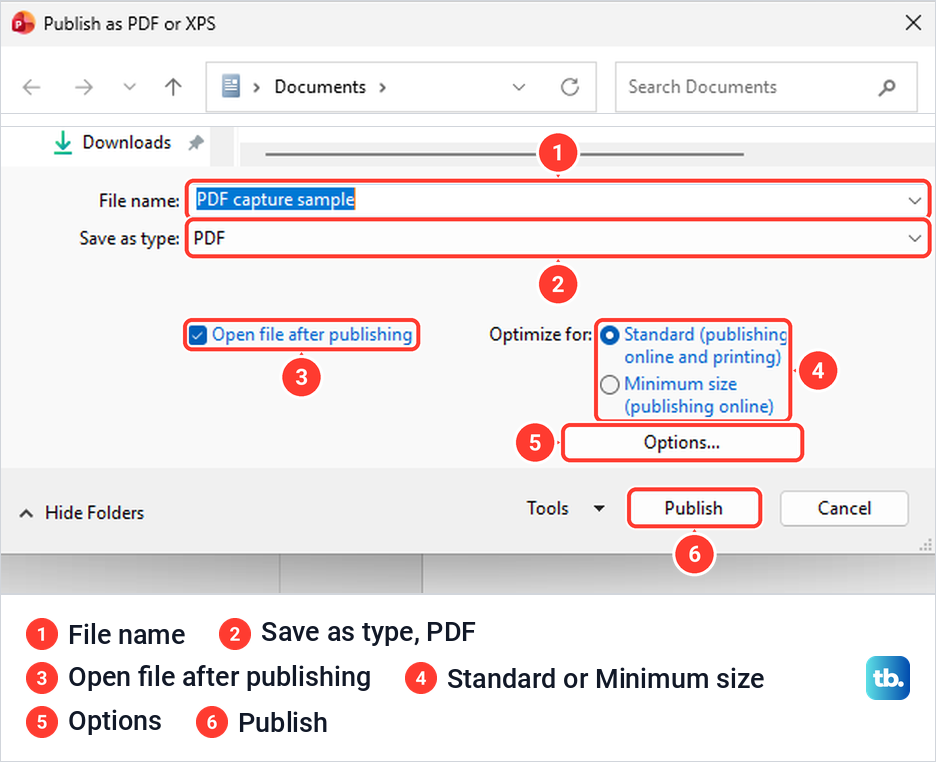
The Publish as PDF or XPS window opens in a folder such as Documents, with the presentation's name in File name and PDF in Save as type. Change the name or the folder if you like. By default Open file after publishing is ticked and Optimize for is set to Standard (publishing online and printing).
Microsoft suggests Standard when you want higher quality, for example to print, and Minimum size when you want a smaller file, for example to send as an email attachment. On our text-only sample the difference was small, 49 KB against 51 KB, so do not expect Minimum size to shrink a plain deck by much. If pictures look soft in the PDF, publish again with Standard rather than Minimum size, and check that the original pictures are sharp.
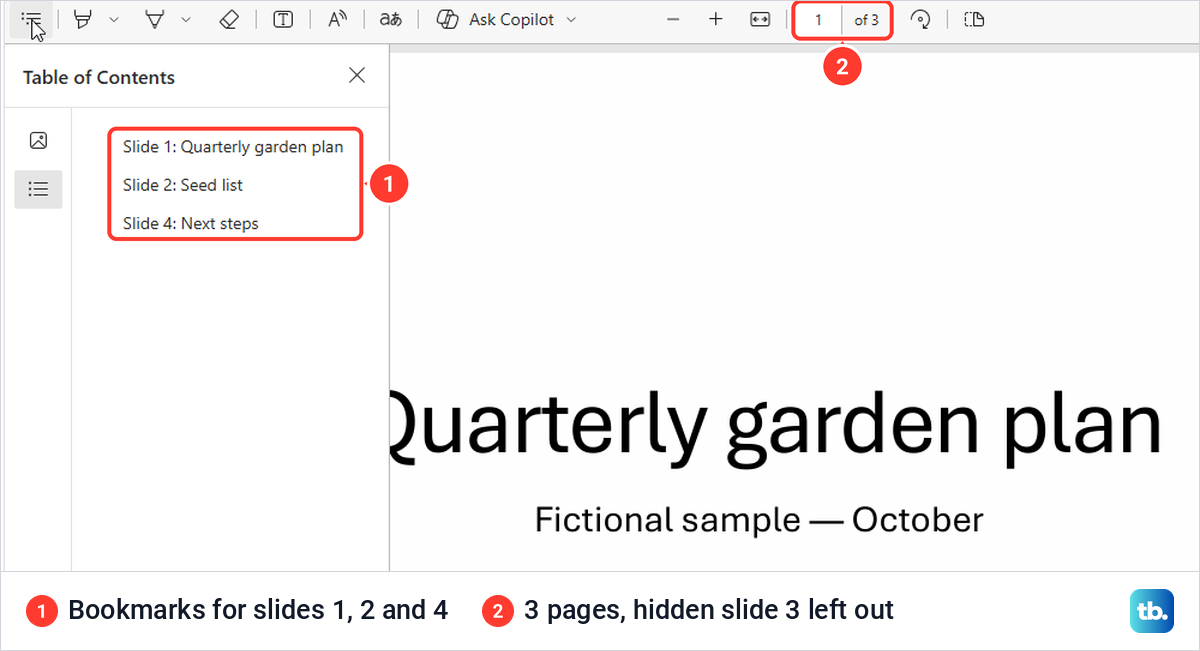
Select Publish. On our PC, PowerPoint wrote the PDF and opened it straight away in Microsoft Edge, the default PDF app there. If you would rather see it in another app, you can make Adobe Acrobat the default PDF app, or untick Open file after publishing so PowerPoint does not open it at all.
Our sample deck had four slides, and slide 3 was hidden. The PDF had three pages in order and bookmarks for slides 1, 2 and 4, and hidden slide 3 had no page or bookmark. The presentation itself is not touched, and Microsoft says the original remains unchanged while a separate PDF file is created.
The keyboard is quicker once you know it. Press Alt, then F, E and A one after another, and the Publish as PDF or XPS window opened for us without a click. The letters are the key tips PowerPoint shows after Alt, and P on the Export page selects Create PDF/XPS Document if another item is highlighted.
Save one slide or a range of slides
Every choice about what goes into the PDF sits behind the Options button in the Publish window. Ours opened with Range set to All, Publish what set to Slides, Include hidden slides off and Document structure tags for accessibility on. Microsoft lists those tags as an accessibility option, so leave them on, although ticking them is not the same as checking the PDF for accessibility.
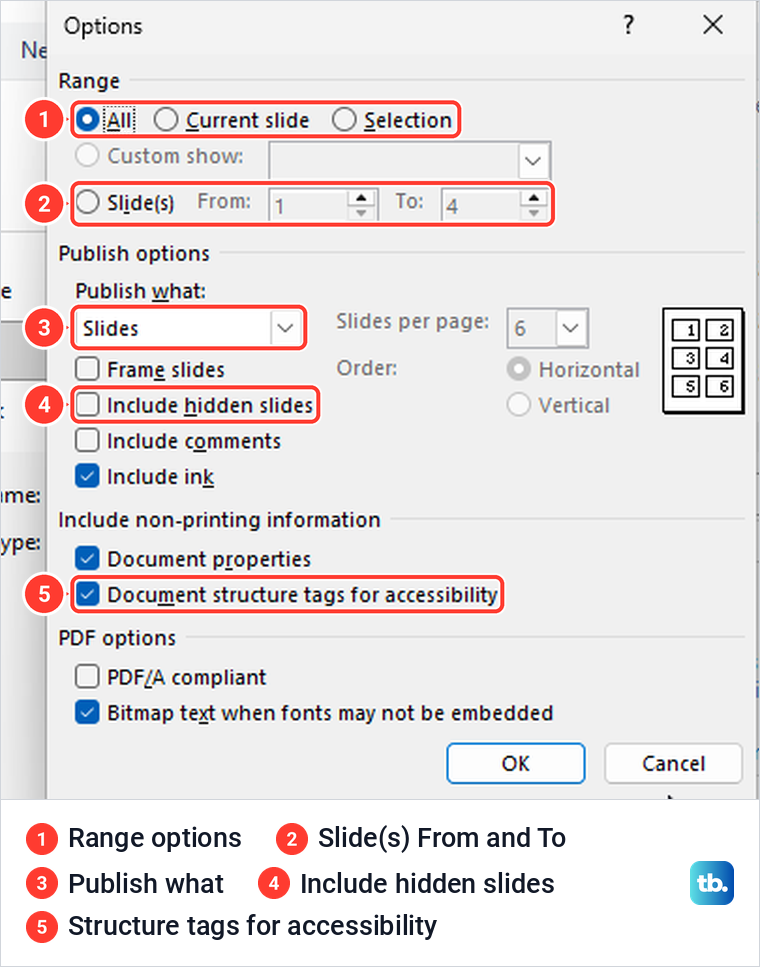
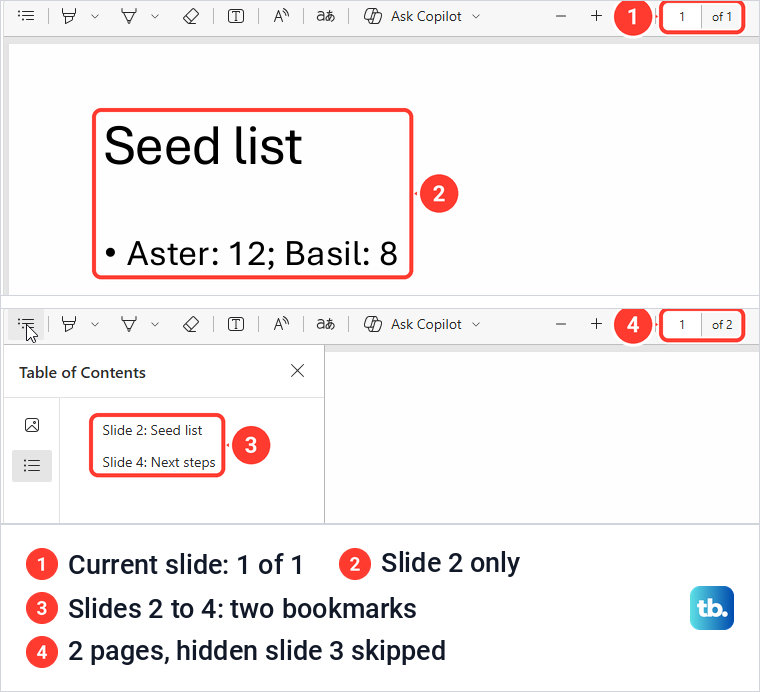
To save only one slide, select it in the thumbnail pane first, open Options and choose Current slide. With slide 2 selected, we got a one-page PDF of that slide. Check Range every time you export, because the dialog went back to All whenever we reopened it.
For a run of slides, choose Slide(s) and type the first and last slide numbers in From and To. Slides 2 to 4 gave us a two-page PDF of slides 2 and 4, because hidden slide 3 sat inside the range and stayed out. A number past the end of the deck brought up "This value is not within the slide range. Type a number between 1 and 4."
The From and To range has to be continuous. To leave out slides in the middle, hide them before you export, or publish each run as its own PDF and combine separate PDF files afterward. Unhide the slides again if they belong in the slide show.
Put several slides on each PDF page
Handouts fit several slides on one PDF page, which suits a printout or a long deck sent for reading. In Options, set Publish what to Handouts, and the Slides per page and Order boxes become active. Ours offered 1, 2, 3, 4, 6 or 9 slides per page, with 6 and Horizontal chosen by default.
We chose 4 per page and kept Horizontal. The PDF came out as one page holding slides 1, 2 and 4, each with its slide number, plus the date at the top and a page number at the bottom. There were no borders round the slides, so white slides seem to float on the page, and Frame slides in Options is the box that adds one.
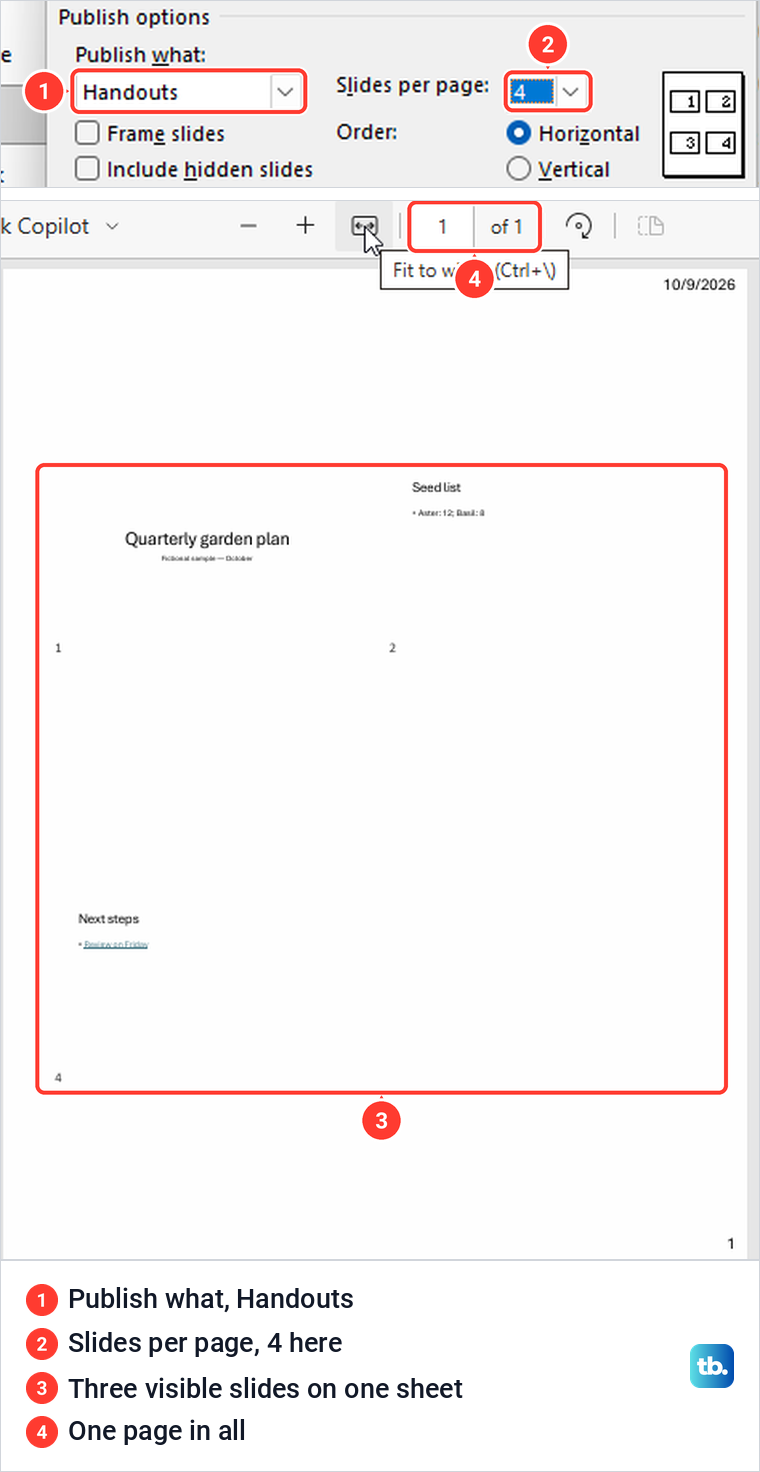
Handouts and notes do not mix in this dialog. While Notes pages was chosen, Slides per page and Order stayed greyed out, so the export gives you either several slides on a page without notes, or one slide per page with any note it has.
Save PowerPoint as a PDF with speaker notes
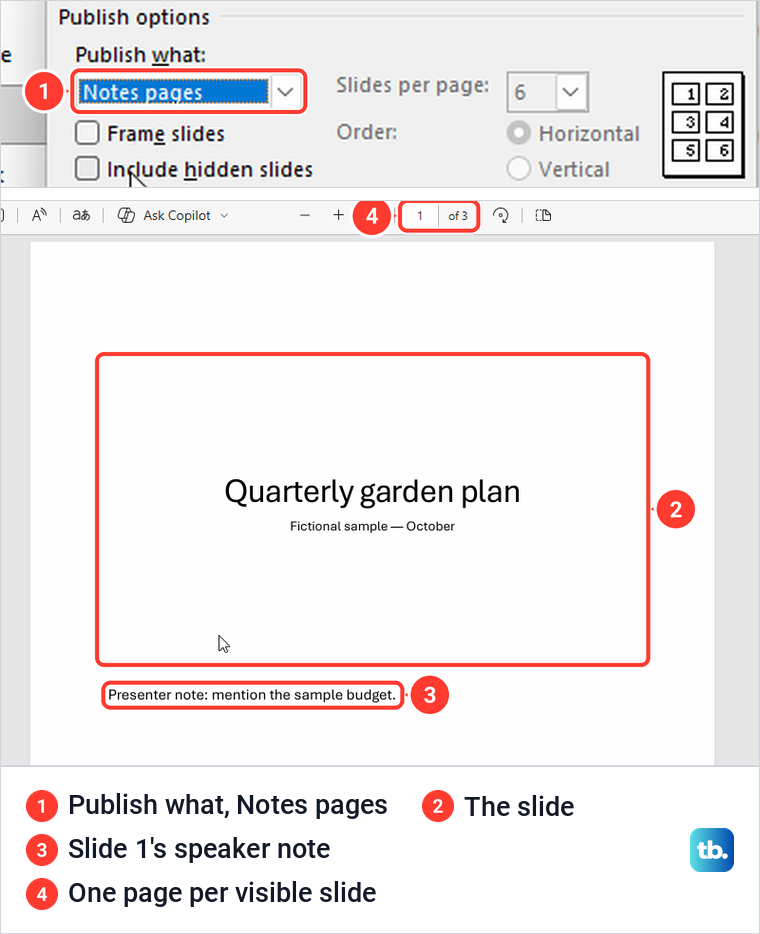
Notes pages put one slide at the top of each page and its speaker note underneath. Microsoft describes the layout the same way, as the slide with the related speaker notes below it. Choose Notes pages under Publish what in Options, select OK, then Publish.
Our PDF had three pages, one per visible slide, and page 1 showed slide 1 inside a thin frame with its note below in plain text. The default slides PDF leaves the notes out, so check that Notes pages is chosen before you publish. If your slides have no notes yet, our guide shows how to add speaker notes in PowerPoint from the pane under each slide.
Decide whether hidden slides go in the PDF
Hiding a slide keeps it out of the slide show, not out of the file. Microsoft puts it plainly, saying a hidden slide remains in the file and is merely hidden when you run Slide Show view. You hide one by right-clicking its thumbnail and choosing Hide Slide, and PowerPoint then fades the thumbnail and strikes through its number.
Export leaves hidden slides out by default. When we ticked Include hidden slides in Options, our hidden slide 3, a draft marked Do not hand out, came back as page 3. The PDF grew from three pages to four, with a bookmark for the extra slide.
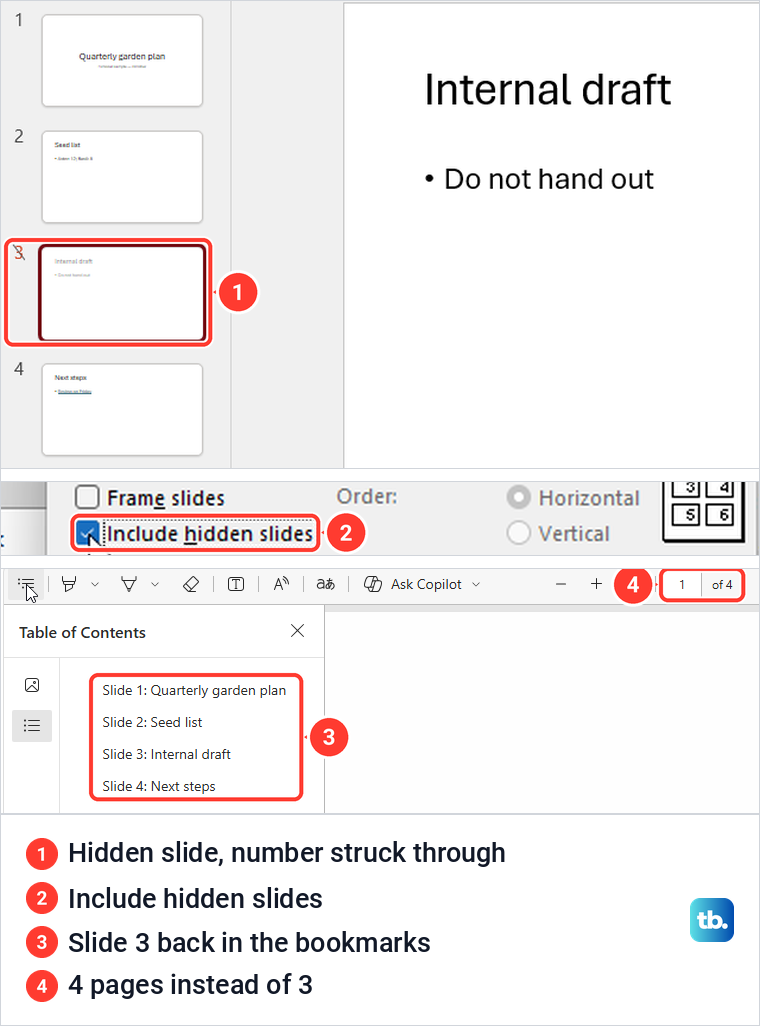
That default does not hold for Print. Print to PDF had Print Hidden Slides ticked for the same deck, so a hidden slide can reach a reader by accident, as the Print section below shows. If a slide must never leave your hands, delete it from a copy of the presentation before you share either the PDF or the PPTX.
Save as PDF from the Save As window
If you are used to Save As, it makes the same PDF. Select File > Save As > Browse, or press F12 to open the Save As window directly, then pick PDF in the Save as type list.
Choosing PDF changed the window for us. It gained the same Options button, Open file after publishing box and Standard or Minimum size choice as the Publish window, while its button stayed Save. After Save, the PDF was written and the original PPTX stayed open in PowerPoint, unchanged.
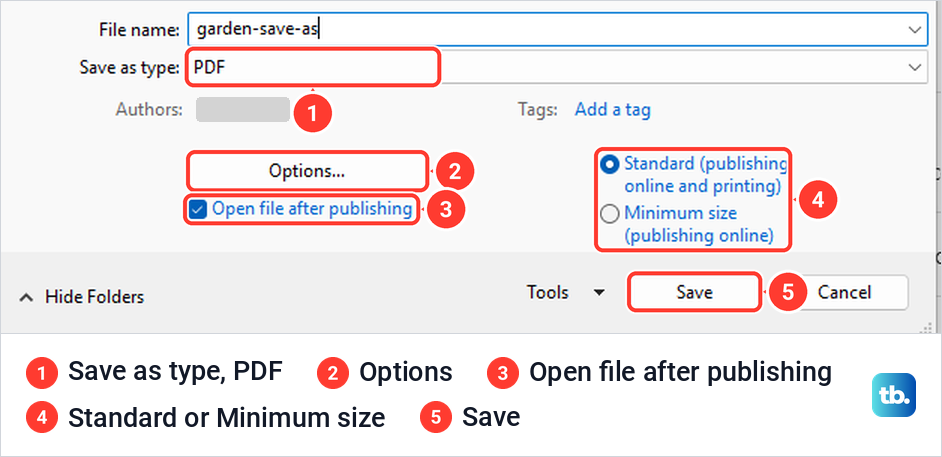
That last point answers a common worry. Saving as PDF does not turn your presentation into a PDF, so keep working in the PPTX and export again whenever the slides change.
Use Print to PDF for a print layout
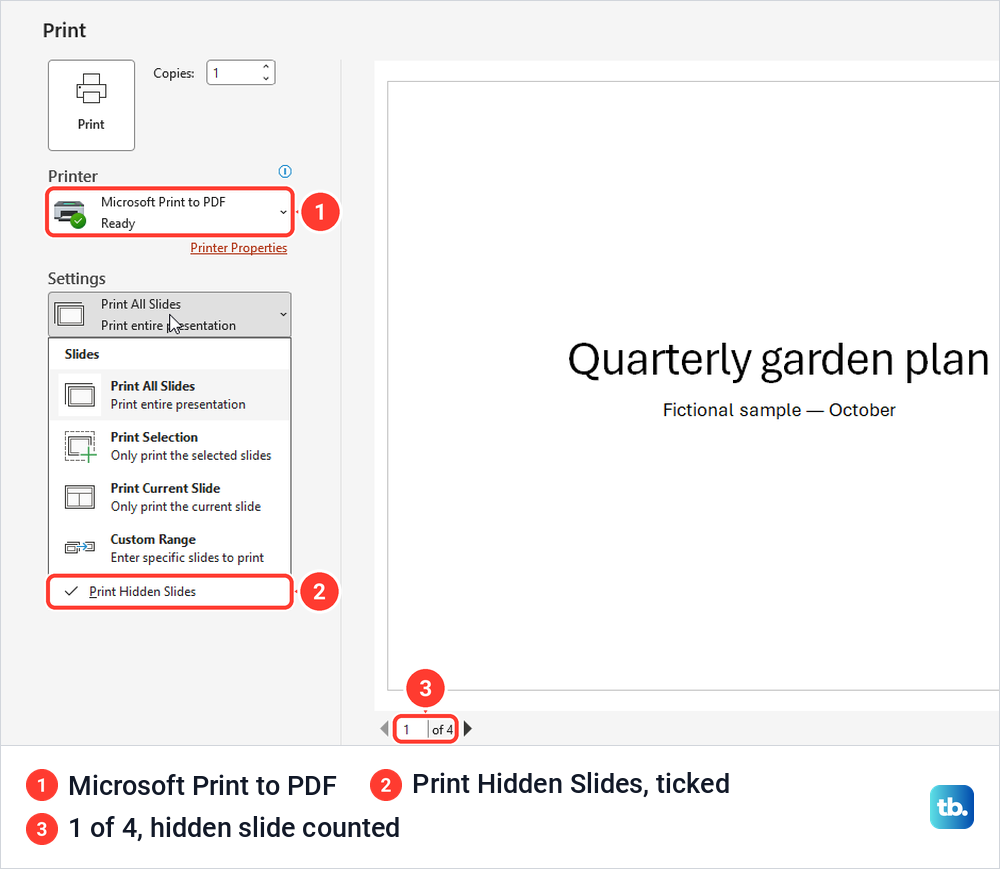
Print is another way to make a PDF on Windows, through the printer called Microsoft Print to PDF. Press Ctrl + P, choose Microsoft Print to PDF under Printer, pick a layout such as Notes Pages under Settings, and select Print. Windows then asks where to keep the file in a Save Print Output As window.
Our printed copy of notes pages matched the print preview, slide 1 with its note below. By default the layout box read Full Page Slides and the color box read Color, so check both before you print.
The catch is hidden slides. With our hidden slide in the deck, the print preview counted 1 of 4, and the range menu already had Print Hidden Slides ticked when we opened it. The printed PDF included the hidden slide, the opposite of Export, so check that item and the page count in the preview before you print, and untick it if the slide should stay private.
Download a PDF in PowerPoint for the web
PowerPoint for the web makes the PDF in the browser. Open the presentation, select File > Export and choose Download as PDF, listed above Export to ODP and Export to images. We uploaded our deck from the PC first, and its hidden slide stayed hidden in the web app.
A prompt then said Your presentation is ready, with Download and Close buttons, and the file arrived only after we selected Download. Edge saved it to the Downloads folder by default and listed it in its Downloads panel with an Open file link. If you cannot find it, the guide to open a downloaded file shows where browser downloads go.
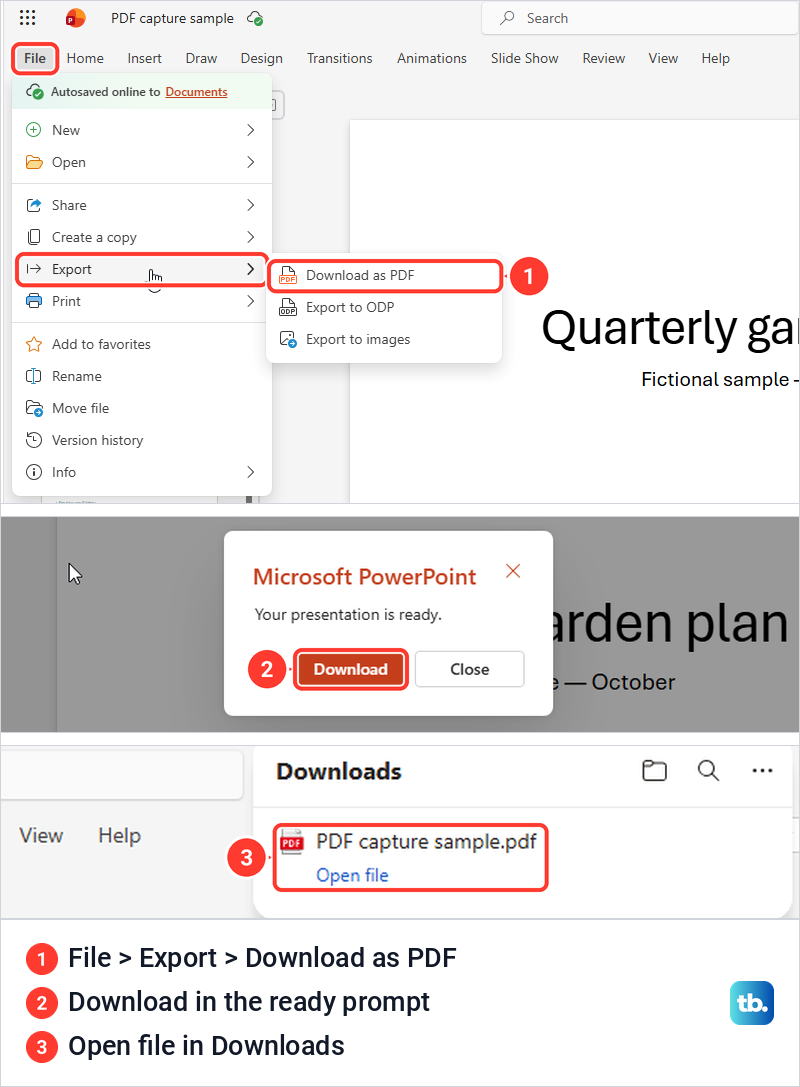
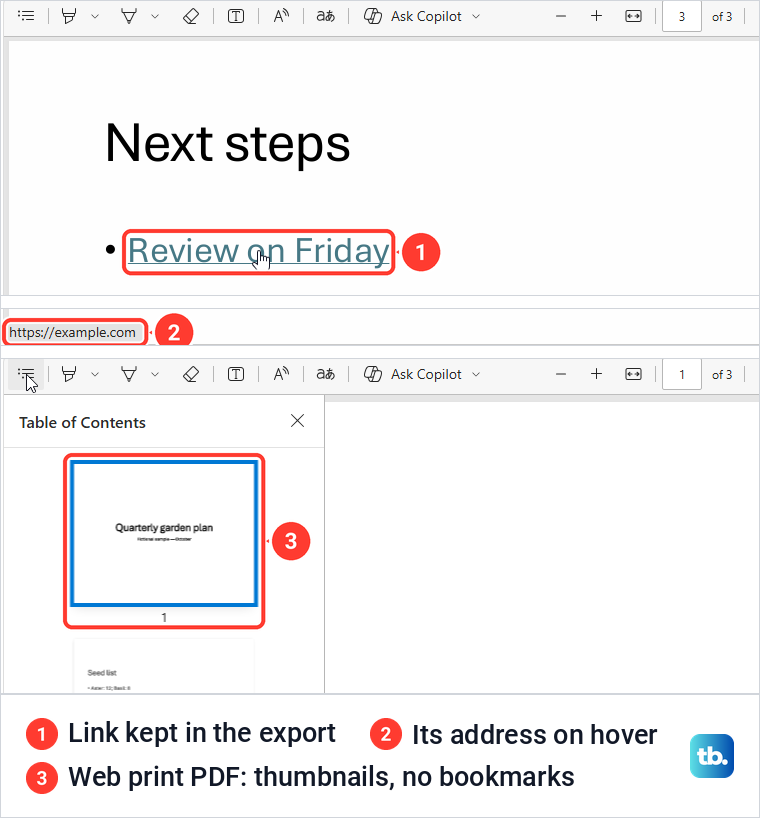
The web PDF matched the desktop export on the points that matter. It had three pages, with no page for the hidden slide, and kept the link on slide 4 clickable. Download as PDF asks nothing about layout, so for notes or handouts Microsoft points to File > Print and Print slides with notes or Print handouts, then Save as PDF in the browser's print settings.
Print makes a different file in the browser, though. Our File > Print > Print full page slides went straight to Edge's print dialog, set to Landscape and Microsoft Print to PDF, and the saved PDF had no slide bookmarks and no clickable link. Use Download as PDF whenever the PDF has to keep its links.
PowerPoint for the web works on presentations kept in OneDrive, and Microsoft notes the original stays there for editing after the download. Upload a file from your PC in the web app, or set up OneDrive on Windows so the presentations in your OneDrive folder sync by themselves.
Email a PowerPoint as a PDF attachment
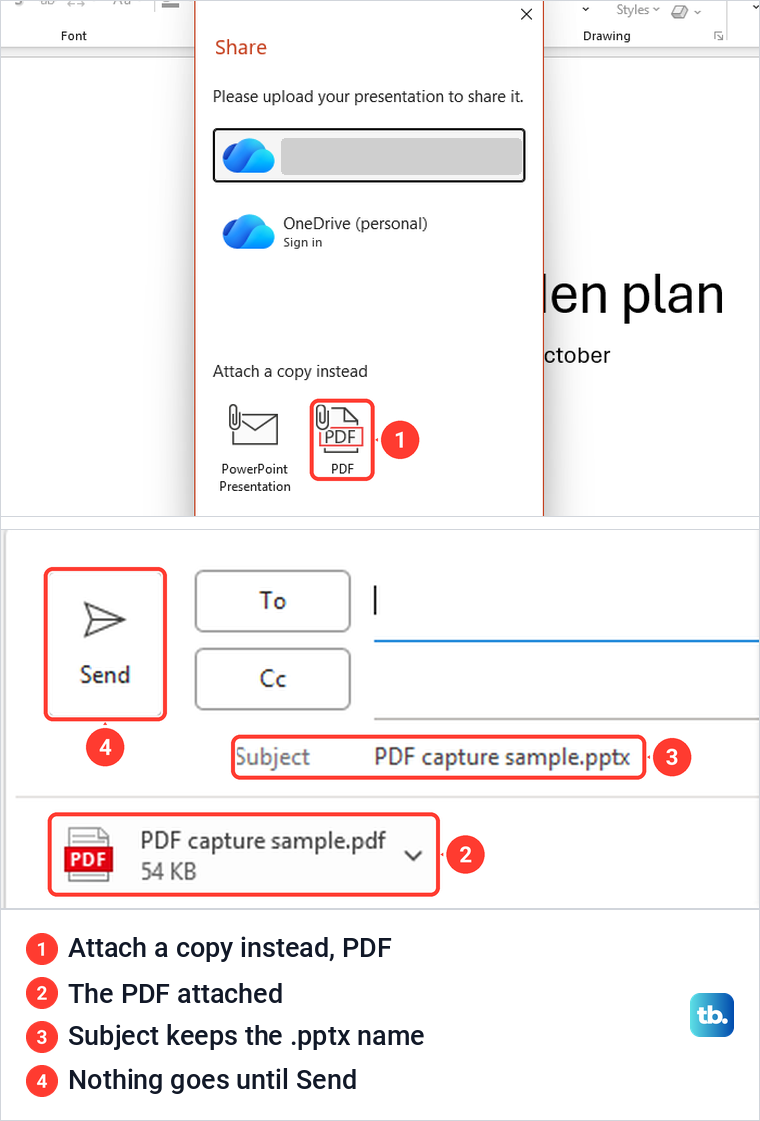
To send a PDF copy without saving one first, select the Share button at the top right of PowerPoint and choose Share in its menu. For a presentation saved on our PC, the Share window asked us to upload it, and below that it offered Attach a copy instead with PowerPoint Presentation and PDF. Microsoft's help page calls this route Send a copy, while on our PC the same choice was labelled Attach a copy instead.
Choosing PDF opened a classic Outlook message with a 54 KB PDF attached and the presentation's file name, ending in .pptx, as the subject. Add the recipient, tidy the subject and select Send when it looks right. If the attachment arrives but shows blank in the reading pane, fix an Outlook PDF preview before you change anything in PowerPoint.
Save a PowerPoint PDF on a Mac or phone
In PowerPoint for Mac, Microsoft gives two routes that do the same thing, File > Save As or File > Export, with PDF chosen in the File Format menu. Microsoft also says those Mac Save As and Export PDF options cannot save notes, save handouts or include hidden slides.
You can still set the print quality of the PDF under PowerPoint > Preferences > General. For notes or handouts on a Mac, Microsoft's steps go through printing instead, with File > Print and then Notes or one of the Handout options in the Layout drop-down.
Links are the bigger Mac problem. Microsoft says PowerPoint for macOS does not preserve hyperlinks in PDFs, and its fix is to save the presentation to OneDrive, open it in PowerPoint for the web and use Download as PDF there, the route that kept our link working.
On an Android phone or tablet, Microsoft's steps are the three-dot menu, Print, then Save as PDF under Select a printer, and Save. On an iPhone or iPad, open the three-dot menu, tap Export, choose PDF and pick where to save it. If your source is a webpage or a photo rather than a presentation, see how to make a PDF on any device.
Check the PDF before you share it
Open the PDF and scroll through it before it goes anywhere. Check the page count against the slides you meant to include, look for any hidden slide that should not be there, and make sure notes pages or handouts came out in the layout you chose.
Then try a link. In our desktop export, the text link on slide 4 showed a hand pointer and its web address when we hovered over it, and the web Download kept it too, while the web Print copy lost it. If a slide needs a clickable address, add it as a real link before you export, as our guide to create a hyperlink in a slide explains, then try it in the PDF.
Movement does not survive the trip. Microsoft says animations, transitions, audio and video playback are not preserved in a PDF, so keep the PPTX when you need to embed a YouTube video in PowerPoint and play it on screen.
Comments behave oddly too. Ticking Include comments in Options added only a small marker with the author's initials and a number to our slide, not the comment's text, and Publish what offered no Comments choice. If someone needs to read the discussion, send them the presentation instead.
A PDF is a copy for reading, and Microsoft describes saving one as freezing the formatting and layout. Keep the PPTX for changes, and if only the PDF survives, see how to edit an existing PDF.
When Export or Save As is greyed out
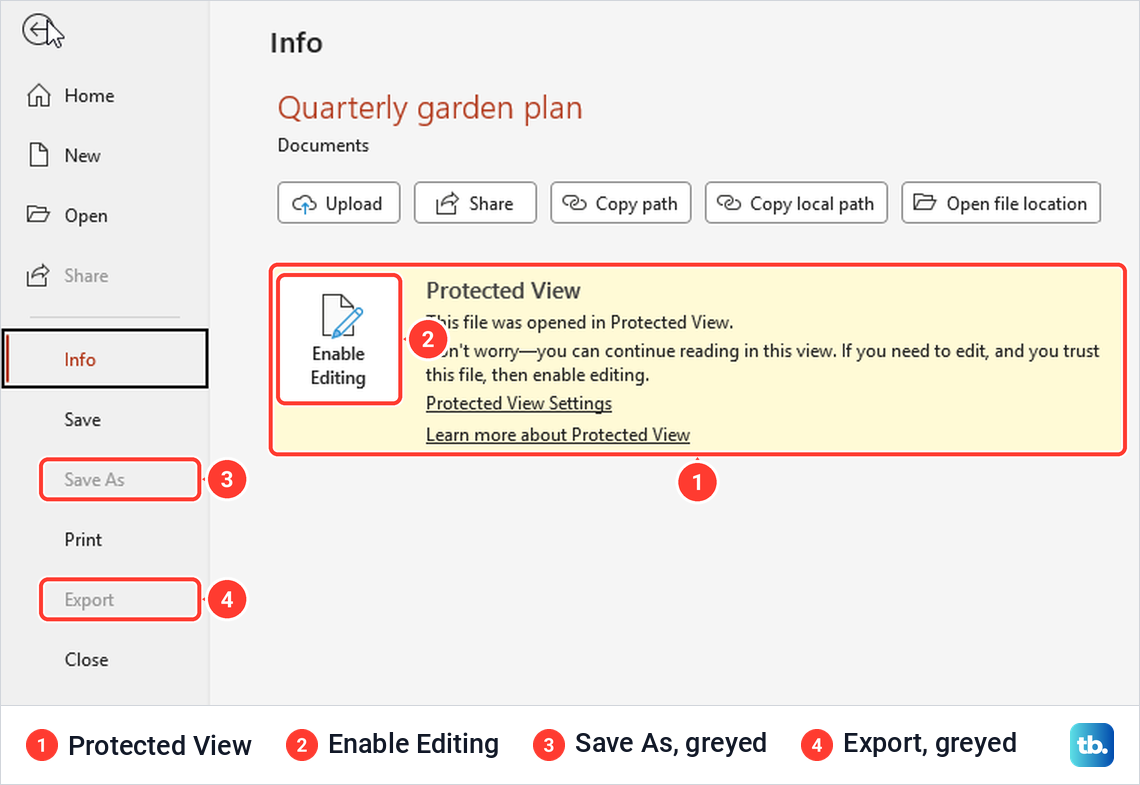
A presentation opened in Protected View cannot be exported until you allow editing. We opened ours with Open in Protected View from the Open button's menu, and in the File menu Share, Save As and Export were greyed out under a yellow Protected View bar.
If you trust the file, select Enable Editing on the yellow bar or under File > Info. Export worked again as soon as we did. Microsoft's caution applies here, because Protected View helps protect your computer, so edit a file only if you trust the person who sent it and it does not look suspicious.
PowerPoint for the web only works in one direction. It saves PDFs but does not open one as a presentation, since its file picker hid PDFs by default and a PDF we uploaded opened in Edge's PDF viewer instead of PowerPoint. Microsoft's file format page says the same, so always start from the PPTX.
How we tested this guide
We tested this in PowerPoint for Microsoft 365 on Windows 11, version 25H2, and PowerPoint for the web in Microsoft Edge, exporting a sample deck with one hidden slide.
Frequently Asked Questions
How do I save only one PowerPoint slide as a PDF?
Select the slide, then in the Publish window choose Options and Current slide before you select Publish. That gave us a one-page PDF of the selected slide.
How do I save a PowerPoint as a PDF with speaker notes?
In Options, set Publish what to Notes pages, then publish. Each page shows one slide, with its speaker note below when the slide has one.
Can I put multiple slides on one PDF page?
Yes. Choose Handouts under Publish what in Options and pick 1, 2, 3, 4, 6 or 9 slides per page.
Why is a hidden slide missing from my PDF?
Export leaves hidden slides out by default. Tick Include hidden slides in Options and publish again, and the slide comes back as its own page.
Do hyperlinks still work in a PowerPoint PDF?
They did in our Windows export and in Download as PDF from the web app, but not in a PDF printed from the web app. Microsoft says PowerPoint for Mac does not keep them, so try a link before you share the file.
Does saving as PDF replace my PowerPoint file?
No. The PDF is a separate file, and our presentation stayed open and unchanged after we saved it.
Why are my comments missing from the PDF?
Include comments added only a small initials marker to our slide, not the comment text. Send the presentation itself if people need to read the comments.