A downloaded file usually lands in a browser list, a Downloads folder, or the app that saved it. Start where the download happened, then change the opening app only when the file type goes to the wrong place.
Here are the current Windows, Mac, iPhone, iPad, Android, Chrome, Edge, Firefox, and Safari paths that get the file open without using outdated browser tricks.
1. Start in the Downloads folder
On Windows, open File Explorer > Downloads from the taskbar, Start, or by pressing Windows logo key + E.
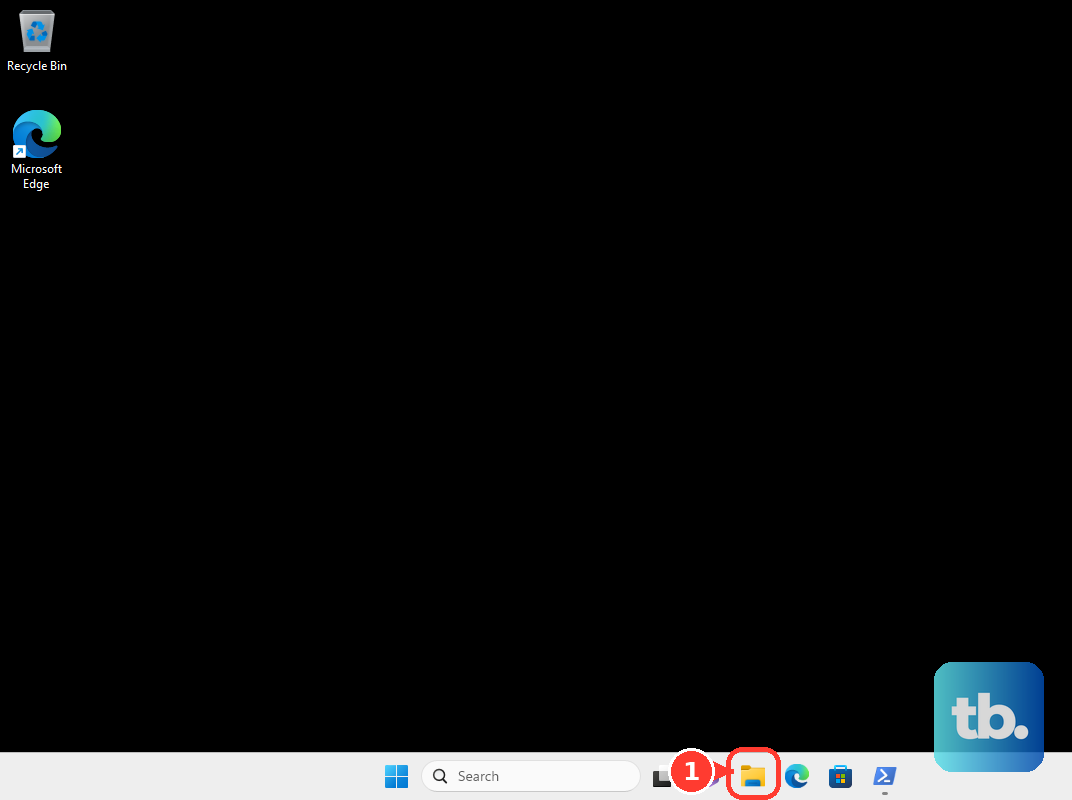
Select Downloads from Quick access, Home, or the navigation pane, then double-click the file; if needed, right-click it and choose Open.
On Mac, open Finder > Downloads from the sidebar, then double-click the document's icon or name.
You can also click the Downloads stack in the Dock, select the item, or choose Open in Finder when you want to see the file in its folder first.
2. Use your browser downloads list
Open the browser you used to download the file.
In Chrome on desktop, choose More > Downloads, or select Recent download history, then click the file name to open it in the computer's default app.
In Microsoft Edge, open the Downloads menu, select the file, or use the menu to open the folder where it was saved.
In Firefox, use the download prompt to choose Open with Firefox, Open with, or Save File, then click OK.
In Safari on Mac, click Show Downloads, click the magnifying glass next to the filename, then open the item in Finder.
For current Chrome, use Recent download history or More > Downloads; the old bottom download shelf is not the supported path.
3. Find a download that went missing
On Windows, open File Explorer from the taskbar and search from Home or a likely folder such as Downloads.
For a wider Windows search, search from This PC instead of Home, then open the result.
On Mac, click Spotlight in the menu bar or press Command-Space bar, type the document name, and double-click the result.
On iPhone or iPad, open Files, enter a filename, folder name, or document type in the search field, then tap the result.
Use Recents or a location below the search field to narrow the search.
On Android, open the device Files app or Files by Google, then check Recents or a category and tap the file.
4. Pick the right app for the file
This fixes downloads that open in the wrong app or do nothing when you double-click.
On Windows, open Settings > Apps > Default apps, search for the file extension such as .txt, select the result, and choose the app.
On Mac, select the file in Finder, choose File > Open With, and pick an app.
To make that app the default, use File > Get Info > Open with > Change All.
On iPhone with iOS 26 or later, or iPad with iPadOS 26 or later, touch and hold the file in Files, choose Open With, then choose an option.
For the default app, use Get Info and the pop-up menu next to Always Open With.
Apple added Open With and the default-app picker in iOS 26 and iPadOS 26, so earlier releases do not have them.
On Pixel phones and Pixel Tablet, choose Always or Just once when Android asks which app to use.
To change it later, use Settings > Apps > Default apps.
In Firefox, open Settings > General > Applications, select the content type, and choose Open in Firefox, Always ask, Save File, Use Windows/macOS system default application, or Use other....
5. Open downloads on iPhone or iPad
Open Files, tap Browse at the bottom of the screen, tap the Downloads folder, then tap the file.
That folder sits in iCloud Drive only when iCloud Drive is the location picked in Settings > Apps > Safari > Downloads; the other choices there are On My iPhone or On My iPad and Other.
If Files is not on the Home Screen, swipe down from the center of the Home Screen, search for Files, and open it.
For a file you just downloaded in Safari, tap the Downloads button next to the search field, tap Downloads, then tap the file.
To preview a supported image or PDF before choosing another app, touch and hold the file and use Open With > Preview with Quick Look.
6. Open Android downloads in Files
This fixes Android downloads stored in the file manager, Chrome, or the app that saved them.
Open the device Files app, tap a category if needed, and tap the file to open it.
In Files by Google, check Recents for recently added, downloaded, and modified files, or tap a category and open the file.
In Chrome for Android, open More > Downloads.
If the address bar is at the bottom, swipe up on the address bar and tap Downloads.
For music, movies, books, and other app downloads, open the app that downloaded the content and use its download or offline area.
For a file type with no matching app, open Google Play or Play Store, find an app that supports the file type, review ratings and downloads, install it, then open the downloaded file again.
7. Handle ZIP PDF and Office files
On Mac, double-click a compressed archive, ZIP file, or disk image from a trusted site to decompress it, then open the extracted file or installer.
On iPhone or iPad, open Files > Downloads and tap the ZIP file or archive; Files creates a folder containing the files.
For PDFs in Chrome on desktop, select More at the top right, go to Settings > Privacy and security > Site Settings > Additional content settings > PDF documents, then select Download PDFs or Open PDFs in Chrome.
For supported Microsoft 365 file links in Microsoft 365 for Windows apps, use File > Options > Advanced > File open preference and choose Desktop or Browser.
8. Clear security and work device blocks
This fixes downloads blocked by macOS security, Downloads folder permissions, or managed work settings.
On Mac, try opening the downloaded app first, then open System Settings > Privacy & Security, scroll down, click Open Anyway, and click Open when the warning returns.
Use Open Anyway only for trusted apps.
Keep Mac app security set under System Settings > Privacy & Security: scroll to Security, click the pop-up menu next to Allow applications from, and choose App Store or App Store & Known Developers.
When a Mac app or website asks to access Downloads, click Allow.
To review later, use Apple menu > System Settings > Privacy & Security > Files & Folders.
On a work or school device, ask the administrator because managed settings can control default apps, automatic opening after download, download locations, and blocked file types.
Frequently Asked Questions
Why does my downloaded file open in the wrong app?
The default app for that file type is set to another app. Change it in Settings > Apps > Default apps on Windows, Get Info > Open with > Change All on Mac, Always Open With in iPhone Files on iOS 26 or later, or Default apps on Pixel devices.
Does this still work on Windows 10?
Yes. The File Explorer Downloads steps still work in Windows 10, but Windows 10 support ended on October 14, 2025.
Why is my Android download not in the Downloads folder?
Some music, movies, books, and other app downloads are stored and opened inside the app that downloaded them instead of the general Downloads folder.
Can Chrome open the same file type automatically?
Yes. After downloading that type of file, open Recent download history, right-click the downloaded file, and check Always open files of this type. Chrome may restrict unsafe or executable file types.











