

Outlook PDF previewer not working usually shows up as a blank preview, a no-previewer error, or an attachment that only opens after download. Start with the Outlook preview setting, then move through Adobe Reader, PowerToys, Office repair, and managed-account checks. These fixes follow Microsoft and Adobe-supported methods verified in August 2026.
Turn On Attachment Preview In Classic Outlook
This fixes classic Outlook when PDF preview has been turned off or the PDF preview handler is unchecked.
Open classic Outlook for Windows and select File.
Select Options, then open Trust Center.
Select Trust Center Settings, then choose Attachment Handling.
Clear Turn off Attachment Preview.
Select Attachment and Document Previewers.
Check the PDF preview handler, then select OK.
Use The Preview Command
The most common quick miss is opening the file instead of using Outlook's attachment preview command.
In classic Outlook for Windows, select the message that contains the PDF attachment.
Right-click the attachment and select Preview.
Select Back to message or Show Message to return to the email.
If the attachment sits inside the message body, open the attachment instead; Microsoft says body attachments cannot be previewed.
Match Adobe Reader To Outlook
Open classic Outlook and select File.
Select Office Account, then choose About Outlook.
Note whether Outlook is 32-bit or 64-bit.
Open Adobe Acrobat Reader and select Help.
Select About Adobe Acrobat Reader and note whether Reader is 32-bit or 64-bit.
If they differ, uninstall the current Acrobat Reader.
Go to Adobe's Acrobat Reader install page for all versions, which is the page Microsoft points to for this fix. Choose your operating system, your language, and the same bitness as Outlook, install it, and retry the PDF preview.
Use Adobe's Reader page, not a third-party download site.
Disable PowerToys PDF Preview
On Windows PCs with Microsoft PowerToys installed, its PDF preview handler overrides other installed preview handlers. Microsoft lists this conflict with Outlook's no-previewer error.
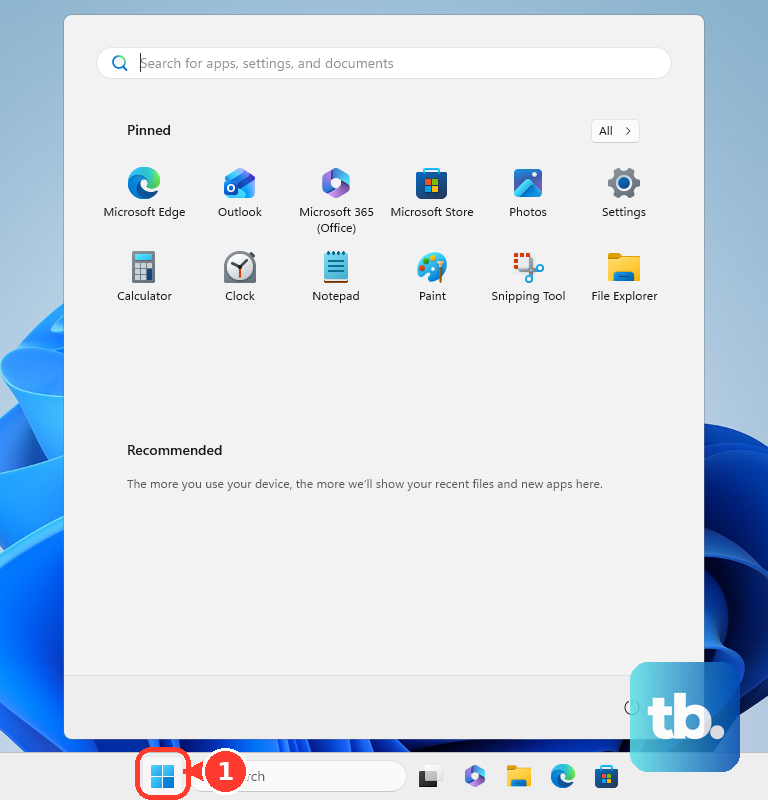
Open the Windows Start Menu, search for PowerToys, and open it. Select File Explorer Add-ons.
Turn off Enable PDF (.pdf) preview. Try Outlook PDF preview again.
Update Or Repair Adobe Acrobat Reader
Use this when Acrobat Reader is installed but Outlook still cannot preview PDFs. It also applies when Reader needs an update or its Windows installation needs repair.
Open Adobe Acrobat Reader.
On Windows, select Menu, then Help, then Check for updates.
Select Download when an update is available.
Follow the prompts, then choose Quit Acrobat and Retry when asked.
On macOS, open Acrobat Reader and select Help, then Check for updates.
For a damaged Windows installation, open Acrobat Reader or Acrobat, choose Menu, then Help, then Repair installation, and follow the prompts.
Restart Windows after the repair when prompted, then test the same PDF attachment in Outlook.
Set Your Default PDF App
Outlook uses your default browser to open or preview many attachment types, so a PDF opens in Microsoft Edge when Edge is your default browser. Set Acrobat or Acrobat Reader as the default when PDFs open in the wrong app or no PDF app is registered.
On Windows, right-click a PDF file, select Properties, then choose Change. Select Adobe Acrobat, or Acrobat Reader when only Reader is installed, then select Set default and OK.
On macOS, right-click a PDF file, select Open With, then Other. Choose Acrobat DC, select Adobe Acrobat, enable Always Open With, and select Open.
If this method fails, update or repair Microsoft 365 or Office next.
Preview PDFs In New Outlook Or Mac
New Outlook, Outlook on the web, and Outlook.com use a different attachment experience than the classic Windows preview handler. Open the message with the PDF, then single-click or double-click the attached file.
When the attachment menu appears, select the attachment dropdown and choose Preview. If Preview is not offered, use the available open or download option for that file type.
In Outlook for Mac, open the message or view it in the reading pane. Next to the attachment, select the drop-down arrow, then Preview. In Legacy Outlook for Mac, select Preview on the attachment instead, or Preview All when the message carries several.
To hide the Mac reading pane, select View, then Reading Pane, then Hidden. Microsoft says preview itself cannot be turned off in Outlook for Mac.
Update Or Repair Microsoft 365
Use this when Adobe and Outlook settings are already correct.
- 1.Open classic Outlook or another Microsoft 365 app, then go to File and Account, or File and Office Account in classic Outlook.
- 2.Under Product Information, choose Update Options, then Update Now; select Enable Updates first when that button is shown.
- 3.On Windows 11, right-click Start, open Installed apps, select your Microsoft 365 or Office product, choose the ellipses, then select Modify.
- 4.For Click-to-run Office, choose Online Repair, then Repair; for MSI-based installs, choose Repair, then Continue.
- 5.On Windows 10, right-click Start, choose Apps and Features, select your Microsoft 365 or Office product, choose Modify, then use the same repair choices.
Check Work Or School Restrictions
This fixes cases where the PDF attachment is delayed, blocked, or unavailable because your organization manages Outlook attachment access.
Ask your IT team whether Outlook on the web attachment viewing is allowed for your mailbox policy.
Ask whether Microsoft Defender Safe Attachments is holding the file for scanning; Dynamic Delivery replaces attachments with placeholders until scanning completes.
Use the available open or download option after your organization releases the attachment or confirms it is allowed.
Skip registry edits, regsvr32 commands, and Acrobat XI-era thumbnail fixes. Current consumer fixes use Outlook settings, matching Adobe Reader bitness, PowerToys settings, Adobe repair, default PDF app settings, and Office repair.
Frequently Asked Questions
Why does Outlook say no previewer is installed for PDF files?
Microsoft identifies two current causes: Adobe Acrobat Reader and Outlook have different bitness, or PowerToys PDF preview conflicts with Outlook's preview handler.
Does the new Outlook use the same PDF previewer as classic Outlook?
No. New Outlook, Outlook on the web, and Outlook.com use their own attachment handling instead of the classic Windows preview-handler system.
Can Outlook preview a PDF attached inside the message body?
No. Microsoft says attachments placed inside the message body cannot be previewed in classic Outlook. Open the attachment instead.
Should I install a third-party PDF previewer to fix Outlook?
No. The supported path here uses Adobe's official Reader page, Outlook settings, PowerToys settings, default app settings, Adobe repair, and Office repair.