PDFs from your desktop opening in Edge, Preview, or another reader means the system PDF default is pointed at the wrong app. PDFs that open inside a browser tab are a separate case: the browser’s own built-in PDF viewer handles those, and you change it in the browser. On Windows and Mac, you can set Acrobat or Acrobat Reader as the system default. On Android, browsers, and cloud apps, the right setting lives in a different place; on iPhone and iPad, Acrobat opens PDFs through the share sheet instead.
Set Acrobat as the default PDF app on Windows
This fixes PDFs opening in Microsoft Edge, another PDF viewer, or the wrong desktop app. Open File Explorer and right-click any PDF file name.
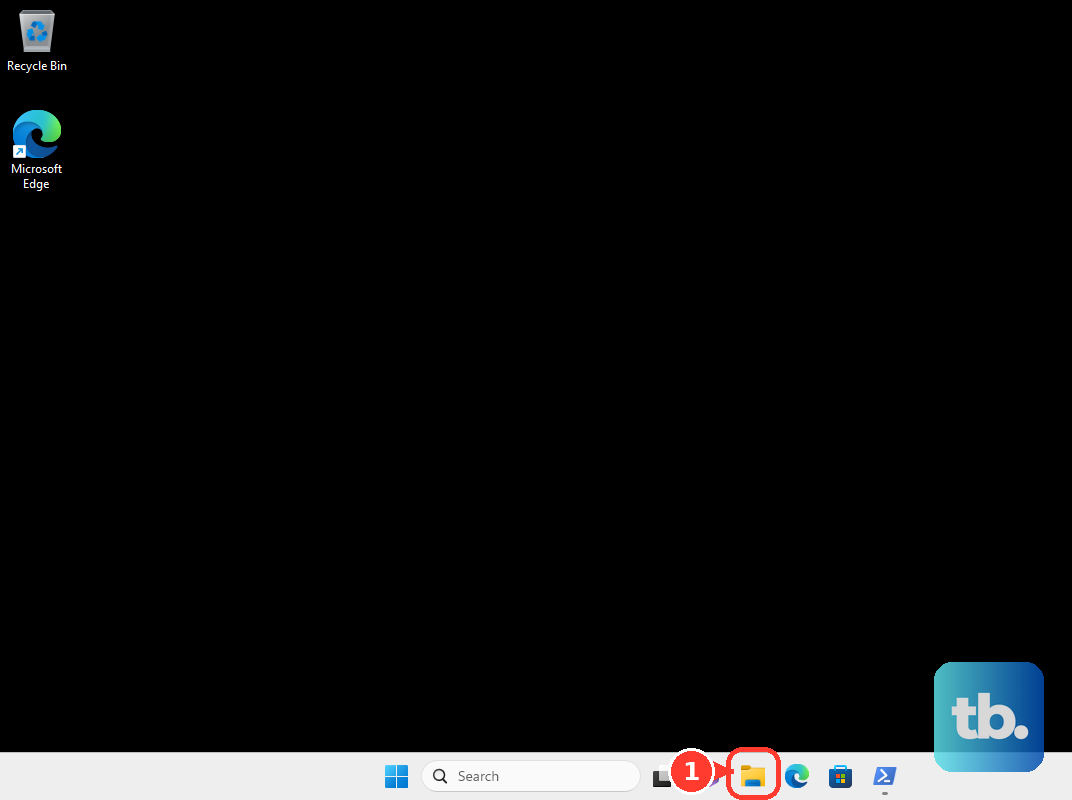
Choose Properties, then select Change next to the current app. Choose Adobe Acrobat. If you only have the free app installed, choose Acrobat Reader.
Select Set default, then choose OK. If Change is unavailable, an administrator manages your device defaults.
Change the PDF default in Windows Settings
You can set Acrobat from the main Windows default apps screen instead.
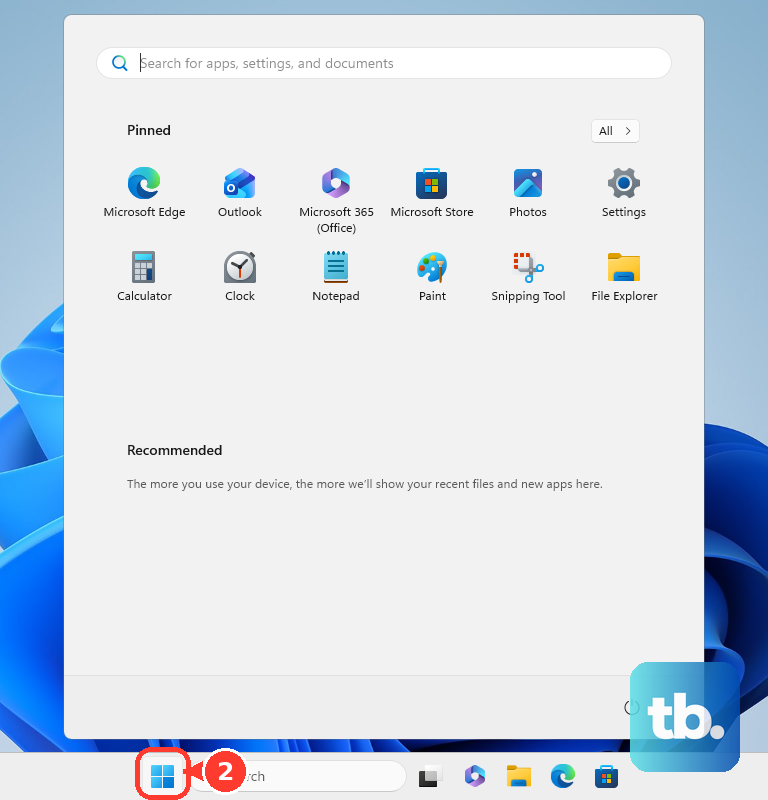
- 1.Open Start, then go to Settings.
- 2.Select Apps, then choose Default apps.
- 3.Type .pdf in the search bar.
- 4.Select the .pdf result.
- 5.Choose Adobe Acrobat or Adobe Acrobat Reader.
Use Acrobat preferences on Windows
Adobe also includes a Windows-only preference for choosing which Adobe app handles PDFs. Use it when both Adobe Acrobat and Acrobat Reader are installed.
Open Adobe Acrobat or Acrobat Reader, open the hamburger menu, then go to Preferences and General.
Select Select As Default PDF Handler. If Tell Me If Adobe Acrobat Is Not My Default PDF Application is enabled, Acrobat shows a prompt when it is not the default PDF application.
Make Acrobat the default on Mac
Use this when PDFs open in Preview or another Mac app. macOS changes the default for every PDF from Finder. Open Finder and select a PDF file.
Choose File, then Get Info. In Open with, choose Adobe Acrobat or Adobe Acrobat Reader. Select Change All to apply it to all PDF files.
For one PDF only, Control-click the PDF, choose Open With, then select Adobe Acrobat or Adobe Acrobat Reader.
Set Acrobat for PDFs on Android
This fixes Android opening PDFs in another installed reader when Acrobat should handle them. Open Settings, then go to Apps.
Choose Adobe Acrobat. Select Acrobat, then open Set as default. Enable Open supported links.
If Android asks which app to use when you open a PDF, choose Acrobat Reader, then select Always.
Use Acrobat on iPhone and iPad
Use this on iPhone or iPad because iOS and iPadOS do not provide a direct setting that makes Acrobat the default PDF app. Adobe’s supported path is to add Acrobat to the share options and send PDFs there.
Open a PDF in any app and tap Share or Open In. Choose More, then tap Edit.
Tap the plus icon for Acrobat. Turn on Copy to Acrobat. Tap Done, then tap Done again. After that, use Share and choose Acrobat or Copy to Acrobat whenever you want the PDF to open in Adobe’s app.
Make Acrobat the PDF viewer in Chrome Edge Gmail or Google Drive
Browser and cloud defaults are separate from your Windows or Mac PDF default. Changing one leaves the other settings unchanged.
In Microsoft Edge, open Extensions, choose the options menu for Adobe Acrobat, open Extension Options, turn on the toggle that makes Acrobat the default PDF viewer in Edge, then select Save preferences.
In Chrome, use the Adobe Acrobat extension options to make PDFs from Gmail and Google Drive open automatically in Acrobat. Go to Extensions, then Manage extensions, open Details for Adobe Acrobat PDF edit convert sign tools, choose Extension options, turn on the Gmail and Google Drive default view options, then select Save preferences.
For Google Drive, open Google Drive, go to Settings, then Manage apps, and set Adobe Acrobat for Google Drive to Use by default.
Handle downloaded PDFs and competing apps
Use these settings when downloaded PDFs still open somewhere unexpected after the system default is set.
- 1.On Windows, make Chrome or Microsoft Edge your default browser.
- 2.Download a PDF in Chrome or Microsoft Edge.
- 3.When the Acrobat or Reader pop-up asks how to open the file, choose the option to always open PDFs in Acrobat or Reader.
- 4.Select Continue.
- 5.To turn this off later, open Acrobat, press CTRL + K, go to General, deselect Always open PDFs downloaded from the web, then select OK.
Removing another PDF app reduces competing handlers, but it does not assign Acrobat by itself. After uninstalling a competing app, set Acrobat again through Windows Default apps, Windows PDF Properties, or Mac Get Info and Change All.
Work with managed devices and older browser advice
Use this when a company, school, or organization controls where PDFs open. On managed Windows devices, an administrator sets Acrobat or Reader as the PDF default through organization policies, and those settings return at the next sign-in when policy reapplies.
Older guides tell users to enable Adobe PDF browser plug-ins in Firefox, Chrome, or Safari. That is not the current way to make Acrobat your default PDF app. The old Chrome plug-in method is no longer compatible. Use Windows Settings, Mac Finder, or the current Adobe Acrobat browser extensions instead.
Frequently Asked Questions
Do I need paid Adobe Acrobat to make it the default PDF app?
No. If you have the free Acrobat Reader installed, choose Acrobat Reader instead of Adobe Acrobat when setting the default.
Why is the Change button missing on Windows?
An administrator manages default apps on that Windows device. This is common on work or school computers.
Can I make Acrobat the true default PDF app on iPhone?
No. iOS and iPadOS do not provide a direct Acrobat-as-default PDF setting, so use Share or Open In to send PDFs to Acrobat.
Is the browser PDF viewer the same as my system PDF default?
No. Edge, Chrome, Gmail, Google Drive, and downloaded-file behavior use separate settings from the Windows or Mac default PDF app.